How to Record a Web Video Stream From a URL
Learn when to use yt-dlp, FFmpeg, OBS, or YouTube’s export tools to record an authorized web video stream from a URL.
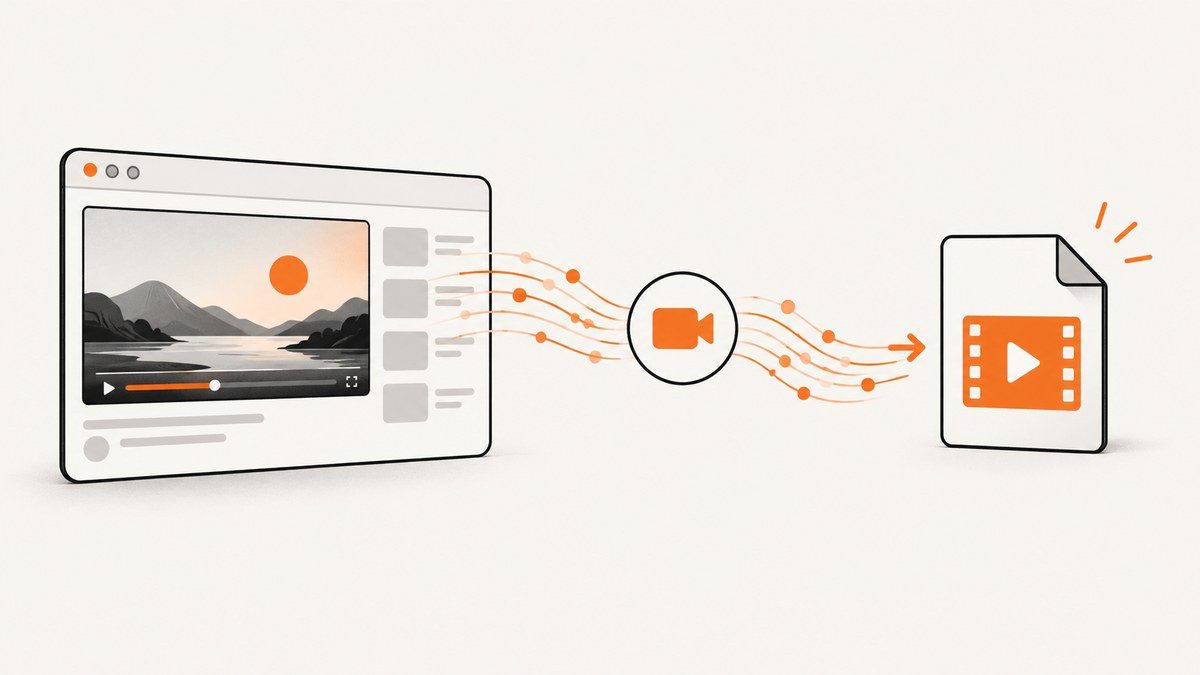
Short answer: First determine whether your URL is a video webpage or a direct media/manifest URL. For a supported webpage, use yt-dlp to extract and download the available formats. For a direct stream URL, use FFmpeg. If the video plays in your browser but extraction does not work, record the authorized playback with OBS Studio. For videos you uploaded to YouTube, use YouTube Studio or Google Takeout first.
Use these methods only for content you own or are authorized to record. A page URL is not automatically the URL of the underlying video, and no method works for every service.
1. Identify the kind of URL you have
| URL type | Example shape | Best starting point |
|---|---|---|
| Video webpage | https://video.example/watch?id=123 |
yt-dlp |
| Direct media file | https://cdn.example/movie.mp4 |
FFmpeg or a normal HTTP download |
| Manifest or network stream | https://cdn.example/master.m3u8 or another stream URL |
FFmpeg |
| Playback that only works in a browser | A page requiring your session | yt-dlp with authorized session context, or OBS |
Open the address in a browser. If it displays a page with a player, treat it as a webpage URL. If it points directly to media or a manifest, pass that resource to FFmpeg. A copied media URL can expire or require the same IP address, cookies, or headers as the browser session that obtained it.
2. Download a supported video page with yt-dlp
Install
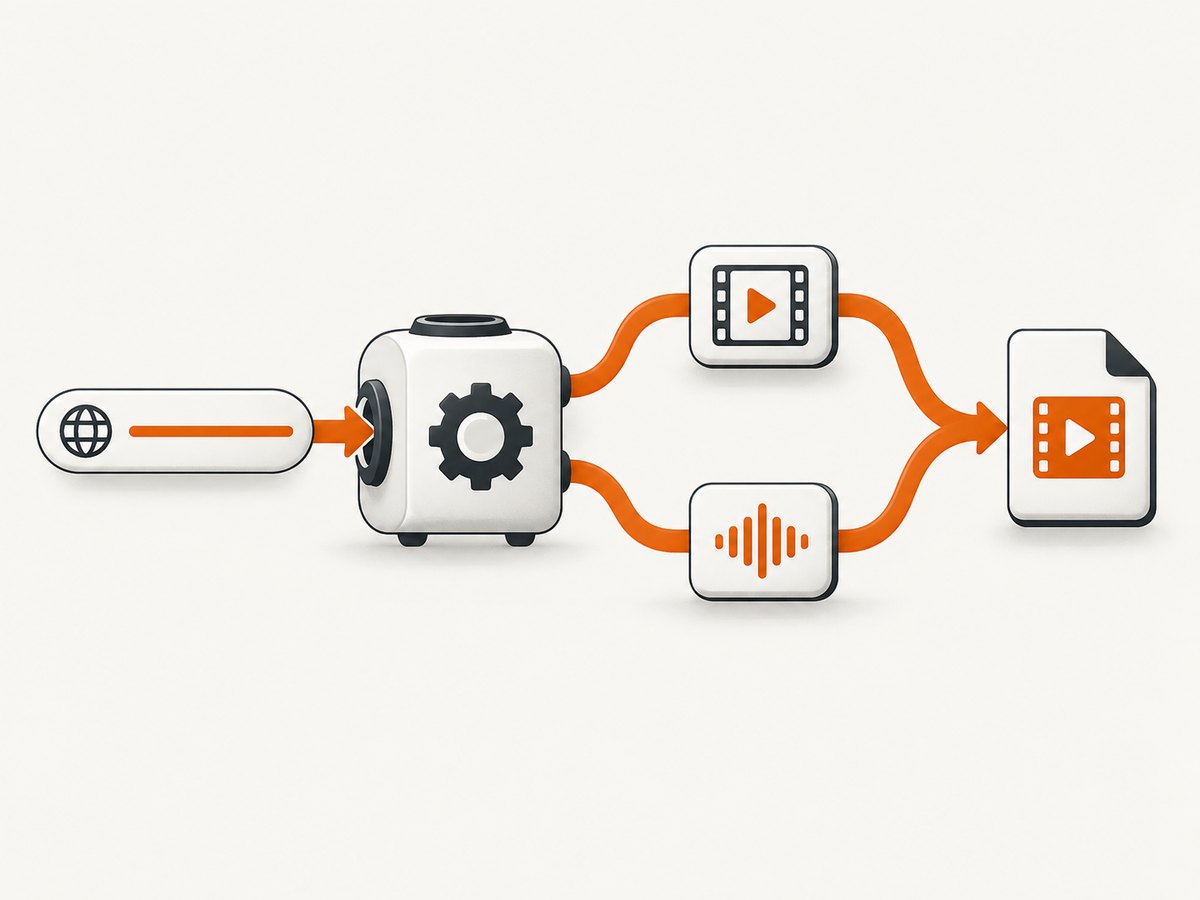
Install yt-dlp using the method recommended for your operating system. Keep it current because websites change their URL schemes and delivery behavior. Install FFmpeg as well when you need to merge separate video and audio streams.
Inspect formats before downloading
yt-dlp -F "https://example.com/watch?id=123"The command lists formats exposed by the extractor. It does not mean every listed format is available for every account, region, or playback session.
Download the default format
yt-dlp "https://example.com/watch?id=123"Select the best video and audio and merge them
yt-dlp -f "bestvideo+bestaudio" "https://example.com/watch?id=123"Many services provide video-only and audio-only formats. The + selector asks yt-dlp to obtain both; FFmpeg is required to merge them into the output file. Without the merger, you may receive only one stream or an unintended format.
Choose an output name and container
yt-dlp -f "bestvideo+bestaudio" \
  --merge-output-format mp4 \
  -o "downloads/%(title)s [%(id)s].%(ext)s" \
  "https://example.com/watch?id=123"
The suitable container depends on the codecs returned by the service. If MP4 cannot contain the selected codecs without conversion, choose another container or let yt-dlp select a compatible result.
Use a browser session only when you are authorized
Some services require cookies or headers from the same browser session. Use yt-dlp’s documented cookie and header options with your own account and follow the service’s rules. Do not use session data to bypass an access control you are not entitled to pass.
# Example pattern; use your own authorized browser profile
 yt-dlp --cookies-from-browser chrome "https://example.com/watch?id=123"
If the URL contains query parameters joined by &, quote the entire URL so your shell passes it intact:
yt-dlp "https://example.com/watch?id=123&part=1"3. Record a direct stream with FFmpeg
FFmpeg accepts an input URL with -i, followed by output options and an output filename. Stream-copy mode avoids re-encoding when the source codecs and destination container are compatible.
ffmpeg -i "https://cdn.example.com/master.m3u8" -c copy output.mkvThis is a general command pattern, not a guarantee for every server or stream. Compatibility depends on the input codecs, packaging, authentication, and whether the stream is live.
Remux to MP4 when compatible
ffmpeg -i "https://cdn.example.com/video.mp4" -c copy output.mp4Record a live input for a fixed duration
ffmpeg -i "https://cdn.example.com/live.m3u8" -t 00:30:00 -c copy live-capture.mkvUse a segmenting or resilient recording design for long-running live streams. A network interruption, expired token, or provider-side discontinuity can stop a simple command.
Re-encode when stream copy fails
ffmpeg -i "https://cdn.example.com/input" \
  -c:v libx264 -preset medium -crf 20 \
  -c:a aac -b:a 192k output.mp4
Re-encoding consumes substantially more CPU and can reduce quality. Use it only when the source cannot be placed directly into your required container or when you need a standard codec.
4. Use OBS when browser playback works
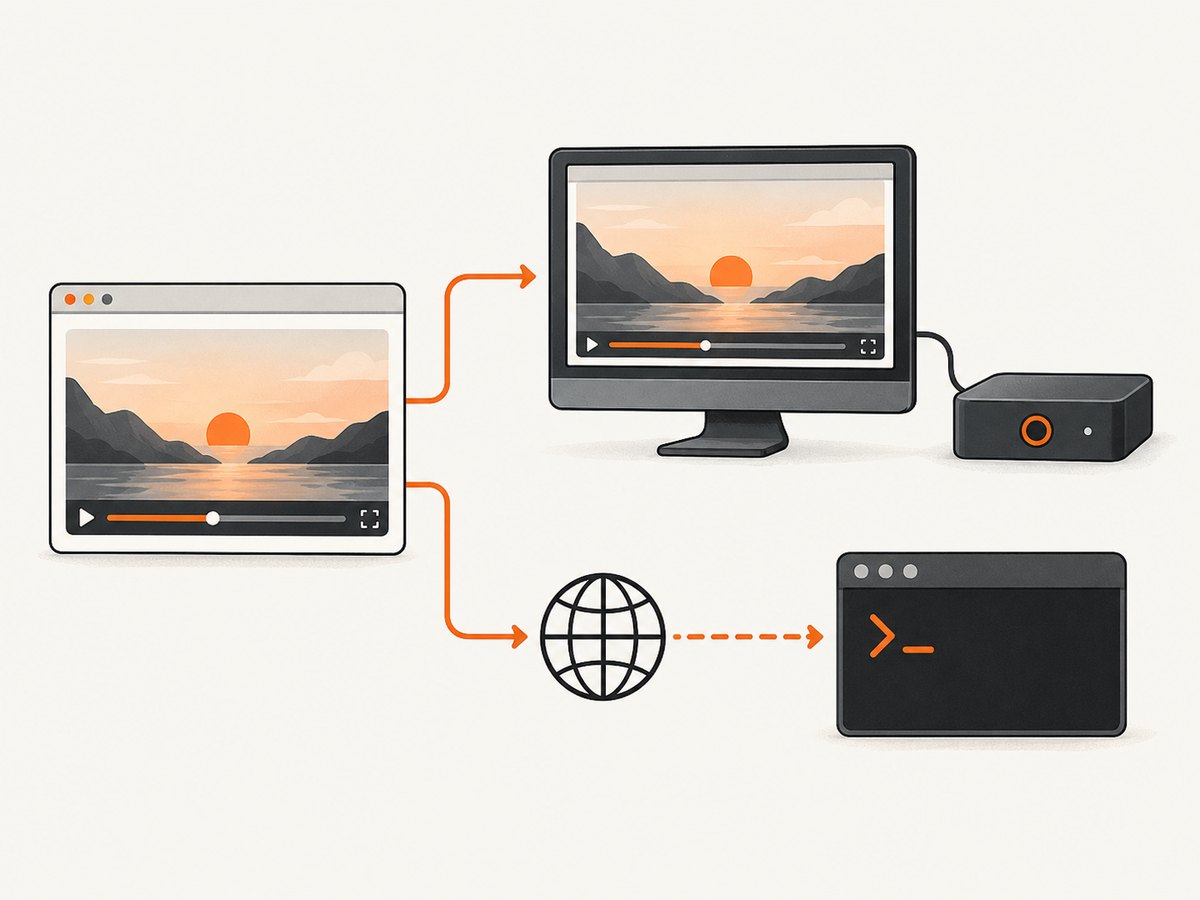
When an authorized stream plays in a browser but a downloader cannot access it, OBS can record the rendered playback. This captures what is displayed rather than retrieving the original media, so quality and frame rate depend on your playback and recording settings.
- Install OBS Studio from its official site.
- Run the auto-configuration wizard and select recording-oriented settings.
- Add a Window Capture or Display Capture source for the browser.
- Play the video at the intended resolution and disable unrelated notifications.
- Choose a recording format and destination in Settings > Output.
- Start recording, play the authorized stream, then stop recording.
OBS recommends recording presets and using a hardware encoder when one is available on your system. Hardware encoding is optional; it does not require buying additional equipment.
Screen recording is a fallback, not a way to circumvent DRM or other access protections. It may produce a less direct copy than downloading the source.
5. Download your own YouTube uploads
If you uploaded the video to YouTube, use the platform’s official export route before general-purpose tools. YouTube Studio can download an MP4 of your own upload, and Google Takeout can export all of your uploaded videos. The cited YouTube Help guidance says these MP4 downloads are 720p or 360p depending on video size and that the feature does not download another user’s video.
6. Choose the right method
| Route | Best fit | Limits |
|---|---|---|
| yt-dlp | Supported video webpage; format selection | Extractor support changes; session context may be required; FFmpeg may be needed for merging |
| FFmpeg | Direct media or manifest URL | Access, codecs, packaging, and live behavior vary |
| OBS Studio | Authorized playback that works in a browser | Captures the rendered screen; quality depends on setup |
| YouTube Studio/Takeout | Your own YouTube uploads | Official download route does not cover other users’ uploads |
Before choosing, check the URL type, authorization, whether the source is live or on-demand, whether cookies or headers are needed, whether audio and video are separate, and which output container you need.
7. Troubleshooting
“No supported video” or no formats are listed
Confirm that you supplied the video page rather than a login page, playlist wrapper, or ordinary article. Update yt-dlp and check its supported-sites documentation. Site changes can make an extractor stale.
The copied stream URL returns 403 or 401
The URL may be signed, expired, IP-bound, or dependent on cookies and headers from the browser session. Obtain a fresh URL through an authorized session and provide the required context using documented options. Do not attempt to defeat access controls.
The shell splits the URL at an ampersand
Quote the complete URL: yt-dlp "https://example.test/watch?id=123&part=1". The same rule applies to FFmpeg and other command-line clients.
The result contains video but no audio
Inspect formats with -F, select bestvideo+bestaudio, and ensure FFmpeg is installed so yt-dlp can merge the streams.
FFmpeg says the output container is incompatible
Try a container suited to the input, such as MKV, or re-encode to codecs supported by your required output. Stream copy cannot change incompatible codecs.
The live recording stops unexpectedly
Check network stability, token expiration, provider disconnects, and available disk space. For long captures, write segments and monitor the process instead of relying on one uninterrupted file.
OBS records a black window or no audio
Try Display Capture instead of Window Capture, verify that the browser is visible on the selected display, and select the correct desktop or application audio source. GPU and browser privacy settings can affect capture.
The recording is stuttery
Lower the capture resolution or frame rate, close competing applications, and use a hardware encoder if available. Re-encoding with FFmpeg also needs enough CPU for the selected preset.
8. Performance, reliability, and cost notes
- Direct download is usually the most efficient: yt-dlp and FFmpeg can save source streams without screen rendering or re-encoding when codecs are compatible.
- Separate streams need extra work: downloading video and audio independently and merging them requires disk space for both and an FFmpeg pass.
- Screen capture uses more local resources: playback, compositing, encoding, and disk writing happen at the same time.
- Live streams are less predictable: manifests rotate, segments can be missing, and signed URLs can expire.
- Plan storage: bitrate multiplied by recording duration is the lower-bound size before container overhead.
- Software costs vary: yt-dlp, FFmpeg, and OBS are software tools; your practical costs are compute, storage, and network usage. YouTube’s official export is part of the platform account workflow.
9. Rights and platform rules
Record only content you own or have permission to record. Platform terms and copyright rules vary by jurisdiction and use case. YouTube scans live streams for third-party content and may interrupt or terminate streams; even licensed material may require a Content ID allowlist. That policy guidance is not a complete statement of copyright law everywhere.
Or skip the browser setup
If you need a still image of the video page, documentation page, or status screen rather than a video file, ScreenshotNeo provides a website screenshot API. It is not a video recorder, but one request can capture a clean PNG, JPEG, WebP, or PDF of a URL.
See the ScreenshotNeo API documentation for all options. This cURL example captures a page:
curl -G "https://api.screenshotneo.com/v1/shot" -d access_key=YOUR_API_KEY --data-urlencode url=https://example.com/video -o shot.webpimport requests
r = requests.get("https://api.screenshotneo.com/v1/shot", params={"access_key": "YOUR_API_KEY", "url": "https://example.com/video"}, timeout=90)
open("shot.webp", "wb").write(r.content)const q = new URLSearchParams({ access_key: 'YOUR_API_KEY', url: 'https://example.com/video' });
const res = await fetch(`https://api.screenshotneo.com/v1/shot?${q}`);Cookie banners, newsletter popups, and chat widgets are removed before the shot. Bot checks, blank pages, failed loads, timeouts, and cache hits are never billed, and response headers report the page verdict and billing status. An MCP server lets Claude, Cursor, and other MCP clients call take_screenshot, get_page_info, and capture_pdf. The Free plan includes 1,000 screenshots each month with no card; paid plans start at $5 for 3,000 shots.
Create a free ScreenshotNeo account to capture up to 1,000 screenshots a month without a card.
FAQ
Can I record any URL with yt-dlp?
No. yt-dlp supports many sites, but support changes and some services require an authorized session. Check the current project documentation.
Is an HLS URL the same as an MP4 URL?
No. HLS commonly uses a manifest that references segments. FFmpeg can often read it directly, but authentication, codecs, and server behavior still determine success.
Should I use OBS or FFmpeg?
Use FFmpeg when you have an accessible direct stream and want the source data. Use OBS when authorized playback works but direct extraction is unavailable.
Can I download another person’s YouTube video with YouTube Studio?
No. The official creator-download feature is for videos uploaded to your account; YouTube’s help page explicitly excludes other users’ videos.
Will screen recording preserve the original quality?
Not necessarily. OBS records the rendered playback, so the result depends on browser resolution, display scaling, frame rate, and encoder settings.
What should I do when a recording is legally unclear?
Do not record until you have permission or suitable legal guidance for your jurisdiction and use case.


