How to Reduce the Size of Base64 Selenium WebDriver Screenshots
Shrink Selenium Base64 screenshots by capturing fewer pixels, resizing or converting the image, then encoding the transformed bytes.
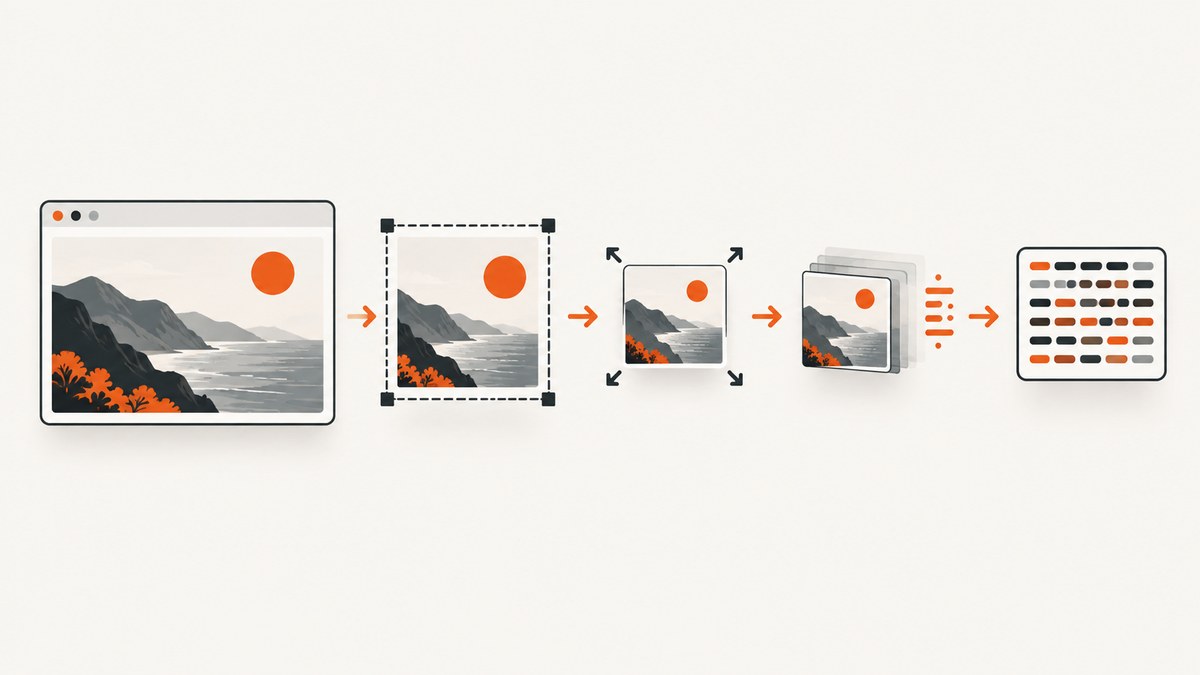
Direct answer: Selenium’s Base64 screenshot is an encoded image. Do not try to shorten the Base64 characters themselves. Capture only the pixels you need, decode the Base64 value to image bytes, resize or convert those bytes, then Base64-encode the transformed image.
The usual reduction pipeline is:
- Capture an element or a smaller viewport when possible.
- Decode Selenium’s Base64 string to PNG bytes.
- Resize while preserving aspect ratio if the consumer does not need native pixels.
- Keep PNG for sharp text, diagrams, transparency, and lossless evidence; use JPEG when photographic content or gradients matter more than lossless detail.
- Encode the final bytes to Base64 only after transformation.
Selenium documents get_screenshot_as_base64(), get_screenshot_as_png(), window sizing, and element screenshots in its WebDriver API documentation.
1. Why Base64 screenshots become large
The image is large before Base64 is applied. Base64 is a transport encoding around the screenshot bytes, so string operations cannot remove the pixels that consume most of the payload. A full desktop viewport, device-pixel-ratio scaling, large images, gradients, and long pages all increase the source image size.
Base64 also adds textual transport overhead. If the receiving interface accepts binary multipart data or an object-storage URL, using that interface can avoid the Base64 expansion, but it does not reduce the screenshot itself.
2. Reduce capture scope before encoding
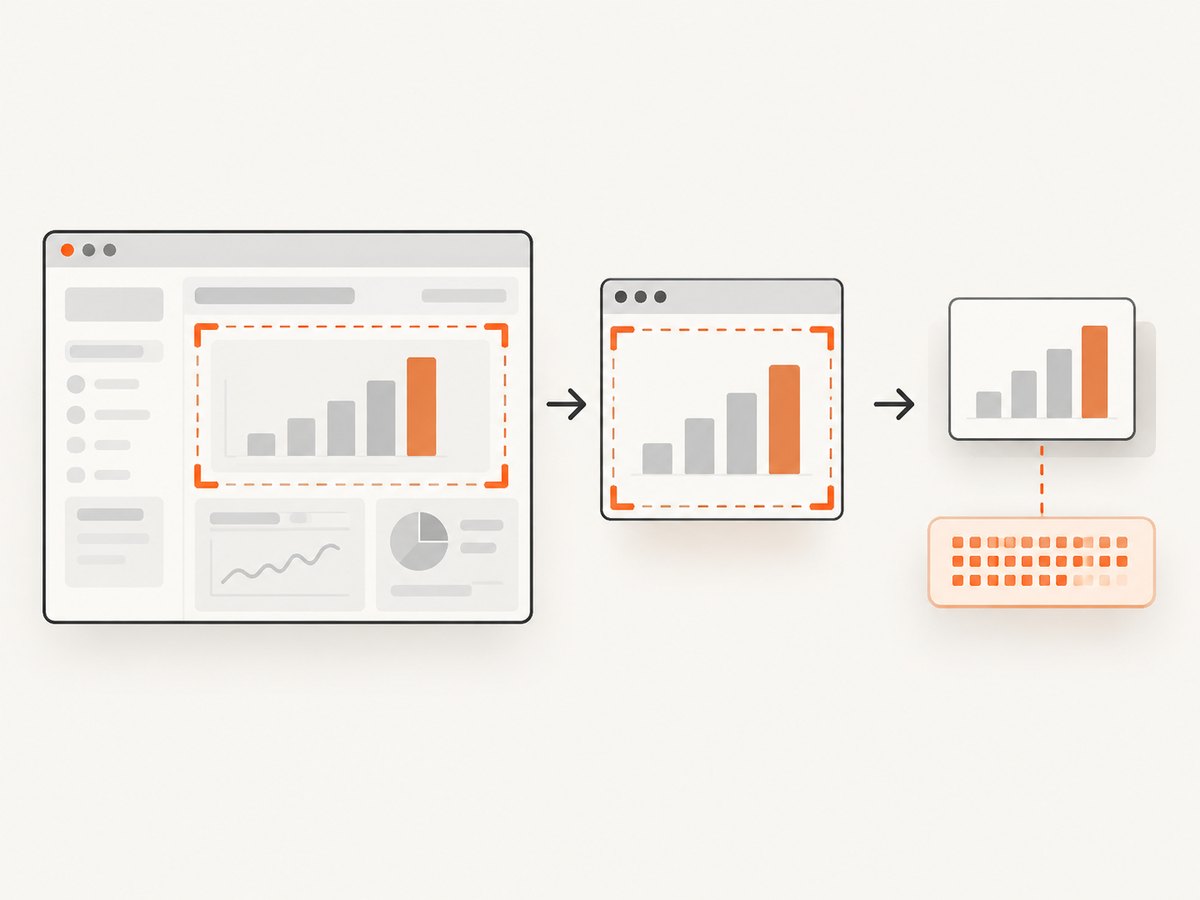
Capture scope is often the highest-impact setting. If an API consumer needs a chart, table, error panel, or other element, capture that element instead of the complete window. Selenium supports screenshots of individual elements as well as the current browsing context.
Element screenshot in Python
from selenium import webdriver
from selenium.webdriver.common.by import By

options = webdriver.ChromeOptions()
options.add_argument('--headless=new')
driver = webdriver.Chrome(options=options)
try:
    driver.get('https://example.com')
    element = driver.find_element(By.CSS_SELECTOR, '#main-chart')
    element.screenshot('chart.png')
finally:
    driver.quit()
If you need the full viewport, set the smallest dimensions that still contain the required content. Selenium exposes set_window_size(width, height).
driver.set_window_size(1200, 800)
driver.save_screenshot('viewport.png')
Full-page capture is a separate concern from reducing a viewport screenshot. A full-page image may be much taller, so consider whether the downstream task truly needs every pixel.
3. Python: decode, resize, convert, and re-encode
Install the dependencies:
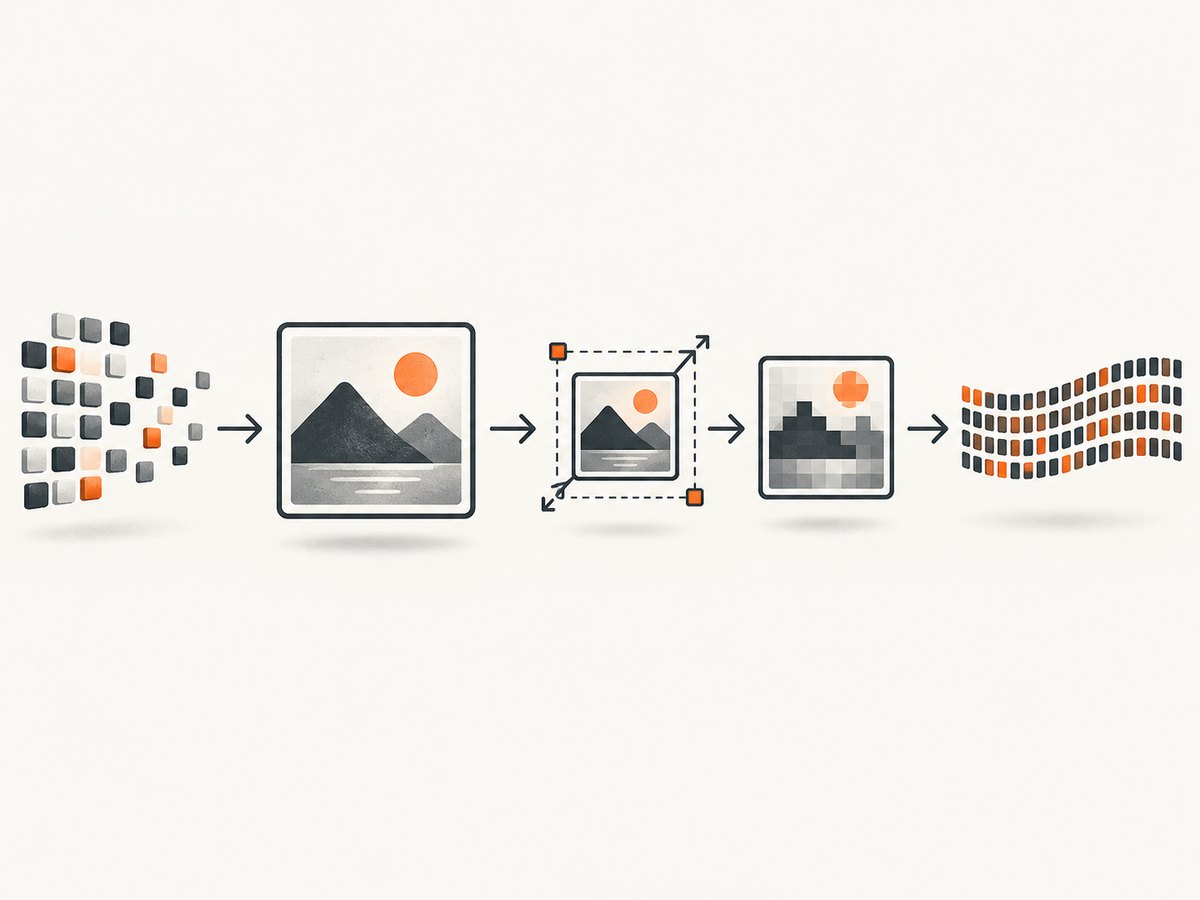
python -m pip install selenium pillowThis complete example captures a page, decodes Selenium’s Base64 result, resizes it to a configured width, converts it to JPEG, and emits a new Base64 value. Set OUTPUT_FORMAT to 'PNG' when you need transparency or lossless text.
import base64
import io
from selenium import webdriver
from PIL import Image

URL = 'https://example.com'
TARGET_WIDTH = 1200
OUTPUT_FORMAT = 'JPEG'
JPEG_QUALITY = 75

options = webdriver.ChromeOptions()
options.add_argument('--headless=new')
options.add_argument('--window-size=1200,800')
driver = webdriver.Chrome(options=options)
try:
    driver.get(URL)
    source_b64 = driver.get_screenshot_as_base64()
    source_bytes = base64.b64decode(source_b64)

    with Image.open(io.BytesIO(source_bytes)) as image:
        ratio = TARGET_WIDTH / image.width
        target_height = round(image.height * ratio)
        resized = image.resize((TARGET_WIDTH, target_height), Image.Resampling.LANCZOS)

        output = io.BytesIO()
        if OUTPUT_FORMAT == 'JPEG':
            resized.convert('RGB').save(
                output,
                format='JPEG',
                quality=JPEG_QUALITY,
                optimize=True,
            )
        else:
            resized.save(output, format='PNG', optimize=True)

    result_bytes = output.getvalue()
    result_b64 = base64.b64encode(result_bytes).decode('ascii')
    print(f'input bytes: {len(source_bytes)}')
    print(f'output bytes: {len(result_bytes)}')
    print(f'output Base64 characters: {len(result_b64)}')
    with open('small-screenshot.' + ('jpg' if OUTPUT_FORMAT == 'JPEG' else 'png'), 'wb') as file:
        file.write(result_bytes)
finally:
    driver.quit()
get_screenshot_as_png() is also available when you want PNG bytes directly:
png_bytes = driver.get_screenshot_as_png()That avoids one decode step, but you still need to transform the bytes before encoding the final payload.
4. Node.js: process Selenium bytes with sharp
Install Selenium WebDriver and sharp:
npm install selenium-webdriver sharpThe following script captures a PNG buffer, resizes it, converts it to JPEG, and creates a Base64 string.
const { Builder } = require('selenium-webdriver');
const chrome = require('selenium-webdriver/chrome');
const sharp = require('sharp');

(async () => {
  const options = new chrome.Options().addArguments('--headless=new', '--window-size=1200,800');
  const driver = await new Builder().forBrowser('chrome').setChromeOptions(options).build();
  try {
    await driver.get('https://example.com');
    const pngBuffer = await driver.takeScreenshot();
    const source = Buffer.from(pngBuffer, 'base64');
    const output = await sharp(source)
      .resize({ width: 1200, withoutEnlargement: true })
      .jpeg({ quality: 75, mozjpeg: true })
      .toBuffer();
    const resultBase64 = output.toString('base64');
    console.log({ inputBytes: source.length, outputBytes: output.length, base64Characters: resultBase64.length });
    require('fs').writeFileSync('small-screenshot.jpg', output);
  } finally {
    await driver.quit();
  }
})();
For a lossless result, replace the JPEG pipeline with sharp(source).resize({ width: 1200, withoutEnlargement: true }).png({ compressionLevel: 9 }).toBuffer().
5. cURL and binary transport
Selenium itself does not define a generic upload endpoint for screenshot Base64 values. If your receiving service accepts a file upload, send the transformed binary file with that service’s documented field name:
curl -X POST https://upload.example.test/screenshots \
  -F 'file=@small-screenshot.jpg;type=image/jpeg'
Use the service’s actual URL and authentication requirements. If it specifically requires Base64 JSON, place the final result_b64 value from the Python or Node.js examples in the documented JSON field.
6. Choosing dimensions and formats
| Decision | Use this when | Trade-off |
|---|---|---|
| Element capture | Only one chart, table, panel, or control is needed | Requires a stable selector |
| Smaller viewport | The whole visible page is needed | May omit content below the fold |
| Resize | The consumer does not need native pixels | Small text can become unreadable |
| PNG | Text, diagrams, transparency, or test evidence | Often larger for photographs and gradients |
| JPEG | Photos and gradients where some loss is acceptable | Artifacts around text and sharp edges |
Resize width and height together to preserve aspect ratio. Never upscale an already small screenshot. Choose a target width in application configuration and check representative pages before deploying it.
7. Quality, readability, and edge cases
- Small text: compare PNG with higher-quality JPEG before lowering dimensions or quality.
- Transparency: JPEG has no alpha channel; use PNG and preserve the alpha channel.
- Color profiles: normalize images if different consumers render color inconsistently.
- Device pixel ratio: a retina screenshot has more pixels than its CSS dimensions suggest. Reduce the scale only when the consumer does not require high-density evidence.
- Very tall pages: process in a worker and enforce memory limits. A full-page screenshot can exceed the size of a normal viewport by many times.
- Animated content: capture after the required state is visible; compression cannot fix a screenshot taken at the wrong frame.
- Element not found: wait for the selector and ensure it is in the current browsing context or iframe.
- Unreadable output: increase target dimensions, use PNG, or raise JPEG quality.
8. Measure the actual reduction
There is no universal percentage reduction. Results depend on dimensions, page content, format, and quality. Build a small corpus containing text-heavy, image-heavy, and mixed pages, then record:
- Original image bytes
- Transformed image bytes
- Base64 character count
- Processing time and peak memory
- Human or automated readability checks
Keep the smallest configuration that meets the consumer’s fidelity requirement. Store the target width, format, and quality beside the code so changes are reviewable.
9. Troubleshooting
| Symptom | Likely cause | Fix |
|---|---|---|
| Base64 is almost as large as before | Only the string was manipulated | Decode to bytes, resize or convert, then encode again |
| Text is blurry | Target dimensions or JPEG quality are too low | Increase dimensions or quality; test PNG |
| Black or missing background | Alpha was discarded during conversion | Keep PNG or composite onto an explicit background |
| JPEG save raises a mode error | The source image is RGBA or palette mode | Convert to RGB before saving JPEG |
| Output is unexpectedly huge | Viewport, device scale, or full-page height is excessive | Capture an element, reduce viewport size, or resize earlier |
| Screenshot call fails intermittently | Page, driver, or browser timing varies | Wait for the required state, add bounded retries, and capture diagnostics |
| Element screenshot is blank | Element is hidden, detached, outside the active frame, or not loaded | Switch to the correct frame and wait for visibility and layout |
10. Performance, reliability, and cost
Resizing and JPEG encoding consume CPU, while very large screenshots consume memory. Process images in memory for small payloads, but use bounded worker queues for full-page captures. Record failures separately from successful transformations so an upload retry does not duplicate downstream work.
For evidence used in visual regression or compliance workflows, prefer PNG or a quality setting that preserves the details being checked. For previews and transport payloads, a smaller JPEG may be appropriate after visual inspection.
Cache transformed output when the source URL, viewport, format, dimensions, and quality are unchanged. Include those parameters in the cache key. Do not assume a smaller file is cheaper if your provider bills requests, pixels, or storage separately; check the provider’s pricing model.
11. Or skip the browser setup
ScreenshotNeo provides a website screenshot API and MCP server. One GET request returns PNG, JPEG, WebP, or PDF, with options for resizing, element capture, full-page capture, custom CSS and JavaScript, waits, blocking requests, headers, cookies, user agents, and caching. Cookie and consent banners, newsletter popups, and chat widgets are removed before capture. Bot checks, blank pages, timeouts, failed loads, and cache hits are not billed, and response headers identify the page verdict and billing status.
Use the API directly:
curl -G 'https://api.screenshotneo.com/v1/shot' \
  -d access_key=YOUR_API_KEY \
  --data-urlencode url=https://stripe.com \
  -o shot.webp
import requests
r = requests.get('https://api.screenshotneo.com/v1/shot', params={'access_key': 'YOUR_API_KEY', 'url': 'https://stripe.com'}, timeout=90)
r.raise_for_status()
open('shot.webp', 'wb').write(r.content)const q = new URLSearchParams({ access_key: 'YOUR_API_KEY', url: 'https://stripe.com' });
const res = await fetch(`https://api.screenshotneo.com/v1/shot?${q}`);
if (!res.ok) throw new Error(`HTTP ${res.status}`);
require('fs').writeFileSync('shot.webp', Buffer.from(await res.arrayBuffer()));See the ScreenshotNeo API documentation for parameters and response details. Its MCP server includes take_screenshot, get_page_info, and capture_pdf tools for Claude, Cursor, and other MCP clients. The free plan includes 1,000 screenshots per month with no card; paid plans start at $5 for 3,000 screenshots.
Create a free ScreenshotNeo account to try the API with 1,000 screenshots per month and no card.
12. FAQ
Can I reduce a Base64 screenshot with a regular expression?
No. The Base64 text represents image bytes. Decode it and transform the image first.
Should I always convert PNG to JPEG?
No. PNG is usually safer for text, diagrams, transparency, and lossless evidence. JPEG is useful when photographic content or gradients dominate and artifacts are acceptable.
Is element capture better than resizing?
When the consumer needs only one part of a page, element capture removes unrelated pixels before encoding and is usually the better starting point.
How much smaller will the result be?
It depends on the page, dimensions, format, and quality. Measure representative screenshots instead of relying on a fixed percentage.
Can I avoid Base64 completely?
If the receiving interface supports binary multipart uploads or an object-storage URL, use that interface. Otherwise, encode the transformed bytes as required.


