How to Reduce html2canvas Export File Size
Shrink html2canvas images by controlling pixel dimensions, choosing the right format, and avoiding oversized canvases without sacrificing needed detail.
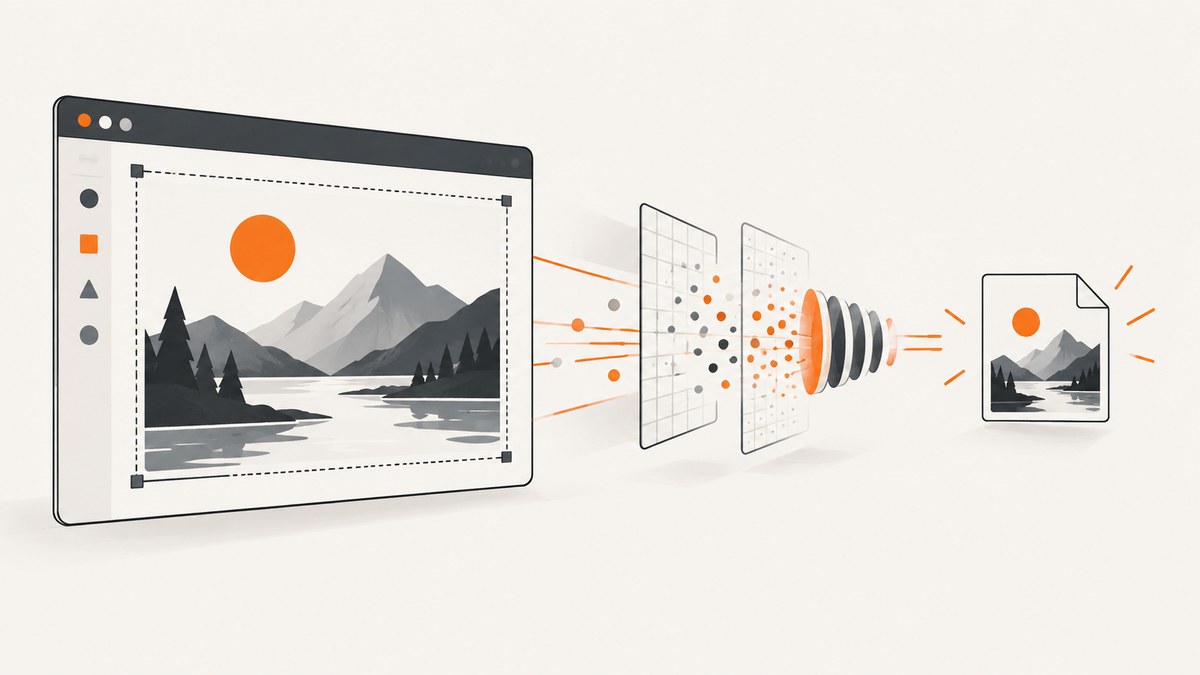
Direct answer: reduce html2canvas output size in three separate ways. First, render fewer pixels by lowering scale, setting deliberate dimensions, or cropping to the required region. Second, choose an encoding that matches the content: JPEG can reduce bytes for photographs and gradients, while PNG preserves sharp text, flat colors, and transparency. Third, use a Blob when your delivery path is upload or download, while remembering that changing from a data URL to a Blob does not compress the encoded image by itself.
There is no universal percentage reduction. The result depends on pixel dimensions, page content, browser encoders, format, and quality. Measure the actual output at the display size your users need.
1. Decide what “file size” means
Developers often use “size” for three different values:
| Target | What to change | Typical tradeoff |
|---|---|---|
| Pixel dimensions | scale, width, height, x, y |
Less detail or a tighter crop |
| Encoded bytes | PNG versus JPEG, JPEG quality, image content | Lossy artifacts or loss of transparency |
| Application memory and handling | Blob instead of a long data URL string | Simpler file workflows, but no automatic compression |
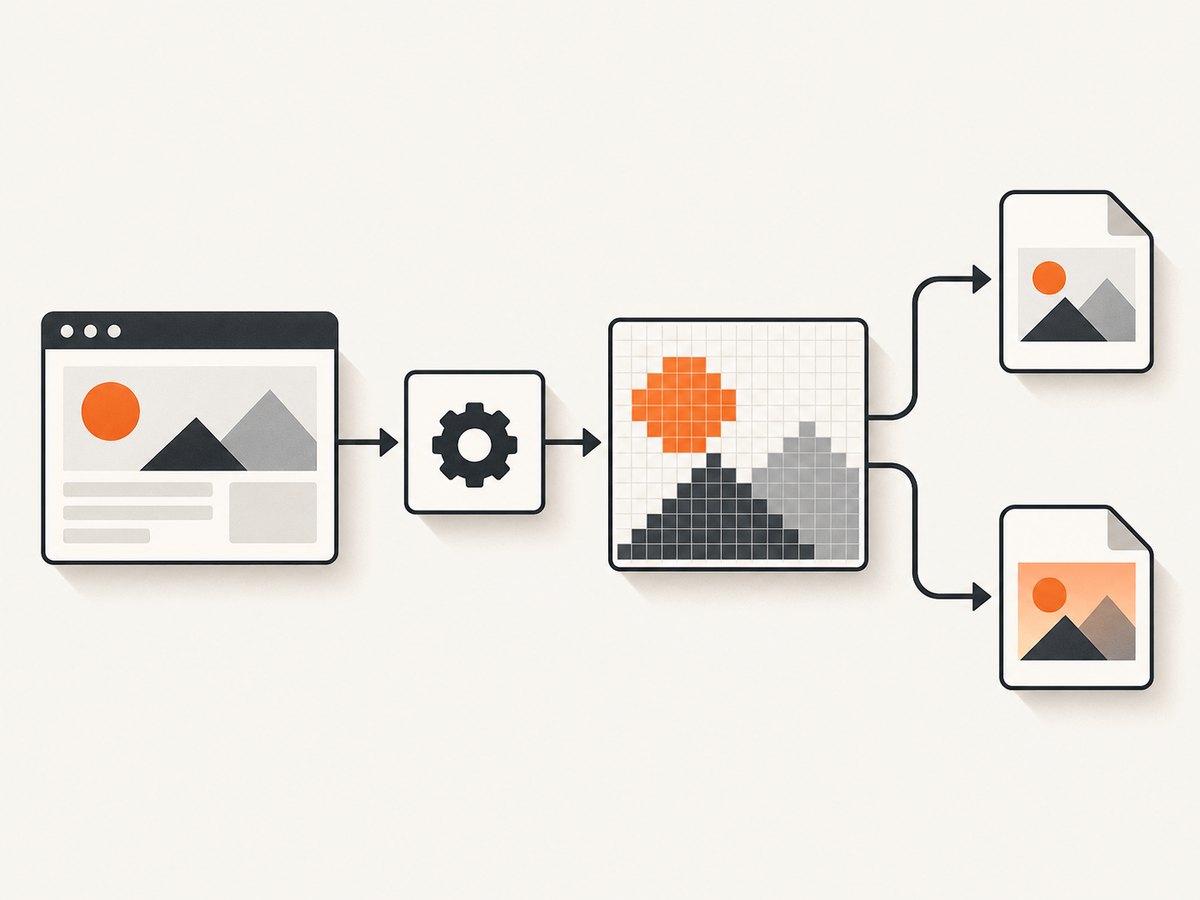
Start with the first category. A canvas with half the width and half the height contains one quarter as many pixels, so it normally needs less memory and produces fewer encoded bytes. Do not reduce dimensions until text, diagrams, and controls remain legible at the real viewing size.
2. Lower html2canvas pixel dimensions deliberately
The html2canvas configuration reference says scale defaults to window.devicePixelRatio. A retina display can therefore create a canvas larger than the CSS dimensions suggest. Set an explicit value when predictable output matters.
const element = document.querySelector('#report');
const canvas = await html2canvas(element, {
  scale: 1,
  width: 1200,
  height: 800
});

canvas.toBlob(blob => {
  if (!blob) throw new Error('Canvas encoding failed');
  console.log(`${blob.size} bytes`, blob.type);
}, 'image/png');
This example uses scale: 1 as a starting point, not a universal best value. Compare 0.75, 1, and a higher value against your acceptance criteria. A lower scale reduces pixels but can make small type soft.
Use width and height when the output must have known dimensions. Use x and y with those dimensions to capture a region instead of the entire element:
const canvas = await html2canvas(document.body, {
  scale: 1,
  x: 80,
  y: 160,
  width: 1000,
  height: 700,
  windowWidth: document.documentElement.scrollWidth,
  windowHeight: document.documentElement.scrollHeight
});
Check your crop against responsive breakpoints. A crop that is correct at one viewport can cut off a sidebar or wrap text differently at another.
Exclude content that should not be exported
Controls, cookie notices, animated decorations, and navigation often add pixels without adding value. The ignoreElements callback can skip nodes:
const canvas = await html2canvas(document.querySelector('#invoice'), {
  scale: 1,
  ignoreElements: element => element.matches('.no-export, button, video')
});
If you need to make temporary changes without altering the live page, use onclone. The callback receives the cloned document used for rendering:
const canvas = await html2canvas(document.querySelector('#dashboard'), {
  scale: 1,
  onclone: clonedDocument => {
    clonedDocument.querySelectorAll('.export-only-hidden').forEach(node => {
      node.style.display = 'none';
    });
  }
});
Other useful controls include backgroundColor (set it to null for transparency where supported), scrollX and scrollY for positioning, and windowWidth and windowHeight for layout calculation. Keep the viewport large enough for the content you intend to render.
3. Choose PNG or JPEG based on the content
Canvas export defaults to PNG when the type is omitted or unsupported. PNG is lossless and supports transparency, so it usually fits UI screenshots, diagrams, text, and flat colors. Photographs, gradients, and textured pages can occupy fewer bytes as JPEG.
const canvas = await html2canvas(document.querySelector('#photo-card'), {
  scale: 1
});

const jpeg = await new Promise((resolve, reject) => {
  canvas.toBlob(blob => blob ? resolve(blob) : reject(new Error('No blob returned')), 'image/jpeg', 0.82);
});

console.log(jpeg.type, jpeg.size);
The quality argument is meaningful for formats such as JPEG. It is not a general PNG compression slider. Test several values, such as 0.7, 0.82, and 0.9, while checking text edges, gradients, and blocking artifacts. JPEG cannot represent transparency; use PNG when transparent pixels are required.
Always verify the requested MIME type. If a browser does not support it, the canvas API can fall back to PNG. Inspect blob.type and the resulting byte count instead of assuming the requested format was used.
4. Prefer Blob for file workflows
toDataURL() returns a base64 data URL. It is convenient for a quick preview, but it expands binary data and can create a large JavaScript string. For uploads and downloads, convert the canvas to a Blob:
const canvas = await html2canvas(document.querySelector('#receipt'), { scale: 1 });
const blob = await new Promise(resolve => canvas.toBlob(resolve, 'image/png'));
if (!blob) throw new Error('Could not encode canvas');

const form = new FormData();
form.append('file', blob, 'receipt.png');
await fetch('/upload', { method: 'POST', body: form });
A Blob can reduce handling overhead and avoid carrying a long base64 string through your application. It does not, by itself, reduce the encoded image payload. To make the file smaller, change dimensions or encoding and measure blob.size.
5. Prevent oversized canvases and blank output
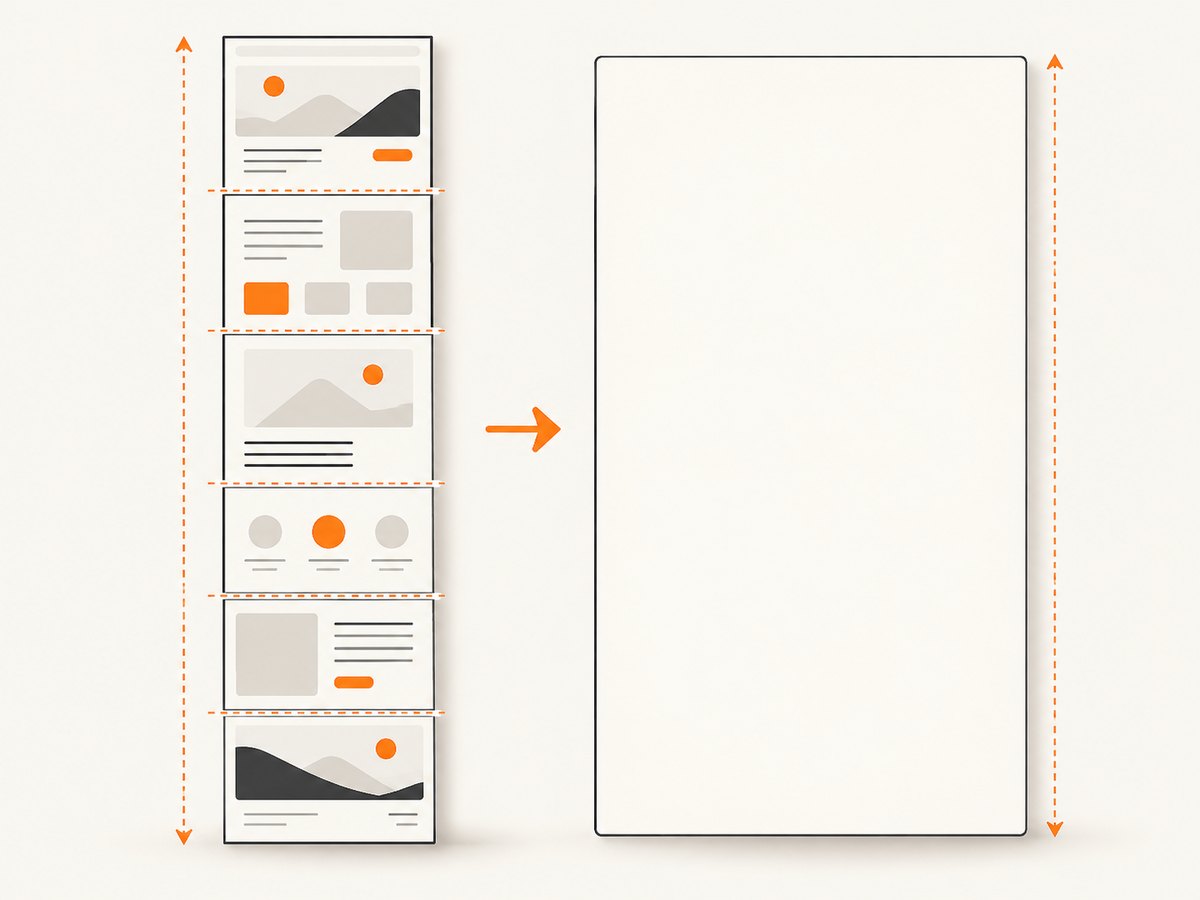
The html2canvas FAQ warns that “The canvas may hit browser size limits” and that “Size limits vary by browser and platform.” Very tall pages can therefore produce blank or partial output even when the JavaScript succeeds.
Use the element’s scroll dimensions when a full element is required:
const target = document.querySelector('#long-page');
const canvas = await html2canvas(target, {
  scale: 1,
  width: target.scrollWidth,
  height: target.scrollHeight,
  windowWidth: target.scrollWidth,
  windowHeight: target.scrollHeight
});
For extremely long content, capture sections separately. Give each section a stable height, export each canvas, and assemble the images later or upload them independently. Smaller canvases also reduce peak memory and make retries cheaper.
6. Preserve fidelity when reducing size
html2canvas reconstructs a picture from DOM and CSS; it does not take a native browser screenshot. It only supports CSS features it understands, so a smaller file can expose rendering differences that were already present.
After every size change, inspect:
- small text at the final display size;
- fixed and sticky elements;
- clipped shadows, borders, and gradients;
- lazy-loaded images and fonts;
- transparent backgrounds;
- right-to-left and multilingual text.
Images from another origin are subject to browser content policy. useCORS: true works only when the image server permits cross-origin access. Otherwise use a server-side proxy that you control, or replace the asset with a same-origin copy. allowTaint can permit drawing tainted resources but then prevents export, so it is not a size optimization.
const canvas = await html2canvas(document.querySelector('#gallery'), {
  scale: 1,
  useCORS: true,
  imageTimeout: 15000,
  backgroundColor: '#ffffff'
});
7. A complete browser-side export example
This example lets a user choose scale and format, reports the byte count, and downloads a Blob. It captures only the report element and omits export controls.
async function exportReport({ scale = 1, type = 'image/png', quality } = {}) {
  const target = document.querySelector('#report');
  if (!target) throw new Error('Missing #report element');

  const canvas = await html2canvas(target, {
    scale,
    width: target.scrollWidth,
    height: target.scrollHeight,
    windowWidth: target.scrollWidth,
    windowHeight: target.scrollHeight,
    useCORS: true,
    ignoreElements: node => node.matches('.no-export'),
    backgroundColor: type === 'image/png' ? null : '#ffffff'
  });

  const blob = await new Promise((resolve, reject) => {
    canvas.toBlob(result => result ? resolve(result) : reject(new Error('Encoding failed')), type, quality);
  });

  const extension = type === 'image/jpeg' ? 'jpg' : 'png';
  const link = document.createElement('a');
  link.href = URL.createObjectURL(blob);
  link.download = `report.${extension}`;
  link.click();
  URL.revokeObjectURL(link.href);
  return { bytes: blob.size, type: blob.type, width: canvas.width, height: canvas.height };
}

exportReport({ scale: 1, type: 'image/jpeg', quality: 0.82 })
  .then(info => console.log(info))
  .catch(console.error);
8. Troubleshooting checklist
| Symptom | Likely cause | Fix |
|---|---|---|
| Output is still huge | Retina default scale or oversized dimensions | Set scale explicitly; inspect canvas.width and canvas.height. |
| Text is blurry | Scale or output dimensions are too low | Raise scale slightly, use a larger target width, or reduce the crop instead of shrinking everything. |
| JPEG has a black or white background | JPEG has no alpha channel | Set an intentional backgroundColor before encoding. |
toBlob() returns null |
Encoding failed or the canvas is invalid | Check for a tainted canvas, unsupported type, and browser canvas limits. |
| Blank or partial image | Canvas dimensions exceed platform limits | Lower scale, capture sections, and set window dimensions to the actual content. |
| Images are missing | Cross-origin restrictions or images not loaded | Use same-origin assets, configure CORS, wait for images, or use a permitted proxy. |
| Elements are clipped | Explicit width or height is smaller than scroll dimensions | Measure the target and adjust crop coordinates and dimensions. |
| Layout differs from the page | html2canvas does not support every CSS feature | Simplify export CSS in onclone and verify unsupported properties. |
9. Performance, reliability, and cost considerations
Lowering scale reduces raster work, memory pressure, and usually encoding time. Cropping before rendering is more efficient than rendering a full page and discarding most of it. For repeated exports, avoid exporting while animations are running; freeze transitions in the cloned document and wait for fonts and images.
For long pages, section captures are easier to retry than one giant canvas. Record output dimensions, MIME type, and byte count in logs so regressions are visible. Keep a representative test set with text-heavy, image-heavy, transparent, and very tall pages. Browser versions and device limits change, so treat canvas limits as platform-dependent guidance rather than constants.
Client-side capture uses the visitor’s CPU and memory. A server-side service can centralize browser setup and produce consistent files, but it adds an API request and service cost. Choose based on where rendering should occur, whether pages require authenticated headers or cookies, and how much control you need over the browser.
10. Or skip the browser setup
ScreenshotNeo provides a website screenshot API and MCP server when you want a rendered image without maintaining html2canvas and browser setup. One GET request returns PNG, JPEG, WebP, or PDF. Cookie and consent banners, newsletter popups, and chat widgets are removed before the shot. Bot checks, blank pages, timeouts, failed loads, and cache hits are not billed, and response headers identify the page verdict and billing status.
See the ScreenshotNeo documentation for request options. A minimal call is:
curl -G "https://api.screenshotneo.com/v1/shot" -d access_key=YOUR_API_KEY --data-urlencode url=https://stripe.com -o shot.webpimport requests
r = requests.get('https://api.screenshotneo.com/v1/shot', params={'access_key': 'YOUR_API_KEY', 'url': 'https://stripe.com'}, timeout=90)
open('shot.webp', 'wb').write(r.content)const q = new URLSearchParams({ access_key: 'YOUR_API_KEY', url: 'https://stripe.com' });
const res = await fetch(`https://api.screenshotneo.com/v1/shot?${q}`);Relevant controls include full-page capture with lazy images loaded, CSS-selector element capture, dark mode, device presets or custom viewports, retina scale, custom CSS and JavaScript, click actions, selector waits, delays, network-idle waits, blocked resources, custom headers and cookies, timezone and geolocation, transparent backgrounds, resizing, caching with a chosen TTL, signed image links, asynchronous jobs with signed webhooks, bulk capture for up to 100 URLs per call, PDF settings, and usage reporting. Its MCP server exposes take_screenshot, get_page_info, and capture_pdf to Claude, Cursor, and other MCP clients.
The free plan includes 1,000 screenshots per month with no card. Paid plans start at $5 for 3,000 shots, and every feature is available on every plan. Create a free ScreenshotNeo account.
11. FAQ
Does scale: 0.5 always halve the file size?
No. It halves each canvas dimension relative to the source, but encoders respond to image content, metadata, and format. Measure the resulting Blob.
Can I make PNG smaller by passing a quality value?
Quality is generally meaningful for JPEG and similar lossy formats. It is not a universal PNG compression control.
Is a Blob smaller than a data URL?
The Blob avoids a large base64 string in application code. The encoded image bytes are determined by the canvas encoder, dimensions, format, and content.
Should I use html2canvas for a pixel-perfect browser screenshot?
It is a DOM and CSS reconstruction library with documented rendering limits. For exact browser output, use a browser automation or screenshot service that captures the page directly.
What should I do when a full-page canvas is blank?
Lower the scale, set window dimensions to the content size, and split very long pages into smaller captures. Browser canvas limits vary by platform.


