Reduce Motion for More Consistent Website Screenshots
Emulate reduced motion and control capture-time animations in Playwright so visual screenshots stay stable, repeatable, and accessible.

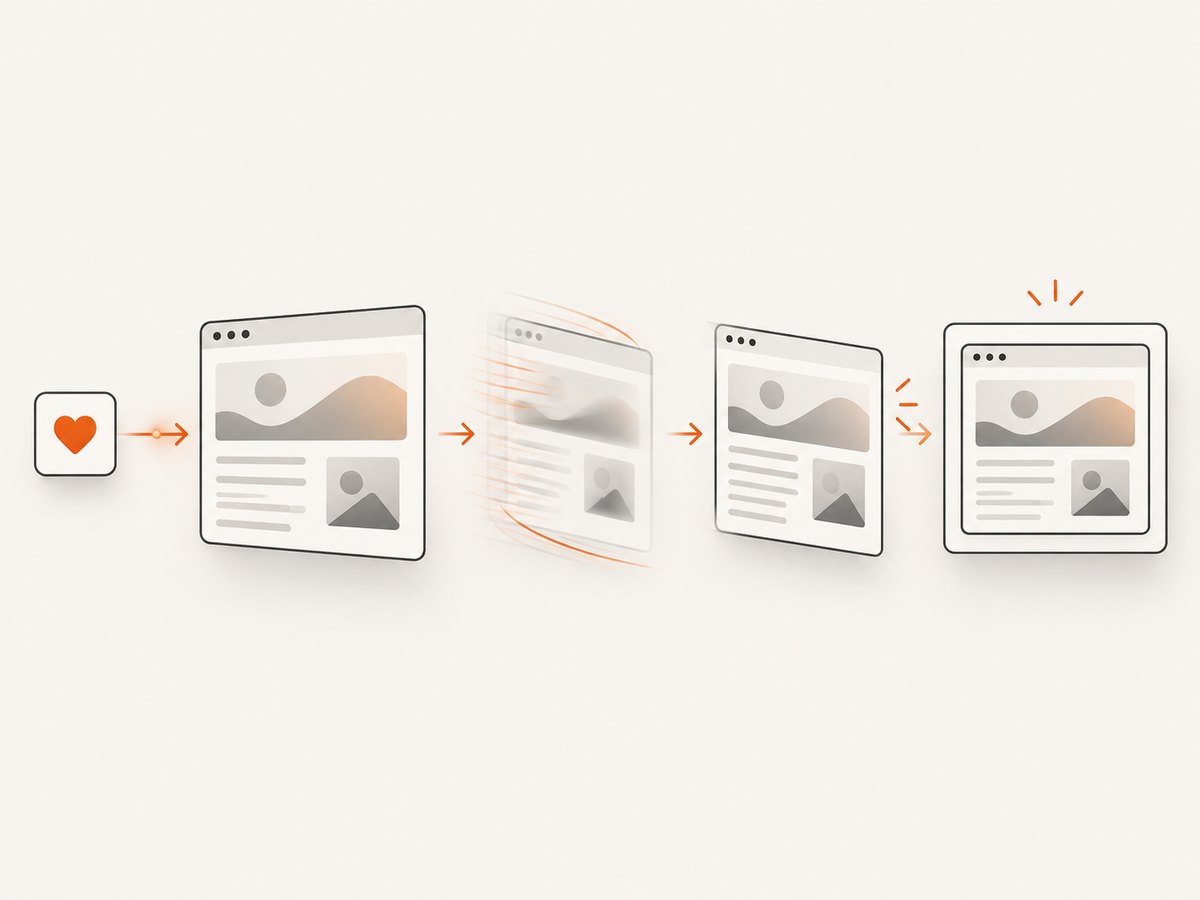
Direct answer: emulate the browser’s prefers-reduced-motion media feature explicitly, then choose how the screenshot treats animations. In Playwright, set reducedMotion: 'reduce' (or 'no-preference') so page CSS and JavaScript receive a known preference. Separately set screenshot animations: 'disabled' when you want Playwright to fast-forward finite animations and cancel infinite ones during capture. Keep the viewport and device scale fixed, and handle clocks, rotating content, ads, and other changing data independently.
The preference and the capture option solve different problems. prefers-reduced-motion is a signal that page code can read; it does not force a site to remove motion. The screenshot option changes what Playwright does at capture time. Using both gives visual regression jobs a deterministic baseline while preserving an accurate accessibility preference.
What reduced motion changes
prefers-reduced-motion is exposed to CSS and JavaScript. A page may use it to replace parallax, disable decorative transitions, shorten effects, or turn off smooth scrolling. If the page has no reduced-motion implementation, emulating the preference may produce no visible difference.
CSS can respond with a media query:
@media (prefers-reduced-motion: reduce) {
  .hero-video,
  .decorative-particles {
    animation: none;
    transition: none;
  }

  html {
    scroll-behavior: auto;
  }
}
JavaScript can inspect the same signal:
const reduceMotion = window.matchMedia('(prefers-reduced-motion: reduce)').matches;
if (reduceMotion) {
  carousel.stop();
  disableDecorativeParticles();
}
W3C WAI describes this approach as a way to let users prevent animation through the prefers-reduced-motion technique. The technique is an example implementation; it does not by itself guarantee WCAG conformance.
Playwright: configure a repeatable preference
For a whole Playwright Test project, set the preference in playwright.config.ts:
import { defineConfig } from '@playwright/test';

export default defineConfig({
  use: {
    reducedMotion: 'reduce',
    viewport: { width: 1440, height: 900 },
    deviceScaleFactor: 1,
  },
});
Playwright documents reduce and no-preference; no-preference is the documented default for Playwright Test. Some lower-level APIs also accept null to reset to system defaults. For visual regression, choose a value explicitly so the operating system running CI cannot silently change the result. See the Playwright emulation options.
You can override the project setting for one context:
import { test, expect } from '@playwright/test';

test('stable reduced-motion screenshot', async ({ browser }) => {
  const context = await browser.newContext({
    reducedMotion: 'reduce',
    viewport: { width: 1440, height: 900 },
    deviceScaleFactor: 1,
  });
  const page = await context.newPage();
  await page.goto('https://example.com', { waitUntil: 'networkidle' });
  await expect(page).toHaveScreenshot('home.png', {
    animations: 'disabled',
  });
  await context.close();
});
Use no-preference when the purpose of the test is to verify the normal animated experience. Use reduce when you want the screenshot to represent a user requesting less motion or when animated effects make the baseline unstable.
Disable animations at screenshot time
Playwright screenshot assertions accept an animations option. The documented default is disabled. With that setting, finite animations are fast-forwarded to completion and their transitionend events fire. Infinite animations are canceled to their initial state and played over after the screenshot. If you need to capture motion itself, use animations: 'allow'.

await expect(page).toHaveScreenshot('dashboard.png', {
  animations: 'disabled',
  timeout: 15_000,
});
Do not treat animations: 'disabled' as another spelling of reduced motion. The former acts during capture; the latter changes what page code sees through a media feature. A page can honor reduced motion while still containing a video, a canvas loop, a timer-driven counter, or content that changes after the CSS animation is removed.
Wait for a stable page before capturing
Animation control is only one part of consistency. A reliable capture sequence makes navigation, fonts, images, and application state explicit:
- Create a context with a fixed viewport, scale, locale, timezone, and reduced-motion preference.
- Navigate with a deliberate load policy.
domcontentloadedis often faster;networkidlecan help pages that finish rendering after API calls, but it is not a universal guarantee of visual readiness. - Wait for a meaningful selector such as the main heading, chart container, or product grid.
- Wait for web fonts and images when they affect layout.
- Disable or mask known dynamic regions.
- Capture with a fixed image format and scale.
import { chromium } from 'playwright';

const browser = await chromium.launch();
const context = await browser.newContext({
  reducedMotion: 'reduce',
  viewport: { width: 1440, height: 900 },
  deviceScaleFactor: 1,
  timezoneId: 'UTC',
  locale: 'en-US',
});
const page = await context.newPage();

await page.goto('https://example.com', { waitUntil: 'domcontentloaded' });
await page.locator('main').waitFor({ state: 'visible' });
await page.evaluate(async () => {
  await document.fonts.ready;
  await Promise.all([...document.images].map((img) => {
    if (img.complete) return Promise.resolve();
    return new Promise((resolve) => {
      img.addEventListener('load', resolve, { once: true });
      img.addEventListener('error', resolve, { once: true });
    });
  }));
});

await page.screenshot({
  path: 'stable.png',
  fullPage: true,
  animations: 'disabled',
});
await browser.close();
For an assertion, Playwright waits for two consecutive screenshots to match before comparing the result. That catches many transient animation states, but it cannot make a clock, stock ticker, rotating recommendation, or live chat message constant.
Hide or freeze dynamic content carefully
Use screenshot styles to suppress elements that are intentionally outside the visual contract, such as a blinking cursor or a rotating ad slot:
await expect(page).toHaveScreenshot('article.png', {
  animations: 'disabled',
  style: `
    .live-clock, .rotating-ad, .typing-cursor {
      visibility: hidden !important;
    }
  `,
});
Only hide elements that should not be part of the approved baseline. Masking a price, status badge, or error message can conceal a real regression. For application-owned data, prefer a deterministic fixture, frozen API response, or seeded database. Fix the timezone and locale so date and number formatting do not vary between machines.
Keep viewport and pixel scale constant
Two captures can show the same layout but differ at the pixel level if their dimensions or scaling differ. Set the CSS viewport and device scale factor explicitly. Playwright distinguishes CSS-pixel layout from device-pixel output; a retina capture with deviceScaleFactor: 2 has twice as many image pixels in each dimension as a scale of 1.
| Setting | Why it matters | Recommendation |
|---|---|---|
viewport |
Controls responsive breakpoints and wrapping | Pin width and height per baseline |
deviceScaleFactor |
Controls output pixel density | Use one value consistently in CI |
fullPage |
Changes capture height and lazy-load behavior | Choose deliberately; verify below-the-fold content |
| format | PNG, JPEG, and WebP have different encoding behavior | Keep format and quality fixed |
When comparing screenshots from different runners, also pin browser version, fonts, operating system rendering where practical, locale, timezone, and color scheme. The Playwright screenshot documentation covers viewport and screenshot options.
Chrome DevTools manual check
To inspect a page interactively, open Chrome DevTools, open the Rendering panel, and enable emulation for the CSS media feature prefers-reduced-motion. Check whether transitions, smooth scrolling, carousels, and canvas effects actually respond. This is useful for accessibility review; automate the same preference in the Playwright context for repeatable CI captures. Chrome documents this workflow in its CSS media feature emulation guide.
Common causes of inconsistent screenshots
| Symptom | Likely cause | Fix |
|---|---|---|
| Only the first run differs | Fonts or images were not ready | Wait for document.fonts.ready and image completion |
| Cards move between captures | CSS transition or Web Animation is active | Set animations: 'disabled' and emulate reduce |
| Counter changes every run | Timer or live API data | Freeze the clock or mock the response |
| Mobile layout unexpectedly appears | Viewport differs between workers | Set an explicit viewport in project or context |
| Text wraps differently | Font fallback or device scale differs | Install the same fonts and pin deviceScaleFactor |
| Full-page image has blank lower sections | Lazy loading depends on scrolling | Scroll or trigger loading before capture; verify the page’s lazy-load logic |
| Assertion times out | Two consecutive captures never match | Find the changing element, fixture its data, or apply a narrowly scoped screenshot style |
| Reduced motion appears ignored | Site does not implement the media query or uses a canvas/video loop | Inspect CSS and JavaScript; disable the effect at capture time or provide a deterministic fixture |
Performance and reliability guidance
Disabling animations usually shortens the time needed to reach a stable frame, but waiting for every network request can make suites slow. Prefer a meaningful readiness selector over an arbitrary long sleep. Use a short delay only when a known debounce or transition must settle, and document why it exists.
Parallel workers improve throughput but can expose shared-state races: two tests may mutate the same account, exhaust a rate limit, or produce different server data. Isolate test data, mock nondeterministic endpoints, and keep browser and dependency versions pinned. Retry policies should distinguish infrastructure failures from genuine visual differences; automatic retries can hide a flaky baseline if artifacts are not reviewed.
Screenshot files are large compared with DOM assertions. Store only the baselines and failure diffs you need, choose a suitable format, and avoid capturing unnecessarily huge pages. Full-page screenshots can trigger additional lazy-loaded content and memory use. Capture a component or element when the test does not require the entire document.
Or skip the browser setup
ScreenshotNeo provides a website screenshot API when you want a consistent capture without maintaining browser automation. Its request options include reduced-motion-friendly controls such as custom CSS and JavaScript, wait conditions, fixed viewports and device presets, and full-page capture. See the ScreenshotNeo API documentation for the complete option list.
A basic call returns an image for a URL:
curl -G 'https://api.screenshotneo.com/v1/shot' -d access_key=YOUR_API_KEY --data-urlencode url=https://stripe.com -o shot.webpimport requests
r = requests.get('https://api.screenshotneo.com/v1/shot', params={'access_key': 'YOUR_API_KEY', 'url': 'https://stripe.com'}, timeout=90)
open('shot.webp', 'wb').write(r.content)const q = new URLSearchParams({ access_key: 'YOUR_API_KEY', url: 'https://stripe.com' });
const res = await fetch(`https://api.screenshotneo.com/v1/shot?${q}`);
const buffer = Buffer.from(await res.arrayBuffer());
await import('node:fs/promises').then((fs) => fs.writeFile('shot.webp', buffer));ScreenshotNeo removes cookie and consent banners, newsletter popups, and chat widgets before the shot. Bot checks, blank pages, failed loads, timeouts, and cache hits are not billed, and response headers identify the page verdict and billing result. Its MCP server gives AI agents tools named take_screenshot, get_page_info, and capture_pdf. The Free plan includes 1,000 screenshots per month without a card; paid plans start at $5 for 3,000 shots.
Create a free ScreenshotNeo account and start with 1,000 screenshots per month at no charge.
FAQ
Does reduced motion guarantee a static screenshot?
No. It only changes the preference exposed to page code. Use screenshot-time animation controls and deterministic data for a static result.
Should visual tests use reduce or no-preference?
Use the value that matches the behavior you intend to approve. Set it explicitly so CI does not inherit a machine-specific default.
Can I test both accessibility modes?
Yes. Run separate projects or test contexts with reduce and no-preference, then keep separate screenshot baselines.
Why do two screenshots still differ after animations are disabled?
Look for changing data, timers, fonts, lazy-loaded content, viewport differences, or video and canvas rendering. Animation settings do not freeze those sources.
Is hiding a dynamic element always safe?
No. Hide or mask only content outside the visual contract. For important values, use a deterministic fixture so regressions remain visible.


