How to Reduce PDF File Size with EVO HTML to PDF Converter
Reduce EVO-generated PDF sizes by tuning JPEG compression and image scaling. Learn how to choose settings, measure quality, and troubleshoot version differences.
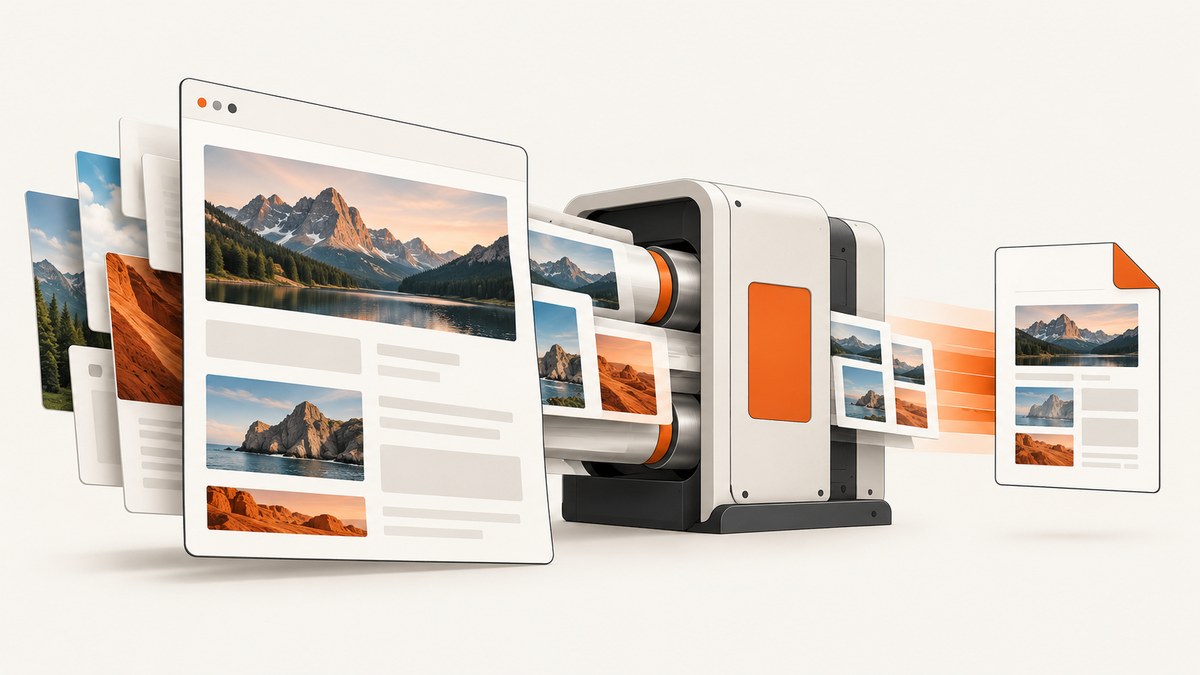
To reduce PDF file size with EVO HTML to PDF Converter, start with its JPEG image compression settings. EVO’s support FAQ says JPEG compression is enabled by default and gives a default compression level of 10. If the output is still too large, test a higher compression level and image scaling against representative documents. Both changes can reduce file size, but they can also reduce image quality; scaling may also reduce memory use. Measure the actual output and inspect it at its intended viewing or print size before changing production defaults.
There is no reliable universal percentage reduction: results depend on the source images, their displayed dimensions, the EVO product generation, and the settings in use. EVO has multiple APIs, so confirm the exact property names and supported values in the documentation for your installed edition before copying configuration from another version.
1. Identify your EVO version and conversion path
Before changing settings, establish which EVO product generation and API your application uses. Check the installed package or assembly, the version recorded in your project, and the code path that creates the converter. Then open the official documentation for that edition and locate its PDF image-compression and image-scaling options. The documentation and API names can differ across generations, so do not assume a property shown in an older example applies to your build.
Also identify where conversion happens. A setting applied to a converter instance may not affect a different service, worker, or command-line process. Find the code that configures the converter actually used in production, and record its current values before making a change.
2. Understand the two image controls
JPEG compression level
EVO’s support FAQ describes JPEG compression as enabled by default to reduce generated PDF size. It gives a default JPEG compression level of 10 and a scale from 0 to 100: 0 means the lowest compression and best image quality; 100 means the highest compression and worst image quality. Raising the setting can make a PDF smaller, but image detail can degrade. The scale is a product setting, not a promise of a particular file-size reduction.
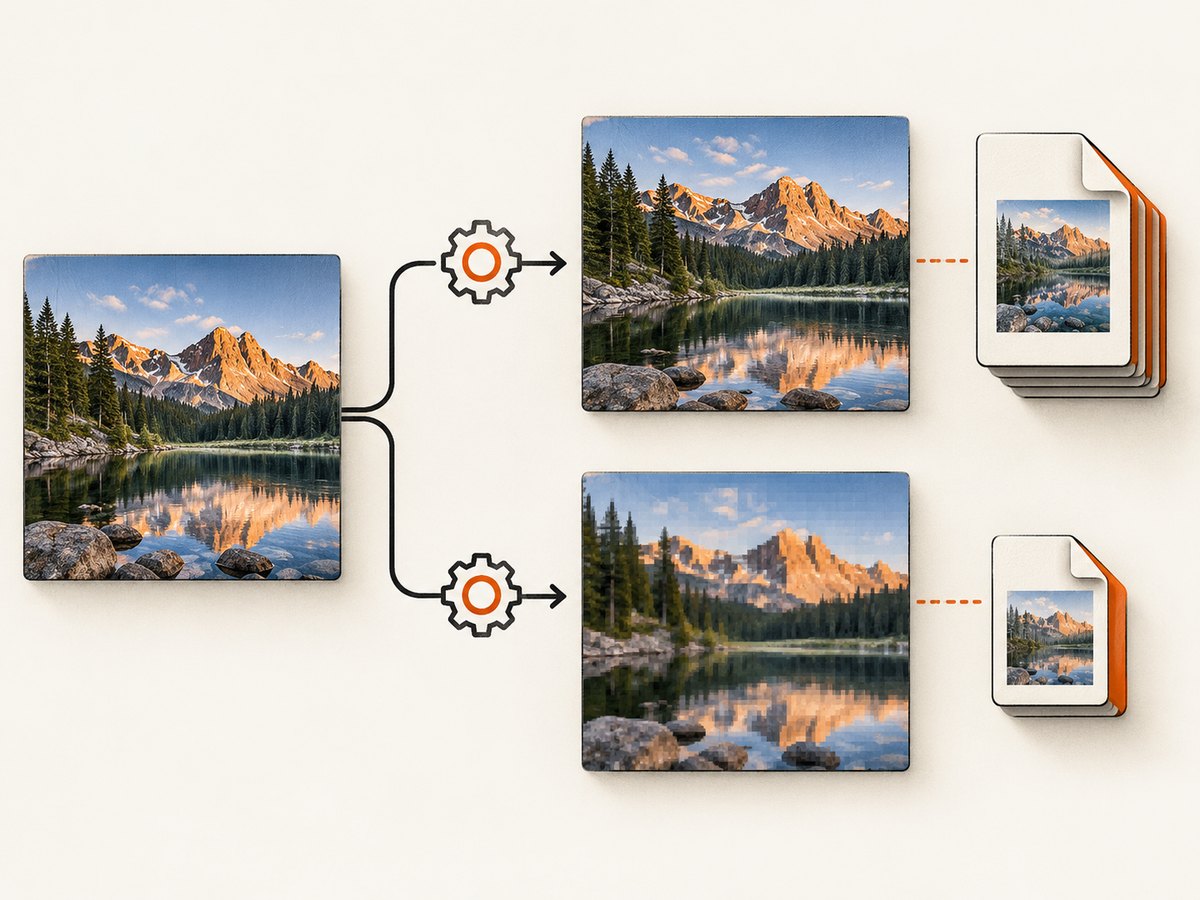
Start from the documented default for your version. Increase compression in small, recorded steps, generate the same representative PDFs, and compare the output. Choose the highest compression that still meets your visual-quality requirements. For documents where photographs, diagrams, scans, or fine gradients matter, a more conservative setting may be appropriate.
Scaling images to their rendered HTML size
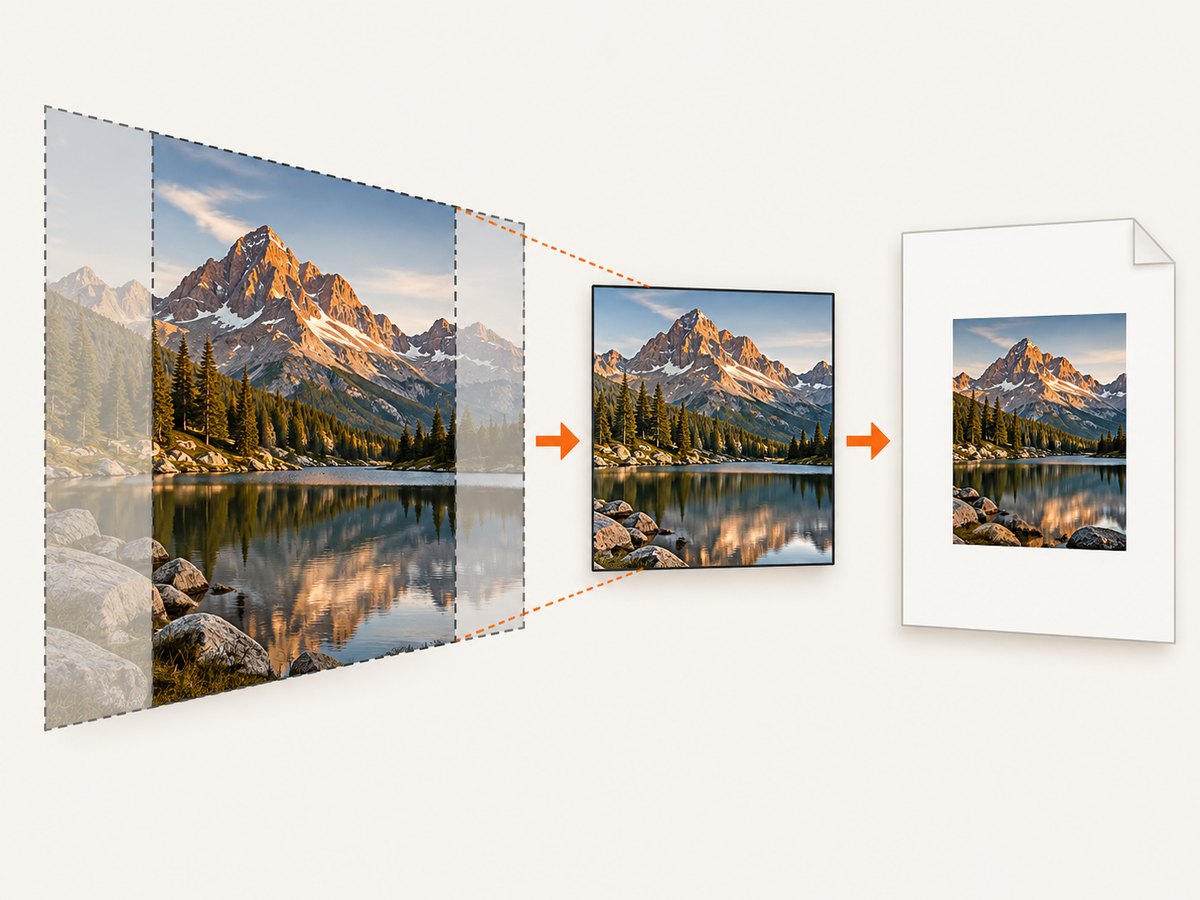
HTML can reference image files much larger than the dimensions at which they appear on the page. EVO documents an option to scale images down to their rendered HTML dimensions before conversion. This can reduce the image data the converter handles, which may lower PDF size and memory use. The tradeoff is that downscaled images may look worse, especially if a document is later zoomed or printed larger than the displayed size.
Scaling and JPEG compression address different aspects of the output. Scaling changes image dimensions; JPEG compression changes how image data is encoded. Test them separately first so you can see which change helped and whether it introduced an unacceptable quality loss. Then test the chosen combination.
Document-level PDF compression
EVO’s demo also exposes a document-level PDF compression setting. Treat it as separate from image compression: it may affect the PDF as a whole, while the image controls target images. The available sources do not establish one best document-compression level or a guaranteed reduction for arbitrary documents. Check the option in the documentation for your version and measure its effect on your own files.
3. A repeatable tuning procedure
- Choose representative inputs. Include typical pages as well as the largest or most image-heavy documents you expect to convert. Preserve the same HTML, CSS, assets, fonts, and conversion options for each comparison.
- Record a baseline. Generate a PDF using the current settings. Record its byte size and note the conversion environment and EVO version. Keep this output for visual comparison.
- Change one setting. Test a higher JPEG compression level while leaving scaling unchanged. Compare file size and image quality.
- Test scaling separately. Enable the version-appropriate option that scales images to their rendered dimensions. Compare against the baseline and the compression-only result.
- Test the combination. If both settings help independently, generate another sample with both enabled. Check for interactions and visual defects.
- Inspect for the intended use. Review image-heavy pages at ordinary screen size and at the zoom level or print size readers need. Look for blur, blockiness, banding, unreadable labels, and lost fine detail.
- Adopt and monitor. Apply the selected settings to the correct production converter. Keep a quality-focused configuration for documents that need it, and recheck samples when you upgrade EVO or change source templates.
A simple comparison log makes tradeoffs visible:
| Variant | JPEG level | Scale images | PDF size | Visual review | Memory / conversion notes |
|---|---|---|---|---|---|
| Baseline | Current value | Current value | Record bytes | Reference sample | Record environment |
| Compression only | Test value | Off or unchanged | Record bytes | Inspect details | Record outcome |
| Scaling only | Unchanged | On | Record bytes | Inspect details | Record outcome |
| Combined | Selected value | On | Record bytes | Approve or reject | Record outcome |
4. Code and configuration: use the API for your edition
The research available for this guide establishes the settings and tradeoffs, but does not provide a verified, version-specific code sample or property names for every EVO generation. Do not paste guessed names into a production converter. Use this configuration checklist in the official API for the version installed in your application:
- Locate the documented option that enables or disables JPEG compression.
- Locate the JPEG compression-level property and confirm the accepted range and meaning for that version.
- Locate the documented image-scaling option and verify that it scales source images to their rendered HTML dimensions.
- If relevant, locate the document-level PDF compression option and determine whether it is supported by your edition.
- Set the options on the converter instance used for the actual conversion, then generate and inspect a sample PDF.
Keep the settings grouped and explicit in your application’s converter configuration. That makes the chosen quality-versus-size tradeoff visible during review and helps prevent a package upgrade from silently changing behavior. If your application supports different document types, route image-critical documents to a less aggressive configuration where needed.
5. Diagnose oversized or degraded PDFs
| Symptom | Likely cause | What to check or change |
|---|---|---|
| PDF remains large | Source images are large, compression is at a quality-oriented setting, or the changed option is not applied to the active converter. | Check image dimensions and the production conversion path. Confirm the setting in the matching version’s API, then compare compression and scaling separately. |
| Images look blurry or blocky | JPEG compression is too aggressive or images were scaled below the size needed for viewing or print. | Lower the compression level, disable scaling for affected content, or use a separate quality-focused configuration. |
| Fine text in an image is unreadable | Raster content lost detail during compression or downscaling. | Test a lower compression level and preserve sufficient image dimensions. Inspect at the actual intended reading size. |
| Memory use is still high | Large source images may still be decoded or processed, or scaling is not enabled on the conversion path. | Confirm the image-scaling option is active for the correct converter instance and retest with the largest representative document. Scaling can help, but the sources do not promise a fixed memory reduction. |
| Configuration does not compile or has no effect | Property names or behavior differ between EVO product generations, or the setting is attached to the wrong converter object. | Verify the installed edition and version, consult its official API reference, and confirm the configured object performs the conversion. |
| PDF size changes unexpectedly after an upgrade | The product version, defaults, supported settings, or input assets changed. | Compare version and configuration records, regenerate the same sample documents, and revalidate visual quality before rollout. |
6. Quality, reliability, and cost considerations
Quality: There is no single best setting for every document. A PDF intended for screen viewing may tolerate a different image tradeoff from one that will be printed, zoomed, or archived. Include those actual uses in the review rather than deciding based on file size alone.
Reliability: Keep a small set of representative input documents and expected quality checks so you can compare behavior after template, asset, or EVO version changes. Record the configuration alongside the generated artifact or conversion logs. For important documents, retain a less-compressed path until the smaller output has passed review.
Cost and performance: Smaller PDFs can reduce storage and transfer needs, while image scaling may reduce converter memory use. The amount depends on the source material and chosen settings; the vendor sources reviewed provide no general savings percentage or benchmark. Include conversion time and memory in your own measurements if they matter to your workload.
7. When to use a screenshot API instead
If your deliverable is a visual capture of a web page rather than a document produced by EVO, a screenshot API may be a better fit. ScreenshotNeo is a website screenshot API and MCP server from Yorker Media. For EVO-produced PDFs, the image settings above are the relevant controls; a screenshot API does not replace those converter settings.
8. Or skip the browser setup
When you need a screenshot of a web page, ScreenshotNeo captures it with one GET request. See the ScreenshotNeo API documentation for request options.
curl -G "https://api.screenshotneo.com/v1/shot" -d access_key=YOUR_API_KEY --data-urlencode url=https://stripe.com -o shot.webpimport requests
r = requests.get("https://api.screenshotneo.com/v1/shot", params={"access_key": "YOUR_API_KEY", "url": "https://stripe.com"}, timeout=90)
open("shot.webp", "wb").write(r.content)const q = new URLSearchParams({ access_key: 'YOUR_API_KEY', url: 'https://stripe.com' });
const res = await fetch(`https://api.screenshotneo.com/v1/shot?${q}`);- Cookie banners, newsletter popups, and chat widgets are removed before the shot; each removal step can be turned off.
- Bot checks, blank pages, timeouts, failed loads, and cache hits are never billed; the response identifies the page verdict and billing status.
- An MCP server gives AI agents such as Claude and Cursor tools to take screenshots, get page information, and capture PDFs.
- The free plan includes 1,000 screenshots a month with no card. Paid plans start at $5 for 3,000 screenshots.
Sign up for ScreenshotNeo’s free plan to get 1,000 screenshots a month with no card.
9. Frequently asked questions
Does EVO compress images by default?
According to EVO’s support FAQ, JPEG compression is enabled by default to reduce the size of generated PDFs. Confirm the defaults for your installed product generation.
What does compression level 10 mean?
The FAQ identifies 10 as its default JPEG compression level and describes the scale endpoints as 0 for lowest compression and best quality, and 100 for highest compression and worst quality. Check the matching version’s documentation before relying on these values.
Will scaling always make the PDF smaller?
Scaling can reduce image dimensions and may reduce PDF size and memory use. The final result depends on the document and settings, so compare output rather than assuming a guaranteed reduction.
Can I use both scaling and JPEG compression?
They affect different parts of image handling and can be tested together. Evaluate each independently first, then inspect a combined output for both size and quality.
Is there a recommended compression level for every PDF?
No universal level or savings percentage is established by the vendor sources reviewed. Select a setting based on representative output and the document’s viewing or printing requirements.


