How to Reduce Puppeteer PDF File Sizes
Reduce Puppeteer PDF size by removing unnecessary print content, preparing images for their final dimensions, and measuring post-processing results.
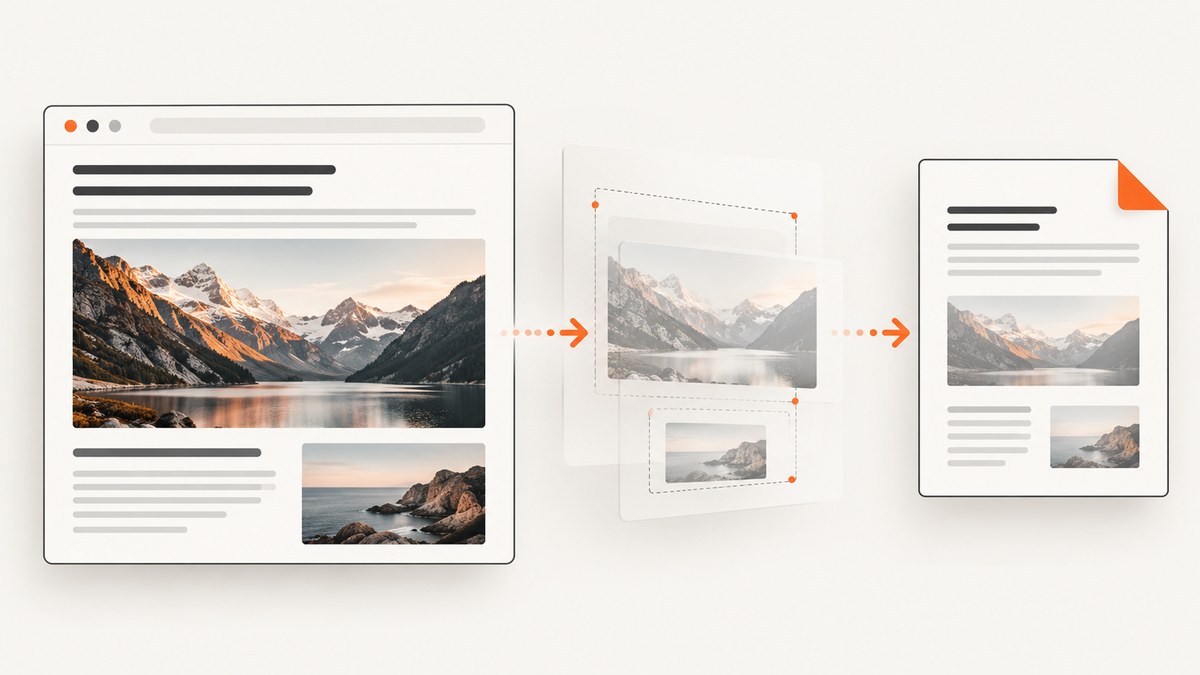
The most reliable way to reduce a Puppeteer PDF is to reduce what the browser has to print: remove unnecessary print-only content and prepare oversized images at dimensions appropriate for their final printed size. Then measure the result. If image payloads still dominate, compare a post-processed copy with Ghostscript or qpdf and check that the quality and document features you need survived.
There is no universal saving percentage. Puppeteer’s PDF options primarily control rendering and layout; their documentation does not promise that changing them makes a file smaller. The best change depends on the page’s content.
1. Find what is making the PDF large
Start with a representative PDF and record its byte size. Inspect its pages at the intended viewing or print size. Large photographs and other images are common optimization targets when a document contains them, but do not assume they are the cause: fonts, vector artwork, page count, and other content can matter too.
Make one change at a time and generate the PDF again. Compare the new byte size and inspect the pages. This makes it clear which change helped, and prevents a size reduction from hiding a layout or readability problem.
- Save an untouched baseline PDF.
- Check whether unnecessary headers, footers, navigation, decorative sections, or oversized images are included.
- Apply one change, generate another PDF, and compare sizes.
- Inspect the changed pages and verify text, links, and any required document structure.
2. Use print CSS to remove unnecessary content
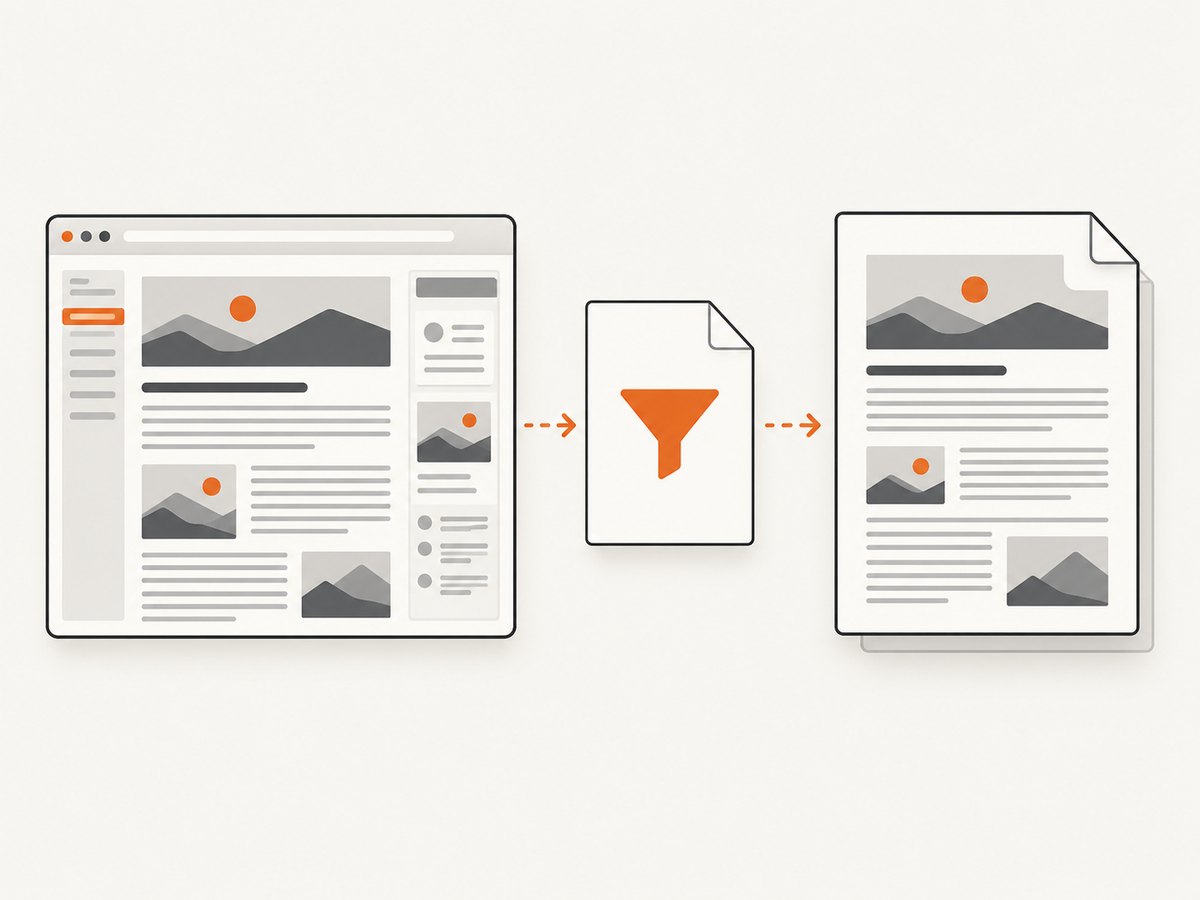
Page.pdf() uses the print CSS media type by default. That means print-specific rules are a direct way to control what appears in the PDF. Hide content that belongs only in the interactive web page, and adjust spacing and layout for paper.
/* Add to the site's stylesheet or a stylesheet loaded for PDF generation. */
@media print {
  .site-navigation,
  .cookie-banner,
  .chat-widget,
  .screen-only-ad,
  .interactive-controls {
    display: none !important;
  }

  body {
    margin: 0;
  }

  /* Keep important content and headings together when practical. */
  figure,
  table,
  h1,
  h2 {
    break-inside: avoid;
  }

  /* Avoid printing a web-sized hero when a smaller version is available. */
  .hero-image {
    max-height: 240px;
    object-fit: contain;
  }
}
Choose selectors that match your page and check the output: display: none removes an element from print layout, while changing dimensions can affect cropping, page breaks, and readability. If the PDF should look like the screen version, you can switch media types before capture, but that also opts out of print-specific styling:
await page.emulateMediaType('screen');
const pdf = await page.pdf({ path: 'screen-layout.pdf' });
Use that deliberately. For a document intended for paper, retaining print media and improving its print stylesheet is usually the more direct route.
3. Generate PDFs with deliberate Puppeteer options
This runnable example navigates to a page, prints it, and saves a PDF. Install Puppeteer in a Node.js project with npm install puppeteer, then save this as make-pdf.js and run node make-pdf.js. Replace the example URL with a page you control or have permission to capture.
const puppeteer = require('puppeteer');

async function main() {
  const browser = await puppeteer.launch({ headless: true });
  try {
    const page = await browser.newPage();
    await page.setViewport({ width: 1280, height: 900 });
    await page.goto('https://example.com', {
      waitUntil: 'networkidle2',
      timeout: 60000,
    });

    // Print CSS is the default media type for page.pdf().
    const pdf = await page.pdf({
      path: 'report.pdf',
      format: 'A4',
      printBackground: false,
      preferCSSPageSize: false,
      scale: 1,
      waitForFonts: true,
      margin: {
        top: '12mm',
        right: '12mm',
        bottom: '12mm',
        left: '12mm',
      },
    });

    console.log(`Wrote ${pdf.length} bytes to report.pdf`);
  } finally {
    await browser.close();
  }
}

main().catch((error) => {
  console.error(error);
  process.exitCode = 1;
});
The options shown control output and readiness; they are not documented as compression switches:
printBackgrounddefaults tofalse. Turn it on only if the design needs background graphics. The default can avoid printing backgrounds; whether that changes the final size depends on the page and should be measured.format,width, andheightdetermine the paper dimensions. If the page defines an@pagesize,preferCSSPageSize: truegives that CSS size priority. Otherwise, content is scaled to fit the configured paper size. Set the intended paper dimensions explicitly and check for accidental large canvases or unexpected scaling.scaledefaults to1and accepts values from0.1to2. Lowering it can make content smaller on the page and less legible; the option is not documented as a file compression feature.waitForFontsdefaults totrue. It controls whether Puppeteer waits for fonts to load, not how they are compressed. Disabling it is not a file-size fix and may produce fallback-font output.margin, headers, and footers affect layout and page breaks. Set them for the intended document rather than shrinking them solely to chase bytes.
For more detail, see Puppeteer’s primary references for Page.pdf() and PDFOptions.
4. Prepare images for their final use
If the PDF contains large image payloads, resizing the source images before the browser renders the page can be more direct than trying to shrink the finished file. Use dimensions appropriate for the image’s printed size and the sharpness your readers need. If you convert to a lossy format or increase compression, inspect color and detail at the intended viewing size before using the result.
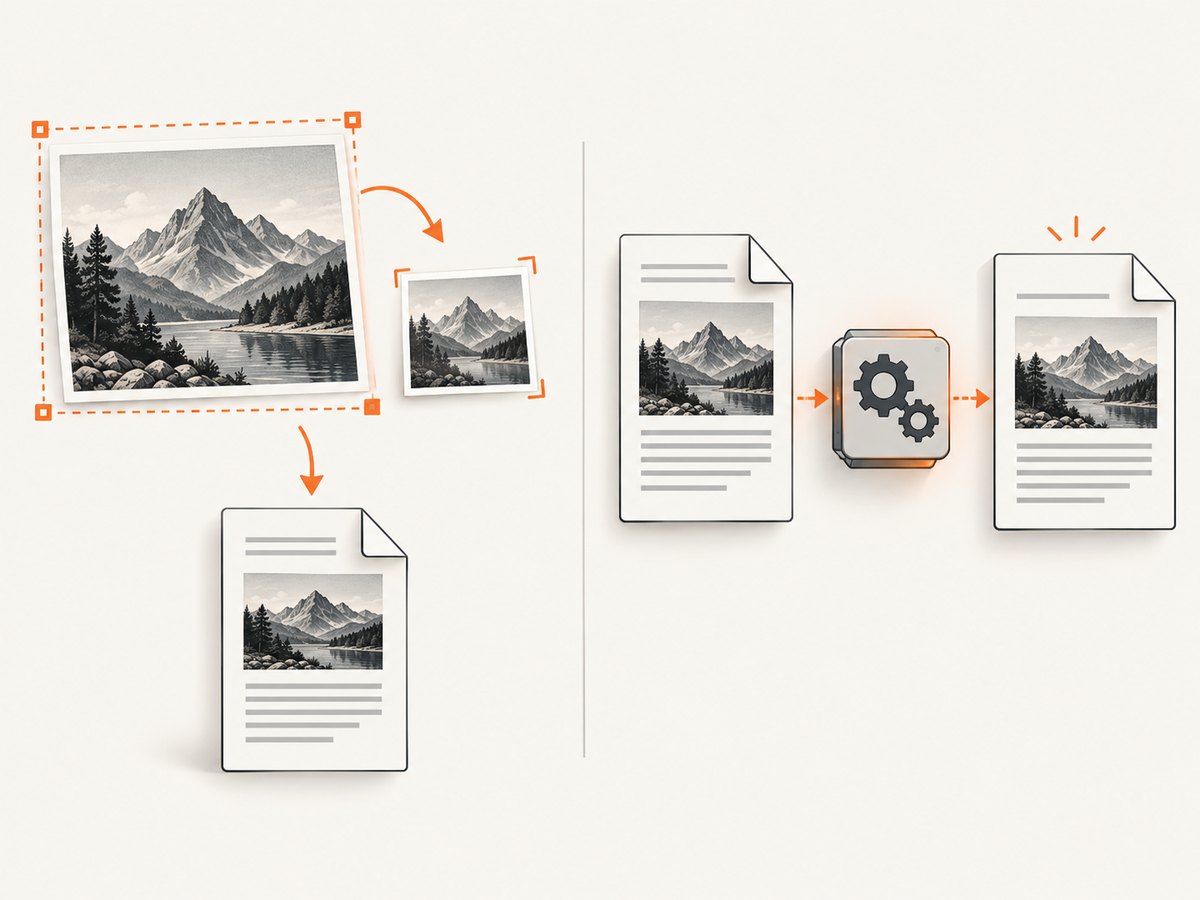
Keep separate source assets when the website also needs high-resolution images. For PDF output, serve or generate a print-appropriate variant, for example through a print stylesheet or a PDF-specific page template. Avoid assigning a tiny displayed width to a huge source image and assuming the PDF renderer will discard all excess image data.
Ghostscript’s guidance describes image downsampling, compression, and color-space changes as possible ways to reduce PDF size, while warning that these can affect quality and do not guarantee a smaller output. Treat each as an experiment on a copy.
5. Compare post-processing tools on a copy
Ghostscript
Ghostscript’s pdfwrite device can rewrite a PDF with image and other controls. Its documented presets include /screen, /ebook, /printer, and /prepress; these are settings to evaluate, not universal quality guarantees. Preserve the original file and compare the result before replacing it.
gs -sDEVICE=pdfwrite -dCompatibilityLevel=1.4 \
  -dPDFSETTINGS=/ebook \
  -dNOPAUSE -dQUIET -dBATCH \
  -sOutputFile=report-ebook.pdf report.pdf
Here, report.pdf is the input and report-ebook.pdf is a separate output. If the preset makes images too soft or changes appearance, discard that output and try another approach. Do not routinely remove embedded fonts to save space: font substitution on another system can change how the document looks.
qpdf
qpdf can recompress PDF streams and optionally recompress eligible images using JPEG when it expects that to reduce their size. It does not resample images, so it cannot fix oversized source dimensions. The qpdf documentation says its primary purpose is not PDF size optimization, though it describes several controls that can make files smaller.
qpdf --object-streams=generate \
  --recompress-flate --compression-level=9 \
  report.pdf report-qpdf.pdf
Check the installed qpdf version’s command-line help for supported options. A rewrite may take time and can affect document details; compare the resulting pages and functionality. If images dominate, resizing the source assets is still the more relevant test.
6. Measure size and validate the document
Record input and output sizes rather than judging by file names or tool settings. On macOS or Linux, wc -c reports bytes:
wc -c report.pdf report-ebook.pdf report-qpdf.pdfBefore adopting a change, check a representative set of pages for:
- File size and whether it meets the upload or delivery limit.
- Image sharpness, color, and fine detail at the intended print or display size.
- Text selection and searchability, including correct punctuation and characters.
- Font appearance, page dimensions, margins, page breaks, and clipping.
- Required links, metadata, accessibility structure, and other downstream features.
- Processing time and operational complexity for the volume of documents you produce.
These are validation recommendations, not claims that every tool preserves every feature. Test documents representative of the real workload, including a text-heavy file and an image-heavy one if both occur in production.
7. Troubleshooting
| Symptom | Likely cause | What to check |
|---|---|---|
| PDF is still large | The file size may come from high-resolution images or content unaffected by the chosen option. | Inspect image dimensions and compare a print-sized source variant. Measure each change separately. |
| Backgrounds disappeared | printBackground is false by default. |
Set it to true only if backgrounds are required, then verify both appearance and size. |
| Page size or scaling is unexpected | CSS @page dimensions and API paper options may not be aligned. |
Choose the intended source of page size; use preferCSSPageSize deliberately and inspect margins and fit. |
| Text is clipped or hard to read | Scale, margins, CSS sizing, or page breaks changed the layout. | Restore a readable scale, adjust print CSS, and review pages around each break. |
| Fonts look different | Fonts may not have loaded before printing, or a rewrite may have changed font handling. | Keep font waiting enabled, ensure font resources load, and compare against the original. Avoid routine font de-embedding. |
| Ghostscript output is not smaller | Its rewrite may not benefit this document’s content or settings. | Compare the byte count and visual quality; keep the original if the rewrite is larger or worse. |
| qpdf barely changes the size | Stream recompression does not reduce oversized image dimensions. | Prepare appropriately sized source images, then generate a new PDF. |
| Post-processed PDF loses a needed feature | A rewrite may not retain every workflow-specific property as expected. | Check links, metadata, structure, and downstream behavior on a copy before adopting it. |
8. Keep the production workflow reliable
Use a fixed set of representative pages to evaluate changes before applying them to a batch. Record the Puppeteer options, print stylesheet version, image variants, post-processor, and output size with each comparison. Retain the original PDF until the optimized output passes the checks your workflow requires.
Separate browser readiness from file compression. A navigation timeout, unavailable font, or missing image can create an incomplete document; reducing the wait does not make the PDF smaller in a useful way. Set timeouts for your environment, wait for essential content and fonts, and handle failures explicitly. For recurring reports, compare processing time as well as bytes so a costly rewrite does not become an unexpected bottleneck.
There is no cost or reliability estimate that applies to every setup: browser runtime, document complexity, image preparation, and post-processing all vary. Measure on the representative workload and keep a fallback to the original generation path if optimization fails validation.
Or skip the browser setup
If your goal is a PDF from a URL and you do not need to maintain your own Puppeteer rendering pipeline, ScreenshotNeo provides a screenshot API and MCP server. The API can return a PDF, alongside PNG, JPEG, or WebP captures; see the API documentation. This is an alternative capture workflow, not a claim that API capture optimizes an existing Puppeteer PDF.
curl -G "https://api.screenshotneo.com/v1/shot" \
  -d access_key=YOUR_API_KEY \
  --data-urlencode url=https://stripe.com \
  -d format=pdf \
  -o page.pdf
Cookie banners, popups, and chat widgets are removed before the shot. Bot checks, blank pages, and failed loads are never billed. An MCP server lets AI agents take screenshots. The free plan includes 1,000 screenshots a month with no card; paid plans start at $5 for 3,000. Sign up for free and get 1,000 screenshots a month with no card.
FAQ
Will lowering Puppeteer’s scale reduce PDF bytes?
It may change layout and legibility, but Puppeteer documents scale as a rendering option, not a compression control. Measure the file and inspect the pages before keeping a lower value.
Should I turn off font waiting to make PDFs smaller?
No. waitForFonts controls readiness, and Puppeteer waits for fonts by default. It is not documented as a size setting; switching it off can result in fallback fonts.
Which post-processor should I try first?
It depends on the file. qpdf can compare stream recompression without image resampling; Ghostscript offers image and other rewrite controls that may trade quality for size. Keep the original and validate the output from either.
Can I expect a particular percentage reduction?
No. The source composition and chosen changes determine the result. Measure on representative PDFs and report the actual settings and quality checks if you publish results.


