How to Reduce the File Size of Puppeteer Screenshots
Make Puppeteer screenshots smaller by capturing fewer pixels and choosing an appropriate image format. Learn how to measure file size and check visual quality.
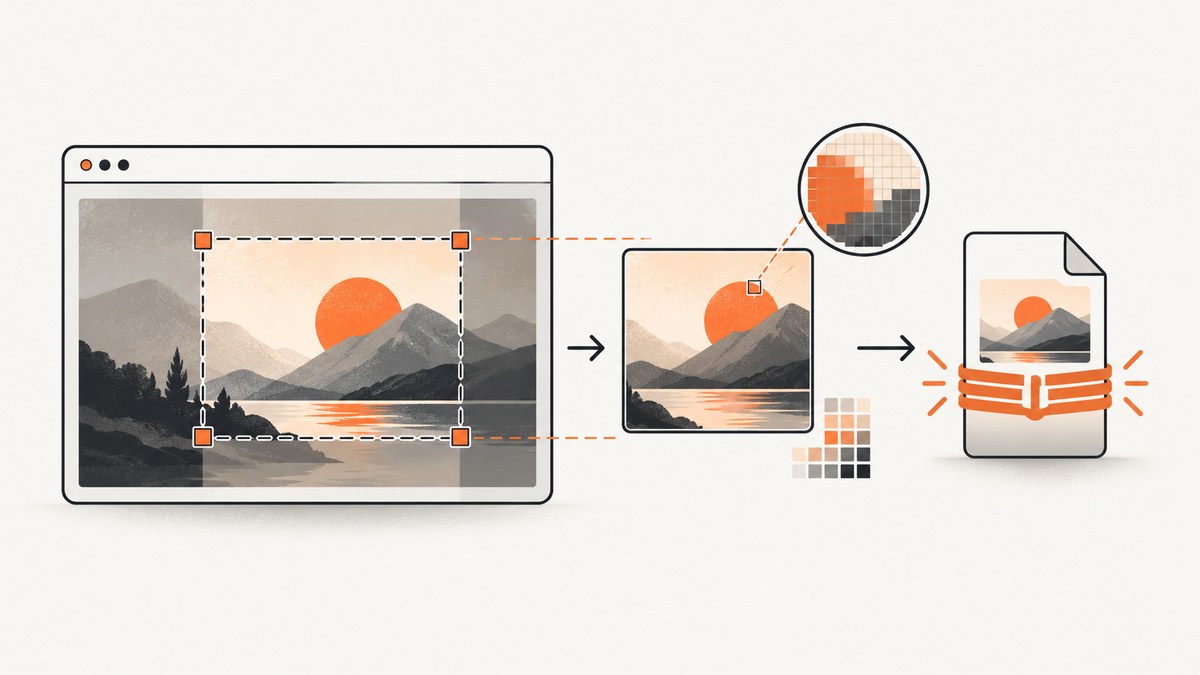
To make Puppeteer screenshots smaller, first capture only the pixels your workflow needs: use clip for a rectangle or ElementHandle.screenshot() for a single element. If some image loss is acceptable, use a supported non-PNG format such as JPEG and tune its quality value by comparing actual output files. Puppeteer defaults to PNG, and its quality option does not apply to PNG. There is no universal quality setting or documented percentage of savings: measure file bytes and inspect the result for your content.
This guide covers Puppeteer’s screenshot controls for reducing file size, runnable Node.js examples, a measurement workflow, format and fidelity tradeoffs, troubleshooting, and cost and reliability considerations. See the official ScreenshotOptions reference and Screenshots guide for the exact options available in your installed Puppeteer version.
1. Understand what affects screenshot size
A screenshot is an encoded image of captured pixels. Two practical inputs to optimize independently are the captured area and the output encoding. Capturing fewer pixels avoids including irrelevant regions. Changing from PNG to a lossy format and adjusting its quality can reduce encoded bytes, but can also introduce visible artifacts. The outcome depends on the page content, viewport, format, and browser version; the documentation provides no comparative size benchmark.
| Choice | Use it when | Tradeoff |
|---|---|---|
| PNG | You need lossless output, sharp text, or exact pixel fidelity. | Puppeteer’s quality setting does not apply. Output size depends on image content and area. |
| JPEG or another supported non-PNG format | You can accept some loss and want to test smaller output. | Inspect text edges, thin lines, gradients, and fine detail for artifacts. |
| Clipped region | Only a rectangle of the page matters. | Everything outside the rectangle is omitted. |
| Element screenshot | You need one component, card, chart, or other element. | The capture is limited to that element, not the rest of the page. |
| Full-page screenshot | The complete document is required. | It captures a larger area than a viewport or selected element. fullPage is false by default. |
Use the exact format values supported by the Puppeteer and Chromium versions in your project. The Puppeteer reference calls the format option ImageFormat; do not assume another automation library’s list of formats applies unchanged.
2. Capture only the region you need
Before tuning compression, decide whether the workflow needs a viewport, a rectangle, one element, or the full document. This change is useful even if you keep PNG, because it removes unneeded page area from the image.
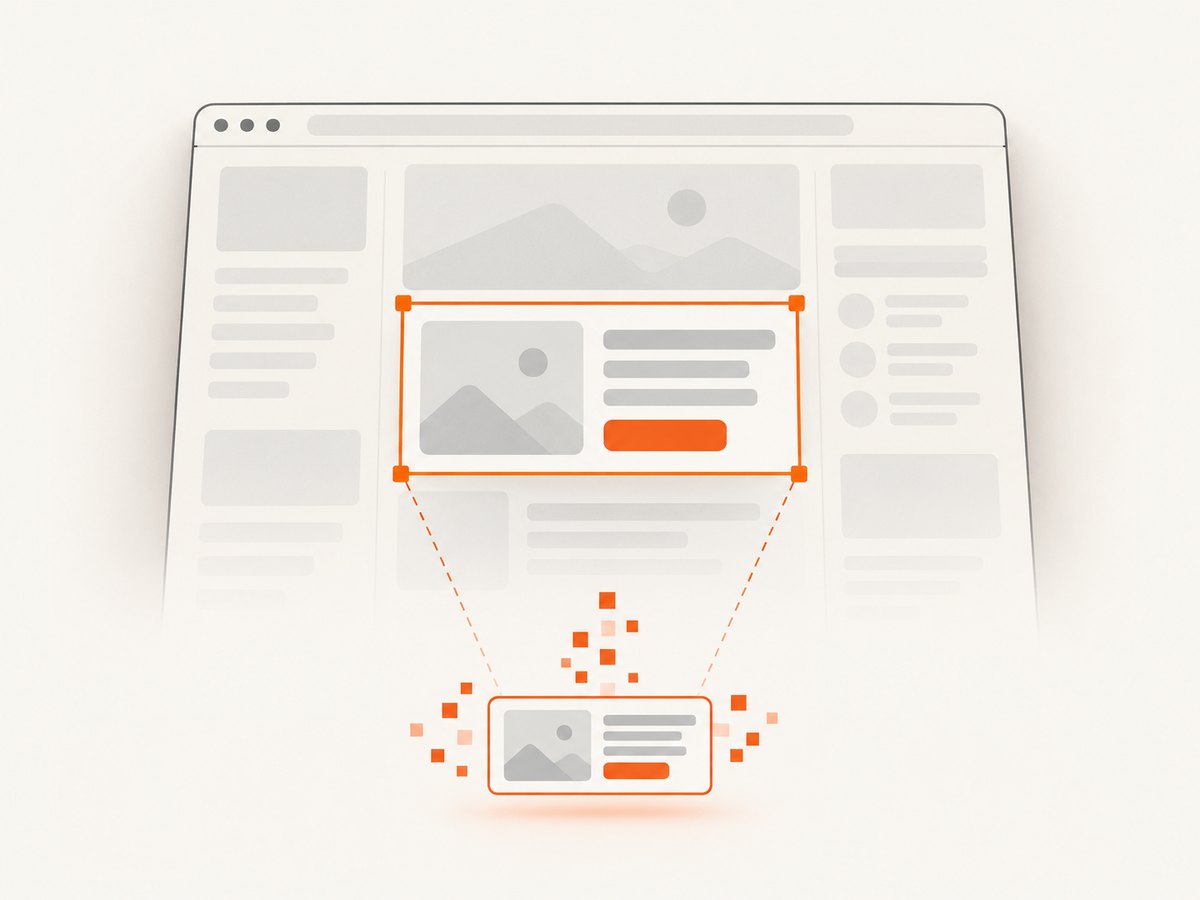
Capture a specific element
Use a selector to find the target, wait for it to exist, and call the element handle’s screenshot method. This example writes a PNG. Change the target URL and selector to match your page.
const puppeteer = require('puppeteer');

(async () => {
  const browser = await puppeteer.launch();
  try {
    const page = await browser.newPage();
    await page.setViewport({ width: 1440, height: 1000 });
    await page.goto('https://example.com', { waitUntil: 'networkidle0' });

    const element = await page.waitForSelector('.product-card');
    if (!element) throw new Error('Could not find .product-card');

    await element.screenshot({ path: 'product-card.png' });
  } finally {
    await browser.close();
  }
})();
Element capture is a good fit for a test artifact or thumbnail of a known component. It is not a substitute for a full-page capture when the omitted content is part of the requirement.
Capture a rectangle with clip
Use clip when you know the necessary rectangle in page coordinates. The rectangle must have useful, positive dimensions and lie within the content you intend to capture. The coordinates and dimensions should match the page layout at the time of capture.
const puppeteer = require('puppeteer');

(async () => {
  const browser = await puppeteer.launch();
  try {
    const page = await browser.newPage();
    await page.setViewport({ width: 1440, height: 1000 });
    await page.goto('https://example.com', { waitUntil: 'networkidle0' });

    await page.screenshot({
      path: 'chart.png',
      clip: { x: 120, y: 180, width: 900, height: 500 },
    });
  } finally {
    await browser.close();
  }
})();
For responsive pages, set the viewport before locating the region. If layout changes between runs, calculate the clip from the current element’s bounding box or capture the element directly.
3. Choose an output format and tune quality
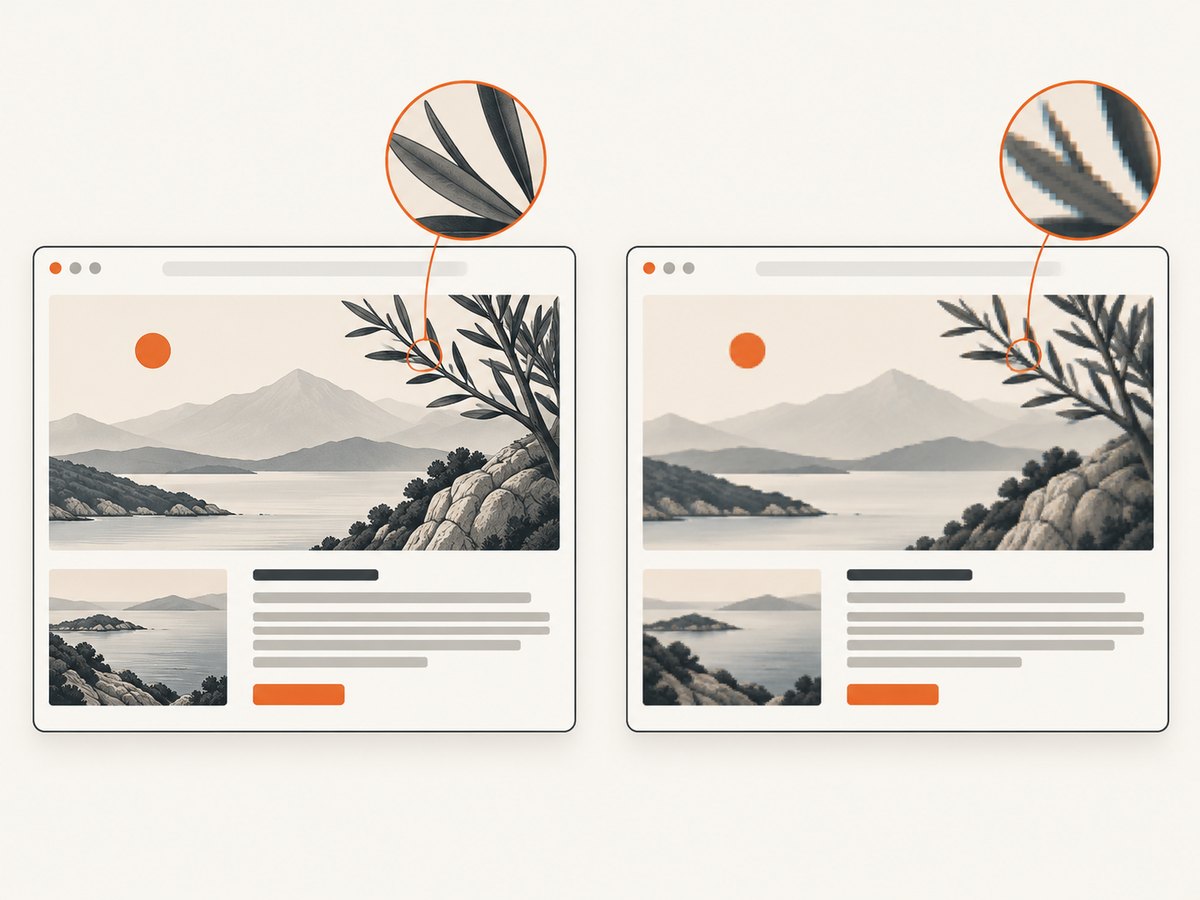
PNG is the documented default. Puppeteer documents quality as an integer from 0 to 100 and says it is not applicable to PNG. For a lossy output, set the type and quality explicitly. The following is an illustrative starting configuration, not a universal recommendation or a savings claim.
const puppeteer = require('puppeteer');

(async () => {
  const browser = await puppeteer.launch();
  try {
    const page = await browser.newPage();
    await page.setViewport({ width: 1280, height: 800 });
    await page.goto('https://example.com', { waitUntil: 'networkidle0' });

    await page.screenshot({
      path: 'capture.jpg',
      type: 'jpeg',
      quality: 75,
    });
  } finally {
    await browser.close();
  }
})();
Set type deliberately. Puppeteer can infer the screenshot type from the path extension, but explicit type and a matching filename extension make the intended encoding clear. Confirm the supported format values in the reference for your installed version.
Inspect the kinds of detail that are easy to damage
- For text-heavy pages, inspect small text and high-contrast edges at the actual display size.
- For diagrams and charts, inspect thin lines, labels, and adjacent color regions.
- For photographic content, compare representative areas for visible compression artifacts.
- If transparency is required, keep in mind that
omitBackgroundhides the default white background and allows transparency. It is a transparency control, not a documented compression setting.
Keep a known-good PNG or other baseline while selecting settings. Compare both file bytes and the visual result. A smaller file is not useful if it fails the downstream fidelity requirement.
4. Measure the output instead of guessing
Use the same URL, browser version, viewport, page state, and captured region when comparing settings. Otherwise, a changed page or layout can make the comparison misleading. Record the byte count alongside the chosen options, then inspect each candidate image.
const fs = require('node:fs/promises');
const puppeteer = require('puppeteer');

(async () => {
  const browser = await puppeteer.launch();
  try {
    const page = await browser.newPage();
    await page.setViewport({ width: 1280, height: 800 });
    await page.goto('https://example.com', { waitUntil: 'networkidle0' });

    const candidates = [
      { name: 'baseline.png', options: { type: 'png' } },
      { name: 'quality-85.jpg', options: { type: 'jpeg', quality: 85 } },
      { name: 'quality-75.jpg', options: { type: 'jpeg', quality: 75 } },
    ];

    for (const candidate of candidates) {
      await page.screenshot({ path: candidate.name, ...candidate.options });
      const { size } = await fs.stat(candidate.name);
      console.log(`${candidate.name}: ${size} bytes`);
    }
  } finally {
    await browser.close();
  }
})();
Open the candidate files and choose the smallest one that meets your use case. There is no source-supported universal threshold for acceptable quality. For repeatable jobs, retain a representative set of pages: a photo-heavy page, a text-heavy page, and any layout with fine lines or transparency that matters.
5. Options that affect scope, not proven compression
fullPage: use it only when the entire document is needed. The documented default is false.clip: limit output to a rectangle.ElementHandle.screenshot(): capture one selected element.typeandquality: choose and tune the encoding where supported; quality does not apply to PNG.omitBackground: allow transparency by hiding the default white background; the documentation does not promise smaller files.encoding: 'base64': this controls how image data is returned, not image compression. Base64 is not a substitute for selecting a format and quality.optimizeForSpeed: it appears in the options table, but that reference does not define an effect on screenshot file size. Do not treat it as a proven size optimization without measuring your own output.
Full-page capture, element capture, and clipping address different requirements. Do not combine them blindly: choose the capture scope that matches the expected artifact, then select a format. For the complete list and behavior of screenshot options, consult the official reference.
6. Troubleshooting common problems
| Symptom | Likely cause | What to do |
|---|---|---|
Changing quality does not change a PNG |
Puppeteer documents quality as not applicable to PNG. | Use a supported non-PNG type if lossy output is acceptable, or keep PNG and reduce capture area. |
| The file is unexpectedly large | The capture includes more pixels than needed, or the content and chosen format encode to a large file. | Check whether full-page capture is necessary, try a clip or element capture, and measure a non-PNG candidate if fidelity permits. |
| The output format differs from the intended format | The type was inferred from the path, or the requested type is not supported by the installed version. | Set type explicitly, use a matching extension, and verify supported values in the versioned Puppeteer docs. |
| Text or lines look damaged | Lossy compression at the selected quality is not suitable for this content. | Increase quality and compare again, or use PNG. Keep the actual display size in mind during review. |
| Clipped image misses content | The rectangle coordinates no longer match the page layout or viewport. | Set the viewport first, wait for layout to settle, and recalculate from the current page or target element. |
| Element screenshot fails or captures the wrong component | The selector did not resolve to the intended element, or the page state differs. | Wait for the selector, verify it identifies the expected element, and handle a missing element explicitly. |
| A screenshot is transparent when white was expected | omitBackground was enabled. |
Remove that option if you want the default background rather than transparency. |
| Size results vary between runs | Page content, layout, viewport, or browser state changed. | Compare a stable page state with the same viewport and capture scope, and record the output bytes for each run. |
7. Performance, reliability, and cost
Reducing image dimensions and selecting a lossy format can reduce the amount of image data to store or transfer, but the amount varies by capture. Measure representative pages before estimating storage or bandwidth. This guide’s cited Puppeteer references do not establish a universal size reduction, capture-time improvement, or cost saving.
For reliable comparisons, use a fixed browser and Puppeteer version, viewport, page state, and selector or clip. Ensure the page has reached the state your workflow needs before capturing; otherwise, you may compare different content. Keep the original output for workflows where exact visual fidelity matters, and validate the reduced artifact in its final consumer, such as a test report, thumbnail, or archive.
Local Puppeteer requires your application to manage browser installation, execution, and output storage. If you prefer a hosted screenshot API, ScreenshotNeo accepts one GET request with a URL and returns PNG, JPEG, WebP, or PDF. Its capture options include element selection, clipping-related capture needs through its available options, image resizing, and custom CSS and JavaScript. For exact parameters, see the ScreenshotNeo API documentation.
8. Or skip the browser setup
ScreenshotNeo offers a one-call screenshot API when you do not want to manage Puppeteer and a browser for this capture. This example saves the response body; keep the URL and extension appropriate for your output configuration.
curl -G "https://api.screenshotneo.com/v1/shot" \
  -d access_key=YOUR_API_KEY \
  --data-urlencode url=https://stripe.com \
  -o shot.webp
See the API docs for authentication and output options. ScreenshotNeo removes cookie banners, popups, and chat widgets before the shot. Bot checks, blank pages, and failed loads are never billed. Its MCP server lets AI agents take screenshots. The free plan includes 1,000 screenshots a month with no card; paid plans start at $5 for 3,000 screenshots.
Sign up free for 1,000 screenshots a month, with no card required.
9. Short FAQ
Can I shrink an existing screenshot with Puppeteer?
Puppeteer’s screenshot options control captures from a page. To reduce an already saved image, use an image-processing tool appropriate for your workflow; that is separate from Puppeteer’s capture settings.
Should I use JPEG for every page?
No. Choose based on fidelity requirements and inspect the result. Text, diagrams, and exact-pixel comparisons may favor PNG.
Does omitBackground make screenshots smaller?
The Puppeteer reference describes it as allowing transparency by hiding the default white background. It does not document it as a size optimization.
What quality value is best?
The documentation defines a range, not a universal best value. Compare byte size and visible quality on representative pages.
Is base64 a compression option?
No. It changes the returned representation of the image data, not the screenshot’s documented image format or quality setting.


