How to Reduce Python MSS Screenshot File Sizes or Save as JPEG
Reduce Python MSS screenshot sizes with PNG compression, smaller captures, resizing, or JPEG encoding while preserving the detail you need.
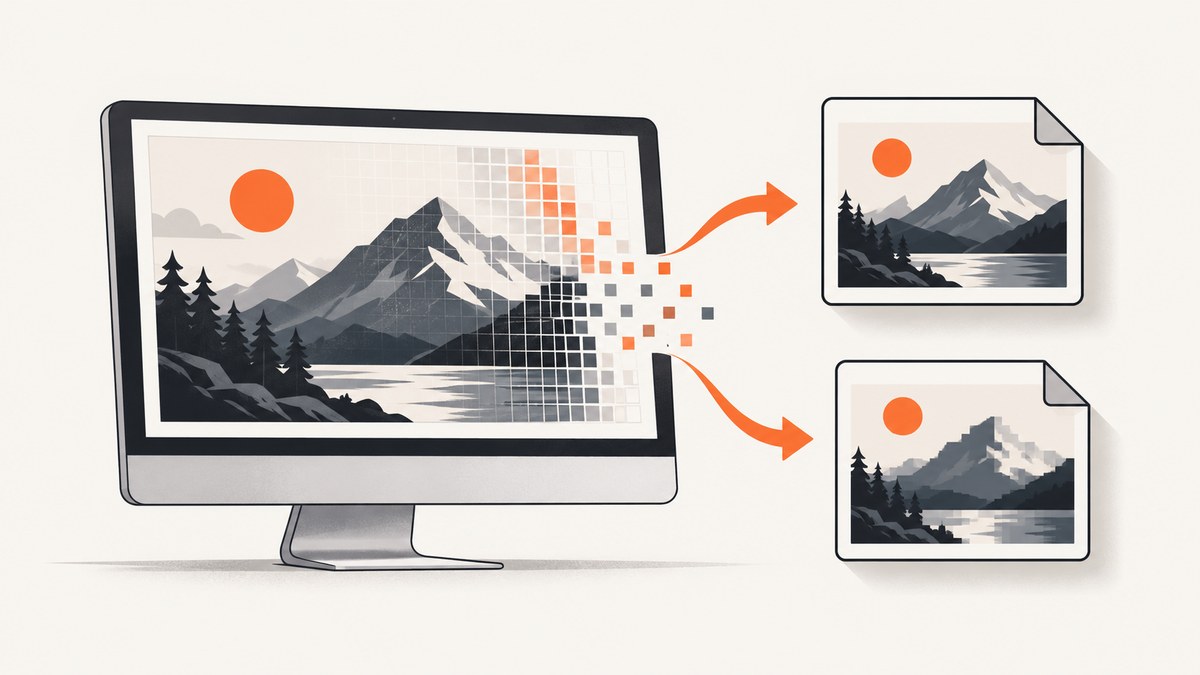
Direct answer: Python MSS captures are written as PNG by default. To reduce the file size, set sct.compression_level, capture only the required region, or resize the image before encoding. To save as JPEG, convert the MSS frame to a Pillow image in RGB mode and call save(..., format='JPEG', quality=...). There is no universal compression level or JPEG quality that works best for every screen, so compare byte size and visual quality using representative captures.
1. Choose the right way to reduce the file
These techniques solve different problems:
| Technique | What changes | Use it when | Trade-off |
|---|---|---|---|
| PNG compression level | How PNG data is encoded | You need lossless pixels or transparency | Higher compression can take more CPU; the size reduction depends on the screen |
| JPEG encoding | Uses lossy compression | You need a smaller photographic or preview image | Text, thin lines, and interface edges can show artifacts; transparency is lost |
| Region capture | Fewer pixels are captured | You need only a window or rectangle | Content outside the region is omitted |
| Resize before saving | Fewer output pixels | A lower resolution is acceptable | Fine detail and readability decrease |
Measure both the resulting bytes and the visual result. A large, flat-color interface may compress well as PNG, while a photo-heavy screen may be smaller as JPEG.
2. Reduce PNG size with MSS compression
MSS exposes a PNG compression setting on the MSS instance. Its documentation example uses 2; treat that as a starting point and test other supported levels for your workload. This changes PNG encoding, not the captured pixels.
import mss
import mss.tools

with mss.MSS() as sct:
    sct.compression_level = 2
    shot = sct.grab(sct.monitors[1])
    mss.tools.to_png(shot.rgb, shot.size, output='screenshot.png')
The compression control was added in MSS 3.2.0. Keep one MSS instance alive when capturing repeatedly; recreating it for every frame adds setup work but does not improve file compression.
Compare several PNG settings
from pathlib import Path
import mss
import mss.tools

levels = [0, 1, 2, 4, 6, 9]
output_dir = Path('png-tests')
output_dir.mkdir(exist_ok=True)

with mss.MSS() as sct:
    shot = sct.grab(sct.monitors[1])
    for level in levels:
        sct.compression_level = level
        path = output_dir / f'screenshot-level-{level}.png'
        mss.tools.to_png(shot.rgb, shot.size, output=str(path))
        print(level, path.stat().st_size, 'bytes')
Use the levels accepted by the MSS and zlib versions installed in your environment. The output sizes above are workload-dependent; do not treat any one level as a guaranteed best choice.
3. Save an MSS screenshot as JPEG with Pillow
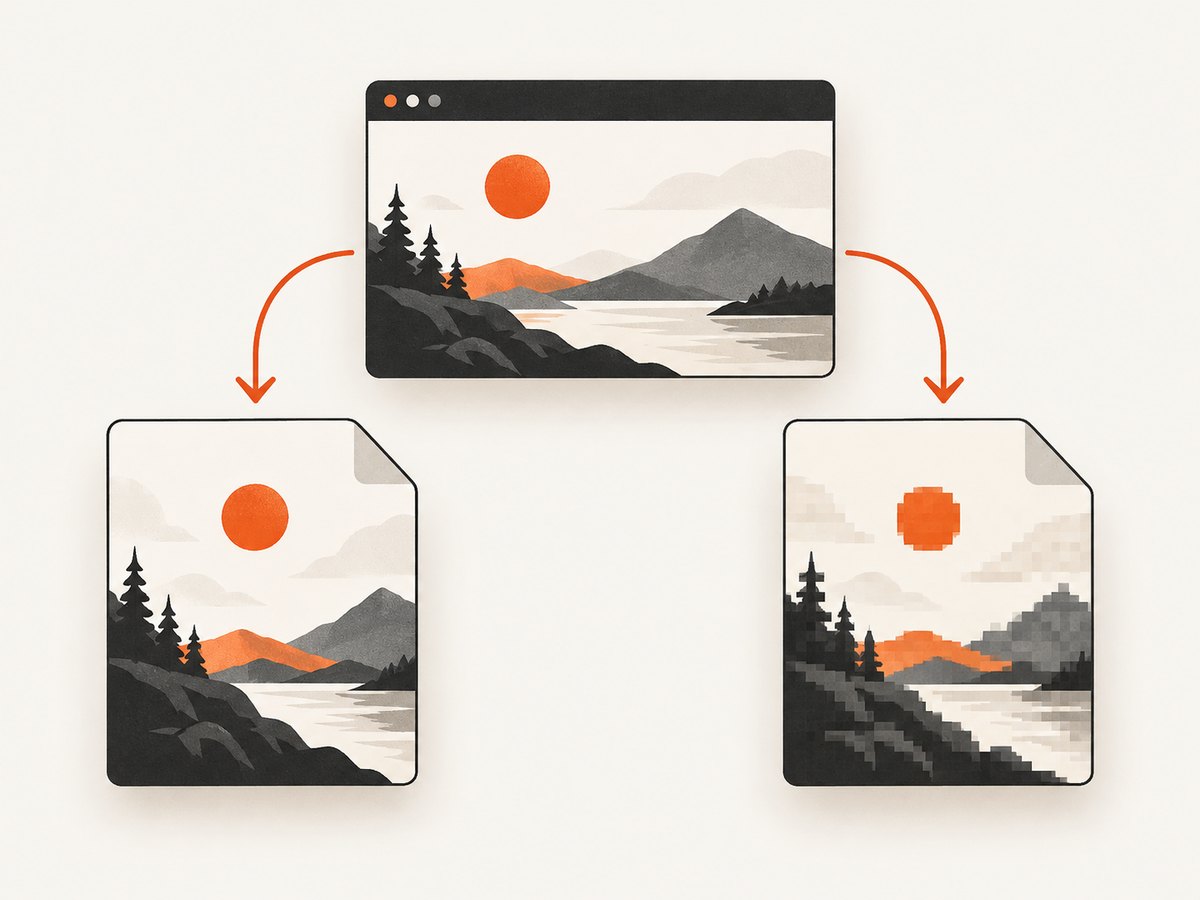
MSS can convert a captured frame to a Pillow image. JPEG requires RGB data, so request RGB mode explicitly. The quality value below is only a starting point; inspect the result and measure it for your screens.
import mss

with mss.MSS() as sct:
    shot = sct.grab(sct.monitors[1])
    image = shot.to_pil('RGB')
    image.save('screenshot.jpg', format='JPEG', quality=85, optimize=True)
The current MSS API documents to_pil as available from MSS 11.0.0. If your installed version does not provide it, use the captured RGB buffer with Pillow instead:
from PIL import Image
import mss

with mss.MSS() as sct:
    shot = sct.grab(sct.monitors[1])
    image = Image.frombytes('RGB', shot.size, shot.rgb)
    image.save('screenshot.jpg', format='JPEG', quality=85, optimize=True)
Pick JPEG quality deliberately
import mss

qualities = [95, 85, 75, 60]

with mss.MSS() as sct:
    shot = sct.grab(sct.monitors[1])
    for quality in qualities:
        image = shot.to_pil('RGB')
        path = f'screenshot-q{quality}.jpg'
        image.save(path, format='JPEG', quality=quality, optimize=True)
        print(quality, image.width, image.height)
Higher quality usually preserves more detail and produces larger files. JPEG is lossy: zoom into small text, one-pixel borders, icons, and diagonal lines before choosing it for documentation or OCR. Keep PNG when you need exact pixels or a transparent background.
4. Capture only the region you need
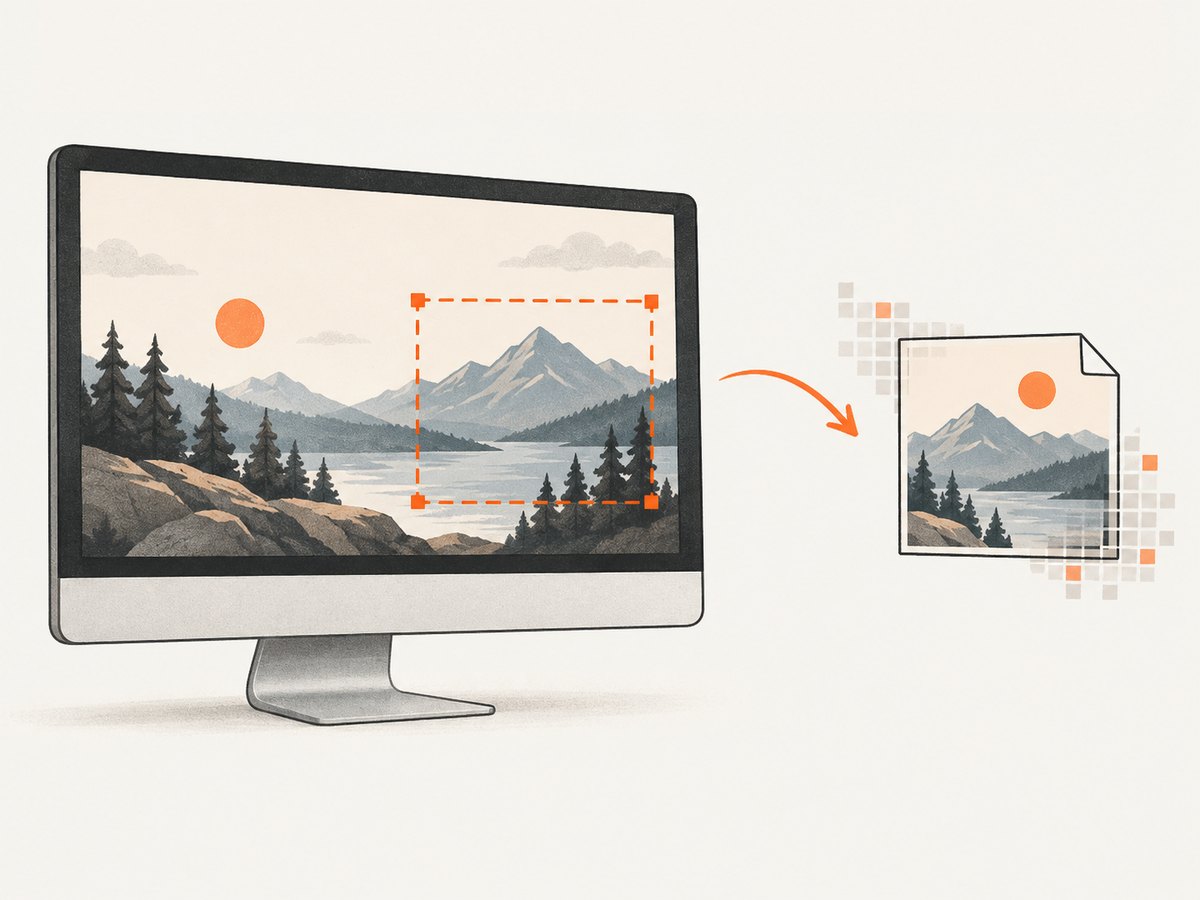
If the full monitor is unnecessary, pass a monitor-like rectangle to grab. The rectangle uses left, top, width, and height.
import mss
import mss.tools

region = {
    'left': 100,
    'top': 80,
    'width': 1280,
    'height': 720,
}

with mss.MSS() as sct:
    shot = sct.grab(region)
    mss.tools.to_png(shot.rgb, shot.size, output='region.png')
Region capture reduces the number of pixels that must be encoded. It is not compression: anything outside the rectangle is absent from the result. Check coordinate systems on multi-monitor desktops, especially when a monitor is positioned to the left or above the primary display.
5. Resize before encoding
Resizing can produce a much smaller file because the output contains fewer pixels, but it also removes detail. Use it only when the target display, thumbnail, or API accepts the lower dimensions.
import mss

with mss.MSS() as sct:
    shot = sct.grab(sct.monitors[1])
    image = shot.to_pil('RGB')
    image.thumbnail((1280, 1280))
    image.save('screenshot-small.jpg', format='JPEG', quality=85, optimize=True)
thumbnail preserves the aspect ratio and does not enlarge a smaller capture. For a fixed output size, use resize and choose a Pillow resampling filter suitable for your version.
6. A complete format comparison script
This script captures once, writes PNG variants, writes JPEG variants, and reports byte sizes so you can choose from real screens instead of a universal promise.
from pathlib import Path
import mss
import mss.tools

out = Path('capture-comparison')
out.mkdir(exist_ok=True)

with mss.MSS() as sct:
    shot = sct.grab(sct.monitors[1])

    for level in (0, 2, 6, 9):
        sct.compression_level = level
        path = out / f'screenshot-level-{level}.png'
        mss.tools.to_png(shot.rgb, shot.size, output=str(path))
        print(path.name, path.stat().st_size, 'bytes')

    for quality in (95, 85, 75):
        image = shot.to_pil('RGB')
        path = out / f'screenshot-quality-{quality}.jpg'
        image.save(path, format='JPEG', quality=quality, optimize=True)
        print(path.name, path.stat().st_size, 'bytes')
Review the files at their actual display size and at 200% zoom. For text-heavy screens, a slightly larger PNG may be more useful than a smaller JPEG with ringing or blurred glyphs.
7. Edge cases and compatibility
- Transparency: JPEG has no alpha channel. Use PNG if transparency matters.
- Color mode: Convert to RGB before JPEG encoding. Avoid passing an RGBA image directly to JPEG.
- Monitor selection:
sct.monitors[1]is commonly the first real monitor, while index0represents the combined virtual desktop. Inspectsct.monitorsbefore hard-coding an index. - High-DPI displays: Logical coordinates and physical pixels can differ. Confirm the captured dimensions instead of assuming the operating-system scale factor.
- Animated or changing screens: Capture timing affects the bytes and visual result. Wait for the application state you need before calling
grab. - Linux performance: MSS documents direct screenshot buffers on supported GNU/Linux setups with Python 3.12 or later. This affects memory copying and capture performance, not the compressed file size.
- Older MSS versions: Check the installed API if
compression_levelorto_pilis unavailable. Upgrade only after checking compatibility with your application.
8. Troubleshooting
| Symptom | Likely cause | Fix |
|---|---|---|
| Changing compression does not make the file much smaller | The screen has already-compressed or noisy content, or the chosen levels encode it similarly | Compare representative captures; try JPEG, a smaller region, or resizing |
cannot write mode RGBA as JPEG |
JPEG does not support alpha | Use shot.to_pil('RGB') or call image.convert('RGB') |
AttributeError: ... to_pil |
Your MSS version predates the documented helper | Build a Pillow image from shot.rgb and shot.size, or update MSS after checking your dependency constraints |
| The wrong monitor or area is captured | Monitor index or virtual-desktop coordinates are incorrect | Print sct.monitors, verify coordinates, and test a small region first |
| Text looks blurry after conversion | JPEG loss or excessive downscaling | Increase JPEG quality, keep the original dimensions, or use PNG |
| Files are large despite JPEG | The capture dimensions are very large or quality is high | Resize when acceptable, reduce quality incrementally, and compare visual artifacts |
| Repeated captures are slow | A new MSS object is created for every capture, or encoding dominates runtime | Reuse one MSS instance and profile capture versus PNG/JPEG encoding separately |
9. Performance, reliability, and cost considerations
- Separate capture from encoding: Capture once, then encode several formats from the same frame when comparing settings. This avoids measuring monitor capture repeatedly.
- Reuse MSS: In intensive loops, keep one
MSSobject and callgrabrepeatedly. - Control memory: Large full-screen frames can occupy substantial memory before encoding. Process and release images promptly when running batches.
- Preserve originals when needed: If later auditing or pixel comparison is required, keep a lossless PNG and derive JPEG previews separately.
- Measure your workload: Record output bytes and encode time for text-heavy pages, photographs, dark themes, and high-DPI captures. The dossier provides no universal size percentage or speed benchmark.
- Library cost: MSS and Pillow are software libraries; this workflow does not require capture hardware or a paid service.
10. Or skip the browser setup
If the source is a web page rather than your local desktop, ScreenshotNeo provides a single screenshot request and can return PNG, JPEG, WebP, or PDF. Its cleanup steps remove cookie and consent banners, newsletter popups, and chat widgets before capture. Bot checks, blank pages, timeouts, failed loads, and cache hits are not billed, and the response identifies the page verdict and billing status in headers. It also provides an MCP server for AI agents and supports custom capture options through its API.
See the ScreenshotNeo API documentation for the full option list.
curl -G 'https://api.screenshotneo.com/v1/shot' -d access_key=YOUR_API_KEY --data-urlencode url=https://stripe.com -o shot.webpimport requests
r = requests.get(
'https://api.screenshotneo.com/v1/shot',
params={'access_key': 'YOUR_API_KEY', 'url': 'https://stripe.com'},
timeout=90,
)
r.raise_for_status()
open('shot.webp', 'wb').write(r.content)const q = new URLSearchParams({ access_key: 'YOUR_API_KEY', url: 'https://stripe.com' });
const res = await fetch(`https://api.screenshotneo.com/v1/shot?${q}`);
if (!res.ok) throw new Error(`Screenshot failed: ${res.status}`);
const data = Buffer.from(await res.arrayBuffer());
await Bun.write('shot.webp', data);ScreenshotNeo includes 1,000 screenshots per month free with no card; paid plans start at $5 for 3,000 screenshots. Create a free ScreenshotNeo account.
11. FAQ
Can I make MSS save JPEG directly?
MSS captures the screen and provides PNG-oriented data. Convert the frame to a Pillow RGB image and save it as JPEG.
Does a higher PNG compression level always produce a smaller file?
No. Results depend on the pixels and encoder settings. Compare levels on representative captures.
Is JPEG better than PNG for screenshots?
JPEG can be smaller, especially for photographic content, but PNG keeps exact pixels and transparency. Interface text often benefits from PNG.
Why is my screenshot still large after compression?
Compression cannot remove pixels. Capture a smaller region, resize the image, or choose JPEG if its quality trade-off is acceptable.
Should I resize before or after JPEG conversion?
Resize first, then encode. That avoids compressing pixels that will be discarded and makes the intended output dimensions explicit.


