How to Reduce Selenium Screenshot Capture Time
Reduce Selenium screenshot time by measuring capture separately, shrinking capture scope, testing headless Chrome, and tuning encoding safely.
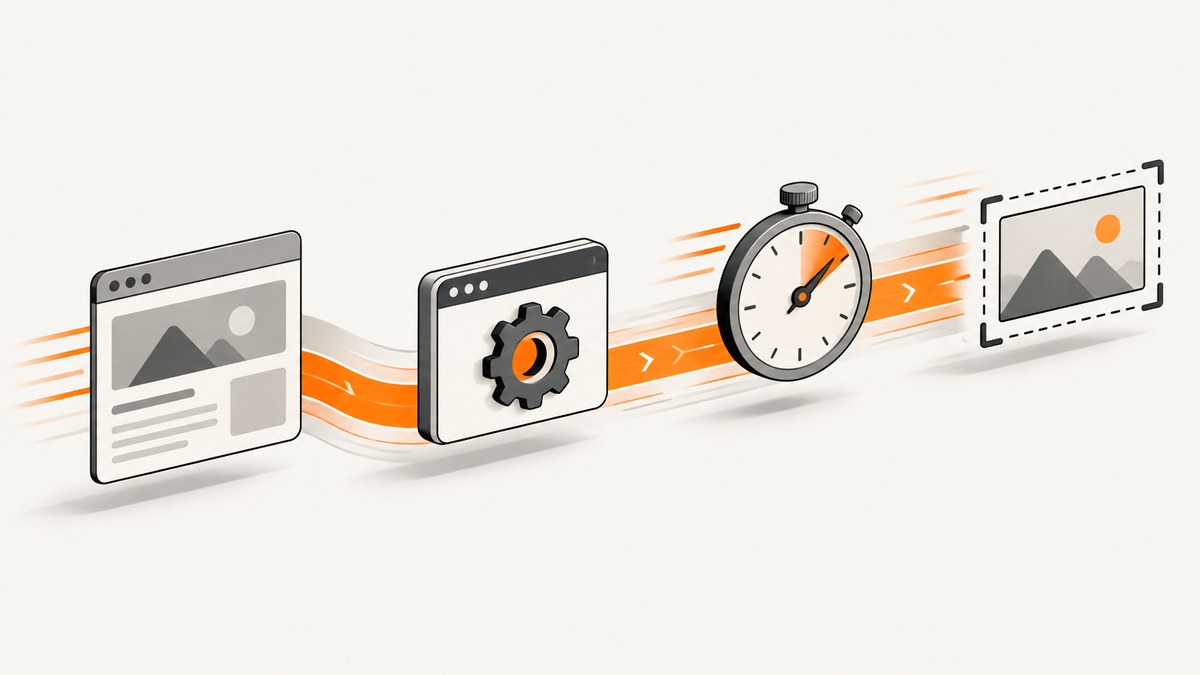
Short answer: measure the screenshot call separately from navigation and readiness waits, then capture the smallest valid area. Use an element screenshot when the assertion concerns one component, a viewport screenshot when the visible state is enough, and a full-page screenshot only when the test requires it. Test --headless=new in the same runner you use in production, and compare image encoding options only in bindings that document them. There is no universal fastest Selenium configuration: browser version, driver, page complexity, remote execution, image dimensions, and disk I/O all affect the result.
Selenium exposes page-level and element-level screenshot APIs. WebDriver returns Base64-encoded image data, and the JavaScript API describes a best-effort scope that may include the whole page, current window, visible frame, or display. Those choices change how much work the browser performs, so scope is the first optimization to test. See the Selenium screenshot documentation.
1. Measure screenshot time independently
A common mistake is timing navigation, cookie handling, explicit waits, screenshot encoding, and file writing as one operation. That number cannot tell you whether the screenshot command is slow. Make the page ready first, then record separate intervals.
from time import perf_counter
from pathlib import Path
from selenium import webdriver
from selenium.webdriver.chrome.options import Options
from selenium.webdriver.common.by import By
from selenium.webdriver.support.ui import WebDriverWait

options = Options()
options.add_argument("--headless=new")
options.add_argument("--window-size=1440,900")
driver = webdriver.Chrome(options=options)

try:
    navigation_start = perf_counter()
    driver.get("https://example.com/dashboard")
    navigation_seconds = perf_counter() - navigation_start

    readiness_start = perf_counter()
    WebDriverWait(driver, 20).until(
        lambda d: d.find_element(By.CSS_SELECTOR, "[data-report-ready='true']")
    )
    readiness_seconds = perf_counter() - readiness_start

    capture_start = perf_counter()
    png = driver.get_screenshot_as_png()
    capture_seconds = perf_counter() - capture_start

    write_start = perf_counter()
    Path("dashboard.png").write_bytes(png)
    write_seconds = perf_counter() - write_start

    print({
        "navigation": navigation_seconds,
        "readiness": readiness_seconds,
        "capture": capture_seconds,
        "write": write_seconds,
        "bytes": len(png),
    })
finally:
    driver.quit()
Keep the URL, test data, viewport, browser and driver versions, machine or container, and network conditions fixed. Run each variant repeatedly and report a median or distribution. A single fast run may be cache luck or a temporarily quiet page.
2. Capture the smallest valid area
Capture scope often matters more than a browser flag. If a test verifies a chart, save that element rather than the entire document. If it verifies the visible page state, use the viewport screenshot. Full-page capture can require layout stitching or additional rendering work, especially on long pages with lazy content.
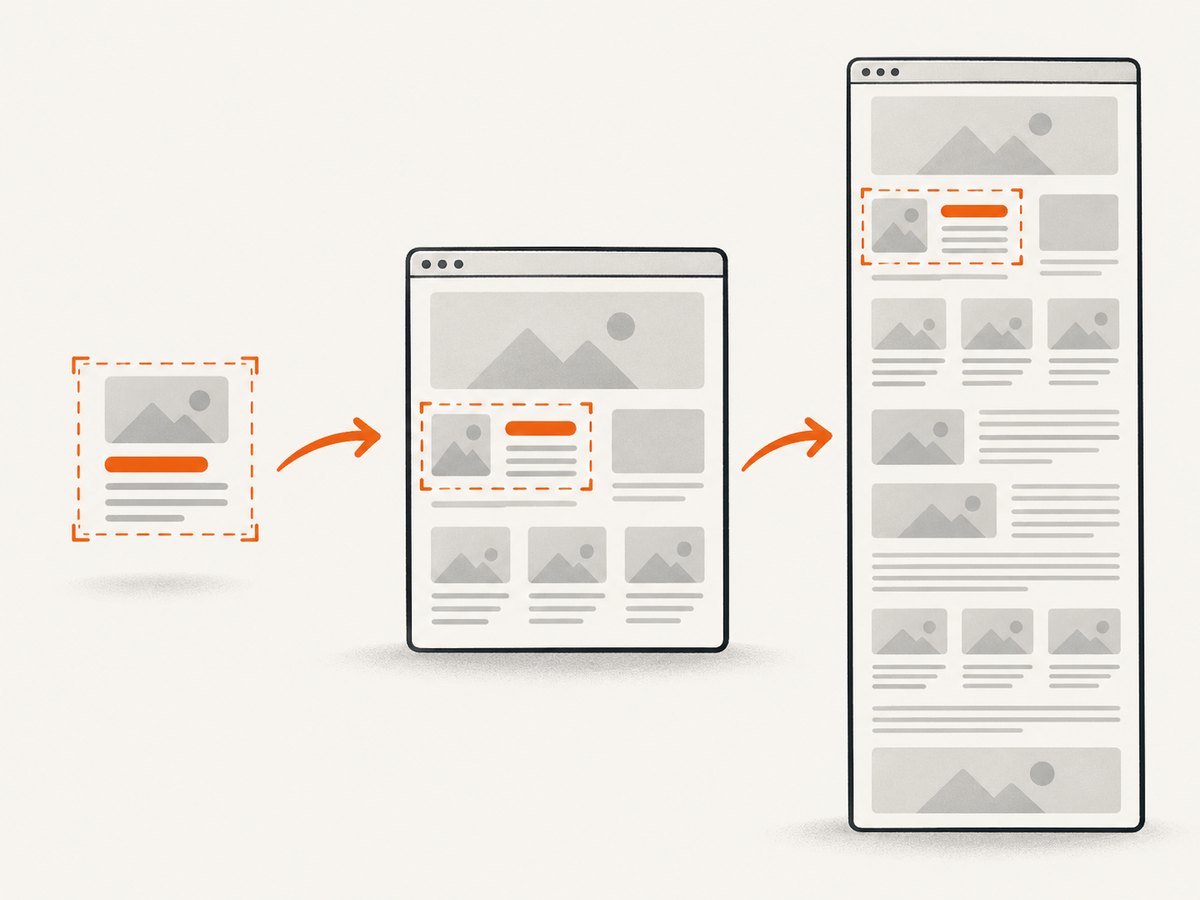
Element screenshot
chart = driver.find_element(By.CSS_SELECTOR, "[data-testid='revenue-chart']")
chart.screenshot("revenue-chart.png")
Current viewport screenshot
driver.save_screenshot("viewport.png")JavaScript
const {Builder, By} = require('selenium-webdriver');

(async function capture() {
  const driver = await new Builder().forBrowser('chrome').build();
  try {
    await driver.get('https://example.com/dashboard');
    const chart = await driver.findElement(By.css("[data-testid='revenue-chart']"));
    const png = await chart.takeScreenshot();
    require('fs').writeFileSync('revenue-chart.png', png, 'base64');
  } finally {
    await driver.quit();
  }
})();
Java
WebElement chart = driver.findElement(By.cssSelector("[data-testid='revenue-chart']"));
File output = new File("revenue-chart.png");
FileUtils.copyFile(chart.getScreenshotAs(OutputType.FILE), output);
C#
var chart = driver.FindElement(By.CssSelector("[data-testid='revenue-chart']"));
var screenshot = chart.GetScreenshot();
screenshot.SaveAsFile("revenue-chart.png");
Do not reduce the scope if the missing pixels invalidate the assertion. A faster image that omits a sticky header, modal, canvas, or below-the-fold state is a test failure disguised as an optimization.
3. Test headless Chrome in the real runner
Selenium documents --headless=new as a Chrome argument. Headless mode can reduce display-related overhead in some environments, but it is not guaranteed to make the screenshot command faster. Compare headed and headless Chrome on the same CI image, browser version, viewport, page, and readiness condition.
from selenium.webdriver.chrome.options import Options

options = Options()
options.add_argument("--headless=new")
options.add_argument("--window-size=1440,900")
# Add only flags required by your runner and security policy.
driver = webdriver.Chrome(options=options)
Chrome and ChromeDriver major versions must match. Check both versions in CI and keep them pinned when comparing runs. A browser upgrade can change layout, font loading, GPU behavior, or screenshot encoding, making an apparent optimization impossible to attribute.
4. Control readiness waits without making screenshots flaky
Shortening waits blindly trades time for intermittent failures. Replace fixed sleeps with the narrowest condition that represents the state under test.
# Prefer a specific readiness condition
WebDriverWait(driver, 20).until(
    lambda d: d.find_element(By.CSS_SELECTOR, "[data-render-complete]").is_displayed()
)

# Avoid this unless the application genuinely needs a fixed delay
# time.sleep(5)
For a page that fetches data after navigation, wait for a stable application marker, not merely document readiness. For an animation, wait until the animation ends or disable it with test-only CSS. For lazy images, scroll only as far as the test needs and verify the image has loaded before capture.
5. Investigate image encoding and output size
Screenshot time includes browser rasterization, encoding, transport, and sometimes writing a large Base64 response. Record dimensions and byte size for every variant. A smaller output can reduce transfer and disk time, but changing format or quality may affect visual assertions.
The Selenium .NET DevTools reference documents an OptimizeForSpeed image-encoding option whose purpose is to optimize encoding speed rather than resulting size. It is a versioned .NET API; do not assume that the same setting exists in Python, Java, JavaScript, or your installed browser. Compare it only where your binding and browser support it, and inspect both elapsed time and output size. See the Selenium .NET API reference.
Keep the following variables visible in benchmark output:
- capture scope: element, viewport, or full page;
- viewport dimensions and device scale factor;
- browser, driver, Selenium binding, and operating system versions;
- image format, dimensions, and file size;
- local versus remote execution and network round-trip time;
- navigation, readiness, capture, encoding, and write durations.
6. Avoid work that happens before the screenshot
Browser startup, driver creation, authentication, redirects, third-party scripts, fonts, ads, analytics, and remote WebDriver transport can dominate the total. Reuse a driver for a controlled test session when isolation permits it, but reset cookies and application state so one test does not change another’s pixels. If the screenshot runs on a remote grid, measure the command at the client and at the node when possible; the difference is transport and serialization overhead, not browser capture.
Blocking third-party requests can speed a test only when those requests are irrelevant to the state being verified. Blocking them can also remove fonts, images, consent controls, or application data. Treat request blocking as a test-specific fixture and verify the resulting page.
7. A repeatable comparison plan
- Choose one representative URL and deterministic test data.
- Warm the environment consistently, or explicitly measure cold starts separately.
- Wait for the same application-ready condition in every run.
- Measure the current full-page or viewport command.
- Measure the smallest valid element or viewport command.
- Compare headed Chrome with
--headless=new. - Where supported, compare speed-oriented encoding settings.
- Repeat each case and report median, spread, dimensions, and bytes.
- Review the images to confirm that faster output still proves the assertion.
Selenium cautions that WebDriver is generally not advised for performance testing because browser startup, HTTP servers, third-party resources, and WebDriver instrumentation affect results. Use this procedure to optimize functional-test screenshot capture, not to claim a general browser performance benchmark. Read the Selenium test-practice guidance.
8. Troubleshooting slow or unreliable captures
| Symptom | Likely cause | Fix |
|---|---|---|
| Capture timing is high but navigation is also high | You are measuring the whole workflow. | Start the capture timer immediately before the screenshot call and report phases separately. |
| Element screenshot is blank or clipped | The element is hidden, outside the expected state, or still rendering. | Wait for visibility and application readiness; scroll or capture the required ancestor; inspect the saved image. |
| Headless is slower | The target runner, GPU settings, fonts, or browser version behave differently. | Keep the slower result; headless is an experiment, not a promise. Compare with identical versions and flags. |
| Intermittent missing images | Lazy loading or network requests finish after your wait. | Wait for image completion or an application marker; avoid arbitrary sleep increases. |
| Large PNG files dominate time | High dimensions, device scale, or complex pixels increase encoding and transfer. | Use the smallest valid viewport or element, review scale, and test an encoding option supported by your binding. |
| Session creation dominates short tests | Each test starts a new browser. | Measure startup separately and reuse a session only when state isolation remains correct. |
| Version errors after an upgrade | Chrome and ChromeDriver major versions differ. | Install matching major versions and print them in CI diagnostics. |
| Remote runs vary widely | Grid load, network distance, or node contention. | Record node and geography, repeat runs, and compare capture time separately from transport time. |
9. Or skip the browser setup
If your requirement is a clean image or PDF rather than a browser test assertion, ScreenshotNeo provides a single HTTP request. Its capture options include full-page shots, CSS-element capture, device presets, custom viewports, retina scale, dark mode, waits, custom CSS and JavaScript, request blocking, headers, cookies, user agents, timezone, geolocation, resizing, caching, bulk capture, asynchronous jobs, PDFs, and signed links. Use the option names in the ScreenshotNeo documentation.
curl -G "https://api.screenshotneo.com/v1/shot" -d access_key=YOUR_API_KEY --data-urlencode url=https://stripe.com -o shot.webpimport requests
r = requests.get("https://api.screenshotneo.com/v1/shot", params={"access_key": "YOUR_API_KEY", "url": "https://stripe.com"}, timeout=90)
open("shot.webp", "wb").write(r.content)const q = new URLSearchParams({ access_key: 'YOUR_API_KEY', url: 'https://stripe.com' });
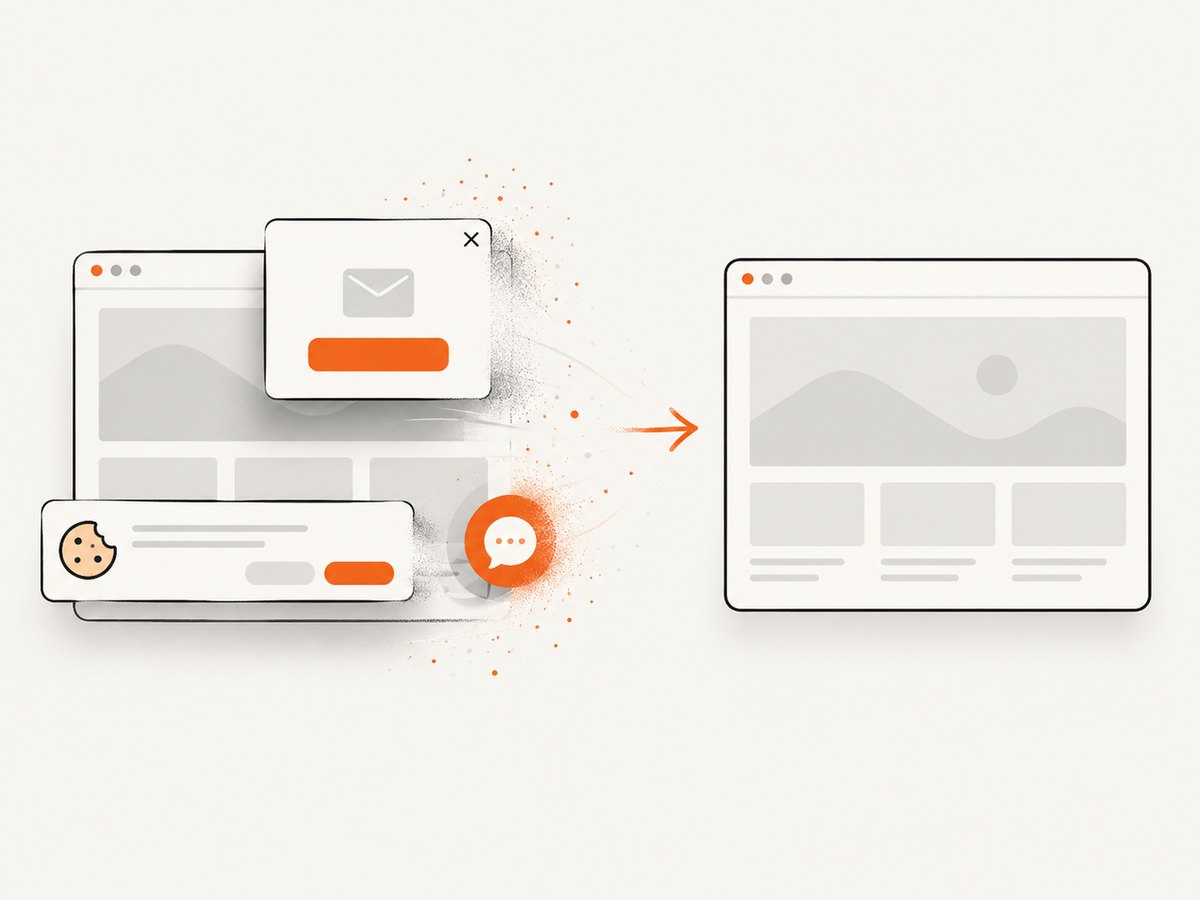
const res = await fetch(`https://api.screenshotneo.com/v1/shot?${q}`);Cookie banners, newsletter popups, and chat widgets are removed before the shot. Bot checks, blank pages, failed loads, timeouts, and cache hits are not billed, and response headers identify the page verdict and billing status. An MCP server lets Claude, Cursor, and other MCP clients call take_screenshot, get_page_info, and capture_pdf. The free plan includes 1,000 screenshots per month with no card; paid plans start at $5 for 3,000. Create a free ScreenshotNeo account.
10. Performance, reliability, and cost checklist
- Optimize the smallest screenshot scope that still proves the behavior.
- Keep readiness criteria explicit and deterministic.
- Benchmark in the actual CI or grid environment.
- Separate browser startup, navigation, waits, capture, encoding, transport, and disk writes.
- Track image dimensions and bytes alongside elapsed time.
- Pin compatible browser and driver versions.
- Repeat runs and report distributions, not a single fastest result.
- Inspect every optimized image for missing or stale content.
- Use caching only when the page state and freshness requirements allow it.
- For API captures, account for failed or blank results separately from successful images and monitor the response verdict headers.
FAQ
Is Selenium element capture always faster than full-page capture?
No. It is often less work, but DOM complexity, rendering state, browser implementation, and remote transport determine the result. Measure both on your page.
Should I always use headless Chrome?
No. Test --headless=new in the target runner and keep whichever mode meets your correctness and timing requirements.
Does reducing PNG file size prove the screenshot is faster?
No. File size affects encoding, transfer, and writing, but browser rasterization and waits may dominate. Record each phase.
Can WebDriver screenshot timing be used as a page-speed benchmark?
Not reliably. Selenium documents variables that make WebDriver unsuitable for general performance testing. Use it to compare your functional-test capture variants under controlled conditions.
When should I use an API instead of Selenium?
Use Selenium when the screenshot is part of a browser test and must share that test’s state. Use an API when you need repeatable website images or PDFs without maintaining browser and driver setup.


