How to Reduce the Quality or Dimensions of Selenium Screenshots
Learn whether to reduce Selenium screenshot dimensions before capture or compress the PNG afterward, with runnable Python examples and practical fixes.
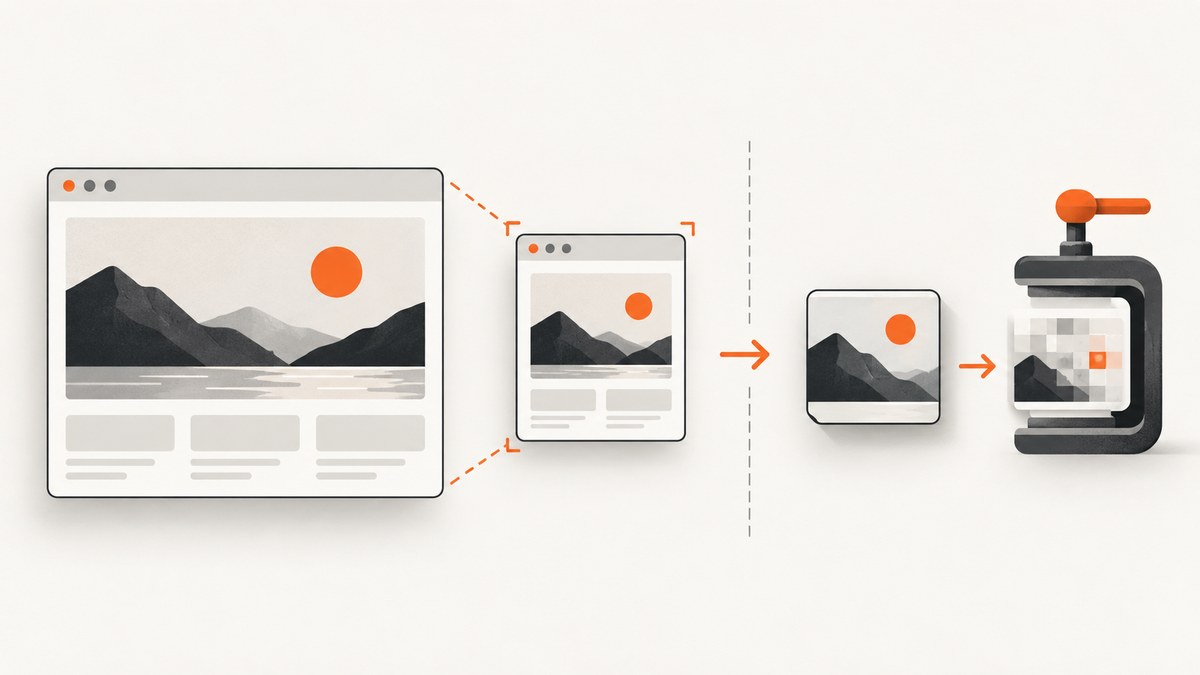
Short answer: Selenium’s standard screenshot command returns a lossless PNG of the browser’s visual viewport. It has no screenshot-quality argument. To capture fewer pixels, set the browser window or viewport dimensions before taking the screenshot. To keep the same rendered page but reduce file size, save the PNG and resize or re-encode it afterward with an image library. These are different operations: changing the viewport can change responsive layout, while post-processing changes only the image file.
The distinction matters for visual regression tests, thumbnails, documentation, archiving and upload costs. This guide covers both approaches, complete Python examples, image-format choices, full-page limitations, edge cases, troubleshooting, and a hosted alternative when maintaining browser infrastructure is unnecessary.
What Selenium actually captures
The WebDriver screenshot command dumps a snapshot of the visual viewport framebuffer as a lossless PNG. The W3C specification describes the result as a PNG rather than a JPEG with a selectable quality level. Selenium’s Python binding exposes the PNG as a file, bytes, or base64 data.
That means there are two independent controls:
| Goal | Where to change it | Effect |
|---|---|---|
| Fewer rendered pixels | Browser window or viewport before capture | Can trigger responsive breakpoints, different wrapping, hidden controls and alternate layouts |
| Smaller output file | Image processing after capture | Preserves the original rendering until you resize or re-encode the raster image |
| Lower visual fidelity | Lossy output format such as JPEG or a lower-quality WebP | Reduces bytes but can add artifacts around text and sharp edges |
| Full-page image | Browser- and binding-specific facility | Captures beyond the visual viewport; support is not universal |
Do not assume a requested window size equals the final image dimensions. WebDriver permits browser implementations to clamp dimensions, and some environments cannot resize in single-pixel increments. Device-pixel ratio, headless mode, browser chrome and driver behavior can also affect the observed output.
Choose the right reduction strategy
- Need the page to render as a mobile, tablet or compact desktop layout? Set the intended viewport before capture.
- Need the same desktop rendering in a smaller artifact? Capture first, then resize the image.
- Need fewer bytes while keeping the same dimensions? Keep the PNG as a source and encode a delivery copy as WebP or JPEG.
- Need pixel-perfect comparison? Keep the original PNG. Lossy encoding and resampling can create differences unrelated to the page.
- Need a document taller than the viewport? Confirm that your browser and Selenium binding support a full-document method before building around it.
Reduce dimensions before taking a screenshot
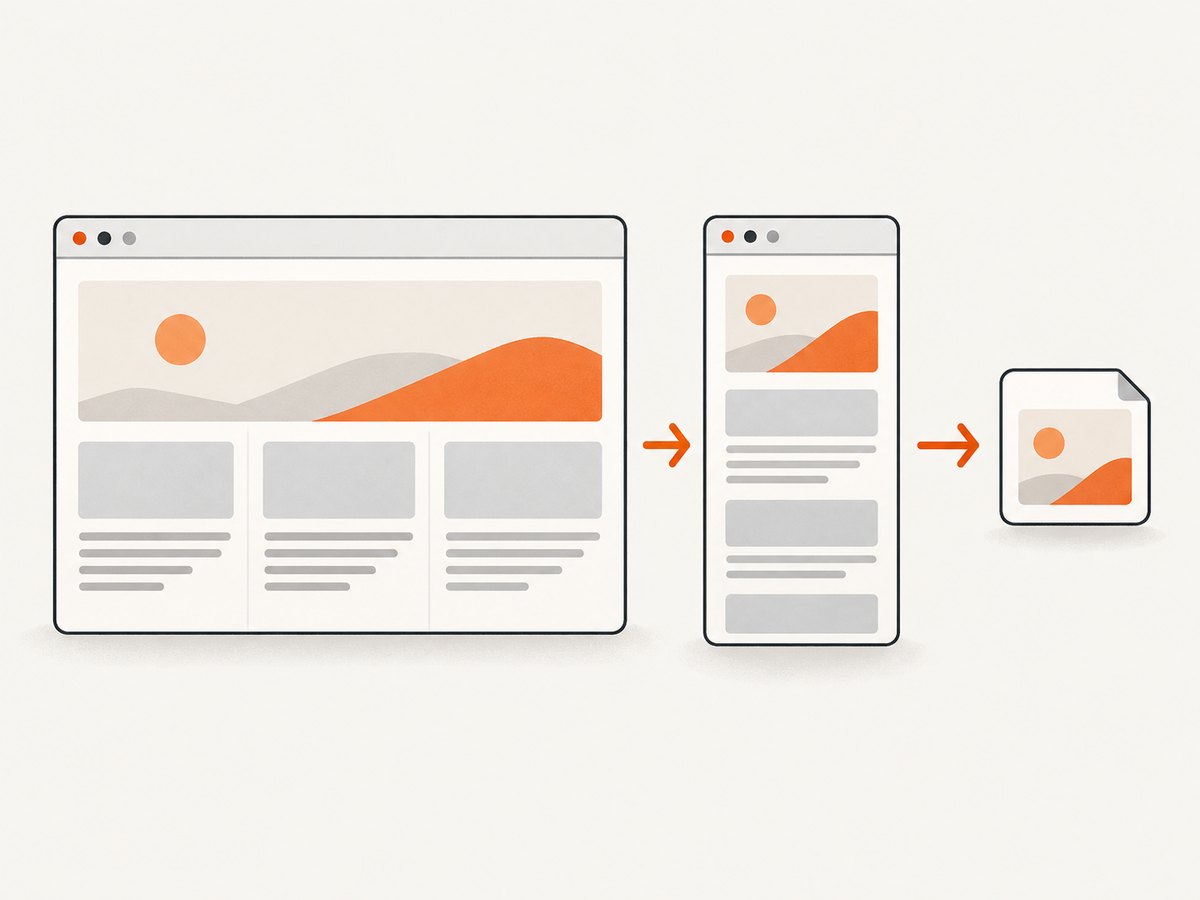
Selenium Python documents set_window_size(width, height), with dimensions expressed in pixels. Set the size after creating the driver and before navigating or capturing. A smaller viewport may cause the page to switch CSS breakpoints, so inspect the result rather than treating this as a transparent scaling operation.
from pathlib import Path
from selenium import webdriver
from selenium.webdriver.chrome.options import Options

options = Options()
options.add_argument("--headless=new")
options.add_argument("--disable-gpu")

driver = webdriver.Chrome(options=options)
try:
    driver.set_window_size(1024, 768)
    driver.get("https://example.com")

    output = Path("viewport-1024x768.png")
    if not driver.save_screenshot(str(output)):
        raise RuntimeError("WebDriver reported that the screenshot was not saved")

    print(f"saved {output}")
finally:
    driver.quit()
The file name describes the requested outer window, not a guarantee about the PNG’s actual pixel dimensions. Verify the image itself with Pillow:
from PIL import Image

with Image.open("viewport-1024x768.png") as image:
    print("actual pixels:", image.size)
    print("format:", image.format)
If you need a particular CSS viewport rather than an outer browser window, run headless and validate the result in your target environment. Browser controls and operating-system window managers can make headed dimensions less predictable.
Retina and device-pixel-ratio considerations
A CSS viewport and an image’s physical pixel dimensions are not always the same. A device-pixel ratio greater than one can produce more image pixels for the same CSS layout. Conversely, a headless configuration or driver may use a different scale factor. Treat set_window_size as a rendering request and inspect the saved file when exact dimensions matter.
Reduce file size after capture
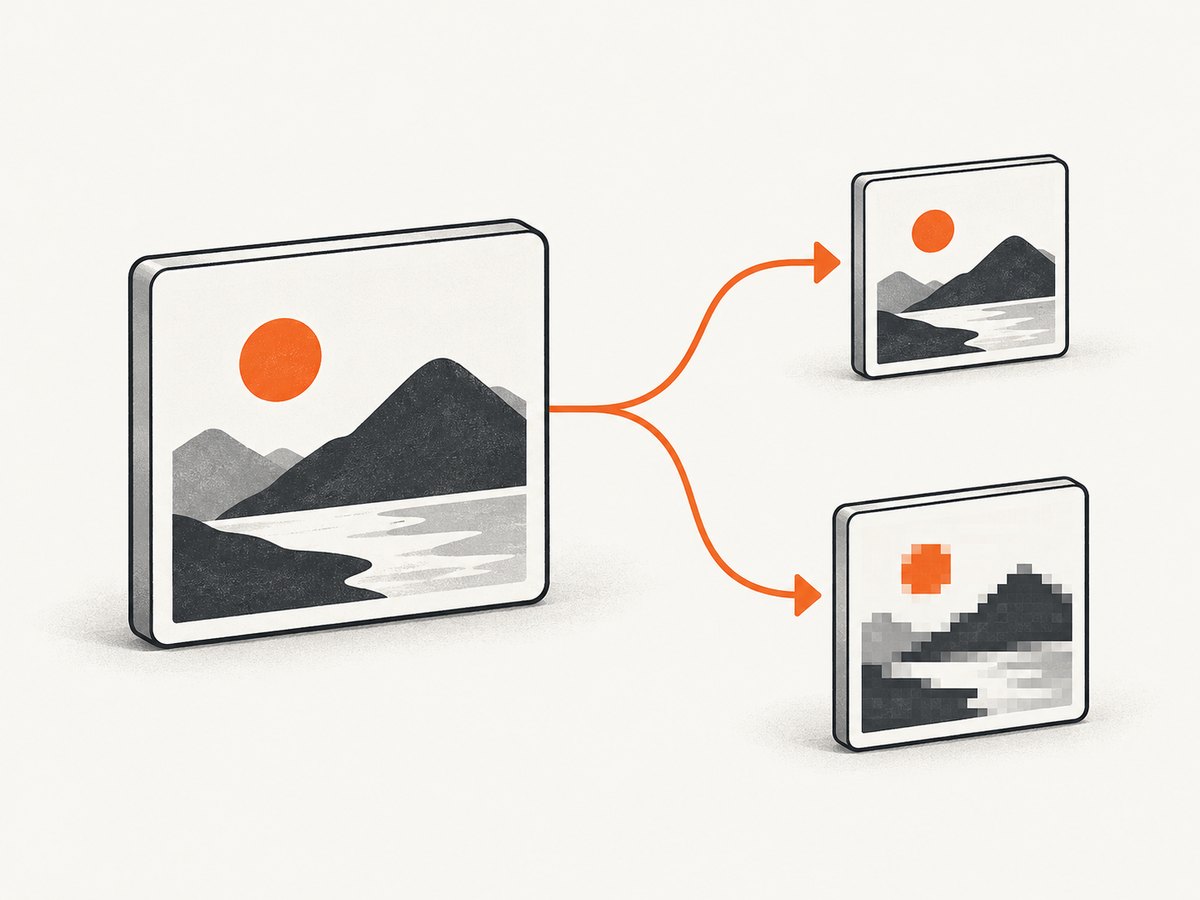
Post-processing starts with the PNG bytes Selenium produced. Pillow can resize the raster image and encode a delivery format. Keep an untouched PNG when exact fidelity, later editing or pixel comparison matters.
from io import BytesIO
from pathlib import Path
from PIL import Image
from selenium import webdriver
from selenium.webdriver.chrome.options import Options

options = Options()
options.add_argument("--headless=new")
driver = webdriver.Chrome(options=options)

try:
    driver.set_window_size(1440, 900)
    driver.get("https://example.com")
    png_bytes = driver.get_screenshot_as_png()
finally:
    driver.quit()

source = Image.open(BytesIO(png_bytes)).convert("RGB")
source.save("original.png", format="PNG")

# Preserve aspect ratio while limiting the long edge.
max_width = 900
if source.width > max_width:
    target_height = round(source.height * max_width / source.width)
    reduced = source.resize((max_width, target_height), Image.Resampling.LANCZOS)
else:
    reduced = source

# JPEG is useful for photographic pages, but text and sharp UI edges may show artifacts.
reduced.save("reduced.jpg", format="JPEG", quality=82, optimize=True, progressive=True)

# WebP often gives a smaller web delivery file; choose quality explicitly.
reduced.save("reduced.webp", format="WEBP", quality=82, method=6)

for filename in ("original.png", "reduced.jpg", "reduced.webp"):
    print(filename, Path(filename).stat().st_size, "bytes")
The quality number is an image-library encoder setting, not a Selenium setting. Test representative pages: screenshots containing small type, charts or one-pixel borders can degrade sooner than photographs. If transparency is needed, keep PNG or use a WebP mode that preserves alpha; converting to RGB removes transparency.
Resize by a known scale factor
from PIL import Image

with Image.open("capture.png") as image:
    scale = 0.5
    size = (round(image.width * scale), round(image.height * scale))
    image.resize(size, Image.Resampling.LANCZOS).save(
        "capture-50-percent.webp", format="WEBP", quality=85
    )
Use a high-quality resampling filter for text and interface screenshots. Avoid repeatedly resizing an already reduced image; retain the original and generate derivatives from it.
PNG, JPEG or WebP?
| Format | Best fit | Trade-off |
|---|---|---|
| PNG | Pixel comparison, line art, text-heavy UI, lossless archival | Often the largest file |
| JPEG | Photographic pages and broad compatibility | Lossy artifacts; no alpha transparency |
| WebP | Web delivery where modern browser support is acceptable | Requires a decoder that supports WebP; quality still needs tuning |
Measure files from your own pages. A page with large flat regions may compress very differently from one with photographs or gradients. Store the capture dimensions and encoder settings alongside generated assets so a later pipeline can reproduce them.
Full-page screenshots and dimensions
The standard screenshot command concerns the visual viewport. Selenium’s current Python Firefox binding documents full-document screenshot methods, but that facility is browser- and binding-specific. Do not assume Chrome, Firefox and every driver expose identical full-page behavior.
Before using a full-page method in production:
- Confirm the method exists in the exact Selenium binding and driver version you deploy.
- Check whether lazy-loaded images appear only after scrolling.
- Inspect the final image dimensions and memory use; very tall pages can create large rasters.
- Decide whether sticky headers should repeat, remain at their initial position or be hidden with CSS.
- Keep a visual-viewport fallback for environments where full-document capture is unavailable.
Edge cases that change the result
Responsive breakpoints
Reducing the viewport can hide navigation, change font sizes, move columns or activate a mobile menu. If your requirement is “the desktop page, but fewer bytes,” resize after capture instead.
Lazy loading and animations
An image may not exist in the DOM’s rendered pixels when the screenshot runs. Scroll through the page or wait for a known selector before capturing. Pause animations when deterministic output matters; otherwise two captures can differ even at identical dimensions.
Fonts and platform differences
Missing fonts alter wrapping and therefore image dimensions and visual comparisons. Use the same browser, driver, operating system and font set for repeatable captures.
Very large pages
A full-page raster can consume substantial memory. Prefer a viewport capture, element capture or tiled workflow when the consumer does not need one extremely tall image.
Transparency and backgrounds
Browser screenshots normally include the rendered page background. If you post-process to JPEG, transparency cannot be retained. Decide whether a solid background is acceptable before converting.
Troubleshooting
| Symptom | Likely cause | Fix |
|---|---|---|
| PNG dimensions differ from the requested size | Window chrome, device-pixel ratio, headless behavior or driver clamping | Open the output with Pillow, record actual dimensions and adjust the browser configuration based on observed results. |
| Layout changes after reducing the window | A responsive breakpoint was crossed | Capture at the original viewport, then resize the saved image. |
| Text looks fuzzy after compression | JPEG or low-quality WebP artifacts, or aggressive downsampling | Keep PNG for text-heavy images, increase quality, or resize less. |
| Screenshot is blank or incomplete | Capture ran before navigation, fonts or content finished loading | Wait for a stable selector or page state, then capture; confirm the URL loaded successfully. |
| Lazy images are missing | Images load only after entering the viewport | Scroll through the document, wait for image completion, and capture after content is present. |
| Full-page method is unavailable | Binding or driver does not implement that browser-specific API | Use the visual-viewport command or a supported browser/binding combination. |
| Repeated captures differ | Animations, rotating content, ads, time-dependent data or font loading | Disable motion where possible, wait for fonts and content, and use a controlled test page. |
| Process runs out of memory | Huge viewport or very tall full-page raster | Reduce capture dimensions, capture sections, or process one image at a time. |
Performance, reliability and cost notes
- Browser work dominates. Starting a driver, loading a page and waiting for fonts or network activity usually costs more time than Pillow encoding.
- Smaller viewports are not automatically faster. They may reduce pixels, but page JavaScript and network requests can remain unchanged.
- Post-processing is predictable. Reusing one source PNG to create several derivatives avoids repeated browser loads.
- Validate output, not requests. Record actual dimensions, format and byte size after every capture step.
- Control concurrency. Too many simultaneous browser processes can exhaust CPU and memory even when each screenshot is small.
- Separate artifacts. Keep a lossless source for audits and a compressed derivative for delivery or storage.
Selenium itself does not charge per screenshot; your practical costs are browser infrastructure, runtime, storage and transfer. A hosted screenshot API can shift those operational concerns to a service, especially for scheduled or high-volume captures.
Or skip the browser setup
ScreenshotNeo provides a website screenshot API and MCP server. One GET request returns PNG, JPEG, WebP or PDF. It supports full-page captures with lazy images loaded, CSS-selector element captures, dark mode, device presets or custom viewports, retina scale, custom CSS and JavaScript, click-before-capture actions, selector or network-idle waits, request blocking, headers, cookies, user agents, authorization, timezone, geolocation, transparent backgrounds, resizing, caching, signed links, asynchronous jobs, bulk capture and a usage API. The ScreenshotNeo documentation lists the request parameters.
Its capture pipeline accepts consent banners like a visitor and removes more than 60 known consent platforms, newsletter popups and chat widgets, with each step configurable. Bot checks or CAPTCHAs, blank pages, timeouts, failed loads and cache hits are not billed; response headers identify the page verdict and billing result.
cURL
curl -G "https://api.screenshotneo.com/v1/shot" -d access_key=YOUR_API_KEY --data-urlencode url=https://stripe.com -o shot.webpPython
import requests

r = requests.get(
    "https://api.screenshotneo.com/v1/shot",
    params={"access_key": "YOUR_API_KEY", "url": "https://stripe.com"},
    timeout=90,
)
r.raise_for_status()
open("shot.webp", "wb").write(r.content)
Node.js
const fs = require('node:fs');

const q = new URLSearchParams({ access_key: 'YOUR_API_KEY', url: 'https://stripe.com' });
const res = await fetch(`https://api.screenshotneo.com/v1/shot?${q}`);
if (!res.ok) throw new Error(`Screenshot failed: ${res.status}`);
fs.writeFileSync('shot.webp', Buffer.from(await res.arrayBuffer()));
An MCP server also exposes take_screenshot, get_page_info and capture_pdf to Claude, Cursor and other MCP clients. Plans include 1,000 screenshots per month free with no card; paid plans start at $5 for 3,000. Every feature is available on every plan. Create a free ScreenshotNeo account to try the API.
FAQ
Can Selenium save a screenshot directly as JPEG?
The standard WebDriver screenshot is a lossless PNG. Save it, then encode a JPEG or WebP with an image library.
Does lowering browser width always lower PNG size?
Usually fewer pixels means less data, but page content and PNG compressibility also matter. Measure the resulting file.
Should I resize before or after capture?
Resize before capture when you want the page’s responsive layout at that viewport. Resize afterward when you want to preserve the original rendering.
Is a full-page screenshot part of the WebDriver standard?
The standard command captures the visual viewport. Full-document methods are browser- and binding-specific, so verify support in your environment.
What should I keep for visual regression tests?
Keep the original PNG and use fixed browser, driver, fonts, viewport and page state. Generate compressed copies only for distribution.


