How to Reduce High CPU Usage When Generating PDFs with Wicked PDF in Rails
Diagnose wkhtmltopdf CPU use in Rails, reduce rendering work, control concurrency, and troubleshoot slow or expensive PDF jobs.
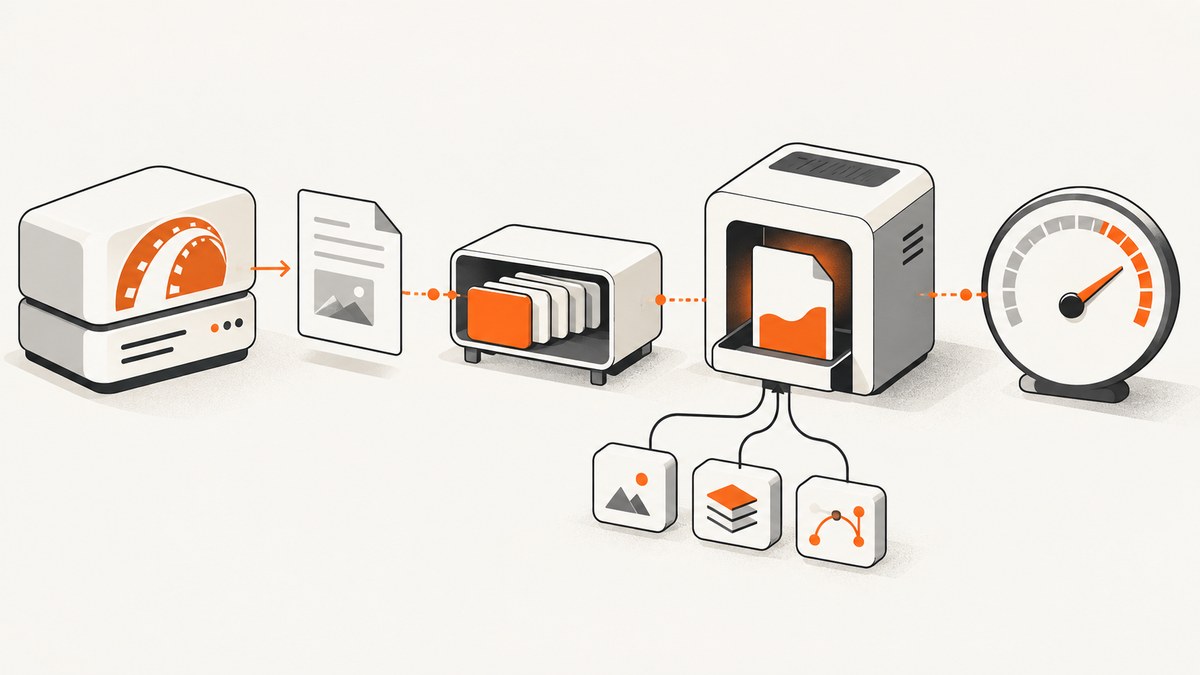
Short answer: Wicked PDF does not render the PDF inside Ruby. It starts the external wkhtmltopdf executable, so high CPU can come from the converter child process rather than the Rails request itself. Measure both processes, then reduce work per document (JavaScript, images, assets and unnecessary HTML) and cap how many conversions run at once. Queueing smooths CPU peaks; it does not guarantee less total CPU for the same PDFs.
1. Find where the CPU is going
Wicked PDF delegates HTML-to-PDF conversion to wkhtmltopdf. The Rails process builds the view and launches the command, while the child process loads resources, runs JavaScript and lays out every page. The Wicked PDF project documentation describes this boundary. A request trace that reports only Rails time can therefore miss the expensive part.
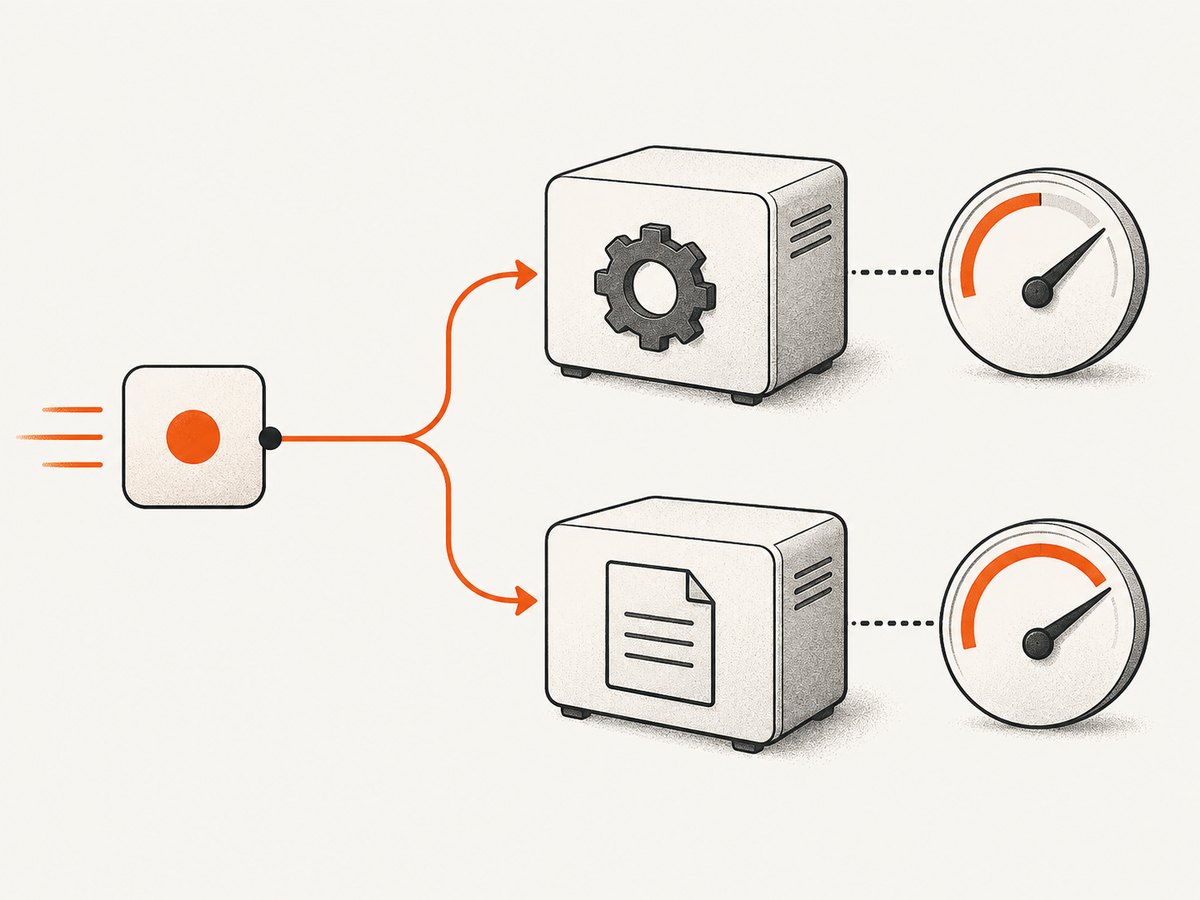
Measure the request and the child process separately
- Record Rails request duration and application CPU.
- Record
wkhtmltopdfCPU time, wall time, peak memory and exit status. - For each document, record page count, HTML size, image count and dimensions, JavaScript usage, external requests and output size.
- Repeat with one conversion, then with the production worker count. This distinguishes expensive documents from overlapping converter instances.
On Linux, inspect a running conversion with ps or your process monitor:
ps -o pid,ppid,%cpu,%mem,etime,cmd -C wkhtmltopdf
pidstat -p $(pgrep -n wkhtmltopdf) 1
These commands are diagnostic examples, not a benchmark. Compare representative documents in your own deployment.
2. Establish a safe baseline in Rails
Keep the PDF view deterministic before changing performance settings. Use the Wicked PDF helpers for assets so the external process can resolve them:
# app/controllers/invoices_controller.rb
class InvoicesController < ApplicationController
  def show
    @invoice = Invoice.find(params[:id])

    respond_to do |format|
      format.html
      format.pdf do
        render pdf: "invoice-#{@invoice.id}",
               template: "invoices/show",
               layout: "pdf",
               javascript_delay: 200,
               log_level: 'info'
      end
    end
  end
end
<!-- app/views/invoices/show.pdf.erb -->
<%= wicked_pdf_stylesheet_link_tag "pdf" %>
<%= wicked_pdf_image_tag "company-mark.png" %>
<h1>Invoice <%= @invoice.number %></h1>
<p>Total: <%= number_to_currency(@invoice.total) %></p>Open the generated PDF and verify fonts, images, page breaks and dynamic content. Save this output as your correctness baseline before optimizing.
3. Disable JavaScript when the PDF does not need it
The documented wkhtmltopdf command-line interface enables JavaScript by default and documents a JavaScript delay whose default is 200 milliseconds. If your PDF is server-rendered and does not depend on browser scripts, disabling JavaScript and removing the delay is a sensible experiment. Do not apply this to charts, client-rendered tables or content that appears only after a script runs.
format.pdf do
  render pdf: "invoice-#{@invoice.id}",
         template: "invoices/show",
         layout: "pdf",
         disable_javascript: true,
         javascript_delay: 0
end
After changing the flags, compare content as well as CPU. A PDF that renders faster but omits a total, graph or footer is not a successful optimization. If only one component needs JavaScript, prefer rendering that data in Rails and removing the script from the PDF template.
4. Reduce the HTML and asset workload
Render only what belongs in the document
- Use a PDF-specific layout without navigation, analytics, chat, cookie tooling or interactive controls.
- Paginate large tables instead of rendering thousands of rows in one document.
- Remove unused CSS and JavaScript bundles from the PDF view.
- Precompute expensive aggregates in Rails before starting the converter.
Audit images
Large or numerous images increase decoding, layout and output work. Resize photographs to their printed dimensions, choose an appropriate format, and remove images that are hidden or unused. wkhtmltopdf exposes image controls and global DPI and quality settings. Treat them as trade-offs, not guaranteed CPU fixes: lower quality can reduce file size and work but may make text or diagrams unreadable.
format.pdf do
  render pdf: "catalog",
         template: "catalog/show",
         image_dpi: 150,
         image_quality: 85,
         lowquality: false
end
Change one setting at a time and inspect visual fidelity, output size, conversion time and converter CPU. Keep the setting only if it meets your quality requirement.
Make every resource resolvable
wkhtmltopdf runs outside Rails. Relative URLs that work in a browser can fail when the converter has no matching host or filesystem context. Use wicked_pdf_stylesheet_link_tag, wicked_pdf_image_tag and the corresponding JavaScript helper, or provide stable absolute asset URLs. The Wicked PDF README warns that an unavailable asset can interfere with other images in the document, so inspect logs for failed requests instead of assuming missing graphics are harmless.
5. Control concurrency with a background queue
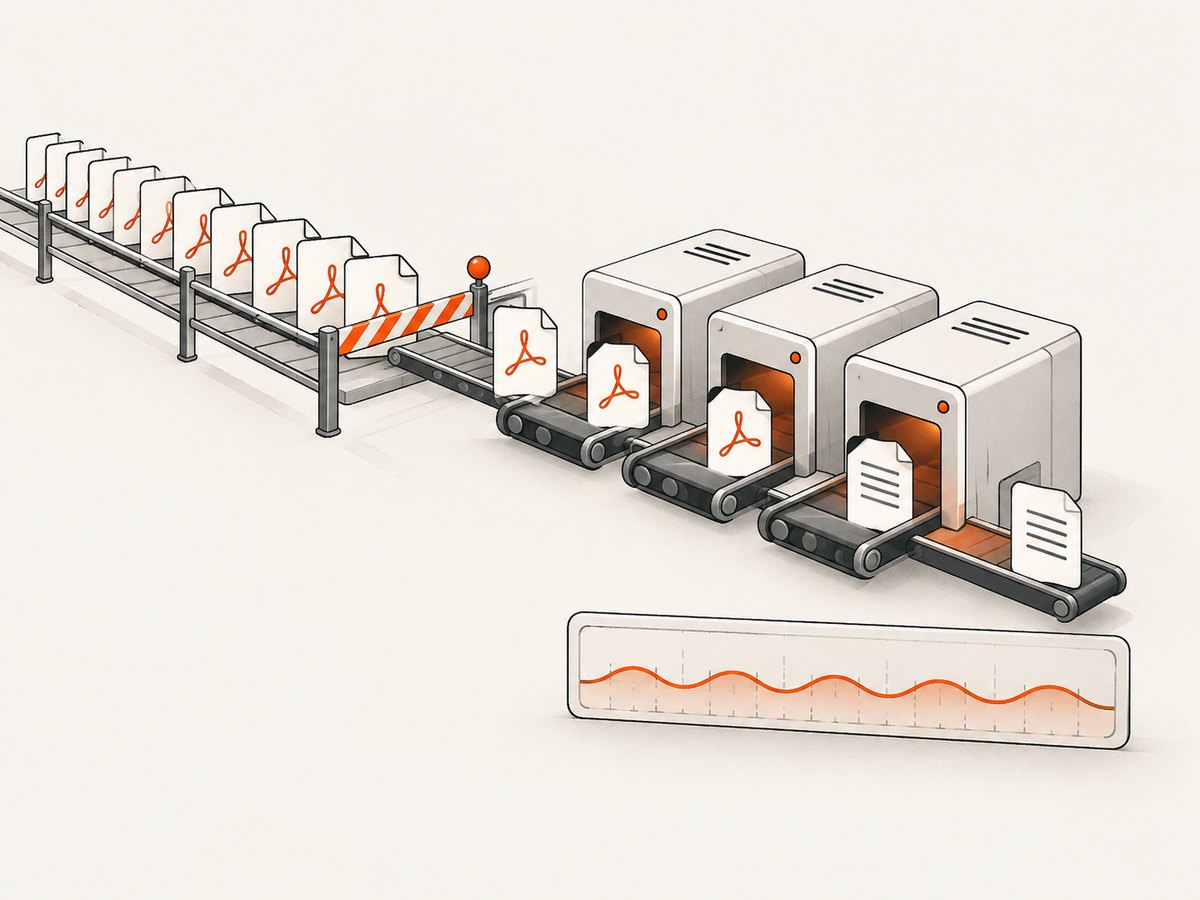
Several simultaneous converter processes can saturate CPU and memory. If users do not need the PDF in the same HTTP response, enqueue generation and cap the worker pool. The project’s wiki describes a qualitative reduction in production CPU activity after background generation prevented multiple simultaneous instances; it does not provide a controlled percentage or universal result.
# app/jobs/generate_invoice_pdf_job.rb
class GenerateInvoicePdfJob < ApplicationJob
  queue_as :pdf

  def perform(invoice_id)
    invoice = Invoice.find(invoice_id)
    pdf = WickedPdf.new.pdf_from_string(
      ApplicationController.render(
        template: 'invoices/show',
        layout: 'pdf',
        assigns: { invoice: invoice }
      ),
      disable_javascript: true,
      javascript_delay: 0,
      image_dpi: 150
    )

    InvoicePdfStorage.write(invoice, pdf)
  end
end
# enqueue from a controller
GenerateInvoicePdfJob.perform_later(@invoice.id)
head :acceptedConfigure a bounded number of PDF workers in your job system. A queue smooths peaks and protects web requests, but it can increase queue wait. Monitor conversion time, queue wait, peak CPU, peak memory, throughput and failure rate together. Increasing workers is not automatically faster when each process is CPU-bound.
6. Tune rendering options deliberately
| Change | When to try it | Trade-off |
|---|---|---|
| Disable JavaScript | All content is rendered on the server | Client-rendered content disappears |
| Set delay to zero | No script needs settling time | Late content may be missing |
| Remove images/assets | Decorative or oversized resources exist | Less visual detail |
| Adjust image DPI/quality | Output is oversized or images dominate work | Legibility and fidelity can decline |
| Lower worker concurrency | CPU or memory spikes during batches | Longer queue wait |
Keep a small experiment log. For each version, note the exact options, binary build, OS, document fixture, page count, CPU time, wall time, peak memory, queue wait, output bytes and visual review result. The upstream material does not publish reproducible CPU savings for these flags, so your measurements are the basis for a production decision.
7. Troubleshooting high CPU and failed PDFs
CPU remains high after disabling JavaScript
Images, large DOM trees, fonts, CSS layout and concurrent processes can dominate. Run one conversion, inspect the child process, then profile a document with images removed. If one-at-a-time CPU is acceptable but production CPU spikes, reduce worker concurrency.
The PDF is blank or missing dynamic sections
The template probably depends on JavaScript or a resource that was not available to the converter. Re-enable JavaScript, restore a required delay, or move the data generation into Rails. Check converter logs and verify every asset URL from the worker host.
Images or styles are missing
Use Wicked PDF asset helpers or absolute URLs reachable from the worker. Confirm authentication, DNS, TLS and firewall rules. A browser session on your laptop does not prove the converter process can fetch the same resource.
Requests hang or time out
Look for slow external resources, scripts waiting indefinitely, or too many concurrent processes. Add explicit application and job timeouts, remove third-party assets from the PDF layout, and make retries bounded so a failing document cannot create an endless queue.
CPU and memory climb during batches
Limit worker concurrency, cap document size where practical, and monitor child-process exit status. A queue controls overlap; it does not reduce the work required for one very large document.
Security warnings appear
Treat HTML-to-PDF as a security boundary. The wkhtmltopdf project warns: “Do not use wkhtmltopdf with any untrusted HTML” without sanitization. Wicked PDF likewise recommends sanitizing user HTML/CSS/JavaScript or at least disallowing requests to internal IP addresses and hostnames. Restrict local-file access and network fetching to the assets the document needs, and never pass unsanitized user input as executable markup.
8. Version and deployment checks
The wkhtmltopdf downloads page identifies 0.12.6 as the stable series and dates that release June 11, 2020. That date is not evidence of current maintenance or suitability for every deployment. Record the exact executable path and build, OS package, fonts, locale and Wicked PDF version in your deployment notes. A local development binary and a production container can render different layouts and consume different resources.
9. A repeatable optimization checklist
- Capture a representative PDF and save its correctness baseline.
- Measure Rails time separately from
wkhtmltopdfCPU and wall time. - Run one converter process to establish per-document cost.
- Remove unnecessary HTML, CSS, scripts and images.
- Try
disable_javascriptand zero delay only when content permits. - Verify asset paths and inspect converter logs.
- Move noninteractive generation to a background queue.
- Set a bounded PDF worker concurrency and observe queue wait.
- Compare output correctness, CPU, memory, latency, throughput and file size.
- Roll out one change at a time and keep rollback settings documented.
Or skip the browser setup
If your requirement is a clean capture of a web page rather than a Rails-owned HTML-to-PDF pipeline, ScreenshotNeo provides a one-request website screenshot API and an MCP server. Before capture it accepts cookie or consent banners and removes more than 60 known consent platforms, newsletter popups and chat widgets. Bot checks, blank pages, timeouts, failed loads and cache hits are not billed, and response headers identify the page verdict and billing status. See the ScreenshotNeo API documentation for the available capture options.
curl -G "https://api.screenshotneo.com/v1/shot" -d access_key=YOUR_API_KEY --data-urlencode url=https://stripe.com -o shot.webpimport requests
r = requests.get("https://api.screenshotneo.com/v1/shot", params={"access_key": "YOUR_API_KEY", "url": "https://stripe.com"}, timeout=90)
open("shot.webp", "wb").write(r.content)const q = new URLSearchParams({ access_key: 'YOUR_API_KEY', url: 'https://stripe.com' });
const res = await fetch(`https://api.screenshotneo.com/v1/shot?${q}`);It also supports full-page and element captures, dark mode, device presets, custom CSS and JavaScript, waits, request blocking, cookies and headers, caching, asynchronous jobs, bulk capture and PDF capture options. An MCP server lets Claude, Cursor and other MCP clients call take_screenshot, get_page_info and capture_pdf. The Free plan includes 1,000 screenshots each month with no card; paid plans start at $5 for 3,000. Create a free ScreenshotNeo account.
FAQ
Does queueing reduce total CPU?
Not necessarily. It limits simultaneous converter instances and lowers peak activity; total work for identical PDFs can remain similar.
Should JavaScript always be disabled?
No. Disable it only when the PDF remains complete and correct without client-side behavior.
Why does the Rails request look cheap while the machine is busy?
The expensive work runs in the external wkhtmltopdf child process, outside the Rails application process.
What should I optimize first?
Measure one document, remove unnecessary scripts and assets, then test bounded concurrency under realistic load.
Can I process user-supplied HTML safely?
Only after sanitizing it and restricting network and local-file access. Unsanitized HTML or JavaScript can expose the server.


