How to Re-Enable Images in Chrome WebDriver After Disabling Them with Selenium
Restore image loading in Selenium ChromeDriver with the right profile preference, remove blocking flags, and troubleshoot managed policies.
Direct answer: set Chrome’s profile preference profile.managed_default_content_settings.images to 1 before creating a new WebDriver session, and remove any --blink-settings=imagesEnabled=false argument. The preference is supplied through Selenium’s Chrome options.
Python fix
Install Selenium, then create a fresh ChromeDriver session with the image preference enabled:

from selenium import webdriver

options = webdriver.ChromeOptions()
options.add_experimental_option(
    "prefs",
    {"profile.managed_default_content_settings.images": 1},
)

# Do not add --blink-settings=imagesEnabled=false.
driver = webdriver.Chrome(options=options)

try:
    driver.get("https://example.com")
    print(driver.title)
finally:
    driver.quit()
Selenium documents passing Chrome user preferences through the options object. The exact image preference and value above are reported as a community workaround in the Chrome Help Community thread; treat it as a practical workaround rather than a guarantee for every managed machine. See Selenium’s Chromium Options API for the options mechanism.
Why images stay disabled
Image blocking usually comes from one of three places:
- A startup flag. The argument
--blink-settings=imagesEnabled=falsetells Chromium not to load images. Remove it from your options. - A Chrome profile preference. A profile can retain an image-blocking setting. Override it with
profile.managed_default_content_settings.images: 1when the session starts. - An administrator policy. Managed Chrome installations can block images for selected sites with the
ImagesBlockedForUrlspolicy. Chromium falls back to the global default or the user setting when that site policy is unset. Check the Chromium policy list.
Because the setting is supplied as a profile preference, configure it before calling webdriver.Chrome(...). The cited Selenium APIs do not establish a supported way to change this preference live in an already-running session.
JavaScript with Selenium WebDriver
If your test suite runs in Node.js, pass the same Chrome preference through Chromium options:
const { Builder } = require('selenium-webdriver');
const chrome = require('selenium-webdriver/chrome');

(async () => {
  const options = new chrome.Options();
  options.setUserPreferences({
    'profile.managed_default_content_settings.images': 1,
  });

  // Do not add --blink-settings=imagesEnabled=false.
  const driver = await new Builder()
    .forBrowser('chrome')
    .setChromeOptions(options)
    .build();

  try {
    await driver.get('https://example.com');
    console.log(await driver.getTitle());
  } finally {
    await driver.quit();
  }
})();
The JavaScript API’s setUserPreferences method is the equivalent of Python’s experimental options dictionary.
Verify that images really load
A page can contain an <img> element whose request failed. Check both the element state and its natural dimensions:
from selenium import webdriver

options = webdriver.ChromeOptions()
options.add_experimental_option(
    "prefs",
    {"profile.managed_default_content_settings.images": 1},
)
driver = webdriver.Chrome(options=options)

try:
    driver.get("https://example.com")
    images = driver.find_elements("css selector", "img")
    for index, image in enumerate(images, start=1):
        loaded = driver.execute_script(
            "return arguments[0].complete && arguments[0].naturalWidth > 0;",
            image,
        )
        print(f"image {index}: {'loaded' if loaded else 'not loaded'}")
finally:
    driver.quit()
This check distinguishes browser-level blocking from a broken URL, a server error, lazy loading, or an image that is implemented as a CSS background.
Fresh sessions, persistent profiles, and policy checks
Start a new session
Stop the old driver and create a new one after changing the options. Existing tabs do not reliably adopt a changed profile preference.
Inspect persistent profiles
If you pass a --user-data-dir argument, that profile may retain its own content-setting state. Test with a temporary profile to determine whether the persistent profile is the cause:
import tempfile
from selenium import webdriver

options = webdriver.ChromeOptions()
options.add_argument(f"--user-data-dir={tempfile.mkdtemp()}")
options.add_experimental_option(
    "prefs",
    {"profile.managed_default_content_settings.images": 1},
)
driver = webdriver.Chrome(options=options)
Do not run two Chrome processes against the same profile directory at the same time.
Check administrator management
Open Chrome’s settings and look for a message that the browser is managed by an administrator. If an image policy is enforced, Selenium preferences cannot override it. Ask the machine administrator whether ImagesBlockedForUrls or another content policy applies to the target domain.
Common errors and fixes
| Symptom | Likely cause | Fix |
|---|---|---|
| Images are still blank after adding the preference | The disabling flag is still present, or the old driver session is being reused | Remove --blink-settings=imagesEnabled=false, quit the driver, and create a fresh session. |
| Only some domains have no images | A site-specific administrator policy, hotlink protection, or failed image request | Inspect managed policies, network responses, and the image URL. Test the same URL in a normal browser. |
The <img> tag exists but naturalWidth is zero |
The request failed, the image is lazy-loaded, or the resource is blocked by the site | Scroll the element into view, wait for its request, and inspect browser performance or DevTools logs. |
| Python raises an options or driver error | Outdated Selenium, ChromeDriver mismatch, or malformed options | Upgrade Selenium, use a compatible Chrome/driver pair, and pass the preference before constructing the driver. |
| Changing the preference has no effect in an existing tab | Profile preferences were read during startup | Quit ChromeDriver and start a new session. |
| One profile works while the default profile does not | The default profile contains a stored content setting | Use a clean temporary profile or reset the profile’s image setting. |
Lazy-loaded images and page timing
Enabling images permits requests; it does not force a site’s lazy-loading code to run. Scroll through the document, wait for a known selector, or wait for the image’s complete property before asserting that it loaded:
from selenium.webdriver.common.by import By
from selenium.webdriver.support.ui import WebDriverWait

# after driver.get(...)
driver.execute_script("window.scrollTo(0, document.body.scrollHeight);")
WebDriverWait(driver, 20).until(
    lambda d: d.find_element(By.CSS_SELECTOR, "img.hero").get_attribute("complete") == "true"
)
Some sites use CSS backgrounds, <picture>, or JavaScript canvas rendering instead of ordinary <img> elements. Inspect the page implementation before treating an absent <img> as a browser problem.
Performance and reliability notes
- Loading images increases network traffic and page load time compared with an image-disabled run. Set explicit waits instead of relying on a fixed sleep.
- Use a fresh, temporary profile in CI when you need deterministic content settings. Persistent profiles can carry unrelated extensions, policies, cookies, and content rules.
- Keep the image preference in one driver factory so every test creates Chrome consistently.
- When a test fails, record the URL, the Chrome arguments, whether the browser is managed, and the image element’s
naturalWidth. These details separate configuration failures from site failures. - Do not assume a successful page load means every image succeeded. Validate the specific assets required by the test.
Or skip the browser setup
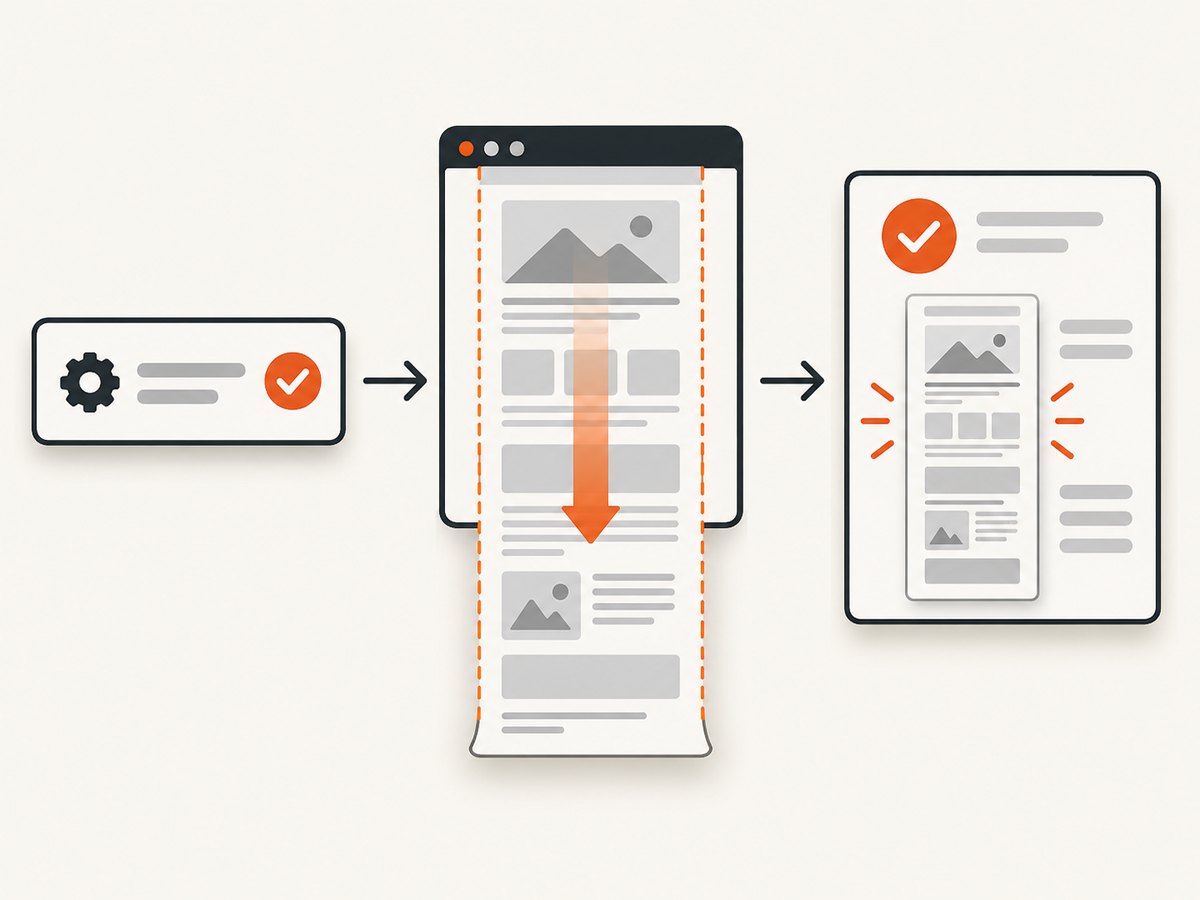
If your goal is a clean website screenshot rather than browser automation, ScreenshotNeo provides a single request for a PNG, JPEG, WebP, or PDF. Its capture can accept consent banners and remove more than 60 known consent platforms, newsletter popups, and chat widgets before the shot. Bot checks, blank pages, timeouts, failed loads, and cache hits are not billed, and response headers identify the page verdict and billing status. ScreenshotNeo also provides an MCP server with take_screenshot, get_page_info, and capture_pdf for AI agents.
Read the ScreenshotNeo API documentation for all options. The basic calls are:
curl -G "https://api.screenshotneo.com/v1/shot" -d access_key=YOUR_API_KEY --data-urlencode url=https://stripe.com -o shot.webp
import requests

r = requests.get(
    "https://api.screenshotneo.com/v1/shot",
    params={"access_key": "YOUR_API_KEY", "url": "https://stripe.com"},
    timeout=90,
)
r.raise_for_status()
open("shot.webp", "wb").write(r.content)
const q = new URLSearchParams({ access_key: 'YOUR_API_KEY', url: 'https://stripe.com' });
const res = await fetch(`https://api.screenshotneo.com/v1/shot?${q}`);
if (!res.ok) throw new Error(`Screenshot failed: ${res.status}`);
const image = Buffer.from(await res.arrayBuffer());
require('fs').writeFileSync('shot.webp', image);
The free plan includes 1,000 screenshots each month with no card. Paid plans start at $5 for 3,000 shots, and every feature is available on every plan. Create a free ScreenshotNeo account.
FAQ
Can I turn images back on without restarting Chrome?
The documented Selenium mechanism supplies the preference when Chrome starts. Restart the WebDriver session after changing it.
Does value 1 mean “allow all images”?
It is the value used by the reported Chrome profile workaround for enabling images. A managed policy can still override it.
Why does a screenshot miss images even though Selenium allows them?
The page may lazy-load assets, reject the request, require authentication, or use CSS backgrounds. Wait for the page’s own loading conditions and inspect the individual resource.
Will this preference override a company policy?
No. If Chrome reports that settings are managed, an administrator must change the applicable image policy.
Where can I find the official Selenium option reference?
See Selenium’s Java ChromiumOptions API, JavaScript Chromium Options API, and .NET ChromeOptions API.