How to Refresh a Cached Open Graph Image
Changed your OG image but still see the old preview? Refresh it with the platform’s inspector, then check the metadata, image URL, and crawler access.
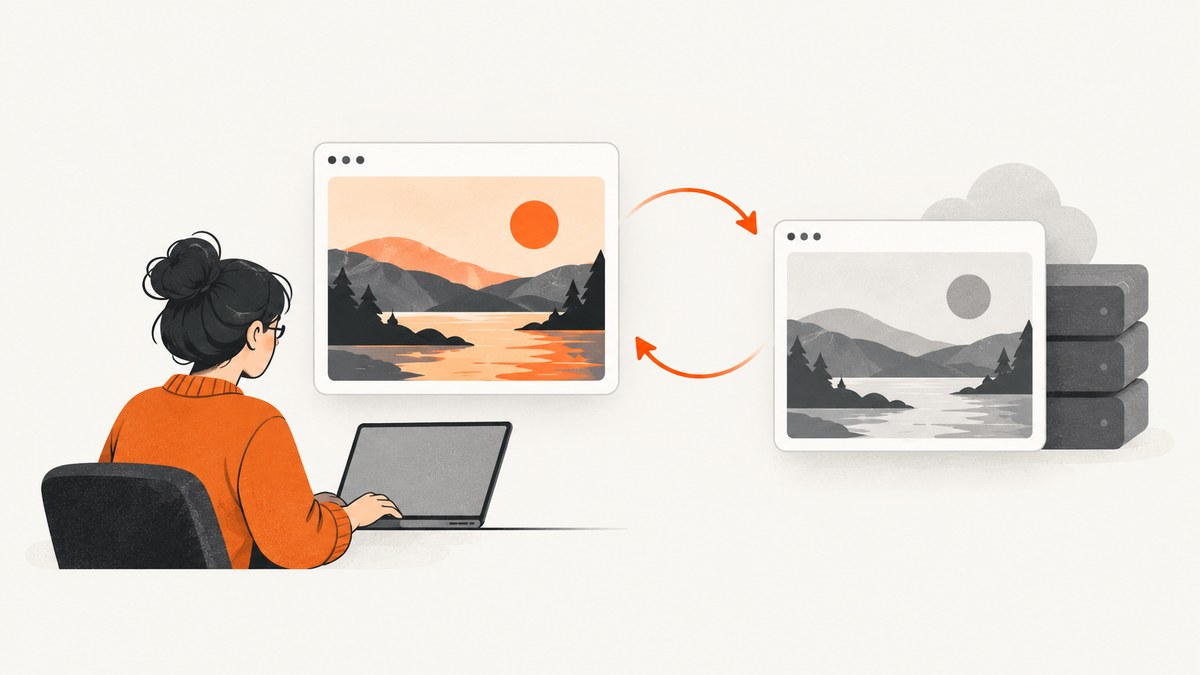
You changed the Open Graph image, but a social post still shows the old one. The usual fix is to ask that platform to inspect the page again: for LinkedIn, submit the page URL to Post Inspector. Then confirm the page serves the intended og:image and that the crawler can retrieve both the page and image.
A refresh is platform-specific. It may update the preview used for future posts without changing posts already published, and a new image or page URL is a workaround rather than a universal cache purge. This guide covers how to diagnose the stale image, refresh LinkedIn and other platform previews, and use screenshots to inspect what the page actually serves.
1. What refreshing an Open Graph image does
Social platforms fetch page metadata and an image, then may reuse that preview for later shares of the same URL. Updating the image on your server does not necessarily cause a platform to fetch it immediately. LinkedIn confirms that a previously shared URL may continue to show an old cached image. LinkedIn: Post Inspector
There are two URLs to distinguish:
- Page URL: the URL people share, such as
https://example.com/article. - Image URL: the value of the page’s
og:imagemetadata, such ashttps://example.com/images/article-card-v2.jpg.
Refreshing the page URL asks a platform to revisit metadata for that page. Changing the image URL gives it a different asset address to fetch. Neither action guarantees that every platform or existing post will change.
2. Refresh a LinkedIn preview
- Open LinkedIn Post Inspector.
- Enter the exact page URL you intend to share and submit it for inspection.
- Review the resulting preview. If the image is wrong, continue with the metadata and image checks in the next section.
- Once the preview is correct, publish a new post with that URL.
LinkedIn says an inspector refresh affects previews for new posts using the URL. Existing posts keep their old preview. So, if you are checking a post that was already published, inspect the URL and create a new post to see the refreshed card. LinkedIn Post Inspector guidance
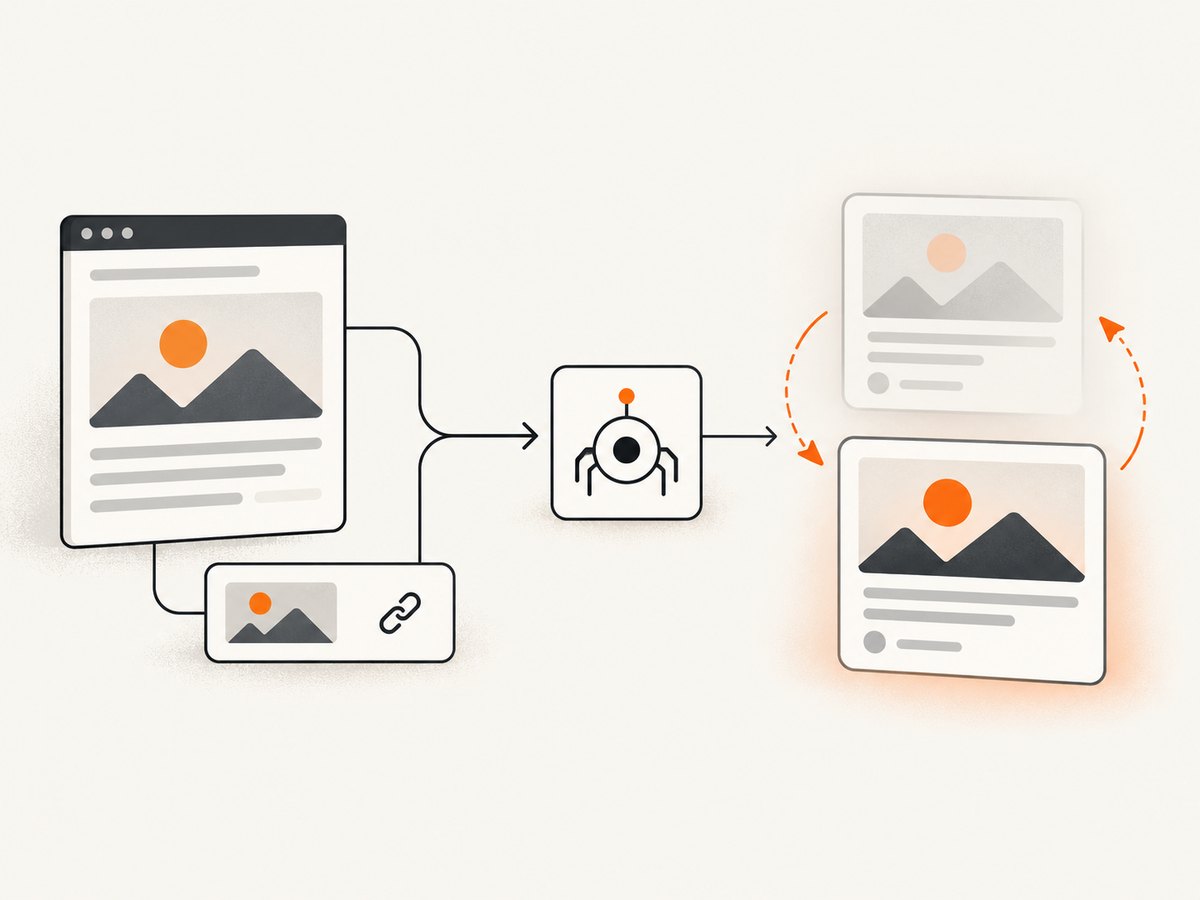
LinkedIn’s general troubleshooting guidance recommends allowing up to 48 hours after sharing a URL or updating site tags for a cache refresh. Treat that as LinkedIn’s guidance, not a universal wait time for other platforms. LinkedIn: Troubleshoot sharing URLs
3. Check the metadata and image the crawler can access
If the inspector still shows the wrong card, verify the server response rather than relying only on what your browser displays. A page can render the desired image after JavaScript runs while its initial HTML still contains old or missing metadata. The crawler may read that initial response.
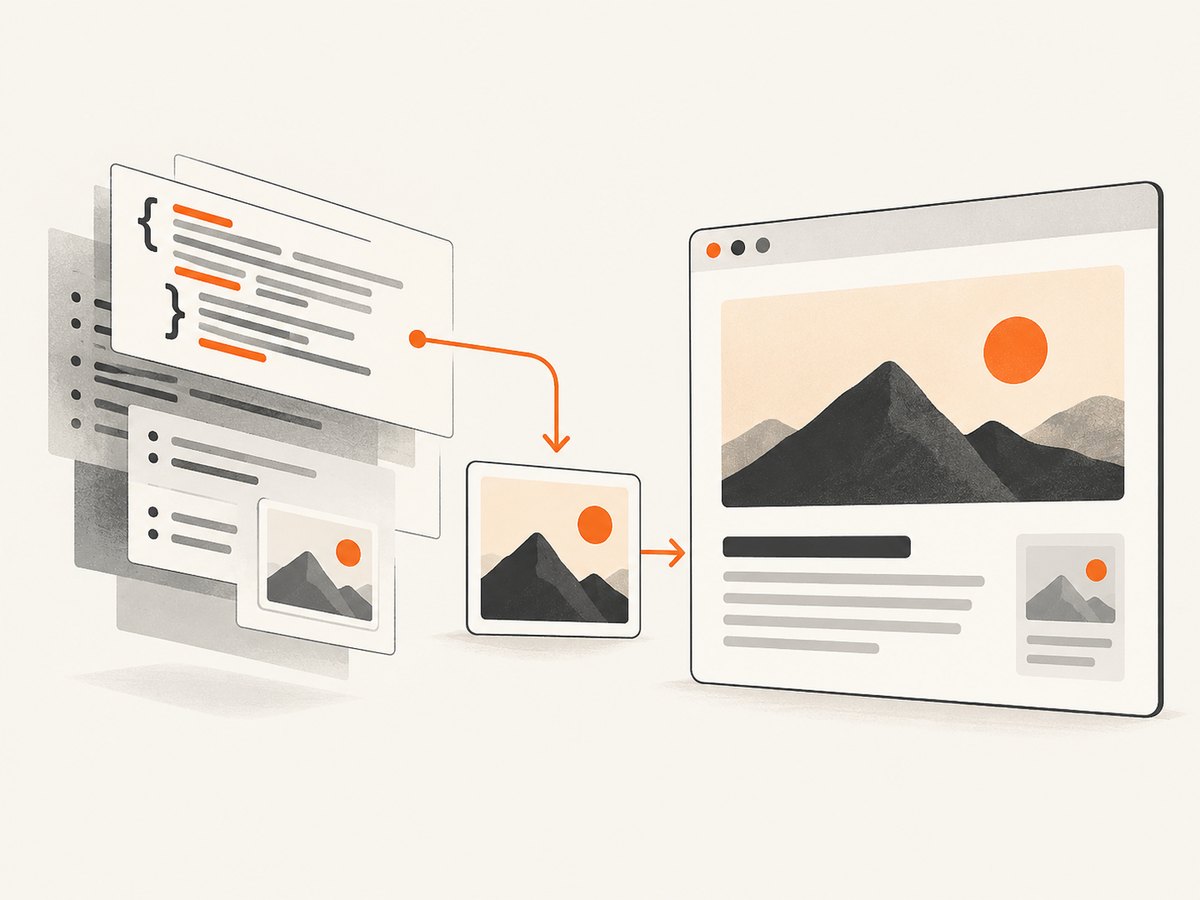
Inspect the HTML response with cURL
curl -L -sS https://example.com/article | head -c 20000Replace the example URL with the page you share. Search the response for og:title, og:description, and og:image. Check that the image value is the intended absolute URL, uses HTTPS if your page does, and does not contain a typo or point to an old asset.
Extract Open Graph values with Python
import requests
from bs4 import BeautifulSoup

page_url = "https://example.com/article"
response = requests.get(page_url, timeout=20)
response.raise_for_status()
soup = BeautifulSoup(response.text, "html.parser")

for key in ("og:title", "og:description", "og:image", "og:url"):
    tag = soup.find("meta", property=key)
    print(f"{key}: {tag.get('content') if tag else '(missing)'}")
Install the parser with python -m pip install requests beautifulsoup4. This reads the HTTP response body and reports the properties present there; it does not prove that a social crawler can access every resource.
Check the page and image responses with Node.js
const pageUrl = 'https://example.com/article';
const response = await fetch(pageUrl, { redirect: 'follow' });
console.log('Page status:', response.status);
console.log('Final page URL:', response.url);
const html = await response.text();
console.log(html.match(/<meta[^>]+(?:property|name)=["']og:(?:title|description|image|url)["'][^>]*>/gi));
For the image address you found in the HTML, make a separate request and inspect its status and content type. For example, run curl -I -L https://example.com/images/article-card-v2.jpg. The image should resolve to the asset you expect, not an error page or an HTML response.
Metadata checklist
- The shared page’s initial HTML contains the current
og:image. - The image URL points to the new asset, especially if you replaced an image at the same path.
- The image URL returns the image successfully and is reachable without a login or browser-only interaction.
- The inspected URL matches the URL you plan to share, including relevant path and query string.
- Redirects lead to the intended page and image rather than an old destination.
These response and image checks are practical troubleshooting recommendations. A successful request from your machine is useful evidence, but it does not establish exactly how every platform’s crawler will behave.
4. Refresh previews on other platforms
Use a platform-specific inspector where one is available. A third-party guide lists Facebook Sharing Debugger, Twitter Card Validator, and LinkedIn Post Inspector as platform tools. The research for this guide did not confirm Meta’s current button-by-button workflow or whether the Twitter Card Validator remains available, so check each service’s current interface before relying on a particular tool. OG Kit’s social cache guide
Do not assume that refreshing one service clears another service’s copy. A third-party image or CDN cache is separate from the social network’s preview cache; clearing one does not necessarily refresh the other. OG Kit
5. Try a new image or page URL when the preview stays stale
If the page has the right metadata but an inspector continues to show the previous asset, publish the image under a new filename, such as article-card-v2.jpg, and update og:image. If needed, share a versioned page URL as well. Some crawlers may treat a changed URL as a new resource and fetch it again. This is a workaround described in third-party guidance, not a guaranteed way to purge every platform cache or revise existing posts. OG Kit, Contentful’s social sharing guide
Prefer a new filename when you control the asset pipeline: it makes the changed resource explicit and avoids depending on whether a cache notices that bytes at an unchanged address have changed. A query-string version, such as card.jpg?v=2, may also prompt a fetch on some services, but support varies. Keep the metadata and the URL you share consistent, and verify the result with the target platform’s inspector before publishing.
6. Use screenshots to inspect what a page displays
A screenshot can help when you need to check whether the page has finished rendering, whether a consent panel obscures content, or whether an image appears in the rendered page. A screenshot shows the rendered page; it does not replace checking the raw metadata or prove what a social crawler fetched. Use both kinds of checks when diagnosing a mismatch.
Capture a page with Playwright
import { chromium } from 'playwright';

const browser = await chromium.launch({ headless: true });
const page = await browser.newPage({ viewport: { width: 1280, height: 800 } });
await page.goto('https://example.com/article', { waitUntil: 'networkidle', timeout: 60000 });
await page.screenshot({ path: 'article-preview.png', fullPage: true });
await browser.close();
Install Playwright with npm install playwright, then install its browser with npx playwright install chromium. networkidle can wait indefinitely on pages with ongoing network activity; if that happens, wait for a known selector or use a short explicit delay instead. Close the browser in a finally block in a long-running service so failures do not leave browser processes open.
When rendering depends on a particular viewport or browser state, set those explicitly. A page screenshot helps review visible rendering but cannot tell you whether the crawler can fetch the image URL. Verify the metadata and asset response separately.
Or skip the browser setup
ScreenshotNeo is a website screenshot API and MCP server. Make one GET request to capture a page as an image. See the ScreenshotNeo API documentation for request options.
curl -G "https://api.screenshotneo.com/v1/shot" -d access_key=YOUR_API_KEY --data-urlencode url=https://example.com/article -o shot.webpimport requests
r = requests.get("https://api.screenshotneo.com/v1/shot", params={"access_key": "YOUR_API_KEY", "url": "https://example.com/article"}, timeout=90)
open("shot.webp", "wb").write(r.content)const q = new URLSearchParams({ access_key: 'YOUR_API_KEY', url: 'https://example.com/article' });
const res = await fetch(`https://api.screenshotneo.com/v1/shot?${q}`);- Cookie banners, newsletter popups, and chat widgets are removed before the shot; each step can be turned off.
- Bot checks, blank pages, timeouts, and failed loads are never billed. Responses say which outcome occurred, and cache hits cost nothing.
- An MCP server lets AI agents, including Claude and Cursor, take screenshots.
- The free plan includes 1,000 screenshots a month with no card. Paid plans start at $5 for 3,000 screenshots.
Sign up for 1,000 free screenshots a month, no card required.
7. Troubleshooting common stale-preview problems
| Symptom | Likely cause | What to do |
|---|---|---|
| Inspector shows the old image | The page still returns old metadata, the image URL was reused, or the platform has not fetched the update. | Inspect the initial HTML, confirm the image URL, then submit the page to the platform inspector again. Consider a new image filename. |
| Browser shows the new image, inspector does not | The visible page may be updated by client-side JavaScript while the initial HTML response remains stale. | Check the server response directly and render current OG tags in the HTML the crawler can retrieve. |
| Image URL returns an error or wrong content | Bad path, redirect, access restriction, or deployment mismatch. | Request the exact image URL and check its final status, content type, and destination. Fix access or publish the asset at a reachable URL. |
| New post is right, old post is wrong | LinkedIn says refreshed previews apply to new posts; existing previews remain as they were. | Use the corrected preview for a new post. Do not expect the inspector refresh to rewrite the old post card. |
| One platform updates while another stays stale | Platforms keep separate preview caches and refresh mechanisms. | Inspect each platform separately. A refresh on one service does not establish that another has refreshed. |
| Versioned URL still shows an old card | The platform may normalize URLs, keep another cache, or not treat the version as a new resource. | Verify the exact shared URL and its metadata, use the platform inspector if available, and treat URL versioning as a fallback rather than a guarantee. |
8. Performance, reliability, and cost considerations
Metadata checks are usually the quickest diagnostic step because they do not require launching a browser. Use a browser screenshot when the problem concerns rendered layout or client-side behavior, and a platform inspector to check the preview that platform has fetched. These checks answer different questions.
For repeatable browser captures, reuse a browser process in a worker instead of starting a new browser for every page, set navigation timeouts, and wait for a meaningful selector if the page never reaches network idle. Limit concurrency to the resources available to your runner, and close pages after capture. Network requests can hang or fail, so record the page URL, final URL, status, capture time, and error when debugging a batch.
Refreshing a social preview does not itself have a universal cost or duration established by the cited sources. Browser-based screenshot work consumes your own compute and network resources. For ScreenshotNeo, plans are Free at 1,000 shots per month, Starter $5 for 3,000, Growth $15 for 15,000, Pro $39 for 60,000, Scale $99 for 250,000, and Business $249 for 1,000,000; yearly billing gives two months free. Every feature is on every plan. Clean shots are billed; bot checks, CAPTCHAs, blank pages, timeouts, failed loads, and cache hits cost nothing.
9. FAQ
Does changing og:image update posts already published?
Not necessarily. LinkedIn explicitly says its inspector refresh applies to future posts and leaves previews on existing posts unchanged.
How long does it take for a LinkedIn preview to refresh?
LinkedIn advises allowing 48 hours after a URL share or site-tag update. The cited sources do not establish a universal refresh duration across platforms.
Will clearing my website or CDN cache clear a social platform’s cache?
Not by itself. A platform can retain a fetched preview independently. Refresh through that platform’s inspector where available.
Is a query parameter guaranteed to force a new preview?
No. A versioned page or image URL may prompt some crawlers to fetch again, but behavior differs and existing post previews may remain unchanged.


