How to Render PDFs from Web Pages More Reliably
Make web-page PDFs more consistent with explicit print CSS, ready fonts and assets, deliberate page geometry, and repeatable browser settings.

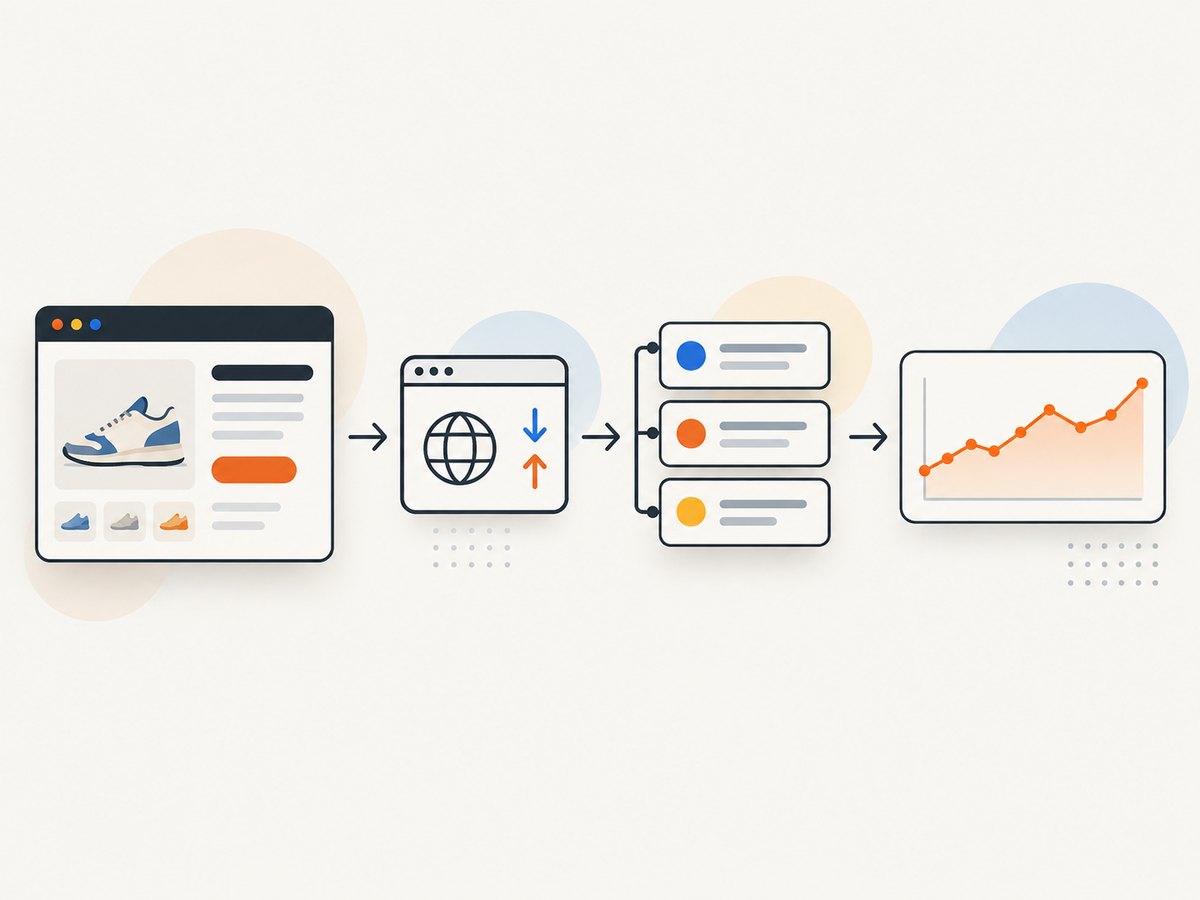
Reliable web-page PDFs come from making the browser’s print behavior predictable: define print CSS and page geometry, wait for fonts and content, choose background and color settings deliberately, and render with a pinned browser runtime. Puppeteer and Playwright both generate PDFs using print CSS by default. If you need screen styling instead, explicitly emulate screen media. Then validate the resulting PDF, because a successful API call does not guarantee correct pagination, color, or accessibility.
This guide gives runnable Puppeteer and Playwright examples, explains the settings that affect output, and covers common rendering failures. If you need a PDF from a URL without maintaining browser infrastructure, ScreenshotNeo also offers a one-call PDF API; details are in the ScreenshotNeo documentation.
1. Define what a correct PDF means
Before changing code, write down the output contract. A PDF that is “reliable” should have consistent paper dimensions, margins, orientation, page breaks, fonts, and image behavior for the same content and browser version. Decide whether the PDF should look like a printed document or reproduce the page as it appears on screen. These are different rendering targets.
- Print fidelity: use print CSS, usually the right choice for invoices, reports, articles, and documents.
- Screen fidelity: emulate screen media when the screen layout is specifically required. Check that the chosen browser API still produces the expected page size and pagination.
- Repeatability: pin the browser and runtime versions, use deterministic content where possible, and set all PDF options instead of relying on defaults.
Browser rendering can vary when a site changes, a font or image is unavailable, client-side data arrives late, or the browser version changes. A stable renderer makes those variables easier to control; it cannot make changing source content identical.
2. Prepare the page with print CSS
Put document-specific styling in a print stylesheet. Hide controls and navigation that do not belong on paper, avoid breaking important content across pages, and declare the intended page size and margins. CSS page rules and PDF API options can interact: when CSS page size should win, set the API’s CSS page-size preference explicitly.
/* app.css */
@page {
  size: A4 portrait;
  margin: 18mm 16mm 20mm;
}

@media print {
  nav,
  .site-header,
  .cookie-dialog,
  .toolbar,
  .print-hidden {
    display: none !important;
  }

  html, body {
    margin: 0;
    color: #17212b;
    background: #fff;
    -webkit-print-color-adjust: exact;
    print-color-adjust: exact;
  }

  h1, h2, h3 {
    break-after: avoid;
  }

  figure, table, pre, blockquote {
    break-inside: avoid;
  }

  a {
    color: inherit;
    text-decoration: none;
  }
}
Use page-break rules as hints, not guarantees. A table row or figure taller than the printable page cannot remain intact, and browser layout may still split content in ways that require stylesheet adjustments. Test long tables, headings near page bottoms, wide code blocks, and large images.
3. Render with Puppeteer (Node.js)
Install Puppeteer in a Node.js project with npm install puppeteer. This complete script accepts a URL, waits for navigation and fonts, requests print output, and writes a PDF. Puppeteer’s PDF guide says Page.pdf() waits for fonts by default; this script also explicitly awaits the document font set to make the readiness step visible.
// render-puppeteer.mjs
import puppeteer from 'puppeteer';

const url = process.argv[2] ?? 'https://example.com';
const browser = await puppeteer.launch({ headless: true });

try {
  const page = await browser.newPage();
  await page.setViewport({ width: 1440, height: 1000, deviceScaleFactor: 1 });
  await page.goto(url, { waitUntil: 'networkidle2', timeout: 60_000 });

  await page.evaluate(async () => {
    await document.fonts.ready;
  });

  await page.pdf({
    path: 'output.pdf',
    format: 'A4',
    preferCSSPageSize: true,
    printBackground: true,
    displayHeaderFooter: false,
    tagged: true,
  });
} finally {
  await browser.close();
}
Run it with node render-puppeteer.mjs https://example.com. The tagged option is documented as experimental in Puppeteer’s PDF options. Treat tagging as a feature to validate, not proof that the result meets an accessibility standard.
networkidle2 is a readiness signal, not a universal guarantee that the page is complete. Pages with persistent polling may never become idle; pages that render data after an API call may appear idle before the content is ready. For those pages, wait for a known selector or application-specific ready state, then wait for fonts and any required images or charts.
4. Render with Playwright (Node.js)
Install Playwright with npm install playwright, and install its browser binaries as required by your environment. This example uses Chromium, waits for the page and fonts, and saves a PDF with explicit geometry and color settings.
// render-playwright.mjs
import { chromium } from 'playwright';

const url = process.argv[2] ?? 'https://example.com';
const browser = await chromium.launch({ headless: true });

try {
  const page = await browser.newPage();
  await page.setViewportSize({ width: 1440, height: 1000 });
  await page.goto(url, { waitUntil: 'networkidle', timeout: 60_000 });

  await page.evaluate(async () => {
    await document.fonts.ready;
  });

  await page.pdf({
    path: 'output.pdf',
    format: 'A4',
    preferCSSPageSize: true,
    printBackground: true,
    displayHeaderFooter: false,
    tagged: true,
  });
} finally {
  await browser.close();
}
Run it with node render-playwright.mjs https://example.com. If a page never reaches the chosen network-idle condition because it keeps connections open, use a different navigation condition and explicitly wait for the content that matters. The API exposes PDF generation, but do not assume a universal font-readiness guarantee: include an explicit readiness check in your workflow.
5. Choose media, geometry, and output options
Puppeteer and Playwright provide overlapping controls. Set only the options relevant to your document, but set the important ones explicitly so a dependency or browser update does not silently change the output contract.
| Concern | What to set | What to check |
|---|---|---|
| Media type | Default PDF generation uses print CSS. Puppeteer can call page.emulateMediaType('screen'); Playwright can call page.emulateMedia({ media: 'screen' }). |
Confirm the selected media matches the intended layout. Screen media is an explicit choice, not a default fix for print CSS. |
| Paper size | Choose a named format such as A4 or Letter, or explicit width and height. CSS @page can declare size. |
Set preferCSSPageSize: true when CSS page size should take priority. Otherwise content may be scaled to fit the API-selected paper size. |
| Margins and orientation | Set API margins or CSS @page margins; choose portrait or landscape intentionally. |
Check printable area, clipping, headers, footers, and pages with unusually wide content. |
| Backgrounds and color | Set printBackground: true when background colors or images matter. Use -webkit-print-color-adjust: exact for exact color intent. |
Print output may adjust colors. Inspect representative pages in the actual PDF viewer and print path. |
| Scale | Set scale only when the document needs fitting or a deliberate size change. | Scaling can shrink text and alter line wrapping and page breaks. |
| Headers and footers | Use the browser API’s documented header/footer template options. | Keep templates simple; Playwright documents limitations around template scripts and page styles. |
| Accessibility tagging | Enable tagged output where the runtime supports it. | Inspect structure and reading order with an accessibility or PDF validation tool. |
For screen styling in Puppeteer, call await page.emulateMediaType('screen') before generating the PDF. In Playwright, call await page.emulateMedia({ media: 'screen' }). Then render and inspect the result; do not assume screen media alone determines paper geometry or solves pagination problems.
6. Wait for the page’s actual content
A navigation event only tells you that a browser reached a particular loading state. It does not prove that every image, chart, custom font, or application request has completed. Use a readiness condition based on the page you are rendering.
- Wait for a meaningful navigation state. Puppeteer’s official PDF example uses
waitUntil: 'networkidle2'. Playwright supports its own navigation wait conditions; choose one that fits the page. - Wait for application content. If the page renders asynchronously, wait for a stable selector such as a report container or a known completion marker.
- Wait for fonts. Use
document.fonts.readywhere appropriate. If a font fails to load, the browser can still produce a PDF with fallback glyphs. - Check images and visualizations. If they are essential, verify they have loaded or use an application-ready signal. Canvas and third-party embeds may need page-specific handling.
- Capture after state is stable. Avoid changes between readiness and PDF generation, such as a late refresh of report data.
For an application you control, the most reliable approach is to expose a deliberate “ready to print” state after the page has loaded its data and assets. That is more specific than adding a long fixed delay, which can still be too short on a slow run and wasteful on a fast one.
7. Accessibility and validation
Tagged PDF generation is available in these browser APIs, but API support alone does not guarantee a fully accessible document. Start with semantic HTML: meaningful heading order, real lists and tables, descriptive link text, and useful alternative text for informative images. Avoid using visual positioning alone to express reading order.
After generation, validate the PDF independently. Check text order, headings, links, alternative text, table structure, and reading order with an accessibility checker. Also inspect the document manually with a screen reader or other assistive technology where that is part of your release process. Puppeteer documents tagged as experimental; Playwright exposes a tagged option. Neither fact removes the need to check the produced file.
8. Regression checks for production PDFs
Keep a small set of representative pages and compare their outputs whenever you change the browser version, stylesheet, or rendering code. A useful fixture set includes:
- A long article with headings near page boundaries and links.
- A wide or multi-page table, including long cell content.
- Pages that use web fonts, right-to-left text, SVG, canvas, and high-resolution images.
- Dynamic content and lazy-loaded images.
- A page with a blocked or unavailable third-party asset.
- Empty, error, and unusually long content states.
Compare page count and page dimensions, then visually inspect representative pages for clipping, unexpected whitespace, font fallback, and changed breaks. The cited Puppeteer and Playwright documentation does not provide a neutral throughput, fidelity, or memory benchmark; measure those characteristics with your own pages and deployment environment.
9. Troubleshooting common PDF problems
| Symptom | Likely cause | Fix |
|---|---|---|
| Fonts differ from the page | The web font did not load before capture, or the font request failed. | Wait for document.fonts.ready, verify font requests, and confirm the font is available to the rendering environment. |
| Backgrounds are missing | PDF background printing is off by default. | Set printBackground: true; use print color adjustment CSS when exact colors matter. |
| PDF has the wrong paper size | CSS page size and API format or dimensions disagree. | Choose one intended geometry and set preferCSSPageSize accordingly; verify margins and orientation. |
| Page breaks move between runs | Content dimensions, fonts, loaded data, or browser version changed. | Wait for content and fonts, pin the runtime, and regression-check the affected page. |
| Navigation wait times out | The site keeps network activity open, or the chosen readiness condition is not reached. | Use a suitable navigation condition and then wait for an application-specific selector or ready signal. |
| Images or charts are blank | Assets are lazy-loaded, blocked, cross-origin, or rendered after the capture. | Ensure the relevant content is in view or loaded, inspect asset errors, and wait for application completion. |
| Text or content is clipped | Page geometry, margins, scaling, or print CSS does not fit the content. | Adjust the stylesheet and geometry; test long words, wide tables, and oversized figures. |
| PDF is not accessible enough | Tagging is absent, incomplete, or does not reflect semantic structure. | Use semantic HTML, enable tagging where supported, and validate the generated PDF independently. |
10. Performance, reliability, and cost
PDF generation consumes browser and application resources. Measure render duration and memory with representative pages in the environment you plan to deploy. Reuse browser processes where appropriate, isolate page work, and set timeouts so a stalled page does not occupy a worker indefinitely. Avoid unbounded parallel rendering: more concurrent pages can increase memory pressure and make slow or failed captures harder to diagnose.
Reliability depends on controlling the browser version, fonts, network access, source page state, and readiness checks. Record enough context to reproduce a failure, such as the URL, runtime version, selected options, and whether required assets loaded. If a page changes frequently, decide whether to render a consistent snapshot of the content or accept that later runs may differ.
There is no neutral benchmark in the cited documentation for Puppeteer versus Playwright PDF throughput, visual fidelity, or memory use. Compare them against your own pages and deployment constraints. Include the cost of browser compute, retries, storage, and monitoring in your estimate; a fixed delay or overly broad retry policy can add cost without making output more correct.
11. Or skip the browser setup
If you need a PDF from a URL and do not want to run a browser, ScreenshotNeo provides a website screenshot API that can return a PDF. One GET request is enough; consult the API documentation for PDF options such as paper size, margins, landscape orientation, and page ranges.
curl -G "https://api.screenshotneo.com/v1/shot" \
  -d access_key=YOUR_API_KEY \
  --data-urlencode url=https://stripe.com \
  -d format=pdf \
  -o page.pdf
ScreenshotNeo removes cookie and consent banners, newsletter popups, and chat widgets before capture. Bot checks, blank pages, failed loads, timeouts, and cache hits are not billed; response headers report the page verdict and billing status. Its MCP server lets AI agents use take_screenshot, get_page_info, and capture_pdf. The free plan includes 1,000 screenshots per month with no card; paid plans start at $5 for 3,000.
Create a free ScreenshotNeo account for 1,000 screenshots a month with no card.
12. FAQ
Should I use Puppeteer or Playwright for PDF generation?
Both expose browser PDF generation and controls for print media, geometry, backgrounds, and related output settings. The cited documentation does not establish a neutral performance or fidelity winner. Choose based on the browser automation stack you already operate, then measure your own pages.
Why does my PDF look different from the browser window?
PDF generation uses print CSS by default in both APIs. Print styles and print color adjustment can change layout and colors. Emulate screen media only when screen appearance is the intended output, and still configure page dimensions and inspect the result.
Does enabling tagged output make a PDF accessible?
No single option guarantees accessibility. Use semantic source markup, enable tagging where available, and validate the generated PDF’s structure and reading order.
Can I use a fixed sleep instead of waiting for fonts and content?
A fixed delay can be a temporary workaround, but it does not confirm readiness. Prefer a font readiness check and a page-specific signal that required content has finished rendering.


