Remote Website Screenshot: A Complete Developer’s Guide
Capture website screenshots remotely with Playwright, cURL, Python, or Node.js. Choose viewport, full-page, or element capture and troubleshoot automated runs.
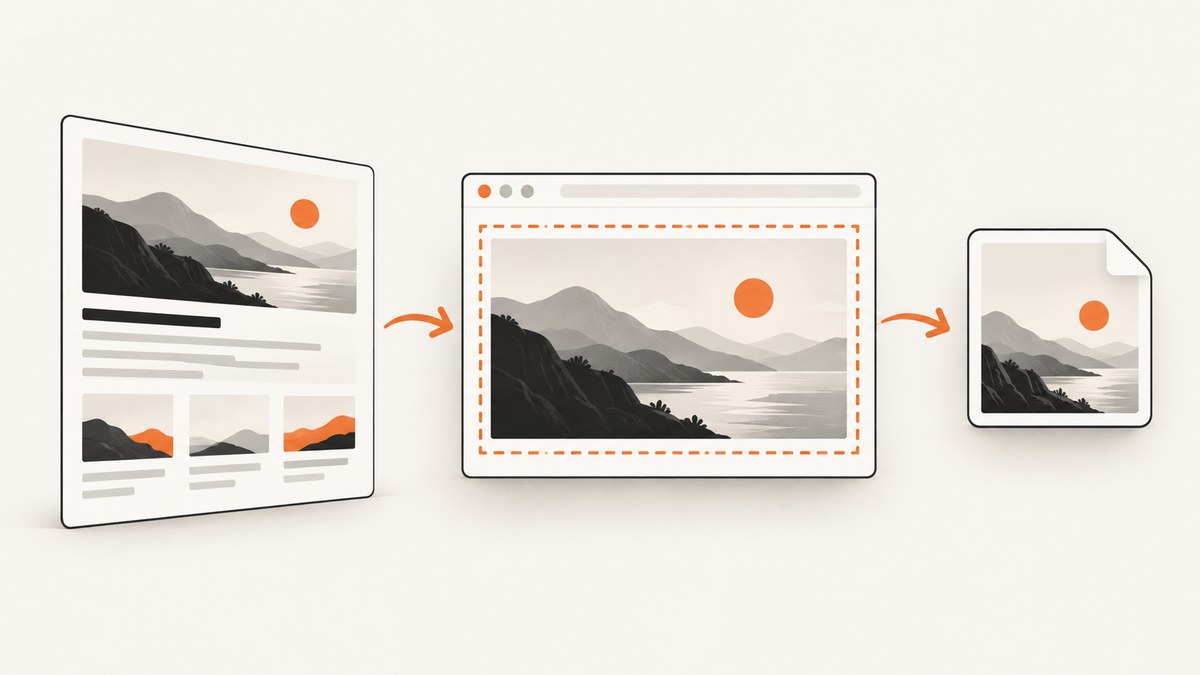
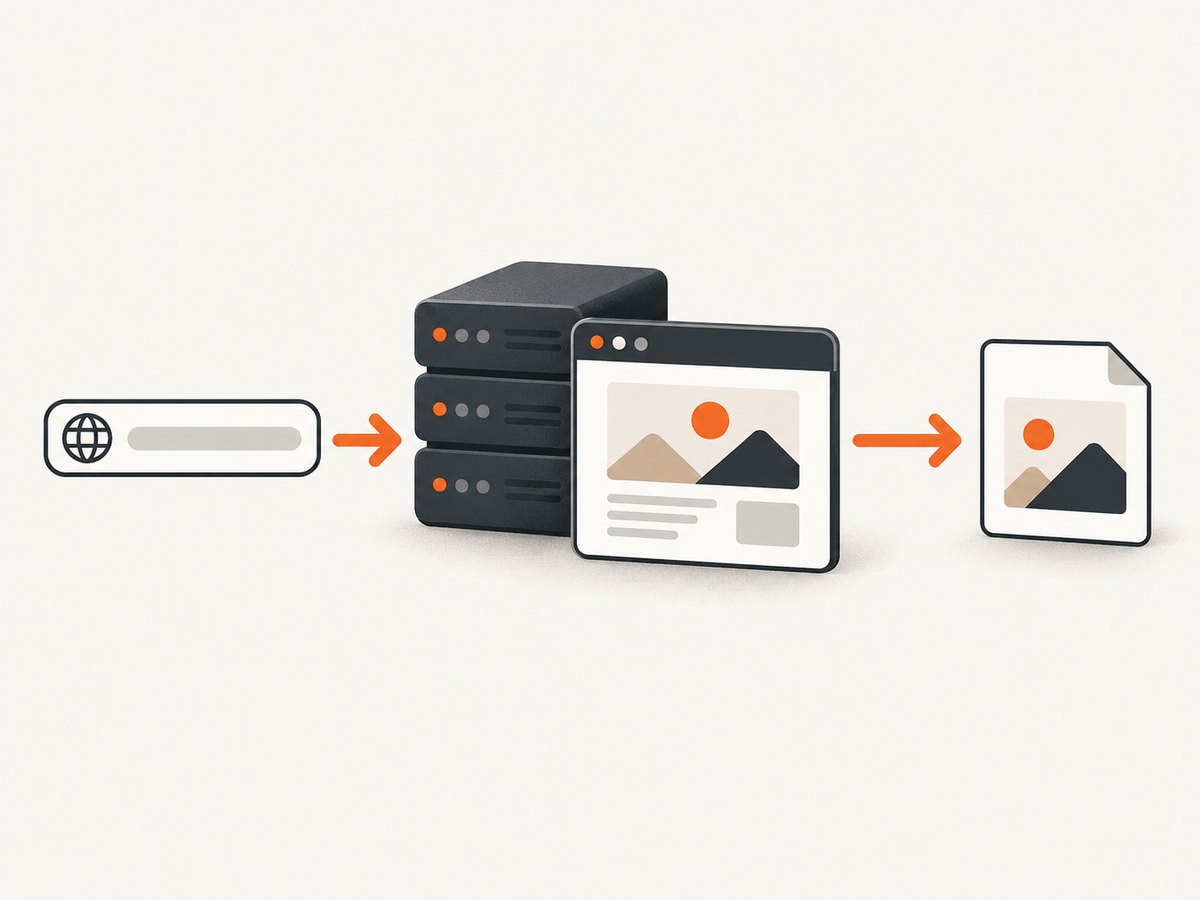
A remote website screenshot is an image captured from a browser that loads a URL, whether that browser runs on your machine, on a server you control, or in a hosted browser service. For a one-off or repeatable capture, the basic steps are the same: open a browser, navigate to the page, wait for the content you need, capture the viewport, full page, or a selected element, then save the image.
For a browser you control, Playwright provides a direct route from navigation to screenshot. For a one-call capture without managing browser installation, ScreenshotNeo accepts a URL and returns an image or PDF. This guide covers both approaches, including configuration, failure handling, and when each fits.
1. Choose a remote capture approach
“Remote” can mean that the target website is remote, or that the browser itself runs somewhere other than your desktop. A Playwright script can run locally during development or on a server as part of a job. A hosted browser runtime can execute browser automation remotely. These are operational choices, not a guarantee that one is faster or cheaper: the available documentation does not establish comparable latency, quotas, or prices.
| Approach | Good fit | You control | You need to account for |
|---|---|---|---|
| Playwright with a managed browser | Custom workflows, testing, repeat captures | Navigation, waits, browser context, output | Browser setup, runtime resources, retries, storage |
| Hosted browser execution | Jobs that need browser execution away from a developer machine | Your automation code and capture options | Provider configuration and service-specific limits |
| Screenshot API | Simple URL-to-image calls or batch capture | Request parameters and downstream handling | API key, response handling, plan limits |
For browser automation, Playwright documents navigation followed by page.screenshot(). Its screenshot guide covers the capture types and output options. Cloudflare’s Browser Run documentation also shows Playwright automation returning a screenshot, as an example of hosted browser execution. See the Playwright Page API, Playwright screenshots guide, and Cloudflare Browser Run Playwright guide.
2. Decide what the screenshot should contain
Choose the capture area before writing the job. The wrong scope is a common reason an apparently successful screenshot is unusable.
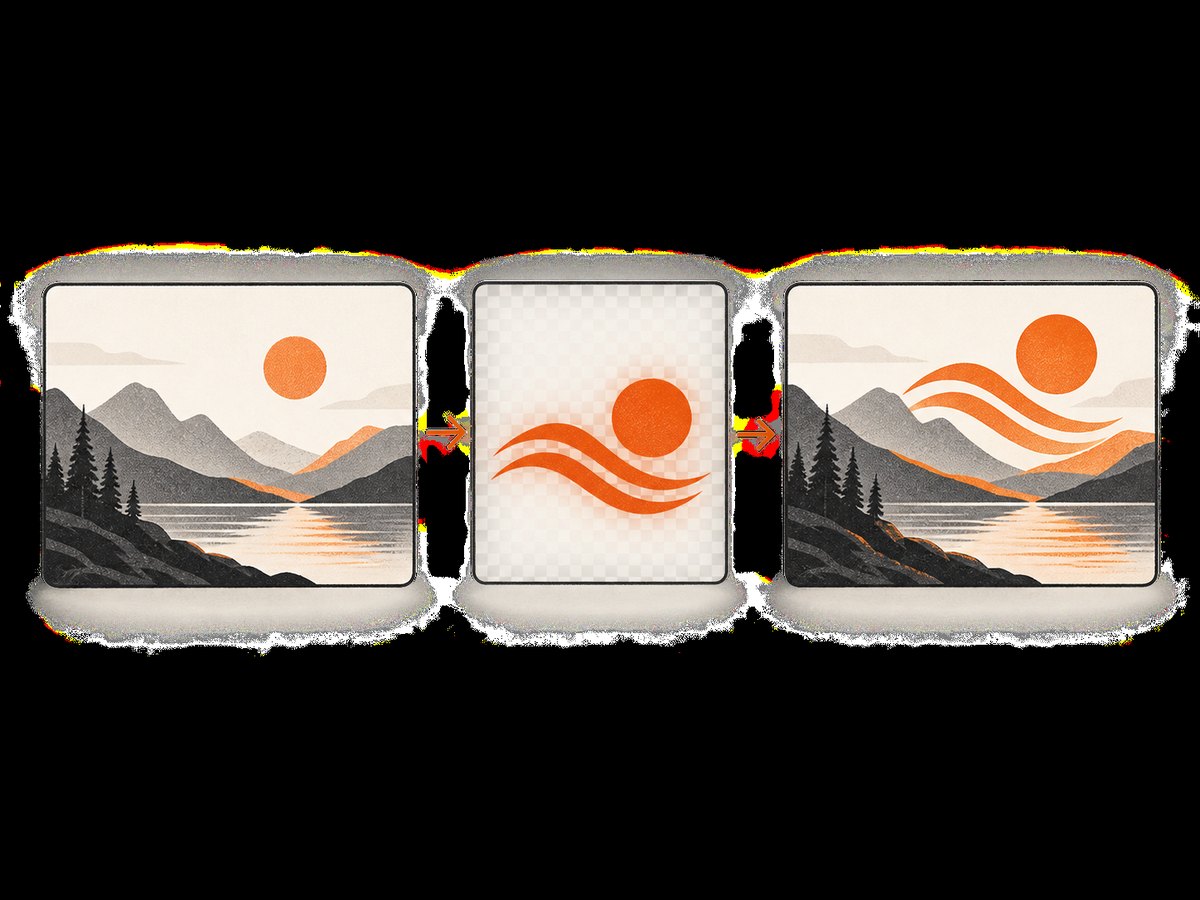
- Viewport: captures the browser’s visible area. Use it for a fixed-size preview, visual test, or above-the-fold monitoring.
- Full page: captures the scrollable page. Use it for documentation or review of content below the fold. Long pages can produce large images and take more resources to render.
- Element: captures a selected component, such as a pricing panel. Use a stable selector and wait for that element before capturing.
Playwright’s guide demonstrates full-page and element screenshots. It supports PNG, JPEG, and WebP. JPEG and WebP quality can affect file size and visual detail; PNG is often suitable when lossless output is important. scale: "css" records CSS pixels, while scale: "device" captures device pixels and can produce a higher-resolution image. Confirm option behavior against the API version you install.
3. Capture a page with Playwright in Node.js
The following is a complete runnable script. It launches Chromium, loads a URL, captures the viewport as PNG, and closes the browser even if navigation or capture fails. It uses domcontentloaded to avoid waiting indefinitely for sites with long-lived network requests. If the page depends on client-side work that continues after that event, add a more specific wait as shown below.
import { chromium } from 'playwright';

const url = process.argv[2] ?? 'https://example.com';
const browser = await chromium.launch({ headless: true });

try {
  const page = await browser.newPage({
    viewport: { width: 1440, height: 900 },
    deviceScaleFactor: 1,
  });

  await page.goto(url, {
    waitUntil: 'domcontentloaded',
    timeout: 30_000,
  });

  await page.screenshot({ path: 'screenshot.png', type: 'png' });
} finally {
  await browser.close();
}
Save it as capture.mjs, install Playwright, install its Chromium browser, and run the script with a URL:
npm install playwright
npx playwright install chromium
node capture.mjs https://example.com
For a full-page image, change the screenshot call to await page.screenshot({ path: 'full.png', fullPage: true });. For an element, wait for a selector and capture its locator:
const card = page.locator('[data-testid="pricing-card"]');
await card.waitFor({ state: 'visible', timeout: 10_000 });
await card.screenshot({ path: 'pricing-card.png' });
Use a selector that the site keeps stable. A class generated during each build may be brittle; an explicit test ID, semantic selector, or other durable attribute is usually easier to maintain. An element can be present in the DOM but hidden or covered, so visibility and the final output still matter.
4. Make captures repeatable
A screenshot job needs more than a navigation call. Pages render asynchronously, and the event that means “ready” depends on the target. Playwright’s navigation options include different load milestones; networkidle can be inappropriate for sites that keep connections open or continually fetch data. Prefer a known page signal when possible.
await page.goto(url, { waitUntil: 'domcontentloaded', timeout: 30_000 });
await page.locator('main article').waitFor({ state: 'visible', timeout: 15_000 });
await page.screenshot({ path: 'article.png', fullPage: true });
For a page where a brief settle period is genuinely needed, use a bounded delay after navigation, not an unlimited wait:
await page.goto(url, { waitUntil: 'domcontentloaded', timeout: 30_000 });
await page.waitForTimeout(1_000);
await page.screenshot({ path: 'settled.png' });
Keep the browser context consistent between runs. Set viewport dimensions and device scale deliberately; use a known locale, timezone, and authentication state if the page varies by those inputs. If a page requires login, provide credentials securely through your runtime’s secret management, not as source-code literals. Respect access controls and the website’s policies.
5. Configure format, size, and resolution
| Need | Choice | Tradeoff |
|---|---|---|
| Lossless image or crisp text | PNG | Can be larger than compressed formats |
| Smaller photographic output | JPEG with an appropriate quality value | Lossy compression; fine details may degrade |
| Modern compressed output | WebP | Check that consumers can read the format |
| High-density display pixels | Device scale | More pixels, memory, and output bytes |
| Compact CSS-sized capture | CSS scale | Does not preserve extra device-pixel detail |
Playwright documents screenshot options for image format, quality, clipping, and scale. Quality applies to lossy formats; do not assume it reduces PNG size. Large full-page screenshots consume more memory than a viewport shot. If a downstream system has a size ceiling, measure the actual output and consider an element capture, smaller viewport, or compressed format.
PDF is a different deliverable from an image. Playwright’s page screenshot API produces raster formats; use the browser’s PDF capability where supported if you need a document with paper size, margins, or page ranges. Check the current API reference for your chosen runtime and whether the target browser supports the required PDF behavior.
6. Call the capture remotely with cURL, Python, or Node.js
If you do not need custom browser automation, a screenshot endpoint can accept a URL and return an image response. The examples below use ScreenshotNeo’s documented API base and request shape. See the ScreenshotNeo API documentation for current parameters and response details.
cURL
curl -G "https://api.screenshotneo.com/v1/shot" \
  -d access_key=YOUR_API_KEY \
  --data-urlencode url=https://stripe.com \
  -o shot.webp
Python
import requests

r = requests.get(
    "https://api.screenshotneo.com/v1/shot",
    params={"access_key": "YOUR_API_KEY", "url": "https://stripe.com"},
    timeout=90,
)
r.raise_for_status()
with open("shot.webp", "wb") as f:
    f.write(r.content)
Node.js
const q = new URLSearchParams({
  access_key: 'YOUR_API_KEY',
  url: 'https://stripe.com',
});
const res = await fetch(`https://api.screenshotneo.com/v1/shot?${q}`);
if (!res.ok) throw new Error(`Screenshot request failed: ${res.status}`);
await import('node:fs/promises').then(({ writeFile }) =>
  writeFile('shot.webp', Buffer.from(await res.arrayBuffer()))
);
For production code, keep the access key in an environment variable or secret store, set a request timeout, check the HTTP status, and confirm that the response is an image before saving it. Avoid logging credentials or placing them in public client-side code. Query parameters can be recorded by infrastructure logs, so use the key only in trusted server-side calls and follow the provider’s current credential guidance.
7. Or skip the browser setup
ScreenshotNeo turns a URL into a screenshot with one GET request. Its feature set includes full-page capture with lazy images loaded, selector capture, viewport and device presets, custom CSS and JavaScript, waits, request blocking, headers and cookies, caching, signed image links, async jobs, and bulk capture of up to 100 URLs per call. Features are available on every plan. The API parameter names used by other screenshot APIs also work, which can simplify a switch.
curl -G "https://api.screenshotneo.com/v1/shot" \
  -d access_key=YOUR_API_KEY \
  --data-urlencode url=https://stripe.com \
  -o shot.webp
Cookie and consent banners are accepted like a visitor, and more than 60 known consent platforms, newsletter popups, and chat widgets are removed before capture; each step can be turned off. Bot checks and CAPTCHAs, blank pages, timeouts, failed loads, and cache hits cost nothing, with response headers identifying the page verdict and billing status. An MCP server exposes screenshot, page-info, and PDF capture tools for AI agents. The free plan includes 1,000 screenshots a month with no card; paid plans start at $5 for 3,000. Review the API options and sign up for 1,000 free screenshots a month, no card required.
8. Handle errors and edge cases
| Symptom | Likely cause | Fix |
|---|---|---|
| Navigation times out | Slow server, long-running requests, or an unsuitable wait condition | Set a bounded timeout; wait for domcontentloaded and then a page-specific selector rather than requiring every request to finish. |
| Screenshot is blank or incomplete | Content has not rendered, a client-side request failed, or capture ran before the target appeared | Wait for a meaningful element; inspect the page’s load state and console/network errors; use a small bounded settle wait only if needed. |
| Selector capture fails | Selector is incorrect, the component is absent, or it never becomes visible | Validate the selector in the target page, wait for visibility with a timeout, and handle a missing component explicitly. |
| Full-page capture is unexpectedly huge | Very long document or large device scale | Capture a viewport or element, use CSS scale, or resize/compress downstream. |
| Output differs between runs | Dynamic content, locale, viewport, consent state, or animation changes | Fix context settings, wait for stable content, and disable or accommodate animations where your workflow permits. |
| Request returns an error | Bad credentials, malformed URL, blocked destination, or service-side failure | Check status and response details, encode the URL, verify server-side credentials, and retry transient failures with a limit. |
| Image file contains an error body | Code saved a non-success response as an image | Check HTTP status and content type before writing the file. |
Some sites show authentication walls, bot challenges, region-specific content, or consent flows. Browser automation does not guarantee access to those pages. Do not treat a challenge page as the desired content; identify the result and decide whether to stop, authenticate through an authorized flow, or report that capture could not be completed.
9. Performance, reliability, and cost
Browser capture uses more runtime resources than a plain HTTP fetch because it renders a page. Reuse a browser process for multiple captures when your job design allows, while creating isolated contexts where cookies or state must not leak between targets. Bound navigation and selector waits, cap concurrency, and close pages and browsers in cleanup paths. A burst of parallel full-page captures can multiply memory use.
Reliability comes from making the output verifiable. Record the target URL, capture time, selected viewport and format, and the job result. For a scheduled workflow, use bounded retries for transient failures, avoid retrying deterministic errors such as an invalid selector, and make output paths or object keys idempotent. Save a failure record rather than silently publishing a stale screenshot as current.
The dossier sources do not provide a cross-provider benchmark, typical latency, or comparable price data, so choose by the operational controls you need and measure your own workload. Self-managed Playwright costs browser compute and engineering time in your environment. Hosted runtimes and APIs have provider-specific limits and charges that should be checked in their current documentation. ScreenshotNeo’s stated plans are Free for 1,000 shots monthly, Starter $5 for 3,000, Growth $15 for 15,000, Pro $39 for 60,000, Scale $99 for 250,000, and Business $249 for 1,000,000; yearly billing gives two months free. Failed loads, blank pages, bot checks/CAPTCHAs, and cache hits are not billed. Verify current plan details before committing to a production volume.
10. Checklist before scheduling a capture
- Choose viewport, full-page, or element scope.
- Set viewport dimensions, device scale, and output format intentionally.
- Wait for a meaningful page condition with a timeout.
- Use authorized credentials and keep secrets out of source control and logs.
- Check response status and file type before storing output.
- Set concurrency and retry limits; distinguish transient failures from bad inputs.
- Record enough metadata to explain how an image was produced.
- Review the target’s access rules and ensure your capture frequency is appropriate.
11. Frequently asked questions
Can I take a screenshot of a URL without opening a visible browser?
Yes. Playwright can launch Chromium in headless mode, and hosted browser runtimes or screenshot APIs can run captures remotely. Headless means no visible desktop window; a browser still renders the page.
Does a screenshot prove that a page is unchanged?
Not by itself. A screenshot provides visual evidence at one capture time and context. A reliable comparison also needs consistent viewport, state, timing, and a defined image-difference policy.
Should I capture the whole page or just the viewport?
Use the viewport when the visible screen is the artifact you care about. Use full-page when below-the-fold content matters. Capture an element when the task concerns one component or when a whole-page output is unnecessarily large.
Can I screenshot a page that requires login?
Only if you have authorized access and can supply the required session safely. Use an isolated browser context or secure API credentials, and avoid sharing screenshots that expose private information.
Which image format should I use?
Use PNG when you need lossless output, JPEG when photographic content and compact size matter, and WebP when your downstream tools support it and its compression suits the image. Compare actual files for your use case.


