How to Remotely Capture a Browser’s Rendered Website Screenshot
Capture a fully rendered website remotely with Playwright, Chrome DevTools Protocol, or ScreenshotNeo, including full-page, element, format, and reliability options.
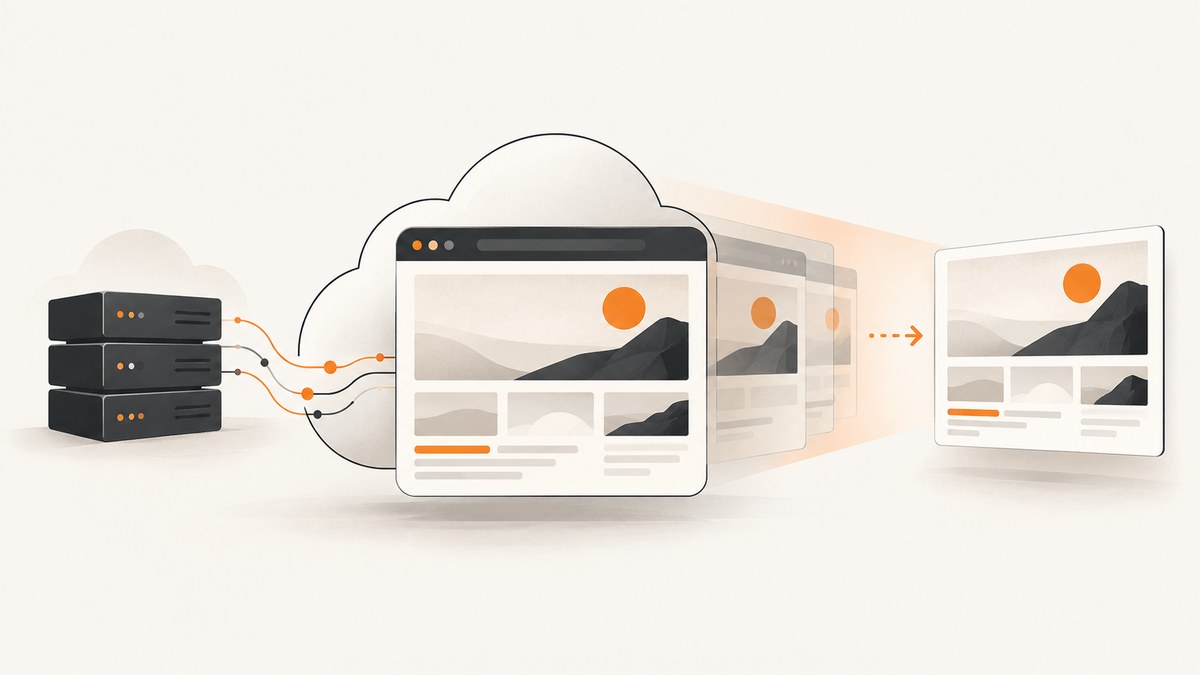
A rendered website screenshot requires a browser to load the page, run its JavaScript, apply CSS, fetch fonts and images, and then capture the painted result. Downloading HTML with an HTTP client alone does not produce that rendered view.
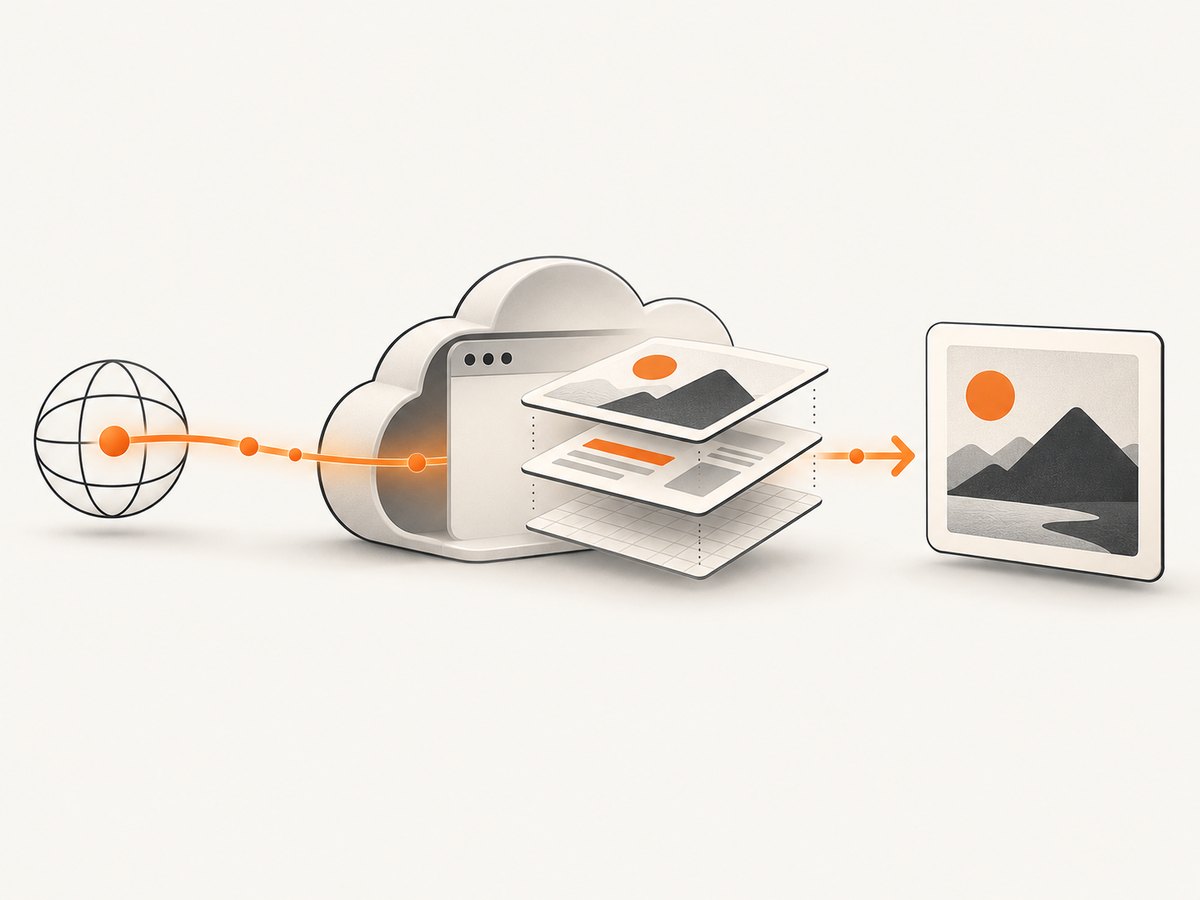
The most direct do-it-yourself method is Playwright: launch a browser, navigate to the URL, wait for the page state you need, and call the screenshot API. For a managed endpoint, ScreenshotNeo accepts one GET request and returns PNG, JPEG, WebP, or PDF.
1. Capture a rendered page with Playwright
Install Playwright and its browser binaries:
npm install playwright
npx playwright install chromium
Create capture.js:
const { chromium } = require('playwright');

(async () => {
  const browser = await chromium.launch();
  try {
    const page = await browser.newPage({
      viewport: { width: 1440, height: 900 },
      deviceScaleFactor: 1
    });

    await page.goto('https://example.com', {
      waitUntil: 'networkidle',
      timeout: 60_000
    });

    await page.screenshot({
      path: 'screenshot.png',
      fullPage: true,
      type: 'png'
    });
  } finally {
    await browser.close();
  }
})();
The sequence follows Playwright’s documented page navigation and screenshot APIs: create a browser and page, call goto, then call screenshot. See the Playwright Page API and Playwright screenshot guide.
Viewport, full-page, and element captures
- Viewport: omit
fullPageor set it tofalseto capture the currently visible browser area. - Full page: set
fullPage: trueto include content below the fold. Lazy-loaded content may require scrolling or an explicit wait first. - Element: locate a component and capture its bounding box:
const card = page.locator('.pricing-card').first();
await card.screenshot({ path: 'pricing-card.webp', type: 'webp', quality: 85 });
Element screenshots are useful for charts, forms, cards, and other components where a complete page would contain irrelevant content.
Formats and pixel scale
await page.screenshot({
  path: 'hero.jpg',
  type: 'jpeg',
  quality: 85,
  scale: 'css'
});
Playwright documents PNG, JPEG, and WebP output. The scale can use CSS pixels or device pixels; device-pixel output is useful for high-density displays but creates larger files. JPEG quality applies to JPEG output.
Wait for the page you actually need
Navigation completion does not guarantee that an application has finished rendering. Combine a navigation wait with an application-specific condition:
await page.goto('https://example.com/dashboard', { waitUntil: 'domcontentloaded' });
await page.locator('[data-ready="true"]').waitFor({ state: 'visible', timeout: 30_000 });
await page.waitForTimeout(500);
await page.screenshot({ path: 'dashboard.png', fullPage: true });
Use a selector when the page exposes a reliable ready marker. Use a short delay for animations or delayed layout changes. Use networkidle when background requests settle predictably; analytics, streams, and polling can prevent it from becoming idle.
Hide or modify content before capture
await page.addStyleTag({
  content: '.cookie-banner, .newsletter-modal, .chat-widget { display: none !important; }'
});
await page.screenshot({ path: 'clean.png', fullPage: true });
For a one-off interaction, click or fill controls before the screenshot:
await page.getByRole('button', { name: 'Accept all cookies' }).click();
await page.locator('#email').fill('demo@example.com');
await page.screenshot({ path: 'after-interaction.png' });
2. A complete production-oriented Playwright script
const { chromium } = require('playwright');

async function capture(url, output) {
  const browser = await chromium.launch({ headless: true });
  try {
    const context = await browser.newContext({
      viewport: { width: 1365, height: 768 },
      deviceScaleFactor: 1,
      colorScheme: 'light',
      locale: 'en-US',
      timezoneId: 'UTC'
    });
    const page = await context.newPage();
    page.setDefaultNavigationTimeout(60_000);
    page.setDefaultTimeout(30_000);

    await page.goto(url, { waitUntil: 'domcontentloaded' });
    await page.waitForLoadState('networkidle').catch(() => {});
    await page.evaluate(() => document.fonts?.ready);
    await page.screenshot({ path: output, fullPage: true, type: 'png' });
  } finally {
    await browser.close();
  }
}

capture(process.argv[2] || 'https://example.com', process.argv[3] || 'shot.png')
  .catch(error => { console.error(error); process.exitCode = 1; });
In a service, put the browser close operation in finally, bound navigation and selector waits, and isolate each job in its own browser context.
3. Python and cURL alternatives
Playwright also has a Python API. Install it with pip install playwright and playwright install chromium:
from playwright.sync_api import sync_playwright

with sync_playwright() as p:
    browser = p.chromium.launch()
    try:
        page = browser.new_page(viewport={"width": 1440, "height": 900})
        page.goto("https://example.com", wait_until="networkidle", timeout=60_000)
        page.screenshot(path="screenshot.png", full_page=True)
    finally:
        browser.close()
For low-level Chrome integrations, the Chrome DevTools Protocol exposes Page.captureScreenshot, including output format and clipping options. See the CDP Page.captureScreenshot reference. Puppeteer is another JavaScript browser automation library that supports screenshots and PDF generation; see Chrome for Developers’ Puppeteer documentation.
4. Or skip the browser setup
ScreenshotNeo runs the browser capture for you. Its API base is https://api.screenshotneo.com/v1/shot; the examples below use https://stripe.com. Read the ScreenshotNeo API documentation for the complete option reference.
cURL
curl -G "https://api.screenshotneo.com/v1/shot" -d access_key=YOUR_API_KEY --data-urlencode url=https://stripe.com -o shot.webpPython
import requests
r = requests.get("https://api.screenshotneo.com/v1/shot", params={"access_key": "YOUR_API_KEY", "url": "https://stripe.com"}, timeout=90)
open("shot.webp", "wb").write(r.content)
Node.js
const q = new URLSearchParams({ access_key: 'YOUR_API_KEY', url: 'https://stripe.com' });
const res = await fetch(`https://api.screenshotneo.com/v1/shot?${q}`);
const buffer = Buffer.from(await res.arrayBuffer());
require('fs').writeFileSync('shot.webp', buffer);
ScreenshotNeo supports full-page capture with lazy images loaded, CSS-selector element capture, dark mode, 12 device presets and custom viewports, retina scale, PDF paper size and page ranges, custom CSS and JavaScript, clicks, selector or delay waits, network-idle waits, ad and tracker blocking, custom headers, cookies, user agents and Authorization, timezone and geolocation, transparent backgrounds, image resizing, chosen cache TTLs, signed image links, asynchronous jobs with signed webhooks, bulk capture of up to 100 URLs per call, usage reporting, and an OpenAPI specification. Common parameter names used by other screenshot APIs also work, which can simplify migration.
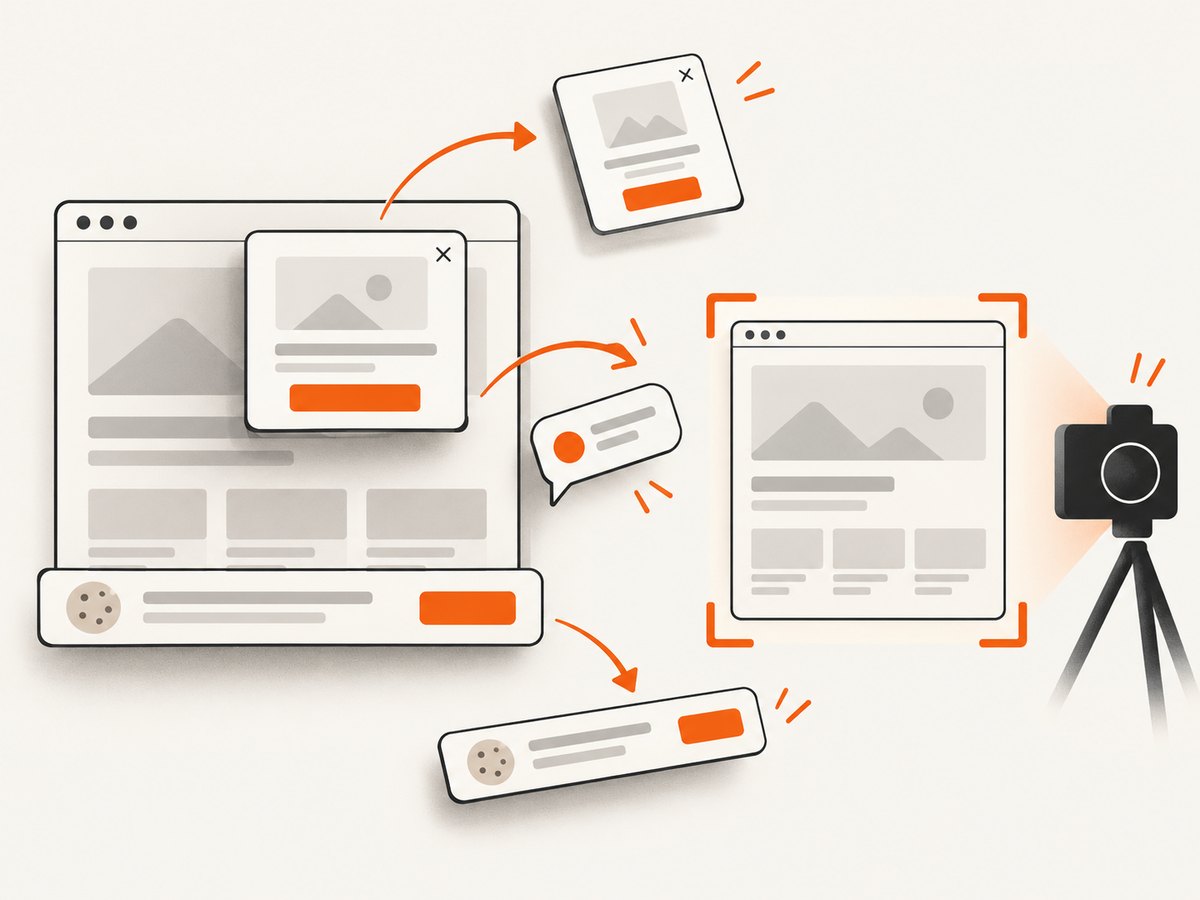
Cookie and consent banners, newsletter popups, and chat widgets are accepted or removed before capture; each cleanup step can be disabled. Bot checks or CAPTCHAs, blank pages, timeouts, failed loads, and cache hits are not billed. Inspect the X-Page-Verdict and X-Billed response headers to see the result.
An MCP server provides take_screenshot, get_page_info, and capture_pdf tools for Claude, Cursor, and other MCP clients. The Free plan includes 1,000 shots per month without a card; paid plans start at $5 for 3,000 shots. Other plans are Growth ($15/15,000), Pro ($39/60,000), Scale ($99/250,000), and Business ($249/1,000,000); yearly billing gives two months free and every feature is available on every plan.
Create a free ScreenshotNeo account to get 1,000 screenshots each month with no card.
5. Choosing capture scope and settings
| Need | Use | Watch for |
|---|---|---|
| Above-the-fold preview | Viewport screenshot | Content below the fold is excluded |
| Complete article or landing page | Full-page screenshot | Lazy loading, very tall pages, and sticky elements |
| One chart or component | Element screenshot by selector | Selector must be stable and visible |
| Smallest files | WebP or JPEG | JPEG is lossy; choose quality deliberately |
| Pixel-perfect archival | PNG at an appropriate device scale | Files consume more storage and bandwidth |
Set the viewport and device scale explicitly so repeat captures are comparable. Set timezone, locale, color scheme, geolocation, cookies, headers, and user agent when the target page varies by visitor context. Keep credentials out of URLs and logs; pass authentication through a controlled browser context or request headers.
6. Reliability and performance
- Reuse a browser process when running many jobs, but create a fresh context per capture to prevent cookies and local storage from leaking between targets.
- Set navigation, selector, and overall job timeouts. A page that never finishes background requests should not hold a worker forever.
- Wait for a meaningful selector or application-ready signal instead of relying only on a fixed delay.
- Disable animations where deterministic pixels matter, and wait for fonts before capture.
- Use viewport captures for lower latency and smaller files; full-page and high device-scale captures require more rendering and memory.
- Cache identical requests when the page can be reused. ScreenshotNeo lets you choose a cache TTL and does not bill cache hits.
- For bursts, queue jobs and cap concurrent browser pages. ScreenshotNeo supports asynchronous jobs, signed webhooks, and bulk capture for up to 100 URLs per call.
7. Troubleshooting
Blank or partially rendered screenshot
Cause: capture happened before the app rendered, a required script failed, or content is inside an iframe. Fix: wait for a stable selector, inspect console and network errors, wait for fonts, and handle frames explicitly.
Timeout during navigation
Cause: long polling, blocked third-party resources, slow origin, or a page that never reaches network idle. Fix: use domcontentloaded plus a selector wait, set a finite timeout, and block nonessential requests.
Cookie banner or chat widget appears
Cause: the page displays visitor overlays after load. Fix: click the consent control, inject CSS to hide known selectors, or use ScreenshotNeo’s consent and cleanup steps.
Full-page image misses lazy content
Cause: images load only after entering the viewport. Fix: scroll through the page before capture, wait for image completion, or use ScreenshotNeo full-page capture, which loads lazy images.
Element screenshot fails
Cause: selector matches nothing, the element is hidden, or its size is zero. Fix: verify the selector, wait for visibility, scroll it into view, and check its bounding box.
Different pixels between runs
Cause: responsive breakpoints, animations, ads, changing data, fonts, locale, timezone, or device scale. Fix: pin viewport and context settings, disable animation, wait for fonts and data, and block unstable resources.
ScreenshotNeo response is not billed
Check X-Page-Verdict and X-Billed. Bot checks or CAPTCHAs, blank pages, timeouts, failed loads, and cache hits are explicitly not billed.
8. Security and operational checklist
- Allowlist destination domains when accepting user-supplied URLs.
- Prevent access to internal network ranges and metadata endpoints in your own browser service.
- Keep API keys and authenticated cookies in secret storage.
- Limit output dimensions, page height, concurrent jobs, and total job duration.
- Record URL, viewport, wait condition, verdict, and output format for reproducibility.
- Retry transient navigation failures with a limit and backoff; do not blindly retry authentication failures or bot challenges.
9. FAQ
Can an HTTP request to the URL create a rendered screenshot?
No. HTML retrieval does not execute the page’s JavaScript or paint its CSS. Use a browser automation library, CDP, or a hosted screenshot API.
Should I choose Playwright or Puppeteer?
Both automate browsers and support screenshots. Choose the API and browser lifecycle model that fits your existing codebase; the cited documentation does not establish a universal speed or reliability winner.
When is CDP the right choice?
Use CDP when your system already manages Chrome directly or needs protocol-level controls such as capture format and clipping.
What does a full-page screenshot include?
It includes content beyond the initial viewport after the browser lays out the page. Lazy content, sticky overlays, and infinite scroll still need page-specific handling.
Can AI agents request screenshots?
Yes. ScreenshotNeo provides an MCP server with take_screenshot, get_page_info, and capture_pdf tools.


