How to Remove a Black Background From jsPDF PDFs
Fix black backgrounds in jsPDF PDFs by tracing the problem through your DOM, html2canvas output, image format, and PDF drawing settings.
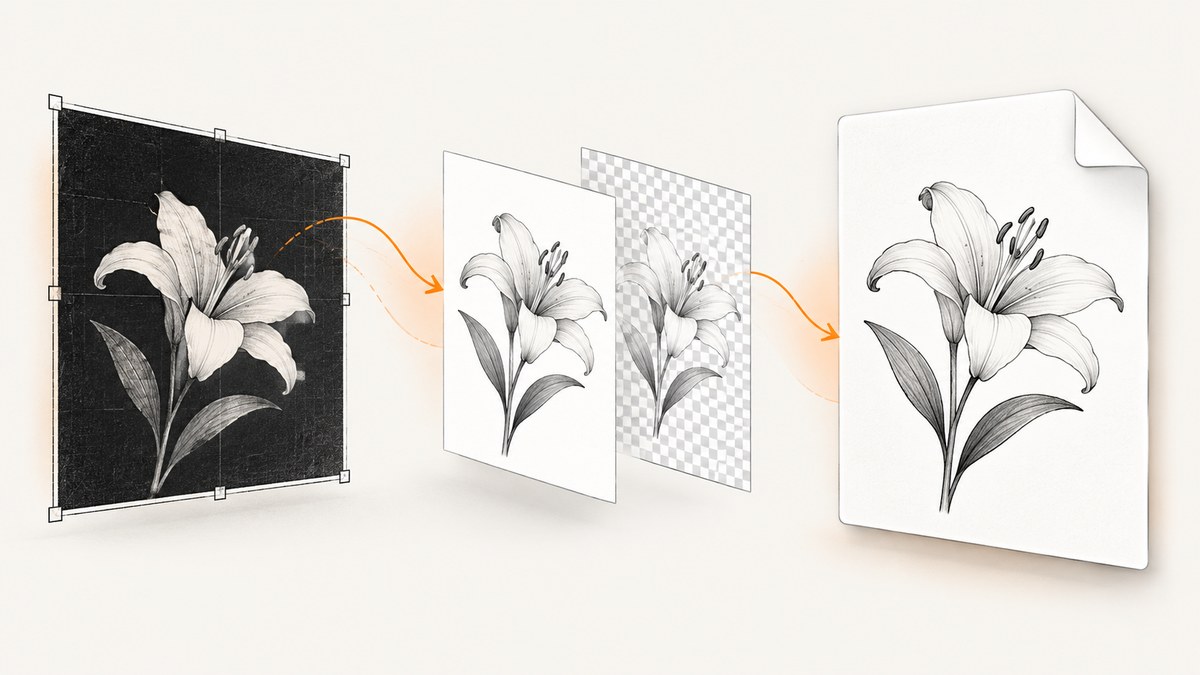
A black background in a jsPDF PDF can come from several places: a dark background in the source DOM, html2canvas rendering, how transparency is handled in the image, or colors set for later PDF drawing operations. Check the canvas before adding it to the PDF. If it is already black, fix the page styles or capture; if it looks right, inspect the image format and jsPDF steps.
For predictable white pages, set html2canvas’s backgroundColor to '#ffffff', remove unintended dark styles, export the canvas as PNG, and pass 'PNG' explicitly to addImage. If you need transparency, keep the DOM and canvas transparent and verify the PNG before export. The [jsPDF API](https://artskydj.github.io/jsPDF/docs/jsPDF.html) documents that a canvas passed to addImage defaults to JPEG when the format is omitted, so state the format deliberately.
1. Identify which step introduces the black background
Follow the rendered content through each layer rather than changing PDF colors at random. The path is usually source DOM and CSS, html2canvas’s rendered canvas, the encoded image, then jsPDF’s PDF page and any shapes or text drawn on it.
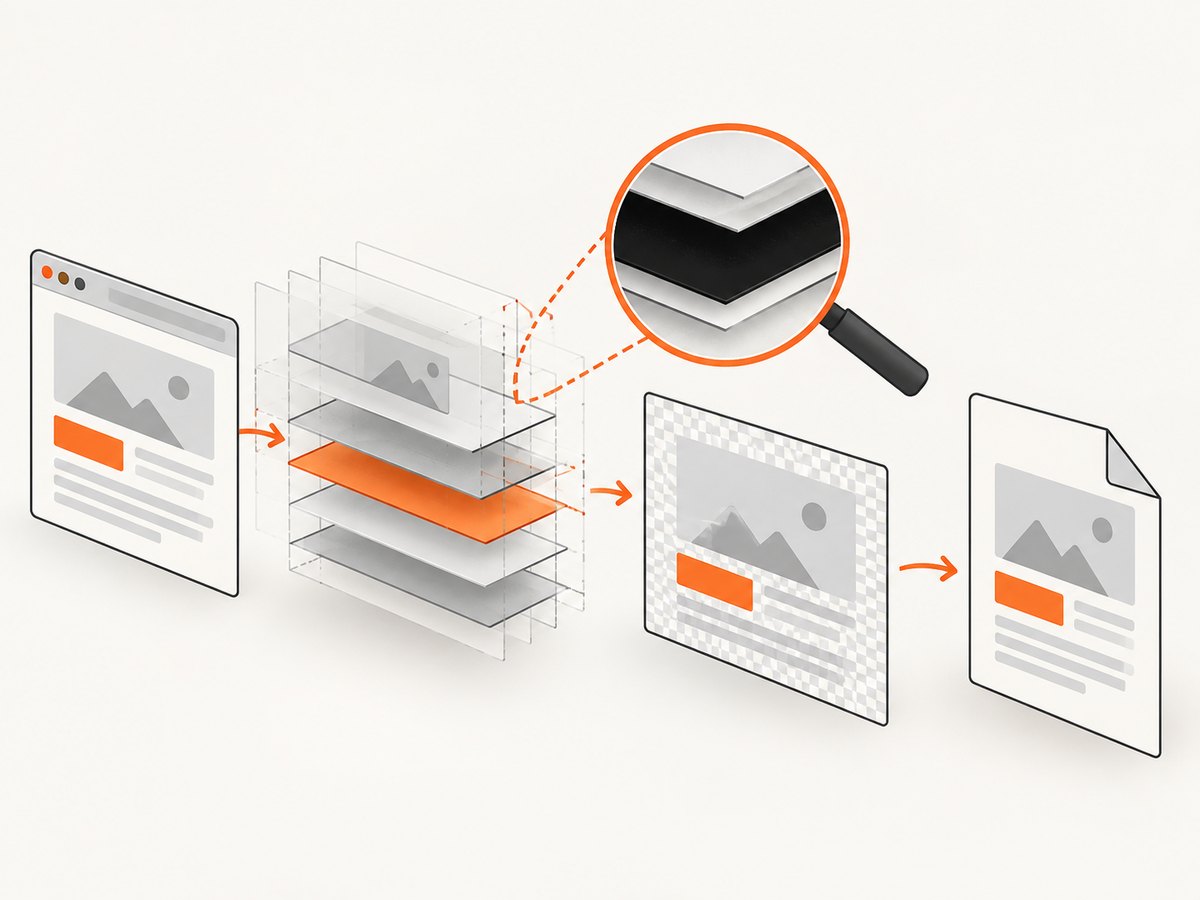
- Inspect the DOM. Check
body, the exported element, child containers, pseudo-elements such as::beforeand::after, and dark-mode styles forbackgroundorbackground-color. A transparent child cannot cancel an opaque background on its parent. - Inspect the canvas. Display it in the page or open its PNG data URL in a browser. If it is black there, jsPDF has not caused the problem.
- Inspect the PDF image step. If the canvas looks right but the PDF does not, check that you passed PNG data and the
'PNG'format toaddImage. - Inspect PDF drawing operations. Set fill and text colors explicitly before adding rectangles or text. Those settings apply to subsequent elements.
- Compare versions if needed. Reproduce on the prior and current jsPDF versions when the symptom began after an upgrade. A report involving jsPDF 2.4.0/2.5.0 described transparent PNGs, and JPEG backgrounds, appearing black in Edge’s PDF viewer; it documents a workflow-specific symptom, not a universal regression ([issue #3359](https://github.com/parallax/jsPDF/issues/3359)).
This order helps distinguish a black source image from a conversion issue or a viewer-specific display. Make one change at a time so the stage that changes the result is clear.
2. Fix the DOM and html2canvas background
Choose the output you actually want. For an ordinary report, render onto white. For a graphic that needs transparent pixels, keep the source and capture transparent, then verify the alpha in the canvas PNG before exporting.
const element = document.querySelector('#report');
if (!element) throw new Error('Could not find #report');

const canvas = await html2canvas(element, {
  backgroundColor: '#ffffff',
  useCORS: true,
  windowWidth: element.scrollWidth,
  windowHeight: element.scrollHeight
});

document.body.appendChild(canvas); // Temporary visual check
const pngDataUrl = canvas.toDataURL('image/png');
This runnable snippet assumes html2canvas is already imported and the page contains an element with id="report". For a white export, backgroundColor makes the intended canvas background explicit. Also inspect the element’s styles: an inline background, a nested panel, a pseudo-element, or an active dark theme may still paint a dark area over the canvas.
For transparency, set backgroundColor: null (or omit the option according to the html2canvas version in use), remove opaque backgrounds from the exported element and its ancestors, and verify that the resulting PNG actually contains transparent pixels. Do not infer transparency just because the page looks transparent against a browser background.
Use windowWidth and windowHeight when a tall element is clipped or rendered differently at the viewport size. These dimensions affect layout as well as capture bounds, so compare the result with the intended responsive layout. html2canvas documents that browser canvas size limits vary and can silently cause blank or partial output; reducing capture dimensions may be necessary ([html2canvas FAQ](https://html2canvas.hertzen.com/faq.html)).
3. Preserve transparency with PNG and set jsPDF colors
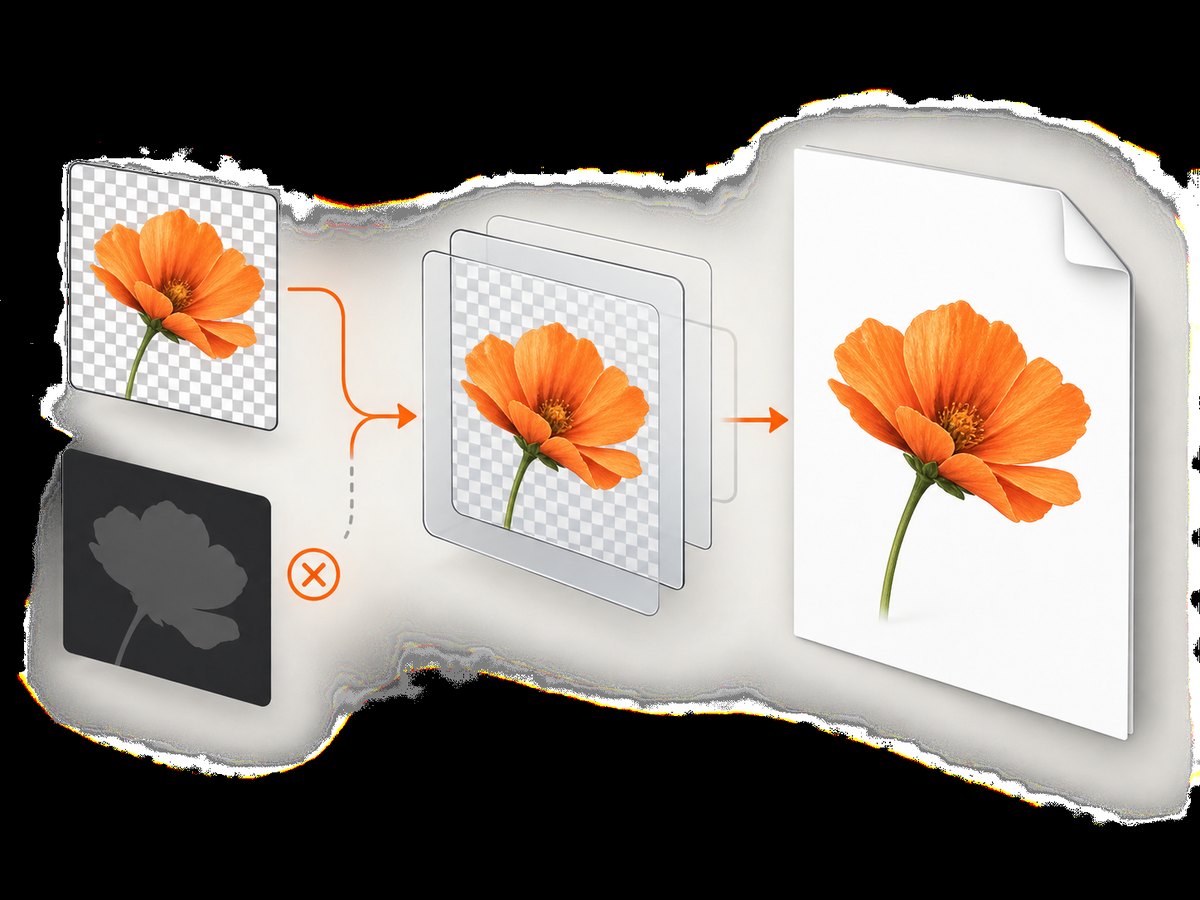
PNG can preserve alpha; JPEG is opaque. Use PNG data and specify PNG when adding the canvas. Separately, explicitly set the colors for PDF shapes and text. jsPDF’s setFillColor and setTextColor set colors for upcoming elements and accept gray, RGB, CMYK, and hexadecimal values ([fill color API](https://artskydj.github.io/jsPDF/docs/jsPDF.html#setFillColor), [text color API](https://artskydj.github.io/jsPDF/docs/jsPDF.html#setTextColor)).
const { jsPDF } = window.jspdf;
const pdf = new jsPDF({ orientation: 'portrait', unit: 'mm', format: 'a4' });

const pageWidth = pdf.internal.pageSize.getWidth();
const pageHeight = pdf.internal.pageSize.getHeight();
const imgData = canvas.toDataURL('image/png');

pdf.setFillColor(255, 255, 255); // White for any following filled shapes
pdf.setTextColor(0, 0, 0);       // Black text
pdf.addImage(imgData, 'PNG', 0, 0, pageWidth, pageHeight);
pdf.save('output.pdf');
For white output, the explicit white canvas background is the key part; the fill color does not repaint the image already added. If your page design includes a white PDF rectangle behind the image, draw it before adding the image, and use an image with the alpha behavior you intend. For a transparent PNG, avoid placing a black rectangle behind it unless that is the desired result.
jsPDF accepts data URLs, image and canvas elements, Uint8Array, and RGBA data; documented image formats include JPEG, PNG, and WEBP ([addImage API](https://artskydj.github.io/jsPDF/docs/module-addImage.html)). When supplying a canvas, jsPDF documents JPEG as the default if the format is omitted. That default is easy to miss when changing from an explicit PNG data URL to a canvas argument. Pass the format explicitly either way.
4. Complete browser example
This example captures a report element on a white background, embeds its PNG into an A4 PDF, and saves the file. It assumes the page has loaded html2canvas and jsPDF and contains the target element.
async function exportReportPdf() {
  const element = document.querySelector('#report');
  if (!element) throw new Error('Could not find #report');

  const canvas = await html2canvas(element, {
    backgroundColor: '#ffffff',
    useCORS: true,
    windowWidth: element.scrollWidth,
    windowHeight: element.scrollHeight
  });

  if (canvas.width === 0 || canvas.height === 0) {
    throw new Error('Capture produced an empty canvas');
  }

  // Optional: inspect the capture before proceeding.
  // document.body.appendChild(canvas);
  const png = canvas.toDataURL('image/png');
  const { jsPDF } = window.jspdf;
  const pdf = new jsPDF({ unit: 'mm', format: 'a4' });
  const width = pdf.internal.pageSize.getWidth();
  const height = pdf.internal.pageSize.getHeight();

  pdf.setFillColor('#FFFFFF');
  pdf.setTextColor('#000000');
  pdf.addImage(png, 'PNG', 0, 0, width, height);
  pdf.save('report.pdf');
}

exportReportPdf().catch(console.error);
This places the whole captured image on one page and scales it to the page dimensions. For a long report, that can make text too small. Use a pagination strategy or split the content into page-sized captures when legibility matters. Keep the source canvas as small as the intended output allows: very large canvases consume memory and can hit browser limits.
5. Cross-origin images, dimensions, and other edge cases
Cross-origin images are missing or wrong
html2canvas skips cross-origin images that would taint the canvas when allowTaint is false, its default. Setting useCORS: true only works if the image server permits your origin with an Access-Control-Allow-Origin response header. Otherwise, serve the image from your own origin or use a same-origin proxy you control. The browser’s content policy cannot be bypassed by html2canvas ([html2canvas FAQ](https://html2canvas.hertzen.com/faq.html)).
Do not set allowTaint: true as a general fix: a tainted canvas cannot be read back with toDataURL, which is needed for this export flow. Fix the image server’s CORS policy or route the asset through a permitted same-origin endpoint.
The image is clipped, blank, or partially rendered
Check canvas dimensions and browser limits. Reduce the capture area, export sections separately, or avoid capturing a whole long page as one enormous canvas. Confirm the element’s scroll dimensions and whether the page uses lazy-loaded content that has not appeared yet. A zero-sized canvas is a useful explicit failure condition; a nonzero canvas can still be incomplete.
Only a nested area is dark
Inspect computed styles on the nested element and its pseudo-elements. A site theme may apply a dark background to cards even when the body is white. You can temporarily add an export-only class or custom stylesheet to set the intended background for the target and descendants. Be careful with broad rules that erase meaningful colored sections.
The canvas looks right, but only one PDF viewer shows black
Save and inspect the PNG independently, then open the resulting PDF in another viewer. If the PNG is correct and the PDF behaves differently across viewers, narrow the issue to the jsPDF encoding/version or viewer handling. Reproduce with a small canvas and compare the project’s prior jsPDF version with its current one. The cited issue documents one Edge workflow; it does not establish that all viewers or versions share the same defect.
6. Performance, reliability, and cost
Browser rendering cost grows with captured pixel area. A very tall or wide canvas uses more memory, takes longer to encode, and is more likely to encounter platform limits. Prefer the smallest element and dimensions that preserve the information readers need. For long documents, render and add page-sized sections rather than forcing an oversized one-page image.
Reliability improves when the capture waits for the content it needs: load images, resolve application data, and ensure fonts and layout have settled before calling html2canvas. CORS must be correct before capture, and the captured dimensions should match the layout being exported. Check the intermediate PNG as a diagnostic artifact. This separates rendering failures from PDF assembly failures.
This client-side approach has no screenshot API charge, but it uses the user’s browser resources and inherits browser rendering and security limits. If the same rendering needs to run reliably in a backend job or as part of a capture pipeline, account for browser runtime, memory, retries, and external asset availability. Avoid retrying a deterministic CSS or CORS failure without changing its cause.
7. Troubleshooting checklist
| Symptom | Likely cause | Fix |
|---|---|---|
| Canvas itself is black | Dark DOM/CSS background, pseudo-element, or capture style | Inspect computed backgrounds; choose white explicitly or remove opaque backgrounds for transparency. |
| PNG looks right; PDF image is black | Implicit or mismatched image format, or version/viewer-specific handling | Export with toDataURL('image/png'); pass 'PNG' to addImage; compare versions and viewers. |
| Transparent areas turn black | Alpha was lost or rendered over a black background | Keep a PNG path, verify alpha in the PNG, and inspect the PDF/background composition. |
| Some images disappear | Cross-origin image blocked by canvas security | Enable useCORS and configure the image server’s CORS header, or use a same-origin proxy. |
| PDF text or shapes are unexpectedly colored | jsPDF’s current drawing color was not set for the next operations | Set fill and text colors explicitly before drawing those elements. |
| Capture is blank or cut off | Oversized canvas, wrong dimensions, or content not yet rendered | Wait for content, verify element dimensions, and reduce or split the capture. |
| Background image conflicts with white panels | html() path or container styles introduced white backgrounds | Inspect the rendered DOM and container backgrounds before changing PDF image placement. |
8. Or skip the browser setup
If you need a website screenshot as an input to a document or workflow, ScreenshotNeo provides a one-request screenshot API and an MCP server. Its capture removes cookie and consent banners, newsletter popups, and chat widgets before the shot; those steps can be turned off. Bot checks, blank pages, timeouts, failed loads, and cache hits are not billed, and responses include X-Page-Verdict and X-Billed headers. AI agents can use its MCP tools, including take_screenshot, get_page_info, and capture_pdf. The free plan includes 1,000 screenshots each month with no card; paid plans start at $5 for 3,000 screenshots. See [ScreenshotNeo](https://screenshotneo.com) and the [API docs](https://screenshotneo.com/docs/).
curl -G "https://api.screenshotneo.com/v1/shot" -d access_key=YOUR_API_KEY --data-urlencode url=https://stripe.com -o shot.webpOr use Python:
import requests

r = requests.get(
    "https://api.screenshotneo.com/v1/shot",
    params={"access_key": "YOUR_API_KEY", "url": "https://stripe.com"},
    timeout=90,
)
open("shot.webp", "wb").write(r.content)
Or Node.js:
const q = new URLSearchParams({ access_key: 'YOUR_API_KEY', url: 'https://stripe.com' });
const res = await fetch(`https://api.screenshotneo.com/v1/shot?${q}`);
These calls return a website screenshot; they do not replace the local html2canvas workflow for capturing arbitrary application DOM. [Create a free ScreenshotNeo account](https://screenshotneo.com/account/sign-up/) for 1,000 screenshots a month with no card.
9. FAQ
Does setting the PDF fill color fix a black image?
No. Fill color affects later PDF drawing operations. First determine whether the canvas or PNG is already black, then fix that rendering stage.
Should I use PNG or JPEG?
Use PNG when alpha matters. JPEG is opaque. Pass the chosen format explicitly to jsPDF.
Can html2canvas capture every remote image?
No. The remote server must allow cross-origin access, or the image must be made available through a same-origin route.
Why can a PDF look different in Edge?
PDF viewers can differ in how a particular image/PDF combination appears. Check the source PNG and compare another viewer and jsPDF version before concluding the DOM is at fault.


