How to Remove Blank Space at Page Ends in HTML-to-PDF Conversion
Find what causes blank space at PDF page ends and fix margins, print CSS, page breaks, and renderer settings without clipping content.
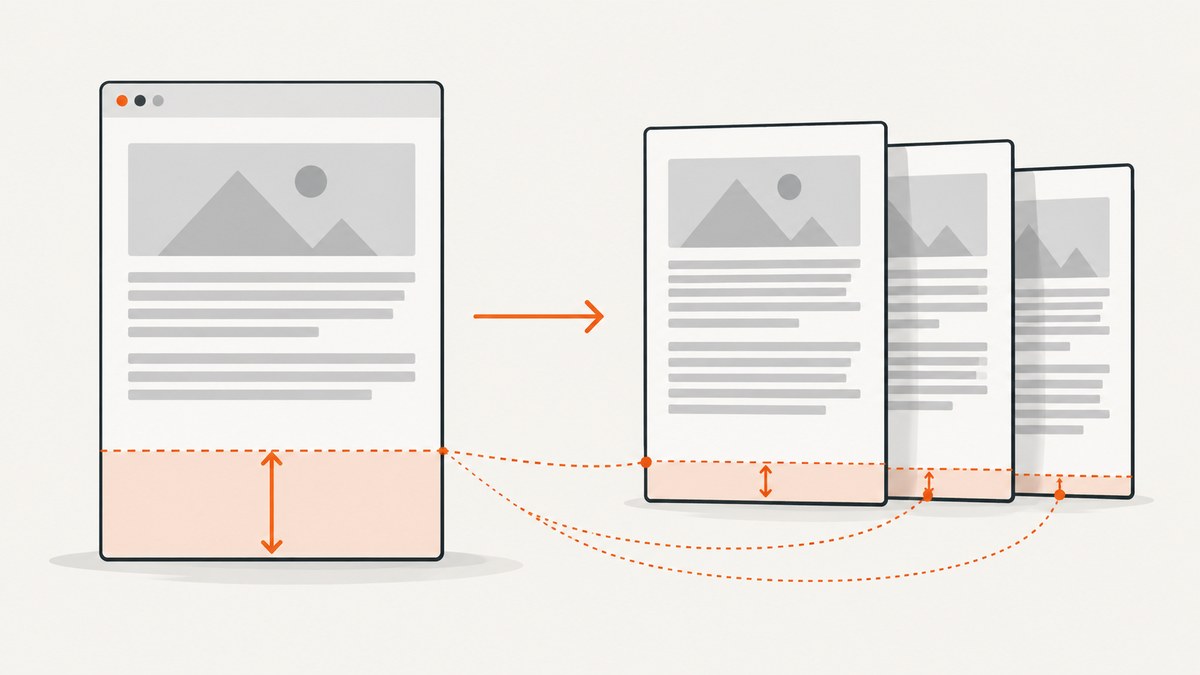
Blank space at the end of an HTML-to-PDF page is usually reserved layout space, not an empty HTML node. Check the PDF page margin first, then renderer margin and footer settings, print CSS spacing, page breaks, and fixed-height layout rules. Set page size and margins explicitly, inspect the final element’s margins, and remove only the spacing you do not intend to keep.
This guide covers browser-based PDF generation with Puppeteer and Chromium, plus WeasyPrint and wkhtmltopdf checks. It also explains how to distinguish a normal page margin from a layout bug, how to preserve intentional footers, and how to troubleshoot when a fix works locally but not in production.
1. Identify which kind of blank space you have
“Blank space at the bottom” can describe several different things. The fix depends on which layer reserved it:
| What you see | Likely source | First check |
|---|---|---|
| A consistent strip at the bottom of every page | Page-box margin or renderer PDF margin | @page and PDF options such as Puppeteer’s margin.bottom |
| A gap after the last content on only the final page | Last element margin, a fixed-height wrapper, or a spacer | Final child’s computed styles and the print layout |
| A large gap before a short section that moved to the next page | Forced break or break-inside: avoid |
Break rules on the section and its ancestors |
| A gap that changes between local and production PDFs | Different renderer version, options, fonts, or loaded assets | Compare renderer version and complete conversion settings |
| A gap below a footer or above it | Page margin plus header/footer spacing | Renderer footer configuration and its spacing from the page edge |
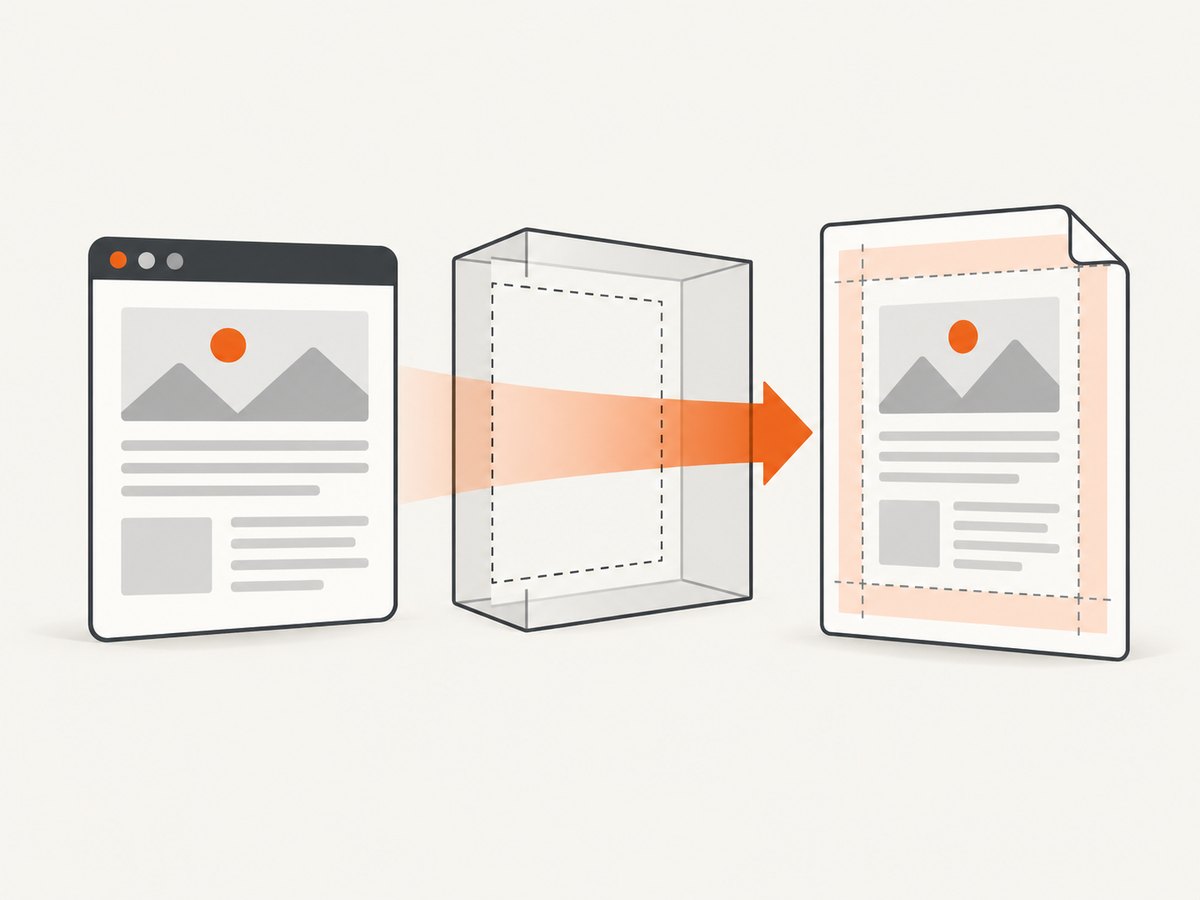
A printed page has a page box. CSS paged media lets you set its size, orientation, and margins using @page. Those margins are intentionally empty unless content such as a page-margin box or a renderer-managed footer occupies them. A page break ends layout in one page box and continues it in another; it is not itself an instruction to fill the remaining area. [W3C CSS Paged Media] [MDN: @page]
2. Start with explicit page size and margins
Do not rely on undocumented or renderer-specific defaults. Declare the page size and all four margins in print CSS, then make the PDF generator agree with those values. Here is a baseline you can adapt:
/* print.css */
@page {
  size: A4;
  /* top, right, bottom, left */
  margin: 10mm 10mm 8mm;
}

@media print {
  html,
  body {
    margin: 0;
    padding: 0;
  }

  /* Remove trailing spacing only if it is not part of the design. */
  .content > :last-child {
    margin-bottom: 0;
  }

  /* Keep compact items together where moving them is preferable. */
  .card,
  figure,
  table,
  tr {
    break-inside: avoid;
    page-break-inside: avoid; /* legacy alias for older engines */
  }
}
The example uses an 8 mm bottom page margin, not zero. That space can provide breathing room or make room for a footer. Set it to zero only when edge-to-edge printing is intended and your printer or downstream PDF use supports it. Removing the margin can move a gap elsewhere, overlap a footer, or clip content instead of fixing the underlying layout.
page-break-inside is a legacy alias for break-inside. Keeping both can help older engines; in current environments, use the modern property and confirm the renderer’s support. [MDN: page-break-inside]
3. Match Puppeteer’s PDF options to the CSS
Puppeteer generates PDFs using the print CSS media type by default. That means a page that looks right on screen can have different print-only styles, including margins, hidden elements, or layout rules. Check @media print before changing the browser’s screen styling. [Puppeteer: Page.pdf()]
This runnable Node.js example loads a local HTML file and writes an A4 PDF. Save the baseline CSS in a linked stylesheet, or include it in the HTML document. Install Puppeteer with npm install puppeteer and run the script with Node.js:
// make-pdf.mjs
import puppeteer from 'puppeteer';

const browser = await puppeteer.launch({ headless: true });
try {
  const page = await browser.newPage();
  await page.goto('file:///absolute/path/to/document.html', {
    waitUntil: 'networkidle0',
  });

  await page.pdf({
    path: 'output.pdf',
    format: 'A4',
    printBackground: true,
    preferCSSPageSize: true,
    margin: {
      top: '10mm',
      right: '10mm',
      bottom: '8mm',
      left: '10mm',
    },
  });
} finally {
  await browser.close();
}
Replace the file URL with your page URL if the document is served by an application. If the content is populated by JavaScript, wait for the app’s readiness signal or a specific selector before calling page.pdf(). The example uses networkidle0 as a basic wait condition; applications with persistent connections may never become idle, so waiting for a meaningful element is often more reliable.
Understand the settings that affect the page edge
formatorwidth/height: Choose one page sizing strategy.format: 'A4'selects a standard size; explicit dimensions are useful for a custom page.preferCSSPageSize: true: Lets CSS@pagesize take precedence. Use it when your stylesheet is the source of truth for page size.margin: Set all four edges explicitly. If CSS@pagealso declares margins, keep the two configurations aligned and inspect the generated output for your installed Puppeteer/Chromium version.printBackground: Includes background colors and images. It does not remove or add page margins, but missing backgrounds can make a page edge look like a blank region.page.emulateMediaType('screen'): Switches to screen styles. Use it only when the PDF is intentionally meant to reproduce the screen layout; otherwise it can bypass the print rules you need to debug.
If CSS @page specifies A4 but the PDF options force a different size, the content area changes and can cause reflow or new pages. Choose one intended page size, make precedence explicit, and keep the PDF margins consistent with the CSS values.
4. Check element spacing and print-only layout
After ruling out page margins, inspect the elements near the bottom of the page. Browsers apply default margins to common elements, and author styles can add more. Paragraphs, headings, lists, and the final content wrapper are frequent sources. Reset html and body in print styles, then inspect the computed margin-bottom of the final element and each relevant ancestor.
Also search the stylesheet and markup for sizing or positioning that reserves unused space:
min-height: 100vhor a fixed height onbody, a page wrapper, or a content panel.- Flex layouts using
justify-content: space-between, which can distribute children across a tall container. - Grid rows sized to fill a fixed-height page wrapper.
- Absolutely positioned footers that sit at the bottom of a container taller than the content.
- Empty spacer elements or reserved footer blocks that remain in print output.
Override these in @media print if the screen layout needs them but the PDF does not. Avoid globally deleting spacing if some pages intentionally need it. Scope the adjustment to the document or component that shows the problem.
5. Understand page breaks and stranded content
CSS fragmentation properties control where content breaks: break-before, break-after, and break-inside. A forced break can start a short final block on a fresh page. An avoid rule can move an entire card, table row, or figure to the next page, leaving unused space on the previous one. That unused area is a consequence of keeping content together, not a bottom margin. [MDN: break-inside] [MDN: break-before]
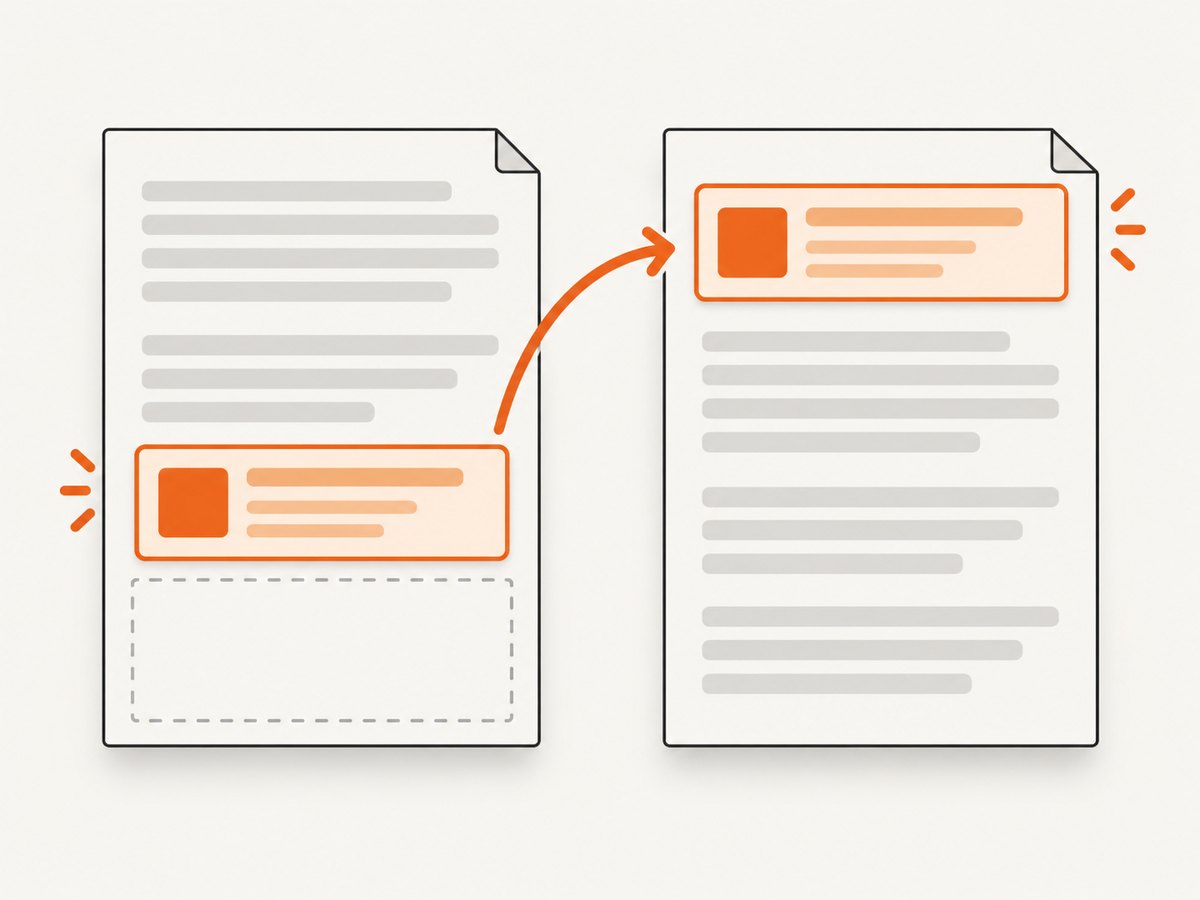
Temporarily remove break rules one at a time to find the cause. Then apply them only to elements that should remain intact. Avoid putting break-inside: avoid on a large container that can exceed a page’s printable area; the renderer may have no good place to keep it together.
@media print {
  /* Let long content fragment naturally. */
  .article-body {
    break-inside: auto;
    page-break-inside: auto;
  }

  /* Keep small, meaningful units together. */
  .callout,
  figure {
    break-inside: avoid;
    page-break-inside: avoid;
  }

  /* Remove a deliberate screen-only break in the printed document. */
  .screen-section-start {
    break-before: auto;
    page-break-before: auto;
  }
}
Tables require special care. Keeping a row together can be appropriate, but a table with a tall row or nested nonbreaking content may leave substantial unused room. Test with realistic content, including the longest labels and cells, rather than only a short sample.
6. Renderer-specific checks
WeasyPrint
WeasyPrint documents support for @page, page-margin boxes, the break-before, break-after, and break-inside properties, their page-break-* aliases, and the orphans and widows controls. Use those paged-media features instead of hard-coded spacer elements. Record the installed WeasyPrint version when diagnosing a difference between environments, because behavior can vary with the software version. [WeasyPrint documentation]
wkhtmltopdf
Check the configured page size and orientation, margin.bottom, and any header/footer spacing. A large bottom margin or gap between the page edge and a header or footer can look like unused content space even if the HTML ends earlier. Keep command-line options and CSS @page settings aligned. [wkhtmltopdf usage documentation]
Compare the actual conversion environments
When two renderers disagree, compare the settings that control printing and fragmentation rather than expecting identical layout. Useful comparison points are print-media selection, page-margin precedence, support for CSS breaks, table and flex behavior, header/footer implementation, font loading, and fixed-height containers. The same HTML and stylesheet can paginate differently when the renderer or its version changes.
7. A repeatable diagnostic sequence
- Reduce the document. Make a minimal version with only the final content block. Keep the same renderer and PDF options as production.
- Declare the page box. Add an explicit
@pagesize and margins. Set the PDF generator’s corresponding margins too. - Reset document spacing. In print CSS, zero
htmlandbodymargins and padding, then temporarily set the last content block’s bottom margin to zero. - Remove layout reservations individually. Temporarily disable forced breaks,
break-inside: avoid, fixed heights,min-height: 100vh, flex distribution, and footer spacers. Change one item at a time so the responsible rule is clear. - Inspect a generated PDF. Use the same renderer, version, fonts, inputs, and options used in the real job. A browser preview is not a substitute for checking the output file.
- Restore intentional design. Reintroduce the desired page margin, footer, breaks, and component spacing after the unwanted gap is identified. Check that the content is not clipped or overlapping.
8. Common errors and fixes
| Symptom | Cause | Fix |
|---|---|---|
Setting body { margin: 0 } changes little |
The gap is in @page or PDF options |
Set and align all four page margins explicitly. |
Changing @page has no visible effect |
The renderer’s PDF options override or compete with CSS page settings | Check the renderer’s margin and page-size precedence; with Puppeteer, review preferCSSPageSize. |
| The gap appears only before the last section | A forced break or an ancestor’s break-inside: avoid moves the section |
Inspect break properties on the section and its ancestors; relax only the rule causing the move. |
| The bottom gap grows on short documents | A fixed-height or viewport-height wrapper, flexible distribution, or footer positioning reserves space | Override the sizing or layout rule in print CSS and remove unused spacer elements. |
| The footer is clipped after reducing margins | The margin was also reserving room for the footer | Restore enough page margin or adjust the footer’s position and spacing. |
| The PDF gains an extra page after a CSS change | Content reflowed because printable height or page size changed | Compare page size, margins, fonts, and line wrapping; check whether a nonbreaking block exceeds the available page area. |
| Local output differs from deployed output | Renderer versions, fonts, assets, print styles, or options differ | Log and compare the conversion environment and wait for required assets before generating. |
| Print and browser previews disagree | The renderer prints with different media styles | Inspect @media print; Puppeteer’s page.pdf() uses print media by default. |
9. Performance, reliability, and cost
For a self-hosted renderer, keep the conversion path deterministic: use the same renderer version in development and production, declare page settings, load fonts and images before capture, and wait for a real content-ready condition. Reusing a browser process can avoid paying browser startup cost for every job, but manage its lifecycle and isolate page state between documents. For remote or user-supplied HTML, set appropriate timeouts and avoid waiting forever for persistent network activity.
PDF reliability depends on the document as well as the renderer. A font that is not loaded can change line wrapping and push content onto another page. A slow image can be missing or change the layout after a premature conversion. External assets also make output dependent on network availability. Where consistency matters, make required assets available to the renderer and wait for them before generating the PDF.
There is no universal numeric amount of whitespace or performance figure for this issue: output depends on CSS, document length, renderer, version, assets, and configuration. For cost planning, account for the compute and operational work of running the renderer or the pricing model of any hosted conversion service you choose. Measure your own representative documents; do not infer the cost from page margins alone.
10. Or skip the browser setup
If you need a clean image of a web page rather than a paginated PDF, ScreenshotNeo is a website screenshot API and MCP server. A single GET request can return a PNG, JPEG, WebP, or PDF. The request below captures a page as WebP; consult the ScreenshotNeo API documentation for parameters and output options.
curl -G "https://api.screenshotneo.com/v1/shot" \
  -d access_key=YOUR_API_KEY \
  --data-urlencode url=https://stripe.com \
  -o shot.webp
import requests
r = requests.get(
"https://api.screenshotneo.com/v1/shot",
params={"access_key": "YOUR_API_KEY", "url": "https://stripe.com"},
timeout=90,
)
open("shot.webp", "wb").write(r.content)const q = new URLSearchParams({
access_key: 'YOUR_API_KEY',
url: 'https://stripe.com',
});
const res = await fetch(`https://api.screenshotneo.com/v1/shot?${q}`);
if (!res.ok) throw new Error(`Screenshot request failed: ${res.status}`);
await Bun.write('shot.webp', res);ScreenshotNeo accepts cookie or consent banners before capture and removes more than 60 known consent platforms, newsletter popups, and chat widgets; each step can be turned off. Bot checks, blank pages, failed loads, timeouts, and cache hits are not billed, and the response identifies the page verdict and billing status in headers. Its MCP server provides screenshot, page-info, and PDF-capture tools for Claude, Cursor, and other MCP clients. The free plan includes 1,000 screenshots per month with no card; paid plans start at $5 for 3,000. The supplied API call uses stripe.com as an example target; replace it with the page you need.
Create a free ScreenshotNeo account for 1,000 screenshots a month with no card.
11. Short FAQ
Should I remove all bottom whitespace from every page?
No. A page margin is often intentional. Keep it when you need a readable edge, printer-safe area, or space for a footer.
Why is there space after the last element only?
Check the final element’s margin, its ancestors’ heights, and any footer or spacer layout. A page-level margin usually repeats on each page.
Can I use screen CSS for a PDF?
Yes, when matching the screen is the goal. For a document designed for print, use print styles and verify the PDF’s pagination.
Why does the same document break differently in another environment?
Renderer versions, fonts, loaded assets, page options, and print styles can change line wrapping and fragmentation. Compare those inputs before changing the content.


