How to Remove Blur from Images Generated with html-to-image
Fix blurry html-to-image exports by controlling pixelRatio, checking bitmap size, waiting for resources, and avoiding canvas limits.
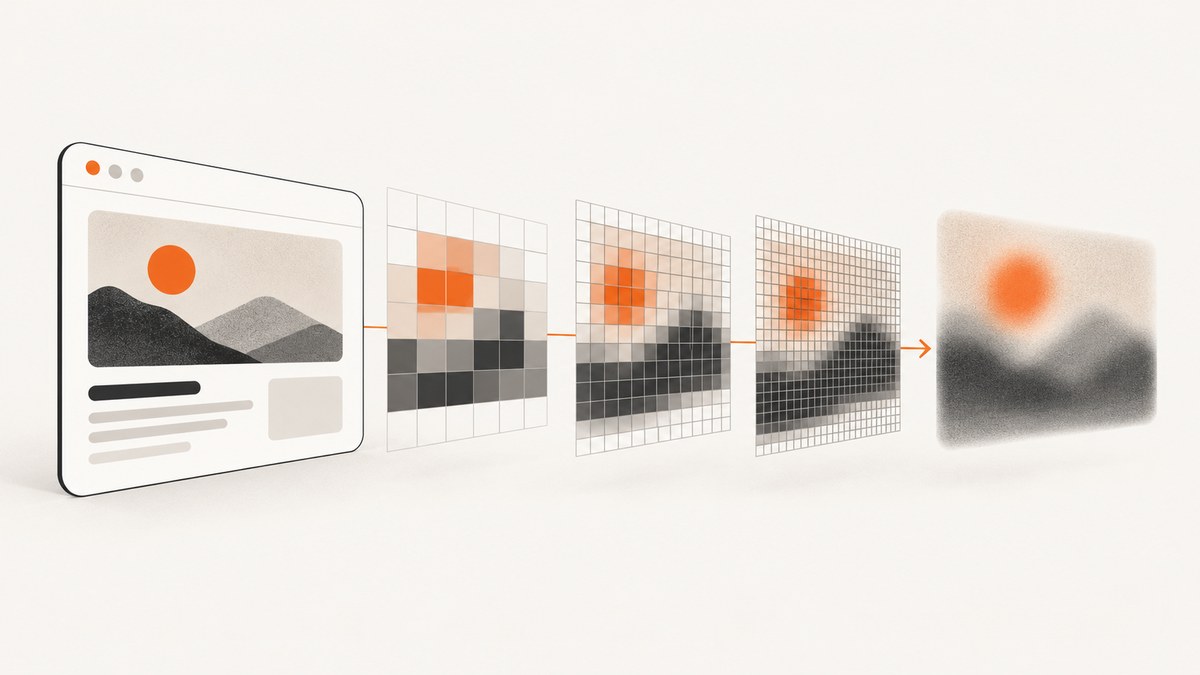
If an image generated with html-to-image looks soft, inspect the exported bitmap before changing your CSS. The first setting to try is pixelRatio. It controls the pixel density of the captured image. Then compare the file’s pixel dimensions with the size at which it is displayed, and make sure fonts, stylesheets, and images were ready before capture.
1. Set an explicit pixelRatio
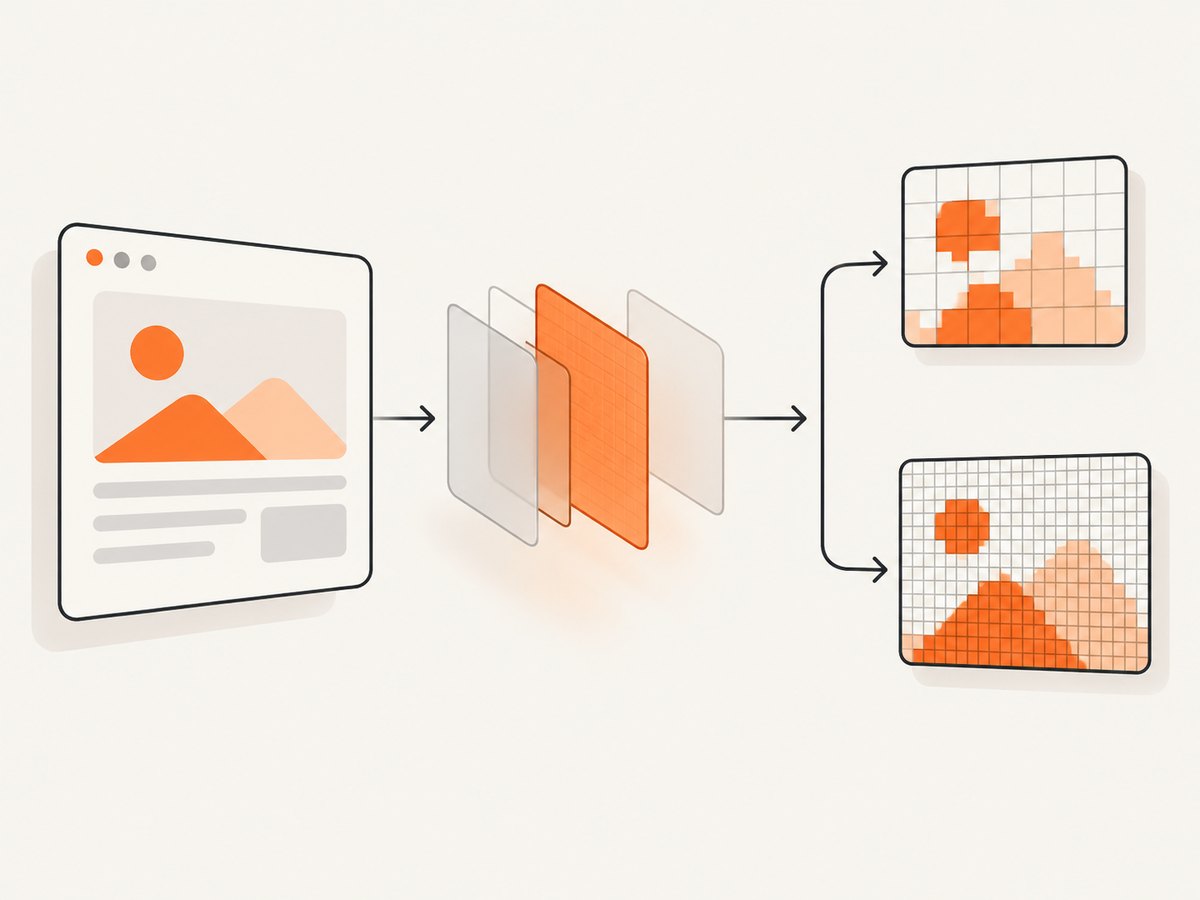
The library’s options type describes pixelRatio as the pixel ratio of the captured image. Its default is the device’s actual pixel ratio. A higher value creates a larger raster for the same CSS-sized element, which can make text and edges sharper when the file is displayed at a large size.
import { toPng } from 'html-to-image';

const node = document.getElementById('capture');
const dataUrl = await toPng(node, {
  pixelRatio: 2,
});

const link = document.createElement('a');
link.download = 'capture.png';
link.href = dataUrl;
link.click();
2 is a useful diagnostic value, not a universal answer. Choose a value based on the intended presentation size, browser, display density, memory use, and any later resizing. Open the saved file in an image viewer and inspect it at its final display size.
2. Check bitmap size versus display size
A preview can look sharp because it is shown smaller than the underlying bitmap. The opposite also happens: a small export is enlarged in a web page, document, or design tool and appears blurry. Record both dimensions:
- Bitmap dimensions: the exported file’s width and height in pixels.
- Presentation dimensions: the CSS, print, or layout size where the file is consumed.
If a 600 px-wide export is rendered at 1,200 px, no CSS change can restore detail that was never captured. Increase capture density or capture at the final required dimensions. On high-density displays, one CSS pixel may be represented by multiple physical pixels; the browser’s devicePixelRatio describes that relationship.
3. Control the output canvas
canvasWidth and canvasHeight are available output options. Use them when the resulting canvas must have a specific pixel size, but verify the composition afterward. Making the canvas larger does not automatically add detail if the DOM was rendered at a low scale.
const dataUrl = await toPng(node, {
  pixelRatio: 2,
  canvasWidth: 1600,
  canvasHeight: 900,
});
Keep the aspect ratio consistent with the element unless you intentionally want extra canvas area. If the content is stretched, the result can look distorted even when it is technically high resolution.
4. Wait for fonts, stylesheets, and images
Blur is sometimes a resource-loading problem in disguise. A fallback font, missing image, or late stylesheet can change glyph shapes and layout so the export looks wrong. Capture only after the resources that affect the element are ready.
await document.fonts.ready;

const images = Array.from(document.images);
await Promise.all(images.map((image) => {
  if (image.complete) return Promise.resolve();
  return new Promise((resolve) => {
    image.addEventListener('load', resolve, { once: true });
    image.addEventListener('error', resolve, { once: true });
  });
}));

const dataUrl = await toPng(document.getElementById('capture'), {
  pixelRatio: 2,
});
Related DOM-capture documentation also recommends waiting for document.fonts.ready and warns that a stylesheet added immediately before capture may not yet expose its @font-face rules to the CSS object model. Treat this as a timing diagnostic; exact behavior can vary by library version and browser.
5. Use the other capture options deliberately
| Option | Use it for | Blur-related caution |
|---|---|---|
pixelRatio |
Capture density | Higher values increase raster dimensions and memory use. |
canvasWidth, canvasHeight |
Explicit output canvas dimensions | A larger canvas cannot recreate missing source detail. |
width, height |
Override the cloned node’s rendered size | Changing layout dimensions can alter wrapping and typography. |
style |
Apply temporary styles during capture | Check that scaling or transforms do not make text appear soft. |
filter |
Exclude nodes from the clone | Removing overlays can change measured dimensions. |
fontEmbedCSS, preferredFontFormat |
Embed usable web fonts | Missing or substituted fonts can look like low resolution. |
imagePlaceholder, image error handling |
Control failed image resources | A placeholder is not a sharper version of the original. |
backgroundColor |
Set a solid background | Transparent edges can look different against a viewer’s background. |
quality |
Adjust JPEG encoding quality | JPEG compression artifacts are different from insufficient pixel density. |
cacheBust |
Reduce stale resource-cache issues | It does not increase the resolution of an image. |
Start with the smallest change that answers the diagnosis: set pixelRatio, verify dimensions, then investigate resources and layout. Do not raise every option at once.
6. A complete browser example
import { toPng } from 'html-to-image';

async function exportCard() {
  const node = document.querySelector('#capture');
  if (!node) throw new Error('Missing #capture element');

  await document.fonts.ready;

  const dataUrl = await toPng(node, {
    pixelRatio: 2,
    backgroundColor: '#ffffff',
    cacheBust: true,
    fontEmbedCSS: undefined,
    imagePlaceholder: undefined,
    onImageErrorHandler: (error) => {
      console.warn('Image could not be embedded', error);
    },
  });

  const link = document.createElement('a');
  link.download = 'card.png';
  link.href = dataUrl;
  link.click();
}

exportCard().catch(console.error);
Remove options you do not need. The important part of this example is that capture waits for fonts, sets density explicitly, and reports image failures instead of silently treating them as a resolution problem.
7. Troubleshooting blurry or damaged exports
The file is small and looks blurry when enlarged
Cause: the bitmap has fewer pixels than its presentation size.
Fix: inspect the file dimensions, increase pixelRatio or capture at a larger explicit size, and avoid enlarging the result afterward.
The page is sharp, but text changes in the export
Cause: a web font or stylesheet was not ready, or the font was not embedded.
Fix: await document.fonts.ready, confirm the stylesheet and @font-face rules are available, and review fontEmbedCSS and preferredFontFormat.
Images are missing or replaced
Cause: an image failed to load, was blocked by cross-origin rules, or was not ready when the clone was rendered.
Fix: wait for image load events, use the image error handler to identify failures, and provide an intentional imagePlaceholder when a missing asset is acceptable.
Increasing pixelRatio makes the output blank or partial
Cause: the canvas became too large for browser limits or available memory. Higher density multiplies the number of pixels.
Fix: capture a smaller region, lower the ratio, split a very large page into sections, or reduce the node’s dimensions before capture. Related DOM-capture documentation describes browser canvas-size caps that can produce partial or blank results.
The export has artifacts rather than general softness
Cause: JPEG compression, transparency against a contrasting background, or a CSS effect such as a filter may be responsible.
Fix: compare PNG and JPEG output, set an explicit backgroundColor, and temporarily remove filters or transforms to isolate the cause.
8. Performance and reliability guidance
- Use the lowest
pixelRatiothat meets the final display requirement; raster memory grows with total pixel count. - Capture only the required element instead of a full page when possible.
- Wait for fonts and images once, then reuse the ready state for a batch of exports.
- For very large content, split captures and compose them downstream rather than creating one oversized canvas.
- Keep a copy of the exported file’s dimensions and format in logs so a later display change can be diagnosed.
- Test in the browsers your users run. Font availability, canvas limits, and rendering can differ.
9. Or skip the browser setup
If you need a reliable screenshot endpoint instead of maintaining browser capture code, ScreenshotNeo returns PNG, JPEG, WebP, or PDF from one GET request. Its capture workflow accepts cookie and consent banners as a visitor, then removes more than 60 known consent platforms, newsletter popups, and chat widgets before the shot; each step can be disabled.

Only clean shots are billed. Bot checks or CAPTCHAs, blank pages, timeouts, failed loads, and cache hits are free, and response headers identify the page verdict and billing status. It also provides an MCP server for AI agents with take_screenshot, get_page_info, and capture_pdf.
See the ScreenshotNeo API documentation for all options. The same request works from cURL, Python, or Node.js:
curl -G "https://api.screenshotneo.com/v1/shot" -d access_key=YOUR_API_KEY --data-urlencode url=https://stripe.com -o shot.webpimport requests
r = requests.get(
"https://api.screenshotneo.com/v1/shot",
params={"access_key": "YOUR_API_KEY", "url": "https://stripe.com"},
timeout=90,
)
r.raise_for_status()
open("shot.webp", "wb").write(r.content)const q = new URLSearchParams({ access_key: 'YOUR_API_KEY', url: 'https://stripe.com' });
const res = await fetch(`https://api.screenshotneo.com/v1/shot?${q}`);
if (!res.ok) throw new Error(`Screenshot failed: ${res.status}`);
const buffer = Buffer.from(await res.arrayBuffer());
await import('node:fs/promises').then(fs => fs.writeFile('shot.webp', buffer));ScreenshotNeo includes full-page capture with lazy images loaded, element capture by CSS selector, dark mode, device presets and custom viewports, retina scale, custom CSS and JavaScript, waits, request blocking, headers and cookies, signed links, async jobs, bulk capture, caching, and PDF settings. Plans include 1,000 free shots per month with no card; paid plans start at $5 for 3,000 shots. Create a free ScreenshotNeo account.
10. FAQ
What does pixelRatio change?
It changes the pixel density of the captured raster. It does not add detail that is absent from the DOM, fonts, or source images.
Should I always use pixelRatio: 2?
No. Use it as a practical diagnostic and choose the smallest value that produces enough pixels for the final presentation size.
Can CSS make a low-resolution export sharp?
No. CSS can change how the bitmap is displayed, but enlarging a small raster cannot recover missing pixels.
Why is a high-ratio export blank?
The canvas may exceed browser size or memory limits. Lower the ratio or split the capture into smaller regions.
Is JPEG quality the same as resolution?
No. Resolution is the number of pixels. JPEG quality controls compression and can create separate block or ringing artifacts.


