How to Remove Cookie Banners from Pyppeteer Screenshots
Dismiss a cookie banner before Pyppeteer captures the page. Learn consent-aware handling, visual cleanup, verification, and common fixes.

To remove a cookie banner from a Pyppeteer screenshot, handle it before calling page.screenshot(). The reliable approach is to find the consent interface on the specific site and click the choice that matches the task, such as Reject or Decline when that is the intended choice. Then verify the page and capture it. Pyppeteer provides browser-side JavaScript evaluation and screenshot methods; it does not include a universal cookie-banner remover. Hiding a banner with CSS can clean up an image, but it does not record consent and may leave overlays, scroll locks, or other behavior behind.
1. Install Pyppeteer and launch Chromium
Pyppeteer is an unofficial Python port of Puppeteer. Its project documentation and API reference describe navigation, Page.evaluate(), and screenshots. The API reference is for version 0.0.25, so check the signatures against the version in your environment. The example below uses asynchronous Python and saves a full-page PNG.
import asyncio
from pyppeteer import launch

async def main():
    browser = await launch(headless=True)
    try:
        page = await browser.newPage()
        await page.setViewport({"width": 1440, "height": 1000})
        response = await page.goto(
            "https://example.com",
            {"waitUntil": "networkidle2", "timeout": 60000},
        )
        print("HTTP status:", response.status if response else "no response")
        await page.screenshot({"path": "page.png", "fullPage": True})
    finally:
        await browser.close()

asyncio.run(main())
Install the package with python -m pip install pyppeteer. Pyppeteer may download a compatible Chromium build on first use. If your deployment supplies its own browser, configure its executable path according to the Pyppeteer version you use. Keep browser and library versions aligned in repeatable environments.
2. Find and click the site’s consent control
Banner markup and button labels vary by site, locale, and consent platform. Inspect the target page and choose a narrow selector for its actual Reject, Decline, or dismiss control. Do not automatically click Accept just to remove the overlay: that changes the site’s consent flow. The example tries a short list of selectors you supply, clicks the first visible match, and reports whether it found one.

import asyncio
from pyppeteer import launch

async def dismiss_consent(page, selectors):
    for selector in selectors:
        try:
            button = await page.querySelector(selector)
            if not button:
                continue
            visible = await page.evaluate(
                "el => !!(el && (el.offsetWidth || el.offsetHeight || el.getClientRects().length))",
                button,
            )
            if visible:
                await button.click()
                return selector
        except Exception as exc:
            print(f"Could not use {selector!r}: {exc}")
    return None

async def main():
    browser = await launch(headless=True)
    try:
        page = await browser.newPage()
        await page.setViewport({"width": 1440, "height": 1000})
        await page.goto(
            "https://example.com",
            {"waitUntil": "domcontentloaded", "timeout": 60000},
        )
        # Replace these with selectors inspected on this site.
        clicked = await dismiss_consent(page, [
            "button#reject-cookies",
            "button[aria-label='Reject optional cookies']",
            "[data-testid='consent-reject']",
        ])
        print("Clicked consent control:", clicked or "none found")
        await page.waitFor(1500)
        await page.screenshot({"path": "page.png", "fullPage": True})
    finally:
        await browser.close()

asyncio.run(main())
The selectors above are illustrative placeholders, not a cross-site selector list. Inspect the page DOM and use the actual control. If a click triggers navigation or reload, wait for that state before capturing. Older Pyppeteer releases use APIs that may differ from modern Puppeteer, so confirm any wait method against the installed release.
3. Verify that the banner is gone
A successful click call only proves that an element was clicked. It does not prove the banner disappeared, the intended choice was applied, or the page beneath it is usable. After the action, check a site-specific banner selector, inspect a screenshot, and look for effects such as disabled scrolling. A consent control inside an iframe requires locating its frame and querying within that frame; page-level selectors do not cross iframe boundaries. Shadow-root controls may also need page-side JavaScript that explicitly traverses the relevant shadow root.
banner_still_visible = await page.evaluate("""() => {
  const el = document.querySelector('#cookie-banner');
  return !!(el && (el.offsetWidth || el.offsetHeight || el.getClientRects().length));
}""")
if banner_still_visible:
    print("Banner remains visible; inspect its markup and consent flow.")
else:
    print("The checked banner selector is no longer visible.")
Replace #cookie-banner with the site’s actual banner selector. The check is only as reliable as that selector. For a practical workflow, inspect the final capture as well as the DOM result: a different overlay may remain, or the full-page image may still include a fixed element.
4. Visual-only cleanup for screenshot output
If you only need a clean visual artifact and do not intend to make a consent choice, hide a known element immediately before capture. Scope the selector narrowly to the target site. This changes presentation in the automated page and does not establish consent. Removing the node entirely can leave scroll locking, event handlers, or other effects; a CSS visibility change is often easier to reason about, but still does not undo those effects.
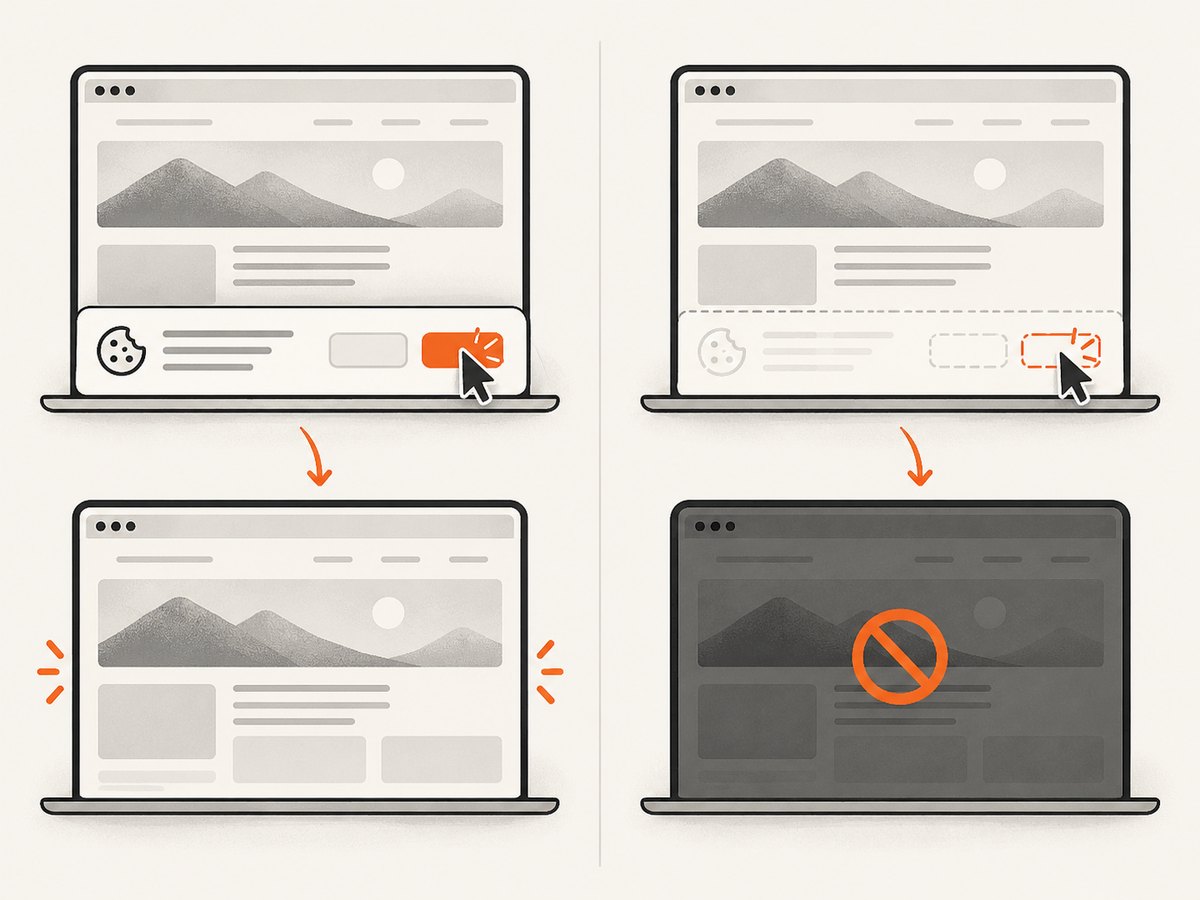
await page.addStyleTag({
    content: "#cookie-banner { visibility: hidden !important; }"
})
await page.screenshot({"path": "clean.png", "fullPage": True})
Use a selector confirmed in the page, such as a specific ID or a site-specific attribute. Broad rules like div { display:none } can hide page content, and generic words such as “cookie” may match unrelated elements. If the banner is in an iframe, styling the parent document will not affect its contents. If an overlay remains after hiding the visible panel, inspect its backdrop and any scroll-lock behavior rather than removing unrelated page elements indiscriminately.
5. Screenshot options and capture details
Pyppeteer’s screenshot method supports options including a file path, full-page capture, and a clipped region. Use fullPage for a page-height image; omit it or set it false for the current viewport. Use clip when you need a specific rectangle. Avoid combining incompatible capture settings without checking the API version documentation.
# Viewport image
await page.screenshot({"path": "viewport.png"})

# Full document image
await page.screenshot({"path": "full.png", "fullPage": True})

# A rectangle in CSS pixels
await page.screenshot({
    "path": "section.png",
    "clip": {"x": 0, "y": 300, "width": 1200, "height": 800},
})
Set the viewport before navigation if page layout depends on screen width. For reproducibility, also control locale, timezone, and device scale where your version exposes those settings. Wait for the relevant content rather than adding a very long fixed delay: network-idle conditions can be delayed indefinitely by analytics, streaming connections, or long polling. A navigation timeout should be treated as a failed or incomplete load, not proof that the page is ready.
6. Cookie state, repeat visits, and edge cases
- Fresh context: A new page or browser context may have no prior consent state, so the banner appears again. This is useful when capturing the first-visit experience.
- Persisted consent: If the task is a returning-user capture, consent may be stored in cookies or local storage. Reuse the appropriate browser context or set state only when authorized and appropriate for the workflow.
- Localization: Button text can change by language. Prefer stable, site-specific attributes where available; otherwise configure locale and match the expected label for that locale.
- Delayed banner: Some banners appear after scripts finish or after a delay. Wait for the banner selector with a bounded timeout, then handle it if it appears.
- Multiple layers: A preference center may open after the initial prompt. Treat each screen as a separate state and verify the final page.
- Viewport and fixed positioning: A banner can cover only part of the viewport or be fixed to the bottom. Full-page capture does not guarantee a fixed overlay is absent.
- Consent semantics: Choose a real control consistent with the task. Visual removal is not equivalent to acceptance or rejection.
7. Troubleshooting common failures
| Symptom | Likely cause | Fix |
|---|---|---|
| Selector returns no element | Wrong selector, late rendering, iframe, or shadow DOM | Inspect the live DOM, wait for the site-specific selector, and query the correct frame or shadow root. |
| Click times out or has no effect | Element is hidden, covered, disabled, or not the actual control | Check visibility and enabled state, inspect overlays, and target the visible consent button. |
| Banner reappears | Choice did not persist, a new context was created, or another prompt appears | Verify the resulting consent flow and storage behavior; handle the next prompt if the workflow calls for it. |
| Page remains unscrollable | Hiding or removing the panel left a body scroll lock | Prefer clicking the site’s real control. For visual cleanup, inspect and address the specific site’s overlay and scroll styles. |
| Screenshot is blank or incomplete | Navigation failed, capture ran too early, or content requires more loading | Check navigation response and console output, wait for a meaningful page selector, and verify the screenshot dimensions. |
| Chromium fails to launch | Missing libraries, sandbox constraints, or executable mismatch | Review the launch error, install required runtime dependencies, and configure the matching Chromium executable for the environment. |
| Full-page shot is unexpectedly tall | Long document or expanding lazy content | Check page dimensions and wait for relevant content; use viewport or clip capture when only a section is needed. |
| Click works locally but not in deployment | Different browser build, locale, timing, or page variant | Pin the runtime, log selector attempts, and capture diagnostic output in the deployment environment. |
8. Performance, reliability, and cost
Launching a browser for every URL adds startup work. For batches, reuse a browser process while isolating pages or contexts according to the state each capture needs, and always close pages and browsers in cleanup paths. Avoid excessive concurrency: each browser page consumes resources, and overloaded captures become slower and less predictable. Set navigation and selector timeouts, record whether the consent control was found, and save enough diagnostic information to distinguish a missing banner from a failed page.
Network-idle waits are convenient but can be fragile on pages with ongoing requests. A bounded wait for the page’s main content and then a bounded consent wait is often more predictable. The browser approach has infrastructure costs: compute, Chromium dependencies, maintenance, and retries for site-specific failures. The research sources provide no universal performance benchmark for Pyppeteer banner handling, so measure on the pages and deployment environment that matter to your workload.
9. Or skip the browser setup
ScreenshotNeo is a website screenshot API and MCP server. Its screenshot API handles a URL in one GET request, and its documentation is at ScreenshotNeo docs. Example using the required request pattern:
curl -G "https://api.screenshotneo.com/v1/shot" -d access_key=YOUR_API_KEY --data-urlencode url=https://stripe.com -o shot.webpScreenshotNeo accepts cookie and consent banners like a visitor and removes 60+ known consent platforms, newsletter popups, and chat widgets before capture; each step can be turned off. Bot checks, blank pages, timeouts, failed loads, and cache hits cost nothing, and response headers say which outcome occurred. Its MCP server offers take_screenshot, get_page_info, and capture_pdf for Claude, Cursor, and other MCP clients. The Free plan includes 1,000 screenshots per month with no card; paid plans start at $5 for 3,000, and every feature is on every plan. For the DIY route, keep using a site-specific consent action and verification; for a managed capture endpoint, sign up for 1,000 free screenshots a month, no card required.
10. FAQ
Does Pyppeteer have a built-in cookie-banner remover?
No. Use its page evaluation and interaction tools with selectors specific to the site, then capture the resulting page.
Is removing a banner the same as rejecting cookies?
No. Hiding or deleting page markup changes the image or DOM; it does not itself make a consent choice.
Can I use one selector for every site?
No dependable universal selector is established by the Pyppeteer documentation. Markup, frames, shadow roots, and labels vary.
Should I use a fixed delay?
Use bounded waits tied to the relevant page state when possible. A delay alone cannot confirm that the banner appeared or disappeared.
Can full-page screenshots include a fixed banner?
They can. Inspect the actual output and handle fixed overlays before capture if they obscure the intended content.
Sources
- Pyppeteer 0.0.25 API reference for
Page.evaluate(),Page.screenshot(), and screenshot options. - Pyppeteer project documentation.
- Browserless consent-management example and guidance on consent controls and selector caveats.