How to Remove Cookie Banners from Splash Screenshots
Remove cookie banners before capturing a splash screen for a clean, repeatable result. Learn browser, automation, iframe, and screenshot API workflows.
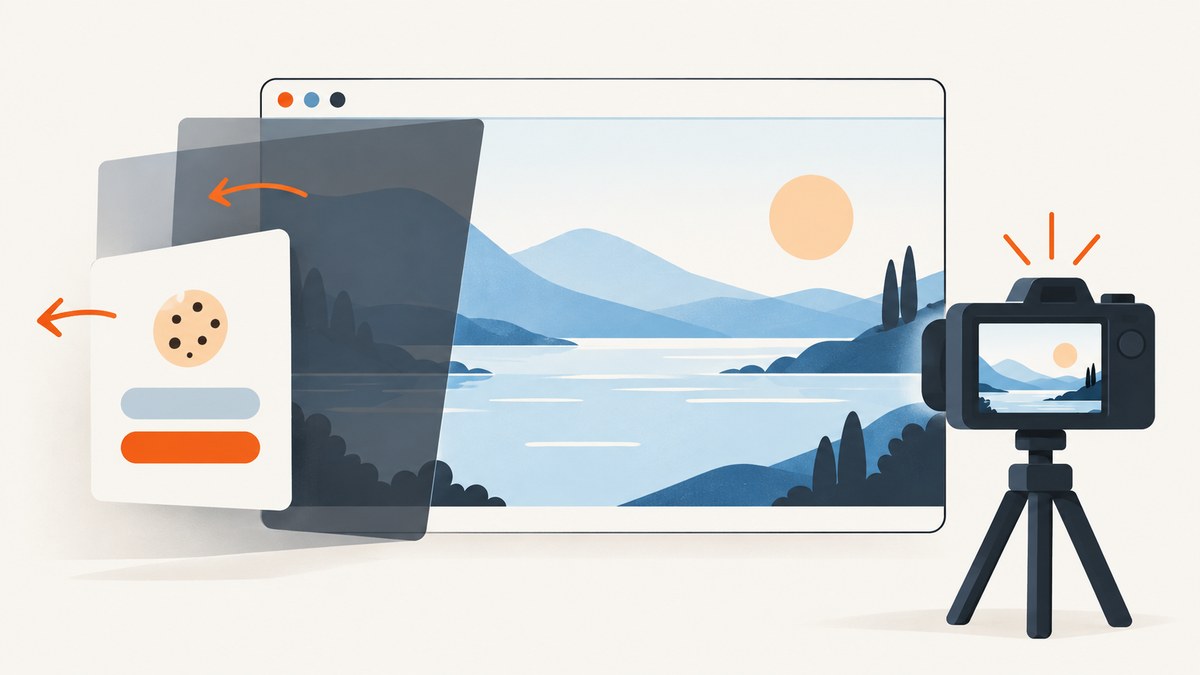
To remove a cookie banner from a splash screenshot, dismiss or hide it before taking the screenshot. For a one-off capture, use a private browser window, wait for the banner, choose an explicit accept, reject, or close action, then capture after the banner and any dimming overlay disappear. For repeatable automation, use a consent-blocking option or target the banner’s tested wrapper selector. If it lives in a cross-origin iframe, interact with the frame rather than the top-level page.
Cosmetically hiding a banner only changes what is visible; it does not record consent or prove that the consent controls work. Keep an unfiltered original when a screenshot is evidence, documentation, or a compliance record.
1. Choose the right removal method
Start by deciding what the screenshot needs to represent. If it should show the site as a first-time visitor sees it, preserve the banner. If the goal is a clean view of the underlying splash screen, remove the banner before capture and record how you did it. If you need to test consent behavior, interact with the controls and verify the resulting state separately.

| Method | Best for | What it changes | Watch for |
|---|---|---|---|
| Accept, reject, or close in a browser | One-off screenshots and consent-flow checks | Runs the site’s visible control; may set cookies or local storage | Use the intended action and a clean session when checking first-visit behavior |
| Consent blocker in a screenshot service | Repeat captures across sites | Hides or dismisses recognized consent UI | Coverage varies; inspect output and keep an unfiltered option when needed |
| CSS selector or automation click | A known site or controlled test set | Hides a wrapper or activates a control | Selectors can change; overlays and frames may need separate handling |
| Crop or retouch an existing image | Only when recapture is unavailable | Edits pixels after capture | Disclose edits when the image documents the page faithfully |
For visual checks, a tested selector is often predictable on the pages you control. For many unrelated domains, a built-in blocker or managed screenshot API reduces per-site setup, but you still need to verify whether the result is appropriate for your use.
2. Remove the banner in a browser by hand
- Open the target URL in an incognito or private window. This prevents saved consent cookies from silently changing the initial state.
- Wait for the splash screen and consent UI to finish appearing. Some banners load after a delay, scrolling, or another interaction.
- Inspect the banner and identify its outer wrapper. Hiding only its text or button can leave a colored panel behind.
- Choose the explicit accept, reject, or close control that matches your purpose. Do not label a cosmetic hide as consent.
- Wait until both the panel and any backdrop are gone, then take the screenshot.
- Save the original capture too if the image might later be used as evidence.
Yodeck documents an automatic “Hide Cookie Banner” option (marked beta in its June 3, 2026 documentation) and a manual fallback using a pause followed by a click on a selector. That suggests a useful workflow: try recognition first, then use a site-specific interaction where recognition misses the control. Because this is a vendor-specific feature, do not assume it works identically in other tools.
3. Automate removal with a selector
For a page set you own or have permission to capture, inspect the DOM and record stable selectors for the banner and its backdrop. Prefer IDs, data attributes, or stable classes over generated class names. A consent banner may be injected late, so wait for the page to settle before checking or acting.
Here is a runnable Playwright example in Node.js. It opens a fresh browser context, navigates to a page, tries to click a visible reject control, then hides the known banner and overlay as a fallback. Replace the URL and selectors with ones verified on your target page.
import { chromium } from 'playwright';

const browser = await chromium.launch({ headless: true });
const context = await browser.newContext({ viewport: { width: 1440, height: 900 } });
const page = await context.newPage();

try {
  await page.goto('https://example.com', { waitUntil: 'networkidle', timeout: 45000 });

  // Use the site's real control when it is available.
  const reject = page.getByRole('button', { name: /reject|decline|necessary only/i });
  if (await reject.count()) {
    await reject.first().click({ timeout: 3000 }).catch(() => {});
  }

  // Fallback for a known site: hide the full panel and its backdrop.
  await page.addStyleTag({ content: `
    #cookie-banner, .cookie-banner, #onetrust-banner-sdk,
    .cookie-backdrop, .onetrust-pc-dark-filter {
      display: none !important;
      visibility: hidden !important;
    }
  ` });

  await page.screenshot({ path: 'splash.png', fullPage: false });
} finally {
  await context.close();
  await browser.close();
}
This example deliberately uses generic selectors as placeholders; there is no universal selector that reliably identifies every consent platform. Use browser developer tools to inspect the actual wrapper. If the backdrop remains, identify its selector separately. A visual result that looks clean is not evidence that the site stored a consent choice.
Clicking versus hiding
Clicking an explicit control better represents a visitor interaction and can update the site’s consent state. Hiding with CSS is useful for visual regression when the banner is irrelevant to the comparison, but it does not test the button, set consent, or guarantee that page scripts treat the visitor as having made a choice. Keep those test goals separate.
4. Handle iframes, delayed banners, and overlays
A top-level query or click can miss a control inside a cross-origin iframe. Inspect the frame tree in browser developer tools. In Playwright, address the frame by URL or another stable frame locator, then find the control within it. Example:

const consentFrame = page.frameLocator('iframe[title="Privacy preferences"]');
await consentFrame.getByRole('button', { name: /reject|decline/i }).click();
The iframe selector and button label above are examples; replace them with values from the actual page. Cross-origin restrictions prevent ordinary page JavaScript from reading another origin’s document, which is why targeting the frame through browser automation matters.
Some banners appear only after scrolling or a user action. Trigger the relevant condition before looking for the banner, then dismiss it early so it does not obstruct later steps. If your screenshot tool supports waiting for a selector, wait for the banner or its disappearance as appropriate. If the page never reaches a stable state, use a bounded delay rather than waiting indefinitely.
Many consent designs contain two separate visual layers: the dialog and a full-page dimming backdrop. Remove or dismiss both. For example, Sitepager’s guidance for visual regression calls out the OneTrust banner and its dark filter as separate selectors. Treat that example as specific to that implementation, and inspect your own page.
5. Use a screenshot API for repeatable captures
Browserless documents a blockConsentModals=true option for its screenshot endpoints, with custom selector or click logic as a fallback when the built-in blocker misses a site. Allscreenshots documents cookie-banner blocking enabled by default and a blockCookieBanners: false setting when an unfiltered render is needed. Check each provider’s current documentation for exact endpoint syntax and supported behavior; these options are provider-specific.
When choosing a tool, check whether it makes a real consent choice or only removes visible pixels, whether it can handle iframes and overlays, whether you can preserve an unfiltered capture, and how it charges for failed or repeated requests. Test one representative page from each consent implementation before scaling up.
6. Or skip the browser setup
ScreenshotNeo is a website screenshot API and MCP server. Its clean-shot flow accepts the cookie or consent banner like a visitor and removes more than 60 known consent platforms, newsletter popups, and chat widgets before capture; each step can be turned off. Only clean shots are billed: bot checks or CAPTCHAs, blank pages, timeouts, failed loads, and cache hits cost nothing, and the response identifies the page verdict and billing status in X-Page-Verdict and X-Billed headers. Its MCP server exposes take_screenshot, get_page_info, and capture_pdf for Claude, Cursor, or any MCP client.
Make one GET request with a URL to receive an image or PDF. This cURL example saves a WebP capture:
curl -G "https://api.screenshotneo.com/v1/shot" \
  -d access_key=YOUR_API_KEY \
  --data-urlencode url=https://stripe.com \
  -o shot.webp
Python:
import requests

r = requests.get(
    "https://api.screenshotneo.com/v1/shot",
    params={"access_key": "YOUR_API_KEY", "url": "https://stripe.com"},
    timeout=90,
)
r.raise_for_status()
open("shot.webp", "wb").write(r.content)
Node.js:
const q = new URLSearchParams({
  access_key: 'YOUR_API_KEY',
  url: 'https://stripe.com'
});
const res = await fetch(`https://api.screenshotneo.com/v1/shot?${q}`);
if (!res.ok) throw new Error(`Screenshot request failed: ${res.status}`);
await import('node:fs/promises').then(fs => fs.writeFile('shot.webp', Buffer.from(await res.arrayBuffer())));
See the ScreenshotNeo API documentation for request options. ScreenshotNeo supports full-page shots with lazy images loaded, element capture by CSS selector, dark mode, 12 device presets and custom viewports, retina scale, PDF settings, custom CSS and JavaScript, click and wait actions, request blocking, headers, cookies, user agent, authorization, timezone, geolocation, transparent backgrounds, resizing, TTL caching, signed image links, async jobs with signed webhooks, bulk capture for 100 URLs per call, a usage API, and an OpenAPI spec. Parameter names used by other screenshot APIs also work to make switching easier.
Plans include 1,000 shots a month free with no card; Starter is $5 for 3,000, Growth $15 for 15,000, Pro $39 for 60,000, Scale $99 for 250,000, and Business $249 for 1,000,000. Yearly billing gives two months free, and every feature is on every plan. The concrete reasons to use this route are that cookie banners, popups, and chat widgets are removed before the shot; bot checks, blank pages, and failed loads are never billed; an MCP server lets AI agents take screenshots; and 1,000 screenshots a month are free with no card, with paid plans starting at $5 for 3,000. Sign up for free and capture your first 1,000 screenshots a month without a card.
7. Crop or retouch a screenshot you already have
Recapture from a clean browser state whenever possible, especially for documentation, QA evidence, or compliance records. If recapture is impossible and a banner sits at an expendable edge, crop it only if the remaining composition still honestly represents the page. Clone, heal, or content-aware tools alter the image; label the result as edited and do not fabricate interface text or layout. Keep the original alongside any edited copy.
8. Troubleshooting
| Symptom | Likely cause | Fix |
|---|---|---|
| Banner appears in some captures but not others | Consent cookies, local storage, timing, or delayed injection differ | Use a fresh context for first-visit checks; wait for the page and banner state before capture |
| Panel is gone but page remains grey | A separate dimming backdrop is still visible | Dismiss the dialog correctly or target the backdrop selector as well |
| Click times out or finds no button | Wrong label or selector, banner not loaded, or control is in an iframe | Inspect the DOM and frame tree; wait for the control and use a frame-aware locator |
| CSS hide does not work | Selector targets a child, styles are injected later, or content is inside a frame or shadow DOM | Target the full wrapper, apply after navigation or wait for insertion, and inspect frame/shadow boundaries |
| Banner returns after navigation | The page uses a new origin, route-specific consent UI, or does not persist the choice | Handle each route and origin deliberately; do not assume one click applies site-wide |
| Page screenshot is blank or incomplete | Capture happened before rendering, navigation failed, or the site showed a bot check | Wait for a meaningful selector or stable page state; inspect the response and page before treating it as a valid shot |
| Unfiltered capture is unexpectedly clean | Consent blocking is enabled by default in the service | Disable the provider’s banner blocker when the original visitor view is required |
| Automation hides the dialog but consent tests fail | CSS removal changed pixels without recording a decision | Use the actual accept/reject control for behavior tests and verify the stored state separately |
9. Performance, reliability, and cost
Every extra wait increases capture time, while capturing before the consent UI has settled produces inconsistent results. Prefer a condition-based wait for a meaningful page or banner state, with a timeout, over a long fixed sleep. Network idle can help on ordinary pages, but analytics, chat, or streaming requests may keep the network active; use a bounded wait and then check the elements that matter.
For repeated visual checks, start with one page per consent implementation. Confirm the banner wrapper, backdrop, iframe behavior, and resulting screenshot before adding the selector or blocker to a larger set. Keep an unfiltered baseline if changes to consent UI itself are important. For API workflows, factor both successful image responses and non-image outcomes into your handling: inspect status and response headers, set a timeout, and avoid treating a bot check or blank page as a successful visual capture.
Cost depends on the tool and billing model. Browser automation has setup and runtime costs that you manage. Screenshot services may count attempts differently, so read their billing rules for failed loads, cache hits, and blocked pages. ScreenshotNeo states that only clean shots are billed and that bot checks, CAPTCHAs, blank pages, timeouts, failed loads, and cache hits cost nothing. Its request response includes billing and verdict headers; use them when reconciling usage.
10. FAQ
Should I accept or reject the banner?
Choose the action that matches the test or capture purpose. If the only goal is a clean visual regression image, a tested cosmetic hide may be sufficient, but it does not represent a recorded consent choice.
Can I remove a banner without changing the website?
Yes. A CSS rule or screenshot-tool blocker can change only the rendered capture. It does not necessarily modify the site or save a consent preference.
Why does the backdrop remain after I hide the banner?
The dialog and dimming layer are often separate elements. Find and dismiss or hide both.
Can I use an edited screenshot as evidence?
For faithful evidence, recapture from the browser state you need and retain the original. If you crop or retouch an existing image, disclose the edit and avoid changing page content deceptively.
How do I know whether a consent button works?
Run a focused interaction test that clicks the control and checks the resulting state, such as the consent preference stored by the site. A clean screenshot alone does not establish that behavior.