How to Remove Cookie Banners from wkhtmltopdf Screenshots
Hide or remove cookie banners in wkhtmltopdf with targeted CSS, JavaScript timing, diagnostics, and a hosted ScreenshotNeo alternative.

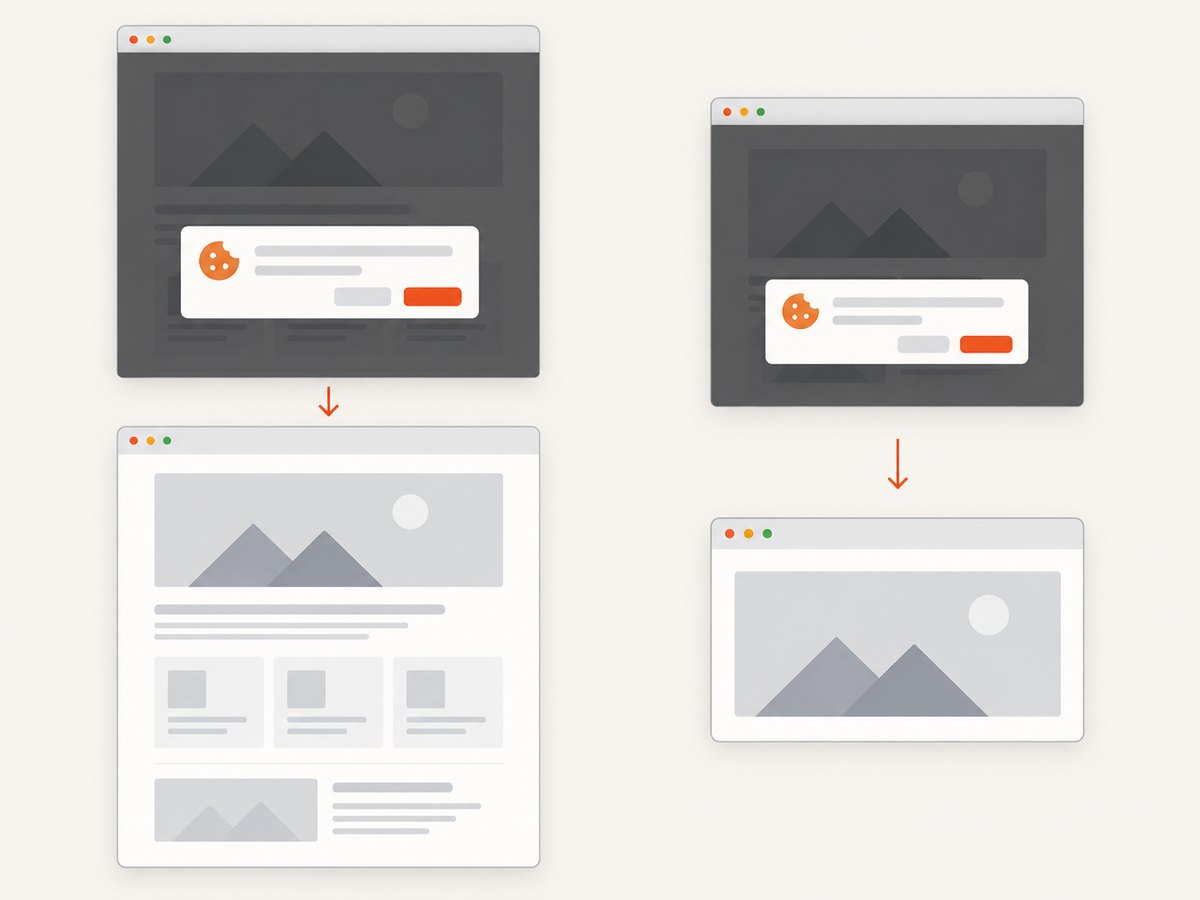
Cookie banners can cover the content you need in a wkhtmltopdf screenshot or PDF. The most reliable approach is to identify the banner’s selectors and pass a user stylesheet that hides those elements during rendering. If the banner is injected by JavaScript, you can diagnose it with --disable-javascript, or remove it with page-specific code passed through --run-script after the page loads. Use --javascript-delay when the page needs time to settle before the capture.
wkhtmltopdf does not provide a universal “remove cookie banner” switch. Consent interfaces differ by site, and the official documentation describes controls for loading stylesheets and scripts rather than a guaranteed selector or consent-management workflow. The practical process is therefore: inspect the page, choose the narrowest intervention, render at the real target dimensions, and verify the output.
1. Identify how the banner is created
Before changing your command, determine whether the banner exists in the initial HTML or appears after JavaScript runs. Open the target page in a browser, inspect the visible overlay, and look for:
- A fixed or sticky container covering the viewport.
- A backdrop element that dims the page.
- A dialog with an identifiable class, ID, or ARIA role.
- A close, reject, or accept button whose parent contains the overlay.
- An iframe supplied by a consent platform.
Copy selectors that are specific enough to avoid hiding article content. A class such as .cookie-banner may be suitable; a generic class such as .modal may hide unrelated dialogs. If the page uses an iframe, inspect the iframe element and its parent. Cross-origin iframe contents cannot be selected from the parent document, but hiding the iframe element itself can work when the overlay is embedded as one element.
Also check whether the banner appears only after a delay. Render once with a short command and once with a longer --javascript-delay. A difference tells you that timing is part of the problem, but a longer delay alone will not remove a persistent banner.
2. Hide a known banner with a user stylesheet
The recommended first method is a stylesheet applied by wkhtmltopdf to every page. The official settings reference documents --user-style-sheet for loading a user stylesheet, and the command-line reference exposes the same option. See the wkhtmltopdf page and loading settings and the official command-line usage reference.

Create a file named hide-cookie-banner.css:
/* Replace these selectors with selectors from the target site. */
.cookie-banner,
.cookie-consent,
#cookie-banner,
[role="dialog"][aria-label*="cookie" i],
.cookie-backdrop {
  display: none !important;
  visibility: hidden !important;
  opacity: 0 !important;
  pointer-events: none !important;
}

/* Restore scrolling when the site locks the document behind the banner. */
html, body {
  overflow: auto !important;
}
Render a PDF:
wkhtmltopdf \
  --user-style-sheet hide-cookie-banner.css \
  https://example.com/article \
  article-clean.pdf
For an image, use the image command and choose the output format from the extension:
wkhtmltoimage \
  --user-style-sheet hide-cookie-banner.css \
  https://example.com/article \
  article-clean.png
The stylesheet changes only the rendered result. It does not record consent, set a cookie, or alter the site’s privacy state. Treat it as presentation control for a screenshot or PDF.
Use a page-specific stylesheet
Do not use a broad global rule such as div { display:none }. Keep one stylesheet per site or template when selectors differ. Version the file alongside your capture code and re-check it after redesigns. A useful pattern is to keep selectors grouped with comments:
/* Site A, reviewed 2026-09 */
.site-a-consent,
.site-a-consent-backdrop {
  display: none !important;
}

/* Site B */
#onetrust-banner-sdk,
#onetrust-consent-sdk {
  display: none !important;
}
3. Diagnose JavaScript-generated banners
If hiding the initial markup does nothing, JavaScript may be inserting a new element after load. The official wkhtmltopdf usage documentation provides --disable-javascript, --run-script, and --javascript-delay. These are documented controls, not a promise that every consent system will respond to them.
Try disabling JavaScript as a diagnostic
wkhtmltopdf \
  --disable-javascript \
  https://example.com/article \
  no-js.pdf
If the banner disappears, JavaScript created it or changed its visibility. Compare the document carefully: disabling JavaScript can also remove navigation, charts, images, or the entire application shell. Use this option as the final solution only when the page still contains the content you need.
Remove the element with --run-script
For a script-controlled banner, execute a small, targeted script after the page has loaded:
wkhtmltopdf \
  --run-script 'document.querySelectorAll(".cookie-banner, .cookie-backdrop").forEach(function (el) { el.remove(); });' \
  --javascript-delay 1000 \
  https://example.com/article \
  scripted-clean.pdf
Use selectors from the actual page. Removing the element is different from clicking “Accept”: it does not establish a consent choice. If the page restores the banner, increase the delay modestly or remove both the dialog and its backdrop. A script that runs before the banner is inserted has no effect, which is why timing matters.
Use a script file for maintainability
// remove-cookie-banner.js
(function () {
  const selectors = [
    '.cookie-banner',
    '.cookie-backdrop',
    '[role="dialog"][aria-label*="cookie" i]'
  ];

  selectors.forEach((selector) => {
    document.querySelectorAll(selector).forEach((element) => {
      element.remove();
    });
  });

  document.documentElement.style.overflow = 'auto';
  document.body.style.overflow = 'auto';
})();
wkhtmltopdf’s command-line behavior for loading local scripts can vary by build and security settings. Confirm the installed version’s help output and test the command in the same environment used in production. The project’s PDF C bindings source distinguishes web-page settings from loading settings, so verify that an option is available in your build.
4. Control render timing and page state
--javascript-delay specifies a wait in milliseconds before printing. Start with a small value, such as 500–1,000 ms, and increase it only when the page demonstrably needs more time. Waiting longer can make captures slower and does not fix an incorrect selector.
wkhtmltopdf \
  --user-style-sheet hide-cookie-banner.css \
  --javascript-delay 1500 \
  https://example.com/article \
  delayed.pdf
When the site applies a scroll lock to body, hiding the dialog may leave the page visually clean but still unable to scroll. The overflow rules in the stylesheet or script address that state. Other sites insert a full-screen backdrop, set a high z-index, or place the banner inside a shadow root. Shadow DOM content may require a site-provided hook or a script that runs in the relevant component; ordinary document selectors may not reach it.
5. Complete command-line workflow
- Open the URL in a browser and record the banner, backdrop, and any scroll-lock selectors.
- Save a narrow CSS file and render with
--user-style-sheet. - Compare the output at the intended PDF page size or screenshot viewport.
- If the banner is injected, test
--disable-javascriptto confirm the cause. - When JavaScript is required, use
--run-scriptwith a page-specific removal script. - Add the smallest practical
--javascript-delayand repeat the comparison. - Keep a regression sample so a site redesign does not silently restore the overlay.
A combined example looks like this:
wkhtmltopdf \
  --page-size A4 \
  --margin-top 12mm \
  --margin-right 12mm \
  --margin-bottom 12mm \
  --margin-left 12mm \
  --user-style-sheet hide-cookie-banner.css \
  --javascript-delay 1000 \
  https://example.com/article \
  article.pdf
Keep layout options separate from banner logic. That makes it easier to determine whether a clipped or blank page is caused by rendering settings or by the cleanup rules.
6. Troubleshooting common failures
| Symptom | Likely cause | Fix |
|---|---|---|
| The banner remains | The selector does not match, or JavaScript inserted a different element. | Inspect the final DOM, add the generated selector, and use --run-script after a suitable delay. |
| The page is blank | JavaScript was disabled even though the page requires it, or the site failed to load. | Remove --disable-javascript, increase the delay, and test the URL directly in the same environment. |
| The overlay is gone but scrolling is locked | The site left overflow:hidden or a modal state on the document. |
Restore overflow:auto on html and body. |
| Content behind the banner is also hidden | The selector is too broad or matches a shared layout container. | Target the consent dialog and backdrop directly; remove generic selectors. |
| The command says an option is unknown | The installed wkhtmltopdf build differs from the documented build or packaging. | Run wkhtmltopdf --help, check the installed version, and confirm option availability against the official references. |
| The PDF differs between runs | Late network requests, asynchronous rendering, or a changing banner state. | Use a deterministic delay, test repeated captures, and keep the page-specific cleanup narrow. |
| An iframe banner remains | The consent UI is inside an embedded frame. | Hide the iframe element or its parent if appropriate; parent-page JavaScript cannot generally inspect a cross-origin frame. |
7. Performance, reliability, and maintenance
CSS hiding is usually cheaper than running extra JavaScript because it avoids DOM queries and does not require waiting for an additional mutation. The practical performance cost is dominated by page load, images, fonts, and JavaScript execution. A long delay improves the chance that a late banner is present when your cleanup runs, but it increases end-to-end time for every capture.
For reliable batch jobs:
- Use a fixed stylesheet and script per site rather than a growing universal rule set.
- Log the URL, wkhtmltopdf version, options, and output status.
- Keep a small visual regression set with pages that include and do not include consent UI.
- Retry transient network failures separately from selector failures.
- Inspect PDFs for page count, file size, and obvious blank output before publishing them.
- Remember that hiding a banner can expose content at a different viewport height; validate page breaks and fixed headers.
For sensitive workflows, do not simulate consent merely to suppress a visual element. A stylesheet or removal script changes the capture presentation; it does not tell the website that a user agreed to tracking or storage.
8. Or skip the browser setup
If you need clean screenshots or PDFs across many sites, ScreenshotNeo handles the capture service and provides cleanup controls. It accepts cookie and consent banners before capture and removes more than 60 known consent platforms, newsletter popups, and chat widgets. Each step can be turned off when you need the original page state.
One request returns an image or PDF. See the ScreenshotNeo API documentation for the full option list.
curl -G "https://api.screenshotneo.com/v1/shot" -d access_key=YOUR_API_KEY --data-urlencode url=https://stripe.com -o shot.webpimport requests
r = requests.get("https://api.screenshotneo.com/v1/shot", params={"access_key": "YOUR_API_KEY", "url": "https://stripe.com"}, timeout=90)
open("shot.webp", "wb").write(r.content)const q = new URLSearchParams({ access_key: 'YOUR_API_KEY', url: 'https://stripe.com' });
const res = await fetch(`https://api.screenshotneo.com/v1/shot?${q}`);ScreenshotNeo reports whether a response was a clean page and whether it was billed through the X-Page-Verdict and X-Billed headers. Bot checks or CAPTCHAs, blank pages, timeouts, failed loads, and cache hits cost nothing. It also offers full-page capture with lazy images loaded, CSS-selector element capture, custom CSS and JavaScript, waits for selectors or network idle, custom headers and cookies, blocking for ads or resource types, caching with a chosen TTL, PDFs, asynchronous jobs, bulk capture, signed links, usage data, and an MCP server with take_screenshot, get_page_info, and capture_pdf for AI clients.
The Free plan includes 1,000 shots per month with no card. Paid plans start at $5 for 3,000 shots; every feature is available on every plan. Create a free ScreenshotNeo account and try the API without a card.
9. FAQ
Does wkhtmltopdf have a built-in cookie-banner remover?
No. Its documented controls let you apply a user stylesheet, disable JavaScript, run JavaScript, and delay rendering. The selector and removal logic remain specific to the page.
Will hiding the banner save a consent choice?
No. CSS and DOM removal affect the generated screenshot or PDF. They do not establish a consent cookie or change the site’s consent state.
Should I always disable JavaScript?
No. Use it as a diagnostic or when the page still renders correctly without scripts. Many modern pages depend on JavaScript for their actual content.
Why does a longer delay not solve the problem?
A delay gives scripts time to run; it does not identify or hide the element they create. Pair timing with a matching stylesheet or removal script.
Can one selector work for every website?
Usually not. Consent platforms and site markup vary, and selectors can change during redesigns. Maintain page- or platform-specific rules.
When should I use a hosted screenshot API?
Use one when you need repeatable captures across many sites, PDF output, cleanup of common overlays, retries and status information, or an integration for AI agents without maintaining a browser-rendering setup.


