How to Remove Cookie Notifications from Website Screenshots
Remove cookie banners from screenshots with Chrome DevTools, Playwright CSS, or ScreenshotNeo—without confusing visual cleanup with consent.
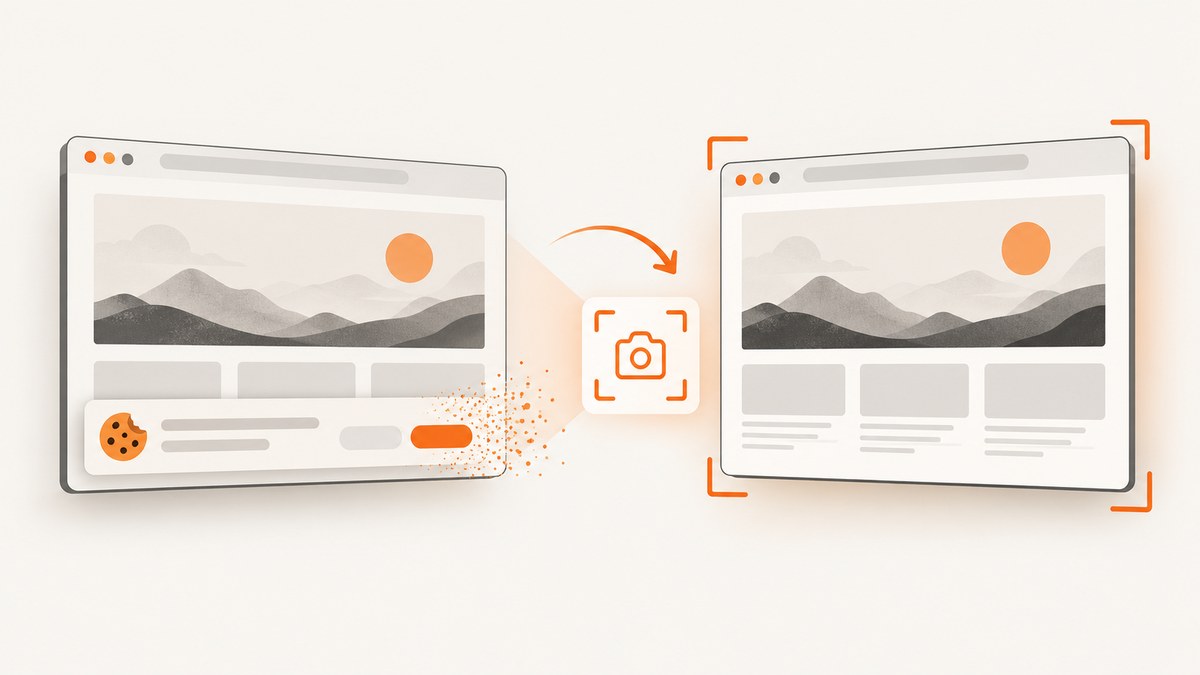
Direct answer: For a one-off screenshot, inspect the cookie notice in Chrome DevTools and use Hide element. For repeatable captures, use Playwright’s screenshot style option with a selector for that site’s banner. If you want a managed screenshot API, ScreenshotNeo removes known consent banners, newsletter popups and chat widgets before capture.
Hiding a DOM element changes the image only. It does not necessarily record an accept, reject or settings choice, and it does not prove that tracking was blocked.
Choose the right method
| Method | Best for | Repeatable? | Main limitation |
|---|---|---|---|
| Chrome DevTools Inspect + Hide element | One quick manual capture | No | You must locate the correct node each time |
Playwright screenshot style |
Automated screenshot runs | Yes, while markup stays stable | Selectors differ between sites and can change |
| Cookie or consent controls | Recording an actual preference | Sometimes | Changes site state, not just pixels |
| ScreenshotNeo | Managed API captures | Yes | Requires an API key |
Manual removal in Chrome DevTools
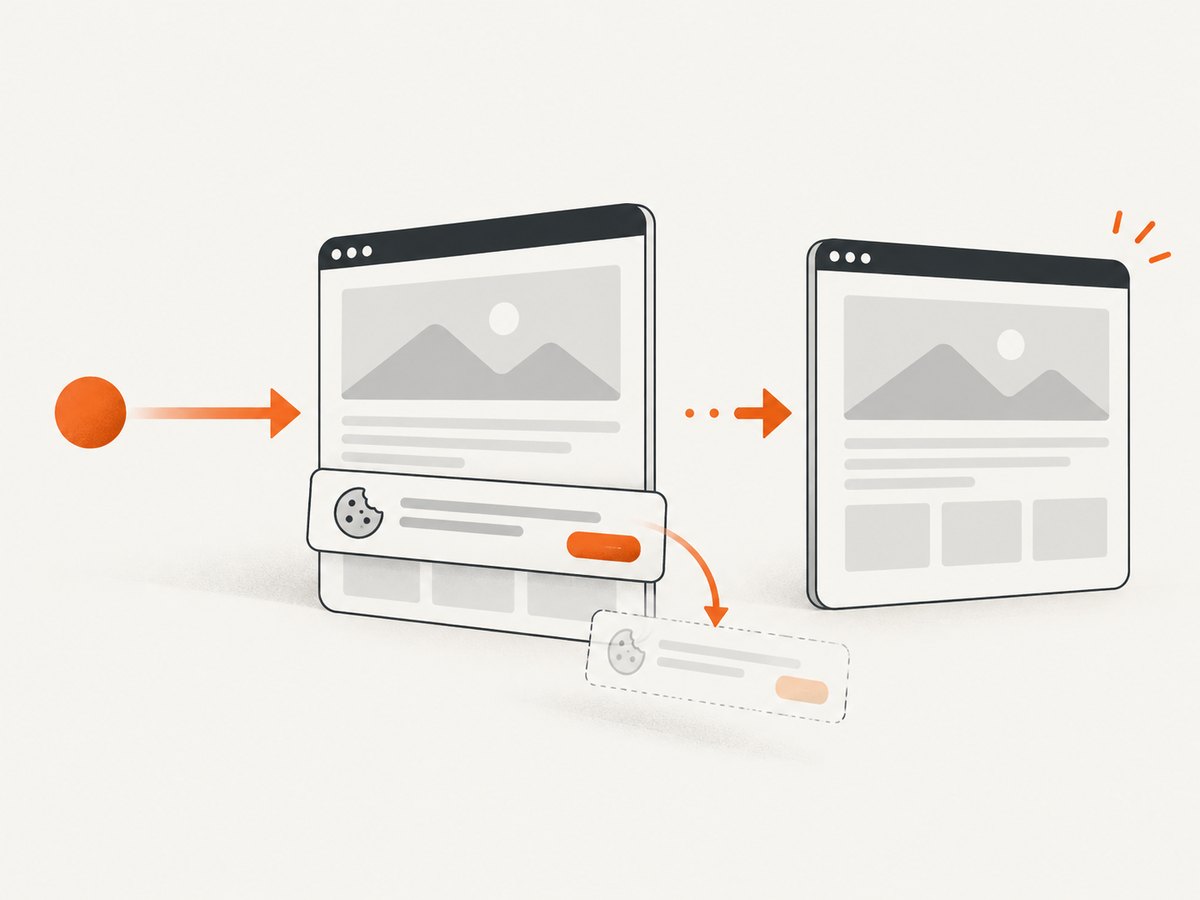
- Open the target page in Chrome.
- Open DevTools, activate Inspect mode, and click the visible notification.
- In the Elements panel, confirm the selected node is the complete banner or overlay, not a page wrapper that contains your content.
- Use the DOM tree’s Hide element action. Chrome documents element inspection and DOM hiding in its Inspect mode guide and DOM editing guide.
- Capture the page while the temporary edit is present.
Reloading or navigating normally removes the temporary edit. If the notice returns, inspect it again. Prefer a narrow element selector; hiding every node whose class contains words such as cookie or consent can remove unrelated page content.
Check the saved image
- Verify the banner is absent at every viewport position, including a fixed bottom bar.
- Confirm the page content behind it was not hidden accidentally.
- Check that a modal backdrop did not remain after hiding only the dialog.
- Repeat at mobile and desktop widths if both matter.
Automate removal with Playwright
Playwright accepts a stylesheet through the screenshot style option. The stylesheet can hide dynamic elements and Playwright documents that it pierces Shadow DOM and applies to inner frames. You still need a selector that matches the target site’s actual markup.
Complete Node.js example
import { chromium } from 'playwright';

const browser = await chromium.launch();
const page = await browser.newPage({ viewport: { width: 1440, height: 900 } });
await page.goto('https://example.com', { waitUntil: 'networkidle' });

await page.screenshot({
  path: 'clean-page.png',
  fullPage: true,
  style: `
    .cookie-banner,
    [role="dialog"][aria-label*="cookie" i],
    #onetrust-banner-sdk {
      display: none !important;
    }
  `
});

await browser.close();
The selectors above are examples, not a universal rule. Inspect the site and replace them with selectors for its banner. A selector that matches nothing silently produces an unchanged screenshot.
Target the overlay and backdrop separately
await page.screenshot({
  path: 'clean-page.png',
  style: `
    .site-cookie-dialog { display: none !important; }
    .site-cookie-backdrop { display: none !important; }
  `
});
If the notice is inside an iframe, inspect the frame and use a frame locator for interaction. For a screenshot-only stylesheet, verify the result because the page’s frame structure and selector determine what is actually hidden.
When the page must remain interactive
For tests that need to click or scroll through the page, remove or dismiss the overlay during interaction, then apply screenshot styling for the final image. Playwright also documents an overlay handler for removing an obstructing overlay so a test can continue; see the screenshot API and Page API.
Visual cleanup is not cookie consent
A CSS rule or DevTools hide operation changes presentation. It does not select Reject, Accept or Preferences, and it does not establish what the site’s consent manager stored.
Use the site’s own preference controls when the goal is to make a real tracking choice. Chrome DevTools can inspect and delete cookies in Application > Storage > Cookies, but deleting cookies can reset remembered preferences and is not equivalent to choosing a consent option. See Chrome’s cookie management guide.
Or skip the browser setup
ScreenshotNeo is a website screenshot API and MCP server. It accepts a URL and removes known consent banners, newsletter popups and chat widgets before capture; each cleanup step can be turned off. Only clean shots are billed: bot checks or CAPTCHAs, blank pages, timeouts, failed loads and cache hits cost nothing, and response headers report the page verdict and billing status.
See the ScreenshotNeo API documentation for all options. This request returns an image without setting up a browser:
cURL
curl -G "https://api.screenshotneo.com/v1/shot" -d access_key=YOUR_API_KEY --data-urlencode url=https://stripe.com -o shot.webpPython
import requests
r = requests.get("https://api.screenshotneo.com/v1/shot", params={"access_key": "YOUR_API_KEY", "url": "https://stripe.com"}, timeout=90)
open("shot.webp", "wb").write(r.content)
Node.js
const q = new URLSearchParams({ access_key: 'YOUR_API_KEY', url: 'https://stripe.com' });
const res = await fetch(`https://api.screenshotneo.com/v1/shot?${q}`);
ScreenshotNeo also supports full-page capture with lazy images loaded, CSS-element capture, dark mode, device presets or custom viewports, retina scale, custom CSS and JavaScript, clicks, waits, blocked requests, headers, cookies, user agents, authorization, timezone, geolocation, transparent backgrounds, resizing, caching with a chosen TTL, signed image links, PDFs, asynchronous jobs, webhooks, bulk capture and a usage API. Its MCP server provides take_screenshot, get_page_info and capture_pdf for Claude, Cursor and other MCP clients.
The Free plan includes 1,000 shots per month with no card. Paid plans start at $5 for 3,000 shots; yearly billing gives two months free, and every feature is available on every plan. Create a free ScreenshotNeo account.
Troubleshooting
The banner is still visible
Cause: The selector does not match, the notice is injected after capture, or the visible layer is a separate backdrop. Fix: inspect the final DOM, wait for the banner selector or a short delay, and hide both dialog and backdrop.
The page content disappears
Cause: The rule targets a parent container or a broad class shared by page content. Fix: select the smallest element that contains only the notice and compare the result with an uncensored capture.
The selector works on one site but not another
Cause: Consent managers use site-specific markup, iframes or Shadow DOM. Fix: inspect each site and keep selectors per domain. Playwright’s screenshot stylesheet supports Shadow DOM and inner frames, but the correct selector remains site-specific.
The screenshot is taken before the notice appears
Cause: The banner is added asynchronously. Fix: wait for a stable page state, a known selector, a network-idle condition or a measured delay before capturing.
Playwright cannot click the page
Cause: An overlay intercepts pointer events. Fix: dismiss it through its real controls, use a locator handler where appropriate, or remove the overlay before interaction.
Clearing cookies made the page look different
Cause: Cookie deletion reset personalization, session state or consent preferences. Fix: restore the required state and use the site’s consent controls when a real preference is intended.
ScreenshotNeo returns a non-image response
Cause: The target may have failed, timed out, shown a bot check or produced a blank page. Fix: inspect the HTTP status and X-Page-Verdict and X-Billed headers, then adjust waits, headers, user agent or blocking options as needed.
Performance, reliability and cost notes
- Reuse one Playwright browser process for batches instead of launching a browser for every URL.
- Use a targeted stylesheet rather than scanning and hiding many nodes at runtime.
- Wait only for the state your page needs; an unconditional long delay increases capture time.
- Keep domain-specific selectors under version control and review them when a site’s consent markup changes.
- For repeated API captures, choose a cache TTL that matches how often the page changes. Cache hits are not billed by ScreenshotNeo.
- For large jobs, use asynchronous captures or bulk requests; ScreenshotNeo supports up to 100 URLs per bulk call.
- Do not treat a clean screenshot as evidence that cookies were accepted, rejected or blocked.
FAQ
Can I use one CSS selector for every cookie banner?
No. Consent systems and site markup differ. Inspect each target and validate the saved image.
Does hiding a banner stop tracking?
No. It changes what is rendered in the screenshot. Use the site’s preference controls for an actual consent decision.
Will Playwright’s screenshot style affect the live page?
The style is applied for the screenshot operation. It is intended to customize the captured output.
What if I need a PDF instead of an image?
Use ScreenshotNeo’s PDF capture options or configure your browser’s print/PDF workflow after applying the same page-state checks.
How do I know whether an API capture was billed?
With ScreenshotNeo, inspect the X-Page-Verdict and X-Billed response headers.


