How to Remove the Date, Time, and Blank Page URL From Puppeteer PDFs
Remove Puppeteer PDF dates, times, and blank-page URLs with displayHeaderFooter, custom templates, diagnostics, and a managed API option.
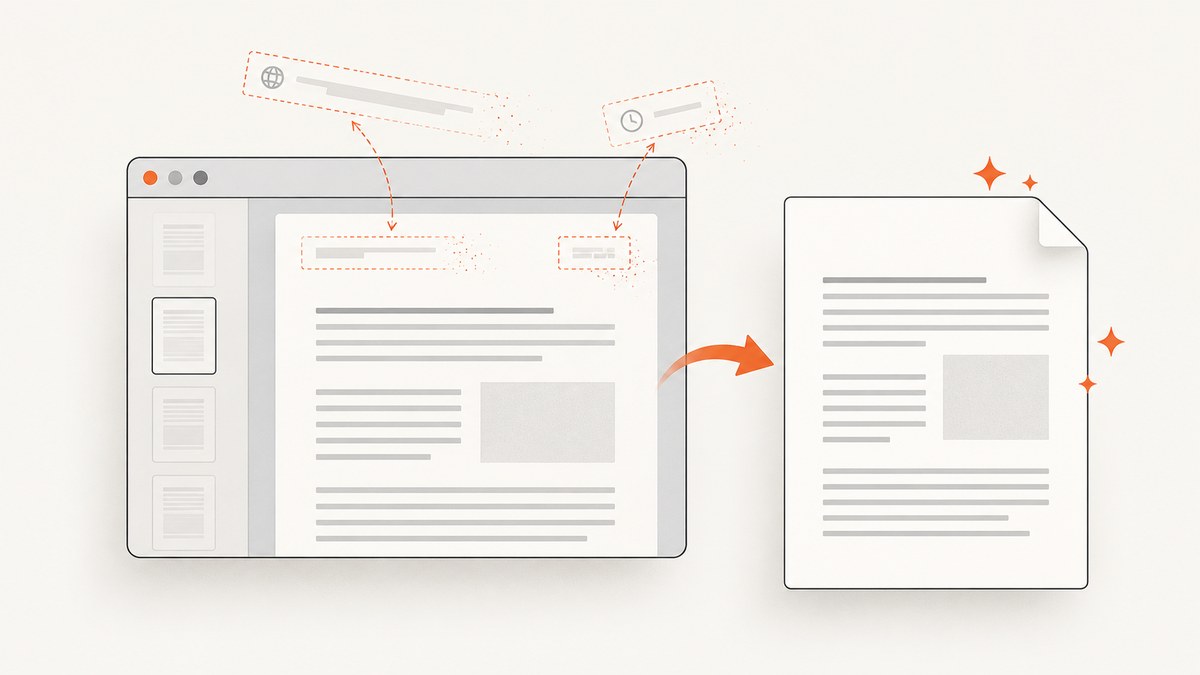
Puppeteer adds the date, time, URL, page number, and total-page fields only when PDF header/footer rendering is enabled. The direct fix is to pass displayHeaderFooter: false to page.pdf():
await page.pdf({
  path: 'output.pdf',
  displayHeaderFooter: false
});
The option is a boolean and defaults to false in Puppeteer’s PDF options. Setting it explicitly makes your intent clear and removes the generated page furniture, including the printed date, time, and URL. If a URL still appears, inspect every custom header and footer template for the special url class.
Why Puppeteer prints these fields
page.pdf() creates a print-oriented document. When displayHeaderFooter is enabled, Chromium reserves header and footer areas and can populate them with template fields such as the document URL, title, date, page number, and total pages. The fields are represented by classes in the template HTML: date, title, url, pageNumber, and totalPages. Puppeteer’s reference describes displayHeaderFooter as “Whether to show the header and footer.” See the PDFOptions reference.
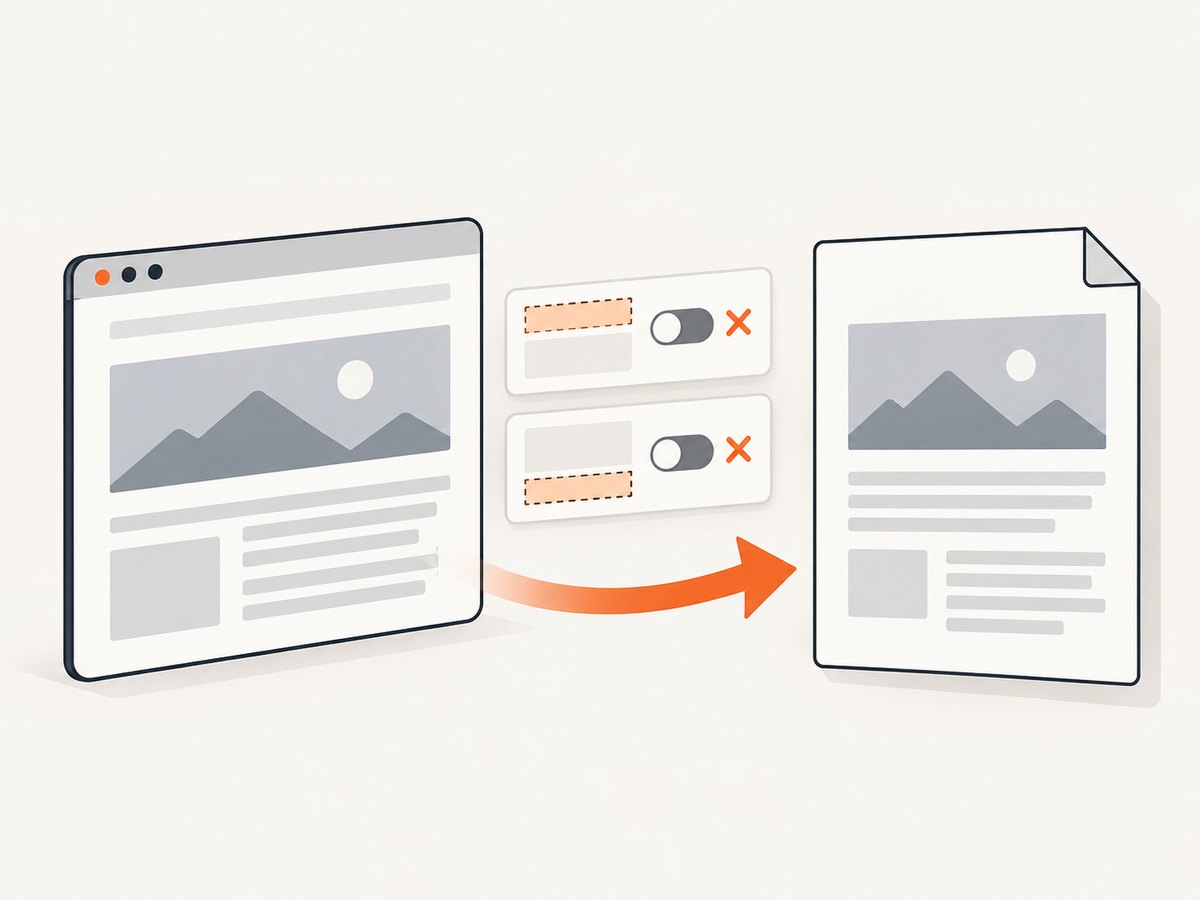
There are two valid configurations:
| Goal | Configuration | When to use it |
|---|---|---|
| No running header or footer | displayHeaderFooter: false |
Invoices, reports, exports, and screenshots where no browser-generated fields are wanted. |
| A controlled running header/footer | displayHeaderFooter: true plus custom templates |
Documents that need a logo, report name, or page count while omitting date and URL. |
Complete Puppeteer example
Install Puppeteer, navigate to the page, wait for the document to settle, and export it with headers and footers disabled:
npm install puppeteerconst puppeteer = require('puppeteer');
(async () => {
const browser = await puppeteer.launch();
try {
const page = await browser.newPage();
await page.goto('https://example.com', {
waitUntil: 'networkidle0'
});
await page.pdf({
path: 'example-clean.pdf',
format: 'A4',
printBackground: true,
displayHeaderFooter: false
});
console.log('Wrote example-clean.pdf');
} finally {
await browser.close();
}
})();networkidle0 waits until there are no active network connections. For applications that keep analytics, sockets, or polling requests open, use networkidle2, a selector wait, or a bounded delay instead. The PDF guide documents that PDF generation uses print CSS media and waits for fonts by default. Read Puppeteer’s PDF guide.
Use screen styles when print CSS changes the page
PDF generation uses the print media type. If your page looks correct in a browser window but not in the PDF, explicitly select screen media before exporting:
await page.emulateMediaType('screen');

await page.pdf({
  path: 'screen-styled.pdf',
  displayHeaderFooter: false,
  printBackground: true
});
This changes the page’s CSS media selection; it does not control header/footer fields. Keep displayHeaderFooter: false when you also want to remove the date, time, and URL.
Keeping a custom footer without the URL or date
If you need a company name or page numbers, leave header/footer rendering on and provide both templates. Use plain HTML and inline styles; external stylesheets do not reliably apply to these templates. Do not include elements with the unwanted classes.
await page.pdf({
  path: 'report.pdf',
  format: 'A4',
  displayHeaderFooter: true,
  headerTemplate: '<div style="font-size:8px;width:100%;text-align:center;">Quarterly report</div>',
  footerTemplate: '<div style="font-size:8px;width:100%;text-align:center;">Page <span class="pageNumber"></span> of <span class="totalPages"></span></div>'
});
The example deliberately omits date, url, and title. To remove a field, remove its element from both templates. A common mistake is cleaning the footer while leaving a <span class="url"> in the header.
A minimal “templates on, content off” configuration is also possible:
await page.pdf({
  path: 'empty-furniture.pdf',
  displayHeaderFooter: true,
  headerTemplate: '<div></div>',
  footerTemplate: '<div></div>'
});
In most cases, displayHeaderFooter: false is simpler because Chromium does not reserve header/footer space.
Removing an unwanted blank-page URL
When a URL is visible on an otherwise blank page, first treat it as generated footer/header content. Check these items in order:
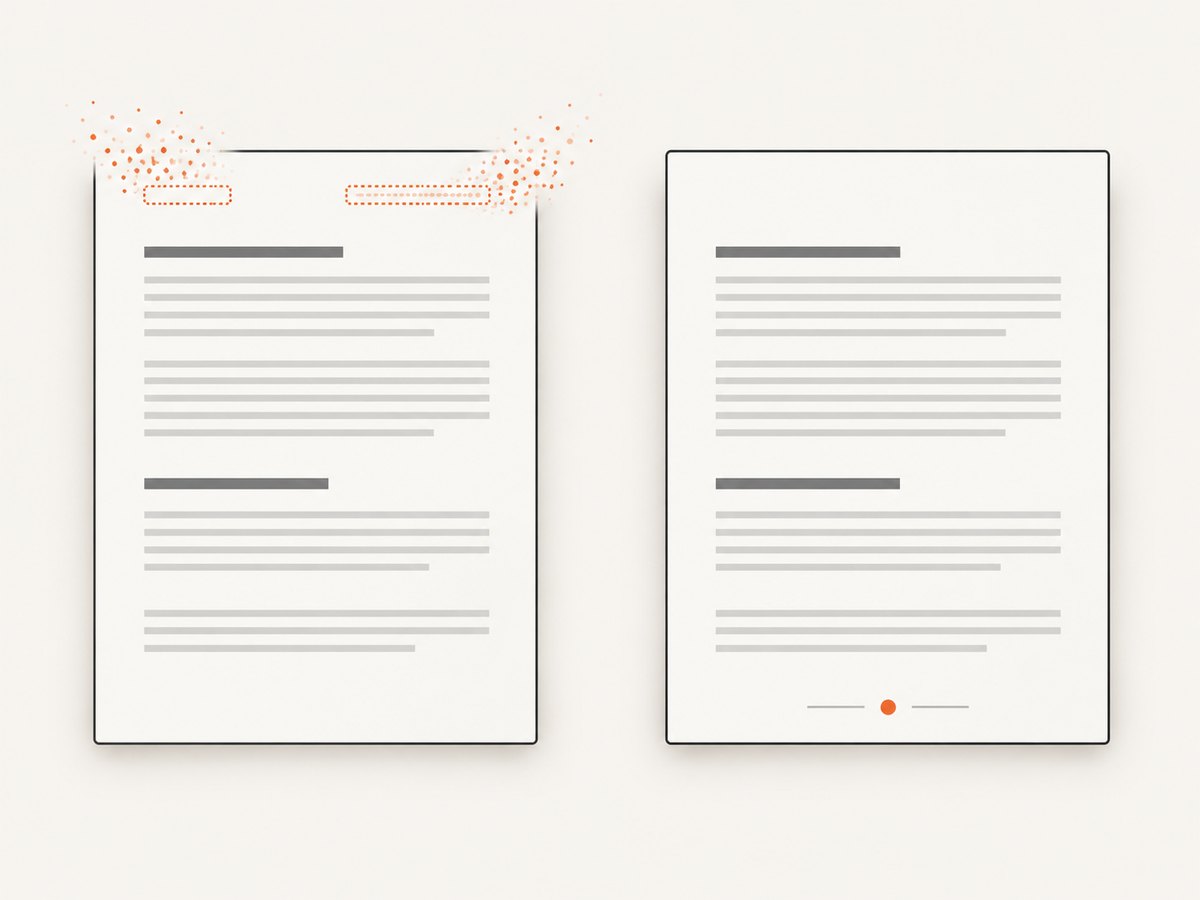
- Confirm the effective options contain
displayHeaderFooter: false, not a truthy value from a shared configuration object. - If headers or footers are enabled, inspect
headerTemplateandfooterTemplateforclass="url". Remove that element. - Check both templates, including defaults merged by your own wrapper function.
- Log the final PDF options immediately before calling
page.pdf(); configuration copied from environment variables often turns the string"false"into a truthy value. - Reproduce with the same Puppeteer and Chromium versions and the exact template HTML.
Puppeteer documents that navigating to about:blank succeeds and returns null. The reviewed references do not establish that about:blank alone causes a URL to print, so consider it a diagnostic clue rather than a confirmed root cause. If disabling generated furniture does not solve the symptom, capture the complete options and versions for a minimal reproduction.
Relevant PDF options
These options commonly affect whether the output appears correct after the header/footer fix:
| Option | Purpose | Practical note |
|---|---|---|
path |
Writes the generated PDF to a file. | Use a unique path for concurrent jobs. |
format |
Preset paper size such as A4 or Letter. | Do not combine casually with custom width/height. |
width, height |
Custom paper dimensions. | Use CSS units accepted by Puppeteer. |
margin |
Top, right, bottom, and left margins. | Large margins can make content appear clipped or create extra pages. |
landscape |
Rotates the paper orientation. | Useful for wide tables. |
printBackground |
Prints background colors and images. | Enable when the design depends on backgrounds. |
preferCSSPageSize |
Lets CSS @page size win. |
Helpful when the site defines its own print dimensions. |
pageRanges |
Exports selected pages. | Validate ranges when content length changes. |
displayHeaderFooter |
Shows generated header/footer regions. | Set false to remove date, time, URL, and reserved space. |
headerTemplate, footerTemplate |
Controls generated content. | Only use when running furniture is required. |
Options can interact. For example, a footer can look like a “blank page URL” when a large bottom margin pushes the footer onto a mostly empty page. Verify pagination after changing margins, paper size, or CSS @page rules.
Reusable helper with validation
Centralize the setting so a later refactor cannot silently re-enable browser fields:
async function writePdf(page, outputPath, overrides = {}) {
  const options = {
    path: outputPath,
    format: 'A4',
    printBackground: true,
    displayHeaderFooter: false,
    ...overrides
  };

  if (options.displayHeaderFooter &&
      !options.headerTemplate &&
      !options.footerTemplate) {
    throw new Error('Header/footer enabled without explicit templates');
  }

  await page.pdf(options);
}

await writePdf(page, 'clean.pdf');
If a caller intentionally enables templates, review them as part of code review. Avoid passing environment strings directly:
const showFurniture = process.env.SHOW_PDF_FURNITURE === 'true';

await page.pdf({
  path: 'output.pdf',
  displayHeaderFooter: showFurniture,
  headerTemplate: showFurniture ? headerHtml : undefined,
  footerTemplate: showFurniture ? footerHtml : undefined
});
Troubleshooting checklist
| Symptom | Likely cause | Fix |
|---|---|---|
| Date/time still prints | displayHeaderFooter is true in the final options. |
Set it to boolean false; do not use the string "false". |
| URL still prints | A custom template contains the url class. |
Remove it from both header and footer templates. |
| Blank page remains | Pagination, margins, or CSS @page rules create overflow. |
Check margins, paper dimensions, forced page breaks, and print CSS. |
| Footer appears despite false | A wrapper merges defaults after your option. | Log the merged object immediately before page.pdf(). |
| Styles differ from the browser | PDF uses print media. | Call page.emulateMediaType('screen') before export. |
| Fonts or images are missing | Capture starts before resources finish loading. | Wait for navigation, a stable selector, or a bounded application-specific delay. |
| PDF generation hangs | Persistent connections prevent a network-idle condition. | Use networkidle2 or an explicit timeout strategy and close the browser in finally. |
| Different machines produce different pagination | Browser version, fonts, viewport, or CSS differs. | Pin Puppeteer/Chromium, install required fonts, and keep rendering inputs consistent. |
Performance, reliability, and cost considerations
Launching a browser is usually the expensive part of a PDF job. Reuse a browser process for multiple pages, but create a fresh page per request and close it in a finally block. Limit concurrency to the memory available on the worker; too many Chromium pages can cause slowdowns or crashes. Set navigation and PDF job timeouts at your queue layer so a single page cannot hold a worker forever.
For reliable output, pin the Puppeteer version, run the same Chromium build in development and production, and keep fonts installed in the runtime image. Record the target URL, media type, paper settings, and final header/footer options with each job. When a blank page appears, these inputs make the issue reproducible.
Puppeteer itself has no per-page ScreenshotNeo-style billing in this workflow; your costs are the compute, memory, storage, and bandwidth of the workers that run Chromium and retain PDFs. If you need a managed capture endpoint, account for the service’s plan and request limits instead of operating browsers yourself.
Or skip the browser setup
ScreenshotNeo provides a website screenshot and PDF API. Its PDF options include paper size, margins, landscape mode, and page ranges, so you can request a document without maintaining Puppeteer or Chromium. See the ScreenshotNeo docs for the current parameter names and OpenAPI details.
One request returns the generated file:
curl -G "https://api.screenshotneo.com/v1/shot" -d access_key=YOUR_API_KEY --data-urlencode url=https://stripe.com -o shot.webpimport requests
r = requests.get("https://api.screenshotneo.com/v1/shot", params={"access_key": "YOUR_API_KEY", "url": "https://stripe.com"}, timeout=90)
open("shot.webp", "wb").write(r.content)const q = new URLSearchParams({ access_key: 'YOUR_API_KEY', url: 'https://stripe.com' });
const res = await fetch(`https://api.screenshotneo.com/v1/shot?${q}`);For a PDF, add the documented PDF output and paper parameters to the same request. ScreenshotNeo removes cookie/consent banners, newsletter popups, and chat widgets before capture; bot checks, blank pages, failed loads, timeouts, and cache hits are not billed, and response headers report the page verdict and billing status. Its MCP server lets Claude, Cursor, and other MCP clients call take_screenshot, get_page_info, and capture_pdf. The free plan includes 1,000 screenshots per month with no card; paid plans start at $5 for 3,000 shots. Create a free ScreenshotNeo account.
FAQ
Does displayHeaderFooter: false remove content from my HTML footer?
No. It removes Chromium’s generated PDF header and footer regions. A footer element that is part of your page HTML remains and is styled by your document CSS.
Can I hide only the URL but keep the date?
Yes. Keep displayHeaderFooter: true and use a custom template that includes the date class but omits url. Check both templates.
Why does my PDF have more pages after disabling headers?
Disabling the regions changes the printable area and can alter pagination. Recheck margins, CSS page breaks, and paper size.
Should I use about:blank as the page URL?
Do not use it as a fix. The reviewed Puppeteer references only document that navigation to about:blank succeeds; they do not establish it as the cause of a printed URL.
Which Puppeteer version should I follow?
Use the API reference matching your installed version. Browser and API behavior can change, so pin and document the version used by your application.


