How to Remove an Element Before Taking a Screenshot or PDF with Puppeteer
Remove cookie banners, popups, and other DOM elements in Puppeteer before reliable screenshots or PDFs, with runnable code and troubleshooting.

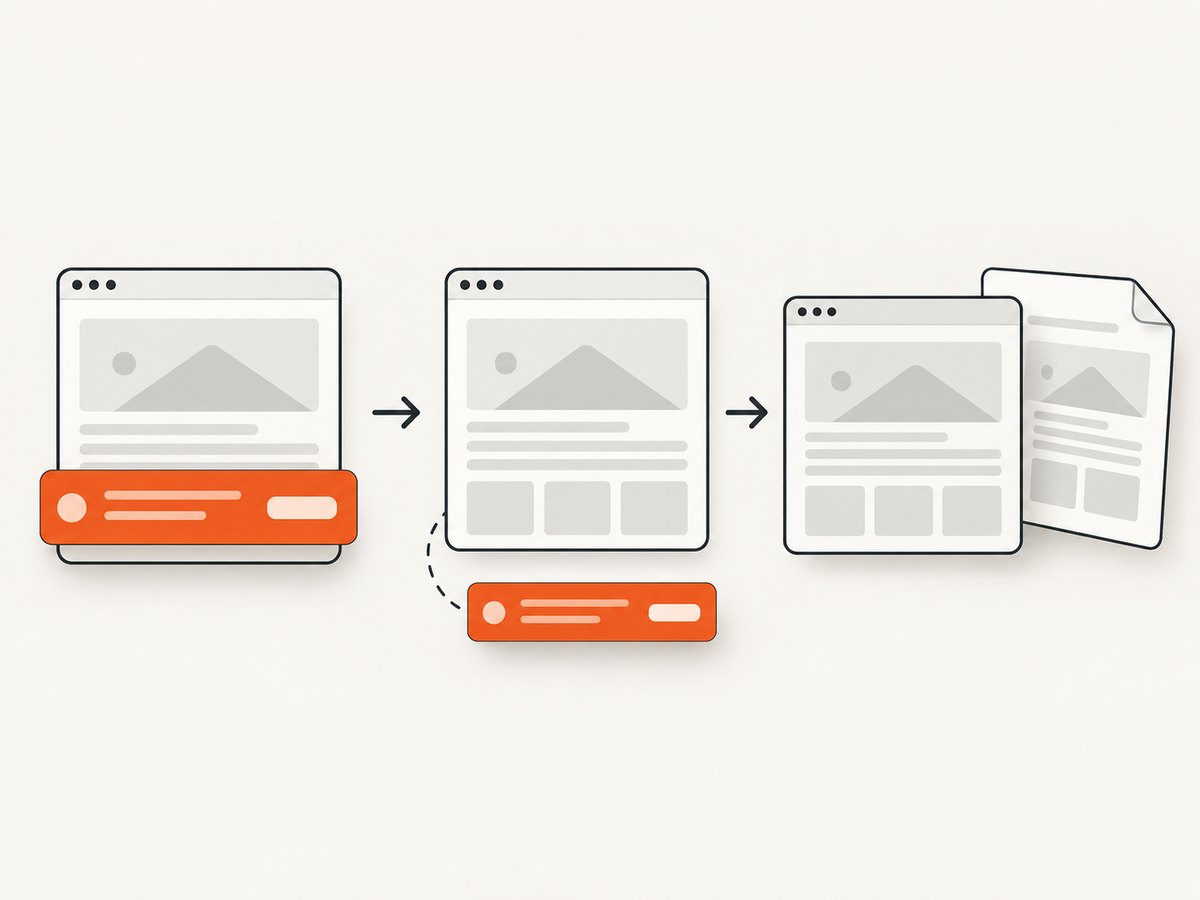
To remove an element before a Puppeteer screenshot or PDF, run an awaited page.evaluate() call that removes the element from the page’s DOM, then call page.screenshot() or page.pdf(). Awaiting the DOM mutation guarantees the capture starts after the element is gone.
await page.evaluate(() => {
  document.querySelector('.cookie-banner')?.remove();
});

await page.screenshot({ path: 'page.png', fullPage: true });
The optional chaining operator makes a missing match harmless. If more than one matching node can appear, use querySelectorAll() and remove every result:
await page.evaluate(() => {
  document.querySelectorAll('.cookie-banner').forEach(element => element.remove());
});

await page.pdf({
  path: 'page.pdf',
  printBackground: true,
  format: 'A4'
});
What the removal sequence does
page.evaluate() executes a function in the page context. That means the callback can use browser objects such as document and mutate the live DOM. Puppeteer waits for a returned promise, and your await ensures the next operation is not started until the callback finishes. The official API describes Page.screenshot() for image capture and Page.pdf() for PDF generation. See the Puppeteer Page.evaluate() reference, the screenshot API, and the PDF API.
A reliable capture has three phases:
- Navigate to the intended URL and wait for the content your output depends on.
- Remove the unwanted node or nodes with an awaited DOM operation.
- Capture the page or a selected element.
Removing a node changes the current document only. It does not change the website’s server-side content, your browser profile, or future navigations.
Complete Puppeteer example for a screenshot
This Node.js script opens a page, waits for its main content, removes one optional banner, and writes a full-page PNG. The guarded selector is appropriate when the banner may not appear on every run.
const puppeteer = require('puppeteer');

(async () => {
  const browser = await puppeteer.launch({ headless: true });

  try {
    const page = await browser.newPage();
    await page.setViewport({ width: 1440, height: 900, deviceScaleFactor: 1 });

    await page.goto('https://example.com', {
      waitUntil: 'networkidle2',
      timeout: 60_000
    });

    await page.waitForSelector('main', { timeout: 30_000 });

    await page.evaluate(() => {
      document.querySelector('.cookie-banner')?.remove();
    });

    await page.screenshot({
      path: 'page.png',
      fullPage: true,
      type: 'png'
    });
  } finally {
    await browser.close();
  }
})();
Use networkidle2 when a page has ongoing background requests but eventually settles. For applications with a clear readiness marker, waiting for that marker is usually more meaningful than relying on network activity alone.
Remove one element or every matching element
One optional match
await page.evaluate(() => {
  document.querySelector('#promo')?.remove();
});
querySelector() returns the first matching element. The optional chain means no exception is raised when it returns null. This is useful for consent dialogs that appear only in some regions or sessions.
All matches
await page.evaluate(() => {
  document.querySelectorAll('[data-overlay], .newsletter-modal, .chat-widget')
    .forEach(element => element.remove());
});
Use this form when several copies can exist, such as responsive desktop and mobile overlays, duplicated templates, or nested promotional containers. Keep the selector narrow enough that it cannot remove legitimate page content.
Required match with an explicit failure
If capture should fail when the element is absent, use $eval() and handle its error:
try {
  await page.$eval('.paywall', element => element.remove());
} catch (error) {
  throw new Error(`Expected .paywall was not found: ${error.message}`);
}
Puppeteer’s $eval() helper throws if no element matches. That behavior is useful when absence indicates a broken page state, but it is the wrong choice for an optional cookie banner.
Wait for dynamically rendered elements
Single-page applications often add banners after the initial HTML arrives. If the element is expected, wait for it before removing it:
await page.waitForFunction(
  () => document.querySelector('.cookie-banner') !== null,
  { timeout: 15_000 }
);

await page.evaluate(() => {
  document.querySelector('.cookie-banner')?.remove();
});

await page.screenshot({ path: 'clean.png', fullPage: true });
When the element may never appear, wait for an application-specific ready condition instead, then use the guarded removal:
await page.waitForFunction(
  () => document.querySelector('[data-page-ready="true"]'),
  { timeout: 30_000 }
);

await page.evaluate(() => {
  document.querySelector('.cookie-banner')?.remove();
});
Puppeteer’s waitForFunction() documentation describes the predicate and timeout options. Pick a timeout that reflects the application’s real loading behavior and catch timeout errors at the job boundary.
Removing several kinds of unwanted content
You can remove any DOM node, including fixed overlays, announcement bars, floating chat launchers, ad slots, and print-only controls. For a repeatable capture, put selectors in one list:

const selectorsToRemove = [
  '.cookie-banner',
  '#newsletter-modal',
  '[role="dialog"][aria-label*="Subscribe"]',
  '.chat-launcher',
  '.print-hidden'
];

await page.evaluate((selectors) => {
  for (const selector of selectors) {
    document.querySelectorAll(selector).forEach(element => element.remove());
  }
}, selectorsToRemove);
Passing data as an argument keeps the selector list outside the page callback and avoids constructing JavaScript source dynamically. Never build a selector from untrusted input without validating it; invalid selectors can throw a DOM exception.
Screenshot versus PDF after removal
Full-page screenshot
await page.screenshot({
  path: 'full-page.webp',
  fullPage: true,
  type: 'webp',
  quality: 85
});
Use fullPage: true for the complete scrollable document. A viewport screenshot captures only the visible area. You can also set clip for a precise rectangle.
Screenshot of a remaining element
const card = await page.$('.pricing-card');
if (!card) throw new Error('pricing card not found');
await card.screenshot({ path: 'pricing-card.png' });
An element handle becomes invalid if that element is removed or replaced. Remove unwanted siblings before obtaining the handle, and do not remove the target before calling ElementHandle.screenshot(). Puppeteer can scroll the target into view automatically, but it throws if the handle has become detached.
PDF with print styles
await page.evaluate(() => {
  document.querySelector('.cookie-banner')?.remove();
});

await page.pdf({
  path: 'page.pdf',
  format: 'A4',
  printBackground: true,
  margin: {
    top: '18mm',
    right: '14mm',
    bottom: '18mm',
    left: '14mm'
  }
});
page.pdf() uses the print CSS media type by default. If the PDF must match screen styling, call page.emulateMediaType('screen') before the removal and capture steps:
await page.emulateMediaType('screen');
await page.evaluate(() => {
  document.querySelector('.cookie-banner')?.remove();
});
await page.pdf({ path: 'screen-styled.pdf', printBackground: true });
PDF options include paper format or custom dimensions, margins, landscape orientation, page ranges, background graphics, and font readiness. Review the Puppeteer PDF guide when pagination or print CSS matters.
When removing the node is not enough
Some overlays are recreated by a framework or remain visible through a parent’s styles. Handle those cases deliberately:
- Reappearing node: remove it immediately before capture, after the page’s final render, or disable the application state that creates it.
- Shadow DOM: query the relevant shadow root from page context and remove the node there.
- Iframe content: the main document cannot query inside a cross-origin iframe. Access the frame through Puppeteer when permitted, or remove the iframe element itself.
- Fixed backdrop: remove both the dialog and its backdrop; otherwise a dimmed page can remain.
- Animations: disable transitions during capture to avoid a half-faded overlay.
await page.addStyleTag({
  content: `
    *, *::before, *::after {
      animation-duration: 0s !important;
      animation-delay: 0s !important;
      transition: none !important;
    }
  `
});

await page.evaluate(() => {
  document.querySelectorAll('.modal, .modal-backdrop').forEach(element => element.remove());
});
Do not remove an element merely because it is visually inconvenient if it contains content required for the document’s meaning or accessibility. Prefer a purpose-built capture mode on the application when you control the site.
Common errors and fixes
| Error or symptom | Cause | Fix |
|---|---|---|
| The banner is still visible | Removal ran before the framework rendered it, or a second copy was added. | Wait for a readiness predicate, remove all matches, and perform the final removal immediately before capture. |
$eval throws “failed to find element” |
The selector is optional or the page variant does not contain it. | Use page.evaluate() with optional chaining, or catch the expected error. |
| PDF looks different from the browser | PDF generation uses print media by default. | Call page.emulateMediaType('screen'), or add intentional print CSS. |
| Element screenshot reports a detached node | The element handle was obtained before a DOM replacement or removal. | Remove overlays first, then query the target again immediately before its screenshot. |
| Capture times out | The page never reached the chosen network or selector condition. | Use an application-specific readiness marker, raise the timeout when justified, and report navigation failures separately. |
| Page is dimmed after removal | A backdrop or body class remains. | Remove the backdrop and clear the modal state class if it is safe to do so. |
| Images are missing | Lazy loading has not been triggered or fonts and assets are still loading. | Scroll the page or wait for the relevant assets before the final removal and capture. |
Performance and reliability checklist
- Reuse a browser process for multiple pages, but create a fresh page or isolated context for each capture’s cookies and viewport.
- Set explicit navigation and predicate timeouts so a stuck site cannot hold a worker indefinitely.
- Use a specific readiness selector instead of an unnecessarily long fixed delay.
- Remove overlays after the final render step so client-side code does not recreate them.
- Record the URL, selector list, viewport, media type, and output settings with each artifact.
- Retry transient navigation failures with a bounded policy; do not blindly retry deterministic selector or authorization errors.
- Close pages and browsers in
finallyblocks to avoid leaking Chromium processes.
DOM removal itself is fast. Most capture time comes from navigation, JavaScript execution, fonts, images, and PDF layout. A full-page screenshot can also require substantially more memory than a viewport capture, especially on long pages or at a high device scale factor.
Or skip the browser setup
ScreenshotNeo provides a website screenshot API and MCP server when you want a clean capture without maintaining Chromium. It accepts a URL and returns PNG, JPEG, WebP, or PDF. Its cleanup step accepts cookie and consent banners and removes more than 60 known consent platforms, newsletter popups, and chat widgets before the capture; each step can be turned off. Bot checks and CAPTCHAs, blank pages, timeouts, failed loads, and cache hits are not billed, and the response reports the result through X-Page-Verdict and X-Billed headers.
One request is enough:
curl -G "https://api.screenshotneo.com/v1/shot" \
  -d access_key=YOUR_API_KEY \
  --data-urlencode url=https://stripe.com \
  -o shot.webp
Python:
import requests

r = requests.get(
    "https://api.screenshotneo.com/v1/shot",
    params={"access_key": "YOUR_API_KEY", "url": "https://stripe.com"},
    timeout=90,
)
r.raise_for_status()
open("shot.webp", "wb").write(r.content)
Node.js:
const q = new URLSearchParams({
  access_key: 'YOUR_API_KEY',
  url: 'https://stripe.com'
});
const res = await fetch(`https://api.screenshotneo.com/v1/shot?${q}`);
if (!res.ok) throw new Error(`Screenshot failed: ${res.status}`);
const data = Buffer.from(await res.arrayBuffer());
require('fs').writeFileSync('shot.webp', data);
Read the ScreenshotNeo documentation for the complete parameter set. Relevant options include full-page capture with lazy images loaded, CSS selector element capture, dark mode, 12 device presets or any viewport, retina scale, PDF paper size, margins, landscape mode and page ranges, custom CSS and JavaScript, clicks, selector or network-idle waits, resource blocking, headers, cookies, user agents, authorization, timezone, geolocation, transparent backgrounds, resizing, caching with your chosen TTL, signed image links, asynchronous jobs with signed webhooks, bulk capture for up to 100 URLs, a usage API, and an OpenAPI specification. Common parameter names used by other screenshot APIs also work.
ScreenshotNeo also exposes an MCP server with take_screenshot, get_page_info, and capture_pdf tools for Claude, Cursor, and other MCP clients. The Free plan includes 1,000 shots per month with no card. Paid plans start at $5 for 3,000 shots; yearly billing gives two months free.
Create a free ScreenshotNeo account and get 1,000 screenshots a month with no card.
FAQ
Can I hide an element instead of removing it?
Yes. Inject a style such as display: none !important when layout or application state must remain intact. Removing the node is simpler when it has no required side effects.
Should I remove the element before or after waiting for network idle?
Wait for the page state your capture requires, then remove the element immediately before capture. A late-rendering application can recreate an overlay if you remove it too early.
Does page.pdf() include background colors?
Set printBackground: true when background graphics are required. Also check whether your print CSS changes colors, spacing, or visibility.
Can this work with a cross-origin iframe?
You cannot query inside a cross-origin frame from the main document. You may be able to access the frame through Puppeteer’s frame APIs, subject to browser security and the frame’s availability; otherwise remove the iframe container if that is the intended output.
How do I prove that removal happened?
Evaluate a boolean after the mutation and log it with the capture metadata:
const removed = await page.evaluate(() => {
  const node = document.querySelector('.cookie-banner');
  if (!node) return false;
  node.remove();
  return true;
});
console.log({ removed });

