How to Remove an Element from an HTML Response
Remove an element from the live DOM, an HTML string, or the response your server sends. The right method depends on which layer you need to change.

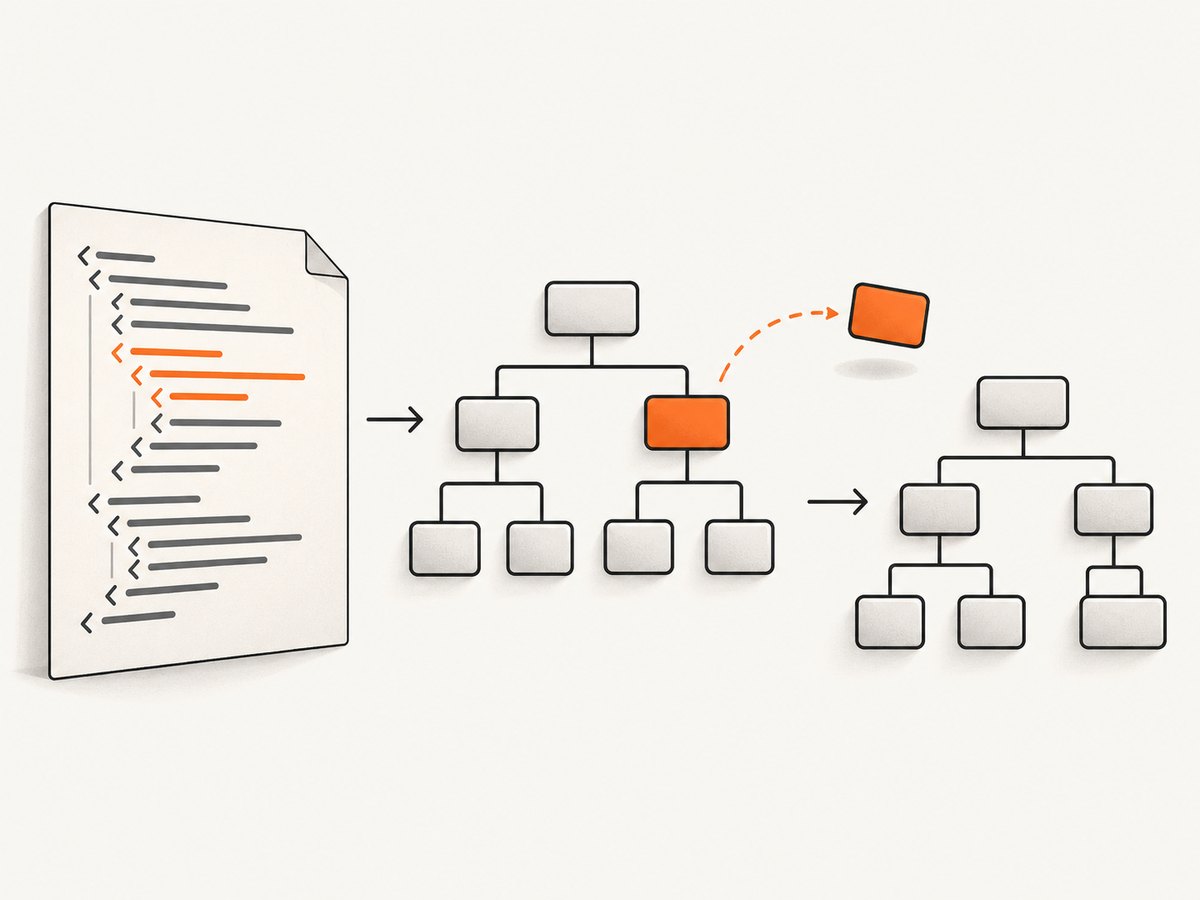
To remove an element from the page currently open in a browser, select it and call element.remove(). To remove it from an HTML string, parse the string, remove the node in the parsed document, then serialize it. To change HTML delivered on future requests, change the source that generates the response or the server-side component that transforms it.
These are different operations. A browser receives HTML and builds a DOM, but scripts can change that live DOM afterward. Removing a node from the DOM does not rewrite the response the browser already received, and it does not change what the server sends to another visitor. Chrome describes the distinction as: “HTML represents initial page content and the DOM represents active, current page content.” Chrome DevTools: view and change the DOM.
1. Choose which HTML layer to change
| Your goal | Where to make the change | Does it persist? |
|---|---|---|
| Remove an element from this page while it is open | Live browser DOM, using JavaScript or DevTools | Usually until reload or other page code changes it |
| Remove a node from an HTML string before using it | Parse the string, edit the detached document, serialize it | Only in the output string you produce |
| Stop the server from delivering an element | Template/source or server-side response transformation | Yes, for requests handled by the changed system |
If you control the page source, removing the element from the template or component is usually the simplest durable fix. If you do not control it and only need to inspect a page, use DevTools. If you need to transform an HTML response in an application or proxy, the details depend on that stack and where the response is generated.
2. Remove a node from the live DOM with JavaScript
Use a selector that identifies the intended element, then call remove():
const element = document.querySelector(".advertisement");
element?.remove();
querySelector() returns the first matching element, or null if nothing matches. Optional chaining makes the example safe when there is no match. To remove every matching element, use querySelectorAll() and iterate over the static collection it returns:
document.querySelectorAll(".advertisement").forEach((element) => {
  element.remove();
});
For more precise selection, scope the query to a known container:
const panel = document.querySelector("main .results");
const notice = panel?.querySelector(".temporary-notice");
notice?.remove();
This is a change to the active document. It does not update the server’s stored HTML or the original network response. A script on the page may add the element back later, and a reload will typically rebuild the page from its delivered HTML and scripts.
Compatibility and explicit parent removal
If you need a parent-based pattern, first confirm that a parent exists:
const element = document.querySelector(".advertisement");
if (element?.parentElement) {
  element.parentElement.removeChild(element);
}
The direct remove() method is more concise for ordinary DOM nodes. The parent-based form can make the relationship explicit in older code or when working with APIs that expect the parent. Avoid assuming every selected node has an element parent; a missing selector result or an unusual node type needs separate handling.
3. Remove an element manually in Chrome DevTools
- Open the page and launch DevTools.
- In the Elements panel, use the element picker or inspect the page to select the node.
- Check that the highlighted node is the one you intend to remove.
- Press Delete or use the node’s context menu to delete it.
Chrome documents deleting a selected node and undoing the change with Ctrl+Z on Windows/Linux or Command+Z on macOS in its DevTools DOM guide. This is useful for debugging and visual inspection; it is not a persistent edit to the site’s source.
Use Hide element (shortcut H) when you only want to hide a node temporarily while inspecting layout. Hiding is not deletion: it can be toggled back, and the node remains in the DOM. Use deletion when you want to test how the document behaves without that node.
4. Remove a node from an HTML string
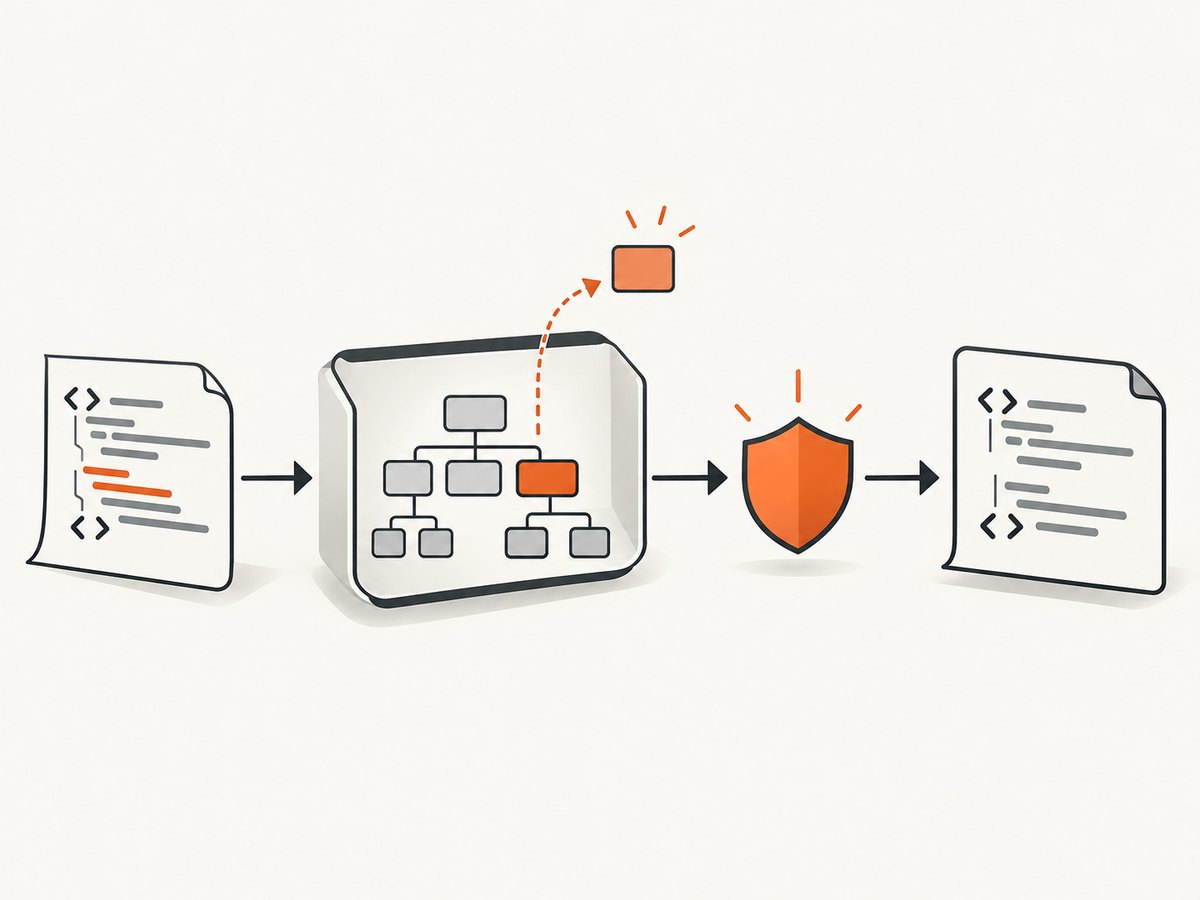
When the input is a string rather than the current page’s document, parse it into a separate document, edit that document, and serialize its document element:
const html = `<!doctype html>
<html>
  <head><title>Example</title></head>
  <body>
    <main>Keep this</main>
    <aside class="advertisement">Remove this</aside>
  </body>
</html>`;

const parsed = new DOMParser().parseFromString(html, "text/html");
parsed.querySelector(".advertisement")?.remove();
const cleanedHtml = `<!doctype html>\n${parsed.documentElement.outerHTML}`;
console.log(cleanedHtml);
DOMParser creates a document from the input; it does not sanitize it. The WHATWG HTML Standard explicitly warns that parsing this way does not remove potentially dangerous elements and attributes such as scripts or event-handler content. Do not treat parsing as a security boundary, and do not insert untrusted parsed markup into a live page without an appropriate sanitization strategy. See the WHATWG dynamic markup insertion standard.
Serialization may normalize markup: whitespace, quoting, casing, and implied document structure can differ from the original string. If exact textual preservation matters, a DOM parser and serializer may not be appropriate. Prefer changing the source or use a purpose-built HTML transformation that preserves the requirements of your pipeline.
Sanitization is a separate requirement
Removing one unwanted element does not make arbitrary input safe. If the goal is to accept untrusted HTML, use a sanitizing API or trusted sanitizer configured for the content you allow, and consider the context where the result will be inserted. The standard describes safe setHTML() and Document.parseHTML() methods that sanitize according to a Sanitizer configuration; methods with an Unsafe suffix do not sanitize by default. Check browser support and API availability for your deployment before relying on them. Sanitization does not remove the need to address stored or reflected XSS in the application as a whole.
5. Change the delivered response for future requests
If the request is “how do I remove this element from the HTML response my application sends?”, the durable change belongs on the side that produces or transforms that response. Typical places to investigate are the source template or component, the data condition that renders the element, or a server-side/proxy response-processing layer.
The correct implementation depends on the framework, server, proxy, and whether the response is generated dynamically, cached, or streamed. A browser-side remove() call cannot alter bytes already delivered over HTTP. Avoid broad string replacement on HTML as a default strategy: markup can vary in whitespace, attributes, nesting, and encoding, and text inside scripts or comments may resemble the target. If you share your framework or proxy, the appropriate response transformation can be specified for that stack.
6. Automation: use the right execution layer
For browser automation, run JavaScript in the page context after the target node exists. Wait for the element or relevant application state first; otherwise the query may run before client-rendered content appears. For lower-level browser tooling, Chrome DevTools Protocol’s DOM domain provides DOM.removeNode and DOM.setOuterHTML, which modify the inspected DOM. They still operate on the browser’s document, not the already-received server response. See the Chrome DevTools Protocol DOM domain.
When deciding between page JavaScript, DevTools Protocol, and server-side transformation, consider persistence and scope: a browser edit applies to that browser session; a response transformation applies to requests passing through the configured server or proxy; a source change applies wherever that source is deployed.
7. Troubleshooting
| Symptom | Likely cause | Fix |
|---|---|---|
Cannot read properties of null |
The selector matched nothing, or code ran before the node existed. | Check the selector in DevTools; use a null check and wait for the correct page state. |
| The element disappears then returns | Page JavaScript rendered it again, or a reload restored it from the response. | Find the code or condition that creates it; change the source for a durable result, or rerun after rendering if this is only an automation step. |
| The wrong element was removed | The selector was broad, or querySelector() selected only the first of several matches. |
Scope the selector to a stable container, inspect the match count, and remove only intended nodes. |
| The browser still shows the old HTML | The live DOM was changed, while the response or cached resource was not. | Inspect the Network response separately; update the source or response layer and account for any cache in the delivery path. |
| Parsed output differs from input formatting | DOM serialization normalizes markup. | Compare semantic structure rather than exact bytes, or choose a source-level transformation when byte preservation is required. |
| Untrusted content remains dangerous | DOMParser parsed the markup without sanitizing it. |
Apply a sanitizer appropriate to the insertion context; do not rely on deleting one selector as a security measure. |
8. Reliability, performance, and cost considerations
Removing a small number of nodes with a specific selector is normally a small part of page work. The larger reliability issue is timing: client-rendered pages can add content after initial parsing, and a page can replace a whole container during hydration or subsequent updates. Wait for a stable signal, use a selector tied to the intended component, and make removal safe when the target is absent.
For repeated operations over a large document, avoid needlessly querying the entire document in a tight loop; collect matches once and process them. For response-body transformations, measure the cost in the actual server and proxy path, especially for large or streamed documents. No universal performance figure applies across browsers, markup sizes, or server stacks.
Local DOM edits and DevTools inspection do not require an external screenshot service. If the broader task is to capture the resulting page as an image or PDF, a screenshot API can save you from maintaining browser setup; compare total request volume, output formats, and failure handling against your own automation costs.
Or skip the browser setup
If your goal is to inspect the page after it has rendered, ScreenshotNeo takes a screenshot with one GET request. Its website screenshot API returns PNG, JPEG, WebP, or PDF. The ScreenshotNeo API docs describe the available parameters.
curl -G "https://api.screenshotneo.com/v1/shot" -d access_key=YOUR_API_KEY --data-urlencode url=https://stripe.com -o shot.webpimport requests
r = requests.get("https://api.screenshotneo.com/v1/shot", params={"access_key": "YOUR_API_KEY", "url": "https://stripe.com"}, timeout=90)
open("shot.webp", "wb").write(r.content)const q = new URLSearchParams({ access_key: 'YOUR_API_KEY', url: 'https://stripe.com' });
const res = await fetch(`https://api.screenshotneo.com/v1/shot?${q}`);- Cookie and consent banners are accepted, and 60+ known consent platforms, newsletter popups, and chat widgets are removed before the shot; each step can be turned off.
- Bot checks/CAPTCHAs, blank pages, timeouts, failed loads, and cache hits cost nothing. Response headers report the page verdict and billing status.
- An MCP server lets AI agents, including Claude, Cursor, and other MCP clients, take screenshots with
take_screenshot, inspect pages withget_page_info, and capture PDFs withcapture_pdf. - The free plan includes 1,000 shots per month with no card. Paid plans start at $5 for 3,000 shots; every feature is on every plan.
Create a free ScreenshotNeo account for 1,000 screenshots a month with no card.
FAQ
Does removing a DOM node change the original HTML response?
No. It changes the active document in that browser. Change the source or the server-side response path to affect later responses.
Can I remove an element from a website I do not control?
You can remove it locally in your browser for inspection or automation, subject to the page’s scripts restoring it. That does not change the site for other visitors.
Should I use DevTools Delete or Hide element?
Delete removes the selected node from the current DOM; Hide element temporarily hides it for inspection. Choose based on whether you need to test layout without the node or just conceal it briefly.
Can I use DOMParser to make HTML safe?
No. Parsing and sanitization are separate. Apply a suitable sanitizer before inserting untrusted content into a live document.


