How to Remove Elements by Class With Puppeteer
Remove every element matching a CSS class in Puppeteer, handle dynamic pages and Shadow DOM, and avoid common screenshot failures.

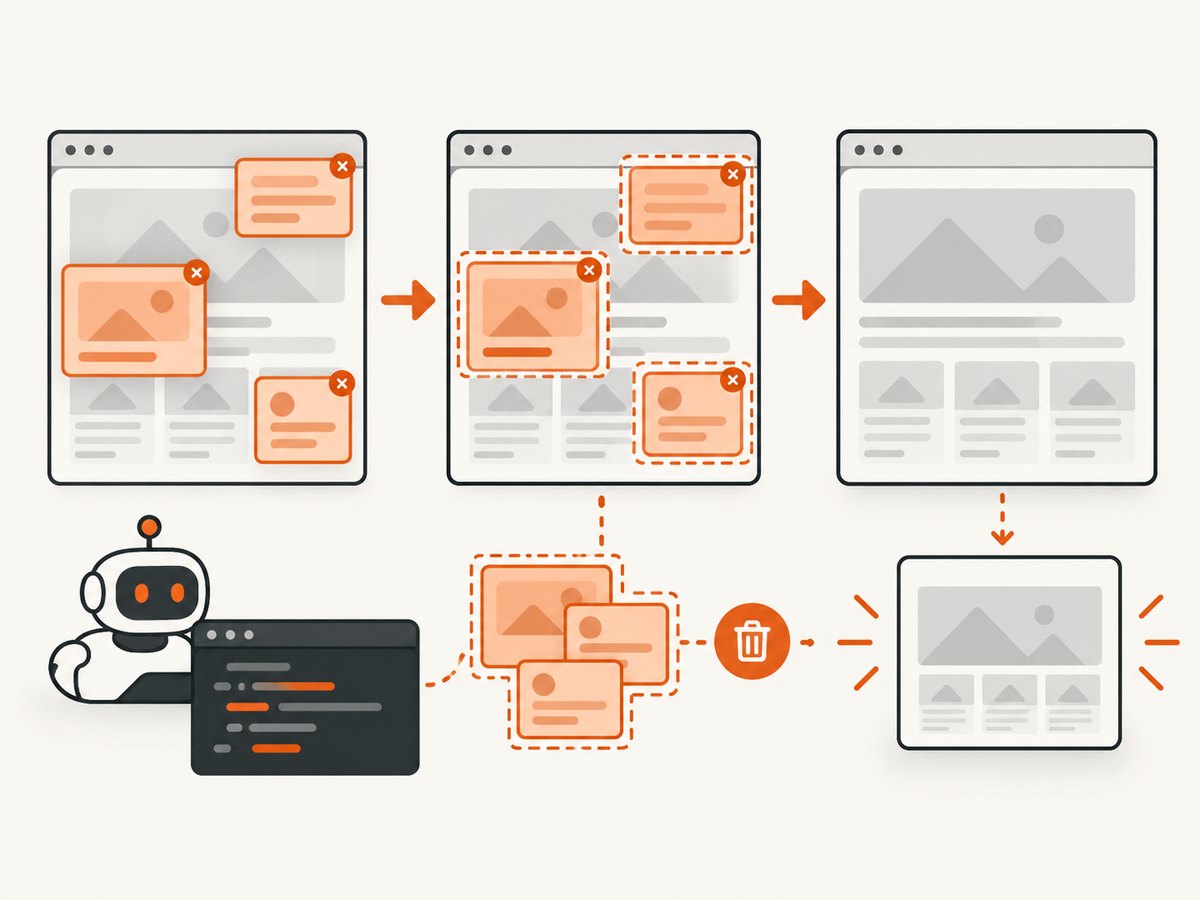
To remove every element with a class in Puppeteer, use page.$$eval() with a CSS class selector and call remove() on each matched element:
await page.$$eval('.target-class', elements => {
  elements.forEach(element => element.remove());
});
The leading dot is part of the CSS selector. Puppeteer finds every matching node, sends the array to a function that runs in the page context, and the DOM method Element.remove() detaches each node from its parent. The change applies to the current document only; a site script can create the same class again later.
Complete runnable example
Create a project and install Puppeteer:
mkdir puppeteer-remove-class
cd puppeteer-remove-class
npm init -y
npm install puppeteer
Save this as remove-class.js:
const puppeteer = require('puppeteer');

(async () => {
  const browser = await puppeteer.launch({ headless: true });
  const page = await browser.newPage();

  await page.goto('https://example.com', { waitUntil: 'networkidle2' });

  const removed = await page.$$eval('.target-class', elements => {
    elements.forEach(element => element.remove());
    return elements.length;
  });

  console.log(`Removed ${removed} element(s)`);
  await page.screenshot({ path: 'clean-page.png', fullPage: true });
  await browser.close();
})();
Replace .target-class with the class you see in DevTools. Run it with node remove-class.js. Returning elements.length gives you an audit count before the nodes are detached.
Choosing between $$eval() and $eval()
Use $$eval() when all matches must be removed. Its callback receives an array, including an empty array when there are no matches. Use $eval() when only the first match matters:
await page.$eval('.target-class', element => element.remove());$eval() throws when no element matches, so guard it when the class is optional:
const first = await page.$('.target-class');
if (first) {
  await first.evaluate(element => element.remove());
}
For an immediate bulk mutation, $$eval() is direct and efficient. Puppeteer’s current interaction guide recommends locators when you need waiting and action preconditions; use a locator or an explicit wait before evaluating if the target appears after navigation or user interaction. See the official Page.$$eval() API reference and page interactions guide.
CSS class selectors that work reliably
A class selector starts with a dot:
.noticematches any element containing thenoticeclass.div.noticelimits matches todivelements..notice.activerequires both classes on the same element..notice .activemeans anactivedescendant inside anoticeelement; it does not mean two classes on one node.
Use CSS.escape() for class names containing characters that are not valid in a CSS identifier:
const className = 'promo:large';
const selector = `.${CSS.escape(className)}`;
await page.$$eval(selector, elements => {
  elements.forEach(element => element.remove());
});
Class matching is case-sensitive in HTML documents where CSS class selectors are concerned. Verify the exact spelling and inspect whether the visible content is actually inside an iframe or a shadow root. MDN documents class matching, combined selectors and escaping in its class selector reference.
Removing elements that appear later
Many consent banners, chat launchers and promotional overlays are inserted after the initial HTML arrives. Removing them immediately after goto() can therefore do nothing. Wait for a known selector when it is expected:

await page.goto('https://example.com', { waitUntil: 'domcontentloaded' });
await page.waitForSelector('.target-class', { timeout: 5000 }).catch(() => {});
await page.$$eval('.target-class', elements => {
  elements.forEach(element => element.remove());
});
If the element is optional, catching the timeout lets the run continue. If it must exist, allow the timeout to fail so the job reports a real page change.
For frameworks that re-render the component, repeat the cleanup after the relevant action:
async function removeTargets() {
  return page.$$eval('.target-class', elements => {
    elements.forEach(element => element.remove());
    return elements.length;
  });
}

await removeTargets();
await page.click('button.open-dialog');
await page.waitForTimeout(250);
await removeTargets();
A one-time remove() call is not a permanent rule. To react continuously, install a page-side MutationObserver before the site update:
await page.evaluate(() => {
  const selector = '.target-class';
  const remove = () => document.querySelectorAll(selector)
    .forEach(element => element.remove());

  remove();
  new MutationObserver(remove).observe(document.documentElement, {
    childList: true,
    subtree: true
  });
});
Disconnect the observer when the capture is complete if the page remains open for other work. Observing every mutation can add overhead on highly dynamic pages, so prefer a targeted wait and one cleanup call when possible.
iframes and Shadow DOM
Content inside an iframe
A normal page query does not cross iframe document boundaries. Find the frame, wait inside it, and evaluate there:
const frame = page.frames().find(frame => frame.url().includes('/embedded/'));
if (frame) {
  await frame.waitForSelector('.target-class');
  await frame.$$eval('.target-class', elements => {
    elements.forEach(element => element.remove());
  });
}
For a same-origin frame, you can also use the frame’s document directly. Cross-origin restrictions still apply to browser page scripts, so select the frame through Puppeteer’s frame API rather than attempting to reach into it from the parent document.
Open shadow roots
Standard CSS queries do not automatically descend into Shadow DOM. Puppeteer documents deep selectors for open roots, for example:
await page.$$eval('my-widget >>> .target-class', elements => {
  elements.forEach(element => element.remove());
});
Deep combinators work with open shadow roots. They do not provide access to closed roots. If the component uses a closed root, remove the host element, use a component-provided API, or change the page before navigation.
Removing one element, its children, or only visual content
element.remove() detaches the element and all of its descendants. It returns undefined and does nothing when the element has no parent. The operation changes the live DOM, so layout usually reflows immediately. MDN describes this behavior in the Element.remove() reference.
If you need to keep layout space while hiding content, change styles instead:
await page.$$eval('.target-class', elements => {
  elements.forEach(element => {
    element.style.visibility = 'hidden';
  });
});
Use display: none when the space should collapse. Use removal when scripts, accessibility trees and screenshot output should no longer contain the node. Be careful with cookie controls, navigation links and form fields: deleting them can change the page’s behavior or violate the assumptions of later automation steps.
Capture after cleanup
Perform cleanup before taking a screenshot or generating a PDF. Wait for fonts, images or a final layout update when the removed element affects page height:
await page.$$eval('.target-class', elements => {
  elements.forEach(element => element.remove());
});
await page.evaluate(() => document.fonts.ready);
await page.screenshot({ path: 'result.webp', type: 'webp', fullPage: true });
For a single component, select it after cleanup:
const card = await page.$('.article-card');
if (!card) throw new Error('article card not found');
await card.screenshot({ path: 'article-card.png' });
Or skip the browser setup
ScreenshotNeo provides a website screenshot API when you need a clean capture without maintaining Chromium code. It accepts a URL and returns PNG, JPEG, WebP or PDF. Before capture it accepts cookie and consent banners and removes more than 60 known consent platforms, newsletter popups and chat widgets; each step can be turned off. Bot checks, blank pages, timeouts, failed loads and cache hits are not billed, and the response identifies the result with X-Page-Verdict and X-Billed headers.
See the ScreenshotNeo API documentation for all options. A minimal request:
curl -G "https://api.screenshotneo.com/v1/shot" -d access_key=YOUR_API_KEY --data-urlencode url=https://stripe.com -o shot.webpimport requests
r = requests.get("https://api.screenshotneo.com/v1/shot", params={"access_key": "YOUR_API_KEY", "url": "https://stripe.com"}, timeout=90)
r.raise_for_status()
open("shot.webp", "wb").write(r.content)const q = new URLSearchParams({ access_key: 'YOUR_API_KEY', url: 'https://stripe.com' });
const res = await fetch(`https://api.screenshotneo.com/v1/shot?${q}`);
if (!res.ok) throw new Error(`HTTP ${res.status}`);
const buffer = Buffer.from(await res.arrayBuffer());
require('fs').writeFileSync('shot.webp', buffer);ScreenshotNeo also supports full-page capture with lazy images loaded, CSS element capture, dark mode, device presets, custom viewports, retina scale, custom CSS and JavaScript, click and wait actions, request blocking, headers, cookies, user agents, authorization, timezone, geolocation, transparent backgrounds, resizing, configurable caching, signed image links, asynchronous jobs, webhooks, bulk capture of up to 100 URLs per call, a usage API and an OpenAPI specification. An MCP server exposes take_screenshot, get_page_info and capture_pdf to Claude, Cursor and other MCP clients.
The Free plan includes 1,000 screenshots per month with no card. Paid plans start at $5 for 3,000 shots; yearly billing gives two months free, and every feature is available on every plan. Create a free ScreenshotNeo account.
Troubleshooting
“No elements were removed”
Confirm the selector includes the dot, check spelling and inspect the DOM after scripts run. Add a selector wait, or run the query inside the correct iframe or open shadow root.
“Cannot read properties of undefined”
This commonly comes from $eval() when no element matched. Use page.$() with a null check, or use $$eval(), whose callback receives an empty array.
The banner returns after removal
A framework or timer inserted it again. Remove it after the triggering action, or install a narrowly scoped MutationObserver. If a reload recreates it, repeat the cleanup after each navigation.
The screenshot still contains the overlay
Make sure cleanup finishes before screenshot(). Await the evaluation promise, wait for the component to appear, and allow a short layout update when animations are involved. Disable animations with custom CSS if deterministic output matters.
“Execution context was destroyed”
The page navigated while the evaluation was running. Wait for navigation and then query again. Avoid firing a click that navigates without awaiting page.waitForNavigation() or the resulting locator action.
Selector syntax errors
Escape unusual class names with CSS.escape(). A class containing a colon, slash or leading digit may not parse as a plain selector.
Browser launch fails in CI
Install the Chromium revision required by your Puppeteer version, cache it between builds, and provide the sandbox flags required by your CI environment. Keep browser and Puppeteer versions aligned; consult the version’s official installation notes rather than copying flags blindly.
Performance, reliability and cost notes
$$eval() performs one browser round trip and one page-context query, so it is preferable to looping over handles from Node.js. Narrow selectors reduce query work on large documents. Reuse a browser process for multiple pages, but create a fresh page per independent capture and always close pages in a finally block.
Use domcontentloaded when you only need early HTML, networkidle2 when late content must settle, and explicit selector waits when the target has a known readiness condition. Set timeouts that reflect the site rather than retrying indefinitely. For repeatable output, fix viewport, device scale, timezone, locale and reduced-motion CSS.
Self-hosted Puppeteer costs the compute time and memory of Chromium plus your maintenance effort. ScreenshotNeo charges only for clean shots; failed loads, bot checks, blank pages, timeouts and cache hits are free. Its configurable cache TTL, bulk endpoint and asynchronous jobs can reduce repeated browser work and let you choose between immediate responses and webhook delivery.
FAQ
Does remove() delete the element permanently?
No. It changes the current DOM. A later script, route change or reload can create the element again.
What is the shortest way to remove all matching nodes?
await page.$$eval('.class-name', nodes => nodes.forEach(node => node.remove()));Can I remove elements before JavaScript finishes loading?
Only elements already present can be removed. For client-rendered content, wait for a selector or the event that creates it.
Does a normal selector search inside Shadow DOM?
No. Use Puppeteer’s deep selector syntax for open roots, or work with the component host for closed roots.
Should I hide or remove a node for a screenshot?
Remove it when it should have no layout or accessibility presence. Set visibility: hidden when you need to preserve its space.


