How to Remove the Gray Bar in Chromium Kiosk Mode with Puppeteer
Use Puppeteer’s kiosk flag, verify the active command line, and diagnose whether the gray bar belongs to Chromium, your desktop, or the page.
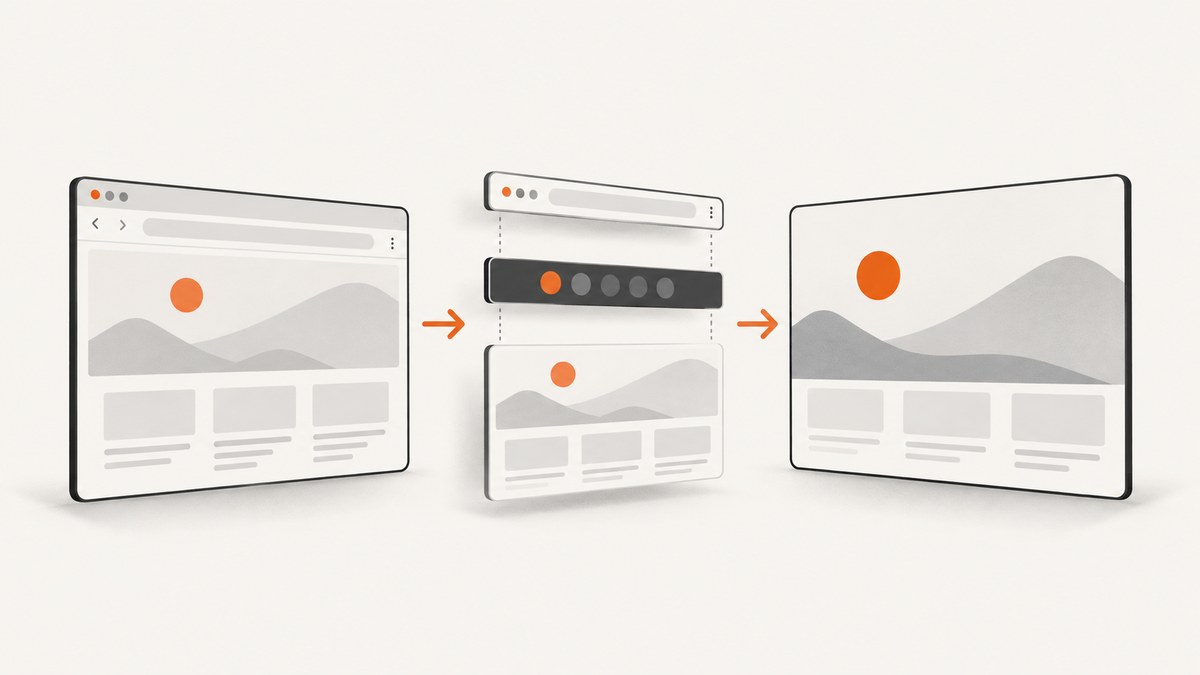
A gray bar in a visible Chromium window usually has one of three owners: Chromium’s own window chrome, an operating-system or window-manager panel, or an element drawn by the webpage. Start by passing Chromium’s kiosk switch through Puppeteer:
const puppeteer = require('puppeteer');

(async () => {
  const browser = await puppeteer.launch({
    headless: false,
    args: ['--kiosk'],
  });

  const page = await browser.newPage();
  await page.goto('https://example.com', { waitUntil: 'networkidle2' });
})();
Puppeteer’s args option adds command-line arguments to the browser process. Chromium defines --kiosk as kiosk mode, but explicitly distinguishes it from ChromeOS kiosk mode. If the bar remains, the flag may be working correctly while the bar belongs to another layer.
1. Launch Chromium in kiosk mode with Puppeteer
Install Puppeteer in a new project:
mkdir kiosk-test
cd kiosk-test
npm init -y
npm install puppeteer
Create kiosk.js:
const puppeteer = require('puppeteer');

async function main() {
  const browser = await puppeteer.launch({
    headless: false,
    args: [
      '--kiosk',
      '--start-maximized',
    ],
    defaultViewport: null,
  });

  const page = await browser.newPage();
  await page.goto('https://example.com', {
    waitUntil: 'networkidle2',
    timeout: 60_000,
  });

  // Keep the process alive while you inspect the window.
  await new Promise(() => {});
}

main().catch((error) => {
  console.error(error);
  process.exitCode = 1;
});
Run it with node kiosk.js. headless: false is required because a headless browser has no visible toolbar or desktop panel. defaultViewport: null allows Chromium to use the real window size instead of Puppeteer’s emulated viewport. --start-maximized is optional; it can help distinguish a window-sizing problem from a kiosk problem.
The official Puppeteer launch API documents args and related launch options at pptr.dev. Chromium’s command-line guidance explains that switches can change over time and that some are intended for development or temporary use.
2. Confirm that Chromium actually received the switch
Do not rely on chrome://flags to prove that a command-line switch is active. Open chrome://version in the same browser process and inspect Command Line. You should see --kiosk in the complete command.
const page = await browser.newPage();
await page.goto('chrome://version');
console.log(await page.locator('body').innerText());
If --kiosk is absent, check these common causes:
- You edited one script but launched another.
- A process manager is starting a different Chromium command.
- Your wrapper library is not passing the launch options through.
- You are inspecting a pre-existing browser instead of the process created by Puppeteer.
- An automation environment replaces the executable or command line.
When you provide executablePath, verify the binary and version yourself. Puppeteer’s API is guaranteed against its bundled browser; an unrelated system Chromium build can behave differently.
3. Identify which layer owns the gray bar
A universal one-flag fix cannot be promised without seeing the bar, operating system, window manager, Chromium build, and page. Use this isolation sequence.
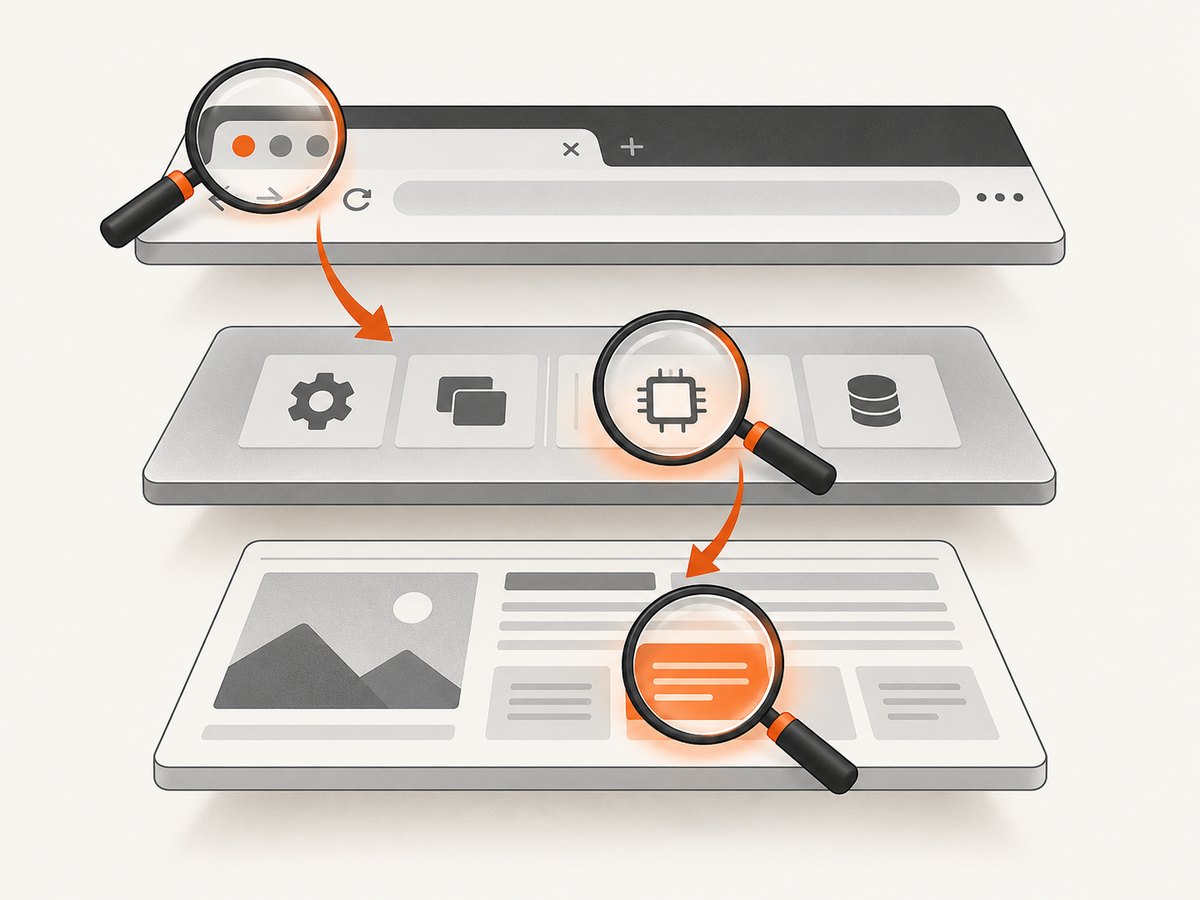
- Take a screenshot of the browser window. If the bar appears outside the captured page, it is browser or desktop chrome. If it appears inside the page bitmap, inspect the document.
- Resize the window. A bar that stays attached to the physical screen edge is more likely an OS panel. A bar that moves with the web content is likely page layout or browser chrome.
- Navigate to a blank page. Open
about:blank. If the bar remains, the target site is not drawing it. - Move the window. A bar that belongs to the desktop may remain fixed while the Chromium window moves over it.
- Inspect pixels and DOM separately. Use DevTools or page evaluation to determine whether an element spans the viewport.
This distinction matters because Chromium’s --kiosk switch changes Chromium behavior. It does not control a Linux desktop panel, a compositor overlay, a remote-desktop toolbar, or CSS rendered by the site.
Browser chrome
Try --kiosk first. If the intended presentation is an app-style window rather than full kiosk presentation, test Chromium’s application mode:
const browser = await puppeteer.launch({
  headless: false,
  args: ['--app=https://example.com'],
});
--app=<URL> launches an application-style browser window. Chromium documents it as a separate mode; it is not a guarantee that a particular bar disappears on every platform.
Operating-system or window-manager chrome
Desktop panels, taskbars, remote-session controls, and compositor decorations are outside Puppeteer. Configure the session, window manager, display server, or remote-desktop product that owns them. A browser argument cannot reliably remove an unrelated panel.
Page content
If the bar is inside the page, inspect fixed and sticky elements, cookie notices, announcement banners, and layout wrappers. In DevTools, use the element picker and check elements with position: fixed, large height, or a high z-index. For diagnosis only, hide a candidate:
await page.addStyleTag({
  content: '.suspected-bar { display: none !important; }',
});
Use a page-level fix only when you control the site or have permission to alter its presentation.
4. Choose the right launch mode
| Mode | Use it when | Boundary |
|---|---|---|
--kiosk |
You need full-screen kiosk presentation from a desktop Chromium process. | Does not identify or remove an OS panel or page-drawn bar. |
--app=<URL> |
You want an app-style browser window. | No cross-platform promise about a particular gray bar. |
| ChromeOS managed kiosk | The device is administered as a single-purpose ChromeOS device. | Uses device policies and is not interchangeable with generic desktop --kiosk. |
For an organization-managed deployment, prefer supported enterprise policies over undocumented development switches. Chromium notes that some switches are temporary and may change or disappear.
5. ChromeOS kiosk is a separate deployment
On managed ChromeOS hardware, kiosk behavior is configured through device policies and enrollment. A Puppeteer process running on a desktop Linux, Windows, or macOS session is not the same environment. Follow ChromeOS kiosk testing and administration guidance for that platform. Test-only remote-debugging flags can reduce security; do not copy them into a production device configuration without understanding the exposure.
6. A diagnostic Puppeteer script
The following script records the browser version page, captures a blank page, and then captures the target. It helps separate browser-level and page-level symptoms:
const puppeteer = require('puppeteer');

(async () => {
  const browser = await puppeteer.launch({
    headless: false,
    args: ['--kiosk'],
    defaultViewport: null,
  });

  const page = await browser.newPage();
  await page.goto('about:blank');
  await page.screenshot({ path: 'blank.png' });

  const version = await browser.newPage();
  await version.goto('chrome://version');
  console.log((await version.locator('body').innerText()).slice(0, 4000));

  await page.goto('https://example.com', {
    waitUntil: 'networkidle2',
    timeout: 60_000,
  });
  await page.screenshot({ path: 'target.png', fullPage: true });

  await new Promise(() => {});
})();
7. Troubleshooting common failures
| Symptom | Likely cause | Fix |
|---|---|---|
| The gray bar is unchanged. | It belongs to the desktop, window manager, remote session, or page. | Use the blank-page, move-window, and screenshot tests; configure the owning layer. |
--kiosk is missing from chrome://version. |
The wrong process or wrapper is running. | Inspect the actual launch code and command line; remove stale browser processes. |
| Chromium exits immediately. | Missing display server, sandbox restrictions, or an invalid executable path. | Run in a graphical session, verify the executable, and read the first launch error. Avoid adding security-disabling flags unless your deployment requires them. |
| The window is not full screen. | Window manager policy or an incompatible desktop session. | Try --start-maximized, check the session policy, and test --app if app-style presentation is acceptable. |
| The page shows a horizontal strip. | Sticky header, consent banner, chat widget, or application layout. | Inspect the DOM and CSS; fix the site or remove the permitted selector before capture. |
| Behavior differs between machines. | Different Chromium builds, display servers, scaling, or window managers. | Log Chromium version, command line, OS, session type, and display scale for each machine. |
| ChromeOS instructions do not work on desktop Linux. | Managed ChromeOS kiosk is a separate policy-controlled mode. | Use generic Chromium switches on desktop; use ChromeOS device policy for ChromeOS. |
8. Reliability, performance, and security notes
Visible kiosk mode depends on a graphical session, so it is more sensitive to desktop configuration than headless capture. For repeatable automation, pin the browser version, record the effective command line, and keep a known display size and scale factor. A system update can change window-manager behavior even when your JavaScript is unchanged.
Waiting for networkidle2 can take a long time on pages with analytics, streaming, or long-polling requests. Set an explicit timeout and choose a readiness condition that matches the page. For deterministic screenshots, wait for a selector, a known application state, or a short deliberate delay after the critical content appears.
Kiosk mode is a presentation setting, not a security boundary. Keep remote debugging restricted, protect the machine account, and avoid exposing a debugging port to untrusted networks. For managed fleets, use enterprise administration and device policy rather than relying on undocumented switches.
9. Or skip the browser setup
If your goal is a clean screenshot rather than controlling a visible desktop window, ScreenshotNeo provides a single HTTP request for PNG, JPEG, WebP, or PDF output. See the ScreenshotNeo API documentation for all options.
curl -G "https://api.screenshotneo.com/v1/shot" -d access_key=YOUR_API_KEY --data-urlencode url=https://stripe.com -o shot.webpimport requests
r = requests.get("https://api.screenshotneo.com/v1/shot", params={"access_key": "YOUR_API_KEY", "url": "https://stripe.com"}, timeout=90)
open("shot.webp", "wb").write(r.content)const q = new URLSearchParams({ access_key: 'YOUR_API_KEY', url: 'https://stripe.com' });
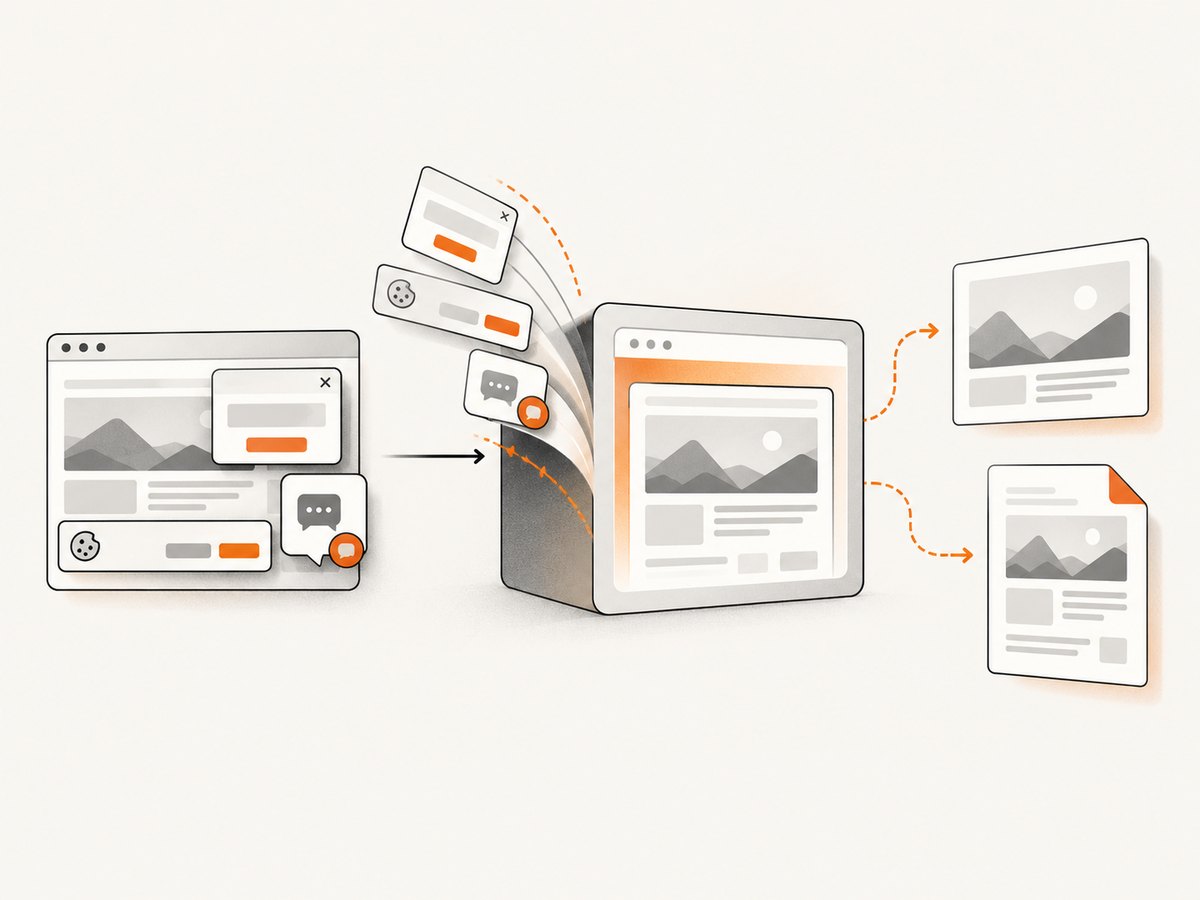
const res = await fetch(`https://api.screenshotneo.com/v1/shot?${q}`);ScreenshotNeo accepts cookie and consent banners before capture, then removes more than 60 known consent platforms, newsletter popups, and chat widgets. Each step can be turned off. Bot checks, blank pages, timeouts, failed loads, and cache hits are not billed, and response headers identify the page verdict and whether the request was billed. It also provides an MCP server with take_screenshot, get_page_info, and capture_pdf for Claude, Cursor, and other MCP clients.
Other options include full-page capture with lazy images loaded, CSS element capture, dark mode, device presets, custom viewport and retina scale, PDF paper and margin controls, custom CSS and JavaScript, clicks, selector waits, network-idle waits, request blocking, headers, cookies, user agents, authorization, timezone, geolocation, transparent backgrounds, resizing, configurable caching, signed links, asynchronous jobs with signed webhooks, bulk capture of up to 100 URLs per call, a usage API, and an OpenAPI specification. The parameter names used by other screenshot APIs also work, which can simplify migration.
The Free plan includes 1,000 screenshots per month with no card. Paid plans start at $5 for 3,000 shots; yearly billing gives two months free, and every feature is available on every plan. Create a free ScreenshotNeo account.
10. FAQ
Does --kiosk remove every gray bar?
No. It changes Chromium’s presentation. A desktop panel, remote-session toolbar, or webpage element requires a fix in that layer.
Should I use --app instead?
Use it when an app-style window suits your deployment. Test it on the target operating system; Chromium does not promise removal of a specific bar.
Why does chrome://flags not show my switch?
Flags and command-line switches are different mechanisms. Verify the effective command in chrome://version.
Can Puppeteer control a Linux taskbar?
Not reliably. The taskbar belongs to the desktop session or window manager, so configure that component.
Is ChromeOS kiosk the same as Chromium --kiosk?
No. Managed ChromeOS kiosk uses device policies and has separate security and administration guidance.


