How to Remove Margins from PDFs Generated by Headless Chrome
Remove page margins or Chrome’s generated headers and footers in Headless Chrome. Includes CLI, print CSS, and Puppeteer fixes.
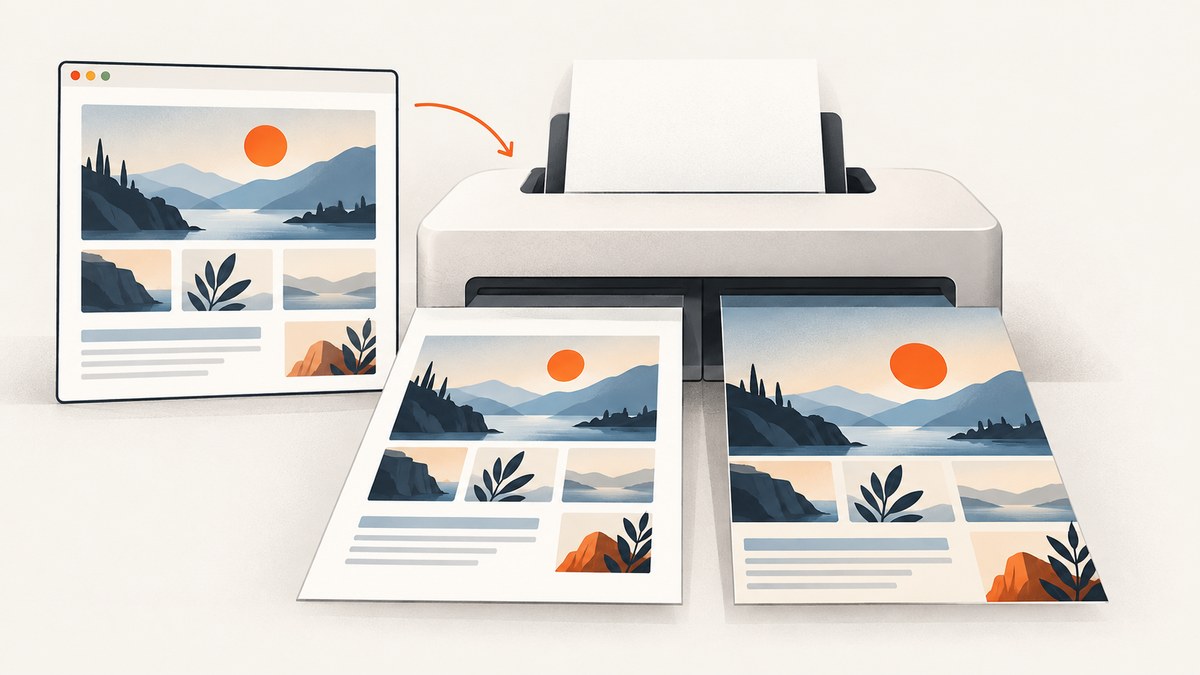
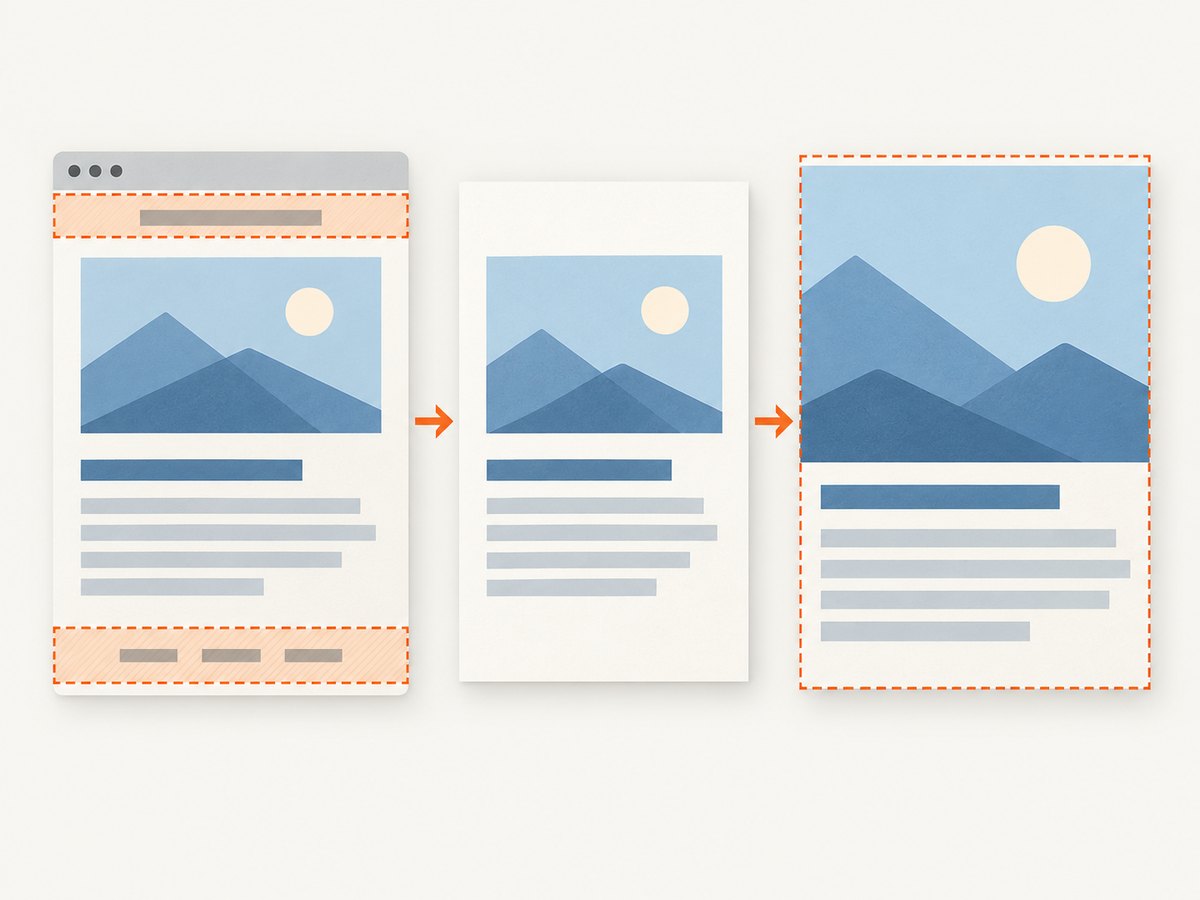
To remove the page margins in a PDF generated by Headless Chrome, set the print page margins to zero. In a stylesheet, use @page { margin: 0; }; with Puppeteer, set all four page.pdf() margin values to '0'. If the unwanted space contains Chrome’s date, URL, or page number, disable the generated header and footer as well: use --no-pdf-header-footer on the command line or displayHeaderFooter: false in Puppeteer. These are different controls, and you may need both.
If space remains after those changes, inspect the page’s own print styles and content. A zero PDF page margin does not remove padding or margins authored in the HTML, nor whitespace already inside an image or embedded document.
1. Identify which margin you mean
Before changing the generator, inspect a page of the output. Chrome can add print furniture in the margins, while CSS and the page content can create similar-looking blank areas.
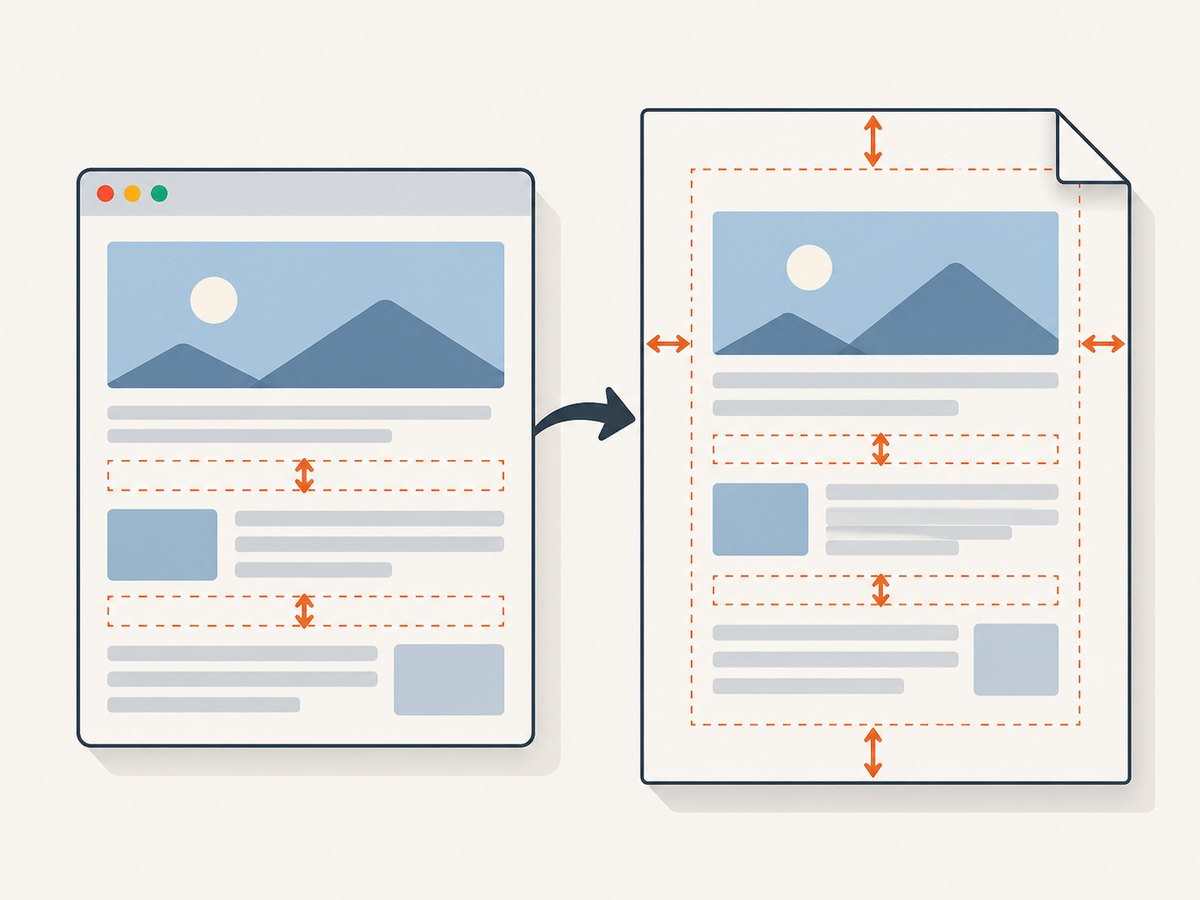
| What you see | Likely source | First fix |
|---|---|---|
| Date, URL, title, or page number near an edge | Chrome-generated header or footer | Disable header/footer output |
| Content is evenly inset from the paper edge | Print page margins | Set @page or PDF margins to zero |
| Only some elements have gaps | Page CSS, such as body padding or element margins | Inspect print-specific CSS and component styles |
| Whitespace is part of an image or existing PDF | Source asset or embedded content | Adjust or crop the source content |
The Chrome CLI switch controls Chrome’s generated header and footer; CSS Paged Media controls page size and margins. Puppeteer exposes corresponding PDF settings. None of those generation settings promises to remove whitespace deliberately included in the page itself. See the Chrome Headless CLI reference, Chrome’s print margins guide, and Puppeteer PDFOptions.
2. Remove margins with the Headless Chrome CLI
For a direct command-line capture, use Chrome’s --print-to-pdf option and suppress its generated header and footer. The print page margin should be set by CSS on the page being printed.
chrome --headless --no-pdf-header-footer --print-to-pdf=output.pdf https://example.com/This writes output.pdf and omits Chrome’s generated date/time header and URL/page-number footer. To also remove the document’s print page margins, include a print stylesheet on the page:
@media print {
  @page {
    margin: 0;
  }
}
Apply the rule in a stylesheet the page loads, or in a print-specific stylesheet that is included when Chrome renders the document. The @media print wrapper keeps the zero-margin rule scoped to print; it does not change the normal screen layout.
Write the PDF to a specific path
Chrome documents --print-to-pdf as writing to output.pdf by default. The explicit --print-to-pdf=output.pdf form in the example makes the destination clear. Confirm the output file is fresh when diagnosing a change; otherwise, an older PDF can make a successful fix look ineffective.
Older Chrome versions
The current documented switch is --no-pdf-header-footer. Chrome’s guide notes that previous versions may require the older flag --print-to-pdf-no-header. If the current switch appears to have no effect, check the installed Chrome version and its command-line documentation before changing unrelated CSS.
3. Remove margins with Puppeteer
For a Node.js workflow that calls Puppeteer directly, set all margins to zero and explicitly turn off Chrome’s generated header and footer in page.pdf().
const puppeteer = require('puppeteer');

(async () => {
  const browser = await puppeteer.launch({ headless: true });
  try {
    const page = await browser.newPage();
    await page.goto('https://example.com/', { waitUntil: 'networkidle0' });
    await page.pdf({
      path: 'output.pdf',
      margin: { top: '0', right: '0', bottom: '0', left: '0' },
      displayHeaderFooter: false,
    });
  } finally {
    await browser.close();
  }
})();
Save this as a JavaScript file in a project with Puppeteer installed, then run it with Node.js. The example uses networkidle0 to wait for network activity to settle before printing; pages with long polling or persistent requests may never meet that condition. In those cases, wait for a page-specific selector or a deliberate short delay instead, based on how the target page signals that its printable content is ready.
The relevant PDF settings are margin, whose four sides can be supplied explicitly, and displayHeaderFooter, which controls generated header/footer content. Set both when the goal is edge-to-edge output without browser-added text. Consult the Puppeteer API reference for the installed release, since projects on older versions may expose different behavior.
4. Control print page size and layout with CSS
@page is the CSS rule for printed page boxes. A zero margin removes the page inset, but it can place content close to the physical edge and change where content fits or breaks. Specify the paper size if the output must use a known format, and preview the result in the Chrome version used in production.
@media print {
  @page {
    size: A4;
    margin: 0;
  }

  html,
  body {
    margin: 0;
    padding: 0;
  }
}
The @page rule configures the printed page. The html and body rules address spacing from the document itself. Keep those body rules only if the document’s intended print layout has no outer spacing; a page may rely on body padding for readable text and need a nonzero value.
There is an interaction between margins and browser furniture: Chrome’s generated header and footer occupy margin space, and zero or very small page margins leave no room for them. If the unwanted item is browser-added text, turn it off directly for clarity. If you want the page content flush to the edge, set the page margin too. The relevant Chrome explanation is in its print margins article.
5. Check for content spacing and clipping
When the PDF page box has no margin but the page still looks inset, work from the outside inward:
- Inspect
@media printrules forbody, wrapper, and component margins or padding. - Check whether a fixed-width or max-width container is centered inside the page.
- Check images, canvases, and embedded PDFs for whitespace inside their own bounds.
- Review page size, scale, and content overflow. Edge-to-edge content can be clipped by the output device or rendered differently across pages.
- Generate a new PDF and inspect more than the first page, especially pages with long content or page breaks.
These checks are diagnostics based on the distinction between page settings and document content. Chrome’s PDF flags do not strip styling or crop source assets. Treat zero margins as a layout choice and verify the pages that matter to your workflow.
6. Common errors and fixes
| Symptom | Cause to check | Fix |
|---|---|---|
| Date, URL, or page number remains | Generated header/footer is enabled, or the CLI flag is unsupported by that Chrome version | Use --no-pdf-header-footer; for a previous version, check whether --print-to-pdf-no-header is required. In Puppeteer set displayHeaderFooter: false. |
| Content stays inset, but browser text is gone | Print page margin is still set | Add @page { margin: 0; } or set all four Puppeteer margin values to '0'. |
| Only the page body has a gap | HTML/CSS spacing remains | Inspect print CSS for body padding, wrapper width, and element margins. |
| Some pages look cropped | Content reaches the page edge, overflows, or no longer fits after margin removal | Check page size, scale, overflow, and page breaks. Restore a small margin if the document needs a safe inset. |
| Change has no visible effect | Stale PDF, wrong Chrome binary, or version-specific flag/API behavior | Write to a fresh output path, confirm the actual binary and installed versions, and compare with their matching documentation. |
| Puppeteer PDF generation hangs before printing | A readiness condition such as networkidle0 never occurs on a page with persistent requests |
Wait for a page-specific selector or use a bounded, intentional delay, then capture. |
7. Reliability, performance, and cost considerations
Margin settings themselves are layout choices; they do not make page content load or become print-ready. For repeatable output, use the same Chrome/Puppeteer version, page size, print stylesheet, and readiness condition across runs. Wait for the element that indicates the printable content is ready when network activity alone is an unreliable signal. Keep generated files and output paths distinct in automated jobs so a prior PDF cannot be mistaken for the latest result.
Validate representative cases: a short page, a multipage page, a page with large images, and a page with content near the edges. Zero margins can expose clipping or pagination changes that were hidden by a wider inset. The official references document the controls, but the exact rendering depends on the page and browser version, so inspect the generated PDF in the target workflow.
Headless Chrome and Puppeteer are self-hosted browser workflows, so cost depends on the infrastructure and operational setup you use; the cited documentation does not establish a per-PDF price. If you need a managed screenshot service for screenshots rather than print-PDF generation, ScreenshotNeo is a website screenshot API and MCP server from Yorker Media. It does not replace the PDF margin controls above.
Or skip the browser setup
For a website screenshot, ScreenshotNeo takes one GET request with a URL and returns an image or PDF. See the ScreenshotNeo API docs. This example saves a screenshot response:
curl -G "https://api.screenshotneo.com/v1/shot" -d access_key=YOUR_API_KEY --data-urlencode url=https://stripe.com -o shot.webpCookie banners, newsletter popups, and chat widgets are removed before the shot. Bot checks, blank pages, failed loads, timeouts, and cache hits are never billed; the response identifies the page verdict and billing status in headers. An MCP server lets AI agents use take_screenshot, get_page_info, and capture_pdf. The free plan includes 1,000 screenshots a month with no card; paid plans start at $5 for 3,000. Sign up for 1,000 free screenshots a month, with no card.
Frequently asked questions
Does zero margin make a PDF borderless when printed on paper?
It removes the PDF page margin setting. Whether a physical printer can print to the paper edge is a separate device capability; preview the PDF and printer output for your target workflow.
Can I remove margins from a PDF that Chrome already generated?
The controls here apply during generation. If the whitespace is embedded in an existing PDF, these browser generation settings do not crop it; use a PDF editing or cropping workflow appropriate to that file.
Should I use CSS or Puppeteer margins?
Use CSS when the page’s print layout should define its own page box. Use Puppeteer options when the PDF generation job should set margins explicitly. If both are present, preview the resulting output in the exact browser version you deploy.
Does --no-pdf-header-footer remove CSS headers?
No. It suppresses Chrome-generated print furniture. Headers or footers authored by the page remain part of the document and must be handled in the page’s print CSS.


