How to Remove Page Breaks From Puppeteer PDFs
Fix unwanted page breaks in Puppeteer PDFs by checking print CSS, CSS fragmentation rules, and PDF page-size settings.
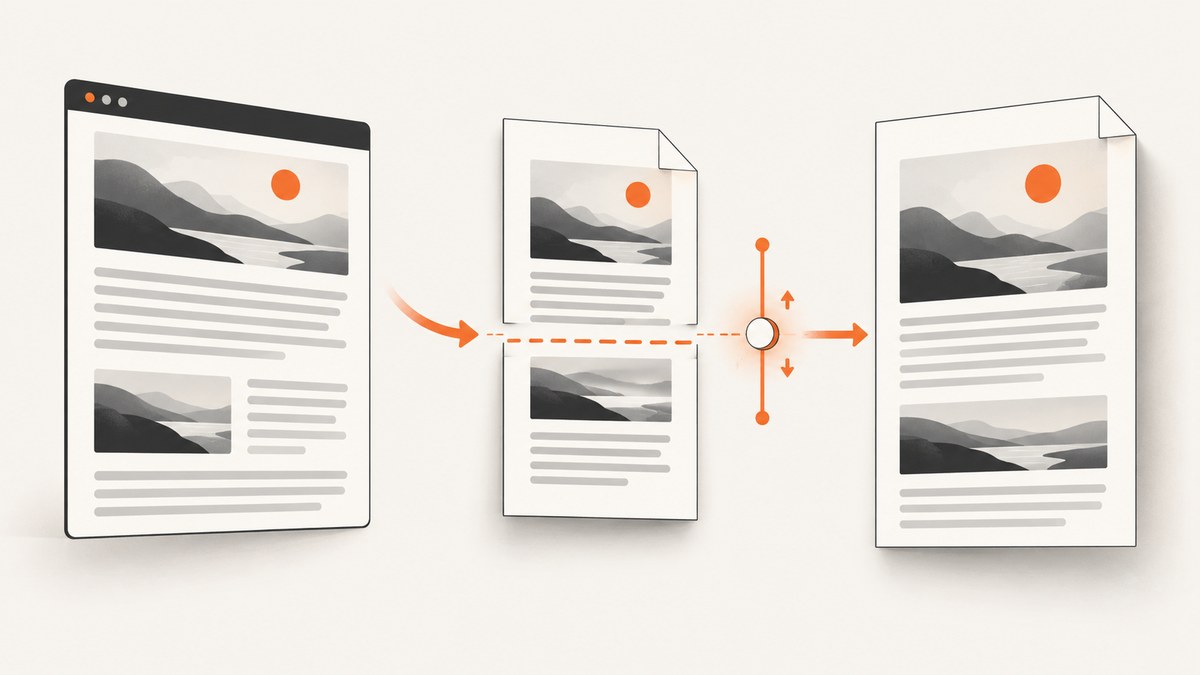
Puppeteer’s page.pdf() uses print CSS by default. To remove an unwanted page break, inspect the styles active in print mode, find any forced break-before or break-after rule, and adjust it. If the problem is that content does not fit the intended sheet, fix the page size or margins instead. These are separate issues: CSS controls where content breaks; PDF options control the paper dimensions and fit. [Puppeteer: Page.pdf()] [Puppeteer: PDFOptions]
For new stylesheets, use modern CSS fragmentation properties: break-before, break-after, and break-inside. To keep a short block together where possible, apply break-inside: avoid to that block. It is a pagination request, not a guarantee: it cannot make an element fit when the printable area is too small. [MDN: CSS fragmentation] [MDN: break-before]
1. Find which kind of break you need to change
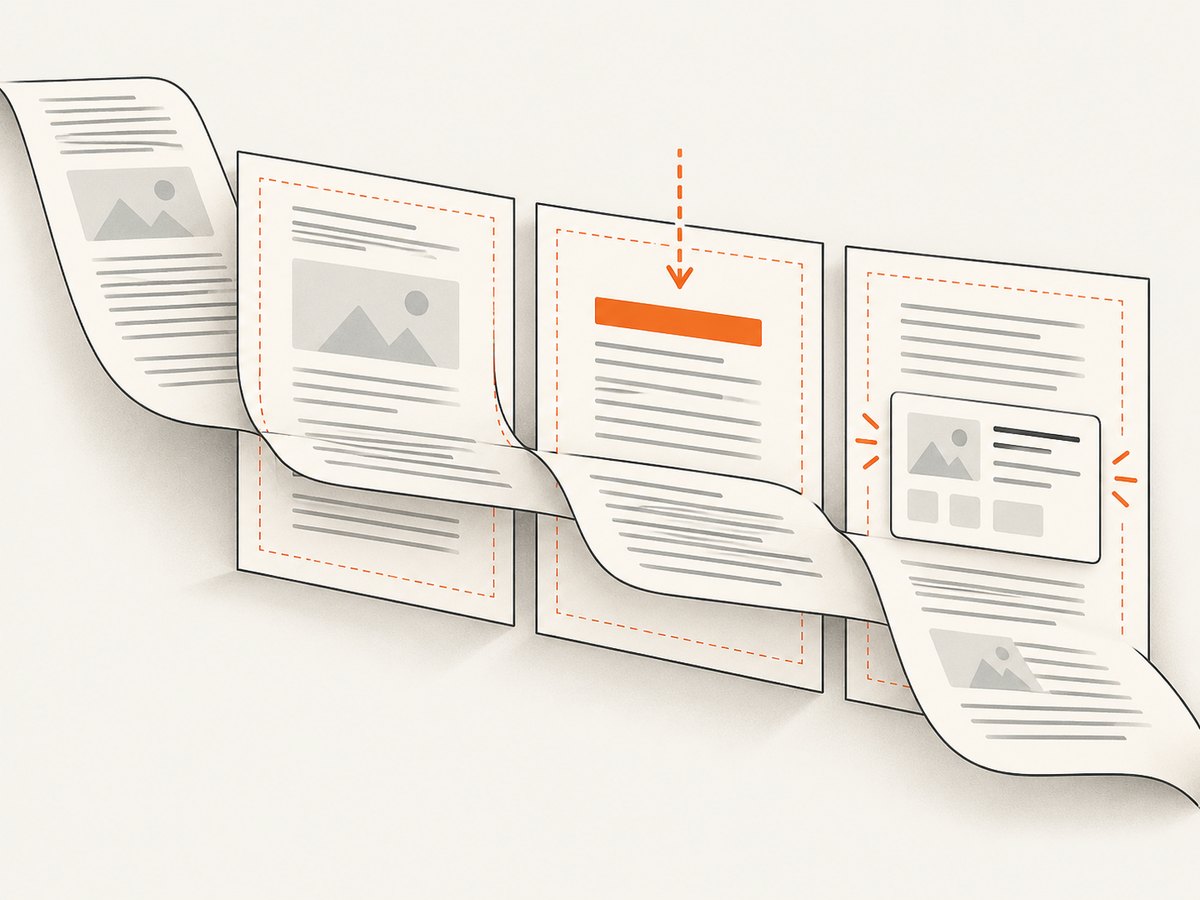
Start with the result you want. A page that always starts before a heading usually points to a forced break. A table or card split between sheets calls for an inside-break rule. Content that looks scaled or shifts because the sheet is the wrong size calls for reviewing @page and Puppeteer’s PDF options.
| Symptom | What to inspect | Likely adjustment |
|---|---|---|
| A new page always starts before one section | break-before on the section and break-after on the preceding element |
Remove or override the unintended forced break in print styles |
| A block splits across pages | break-inside on the smallest useful wrapper |
Try break-inside: avoid, then check that the block fits |
| Content is scaled or pagination shifts throughout | @page, format, dimensions, margins, and scale |
Make CSS page size and Puppeteer options agree |
| Your fix appears to have no effect | Whether the rule is active in print media and applies to a generated box | Inspect print-mode computed styles and interacting break declarations |
There is no universal CSS declaration that removes every break. The actual cause depends on the document’s HTML and CSS, its printable area, and the Chromium version used to create the PDF. Change one factor at a time and inspect the output.
2. Inspect print CSS before changing Puppeteer options
PDF generation uses the print CSS media type by default. That means a rule inside @media print can change pagination even when the page looks correct in a regular browser tab. Check both the print stylesheet and any stylesheets shared between screen and print. Look for forced break values on the element before the gap and on the element after it.
Use a print stylesheet to express the document’s intended pagination. The example below starts selected sections on a new sheet and asks the browser to keep compact blocks together:
/* styles.css */
@media print {
  /* Keep this only when a new page is intentional. */
  .section-start {
    break-before: page;
  }

  /* A request to keep a compact block together if it fits. */
  .keep-together {
    break-inside: avoid;
  }
}
If a break before a section is unwanted, remove that declaration or override it at the correct scope:
@media print {
  .section-start {
    break-before: auto;
  }
}
Do not add break-inside: avoid to every paragraph or a large container as a blanket fix. A long element may be taller than the usable page. The browser still has to paginate it, and broad avoid rules can conflict with the document’s layout. Use the smallest wrapper that represents a block that should stay intact, such as a short card or a compact table grouping, and verify the rendered PDF.
3. Use a complete Puppeteer example
This Node.js example loads a local HTML file, waits for the page to load, and writes a PDF with print backgrounds. It leaves the default print media in place so the print rules above apply. Install Puppeteer in your project with npm install puppeteer, save the CSS and HTML, then run the script.
// make-pdf.mjs
import puppeteer from 'puppeteer';
import { pathToFileURL } from 'node:url';
import { resolve } from 'node:path';

const browser = await puppeteer.launch({ headless: true });

try {
  const page = await browser.newPage();
  await page.goto(pathToFileURL(resolve('report.html')).href, {
    waitUntil: 'load',
  });

  await page.pdf({
    path: 'report.pdf',
    format: 'A4',
    printBackground: true,
    margin: {
      top: '16mm',
      right: '14mm',
      bottom: '16mm',
      left: '14mm',
    },
  });
} finally {
  await browser.close();
}
For a website, replace the local file URL with the page URL. If the page relies on asynchronous application rendering, wait for the application’s own ready condition before calling page.pdf(); a generic load event does not prove that every app-specific render step has finished. Puppeteer’s guide notes that PDF generation waits for fonts to load by default, which can affect when final layout is ready. [Puppeteer: PDF generation]
To diagnose styles interactively, explicitly select print media and inspect the page before producing the file:
await page.emulateMediaType('print');
// Inspect the page in print mode, then generate the PDF.
await page.pdf({ path: 'report.pdf', format: 'A4' });
Puppeteer already generates PDFs in print media by default. Calling emulateMediaType('print') here can make the diagnostic intent explicit, especially if the script previously selected another media type. If your document intentionally needs screen styles, call page.emulateMediaType('screen') before page.pdf(). That switches the active styling environment; it does not selectively remove page breaks. [Puppeteer: Page.pdf()]
4. Separate page dimensions from break placement
Review CSS break declarations when the break occurs at an unwanted boundary. Review PDF dimensions when the page is using the wrong paper size, the content is unexpectedly scaled, or the printable area is too short. Puppeteer’s PDF options include format, width, height, margin, scale, printBackground, and preferCSSPageSize. [Puppeteer: PDFOptions]
For example, the page can set a size in CSS:
@media print {
  @page {
    size: A4;
    margin: 16mm 14mm;
  }
}
By default, preferCSSPageSize is false. If it is true, CSS @page size takes priority over Puppeteer’s format, width, or height. If false, the content is scaled to fit the selected paper size. Avoid configuring conflicting CSS and API dimensions without deciding which should be authoritative.
await page.pdf({
  path: 'report.pdf',
  preferCSSPageSize: true,
  printBackground: true,
});
Pick one sizing strategy and check the usable area after margins. Reducing margins or scale may change how much fits on a sheet, but neither option removes a forced CSS page break. Likewise, preferCSSPageSize changes which size definition wins; it is not a break-removal switch.
5. Choose the right fragmentation rule
These properties serve different purposes. Use the one that matches the intended layout instead of applying all three without inspecting the flow. Their behavior is defined in CSS fragmentation rules, and interacting break declarations can affect the final pagination. [MDN: CSS fragmentation] [MDN: break-before]
| Property | Controls | Example use |
|---|---|---|
break-before |
Whether a break is inserted before an element | A chapter heading that should start a new page |
break-after |
Whether a break is inserted after an element | A cover page that should be followed by a new sheet |
break-inside |
Whether a break is allowed within an element | A short card that should remain intact when it fits |
The legacy page-break-inside spelling is deprecated; MDN documents it as a compatibility alias for break-inside values auto and avoid. Prefer break-inside in new code, and keep the older spelling only if you have a compatibility reason and have tested it. [MDN: page-break-inside]
6. Troubleshoot the generated PDF
- A particular section always starts on a new page. Inspect print-mode styles on both that section and the preceding element. Remove an unintended
break-before: pageorbreak-after: page, or set the relevant property toauto. - An element still splits despite
break-inside: avoid. Confirm the rule is active in print mode and targets the box you mean to keep together. Then check whether the element fits inside the printable area after page margins. Avoid is a constraint on pagination, not extra space. - The CSS change appears to do nothing. Confirm the selector matches an element that generates a box, that the rule is active for print media, and that another before, after, or inside declaration is not controlling the boundary. The
break-beforereference notes that this property has no effect when there is no generated box. - Pages are unexpectedly scaled or content moves to different sheets. Check
@page,format,width,height, margins, scale, andpreferCSSPageSize. Resolve conflicting size settings before changing break rules. - Screen layout is correct but PDF layout is not. Inspect print CSS. If screen styles are intentional for the PDF, select screen media before
page.pdf(), understanding that this changes all media-dependent styling. - Pagination changes around custom fonts. Confirm the expected fonts are available and inspect the final generated layout. Puppeteer’s guide says PDF generation waits for fonts by default, but the actual effect depends on the page’s font and layout behavior.
- A legacy rule is present. Translate
page-break-insidetobreak-insidefor new styles. Retain the alias only when compatibility testing shows it is needed.
7. Keep PDF generation reliable and efficient
- Use the correct readiness condition. Wait for the content your page needs, not merely an arbitrary delay. For dynamic pages, wait for a selector or application signal that means the report is complete.
- Keep one sizing source of truth. Choose CSS
@pageor Puppeteer’s page-size options deliberately, and setpreferCSSPageSizeto match that choice. - Limit layout changes to the affected component. Narrow print rules reduce unintended changes elsewhere in the document.
- Review output after changing fonts, content, or margins. Pagination depends on the rendered content and available page area, so a change that affects height can move later sections.
- Account for rendering cost. PDF creation requires loading and laying out the page in Chromium. Reusing a browser process for multiple jobs can avoid repeated process startup in a service, while still using a fresh page where isolation is needed. Set operational timeouts around navigation and generation based on your application’s requirements; do not treat a fixed sleep as a reliability guarantee.
Or skip the browser setup
If the task is a website screenshot rather than a Puppeteer PDF, ScreenshotNeo provides a one-request screenshot API. It also offers PDF output and page controls, but use Puppeteer’s CSS approach above when you need to control how your own document paginates.
For a screenshot, the API call is:
curl -G "https://api.screenshotneo.com/v1/shot" \
  -d access_key=YOUR_API_KEY \
  --data-urlencode url=https://stripe.com \
  -o shot.webp
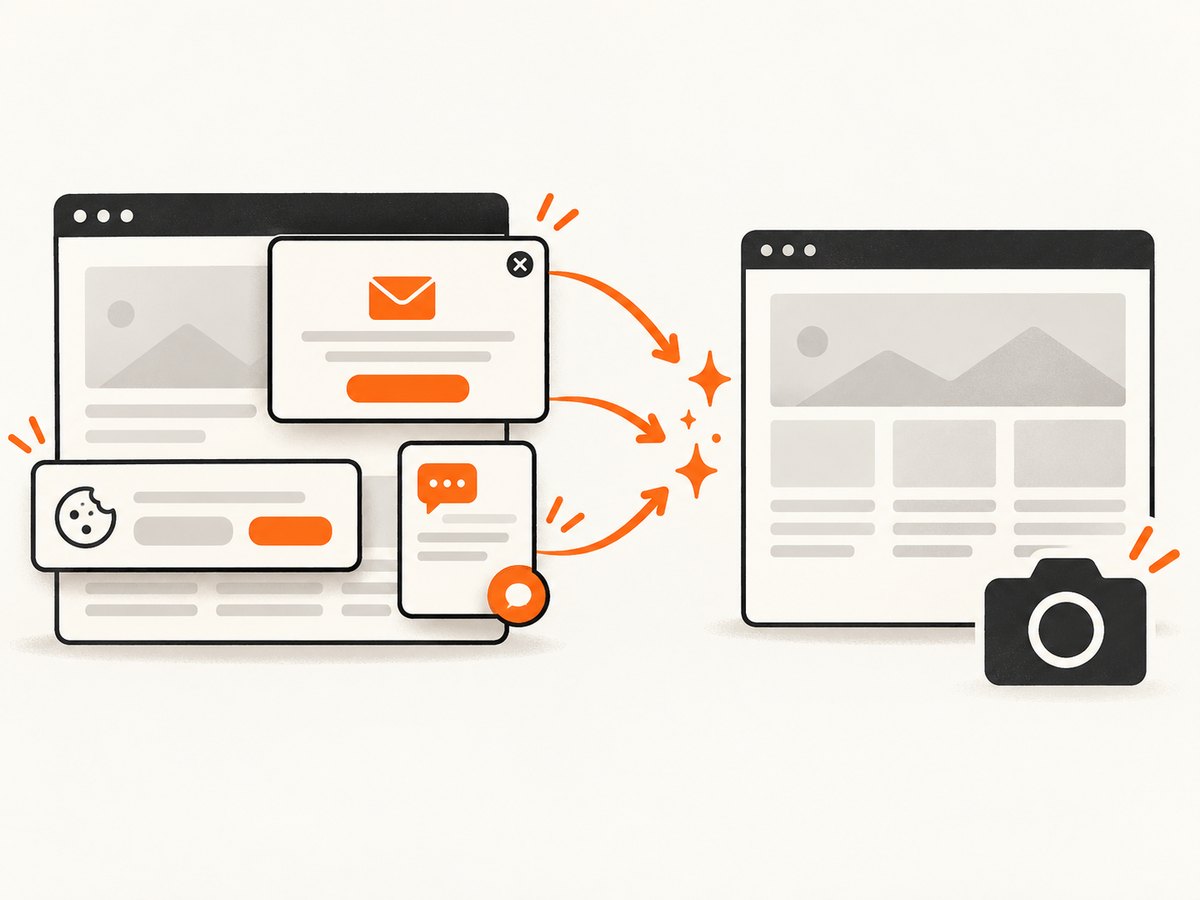
See the ScreenshotNeo API documentation for request options. ScreenshotNeo accepts cookie or consent banners like a visitor and removes more than 60 known consent platforms, newsletter popups, and chat widgets before capture; each step can be turned off. Only clean shots are billed: bot checks or CAPTCHAs, blank pages, timeouts, failed loads, and cache hits cost nothing, and the response identifies the page verdict and billing status in headers. Its MCP server gives AI agents tools for screenshots, page information, and PDF capture.
The free plan includes 1,000 screenshots per month with no card. Paid plans start at $5 for 3,000 screenshots. Sign up for free and capture your first 1,000 screenshots a month without a card.
FAQ
Does Puppeteer always use print styles for PDFs?
Yes. page.pdf() generates using the print CSS media type by default. Select screen media explicitly only when that is the intended styling for the output.
Does break-inside: avoid guarantee a block stays on one page?
No. It asks pagination to avoid splitting the element where feasible. The element still needs to fit in the available page area.
Should I use page-break-inside or break-inside?
Prefer break-inside for new CSS. The older property is deprecated and kept as a compatibility alias for limited values.
Will preferCSSPageSize remove a page break?
No. It controls whether CSS page size takes priority over Puppeteer’s paper-size options. Use CSS break properties to change break placement.


