How to Remove Playwright’s Error Overlay During E2E Tests
Learn whether Playwright’s error overlay is a blocking page element, app error screen, or test diagnostic—and handle each case correctly.
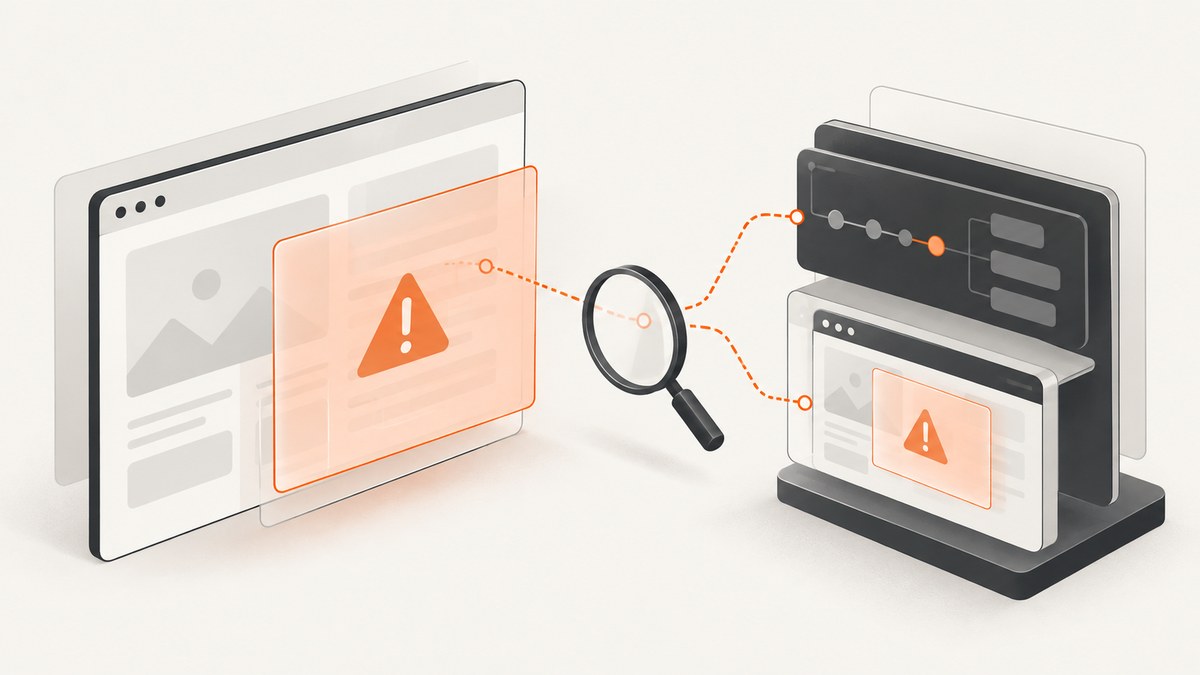
Playwright’s “error overlay” can mean several different things. A cookie dialog, newsletter modal, chat widget, or other page element may be covering the control your test needs. A development server or application framework may be rendering a full-page error screen. Playwright Test may also be showing diagnostic information in a recorded video. Each case has a different fix.
Direct answer: if a predictable page element blocks an action, wait for it and dismiss it in the normal test flow. If the element appears unexpectedly or on only some pages, use page.addLocatorHandler() with a locator that identifies the overlay and a handler that makes it disappear. If the screen is an application error page, inspect the underlying exception with page.on('pageerror'), page.pageErrors(), and the Playwright call log instead of hiding it. Playwright does not document one global switch that disables arbitrary framework error screens.
This guide shows how to identify the type of overlay, implement each solution, debug failures, and choose a reliable approach for CI.
1. Identify what “error overlay” means
Start by looking at the page and the failing action. The visible symptom alone is not enough to select an API.
| What you see | Likely source | Correct response |
|---|---|---|
| A banner, modal, consent dialog, or chat panel covers a button | Normal page DOM | Dismiss it explicitly or register a locator handler |
| A red or branded full-page error screen | Application or development framework | Capture and fix the page exception; use framework-specific configuration only after identifying the framework |
| Failure details shown in a recording | Playwright Test video or reporter | Configure the test runner or inspect the report; it is not necessarily a page overlay |
| An actionability error such as “element is not receiving pointer events” | Another element is intercepting the action | Inspect the DOM and handle the blocking element |
Use browser developer tools or Playwright’s locator inspection to confirm whether the apparent overlay is an element in the page. If the overlay has a close button, a consent action, or a stable attribute, it is usually a page element. If the page contains an exception message and no normal dismissal control, investigate the application error.
2. Handle a predictable overlay in the test flow
When an overlay is expected—for example, a consent banner shown on a first visit—Playwright recommends explicitly waiting for it and dismissing it as part of the normal test flow rather than using a locator handler. This makes the test’s behavior clear and gives you a useful failure if the site changes.
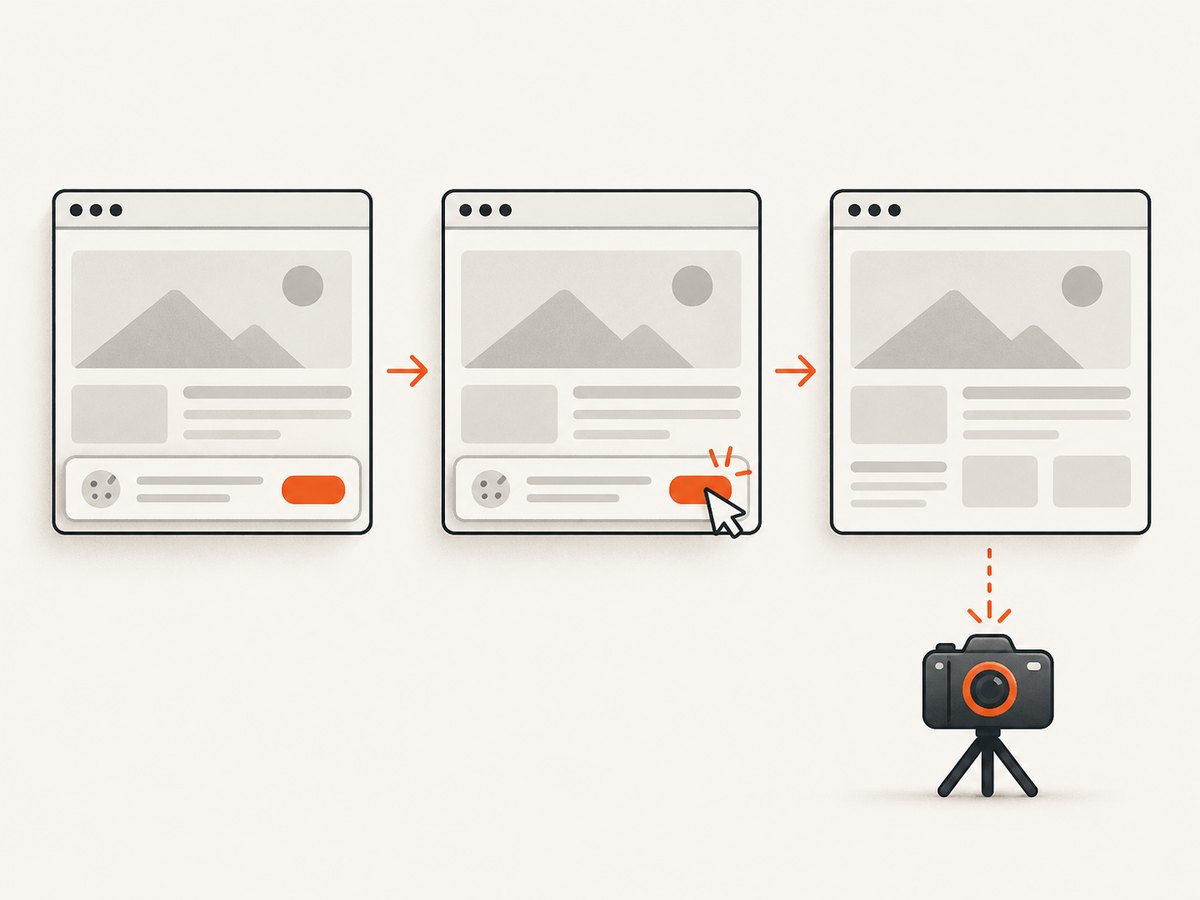
JavaScript example
import { test, expect } from '@playwright/test';

test('checkout works after consent is accepted', async ({ page }) => {
  await page.goto('https://example.com/checkout');

  const consent = page.getByRole('dialog', { name: /privacy|cookies/i });
  await consent.waitFor({ state: 'visible' });
  await consent.getByRole('button', { name: /accept|allow/i }).click();

  await page.getByRole('button', { name: /continue/i }).click();
  await expect(page.getByRole('heading', { name: /payment/i })).toBeVisible();
});
The locator should describe the overlay semantically when possible. A role and accessible name are more resilient than a generated CSS class. If the site provides a stable test identifier, use it:
const banner = page.locator('[data-testid="cookie-banner"]');
await banner.waitFor({ state: 'visible' });
await banner.getByRole('button', { name: /close/i }).click();
await expect(banner).toBeHidden();
Waiting for the overlay before the action avoids a race in which the test clicks the underlying control while the banner is still animating into view. The final assertion confirms that the handler actually removed the obstruction.
3. Use page.addLocatorHandler() for variable blocking elements
A locator handler is useful when an overlay is unexpected or appears on multiple pages at unpredictable times. Playwright checks the handler before actions and auto-waiting assertions when it detects the matching locator. The handler is not a background observer: it will not run while the test is completely idle.
import { test, expect } from '@playwright/test';

test('search remains usable when a promotional modal appears', async ({ page }) => {
  const promo = page.locator('[data-testid="promo-modal"]');

  await page.addLocatorHandler(promo, async (overlay) => {
    const close = overlay.getByRole('button', { name: /close|dismiss/i });
    await close.click();
  });

  await page.goto('https://example.com/search');
  await page.getByRole('textbox', { name: /search/i }).fill('playwright');
  await page.getByRole('button', { name: /submit|search/i }).click();
  await expect(page.getByRole('main')).toContainText('playwright');
});
The handler must make the blocking element go away. Clicking a close button is preferable to forcibly removing the node because it exercises the same behavior a visitor uses. If the overlay has no close control, use the site’s documented dismissal action or a narrowly scoped DOM operation as a last resort.
Keep the handler narrow
- Target a stable selector, role, or test identifier that belongs only to the overlay.
- Do not register a handler for a broad selector such as
divor[role="dialog"]if the page contains legitimate dialogs. - Make the handler idempotent. It should succeed if the overlay is already closing or has disappeared.
- Assert that the overlay is hidden in tests where its appearance is part of the scenario.
If a handler never runs, check that an action or auto-waiting assertion occurs after the overlay becomes visible. For overlays that appear during an idle period, add an explicit wait at the point where the test needs the page to be clear.
4. Investigate an application or development error screen
A framework error screen is evidence that the page failed. Removing it would conceal the defect and can make an end-to-end test pass for the wrong reason. Listen for uncaught page exceptions:
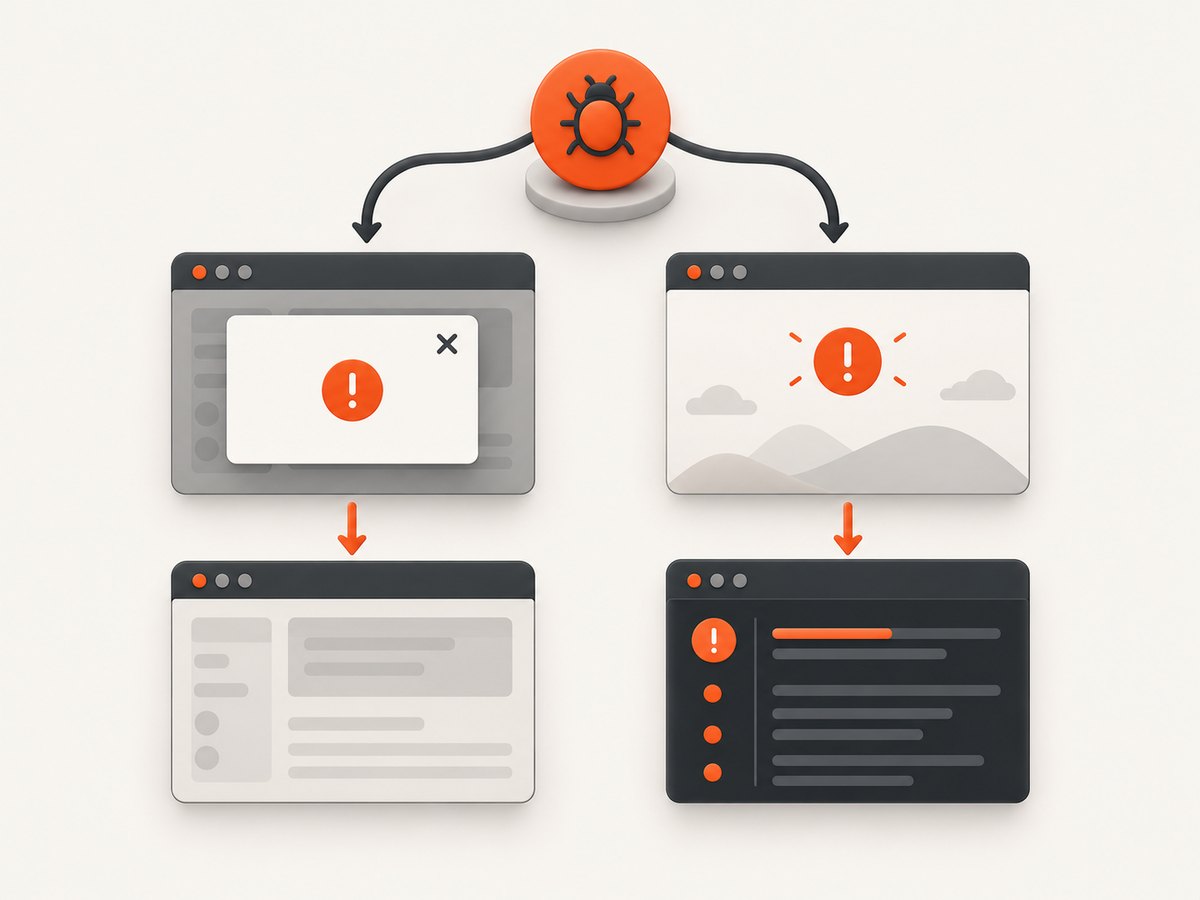
import { test } from '@playwright/test';

test('collects page errors', async ({ page }) => {
  const errors = [];
  page.on('pageerror', error => {
    errors.push(error);
    console.error('Uncaught page exception:', error.message);
  });

  await page.goto('https://example.com');
  await page.getByRole('button', { name: /load data/i }).click();

  if (errors.length) {
    throw new Error(`Page generated ${errors.length} uncaught exception(s)`);
  }
});
The pageerror event is emitted when an uncaught exception happens inside the page. Playwright also provides stored page errors through page.pageErrors() and lets you clear that stored list with page.clearPageErrors(). These APIs help when the exception occurs before the assertion that exposes the broken screen.
await page.goto('https://example.com');
const pageErrors = await page.pageErrors();
console.log(pageErrors.map(error => error.message));
page.clearPageErrors();
Once you know which framework rendered the screen, consult that framework’s development configuration for its own overlay behavior. The reviewed Playwright documentation does not define a universal option for disabling overlays created by arbitrary application frameworks. Fixing the exception is usually the durable solution.
5. Distinguish Playwright diagnostics from page content
Playwright Test can include test information in recorded video through its video configuration. That status display is separate from an element rendered by your application. Check the failure message, call log, trace, screenshot, and video before changing the page code.
For API-level diagnostics, run the test with Playwright’s API debugging enabled:
DEBUG=pw:api npx playwright test tests/checkout.spec.jsThe API log shows navigation, locator resolution, actionability checks, and waiting. It often reveals that a click is blocked by a page element even when the screenshot makes the problem look like a Playwright error overlay.
6. A complete reusable fixture
If the same consent or promotional overlay appears across a suite, put the predictable dismissal in a fixture or setup helper. Keep page-specific exceptions visible rather than swallowing them globally.
import { test as base, expect } from '@playwright/test';

export const test = base.extend({
  page: async ({ page }, use) => {
    await page.goto('https://example.com');

    const consent = page.locator('[data-testid="cookie-banner"]');
    if (await consent.isVisible().catch(() => false)) {
      await consent.getByRole('button', { name: /accept/i }).click();
    }

    await use(page);
  }
});

export { expect };
Use a fixture only for a site-wide concern. A test that specifically verifies the consent experience should bypass or override the helper so that the banner remains available for the assertion.
7. Common errors and fixes
| Symptom | Cause | Fix |
|---|---|---|
locator.click: intercepted by another element |
An overlay covers the target | Locate the overlay, dismiss it, and assert it is hidden before clicking |
| Handler is never called | No actionability check occurs after the overlay appears | Add an explicit wait or perform the next action that requires the page to be actionable |
| Handler loops or times out | The handler does not remove the matched locator | Click the real close control and verify the locator becomes hidden |
| Consent code fails on some runs | The banner is conditional or already dismissed | Check visibility first, and use a stable locator for the banner |
| Full-page red error screen appears | Application exception or failed development request | Capture pageerror, inspect network and console output, then fix the application or use its documented framework setting |
| Only CI fails | Different viewport, storage state, timing, locale, or third-party response | Record the trace, compare configuration, and make the overlay handling explicit |
| Overlay disappears but the test still fails | The underlying page is still loading or the target is disabled | Wait for the target’s expected state and inspect the call log; do not rely on arbitrary sleeps |
8. Reliability and performance considerations
Explicit dismissal is deterministic when the overlay is part of the product flow. A locator handler reduces repeated setup for genuinely variable interruptions, but it adds work around every matching actionability check. Keep the locator specific so Playwright does not repeatedly inspect unrelated elements.
Prefer state-based waits such as waitFor({ state: 'visible' }), toBeVisible(), and toBeHidden() over fixed delays. A delay can be too short on a slow CI worker and unnecessarily long on a fast one. If the overlay depends on a third-party script, consider isolating that dependency with a controlled test environment or storage state.
Do not hide all page errors in a global hook. A page exception may be the reason the overlay appeared. Record the error, URL, test name, and relevant trace so the failure remains actionable. Clear stored page errors only after you have logged or asserted them.
9. Or skip the browser setup
If your goal is to obtain a clean screenshot for a test report, visual regression job, documentation page, or AI workflow, ScreenshotNeo can capture the URL without maintaining your own browser setup. Its consent handling accepts the cookie or consent banner like a visitor and removes more than 60 known consent platforms, newsletter popups, and chat widgets before the capture. Each step can be turned off.
Use the API shown in the ScreenshotNeo documentation:
cURL
curl -G "https://api.screenshotneo.com/v1/shot" \
  -d access_key=YOUR_API_KEY \
  --data-urlencode url=https://stripe.com \
  -o shot.webp
Python
import requests

r = requests.get(
    "https://api.screenshotneo.com/v1/shot",
    params={"access_key": "YOUR_API_KEY", "url": "https://stripe.com"},
    timeout=90,
)
r.raise_for_status()
open("shot.webp", "wb").write(r.content)
Node.js
const q = new URLSearchParams({ access_key: 'YOUR_API_KEY', url: 'https://stripe.com' });
const res = await fetch(`https://api.screenshotneo.com/v1/shot?${q}`);
if (!res.ok) throw new Error(`Screenshot failed: ${res.status}`);
const bytes = await res.arrayBuffer();
await Bun.write('shot.webp', bytes);
ScreenshotNeo does not bill bot checks or CAPTCHAs, blank pages, timeouts, failed loads, or cache hits. The response identifies the result with X-Page-Verdict and X-Billed headers. It also provides an MCP server with take_screenshot, get_page_info, and capture_pdf tools for Claude, Cursor, and other MCP clients.
For larger suites, you can use full-page capture with lazy images loaded, CSS element capture, dark mode, device presets or custom viewports, retina scale, custom CSS and JavaScript, clicks, selector waits, delays, network-idle waits, request blocking, headers, cookies, user agents, authorization, timezone, geolocation, transparent backgrounds, resizing, TTL-based caching, signed links, asynchronous jobs with signed webhooks, bulk capture of up to 100 URLs per call, and the usage API. Every feature is available on every plan. The Free plan includes 1,000 screenshots per month without a card; paid plans start at $5 for 3,000 shots.
Create a free ScreenshotNeo account and use the included 1,000 screenshots to try the capture flow.
10. FAQ
Should I always use addLocatorHandler()?
No. Playwright recommends explicit waiting and dismissal when the overlay is predictable. Use a handler for unexpected or variable blockers.
Can a locator handler remove an application error screen?
It can technically interact with any matching page element, but hiding an application error usually conceals the defect. Capture the page exception and identify the framework first.
Why does the handler not run while the test is paused?
Handlers are checked around actions and auto-waiting assertions. They are not continuous background observers.
How do I know whether the error came from JavaScript?
Listen for page.on('pageerror'), inspect page.pageErrors(), and review the browser console and trace.
Does Playwright have one option to disable every error overlay?
No universal Playwright option is documented for overlays generated by arbitrary application frameworks. The setting depends on the framework that rendered the screen.
Can ScreenshotNeo replace Playwright E2E tests?
No. It captures pages and exposes page information; Playwright remains the tool for browser interactions and assertions. ScreenshotNeo is useful when you need a clean image or PDF without managing capture browser setup.


