How to Remove Unwanted Space in wkhtmltopdf Table Rows
Remove extra white space in wkhtmltopdf table rows with CSS resets, page-break fixes, fixed layouts, and a practical troubleshooting workflow.
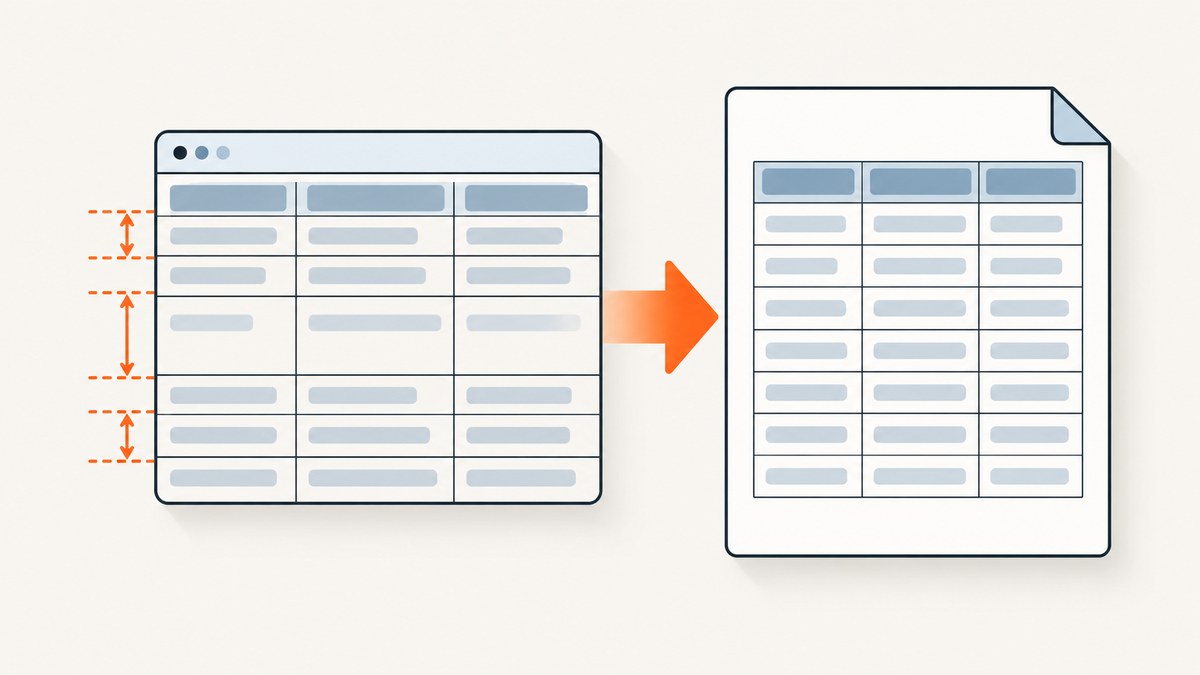
Extra white space in wkhtmltopdf table rows usually comes from table geometry rather than from an invisible blank line. Reset the table first: use border-collapse: collapse, set border-spacing: 0, remove legacy cellpadding and cellspacing, and explicitly set cell padding and line height. Then check inherited margins, font sizes, row spans, and page breaks.
Start with this CSS:
table {
  border-collapse: collapse;
  border-spacing: 0;
}

table td,
table th {
  padding: 0;
  line-height: 1.2;
  vertical-align: top;
}

tr,
td,
th {
  page-break-inside: avoid;
}
Regenerate the PDF after each change. The correct line-height and padding depend on your font and content, so keep enough space for readable text. If the gap appears only at a page boundary, investigate pagination and rowspan cells before changing the table display model.
Why wkhtmltopdf creates apparent gaps
CSS 2.1 table layout calculates row height from the content in cells plus cell padding, borders, and spacing between cells. Any of those values can make a row taller than expected. A browser may also resolve fonts and line boxes differently from wkhtmltopdf’s older WebKit engine.
The most common sources are:
- Cell spacing: HTML attributes such as
cellspacing="2"or a stylesheet’sborder-spacingadd space around cells. - Cell padding: A framework rule such as
td { padding: 8px; }applies even when your table-specific CSS does not mention padding. - Line-height: An inherited value such as
line-height: 2produces a tall line box, especially when a cell contains inline elements. - Font metrics: A missing or substituted font can have different ascent and descent metrics, changing the apparent height.
- Margins inside cells: Paragraphs, headings, lists, and nested blocks retain their default margins unless you reset them.
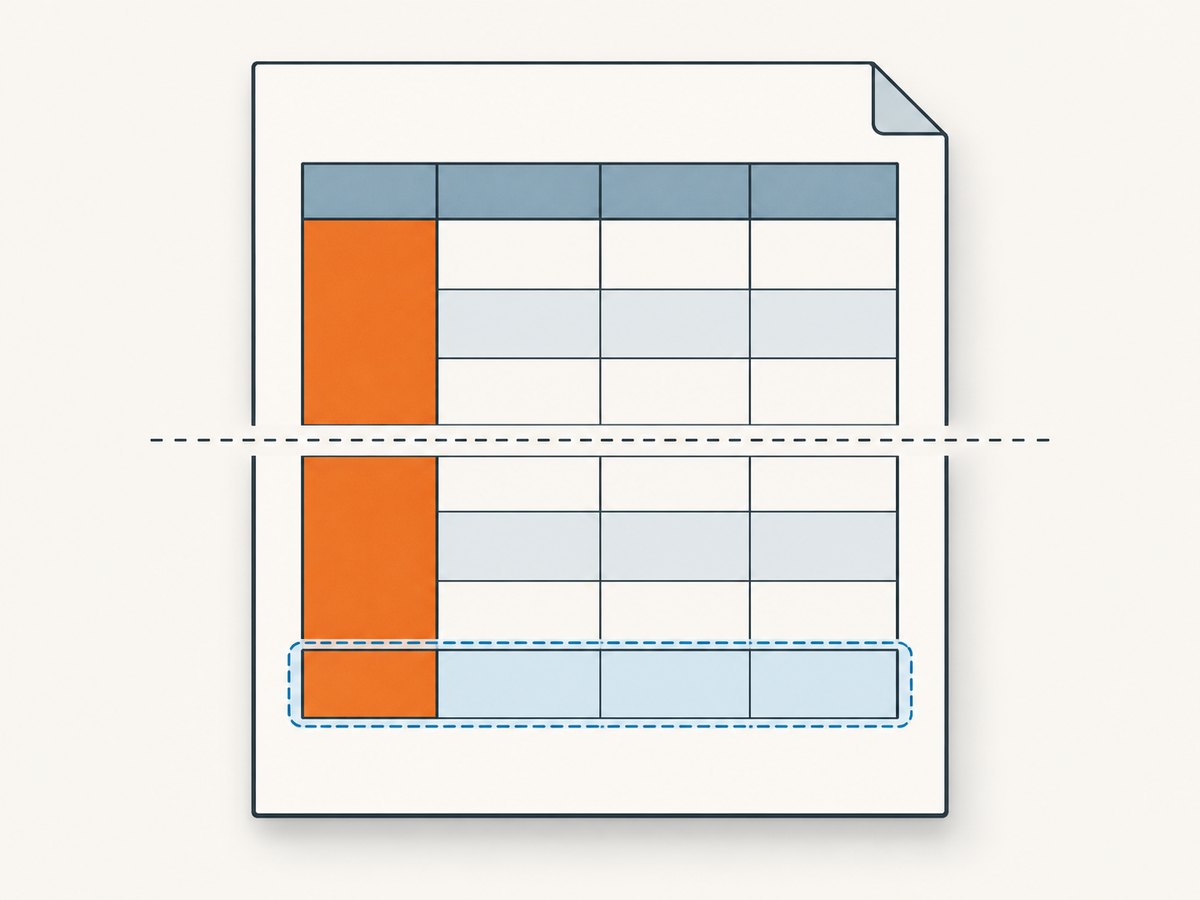
- Rowspan and page breaks: A spanning cell can force a group of rows to match its height or create a large-looking gap near a page break.
- Unstable column widths: Automatic layout can reflow text differently, increasing the number of lines in one or more cells.
A 2020 wkhtmltopdf issue for version 0.12.6 describes extra table whitespace that looked like a larger line height and caused values to stop aligning, even though the same HTML looked correct in Chrome. That difference is a renderer behavior, not necessarily an error in your source HTML.
Minimal reproducible example
Use a small document to determine whether the problem is in your global stylesheet or in wkhtmltopdf itself:

<!doctype html>
<html>
<head>
  <meta charset="utf-8">
  <style>
    @page { margin: 18mm; }
    body {
      font-family: Arial, sans-serif;
      font-size: 12px;
      line-height: 1.2;
      margin: 0;
    }
    table {
      width: 100%;
      border-collapse: collapse;
      border-spacing: 0;
      table-layout: fixed;
    }
    col.name { width: 45%; }
    col.value { width: 55%; }
    th, td {
      padding: 0;
      border: 1px solid #999;
      vertical-align: top;
      line-height: 1.2;
    }
    td p, th p { margin: 0; }
    tr, td, th { page-break-inside: avoid; }
  </style>
</head>
<body>
  <table>
    <colgroup>
      <col class="name">
      <col class="value">
    </colgroup>
    <thead>
      <tr><th>Field</th><th>Value</th></tr>
    </thead>
    <tbody>
      <tr><td>Status</td><td>Ready</td></tr>
      <tr><td>Description</td><td><p>A short description with predictable line metrics.</p></td></tr>
    </tbody>
  </table>
</body>
</html>
Save it as table.html and run:
wkhtmltopdf --print-media-type table.html table.pdfIf this document is compact but your application document is not, inspect the application CSS for inherited values. If the minimal document still has a gap that does not appear in a current browser, you are likely seeing a wkhtmltopdf rendering difference.
Step-by-step fix
1. Remove HTML spacing attributes
Legacy table attributes are still honored by many HTML-to-PDF renderers. Remove them where possible:
<table cellpadding="0" cellspacing="0">Prefer CSS, but setting both attributes to zero can help when old templates or embedded fragments are involved:
<table cellpadding="0" cellspacing="0" style="border-collapse: collapse; border-spacing: 0;">2. Reset padding, borders, and line boxes
Apply the reset to both header and data cells. A rule that targets only td can leave header cells with a framework’s default padding.
table.data,
table.data th,
table.data td {
  border-collapse: collapse;
  border-spacing: 0;
}

table.data th,
table.data td {
  padding: 2px 4px;
  line-height: 1.2;
  vertical-align: top;
}

table.data p,
table.data ul,
table.data ol,
table.data h1,
table.data h2,
table.data h3 {
  margin-top: 0;
  margin-bottom: 0;
}
Use the smallest padding that remains readable. Setting every value to zero can make borders touch text and does not solve a large line box caused by a nested element.
3. Normalize fonts explicitly
Use a font that is installed in the conversion environment, and set its size and line-height on the document. If text appears scaled or columns drift, test font-size: 100% on the affected table or its container. This is a practical workaround for text metric differences reported in wkhtmltopdf usage.
html, body {
  font-size: 100%;
}

table.data {
  font-family: Arial, sans-serif;
  font-size: 12px;
  line-height: 1.2;
}
Check for nested spans with a larger font size, superscript text, icons, or images without an explicit height. Each can increase the line box even when the visible text looks short.
4. Control the columns
Automatic table layout measures content and can change widths as the renderer processes the page. A narrower column creates more wrapped lines and a taller row. Define columns with colgroup and use fixed layout when the document has predictable fields:
table {
  width: 100%;
  table-layout: fixed;
}

col.label { width: 32%; }
col.detail { width: 68%; }
Make sure long URLs and unbroken identifiers can wrap:
td, th {
  overflow-wrap: break-word;
  word-wrap: break-word;
}
5. Handle page boundaries
If the gap is present only when a table crosses a page, add page-break-inside: avoid to rows and cells while keeping their normal table display behavior:
tr,
td,
th {
  page-break-inside: avoid;
}
This can keep a row together, but it cannot always keep a very large row on one page. A cell containing a long paragraph, image, or nested table may still need to split. Test the smallest rule that fixes the output.
Do not make tr a block as a first-line fix:
/* Avoid this unless you are deliberately rebuilding table layout. */
tr { display: block; }
Changing table elements to blocks can alter column sizing, border painting, and row alignment. It can also produce double borders and new spacing problems.
6. Treat rowspan cells separately
A rowspan cell participates in several row calculations. Near a page break, wkhtmltopdf can make the spanning cell exceed adjacent row height. Reduce the test case to one table with a rowspan, then try explicit borders, collapsed spacing, and page-break avoidance on the participating cells.
table {
  border-collapse: collapse;
  border-spacing: 0;
}

td[rowspan],
th[rowspan] {
  page-break-inside: avoid;
  vertical-align: top;
}
If the spanning content is large, consider moving it outside the tabular structure or repeating a label in separate rows. That changes the markup but often gives a more predictable PDF.
Diagnostics checklist
- Open the same HTML in a current browser and in wkhtmltopdf.
- Inspect computed styles for
table,tbody,tr,td, andth. - Record padding, border widths,
border-spacing, font size, line-height, and vertical alignment. - Temporarily add outlines to locate the extra box:
table, tbody, tr, th, td {
  outline: 1px solid rgba(255, 0, 0, .35);
}- Remove nested margins and replace images with fixed-size placeholders.
- Disable rowspans and page breaks to identify which feature triggers the height change.
- Add the minimal reset, then restore your original rules one group at a time.
Use a reduced HTML file for every renderer comparison. A small fixture makes it easier to tell whether a change fixed table geometry or merely moved the whitespace elsewhere.
Common errors and fixes
| Symptom | Likely cause | Fix |
|---|---|---|
| Equal gap between every row | cellspacing or border-spacing |
Set border-collapse: collapse and border-spacing: 0; remove legacy attributes. |
| Only some rows are tall | Nested paragraph margins, larger line-height, or wrapped text | Reset child margins, set explicit line-height, and use a fixed column layout. |
| Gap appears at a page break | Row splitting or rowspan calculation | Test page-break-inside: avoid on rows and cells; isolate rowspan content. |
| Chrome is correct, PDF is wrong | wkhtmltopdf renderer difference | Minimize the document, normalize fonts, and evaluate a maintained renderer if the defect persists. |
| Double borders after a CSS change | tr { display: block; } or conflicting border rules |
Restore table display semantics and use collapsed borders. |
| Rows grow after adding an icon or image | Intrinsic image dimensions or inline baseline alignment | Set explicit width and height; use display: block for images when appropriate. |
Performance, reliability, and renderer choice
Table fixes rarely dominate conversion time. Large documents, remote assets, JavaScript, slow fonts, and repeated layout calculations have a bigger effect. For reliable output:
- Embed or serve assets from a stable, low-latency origin.
- Set explicit image dimensions so layout does not change as images load.
- Keep CSS selectors specific enough to avoid accidental framework overrides.
- Use a fixed table layout for repeated report templates.
- Generate a deterministic fixture and compare PDFs after dependency or font changes.
- Set a process timeout and capture stderr so failed conversions are distinguishable from layout defects.
wkhtmltopdf’s repository is archived and read-only as of January 2, 2023. Persistent renderer-specific defects may therefore remain unresolved. If the CSS reset, pagination rules, and markup reduction do not produce acceptable output, evaluate a maintained HTML-to-PDF renderer rather than adding increasingly fragile overrides.
Or skip the browser setup
If your goal is a clean visual capture of a web page rather than a local wkhtmltopdf PDF, ScreenshotNeo provides a single HTTP request for PNG, JPEG, WebP, or PDF output. It accepts the cookie or consent banner like a visitor, removes more than 60 known consent platforms plus newsletter popups and chat widgets, and lets you turn each cleanup step off.
See the ScreenshotNeo documentation for all capture options. A basic request looks like this:
curl -G "https://api.screenshotneo.com/v1/shot" -d access_key=YOUR_API_KEY --data-urlencode url=https://stripe.com -o shot.webpimport requests
r = requests.get("https://api.screenshotneo.com/v1/shot", params={"access_key": "YOUR_API_KEY", "url": "https://stripe.com"}, timeout=90)
open("shot.webp", "wb").write(r.content)const q = new URLSearchParams({ access_key: 'YOUR_API_KEY', url: 'https://stripe.com' });
const res = await fetch(`https://api.screenshotneo.com/v1/shot?${q}`);Bot checks, CAPTCHAs, blank pages, timeouts, failed loads, and cache hits are not billed as clean shots. Response headers identify the result with X-Page-Verdict and X-Billed. ScreenshotNeo also provides an MCP server with take_screenshot, get_page_info, and capture_pdf tools for Claude, Cursor, and other MCP clients.
You can use full-page capture with lazy images loaded, CSS-selector element capture, dark mode, device presets or custom viewports, retina scale, PDF paper and margin controls, custom CSS and JavaScript, click and wait actions, request blocking, custom headers and cookies, timezone and geolocation, transparent backgrounds, resizing, caching with a chosen TTL, signed links, asynchronous jobs with signed webhooks, bulk capture for up to 100 URLs per call, and a usage API. Every feature is available on every plan. The free plan includes 1,000 shots per month with no card; paid plans start at $5 for 3,000 shots.
Create a free ScreenshotNeo account and start with 1,000 screenshots a month at no charge.
FAQ
Should I set both cellpadding and CSS padding to zero?
Remove the HTML attributes when you control the markup. Setting them to zero as well as using CSS can protect older templates and injected fragments.
Does border-collapse remove all row height?
No. It removes separate cell spacing, but padding, borders, line-height, font metrics, and content still determine the row height.
Why does page-break-inside: avoid sometimes do nothing?
A row that is taller than a page cannot fit intact. Large rowspan cells and nested tables can also limit what wkhtmltopdf can keep together.
Is table-layout: fixed always better?
No. It improves repeatability when you know the desired column widths. Tables with highly variable content may need automatic layout, but should still define widths and wrapping deliberately.
When should I replace wkhtmltopdf?
Consider migration when a minimized document is correct in a current browser but remains wrong in wkhtmltopdf after CSS normalization, especially because the wkhtmltopdf repository is archived.


