How to Remove Timestamps and Page URLs from Headless Chrome PDFs
Remove Chrome's generated date, URL, and page number from headless PDFs with the documented flag, plus CSS, automation, and troubleshooting guidance.
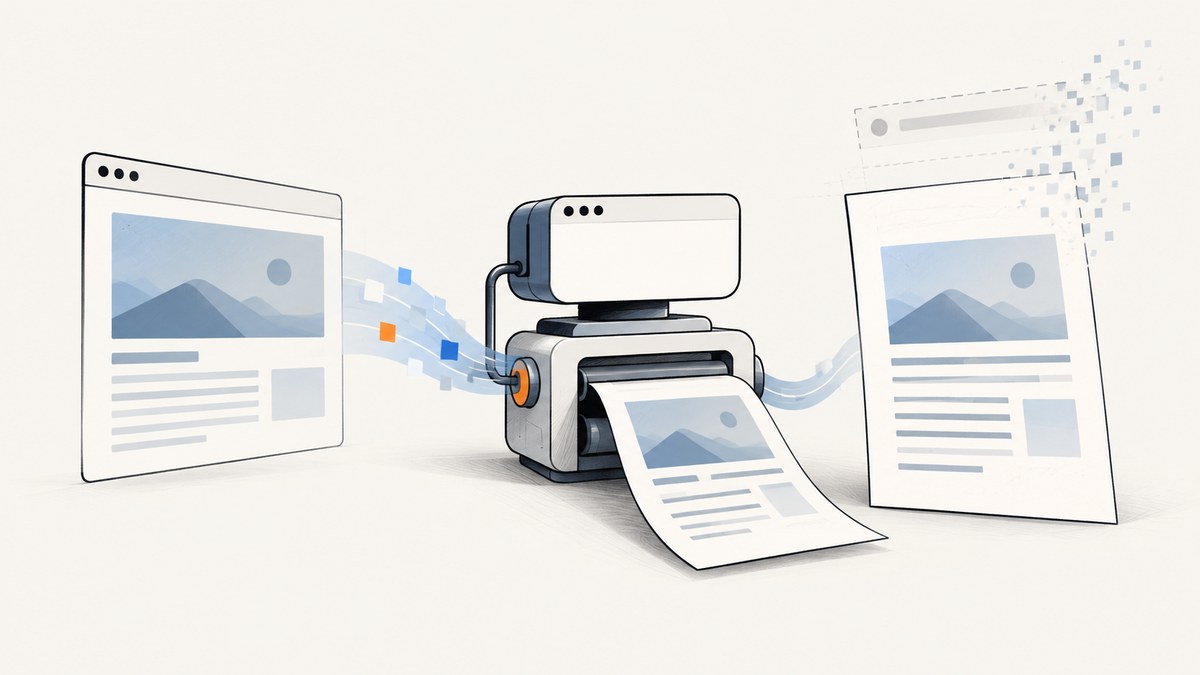
Direct answer: pass --no-pdf-header-footer to Headless Chrome together with --print-to-pdf. This suppresses Chrome’s generated print header and footer, including the timestamp, page URL, and page number.
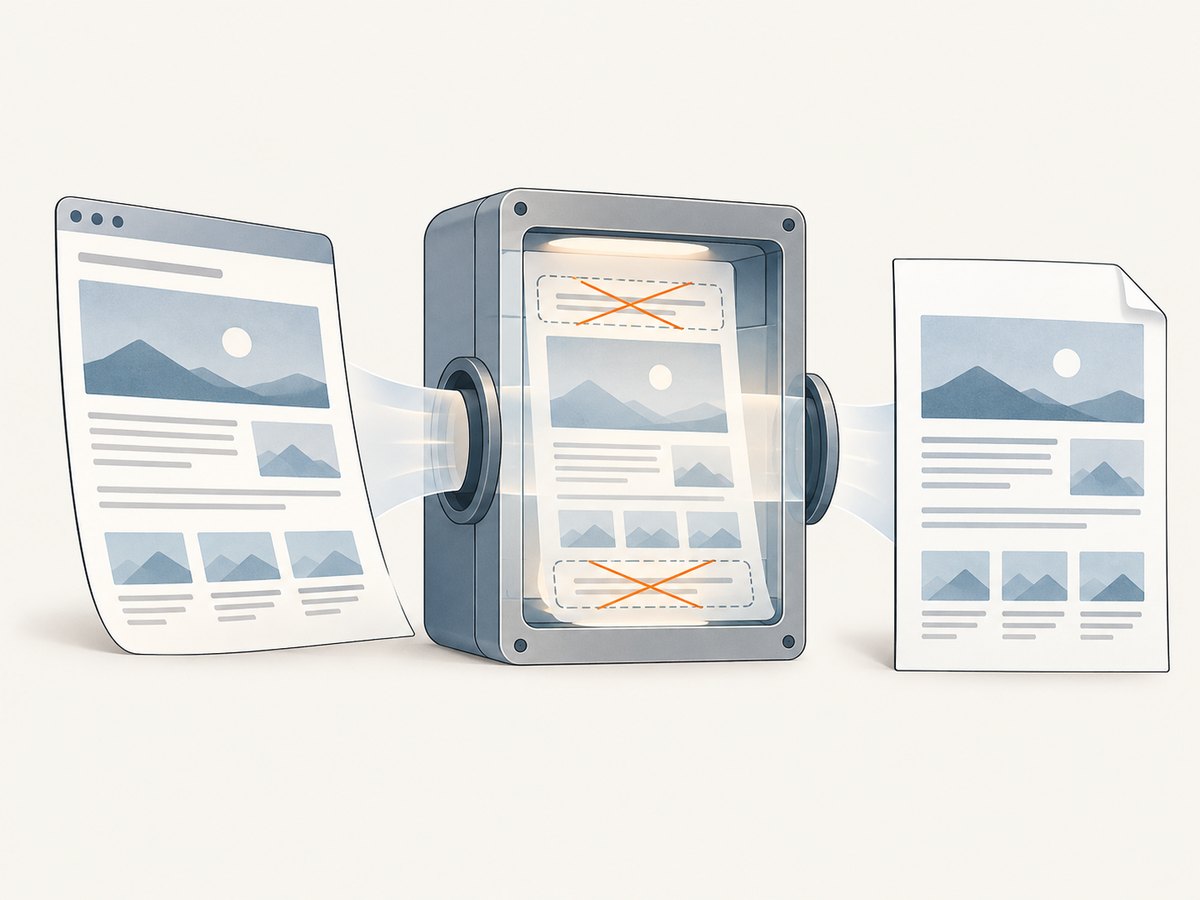
chrome --headless --print-to-pdf --no-pdf-header-footer https://example.com/The flag removes browser-generated print furniture; it does not remove text or graphics authored by the page itself. Chrome documents the header as the current date and time, and the footer as the URL and page number. See the Chrome Headless command-line reference.
1. Generate a PDF without the timestamp or URL
Linux
google-chrome --headless --no-sandbox --print-to-pdf=/tmp/example.pdf --no-pdf-header-footer https://example.com/Use --no-sandbox only when your execution environment requires it, such as a properly isolated container. Keep the sandbox enabled in normal desktop or server runs.
macOS
/Applications/Google\ Chrome.app/Contents/MacOS/Google\ Chrome --headless --print-to-pdf="$PWD/example.pdf" --no-pdf-header-footer https://example.com/Windows PowerShell
& "$env:ProgramFiles\Google\Chrome\Application\chrome.exe" --headless --print-to-pdf="$PWD\example.pdf" --no-pdf-header-footer "https://example.com/"If your Chrome binary is named chromium or chromium-browser, substitute that executable name. Quote URLs and output paths when they contain shell characters or spaces.
2. What the flag removes
| Element | Source | Removed by --no-pdf-header-footer? |
|---|---|---|
| Date and time | Chrome print header | Yes |
| Page URL | Chrome print footer | Yes |
| Page number | Chrome print footer | Yes |
| Text, images, or CSS in the document | Your page | No |
The command-line option suppresses the header and footer as a pair. The documented reference does not provide separate command-line switches for removing only the date, only the URL, or only the page number.
3. Older Chrome versions
Some older Chrome builds do not recognize the current spelling. Try the former option name:
chrome --headless --print-to-pdf --print-to-pdf-no-header https://example.com/Check the generated PDF and the process output after changing the flag. If Chrome reports an unknown switch, upgrade to a current build or use the former spelling documented for older versions.
4. Add the flag to automation
Any automation that ultimately launches Chrome can pass the same argument. Keep the PDF output and the page URL as separate arguments so shell quoting cannot change the target.
Playwright (Node.js)
import { chromium } from 'playwright';

const browser = await chromium.launch({
  headless: true,
  args: ['--no-pdf-header-footer']
});
const page = await browser.newPage();
await page.goto('https://example.com/', { waitUntil: 'networkidle' });
await page.pdf({ path: 'example.pdf', format: 'A4', displayHeaderFooter: false });
await browser.close();
In Playwright, displayHeaderFooter: false controls Playwright’s own PDF header/footer templates. The Chrome command-line flag is still the direct fix for a command launched with --print-to-pdf. If a framework launches a persistent Chrome process, put the flag in that process’s launch arguments.
Puppeteer (Node.js)
import puppeteer from 'puppeteer';

const browser = await puppeteer.launch({
  headless: true,
  args: ['--no-pdf-header-footer']
});
const page = await browser.newPage();
await page.goto('https://example.com/', { waitUntil: 'networkidle0' });
await page.pdf({ path: 'example.pdf', format: 'A4', displayHeaderFooter: false });
await browser.close();
5. When you control the printed page: CSS margin content
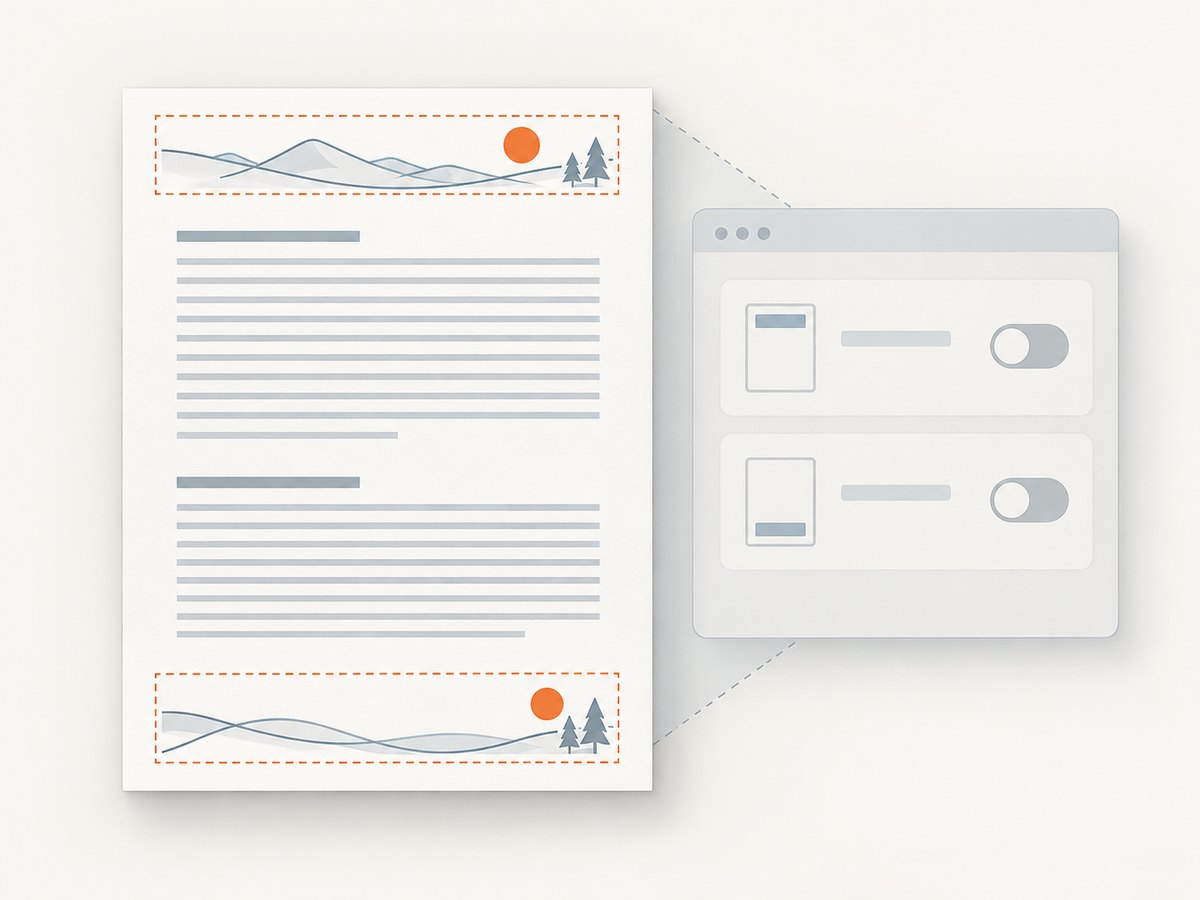
Chrome 131 introduced CSS-generated page-margin content for printing, including PDF output. This is useful when you want to author your own material in the margins, such as a report title or a legal notice. It is separate from the command-line suppression flag: turn off browser-generated headers and footers, then define the content you want.
@page {
  margin: 18mm;
  @top-center {
    content: 'Internal report';
    font-size: 9pt;
  }
  @bottom-right {
    content: counter(page);
    font-size: 9pt;
  }
}

@media print {
  body { margin: 0; }
}
For a completely clean margin, set the page margins to zero or to a size that leaves no room for browser-generated elements, and keep --no-pdf-header-footer on the Chrome command. CSS margin boxes are for content you author; they are not an alternate spelling of the Headless flag. See Chrome’s print margin documentation for the Chrome 131 behavior.
6. Verification checklist
- Confirm the command exits successfully and creates the expected PDF file.
- Open the first and last pages; check both top and bottom margins.
- Search the PDF text for the page URL and the current date.
- If either remains, confirm that the process launching Chrome received the flag, rather than a different Chrome executable.
- Check the page itself for authored date, URL, or page-number text; the flag cannot remove document content.
7. Troubleshooting
| Symptom | Likely cause | Fix |
|---|---|---|
| Date, URL, or page number still appears | The flag was omitted, attached to a different process, or the PDF was created by another renderer. | Inspect the exact launch command, add --no-pdf-header-footer, and regenerate with the same Chrome binary. |
unknown option: no-pdf-header-footer |
Older Chrome build. | Try --print-to-pdf-no-header or upgrade Chrome. |
| Only a custom header/footer remains | The page or automation library supplied its own template. | Remove that template and, in Playwright or Puppeteer, set displayHeaderFooter: false. |
| The URL appears inside the page body | The site authored or injected the URL as normal content. | Remove it in the page source, print stylesheet, or a controlled DOM step; the Chrome flag affects print furniture only. |
| Blank or incomplete PDF | Navigation or loading finished before the page was ready. | Wait for the required selector or network idle in your automation, then call PDF generation. Check that the URL is reachable from the Chrome environment. |
| Different output between machines | Different Chrome versions, fonts, viewport settings, or print CSS. | Pin the Chrome version, set the same viewport and paper options, and keep the same print stylesheet. |
| Command works interactively but fails in a service | Executable path, permissions, sandbox policy, or writable output directory differs. | Use an absolute executable and output path, verify service permissions, and review the service’s stderr log. |
8. Performance, reliability, and cost notes
- The flag changes print furniture only, so it normally has negligible effect on page load or rendering time.
- PDF generation still waits on navigation, scripts, fonts, images, and print layout. Make readiness checks explicit in automation.
- For repeatable builds, pin the Chrome version and fonts, set a fixed paper format and margins, and retain the exact command-line arguments.
- Cache or reuse browser processes when generating many PDFs, while isolating page state between jobs.
- Headless Chrome itself has no per-document API charge; your infrastructure costs are the browser runtime, CPU, memory, storage, and network traffic.
9. Or skip the browser setup
ScreenshotNeo provides a website capture API and MCP server. Its PDF capture can handle the browser workflow for you, while the same service also supports PNG, JPEG, and WebP screenshots. Cookie or consent banners, newsletter popups, and chat widgets are removed before the shot. Bot checks, blank pages, timeouts, failed loads, and cache hits are not billed, and the response identifies the result with X-Page-Verdict and X-Billed headers. AI agents can call its MCP tools from Claude, Cursor, or another MCP client.
See the ScreenshotNeo API docs for the full option list. A direct request is:
cURL
curl -G "https://api.screenshotneo.com/v1/shot" -d access_key=YOUR_API_KEY --data-urlencode url=https://stripe.com -o shot.webpPython
import requests
r = requests.get("https://api.screenshotneo.com/v1/shot", params={"access_key": "YOUR_API_KEY", "url": "https://stripe.com"}, timeout=90)
open("shot.webp", "wb").write(r.content)
Node.js
const q = new URLSearchParams({ access_key: 'YOUR_API_KEY', url: 'https://stripe.com' });
const res = await fetch(`https://api.screenshotneo.com/v1/shot?${q}`);
The endpoint can return PDF as well as image formats; use the output and format options documented for your request. Every plan includes the features: 1,000 shots per month are free with no card, and paid plans start at $5 for 3,000 shots. Create a free ScreenshotNeo account.
10. FAQ
Can I remove only the URL but keep the timestamp?
The documented Headless command-line switch suppresses the header and footer together. Use page-controlled CSS or a different PDF pipeline if you need a selective layout.
Does the flag remove a date printed by the website?
No. It removes Chrome’s generated print furniture. A date in the page DOM, canvas, image, or print stylesheet remains.
Do I need CSS to remove the default header and footer?
No. Use --no-pdf-header-footer. CSS is relevant when you want custom page-margin content or control the page’s own print layout.
Why does an automated PDF still show a header?
Check both layers: the launcher must pass the Chrome flag, and the automation library must not enable its own header/footer template.


