How to Remove Top and Bottom Borders From jsPDF Pages
Remove unexplained top and bottom lines in jsPDF exports by switching canvas JPEG output to PNG and checking image geometry.
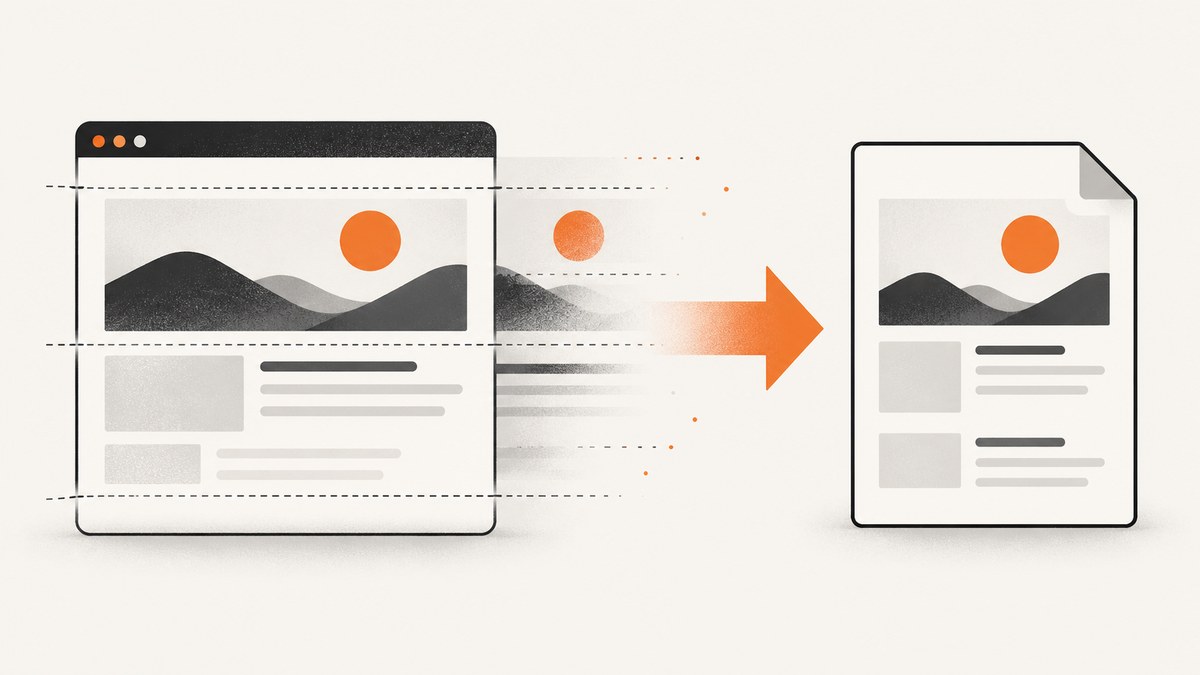
Top and bottom lines in a jsPDF file usually come from the image encoding or placement stage, not from the HTML element you captured. In the documented html2canvas, canvg and jsPDF pipeline, the page and canvas had no borders, but the PDF did. The code exported each canvas as JPEG and inserted it with addImage. Switching the data URL to PNG, passing 'PNG' to jsPDF, and preserving transparent pixels removed the artifact.
Start with this change:
const canvasImg = canvas.toDataURL('image/png');
if (i !== 0) doc.addPage();
doc.addImage(canvasImg, 'PNG', 15, 0, imgWidth, imgHeight);
The format passed to addImage must match the data URL. If a line remains, investigate page-edge clipping, an image that is taller than the usable page, or a separate PDF drawing command such as rect, line, a table border, header, footer or background.
1. Why jsPDF borders appear when the canvas has none
jsPDF is the PDF output layer; html2canvas and canvg create the source canvases. The documented report used canvas.toDataURL('image/jpeg', 1.0) and then called doc.addImage(..., 'JPEG', ...). The visible webpage and the inspected canvases were clean, while each PDF image had horizontal borders. The report concerned an older Internet Explorer 10/11-compatible pipeline, so reproduce the minimal case in the browser and library versions you actually support.
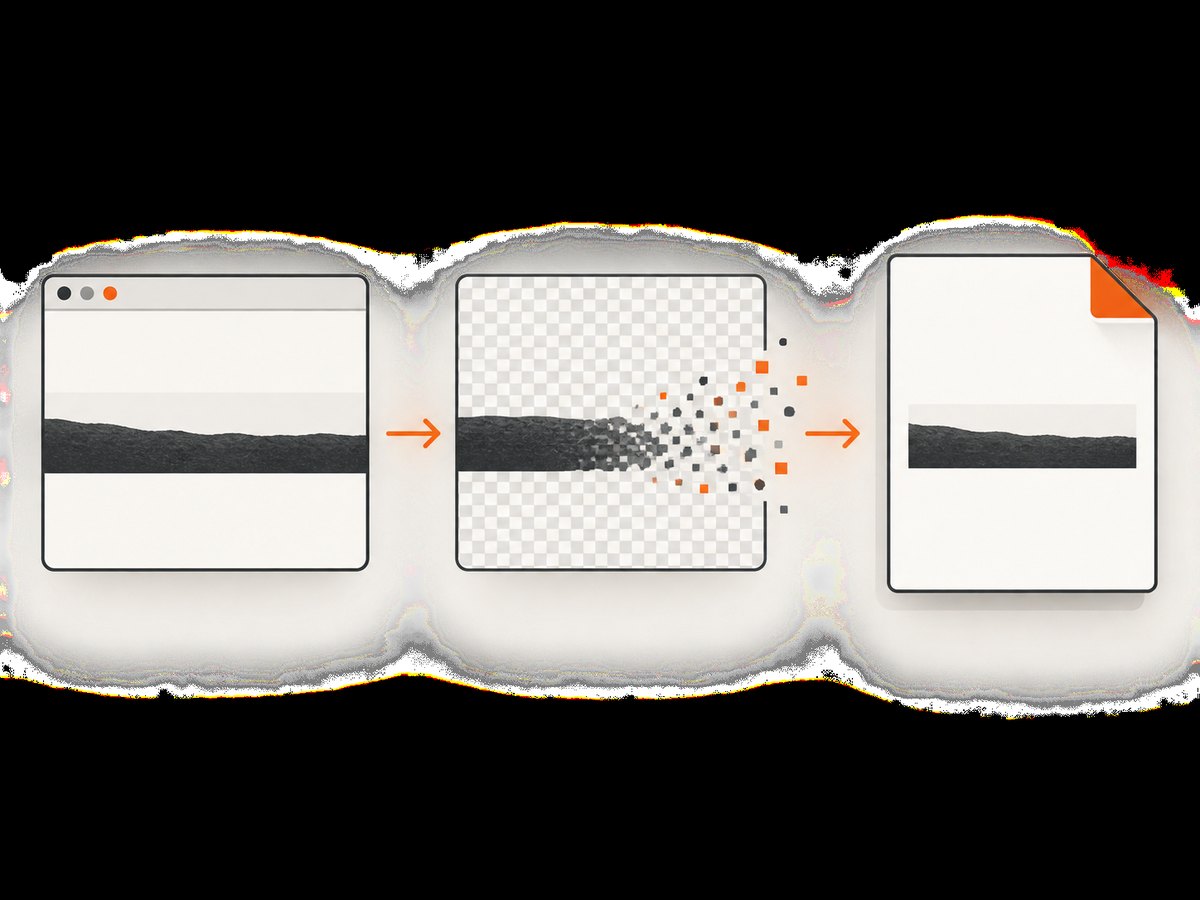
JPEG has no alpha channel. Transparent canvas pixels must be flattened against a background during encoding, and older browser or encoder combinations can produce dark or black edge pixels. When the JPEG is placed flush against a PDF page edge, those pixels look like a border. PNG preserves transparency and avoids that particular conversion artifact. The jsPDF project describes itself as a client-side JavaScript PDF-generation library; the image is already encoded before jsPDF places it on the page (jsPDF project).
2. Minimal PNG fix
Use a matching image type and keep your existing page loop:
function addCanvasPages(doc, canvases, imgWidth, imgHeight) {
  canvases.forEach((canvas, i) => {
    const canvasImg = canvas.toDataURL('image/png');

    if (i !== 0) {
      doc.addPage();
    }

    doc.addImage(canvasImg, 'PNG', 15, 0, imgWidth, imgHeight);
  });
}
Do not export PNG and label it JPEG, or export JPEG and label it PNG. jsPDF uses the type argument to choose its decoder. A mismatch can create a broken image, unexpected colors or another rendering artifact.
Transparent versus opaque backgrounds
If your canvas should have a solid background, set it deliberately before capture instead of relying on JPEG flattening:
const canvas = await html2canvas(node, {
  backgroundColor: '#ffffff'
});
const dataUrl = canvas.toDataURL('image/png');
doc.addImage(dataUrl, 'PNG', 15, 0, imgWidth, imgHeight);
For a transparent result, use a renderer configuration that leaves the canvas transparent and export PNG. A CSS rule such as border: none only affects a CSS border. It cannot remove pixels introduced later by image encoding or PDF drawing.
3. Complete html2canvas and jsPDF example
This browser example captures one element, creates a PDF, and adds multiple canvases without drawing at the page edge by accident. Install or load current versions of html2canvas and jsPDF according to their documentation, then adapt the import style to your build.
import html2canvas from 'html2canvas';
import { jsPDF } from 'jspdf';

async function exportElementToPdf(selector) {
  const element = document.querySelector(selector);
  if (!element) throw new Error(`No element matches ${selector}`);

  const canvas = await html2canvas(element, {
    backgroundColor: null,
    useCORS: true,
    scale: Math.min(window.devicePixelRatio || 1, 2)
  });

  // PNG keeps transparent edge pixels instead of JPEG-flattening them.
  const imageData = canvas.toDataURL('image/png');
  const pdf = new jsPDF({
    orientation: 'portrait',
    unit: 'mm',
    format: 'a4'
  });

  const pageWidth = pdf.internal.pageSize.getWidth();
  const pageHeight = pdf.internal.pageSize.getHeight();
  const margin = 15;
  const usableWidth = pageWidth - margin * 2;
  const renderedHeight = canvas.height * usableWidth / canvas.width;
  const usableHeight = pageHeight - margin * 2;

  // This simple example puts one image on each page. Split tall content
  // into slices if renderedHeight is larger than usableHeight.
  const height = Math.min(renderedHeight, usableHeight);
  pdf.addImage(imageData, 'PNG', margin, margin, usableWidth, height);
  pdf.save('export.png-fix.pdf');
}

exportElementToPdf('#report').catch(console.error);
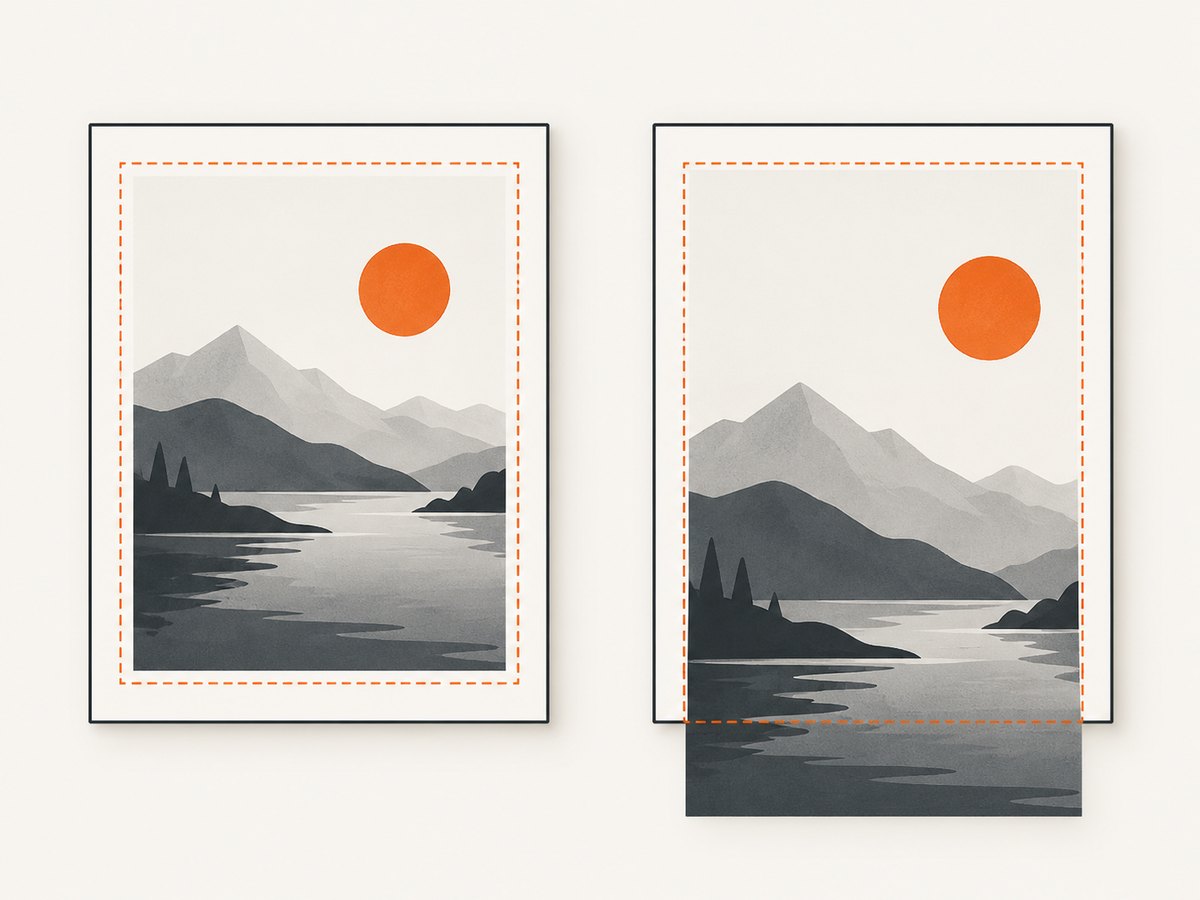
If your report spans several pages, render a canvas slice for each page or scale the image to fit. Calling addImage with a height larger than the page can put the last rows outside the page box. Some viewers show that clipped edge as a line.
Multi-page pattern
const pdf = new jsPDF('p', 'mm', 'a4');
const margin = 10;
const pageWidth = pdf.internal.pageSize.getWidth();
const pageHeight = pdf.internal.pageSize.getHeight();
const width = pageWidth - margin * 2;
const height = pageHeight - margin * 2;

for (let i = 0; i < canvases.length; i += 1) {
  if (i > 0) pdf.addPage();
  const png = canvases[i].toDataURL('image/png');
  pdf.addImage(png, 'PNG', margin, margin, width, height);
}

pdf.save('pages.pdf');
4. Geometry checks that prevent edge lines
- Keep coordinates inside the page. Confirm that
x + widthandy + heightdo not exceed the page dimensions in the units configured for jsPDF. - Reserve a margin. Start with a small positive
xandywhile debugging. A zero coordinate is valid, but it makes clipping harder to distinguish from an encoding artifact. - Check aspect ratio. Compute
height = canvas.height * width / canvas.widthinstead of guessing dimensions. - Inspect the page format and orientation. A portrait A4 page has different usable dimensions from letter, landscape or a custom format.
- Check rounding. Converting pixels to millimetres and rounding early can leave a one-pixel strip outside the expected rectangle. Keep calculations as floating-point values until the final call.
- Test at 100% zoom. Viewer interpolation can make a one-pixel edge look thicker at other zoom levels.
5. Find out whether the line is an image artifact
Open the PNG data URL or save it as a file before it reaches jsPDF. If the line is already visible in the PNG, the issue is in the canvas render or export. If the PNG is clean but the PDF is not, isolate placement and drawing commands.
function downloadDataUrl(dataUrl, filename) {
  const link = document.createElement('a');
  link.href = dataUrl;
  link.download = filename;
  link.click();
}

const png = canvas.toDataURL('image/png');
downloadDataUrl(png, 'debug-canvas.png');
Temporarily remove every command except addImage. In particular, comment out doc.rect, doc.line, table styling, page backgrounds, headers and footers. Reintroduce them one at a time. A genuine PDF line remains when the image is removed; an image artifact disappears when you replace JPEG with PNG.
6. Troubleshooting checklist
| Symptom | Likely cause | Fix |
|---|---|---|
| Black top or bottom edge only in PDF | JPEG flattening transparent canvas pixels | Use toDataURL('image/png') and addImage(..., 'PNG'). |
| Line appears in the exported PNG | Canvas render, source CSS, or a drawing operation | Inspect the canvas before jsPDF; remove source borders and isolate overlays. |
| Line occurs at every page boundary | Image height or y position is clipped | Use margins, calculate usable height, and split tall canvases. |
| Only one page has a line | That page has different dimensions or an extra drawing command | Log page size, coordinates and commands for that iteration. |
| Changing the type string makes the PDF worse | Data format and decoder label do not match | PNG data URL with 'PNG'; JPEG data URL with 'JPEG'. |
| Artifact appears in one viewer only | Viewer interpolation or PDF rendering difference | Compare at 100% in another viewer and inspect the source PNG. |
| Cross-origin content is missing | Canvas security and image CORS rules | Serve images with suitable CORS headers and use the renderer’s CORS option where supported. |
| Old browser behaves differently | Legacy canvas or jsPDF implementation | Reduce the example to one canvas, test PNG, and verify the target browser explicitly. |
7. Performance, memory and reliability
PNG is lossless and can be larger than JPEG, especially for photographic pages. The trade-off is predictable transparency handling and no JPEG quality parameter. Large canvases also consume memory twice: once for the pixel buffer and again for the base64 data URL. Capture only the required element, keep the render scale reasonable, and release references after each page when generating long documents.
For multi-page reports, process one canvas at a time instead of storing every full-resolution canvas. If a page is mostly photographic and has no transparent edges, JPEG may still be appropriate; validate it in the browsers and PDF viewers you support. The reported border case specifically involved JPEG output, so PNG is the first diagnostic and the safest correction for transparent or edge-to-edge captures.
Do not treat a successful pdf.save() call as proof that every page rendered correctly. Add a small regression fixture containing transparent edges, a full-width element and a page break. Compare the source PNG and the PDF in your supported environments after upgrading html2canvas, canvg or jsPDF.
8. Or skip the browser setup
If your goal is a clean screenshot or PDF of a URL rather than a custom client-side PDF layout, ScreenshotNeo provides a single request endpoint. It handles the browser capture for you, including full-page screenshots and PDF output. Cookie and consent banners, newsletter popups and chat widgets are removed before the shot. Bot checks, blank pages, failed loads, timeouts and cache hits are not billed, and the response reports the result through X-Page-Verdict and X-Billed headers. Its MCP server also lets Claude, Cursor and other MCP clients call take_screenshot, get_page_info and capture_pdf.
See the ScreenshotNeo API documentation for all parameters. A direct image request looks like this:
cURL
curl -G "https://api.screenshotneo.com/v1/shot" -d access_key=YOUR_API_KEY --data-urlencode url=https://stripe.com -o shot.webpPython
import requests
r = requests.get("https://api.screenshotneo.com/v1/shot", params={"access_key": "YOUR_API_KEY", "url": "https://stripe.com"}, timeout=90)
r.raise_for_status()
open("shot.webp", "wb").write(r.content)
Node.js
const q = new URLSearchParams({ access_key: 'YOUR_API_KEY', url: 'https://stripe.com' });
const res = await fetch(`https://api.screenshotneo.com/v1/shot?${q}`);
if (!res.ok) throw new Error(`${res.status} ${await res.text()}`);
const fs = await import('node:fs/promises');
await fs.writeFile('shot.webp', Buffer.from(await res.arrayBuffer()));
ScreenshotNeo supports PNG, JPEG, WebP and PDF responses, full-page capture with lazy images loaded, CSS-selector element capture, custom CSS and JavaScript, waits, request blocking, headers, cookies, user agents, authorization, timezone, geolocation, resizing, caching, signed links, asynchronous jobs, webhooks, bulk capture and a usage API. Every feature is available on every plan. The Free plan includes 1,000 shots per month without a card; paid plans start at $5 for 3,000 shots.
Create a free ScreenshotNeo account to try 1,000 screenshots per month with no card.
9. FAQ
Can CSS remove the PDF line?
Only if the line is a CSS border in the source. CSS cannot remove pixels added while encoding a canvas or drawing a PDF command.
Should every jsPDF image be PNG?
No. Use PNG when transparency or crisp edges matter. JPEG can be smaller for opaque photographic content, but test the exact browser and pipeline.
Why does the line show at the bottom of every page?
That pattern points to repeated geometry or encoding. First test PNG, then verify image height, page margins and any footer or rectangle drawn in the page loop.
Does this fix depend on html2canvas?
The documented symptom uses html2canvas and canvg, but the diagnostic applies to any canvas-to-image-to-PDF pipeline: inspect the encoded image, match its format, then verify placement.


