How to Remove Watermarks from Generated PDFs
Remove a watermark from a PDF you own in Acrobat, or fix it in the Word source and export again. Learn what to check when removal fails.
For a PDF you own or are authorized to edit, open it in Acrobat desktop and choose See all tools > Edit a PDF > Watermark > Remove. If the PDF was generated from Word, remove the watermark in the Word source and export the PDF again; this is usually the repeatable fix when the mark keeps appearing in generated copies. Before editing, check that you have permission to modify the file. Adobe documents both single-file removal and bulk removal in Acrobat. (Adobe’s Acrobat instructions; Microsoft’s Word instructions.)
If Acrobat cannot find the mark, it may be a comment stamp, a Word header, a background, or pixels baked into a scan rather than an Acrobat watermark object. The right fix depends on where the mark lives. This guide walks through how to identify it, remove it safely, and check the resulting PDF.
1. Check authorization and make a working copy
Remove a watermark only when you own the document or have permission from its owner. Watermarks can communicate status, classification, or branding. They can also be part of an attribution, license, or document-control process. If you are dealing with a restricted file, ask its owner or administrator for permission and, if necessary, an unlocked copy. Do not try to bypass a password or editing restriction.
Save a working copy before editing. Give the output a new filename or choose a separate output folder. That makes it easy to compare the original and edited versions and recover if the result loses content, formatting, or annotations. If the PDF is digitally signed, check with the signer or document administrator before editing; edits may affect the validity of a signature or certification.
2. Remove a watermark in Acrobat desktop
- Open the PDF in Acrobat desktop and go to the Home view.
- Choose See all tools > Edit a PDF.
- In the Edit pane, select Watermark > Remove.
- Review Acrobat’s prompt and confirm the removal.
- Save the result as a new file, then inspect the pages where the watermark appeared.
Adobe’s current desktop workflow places removal in the Edit a PDF tools. Menu labels can vary slightly by version, but look for the Watermark controls inside PDF editing. If the command is missing, confirm that you are using Acrobat desktop with the PDF editing tools available and that the file is open for editing.
Remove watermarks from multiple PDFs
Acrobat’s removal dialog supports batches. Choose Add files > Add Files, select the PDFs, and confirm the selection. Review the files and any errors reported by Acrobat. In Output Options, specify the destination folder and filename preferences, then run the operation. Keep the output separate from source files so you can review each result before replacing or distributing anything. See Adobe’s bulk removal steps for the dialog sequence.
For recurring documents, consider whether the watermark was inserted upstream in a template or generation workflow. Removing it from each output treats the symptom. Correcting the source prevents it from being added again.
3. If the PDF came from Word, remove it at the source
When you control the Word document used to generate the PDF, edit that source and export a fresh PDF. In Word, open the document and select Design > Watermark > Remove Watermark. Then save the document and export it to PDF again. This preserves a reproducible workflow: future exports will not inherit the unwanted watermark.
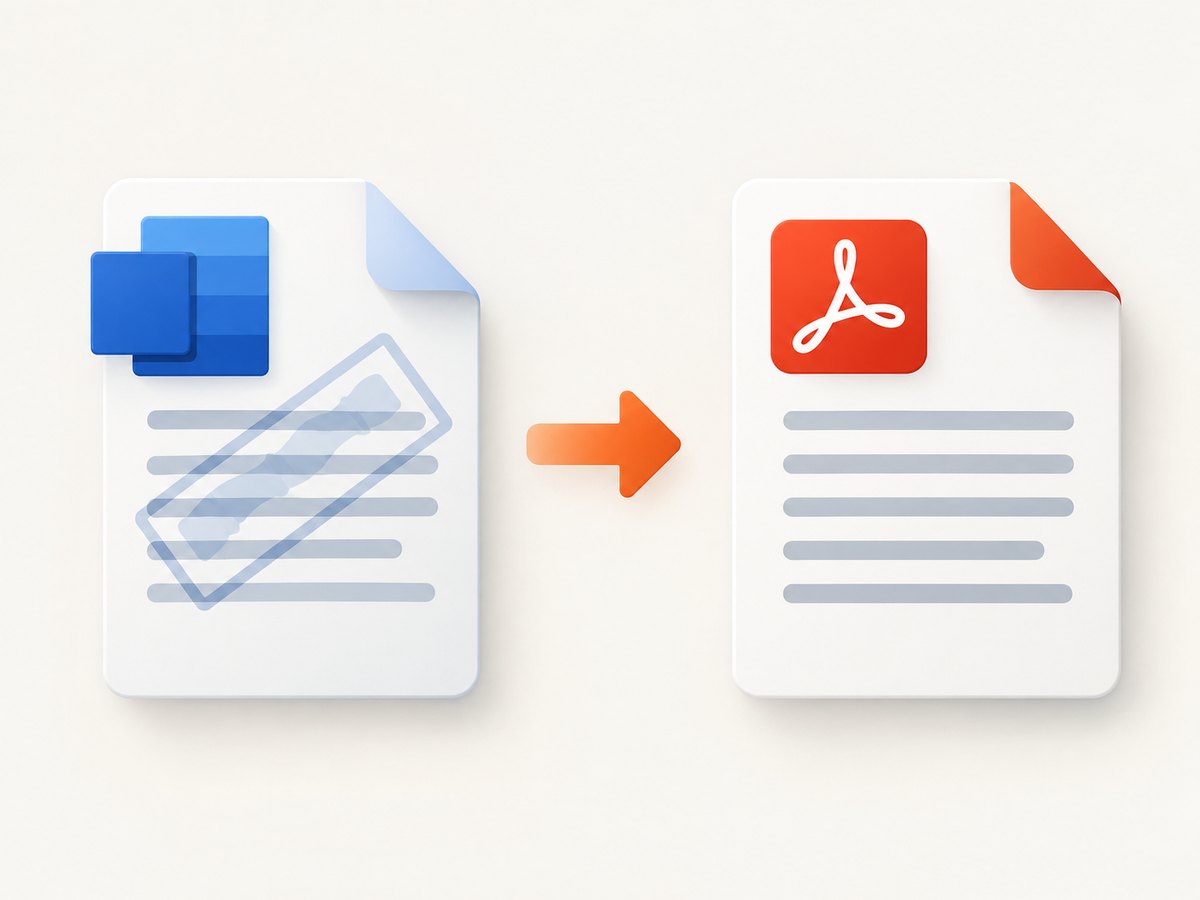
If the command does not remove it, Microsoft recommends opening the header area: double-click near the top of a page, move over the watermark until the selection cursor appears, select the mark, and press Delete. Some documents have separate header content or watermarks across sections, so check pages in each section. Remove any remaining instances and export a new PDF. The menu name or location can differ across Word versions and platforms. See Microsoft Support.
4. Identify what kind of mark you have
“Watermark” is often used casually for any mark behind or over page content, but PDFs can represent marks in different ways. Adobe’s documentation distinguishes a fixed watermark from a stamp comment: a stamp is an annotation that readers can open, move, change, or delete, while a watermark is integrated into the page as a fixed element. That difference explains why selecting a visible mark may work for a stamp but not for a true watermark. See the Adobe PDF reference.
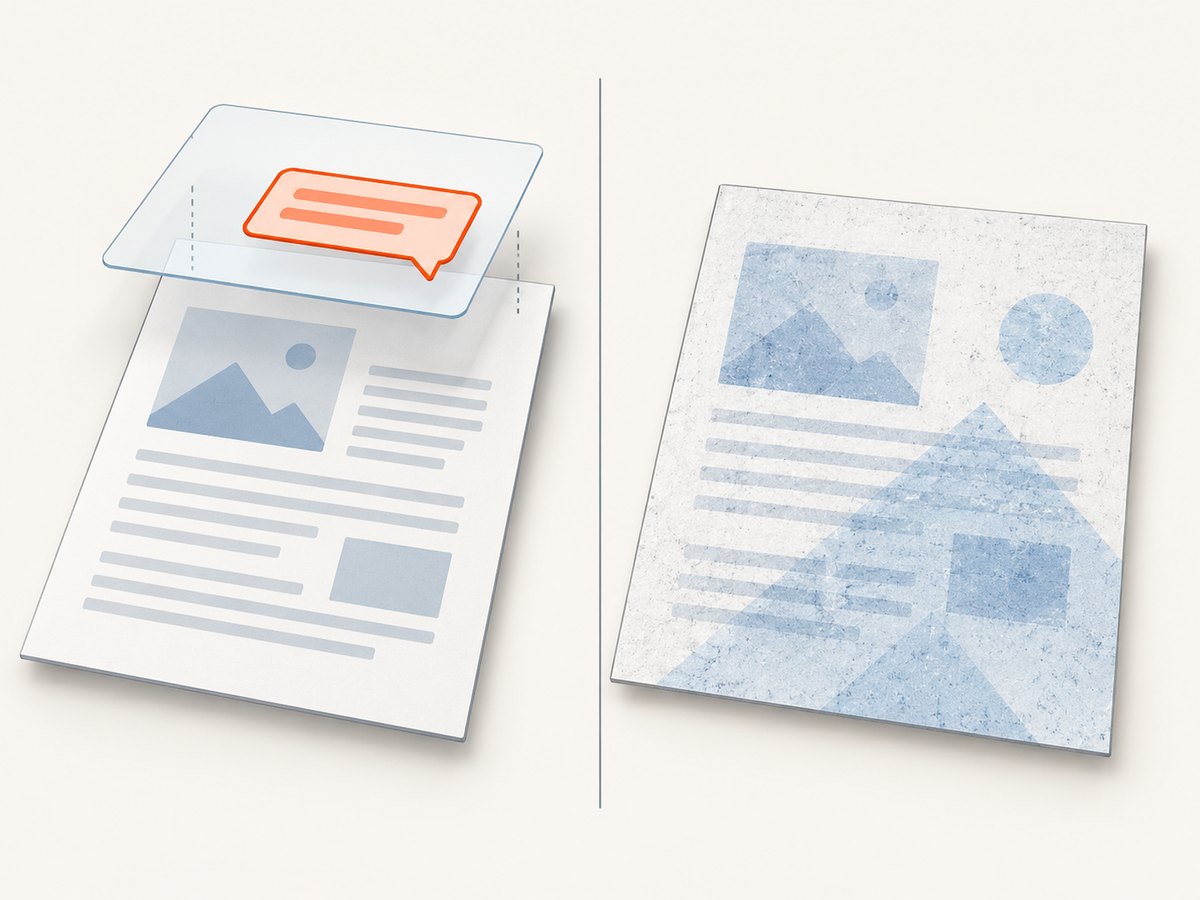
| What you see | Likely source | First action |
|---|---|---|
| Acrobat removes the same overlay throughout the PDF | Watermark object | Use Acrobat’s Watermark > Remove command. |
| A selectable mark opens or behaves like a comment | Stamp or annotation | Review the comments or annotations pane; delete only if authorized. |
| The mark returns after exporting a new PDF | Source document, template, or generation step | Remove it in the source, then regenerate. |
| The mark is part of the page image | Scan or flattened page artwork | Use the original clean source, if available. Editing image content may be destructive. |
A mark that looks like text is not necessarily editable text. Scanning, flattening, and conversion can turn text and graphics into one page image. In that case, Acrobat’s watermark removal tool may not recognize it as a removable watermark. There is no single guaranteed removal method for every flattened or scanned PDF; obtain a clean original where possible instead of obscuring page content.
5. Verify the output before sharing
Do not stop when the overlay disappears. Compare the output with the original, especially pages where the mark overlapped content. Check that:
- The page count and page order are correct.
- Text can still be selected and searched where it was searchable before.
- Images, diagrams, links, form fields, and annotations remain as expected.
- Page size, margins, and layout have not shifted.
- Any signatures, permissions, or accessibility requirements have been reviewed by the appropriate person.
- The output filename and folder make it clear which copy is the edited version.
Adobe’s PDF Services documentation describes PDF permission controls such as copying, editing, printing, and encryption. If permissions prevent editing, resolve that with the document owner rather than attempting to bypass the restriction. If the file is part of a controlled or signed workflow, validate it through that workflow before distribution. (Adobe PDF Services documentation.)
6. Troubleshooting: “Why can’t Acrobat find the watermark?”
The Remove command is unavailable
Confirm you opened the PDF in Acrobat desktop and selected Edit a PDF. Check whether the file is protected or editing is restricted. If you are not authorized to unlock or modify it, ask the owner for an editable copy.
Acrobat says there is no watermark, but the mark is visible
The visible item may be a stamp comment, header, background, or graphic embedded in a scanned page. Try identifying whether it behaves like a comment. If it is a Word-generated document and you have the source, inspect the Word header and watermark settings. For a scan or flattened page, request the clean original; deleting or covering pixels can also damage underlying content.
The watermark disappears on some pages only
Check the full document, including pages with different layouts or section settings. The watermark may have been applied only to selected pages, or the PDF may contain different page content. For Word sources, inspect each section and its headers before exporting again.
The watermark returns after export
The source document, template, or document-generation step is adding it back. Remove it in the source and create a new PDF. If another person or system generates the file, ask the owner or administrator to change that source configuration.
The edited file will not save or Acrobat reports an error
Check for editing restrictions, a damaged input file, or an output path that is unavailable or read-only. Save a working copy to a folder you can write to, and try that copy. For batch operations, review Acrobat’s per-file errors and rerun only the affected items after checking their permissions and integrity.
The result looks different or text is no longer searchable
Compare the output with the original at the same zoom and inspect page count, layout, and text search. A workflow that rasterizes or reconstructs pages can affect searchability and quality. Prefer removing a true watermark object or correcting the source file, and keep the original for comparison.
7. Performance, reliability, and cost considerations
For one PDF, the desktop workflow is a short sequence of menu actions. For a batch, Acrobat can add multiple files in one removal operation, but you should still review errors and output locations rather than assume every document succeeded. Large or complex documents may take longer to process; allow the operation to finish before opening or moving outputs.
The most reliable approach depends on how the PDF was created. Use Acrobat for a removable watermark object. Correct the Word source when that is where the mark originates. For image-based pages, a clean source scan or original document is more reliable than trying to erase pixels. Always retain the original until the edited file has passed your review.
Cost depends on the software and access you already have. The research for this guide establishes Acrobat’s removal workflow but does not establish a current Acrobat price, so check Adobe’s current product information before purchasing. If this is a one-off task, first check whether you already have authorized access to Acrobat or the original source software. No code is needed for the documented removal workflow, and the sources here do not establish a supported command-line or API operation for removing an existing watermark.
Or skip the browser setup
ScreenshotNeo captures web pages; it does not remove watermarks from PDFs. If your surrounding task is to capture a webpage that documents a PDF workflow, or to capture a page before and after you update its source, ScreenshotNeo can handle that browser capture with one request. It accepts a URL and returns an image or PDF. See the ScreenshotNeo API documentation.
curl -G "https://api.screenshotneo.com/v1/shot" -d access_key=YOUR_API_KEY --data-urlencode url=https://stripe.com -o shot.webpimport requests
r = requests.get(
"https://api.screenshotneo.com/v1/shot",
params={"access_key": "YOUR_API_KEY", "url": "https://stripe.com"},
timeout=90,
)
open("shot.webp", "wb").write(r.content)const q = new URLSearchParams({ access_key: 'YOUR_API_KEY', url: 'https://stripe.com' });
const res = await fetch(`https://api.screenshotneo.com/v1/shot?${q}`);
if (!res.ok) throw new Error(`Screenshot request failed: ${res.status}`);
await Bun.write('shot.webp', res);For cURL and Python, check the HTTP response before treating the saved bytes as a valid image; for Node.js, the example checks the status. Replace the example URL with the webpage you are authorized to capture, and keep your API key private. ScreenshotNeo removes known cookie banners, newsletter popups, and chat widgets before capture; bot checks, blank pages, and failed loads are never billed; an MCP server lets AI agents take screenshots; and 1,000 screenshots per month are free with no card, with paid plans starting at $5 for 3,000. Learn more at ScreenshotNeo, or sign up for 1,000 free screenshots a month with no card.
FAQ
Can I remove a watermark from a PDF for free?
It depends on the tools you already have and the document’s permissions. The steps above describe Acrobat and Word; check current product terms and access before choosing software.
Can I remove a watermark from a PDF on a phone?
This guide covers Acrobat desktop and Word source editing. Check the current tools available in your mobile PDF editor; the exact controls vary by app and version.
Does removing a watermark remove a digital signature?
Editing a signed or certified PDF can affect signature validity. Ask the signer or document administrator how to create an approved revised copy.
Can ScreenshotNeo remove a watermark from my PDF?
No. ScreenshotNeo captures webpages; it is not a PDF watermark-removal tool. Use the PDF workflow above for authorized edits.


