How to Remove Watermarks from Website Screenshots
Learn authorized ways to remove watermarks from website screenshots, what quality you lose, and how to capture a clean image from the start.
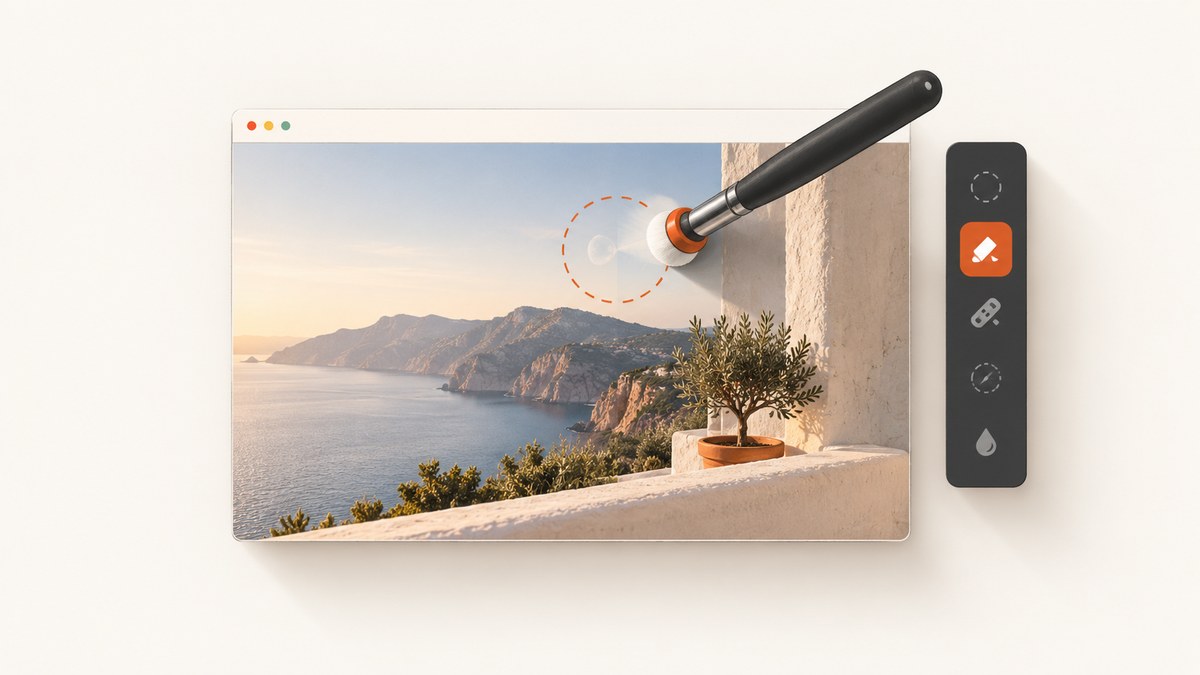
Removing a watermark from a website screenshot is appropriate only when you own the image or have permission to edit it. The safest option is to obtain an authorized clean source or capture the page again where the site’s terms allow it. If you must edit an existing screenshot, choose the method based on where the mark sits and how much image information you can afford to lose.
A watermark can identify an owner, provide attribution, show licensing information, or indicate that an export came from a trial tool. Removing or altering copyright-management information can create legal problems in some circumstances. The U.S. Copyright Office explains that the DMCA restricts removing or altering copyright-management information in certain situations; it does not say that every visible mark is legally protected or that every edit is unlawful. Review the applicable license, site terms, and rights before changing an image. U.S. Copyright Office DMCA guidance
Choose the right approach first
| Situation | Best first option | What you give up |
|---|---|---|
| The mark is on an expendable outer edge | Crop the edge | The cropped image area and possibly the original aspect ratio |
| You control the website or capture process | Capture a new clean screenshot | Time to reproduce the page state |
| A small mark sits over a plain background | Authorized overlay or restrained retouch | Some local pixel detail and potentially visible texture differences |
| A mark covers important content | Inpainting after masking the smallest possible region | The hidden detail cannot be recovered; the fill is an approximation |
| The mark is an attribution or license notice | Keep it or obtain written permission for an alternative | Removing it may violate the license or rights holder’s requirements |
Keep an untouched copy before you begin. Record where the screenshot came from, what permission you have, and whether the mark is a site logo, an export label, or information you added yourself. This makes it easier to reverse the edit and explain the provenance later.
Method 1: Capture an authorized clean screenshot
A new capture avoids reconstructing pixels that the watermark covered. If you own the page, have permission to capture it, or the site’s policy permits the use, reproduce the required state and capture it without adding a mark.
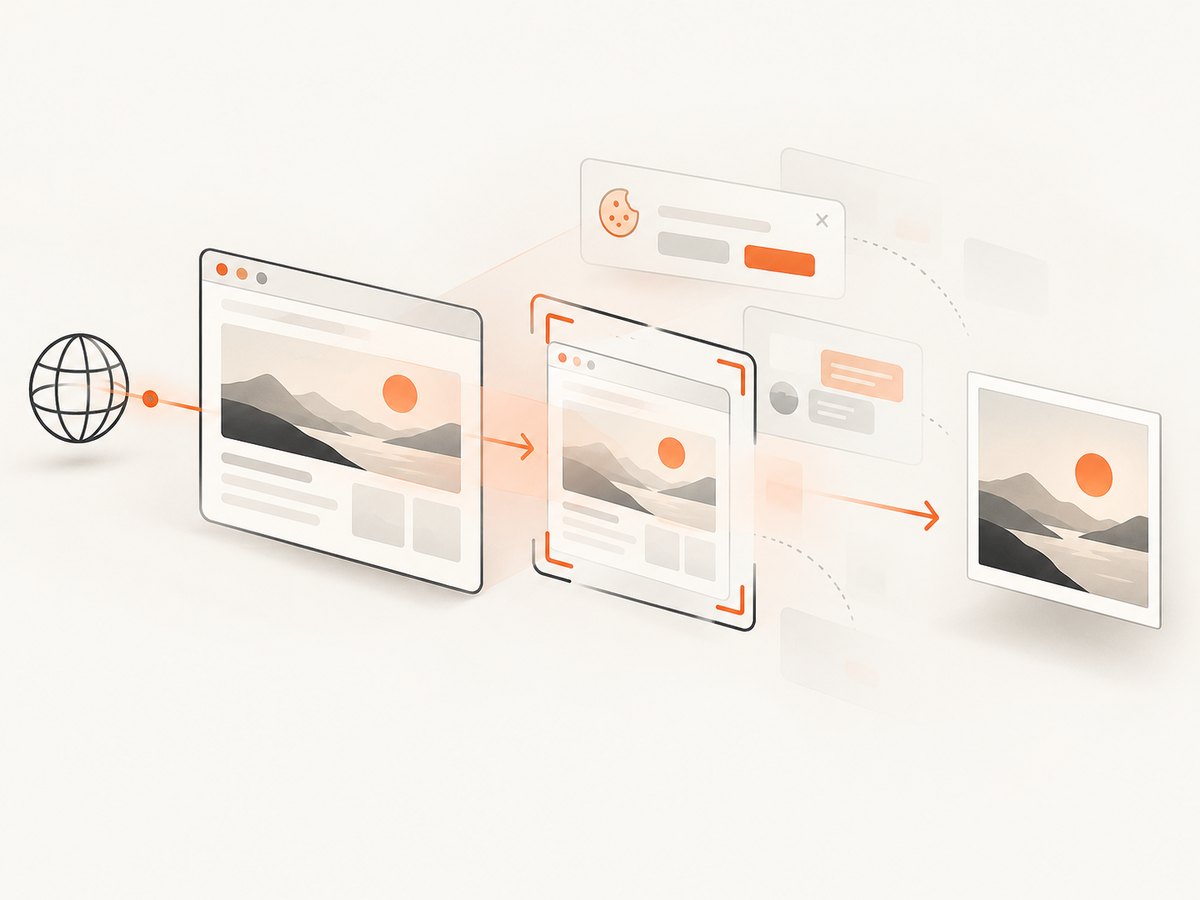
Browser workflow
- Open the page in a normal browser session and confirm that its terms allow your intended use.
- Dismiss consent dialogs and other overlays according to the site’s normal visitor flow.
- Set the viewport, zoom, device emulation, and scroll position you need.
- Wait for fonts, images, charts, and lazy-loaded content to finish rendering.
- Capture the page or the required element, then inspect the result at full size.
- Store the original capture and the URL, time, viewport, and relevant page-state details.
Do not use a screenshot to imply that a company sponsors, endorses, or supplied your work. The W3C, for example, permits screenshots of its website under conditions that prohibit implying W3C sponsorship or using screenshots to circumvent its logo policy. That is W3C’s policy, not a general permission rule for every website. W3C intellectual-rights policy
Playwright example
import { chromium } from 'playwright';

const browser = await chromium.launch();
const page = await browser.newPage({ viewport: { width: 1440, height: 900 }, deviceScaleFactor: 1 });
await page.goto('https://example.com', { waitUntil: 'networkidle' });
await page.screenshot({ path: 'clean-page.png', fullPage: true });
await browser.close();
For a single component, wait for a selector and capture that element instead of the whole page:
await page.locator('[data-report]').waitFor();
await page.locator('[data-report]').screenshot({ path: 'report.png' });
Browser automation gives you control, but you must maintain the browser runtime, deal with cookie banners and chat widgets, handle bot checks, and decide how to wait for dynamic content. If a page is personalized, pass the correct cookies or authentication headers only when you are authorized to do so.
Method 2: Crop a watermark from an edge
Cropping is the most predictable edit because it does not invent replacement pixels. It works when the mark is confined to a border that is not needed in the final composition.
- Open the untouched image in an editor that displays exact pixel dimensions.
- Draw a crop boundary just inside the watermark and leave a small safety margin.
- Check the resulting aspect ratio and whether important content is clipped.
- Export to a lossless format such as PNG when further editing is expected.
- Compare the cropped image with the original and retain both files.
Do not crop merely because it is easy. Removing a footer can also remove a copyright notice, a source URL, or context that viewers need. If the mark overlaps content rather than sitting on an expendable edge, use a localized method or obtain a clean source.
Method 3: Cover or retouch a localized mark
An overlay can be suitable when you are authorized to remove a small mark and the surrounding area is uniform. You might extend a matching background color, rebuild a simple border, or place an approved design element over the area. Retouching is less reliable over text, faces, charts, gradients, and detailed photographs.
Practical editing checklist
- Work on a duplicate layer or a copy of the file.
- Sample colors and textures immediately around the mark.
- Use a feathered selection only when the background supports a soft transition.
- Keep the edited region as small as possible.
- View the result at 100% and at the size where readers will see it.
- Check edges, repeated patterns, text baselines, and gradients for seams.
A solid rectangle over a watermark can make the edit more obvious than the original mark. If the image will be used in documentation, preserve enough surrounding context that readers do not mistake the altered region for original page content.
Method 4: Inpainting and content-aware fill
Inpainting fills a selected region by synthesizing pixels from nearby content. It is reconstruction, not recovery: the actual detail hidden under the watermark is unavailable. Results vary with the size, contrast, and placement of the mark.
Masking workflow
- Duplicate the source and create a mask covering only the watermark.
- Include the full mark, including faint edges and shadows, without masking unrelated content.
- Run the inpainting or content-aware fill operation.
- Inspect seams, repeated textures, text strokes, and geometry at full resolution.
- Undo and reduce the mask if the tool changes nearby details.
- Use a small second pass only for a remaining artifact; repeated passes can amplify errors.
Inpainting tends to perform better on sky, walls, flat colors, and repeating textures than on logos over text or complex interface controls. For a chart or code sample, a reconstructed line or character can change the meaning. In those cases, recapture the page or leave the attribution visible.
How to judge the result
Inspect the cleaned area at actual size, not only in a zoomed-out thumbnail. Look for duplicated objects, broken letters, halos, abrupt changes in sharpness, and patterns that do not continue naturally. Compare the edit against the untouched file in a side-by-side view.
Ask three questions:
- Is the edit authorized? If the answer is unclear, stop and check the license, site terms, or rights holder.
- Did the edit remove required attribution? Some licenses require credit or prohibit removing notices.
- Could a viewer be misled? Do not make an altered screenshot appear to be an unmodified product interface or an endorsement.
Or skip the browser setup
ScreenshotNeo captures a clean website screenshot through one request. Before capture, it accepts the cookie or consent banner like a visitor and removes more than 60 known consent platforms, newsletter popups, and chat widgets; each step can be turned off. That means you can avoid adding those overlays and then trying to paint them out later.
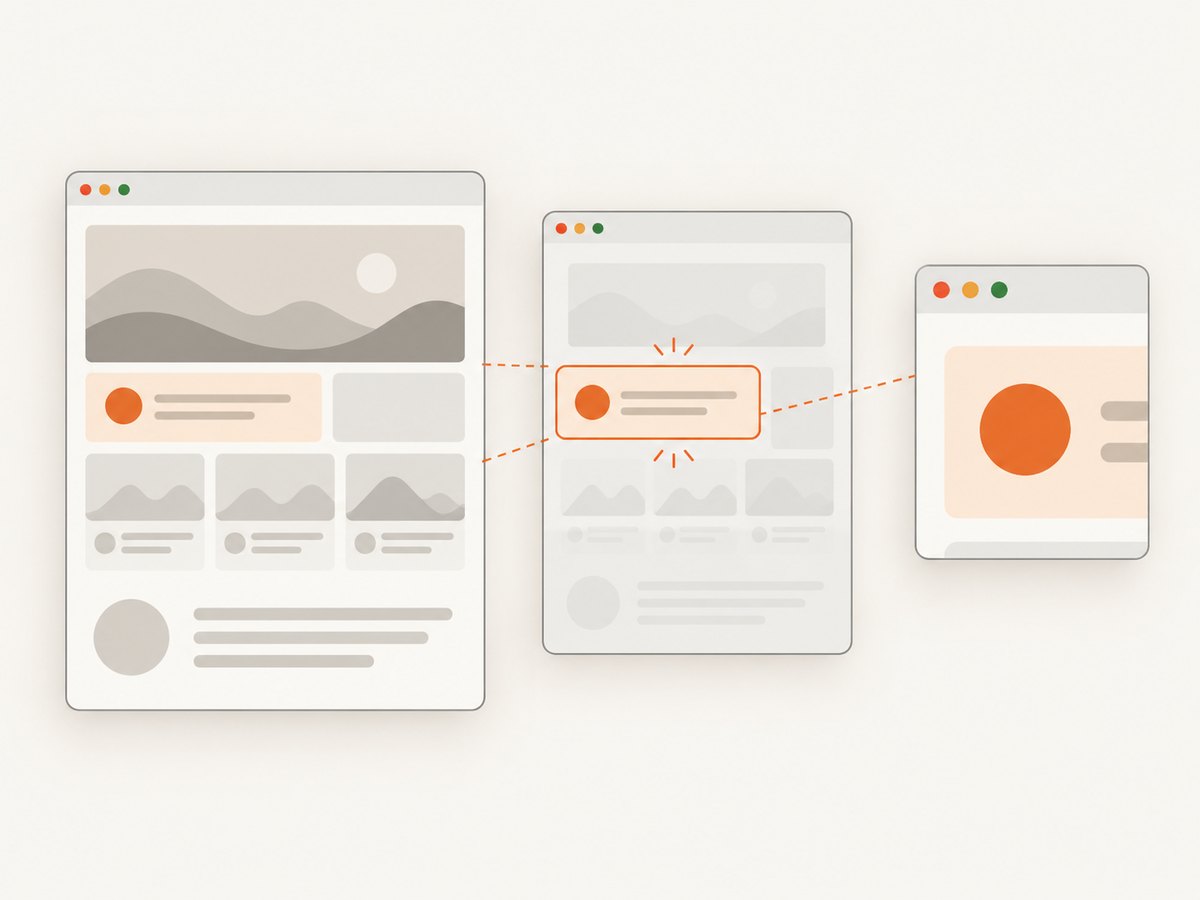
Only clean shots are billed. Bot checks or CAPTCHAs, blank pages, timeouts, failed loads, and cache hits cost nothing, and the response identifies the result with X-Page-Verdict and X-Billed headers. ScreenshotNeo also provides an MCP server with take_screenshot, get_page_info, and capture_pdf tools for Claude, Cursor, and other MCP clients.
See the complete parameter reference in the ScreenshotNeo documentation. The basic call returns PNG, JPEG, WebP, or PDF depending on the options you send:
cURL
curl -G "https://api.screenshotneo.com/v1/shot" \
  -d access_key=YOUR_API_KEY \
  --data-urlencode url=https://stripe.com \
  -o shot.webp
Python
import requests

r = requests.get(
    "https://api.screenshotneo.com/v1/shot",
    params={"access_key": "YOUR_API_KEY", "url": "https://stripe.com"},
    timeout=90,
)
r.raise_for_status()
open("shot.webp", "wb").write(r.content)
Node.js
const q = new URLSearchParams({ access_key: 'YOUR_API_KEY', url: 'https://stripe.com' });
const res = await fetch(`https://api.screenshotneo.com/v1/shot?${q}`);
if (!res.ok) throw new Error(`HTTP ${res.status}`);
const fs = await import('node:fs/promises');
await fs.writeFile('shot.webp', Buffer.from(await res.arrayBuffer()));
Options useful for clean captures
| Need | ScreenshotNeo options |
|---|---|
| Capture a long page | Full-page capture with lazy images loaded |
| Capture only the relevant content | Capture one element by CSS selector |
| Match the reader’s view | Dark mode, 12 device presets, custom viewport, and retina scale |
| Control page state | Custom CSS and JavaScript, click an element, hide selectors, and wait for a selector, delay, or network idle |
| Reduce unwanted traffic | Block ads, trackers, requests, or resource types |
| Reach protected pages you may access | Custom headers, cookies, user agent, and Authorization |
| Reproduce regional output | Timezone and geolocation |
| Produce a design asset | Transparent background and image resizing |
| Repeat captures efficiently | Choose a cache TTL, use async jobs with signed webhooks, or submit up to 100 URLs per bulk call |
For a mark that appears because of a cookie banner, newsletter popup, or chat widget, prevent the overlay during capture rather than editing it afterward. For a watermark generated by another screenshot service, check that service’s terms and obtain an authorized clean export; an automated capture tool cannot grant permission to remove someone else’s mark.
Troubleshooting
The new screenshot still contains a banner
Cause: the consent flow has not completed, or the page displays a different platform after a delayed load. Fix: wait for the relevant selector or network idle, then hide the selector if you are authorized to do so. Confirm the final pixels before saving.
The page is blank or incomplete
Cause: a script error, blocked resource, bot check, authentication requirement, or capture taken before lazy content loaded. Fix: inspect the page in a normal browser, supply authorized cookies or headers, wait for the content selector, and retry. ScreenshotNeo identifies blank pages, failed loads, timeouts, and bot checks in its response headers and does not bill those outcomes.
Inpainting created obvious artifacts
Cause: the mask is too large or the watermark crosses text and detailed geometry. Fix: reduce the mask, use a crop if possible, repair the area manually, or return to an authorized clean capture. Do not present synthesized detail as verified original content.
The crop looks wrong in a document
Cause: removing an edge changed the aspect ratio or removed context. Fix: place the image on a new canvas with an intentional background, or use a clean recapture at the required dimensions.
Repeated requests are slow or expensive
Cause: every request launches a full page load, waits unnecessarily, or downloads resources that do not affect the screenshot. Fix: use a selector capture, a targeted wait, blocked ads and trackers, a cache TTL, or bulk capture. Keep the viewport and output format consistent so cache entries can be reused.
Performance, reliability, and cost considerations
For self-hosted browser automation, the main costs are browser startup, page load time, bandwidth, and the engineering work required to keep a browser version and waiting strategy reliable. Reuse a browser process where your security model allows it, limit the viewport to what you need, and avoid waiting for an arbitrary long delay when a content selector is available.
For an API workflow, use caching for pages that do not change frequently and asynchronous jobs for long or bulk captures. Validate the response status and save the verdict headers with the image so downstream jobs know whether the result was clean, cached, or unsuccessful. If the page contains private data, review the provider’s data handling conditions before sending URLs, cookies, or screenshots.
ScreenshotNeo offers 1,000 shots per month free with no card. Paid plans start at $5 for 3,000 shots; higher plans are $15 for 15,000, $39 for 60,000, $99 for 250,000, and $249 for 1,000,000. Yearly billing gives two months free, and every feature is included on every plan. Create a free ScreenshotNeo account and start with 1,000 screenshots a month at no charge.
FAQ
Can I remove a watermark from someone else’s screenshot?
Only if you have permission to edit and use the image. Otherwise, request a licensed clean copy or leave the mark intact.
Does inpainting restore the original pixels?
No. It creates an approximation from surrounding pixels. Hidden text, chart values, and other details cannot be recovered reliably.
Is cropping safer than retouching?
Cropping avoids fabricating replacement pixels, but it can remove context and attribution. It is suitable only when the discarded edge is not needed and the edit is authorized.
Can a screenshot imply endorsement?
Yes. Even where a site permits screenshots, your presentation can mislead readers if it suggests sponsorship or approval. Follow the site’s policy and describe the screenshot accurately.
What should I keep after editing?
Keep the untouched source, the edited derivative, the source URL, capture date, permission or license notes, and the tool settings used. This preserves provenance and makes a later correction possible.


