How to Remove White Backgrounds When Adding Margins in jsPDF
Keep transparent PNGs transparent in jsPDF, add reliable page margins, and paginate html2canvas output without hiding backgrounds.
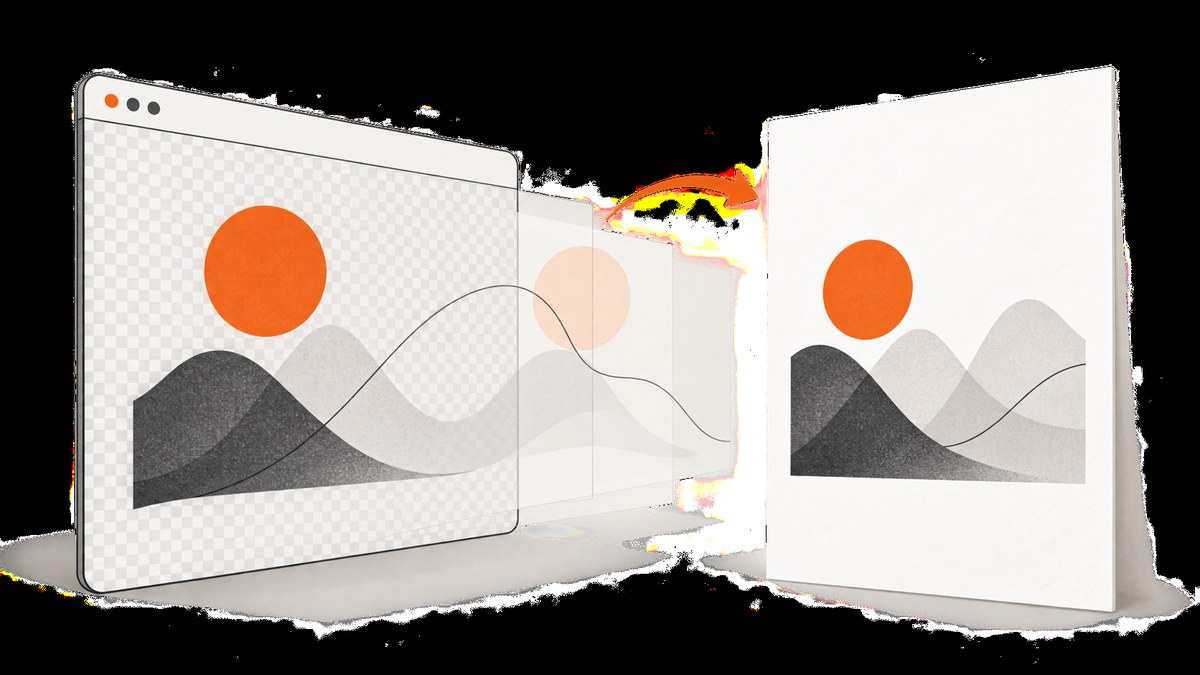
White pixels in a jsPDF document usually appear before addImage() runs. The HTML-to-canvas step can paint an opaque container, a CSS background, or a pseudo-element. Moving the image inward to create margins changes coordinates, but it cannot remove pixels that were already rendered.
The reliable approach is to preserve alpha during rendering, inspect the source CSS, scale the canvas into a computed content rectangle, and paginate with an explicit top and bottom margin. If you do not need a browser pipeline, ScreenshotNeo can capture a clean page or PDF with one request.
What causes the white background?
There are three common insertion points:
- HTML or CSS: a wrapper has
background: white, an inherited background, or a pseudo-element that covers the page. - html2canvas: the renderer defaults to an opaque background in many setups. The resulting canvas then contains white pixels.
- PDF placement:
doc.addImage()places the already-rendered image at coordinates. It does not make opaque pixels transparent.
This distinction explains why adding a background image after doc.html() can fail: issue reports describe div containers rendered with white backgrounds, so the later image is hidden behind those pixels. Fix the rendering stage first.
Preserve transparency with html2canvas
Set backgroundColor: null when you want transparent pixels in the canvas. Export PNG rather than JPEG, because JPEG has no alpha channel.
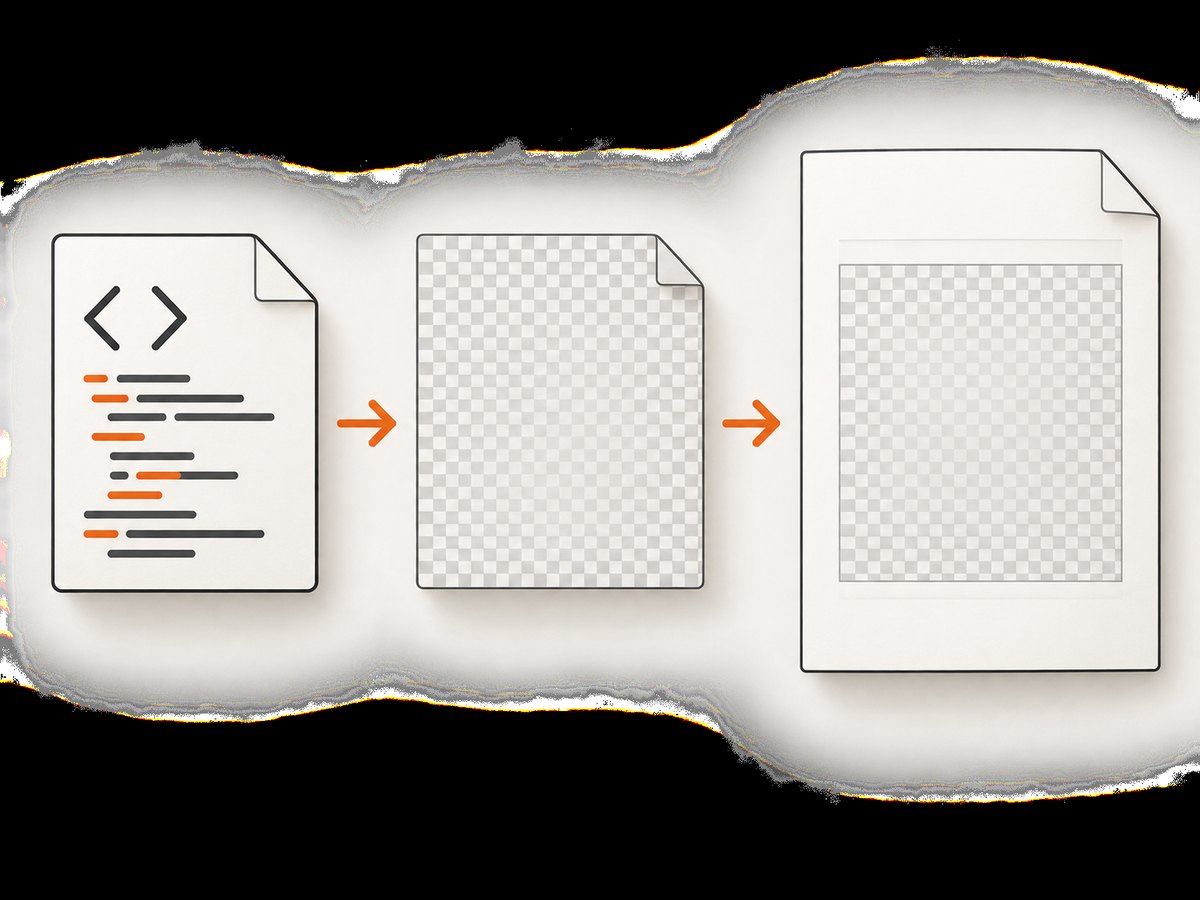
import html2canvas from 'html2canvas';

const element = document.querySelector('#invoice');

const canvas = await html2canvas(element, {
  backgroundColor: null,
  useCORS: true,
  scale: window.devicePixelRatio || 1
});

const pngDataUrl = canvas.toDataURL('image/png');
backgroundColor: null is a practical configuration shown in an html2canvas/jsPDF issue report, not a guarantee that every pixel remains transparent. Check the element, its ancestors, pseudo-elements, and generated content. A child with a solid background will still be solid in the output.
CSS checklist
- Remove page-level
background-color: whitewhen transparency is required. - Inspect
::beforeand::afterrules with absolute positioning and full width or height. - Check box shadows and overlays that visually resemble a white fill.
- Use an explicit transparent value where needed:
background: transparent. - Keep the PNG path for transparency. Do not convert it to JPEG before embedding.
To diagnose the source, temporarily render the canvas over a checkerboard element in your application. If the checkerboard shows through, alpha survived. If the area is white, the renderer or CSS supplied those pixels.
Add margins by calculating the content rectangle
jsPDF measures x and y from the page’s left and upper edges. Width and height use the document unit, such as millimetres. Define margins first, then fit the image proportionally inside the remaining width.
import { jsPDF } from 'jspdf';
import html2canvas from 'html2canvas';

async function exportPdf() {
  const element = document.querySelector('#invoice');
  if (!element) throw new Error('Missing #invoice element');

  const canvas = await html2canvas(element, {
    backgroundColor: null,
    useCORS: true,
    scale: 2
  });

  const pdf = new jsPDF({
    orientation: 'portrait',
    unit: 'mm',
    format: 'a4'
  });

  const marginLeft = 12;
  const marginRight = 12;
  const marginTop = 15;
  const marginBottom = 15;
  const pageWidth = pdf.internal.pageSize.getWidth();
  const pageHeight = pdf.internal.pageSize.getHeight();
  const contentWidth = pageWidth - marginLeft - marginRight;
  const contentHeight = pageHeight - marginTop - marginBottom;
  const imageHeight = canvas.height * contentWidth / canvas.width;
  const png = canvas.toDataURL('image/png');

  let consumed = 0;
  let pageNumber = 0;

  while (consumed < imageHeight) {
    if (pageNumber > 0) pdf.addPage();

    const y = marginTop - consumed;
    pdf.addImage(
      png,
      'PNG',
      marginLeft,
      y,
      contentWidth,
      imageHeight,
      `page-image-${pageNumber}`
    );

    consumed += contentHeight;
    pageNumber += 1;
  }

  pdf.save('invoice.pdf');
}

exportPdf();
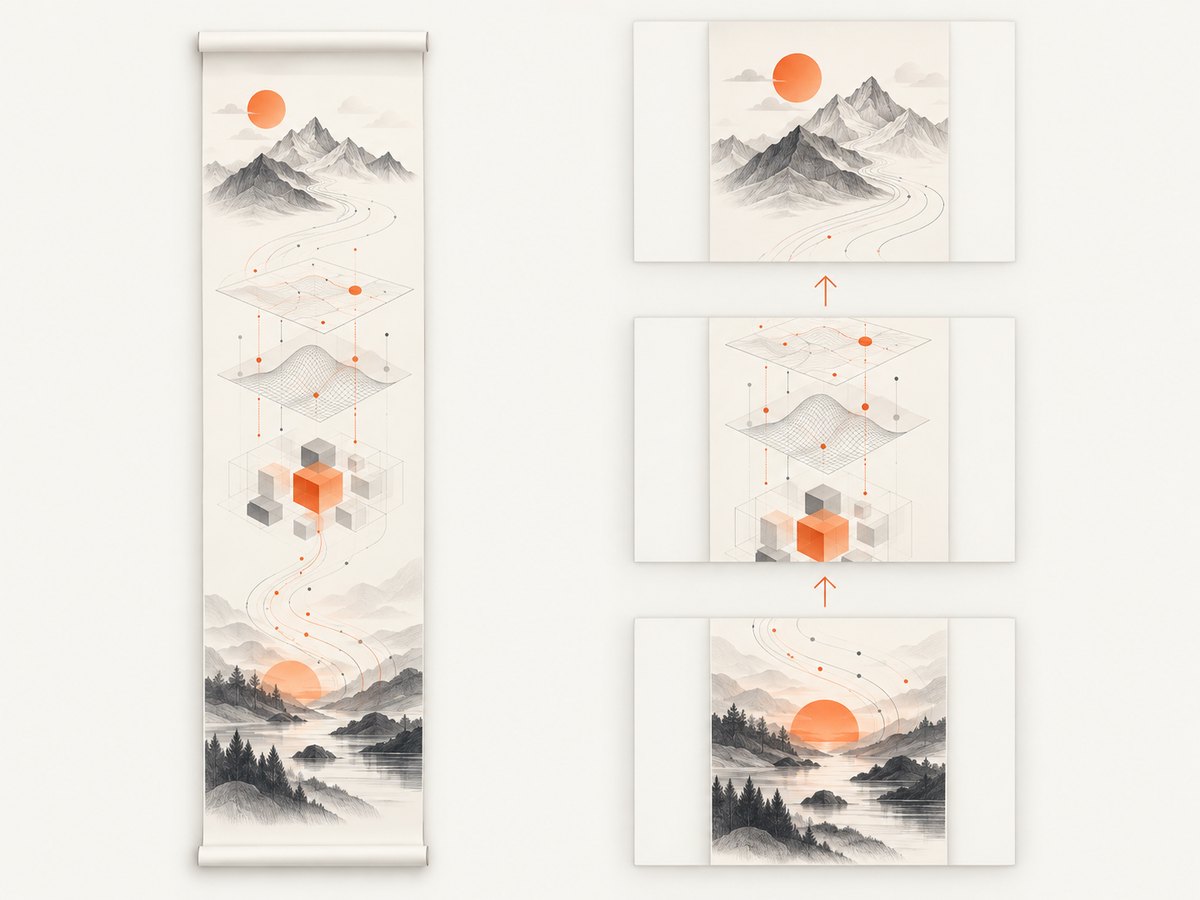
The image is intentionally taller than one page. Each page places the same scaled image farther upward, while the page’s visible area acts as the slice. The top margin is preserved because the first placement starts at marginTop; the bottom margin is preserved because the loop advances by contentHeight.
This pattern is suitable for a rasterized document. It does not keep text selectable, and a single oversized image can make exact clipping dependent on the PDF viewer. For selectable text or strict page breaks, render one page-sized slice at a time or build the PDF from text and vector primitives.
A complete reusable helper
Put the sizing and validation in one function so every export uses the same rules.
function canvasToPdf(canvas, {
  fileName = 'capture.pdf',
  format = 'a4',
  orientation = 'portrait',
  unit = 'mm',
  margin = { top: 15, right: 12, bottom: 15, left: 12 },
  compression = 'FAST'
} = {}) {
  if (!canvas || canvas.width === 0 || canvas.height === 0) {
    throw new Error('Canvas is empty');
  }

  const pdf = new jsPDF({ orientation, unit, format });
  const pageWidth = pdf.internal.pageSize.getWidth();
  const pageHeight = pdf.internal.pageSize.getHeight();
  const contentWidth = pageWidth - margin.left - margin.right;
  const contentHeight = pageHeight - margin.top - margin.bottom;

  if (contentWidth <= 0 || contentHeight <= 0) {
    throw new Error('Margins leave no printable content area');
  }

  const imageHeight = canvas.height * contentWidth / canvas.width;
  const imageData = canvas.toDataURL('image/png');
  let offset = 0;
  let page = 0;

  while (offset < imageHeight) {
    if (page) pdf.addPage();
    pdf.addImage(
      imageData,
      'PNG',
      margin.left,
      margin.top - offset,
      contentWidth,
      imageHeight,
      `canvas-${page}`,
      compression
    );
    offset += contentHeight;
    page += 1;
  }

  pdf.save(fileName);
}
The documented addImage(imageData, format, x, y, width, height, alias, compression, rotation) signature accepts a data URL, image element, canvas, byte array, or RGBA data. PNG, JPEG, and WEBP are documented formats. The alias identifies a reusable image resource; give repeated images distinct aliases when debugging resource reuse.
Margins on every page
A margin is empty page space, not a property of the image itself. The available height is:
contentHeight = pageHeight - marginTop - marginBottomAdvance by that value after each placement. Do not subtract the full page height, or the next page will overlap the bottom margin. Do not use a fixed image height without calculating its aspect ratio, or the output will stretch.
Landscape and custom paper
Pass orientation: 'landscape' or a custom format to jsPDF, then always read pdf.internal.pageSize.getWidth() and getHeight(). This avoids hard-coded A4 dimensions when users select Letter, Legal, or a custom size.
Page ranges and clipping
The oversized-image technique displays every slice in sequence. If you need an exact page range, calculate the source pixel rows for each page, draw that rectangle into a temporary canvas, and add only that temporary canvas. This also prevents viewer-specific clipping differences.
Multiple images, aliases, and backgrounds
When adding several PNGs, create separate data URLs and use stable aliases:
const logo = logoCanvas.toDataURL('image/png');
const chart = chartCanvas.toDataURL('image/png');

doc.addImage(logo, 'PNG', 15, 15, 35, 12, 'logo-image');
doc.addImage(chart, 'PNG', 15, 35, 180, 90, 'chart-image');
An issue report describes one PNG appearing to replace another when multiple images were added. Check that each call receives the intended data, that aliases are not accidentally reused for different bytes, and that dimensions are finite numbers.
Common errors and fixes
| Symptom | Likely cause | Fix |
|---|---|---|
| Transparent PNG becomes white | Opaque html2canvas background or CSS fill | Use backgroundColor: null, export PNG, and inspect backgrounds and pseudo-elements. |
| Background image disappears | A rendered div covers it | Remove the covering fill or render the background and content in the intended order. |
| Only the first page has margins | Advancing by page height instead of content height | Advance by pageHeight - top - bottom and reset the y position on every page. |
| Content is stretched | Width and height were chosen independently | Compute height from the canvas aspect ratio. |
| Images overwrite each other | Incorrect aliases or reused image data | Use a unique alias per resource and verify each data URL. |
| External images are blank | Cross-origin restrictions | Serve images with appropriate CORS headers, use useCORS: true, or proxy them from your own origin. |
| PDF is huge or crashes | Very large canvas and high device scale | Choose a deliberate scale, render sections, and release temporary canvases. |
| Text looks blurry | Low source resolution or excessive downscaling | Render at a moderate scale, then fit proportionally; use native PDF text when selectable output matters. |
Performance, reliability, and cost considerations
Browser performance
- Canvas memory grows with pixel count. A scale of 2 uses roughly four times the pixels of scale 1.
- Long pages can exceed browser canvas limits. Split the DOM into sections and append one section per PDF page.
- Wait for fonts and images before calling html2canvas. Otherwise the capture can contain fallback fonts or empty image boxes.
- Use deterministic dimensions. Responsive layout changes between capture and print can alter pagination.
Reliability
Capture after layout settles, freeze animations, and set explicit widths for charts and media. Check the generated PDF in the viewers used by your application. The issue examples are reports of particular versions and setups, so verify behavior against your jsPDF and html2canvas versions.
Output and billing
Client-side jsPDF has no ScreenshotNeo request cost because it runs in your browser, but it consumes user CPU and memory. A hosted capture service moves browser work to an API and can provide consistent server-side handling. Compare transparency, pagination, output format, and whether failed captures are charged before choosing.
Or skip the browser setup
ScreenshotNeo provides a website screenshot API and MCP server. One GET request returns PNG, JPEG, WebP, or PDF, and the API supports full-page capture, element selectors, custom CSS and JavaScript, waits, blocking rules, headers, cookies, user agents, timezone, geolocation, resizing, caching, signed links, asynchronous jobs, bulk capture, and PDF paper, margin, landscape, and page-range options. See the ScreenshotNeo API documentation for the complete parameter list.
curl -G "https://api.screenshotneo.com/v1/shot" \
  -d access_key=YOUR_API_KEY \
  --data-urlencode url=https://stripe.com \
  -d format=pdf \
  -o capture.pdf
import requests
params = {
"access_key": "YOUR_API_KEY",
"url": "https://stripe.com",
"format": "pdf"
}
r = requests.get("https://api.screenshotneo.com/v1/shot", params=params, timeout=90)
r.raise_for_status()
open("capture.pdf", "wb").write(r.content)const q = new URLSearchParams({
access_key: 'YOUR_API_KEY',
url: 'https://stripe.com',
format: 'pdf'
});
const res = await fetch(`https://api.screenshotneo.com/v1/shot?${q}`);
if (!res.ok) throw new Error(`HTTP ${res.status}`);
const fs = await import('node:fs/promises');
await fs.writeFile('capture.pdf', Buffer.from(await res.arrayBuffer()));Cookie banners, newsletter popups, and chat widgets are removed before the shot. Bot checks, blank pages, timeouts, failed loads, and cache hits are not billed; response headers identify the page verdict and billing result. An MCP server lets Claude, Cursor, and other MCP clients call take_screenshot, get_page_info, and capture_pdf. The Free plan includes 1,000 screenshots per month with no card; paid plans start at $5 for 3,000 shots. Create a free ScreenshotNeo account.
FAQ
Can jsPDF make a white pixel transparent?
Not reliably after the pixel is embedded. Preserve alpha during HTML-to-canvas rendering and use PNG.
Should I use JPEG to reduce file size?
Use JPEG only when you do not need transparency. It discards alpha and can add compression artifacts.
Why does doc.html() differ from html2canvas?
They can use different rendering paths and styles. Inspect the intermediate output and test the versions installed in your project.
When should I avoid a rasterized PDF?
Choose native PDF text and vector drawing when users need selectable text, accessibility, searchable content, or sharp typography at arbitrary zoom levels.


