How to Remove White Borders from Puppeteer-Generated PDFs
Remove unwanted white space from Puppeteer PDFs by checking PDF margins, CSS @page rules, print styles, and background settings.
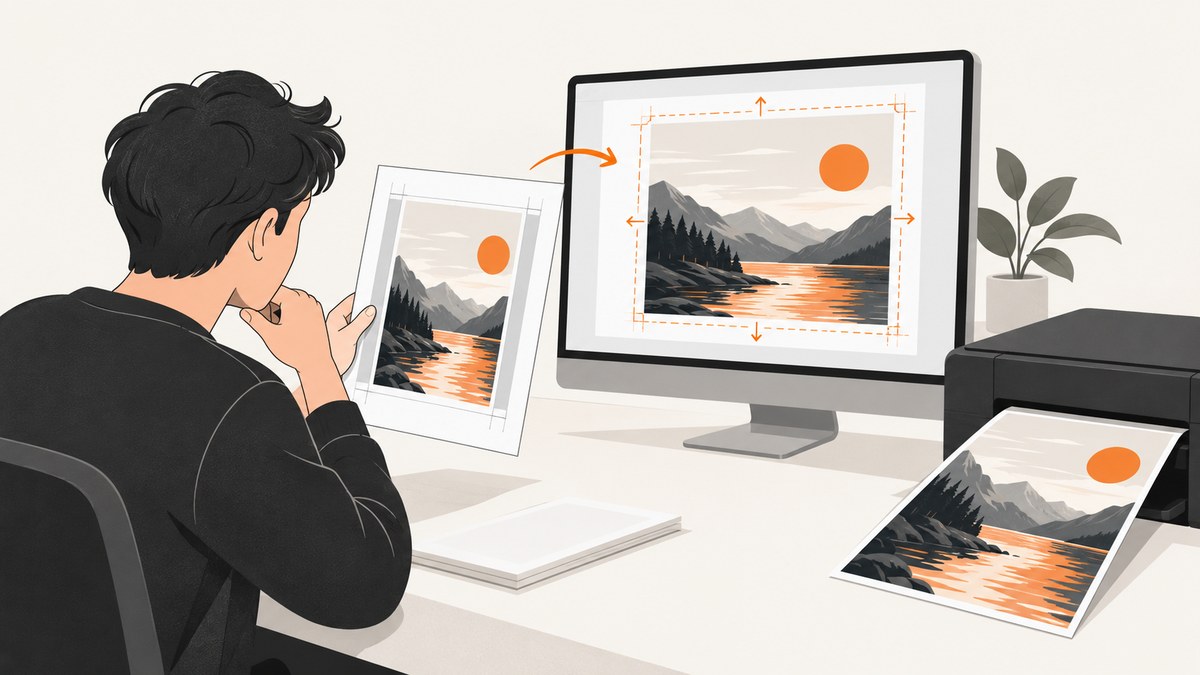
To remove white borders from a Puppeteer-generated PDF, set all four page.pdf() margins to zero and check for CSS @page margins. Then verify the paper size and print styles. If the page looks white because its background color or graphics are missing, enable printBackground; that option does not remove real margins.
Here is a minimal example:
await page.pdf({
  format: 'A4',
  printBackground: true,
  margin: { top: '0', right: '0', bottom: '0', left: '0' },
});
Whether this produces the intended result depends on the page’s CSS and desired paper dimensions. Diagnose what the white border represents before changing settings: it might be a PDF margin, content that does not extend to the page edge, a page-size mismatch, a print-specific layout, or an unprinted background.
1. Identify which kind of white border you have
A PDF can have white space even when its PDF margins are zero. For example, the page’s content may have its own padding, a print stylesheet may constrain its width, or the selected paper size may not match the CSS page size. Conversely, a colored page can look white if its background graphics are omitted during printing.

| What you see | Likely cause | First thing to check |
|---|---|---|
| Content begins noticeably in from each page edge | PDF margin or CSS page margin | page.pdf({ margin }) and @page { margin: ... } |
| Content is small or scaled with extra space around it | CSS page size and selected PDF paper size differ | @page size, format, width, height, and preferCSSPageSize |
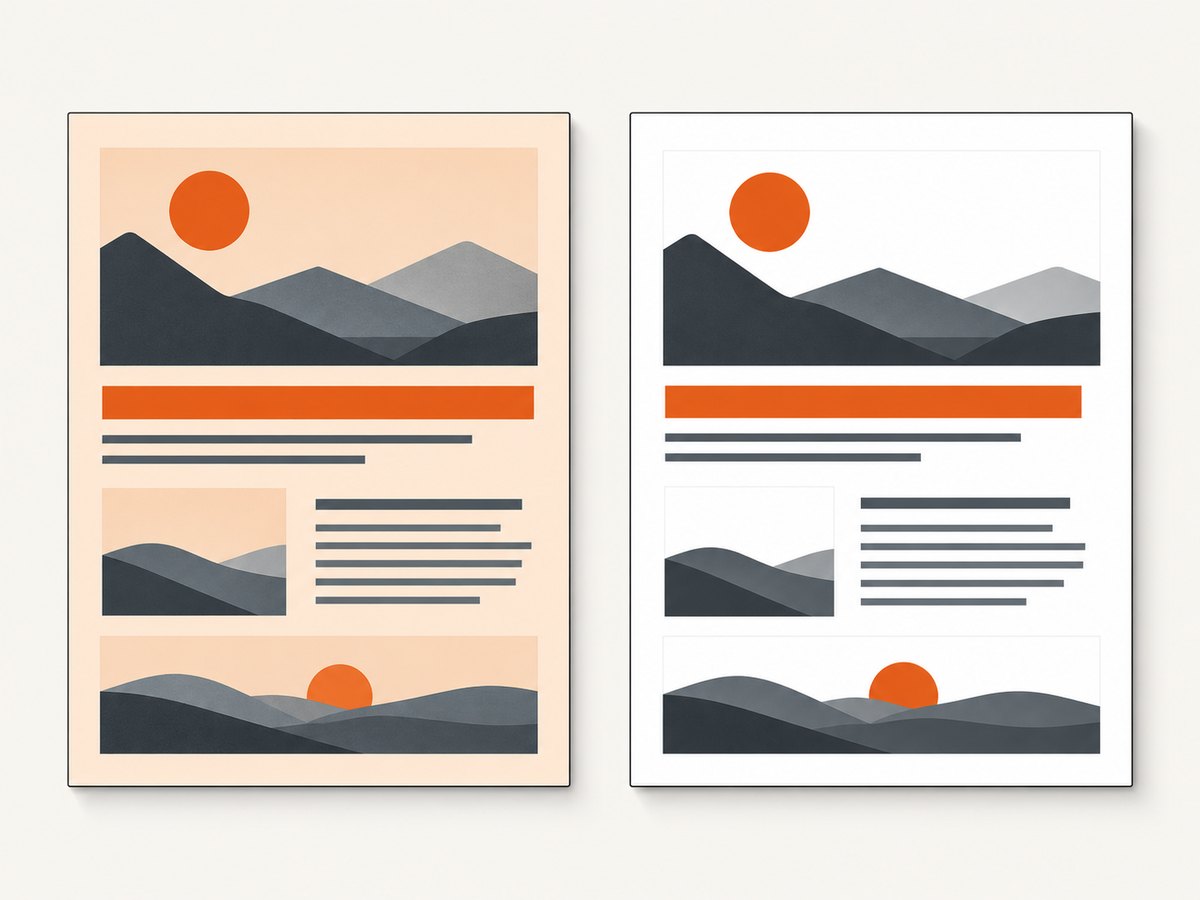
| The page background is white, but text and images print | Background graphics are omitted | printBackground |
| The browser screenshot looks right but the PDF differs | page.pdf() renders with print CSS by default |
@media print and the page’s screen styles |
| Only the content itself has an inset | Page padding, container width, or another layout rule | Computed styles and print-specific CSS for the content container |
Puppeteer’s page.pdf() uses the print CSS media type. As a result, the PDF can differ from the screen even if you do not explicitly switch media types. Its PDF margin option controls the page margins; printBackground controls whether background graphics are printed. These options address different causes.
2. Set all four PDF margins to zero
Pass zero values for top, right, bottom, and left in the margin option. Use units accepted by Puppeteer, such as 0 or '0px'. Setting only one side leaves the other sides at their configured or default values.
const pdf = await page.pdf({
  format: 'A4',
  margin: {
    top: '0',
    right: '0',
    bottom: '0',
    left: '0',
  },
  printBackground: true,
});
This removes the PDF-option margins. If the content still has an inset, inspect the page’s CSS, especially @page, @media print, and padding or width rules on the main content. A zero PDF margin does not force an element to stretch to the edge.
Check the CSS page margin too
A stylesheet can declare page margins independently. Search your stylesheets for @page rules, including rules in files loaded only for printing:
@page {
  margin: 0;
}
Choose one clear source of page dimensions and margins for your output. If your document already defines its print layout in CSS, use the CSS page-size settings deliberately and make sure they agree with the PDF options.
3. Make the CSS page size and PDF size agree
Puppeteer’s PDF options let you select a standard paper format or specify width and height. CSS can also declare page dimensions with @page. The preferCSSPageSize option determines which size takes priority:
- With
preferCSSPageSize: true, a CSS@pagesize takes priority over the PDFformat,width, orheightoption. - With the default,
false, the CSS page size may be scaled to fit the paper dimensions selected through the PDF options.
If CSS owns the page size, specify it and enable the preference:
await page.pdf({
  preferCSSPageSize: true,
  printBackground: true,
  margin: { top: '0', right: '0', bottom: '0', left: '0' },
});
The page can define its size in CSS:
@page {
  size: A4;
  margin: 0;
}
If Puppeteer should own the paper size, select a matching format or explicit dimensions and leave preferCSSPageSize false. In either case, avoid conflicting declarations. A size mismatch can result in scaling or extra space even when margins are zero.
4. Check print styles before switching to screen media
Because page.pdf() uses print media, inspect every relevant @media print rule. Print CSS may hide elements, change widths, add padding, or apply a page margin that the screen view does not have.
@media print {
  .report {
    width: 100%;
    padding: 0;
  }
}

@page {
  margin: 0;
}
If the PDF is specifically meant to reproduce the screen layout, emulate screen media before creating it:
await page.emulateMediaType('screen');

await page.pdf({
  format: 'A4',
  printBackground: true,
  margin: { top: '0', right: '0', bottom: '0', left: '0' },
});
Switching to screen media also changes which styles apply. Use it only when that is the intended output; for a document designed for printing, correct its print stylesheet instead.
5. Print backgrounds when the white area is missing artwork
printBackground defaults to false. Set it to true when background colors or images should appear in the PDF. This can fix a white-looking panel or page background, but does not change the page margins or move content to the edge.
await page.pdf({
  printBackground: true,
  margin: { top: '0', right: '0', bottom: '0', left: '0' },
});
omitBackground is a separate option for omitting the default white background, allowing transparency in applicable output. Transparency is not a general margin fix. Use it only when a transparent background is actually wanted.
6. A complete Puppeteer PDF example
This Node.js example navigates to a page, waits for navigation, and saves a PDF with zero PDF-option margins and printed backgrounds. Replace the target URL and choose a paper size that matches the page’s CSS.
const puppeteer = require('puppeteer');

async function main() {
  const browser = await puppeteer.launch({ headless: true });

  try {
    const page = await browser.newPage();
    await page.goto('https://example.com', {
      waitUntil: 'networkidle0',
      timeout: 30000,
    });

    const pdf = await page.pdf({
      format: 'A4',
      printBackground: true,
      margin: { top: '0', right: '0', bottom: '0', left: '0' },
      preferCSSPageSize: false,
    });

    require('node:fs').writeFileSync('page.pdf', pdf);
  } finally {
    await browser.close();
  }
}

main().catch((error) => {
  console.error(error);
  process.exitCode = 1;
});
If the site defines the intended page size with CSS @page, set preferCSSPageSize: true and ensure that CSS rule specifies the right size. If the layout should use screen styles, call page.emulateMediaType('screen') before page.pdf(). For production use, also choose a navigation wait condition appropriate to the page; some sites keep network connections open, so a network-idle condition may not be suitable for every target.
7. Troubleshooting common results
| Symptom | Cause to investigate | Fix |
|---|---|---|
There is still a white border after setting margin to zero |
CSS @page margin, content padding, or a constrained print layout |
Inspect print styles and the content container; remove only the rule responsible for the inset. |
| The whole page is scaled down | CSS @page size and PDF paper option do not match |
Align the dimensions and choose whether CSS or the PDF option controls page size. |
| Background colors or images disappear | printBackground is false |
Set printBackground: true. |
| PDF layout differs from a screenshot | Print media rules are active during PDF generation | Fix the print stylesheet or deliberately emulate screen media before generating the PDF. |
| Zero margins clip content near the edge | The page content extends to the edge and is clipped by the PDF viewer or printer’s printable area | Decide whether edge-to-edge output is required; add a small intentional margin if the output must print on hardware with a non-printable area. |
| Only some pages have borders | Page-specific CSS, content dimensions, or a different page break may affect those pages | Inspect the rules and content around the affected page breaks, including print-only selectors. |
- Confirm the PDF page dimensions and intended paper format.
- Set all four
page.pdf()margins to zero. - Inspect CSS
@pagerules and print styles for margins, padding, width, and page size. - Choose whether CSS or PDF options control page size; align both if needed.
- Enable
printBackgroundonly when missing background graphics are part of the problem. - Generate a new PDF and inspect the affected pages at actual size.
8. Performance, reliability, and cost considerations
PDF layout depends on the content loaded at capture time, the CSS media type, page dimensions, and margins. For repeatable output, keep those inputs consistent: use a deliberate navigation wait condition, select one source of truth for page size, and account for print CSS. Pages with dynamically loaded content may require an application-specific readiness condition before calling page.pdf().
For printing on physical paper, zero margins may cause edge content to fall outside the printer’s printable region. If the goal is a borderless digital PDF, zero margins can be appropriate; if the file will be printed, check the target printer’s capabilities and consider a margin that protects edge content. These are output constraints, separate from Puppeteer’s PDF settings.
Running a browser for each capture also means managing browser startup, page navigation, and cleanup in your own application. Reuse browser processes where appropriate, isolate pages for concurrent jobs, and close pages or browsers reliably after failures. Measure resource use in your own workload; the documentation cited here does not establish universal timing or cost figures.
9. Or skip the browser setup
If you need a screenshot rather than a Puppeteer-generated PDF, ScreenshotNeo returns a PNG, JPEG, WebP, or PDF from one API request. The ScreenshotNeo [API documentation](https://screenshotneo.com/docs/) covers the request options.
curl -G "https://api.screenshotneo.com/v1/shot" \
  -d access_key=YOUR_API_KEY \
  --data-urlencode url=https://stripe.com \
  -o shot.webp
import requests
r = requests.get(
"https://api.screenshotneo.com/v1/shot",
params={"access_key": "YOUR_API_KEY", "url": "https://stripe.com"},
timeout=90,
)
r.raise_for_status()
open("shot.webp", "wb").write(r.content)const q = new URLSearchParams({
access_key: 'YOUR_API_KEY',
url: 'https://stripe.com',
});
const res = await fetch(`https://api.screenshotneo.com/v1/shot?${q}`);
if (!res.ok) throw new Error(`Screenshot request failed: ${res.status}`);
const bytes = new Uint8Array(await res.arrayBuffer());
await import('node:fs/promises').then((fs) => fs.writeFile('shot.webp', bytes));ScreenshotNeo removes cookie banners, newsletter popups, and chat widgets before the shot. Bot checks, blank pages, and failed loads are never billed. Its MCP server lets AI agents take screenshots, and 1,000 screenshots a month are free with no card; paid plans start at $5 for 3,000. For a PDF, select the PDF output options in the API docs. Sign up for 1,000 free screenshots a month, with no card required.
10. Frequently asked questions
Does a zero margin guarantee edge-to-edge content?
No. It removes the margins specified in Puppeteer’s PDF options. CSS page margins, content padding, constrained widths, and the page’s own background or content can still leave white space.
Should I use preferCSSPageSize?
Use it when the CSS @page size should take priority over the PDF paper options. Otherwise, select the intended PDF format or dimensions and keep CSS page sizing consistent with them.
Will printBackground remove margins?
No. It prints background graphics that Puppeteer omits by default. Set the margin options and inspect CSS when the content is inset from the page edge.
Why does the PDF differ from the browser view?
page.pdf() uses print media by default. Print-specific CSS can change layout; emulate screen media only if matching the screen is the intended result.


