How to Remove the Table of Contents from wkhtmltopdf’s Table of Contents
Remove wkhtmltopdf’s printed TOC by omitting the toc object, or disable PDF bookmarks separately with --no-outline.
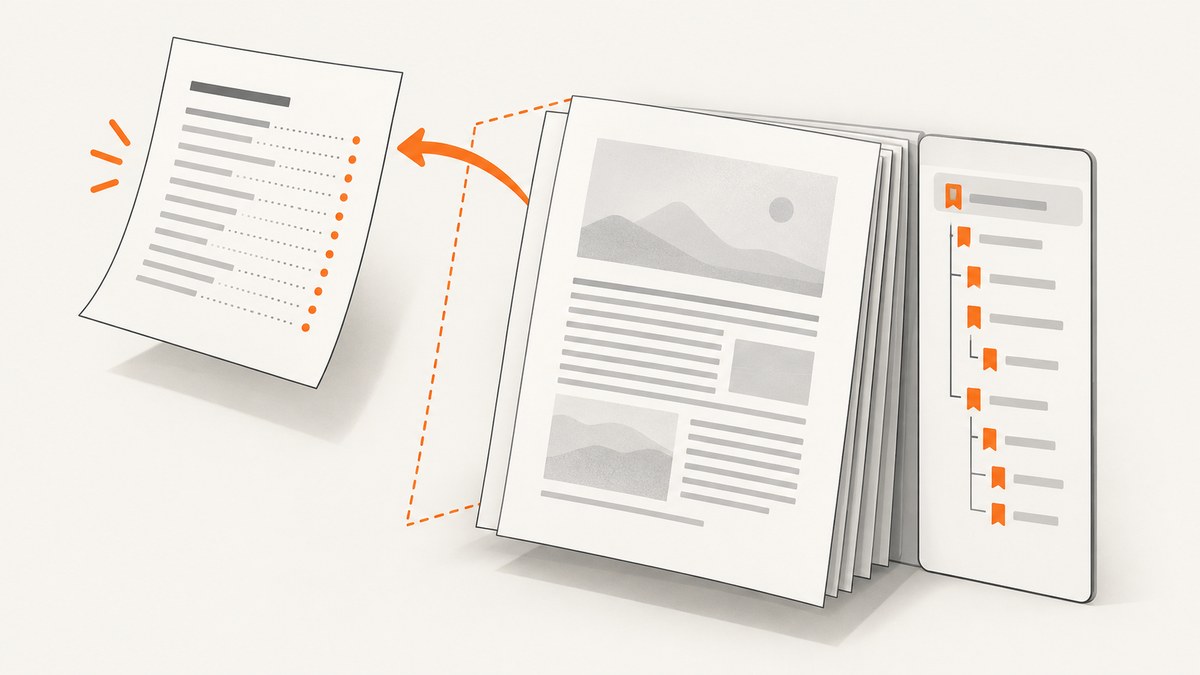
wkhtmltopdf can add two different kinds of navigation: printed table-of-contents pages inside the PDF and a bookmark outline shown by PDF viewers. They use different controls.
To remove printed table-of-contents pages, remove the standalone toc object from the input sequence. The shortest command is:
wkhtmltopdf input.html output.pdfA command that includes a printed TOC looks like this:
wkhtmltopdf toc input.html output.pdfIf the unwanted content is the bookmarks or navigation sidebar in a PDF viewer, disable the global outline instead:
wkhtmltopdf --no-outline input.html output.pdfThese settings are independent. Removing toc removes generated TOC pages; --no-outline removes the PDF outline. You may need one or both.
Identify which “table of contents” you are seeing
| Symptom | What it is | Correct fix |
|---|---|---|
| One or more pages headed “Contents” appear before the document | A printed TOC object | Omit toc from the object sequence |
| A bookmarks panel appears in Acrobat, Preview, Chrome or another viewer | The PDF outline | Use --no-outline or set global outline to false |
| Both pages and bookmarks appear | A TOC object plus a global outline | Omit toc and disable the outline if required |
| Your document’s own heading says “Table of contents” | HTML content, not wkhtmltopdf navigation | Remove or hide that markup in the source HTML |
The project documents the TOC as an optional object in the command-line object sequence. Its usage manual is available from the official wkhtmltopdf usage documentation. The project homepage describes wkhtmltopdf as an open-source command-line renderer that uses Qt WebKit to produce PDF and image output.
Remove printed TOC pages from the command line
Basic conversion without a TOC
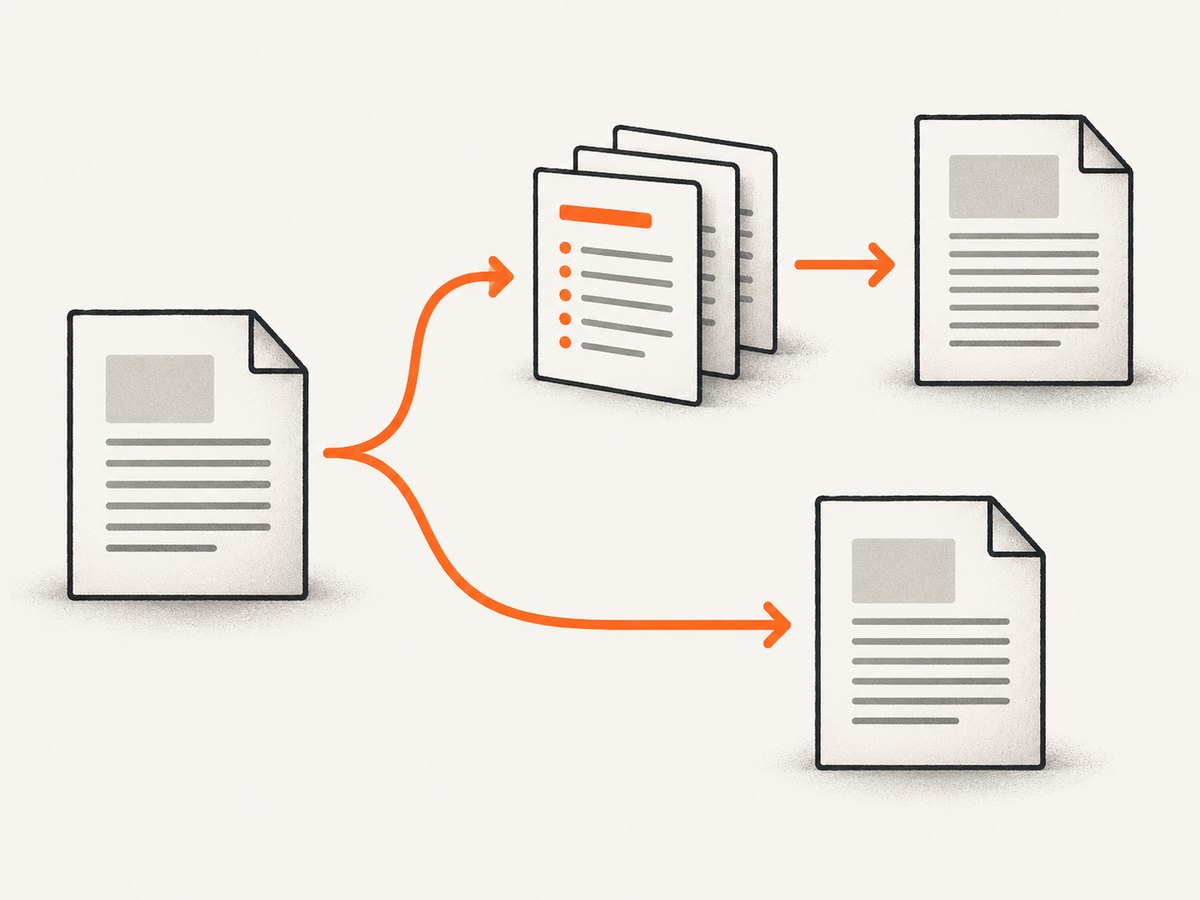
wkhtmltopdf report.html report.pdfThe command contains one page object: report.html. wkhtmltopdf renders it directly to report.pdf. There is no TOC object to insert pages before it.
Conversion with a TOC, for comparison
wkhtmltopdf toc report.html report.pdfHere, toc is a separate document object. It is not a formatting flag applied to report.html; it instructs wkhtmltopdf to generate TOC pages from the document’s headings.
Multiple document objects
wkhtmltopdf accepts a sequence of page objects. Remove only the TOC object and keep the pages you still need:
wkhtmltopdf cover cover.html page chapter-1.html chapter-2.html output.pdfIf your existing command is similar to this:
wkhtmltopdf cover cover.html toc chapter-1.html chapter-2.html output.pdfdelete the toc token and leave the remaining objects in their original order:
wkhtmltopdf cover cover.html chapter-1.html chapter-2.html output.pdfDo not replace toc with a blank filename or an empty HTML file. An empty page object is still a page object and can create an unwanted blank page.
Remove PDF bookmarks while keeping document pages
Bookmarks are stored as a PDF outline. They are not the printed TOC object. To suppress the outline:
wkhtmltopdf --no-outline report.html report.pdfYou can combine this with a command that has no TOC:
wkhtmltopdf --no-outline report.html report.pdfOr, if you intentionally keep a printed TOC but do not want a viewer sidebar:
wkhtmltopdf --no-outline toc report.html report.pdfThe second command keeps the printed contents pages and disables the separate outline. Conversely, omitting toc without --no-outline can still leave bookmarks if the document headings are included in the generated outline.
Library API: omit the TOC object and control outline separately
Applications using libwkhtmltox represent the same distinction through object and global settings.
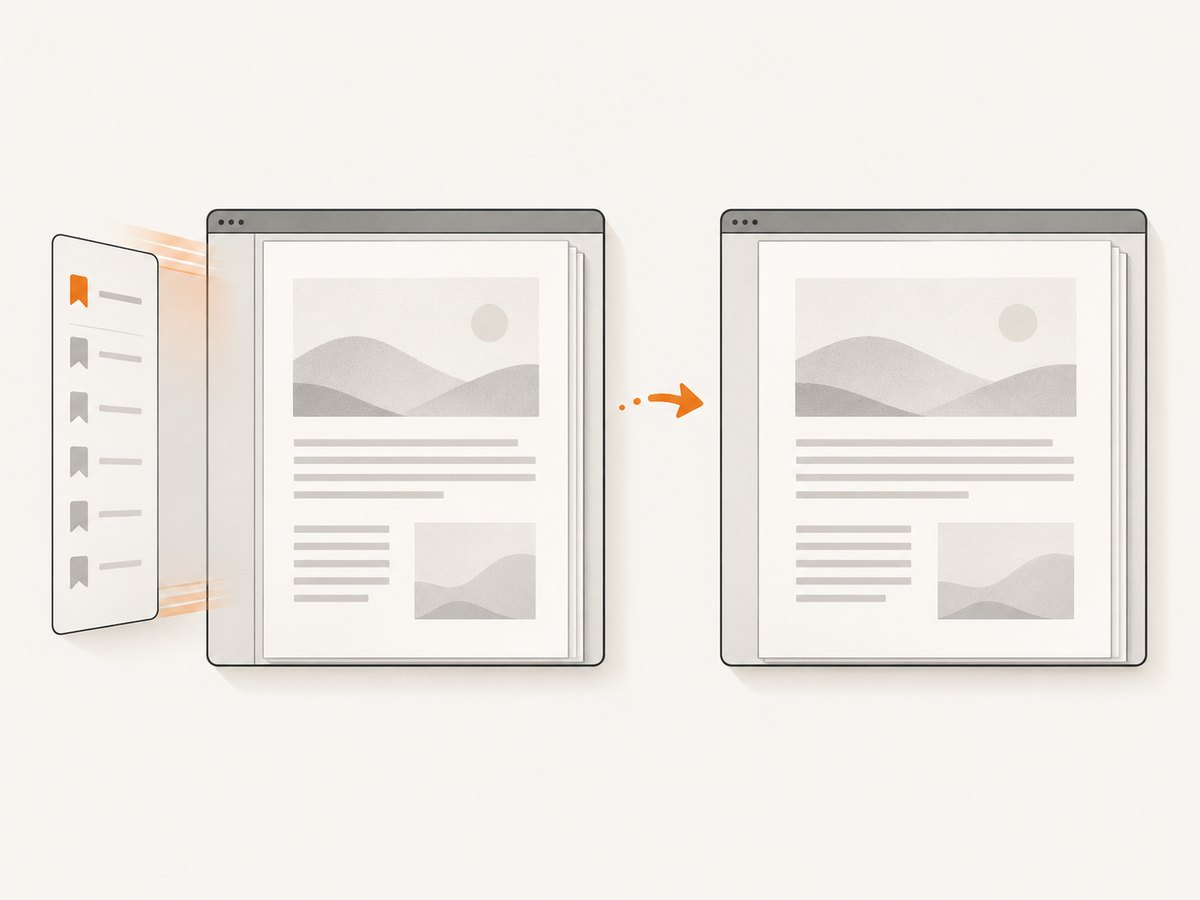
PdfObjectcontains TOC-related settings, including the TOC structure and fields such astocXslandincludeInOutline.PdfGlobal.outlinecontrols generation of the PDF outline globally.includeInOutlinecontrols whether an object’s sections participate in outline collection. It does not remove a separately created TOC object.
To remove printed TOC pages in a library integration, do not create the TOC object at all. A conceptual object sequence should contain only the cover and page objects you intend to render:
global = PdfGlobal()
global.outline = false       # use only if bookmarks should also disappear

add_object(page_from("chapter-1.html"))
add_object(page_from("chapter-2.html"))
convert(global)
The exact class and function names depend on the language binding. The important operation is structural: remove the call that creates the TOC object. Then set the global outline property to false when the viewer outline is also unwanted.
Why TOC styling options do not solve removal
Options for caption text, dotted leaders, indentation, font scale, or a custom XSL stylesheet change how a TOC looks. They do not turn the TOC off. If the object exists, styling it to be empty or visually minimal can still leave pages in the PDF. Remove the object for reliable removal.
Verify the installed build and option spelling
Distributions and downstream packages can differ. Ask the executable installed on the machine:
wkhtmltopdf --version
wkhtmltopdf -H
The project’s generated manual is the same help text shown by -H. Check it when a wrapper rejects an option or when a package reports a patched or vendor-specific build. The official downloads page currently identifies the 0.12.6 series as the stable project series, released in 2020; a package manager may still ship a different build.
Complete removal workflow
- Open the command or wrapper configuration. Look for a literal
tocobject, a TOC constructor, or a template that inserts one. - Decide which artifact is unwanted. Inspect the PDF pages for printed contents, the viewer sidebar for bookmarks, or both.
- Remove the TOC object. Delete
tocfrom the command sequence or stop creating the TOC object in the API. - Disable the outline when necessary. Add
--no-outlineor set the global outline setting to false. - Regenerate into a new file. Avoid judging a cached viewer tab or an old PDF with the same filename.
- Inspect both page count and navigation. Confirm that the first page is the intended document page and that the bookmark panel matches your requirement.
Common errors and fixes
| Error or symptom | Likely cause | Fix |
|---|---|---|
“Unknown long argument” for --no-outline |
The wrapper is not invoking wkhtmltopdf, or the installed build differs | Run wkhtmltopdf -H, verify the executable path, and use the option shown by that build |
| Printed TOC remains after changing outline settings | A toc object is still present |
Remove the object; outline settings do not remove pages |
Bookmarks remain after removing toc |
Global outline generation is still enabled | Add --no-outline or set PdfGlobal.outline = false |
| A blank page appears at the beginning | An empty page object replaced the TOC, or a cover object has no content | Remove the empty object and check cover HTML and CSS margins |
| TOC is inside the HTML itself | The source template includes a contents component | Remove that component or hide it with print CSS; wkhtmltopdf options cannot remove arbitrary HTML |
| Changes appear ineffective | The viewer is showing an old file or cached tab | Write to a new filename, close the old tab, and inspect metadata and page count again |
| Headings are missing from bookmarks | Heading structure or outline inclusion changed | Inspect heading markup and object outline settings; this is separate from printed TOC generation |
| Conversion hangs or fails after adding remote HTML | Network resources, scripts, or malformed input prevent rendering | Reproduce with a local file, inspect stderr, and simplify the HTML before changing TOC settings |
Performance and reliability considerations
Removing a TOC object can reduce work because wkhtmltopdf no longer has to build and render extra contents pages. The exact improvement depends on document size, heading count, fonts, images, JavaScript, and network resources. Treat it as a reduction in generated content, not as a guaranteed benchmark.
For repeatable builds:
- Pin the wkhtmltopdf executable version in your deployment image.
- Capture stderr and the process exit code; a PDF file existing on disk does not prove that every page rendered correctly.
- Use local, sanitized HTML and stable assets when possible.
- Set an external process timeout so a remote resource cannot hold a worker indefinitely.
- Compare page count and, when practical, extract PDF metadata in CI to detect accidental TOC pages.
- Keep the object sequence explicit in source control so a template change cannot silently reintroduce
toc.
wkhtmltopdf’s official downloads page warns not to use it with untrusted HTML without sanitizing user-supplied HTML and JavaScript, because unsafe input can lead to complete server takeover. Treat conversion as a privileged operation: isolate the process, restrict network access where appropriate, and sanitize content before rendering.
Cost and deployment notes
wkhtmltopdf itself is a command-line component, so your practical costs are compute, storage, and the engineering time required to maintain a browser-rendering environment. A TOC adds rendering work and PDF bytes; omitting it may reduce both, but it does not remove the cost of loading the source page, fonts, images, or scripts.
Or skip the browser setup
If you need a screenshot or PDF from a URL rather than a locally controlled wkhtmltopdf pipeline, ScreenshotNeo provides a website screenshot API and MCP server. It accepts one GET request and returns PNG, JPEG, WebP, or PDF output. The API can capture a full page, a CSS-selected element, or a PDF with paper size, margins, landscape mode, and page ranges. See the ScreenshotNeo API documentation for the complete option list.
cURL:
curl -G "https://api.screenshotneo.com/v1/shot" -d access_key=YOUR_API_KEY --data-urlencode url=https://stripe.com -o shot.webpPython:
import requests

r = requests.get(
    "https://api.screenshotneo.com/v1/shot",
    params={"access_key": "YOUR_API_KEY", "url": "https://stripe.com"},
    timeout=90,
)
r.raise_for_status()
open("shot.webp", "wb").write(r.content)
Node.js:
const q = new URLSearchParams({ access_key: 'YOUR_API_KEY', url: 'https://stripe.com' });
const res = await fetch(`https://api.screenshotneo.com/v1/shot?${q}`);
if (!res.ok) throw new Error(`HTTP ${res.status}`);
const data = Buffer.from(await res.arrayBuffer());
require('fs').writeFileSync('shot.webp', data);
ScreenshotNeo accepts cookie and consent banners before capture and removes more than 60 known consent platforms, newsletter popups, and chat widgets; each cleanup step can be disabled. Bot checks and CAPTCHAs, blank pages, timeouts, failed loads, and cache hits are not billed, and response headers identify the page verdict and whether the shot was billed. Its MCP server exposes take_screenshot, get_page_info, and capture_pdf for Claude, Cursor, and other MCP clients.
There is a free allowance of 1,000 screenshots per month with no card. Paid plans start at $5 for 3,000 shots; yearly billing gives two months free. Create a free ScreenshotNeo account to try the URL capture API.
FAQ
Does --no-outline remove printed TOC pages?
No. It disables the PDF viewer outline. Remove the standalone toc object to remove printed pages.
Can I keep bookmarks but remove the printed TOC?
Yes. Omit toc and leave outline generation enabled.
Can I keep the printed TOC but remove bookmarks?
Yes. Keep the toc object and add --no-outline.
Why does changing TOC caption text not remove it?
Caption and XSL settings style an existing TOC object. They do not control whether that object is created.
How can I confirm which options my package supports?
Run wkhtmltopdf -H and check the installed version with wkhtmltopdf --version. Package builds can differ from the project’s documented series.


