How to Rename Duplicate Downloads in Chrome With Puppeteer on Ubuntu
Use Chrome DevTools Protocol events, a controlled directory, and safe filesystem renaming to give Puppeteer downloads predictable names on Ubuntu.
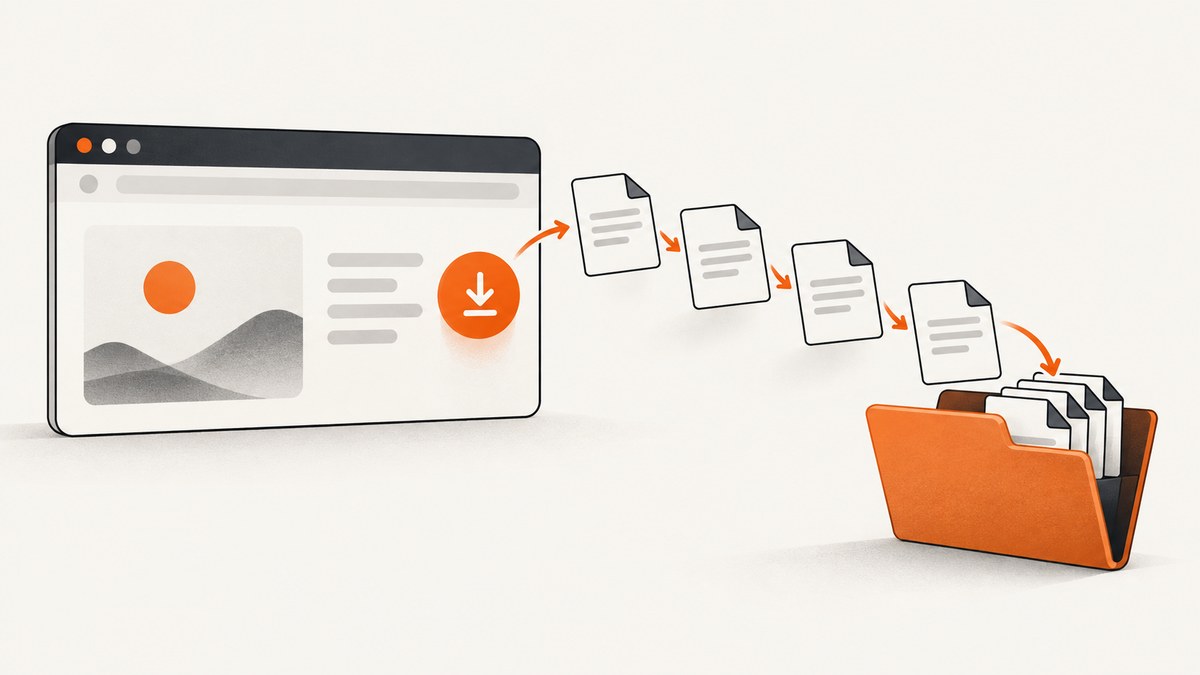
Direct answer: Puppeteer does not currently provide a high-level download handler. On Ubuntu, configure Chrome to download into an absolute directory, listen for the DevTools Protocol download events, wait until the file is complete, then rename it with Node.js filesystem operations. Treat Chrome’s suggested filename and the completed event’s filePath as hints, not as guaranteed final paths.
This approach prevents Chrome’s familiar (1), (2) suffixes from becoming part of your application contract. You control collision policy, sanitize names derived from remote content, and can correlate simultaneous downloads by GUID.
What Chrome and Puppeteer actually provide
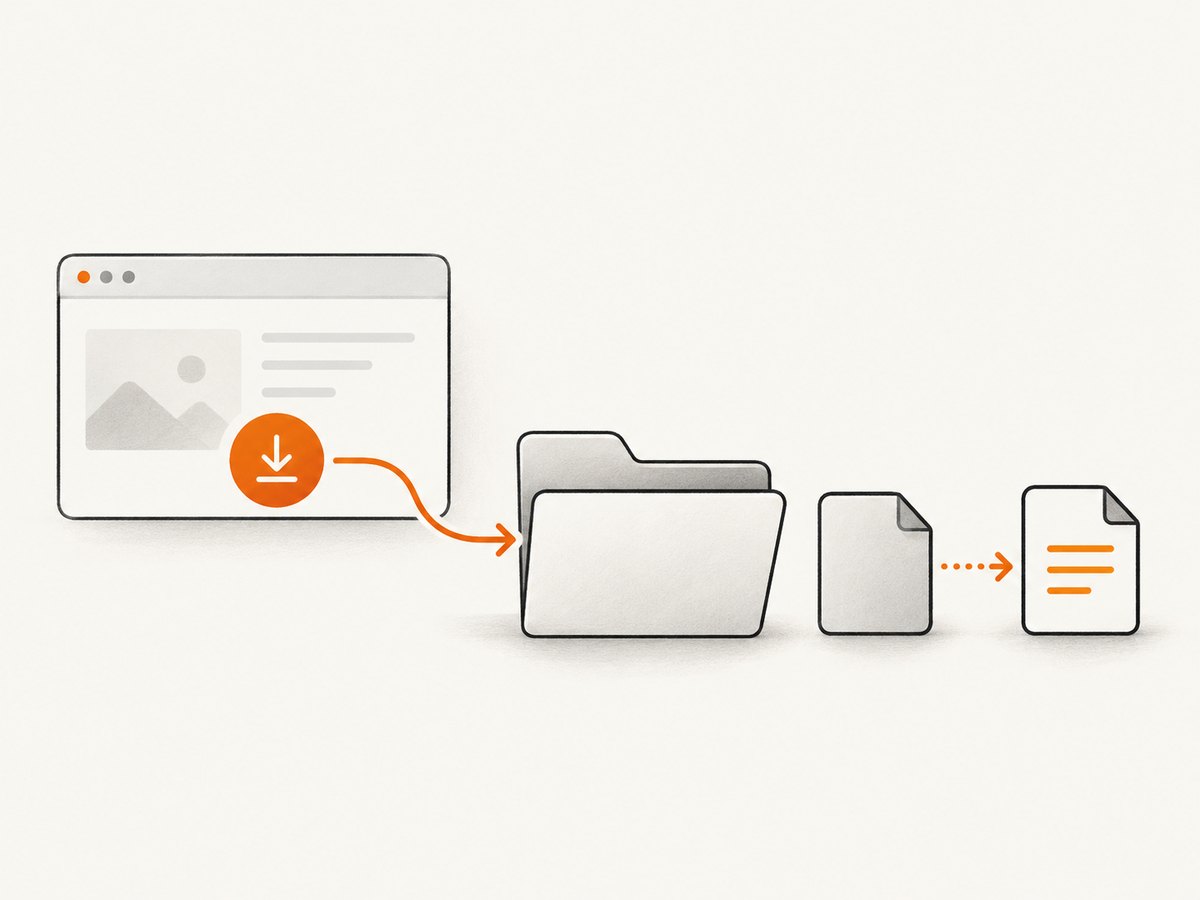
The Chrome DevTools Protocol (CDP) Browser.setDownloadBehavior command supports allow, deny, and the experimental allowAndName policy. The downloadPath is required for allow and allowAndName. With allowAndName, Chrome uses a GUID-based name; it does not accept an arbitrary human-readable filename. See the Browser domain documentation.
Browser.downloadWillBegin gives you a GUID and a suggested filename. Browser.downloadProgress reports progress, byte counts, and a completion state. The protocol warns that the completed event’s filePath may be absent or may not point to an existing file, so robust code inspects the download directory and verifies that writing has stopped.
Puppeteer’s current Files guide states: “Currently, Puppeteer does not offer a way to handle file downloads in a programmatic way.” A CDP session plus Node.js fs functions is therefore the practical implementation.
Choose a naming strategy
| Strategy | Collision behavior | Best use | Trade-off |
|---|---|---|---|
allowAndName |
GUID names avoid download-time collisions | Many concurrent jobs or untrusted suggested names | You must map the GUID to a final descriptive name |
allow plus post-download rename |
Your code decides whether to add -2, a UUID, or fail |
Readable archives and business naming rules | You must handle temporary files and duplicates |
A predictable policy is: keep the first file as report.pdf, then use report-2.pdf, report-3.pdf, and so on. For distributed workers, a stable job identifier is safer than a counter because two processes can select the same next number. Sanitize every name that comes from a server or page.
Ubuntu setup
- Use a current Node.js release supported by your Puppeteer version.
- Install Puppeteer:
npm install puppeteer - If Chrome dependencies are missing on Debian or Ubuntu, use Puppeteer’s documented browser installation and dependency tooling. The browser API documentation notes that installing system dependencies requires root privileges: Puppeteer browsers API.
- Pin Puppeteer and the browser revision in CI. The DevTools Protocol “tot” documentation tracks a moving protocol, and
allowAndNameis experimental.
Keep the download directory outside your source tree, create it before browser launch, and use an absolute path. A per-job directory prevents unrelated downloads from being mistaken for the file you are waiting for.
Complete Puppeteer implementation
The following script clicks a link, records the download GUID, waits for completion, finds the finished file, and assigns a collision-safe name. Replace PAGE_URL and DOWNLOAD_SELECTOR with your page and selector.
const puppeteer = require('puppeteer');
const fs = require('node:fs/promises');
const path = require('node:path');
const crypto = require('node:crypto');

const PAGE_URL = process.env.PAGE_URL || 'https://example.com/downloads';
const DOWNLOAD_SELECTOR = process.env.DOWNLOAD_SELECTOR || 'a[data-download]';
const ROOT = path.resolve(process.env.DOWNLOAD_ROOT || './downloads');

function sanitizeFilename(input) {
  const base = path.basename(input || 'download');
  const cleaned = base.replace(/[\\/:*?"<>|\u0000-\u001f]/g, '_').trim();
  return cleaned || 'download';
}

function splitExtension(filename) {
  const ext = path.extname(filename);
  return ext ? { stem: filename.slice(0, -ext.length), ext } : { stem: filename, ext: '' };
}

async function nextAvailableName(directory, suggested) {
  const safe = sanitizeFilename(suggested);
  const { stem, ext } = splitExtension(safe);
  for (let n = 1; ; n += 1) {
    const candidate = n === 1 ? `${stem}${ext}` : `${stem}-${n}${ext}`;
    try {
      await fs.access(path.join(directory, candidate));
    } catch (error) {
      if (error.code === 'ENOENT') return candidate;
      throw error;
    }
  }
}

async function waitForStableFile(file, timeoutMs = 30000, stableMs = 500) {
  const deadline = Date.now() + timeoutMs;
  let previousSize = -1;
  let stableSince = 0;
  while (Date.now() < deadline) {
    try {
      const stat = await fs.stat(file);
      if (stat.size === previousSize) {
        if (!stableSince) stableSince = Date.now();
        if (Date.now() - stableSince >= stableMs) return stat;
      } else {
        previousSize = stat.size;
        stableSince = Date.now();
      }
    } catch (error) {
      if (error.code !== 'ENOENT') throw error;
      previousSize = -1;
      stableSince = 0;
    }
    await new Promise(resolve => setTimeout(resolve, 100));
  }
  throw new Error(`File did not become stable: ${file}`);
}

async function findCompletedFile(directory, suggested, beforeFiles) {
  const safe = sanitizeFilename(suggested);
  const candidates = (await fs.readdir(directory)).filter(name => !name.endsWith('.crdownload'));
  const newFiles = candidates.filter(name => !beforeFiles.has(name));
  const preferred = newFiles.find(name => name === safe);
  const name = preferred || newFiles[0];
  if (!name) throw new Error(`No completed file found for suggested name ${safe}`);
  return path.join(directory, name);
}

(async () => {
  await fs.mkdir(ROOT, { recursive: true });
  const browser = await puppeteer.launch({ headless: true });
  try {
    const page = await browser.newPage();
    const cdp = await page.createCDPSession();
    await cdp.send('Browser.setDownloadBehavior', {
      behavior: 'allow',
      downloadPath: ROOT,
      eventsEnabled: true
    });

    const beforeFiles = new Set(await fs.readdir(ROOT));
    let started;
    let completed;
    const downloadStarted = new Promise(resolve => {
      cdp.once('Browser.downloadWillBegin', event => {
        started = event;
        resolve(event);
      });
    });
    const downloadFinished = new Promise((resolve, reject) => {
      const onProgress = event => {
        if (!started || event.guid !== started.guid) return;
        if (event.state === 'completed') resolve(event);
        if (event.state === 'canceled') reject(new Error('Chrome canceled the download'));
      };
      cdp.on('Browser.downloadProgress', onProgress);
    });

    await page.goto(PAGE_URL, { waitUntil: 'networkidle2' });
    await page.waitForSelector(DOWNLOAD_SELECTOR, { visible: true });
    await page.click(DOWNLOAD_SELECTOR);
    await downloadStarted;
    completed = await downloadFinished;

    let sourcePath = completed.filePath;
    if (!sourcePath) sourcePath = await findCompletedFile(ROOT, started.suggestedFilename, beforeFiles);
    await waitForStableFile(sourcePath);

    const finalName = await nextAvailableName(ROOT, started.suggestedFilename);
    const destination = path.join(ROOT, finalName);
    await fs.rename(sourcePath, destination);
    console.log(JSON.stringify({ guid: started.guid, suggested: started.suggestedFilename, state: completed.state, file: destination }));
  } finally {
    await browser.close();
  }
})().catch(error => {
  console.error(error);
  process.exitCode = 1;
});
Run it with:
PAGE_URL='https://example.com/downloads' DOWNLOAD_SELECTOR='a[data-download]' node download.jsThe script uses eventsEnabled: true for browsers that require event delivery with download behavior. If your installed Chrome rejects that field, remove it and rely on the CDP events exposed by your compatible protocol version.
Making the workflow reliable
Do not trust one path signal
Use the GUID to correlate events. Treat suggestedFilename as the input to your naming policy, not proof of the disk name. Prefer completed.filePath when it exists, then verify it; otherwise inspect only files created after the click and ignore .crdownload entries.
Wait for stable bytes
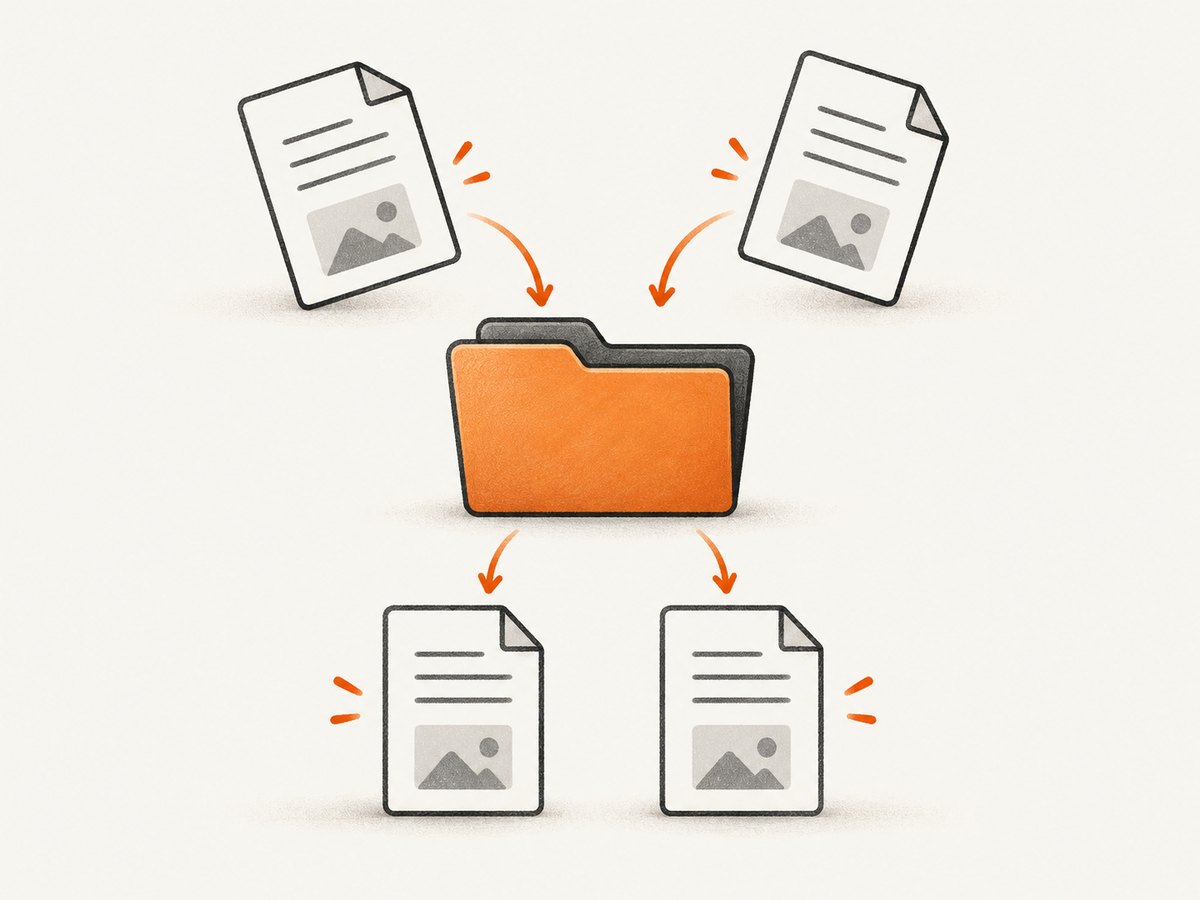
A completed event is the browser’s state transition, while a filesystem operation may still be observable by your process. Stat the file repeatedly and require the size to remain unchanged for a short interval. For large files, also enforce an overall timeout.
Prevent races
Use one directory per job or guard the final-name allocation with an application-level lock. The check-then-rename sequence can race when multiple workers share a directory. A job ID in the filename avoids most collisions.
Preserve extensions
Split the final extension before adding a suffix. For names such as archive.tar.gz, decide whether your policy treats .gz or the compound suffix as the extension. Never allow path separators, control characters, or Windows-reserved characters into a filename if files may later be moved across operating systems.
Using allowAndName
Change the CDP command to:
await cdp.send('Browser.setDownloadBehavior', {
  behavior: 'allowAndName',
  downloadPath: ROOT,
  eventsEnabled: true
});
This asks Chrome to use GUID-based names, which is useful when suggested names are untrusted or many downloads start together. You still map the GUID from downloadWillBegin to the completed file and rename it after completion. Check the Chrome and Puppeteer versions in your deployment because the protocol marks this behavior experimental.
Direct HTTP alternatives: cURL and Python
If the download is a plain, authenticated HTTP response and does not require browser JavaScript, a browser may be unnecessary. These examples still need your real URL and credentials; they do not reproduce cookies, clicks, or browser rendering.
DOWNLOAD_URL='https://example.com/file.pdf'
curl -fL "$DOWNLOAD_URL" -o downloads/report.pdf
import os
from pathlib import Path
import requests
url = os.environ['DOWNLOAD_URL']
out = Path('downloads/report.pdf')
out.parent.mkdir(parents=True, exist_ok=True)
with requests.get(url, stream=True, timeout=90) as response:
response.raise_for_status()
with out.open('wb') as handle:
for chunk in response.iter_content(chunk_size=1024 * 1024):
if chunk:
handle.write(chunk)
print(out)
Use Puppeteer when the site requires a session, JavaScript-generated URLs, a user gesture, or browser-managed authentication.
Common errors and fixes
| Error | Likely cause | Fix |
|---|---|---|
ProtocolError: Browser.setDownloadBehavior |
Browser/protocol mismatch or unsupported field | Pin compatible versions, inspect the protocol, and try without eventsEnabled. |
| No download event arrives | The click did not trigger a download, selector matched the wrong element, or the page opened a new tab | Wait for the selector, verify the click target, and inspect page targets and network activity. |
File remains .crdownload |
Transfer is still active, stalled, or canceled | Wait for a completed progress event, set a timeout, and handle the canceled state. |
ENOENT during rename |
The event path is stale or Chrome chose another on-disk name | Inspect the controlled directory and filter out temporary files. |
| Files overwrite each other | Two workers selected the same destination | Use per-job directories, locks, or unique job IDs. |
| Permission denied | The process cannot write to the download directory | Choose a writable absolute directory and check ownership and mount permissions. |
| Chrome fails to launch on Ubuntu | Missing system dependencies | Use Puppeteer’s documented Debian/Ubuntu dependency installation with the required privileges. |
Performance, reliability, and cost notes
Most delay comes from page navigation, authentication, server response time, and file size. Reuse a browser process for batches, but create an isolated directory and event correlation record for each job. Avoid polling too frequently; a 100–250 ms interval is usually enough for completion checks. Set separate navigation, download, and filesystem timeouts so one stalled transfer does not hold a worker forever.
Chrome downloads consume disk space until your retention process removes or archives them. Record the GUID, source URL, suggested name, final path, byte count, and error state for diagnosis. Clean temporary directories after successful renames and after cancellation.
There is no Puppeteer service fee for this local workflow. Your costs are the Ubuntu host, storage, bandwidth, and browser operations. If you move capture work to a hosted screenshot API, compare billing rules and failure handling carefully.
Or skip the browser setup
ScreenshotNeo returns a clean screenshot or PDF with one request. It is useful when your actual goal is to save a rendered page rather than automate Chrome downloads. Cookie banners, newsletter popups, and chat widgets are removed before the shot. Bot checks, blank pages, failed loads, timeouts, and cache hits are not billed, and response headers identify the page verdict and billing result. An MCP server provides take_screenshot, get_page_info, and capture_pdf tools for Claude, Cursor, and other MCP clients. The free plan includes 1,000 screenshots per month without a card; paid plans start at $5 for 3,000 shots.
See the ScreenshotNeo API documentation for all options, including custom CSS and JavaScript, device presets, full-page capture, element selectors, PDF settings, headers, cookies, caching, signed links, asynchronous jobs, and bulk capture.
curl -G "https://api.screenshotneo.com/v1/shot" -d access_key=YOUR_API_KEY --data-urlencode url=https://stripe.com -o shot.webpimport requests
r = requests.get("https://api.screenshotneo.com/v1/shot", params={"access_key": "YOUR_API_KEY", "url": "https://stripe.com"}, timeout=90)
open("shot.webp", "wb").write(r.content)const q = new URLSearchParams({ access_key: 'YOUR_API_KEY', url: 'https://stripe.com' });
const res = await fetch(`https://api.screenshotneo.com/v1/shot?${q}`);Create a free ScreenshotNeo account to get 1,000 screenshots each month with no card.
FAQ
Can I set the filename in the Chrome download dialog?
Not through the documented Puppeteer API. Configure the download directory and rename the completed file in your process.
Is suggestedFilename always the saved filename?
No. Chrome may alter it for collisions, safety, or browser behavior. Confirm the actual file in your controlled directory.
Should I use allowAndName for every job?
No. It is useful for collision avoidance and correlation, but it is experimental and still requires a later rename for human-readable names.
Can a direct HTTP client replace Puppeteer?
Only when the resource is available through a normal HTTP request. Browser state, JavaScript, user gestures, and generated download URLs still require browser automation.


