How to Render an ASP.NET MVC View as an Image
Render a Razor view as HTML, capture it with headless Chromium, and return reliable PNG, JPEG, or WebP images from ASP.NET MVC.
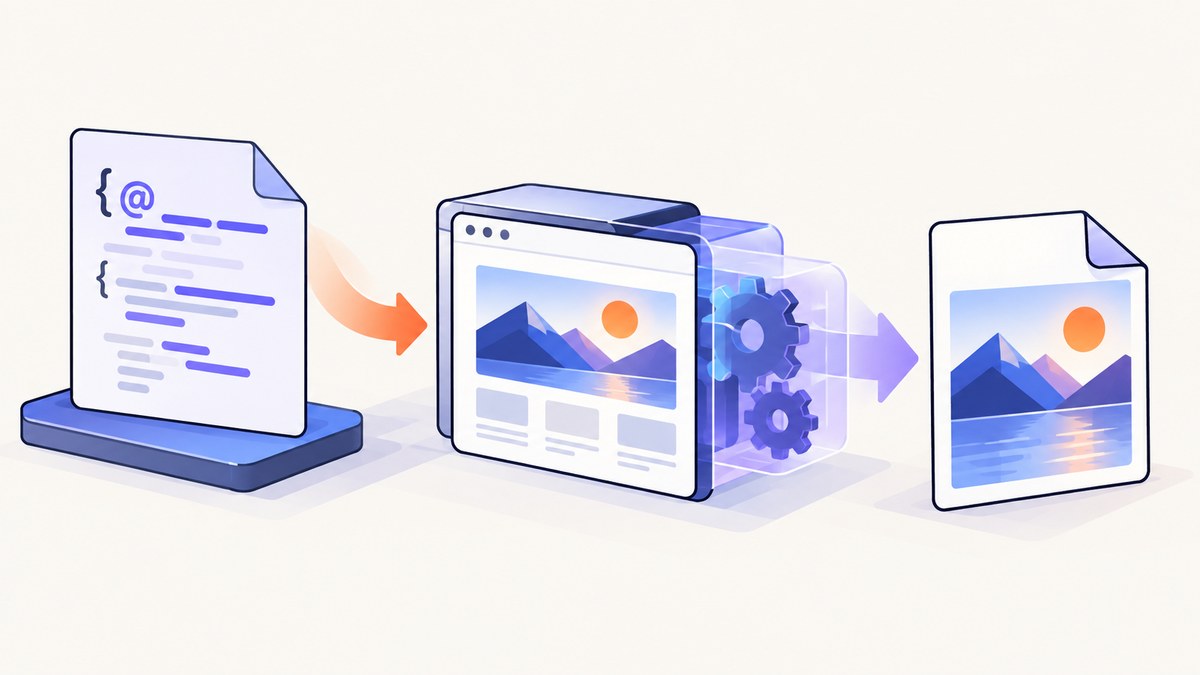
Short answer: Razor renders an ASP.NET MVC view into HTML; a second rendering step turns that HTML (or a URL that serves it) into image bytes. For browser-faithful output, use a headless Chromium engine such as PuppeteerSharp, wait for CSS, fonts, images, and client-side data, then return the resulting PNG, JPEG, or WebP with the matching content type.
Microsoft describes the view as the part of MVC that renders the final page from model data. A screenshot engine comes after that normal MVC pipeline. This separation is the key to rendering a Razor view to PNG without trying to make Razor generate pixels directly.
Choose an architecture
| Approach | Best for | Trade-offs |
|---|---|---|
| Dedicated MVC URL + headless Chromium | Production pages, JavaScript, modern CSS, web fonts | Requires browser lifecycle and resource management |
| Render HTML string + Chromium | Worker services and isolated rendering | You must provide correct base URLs for relative assets |
| wkhtmltoimage | Legacy deployments with simple pages | Qt WebKit has older CSS and JavaScript behavior |
| Hosted HTML-to-image API | Teams that do not want to operate browsers | External data-processing boundary and service cost |
ASP.NET MVC documentation covers the controller, model, and view pipeline. Puppeteer’s screenshot API captures the rendered page, while CoreHtmlToImage packages Chromium-based HTML-to-image conversion for .NET.
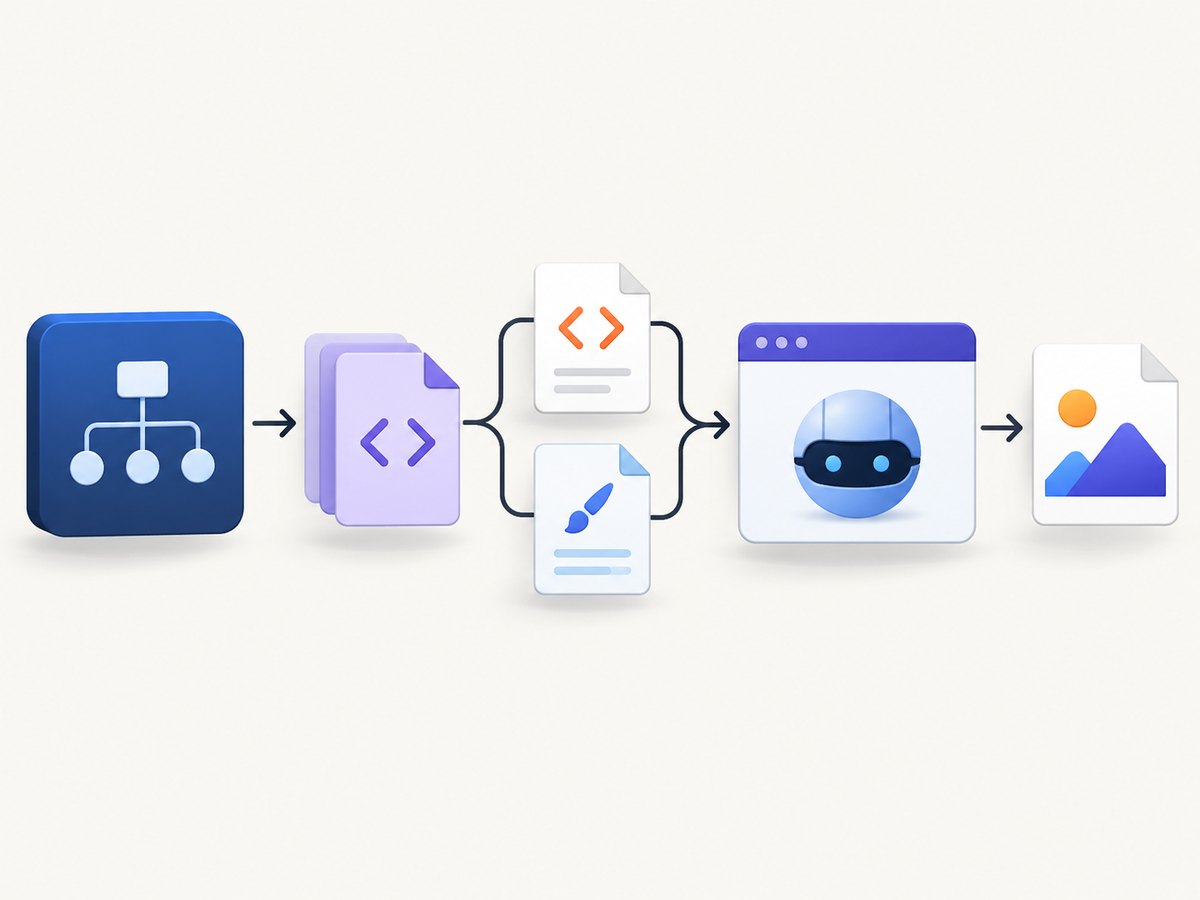
Recommended flow
- Create a route that returns the complete, styled view.
- Open that route in an authenticated or otherwise controlled browser context.
- Set the viewport and device scale that define the image specification.
- Wait for a known ready selector, fonts, images, and any client-side data.
- Capture the full page or a selected clip.
- Return the bytes with
image/png,image/jpeg, orimage/webp.
ASP.NET Core MVC with PuppeteerSharp
The following example uses a dedicated source route and a capture endpoint. Install PuppeteerSharp with NuGet, and download a compatible Chromium revision according to its setup instructions.
using Microsoft.AspNetCore.Mvc;
using PuppeteerSharp;

public sealed class ReportViewModel
{
    public int Id { get; init; }
    public string Title { get; init; } = "";
    public IReadOnlyList<string> Items { get; init; } = Array.Empty<string>();
}

public class ReportsController : Controller
{
    [HttpGet("/reports/{id}/image-source")]
    public IActionResult ImageSource(int id)
    {
        // Load and authorize the report for the current user here.
        var model = new ReportViewModel
        {
            Id = id,
            Title = $"Report {id}",
            Items = new[] { "Revenue", "Orders", "Conversion rate" }
        };
        return View("Report", model);
    }

    [HttpGet("/reports/{id}.png")]
    public async Task<IActionResult> Screenshot(int id)
    {
        var browserFetcher = new BrowserFetcher();
        await browserFetcher.DownloadAsync();

        await using var browser = await Puppeteer.LaunchAsync(new LaunchOptions
        {
            Headless = true,
            Args = new[] { "--no-sandbox" }
        });

        await using var page = await browser.NewPageAsync();
        await page.SetViewportAsync(new ViewPortOptions
        {
            Width = 1440,
            Height = 900,
            DeviceScaleFactor = 1
        });

        var sourceUrl = $"https://localhost:5001/reports/{id}/image-source";
        await page.GoToAsync(sourceUrl, new NavigationOptions
        {
            WaitUntil = new[] { WaitUntilNavigation.Networkidle0 }
        });

        await page.WaitForSelectorAsync("[data-report-ready]");
        await page.EvaluateExpressionAsync("document.fonts.ready");

        var bytes = await page.ScreenshotDataAsync(new ScreenshotOptions
        {
            FullPage = true,
            Type = ScreenshotType.Png
        });

        return File(bytes, "image/png");
    }
}
In Report.cshtml, mark the page ready only after the data and visual components exist:
@model ReportViewModel
<!doctype html>
<html>
<head>
    <meta charset="utf-8" />
    <link rel="stylesheet" href="/css/report.css" />
</head>
<body>
    <main data-report-ready>
        <h1>@Model.Title</h1>
        <ul>
        @foreach (var item in Model.Items)
        {
            <li>@item</li>
        }
        </ul>
    </main>
</body>
</html>
JPEG, WebP, clipping, and quality
var bytes = await page.ScreenshotDataAsync(new ScreenshotOptions
{
    Type = ScreenshotType.Jpeg,
    Quality = 85,
    FullPage = false,
    Clip = new Clip { X = 0, Y = 0, Width = 1200, Height = 800 }
});
return File(bytes, "image/jpeg");
Use PNG for text, diagrams, and transparency; JPEG for photographic pages; and WebP when your consumers support it and smaller files matter. A fixed viewport changes line wrapping, so treat width, height, device scale, and full-page behavior as part of your API contract.
Rendering an HTML string with CoreHtmlToImage
When a worker already has the HTML, an HTML-to-image library can perform the browser step without exposing a public route. Keep a correct base URL for relative stylesheets, images, and fonts, and wait for dynamic content before conversion. The exact options depend on the package version.
using CoreHtmlToImage;

var html = await System.IO.File.ReadAllTextAsync("report.html");
var converter = new HtmlConverter();
var png = await converter.ConvertToPngAsync(html);
await File.WriteAllBytesAsync("report.png", png);
For pages that depend heavily on JavaScript, navigation, authentication, or browser APIs, use direct Puppeteer control instead of assuming a static HTML converter will reproduce the page.
ASP.NET MVC 5 considerations
MVC 5 uses the System.Web.Mvc view stack, while ASP.NET Core MVC uses the ASP.NET Core view stack. The rendering principle is identical: keep return View(model) responsible for HTML, then capture the resulting URL in a browser. For an MVC 5 application, expose a narrowly scoped route such as /reports/{id}/image-source, preserve the normal authorization checks, and let a separate worker or browser process capture it.
Authentication and private data
- Run the browser with the same authentication mechanism as the source route, such as a controlled cookie or header.
- Prefer a short-lived, signed capture URL over making a private report public.
- Authorize both the source route and the image endpoint against the report owner.
- Never put long-lived credentials in a URL, logs, HTML, or client-side JavaScript.
- If a hosted renderer receives the page, confirm that the data is allowed to cross that external boundary.
Waiting for a complete visual result
Navigation completion does not guarantee visual readiness. Use a combination of:
- Selector wait: wait for a marker such as
[data-report-ready]. - Font readiness: await
document.fonts.ready. - Network idle: useful for pages whose requests have a clear end, but insufficient for polling applications.
- Explicit delay: a last resort for animations or third-party widgets.
- Animation control: inject CSS that disables transitions when deterministic output matters.
await page.AddStyleTagAsync(new AddTagOptions
{
    Content = "*, *::before, *::after { animation: none !important; transition: none !important; }"
});
Common failures and fixes
| Symptom | Likely cause | Fix |
|---|---|---|
| Unstyled image | Relative CSS URL is resolved against the wrong document | Use a real page URL or set a correct base URL; verify static-file middleware. |
| Missing images or fonts | Capture occurs before assets finish loading | Wait for a ready selector and document.fonts.ready; check browser logs. |
| Charts are blank | Client-side rendering has not completed | Expose an application-ready marker after chart initialization. |
| Wrong wrapping or dimensions | Viewport or device scale differs from design assumptions | Set width, height, device scale, and full-page/clip explicitly. |
| 401 or 403 | The browser has no valid session | Pass a scoped cookie/header or use a short-lived authorized route. |
| Browser launch fails in Linux | Missing Chromium dependencies or sandbox restrictions | Install the required browser dependencies, use a compatible executable, and follow your deployment platform’s sandbox guidance. |
| Capture hangs | Long polling, never-ending requests, or a page that never reaches idle | Wait for a selector instead of network idle and enforce navigation and capture timeouts. |
| Partial lazy-loaded page | Images load only after scrolling | Use full-page capture and scroll or trigger lazy loading before the final screenshot. |

Performance, reliability, and cost
- Reuse browsers carefully: launching Chromium for every request adds overhead. A managed browser pool can reuse processes while creating an isolated page per job.
- Bound every operation: set navigation, selector, and overall job timeouts; close pages after failures.
- Control concurrency: too many pages can exhaust CPU, memory, file descriptors, or network bandwidth. Queue work and apply backpressure.
- Make output deterministic: pin viewport, timezone, locale, fonts, data, and animation behavior.
- Cache intentionally: cache only when the URL, authorization scope, and underlying data make reuse safe.
- Measure your own workload: the cited primary sources do not publish a comparative speed, memory, or fidelity benchmark for these tools.
Or skip the browser setup
ScreenshotNeo provides a website screenshot API and MCP server. It accepts a URL and returns PNG, JPEG, WebP, or PDF. Its capture pipeline accepts cookie and consent banners, removes more than 60 known consent platforms plus newsletter popups and chat widgets, and lets you turn those steps off. Only clean shots are billed; bot checks, blank pages, timeouts, failed loads, and cache hits are free, with X-Page-Verdict and X-Billed headers describing the result.
For a publicly reachable MVC image-source route, the request is one call:
curl -G "https://api.screenshotneo.com/v1/shot" -d access_key=YOUR_API_KEY --data-urlencode url=https://your-app.example.com/reports/42/image-source -o shot.webpimport requests
r = requests.get(
"https://api.screenshotneo.com/v1/shot",
params={"access_key": "YOUR_API_KEY", "url": "https://your-app.example.com/reports/42/image-source"},
timeout=90,
)
r.raise_for_status()
open("shot.webp", "wb").write(r.content)const q = new URLSearchParams({
access_key: 'YOUR_API_KEY',
url: 'https://your-app.example.com/reports/42/image-source'
});
const res = await fetch(`https://api.screenshotneo.com/v1/shot?${q}`);
if (!res.ok) throw new Error(`Screenshot failed: ${res.status}`);
require('fs').writeFileSync('shot.webp', Buffer.from(await res.arrayBuffer()));See the ScreenshotNeo documentation for the available capture options. An MCP server lets Claude, Cursor, and other MCP clients call take_screenshot, get_page_info, and capture_pdf. The Free plan includes 1,000 screenshots per month with no card; paid plans start at $5 for 3,000 screenshots. Create a free ScreenshotNeo account.
FAQ
Can Razor render directly to a PNG?
No. Razor produces HTML. A browser or HTML-to-image renderer must rasterize that HTML.
Should I capture the MVC action or a partial view?
Capture a complete route when layout, styles, scripts, and fonts matter. Render a partial or isolated HTML fragment when the output is intentionally limited.
Is a browser required for every view?
No. Static HTML converters can work for simple pages, but browser automation is safer for modern CSS, JavaScript, web fonts, and browser APIs.
How do I prevent a private report from leaking?
Keep authorization on the source route, use a scoped session or short-lived signed URL, and restrict access to the capture endpoint.
What image format should an API return?
Use PNG for crisp text and transparency, JPEG for photographs, and WebP when client support and file size favor it.


