How to Render Canvas Content in Puppeteer PDFs
Wait for your canvas to finish drawing, choose print or screen styles, and generate sharp, reliable Puppeteer PDFs.

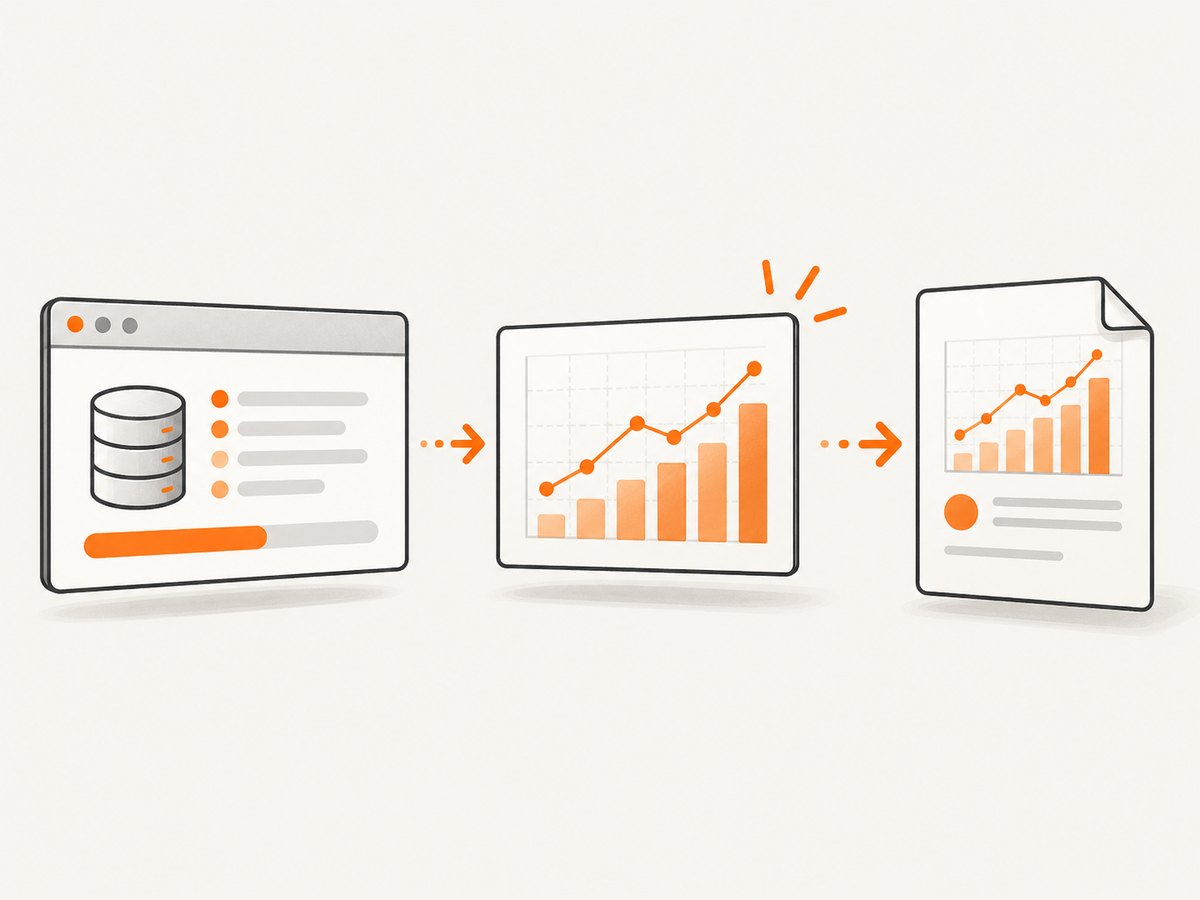
Direct answer: make the page tell Puppeteer when the final canvas draw is complete, then call page.pdf() with deliberate media, background, sizing and scale options. Navigation completion, networkidle2 and document.fonts.ready do not prove that a chart, animation, worker or WebGL renderer has painted the frame you need.
The reliable sequence is:
- Load the page and its data.
- Finish the canvas draw in application code.
- Set an application-owned readiness flag.
- Wait for that flag in Puppeteer.
- Choose screen or print media intentionally.
- Generate the PDF with backgrounds, page size and margins configured.
- Inspect the actual PDF for clipping, color, resolution and accessibility.
1. Add an application-owned canvas-ready signal
Only the page knows when its data, images and drawing code have completed. Set a flag after the final relevant draw() call:
<canvas id='sales-chart' width='1600' height='900'></canvas>
<script>
  async function renderChart() {
    const data = await fetch('/api/sales').then(response => response.json());
    const canvas = document.querySelector('#sales-chart');
    const context = canvas.getContext('2d');

    // Draw axes, labels and series using your chart code.
    drawSalesChart(context, data);

    // Set this only after the visible canvas has its final frame.
    window.__canvasReady = true;
  }

  window.__canvasReady = false;
  renderChart().catch(error => {
    window.__canvasError = String(error);
  });
</script>
For multiple canvases, set the flag only after every renderer has completed. If a worker or animation supplies the pixels, signal from the point at which the desired frame is actually visible. For an animated chart, decide whether the PDF should contain a particular frame and pause or synchronize the animation before setting the flag.
2. Generate a PDF with Puppeteer
This complete Node.js example waits for navigation, checks the application signal, selects screen media when screen styling is desired, and writes a PDF:
import puppeteer from 'puppeteer';

const browser = await puppeteer.launch({ headless: true });
const page = await browser.newPage();

try {
  await page.goto('https://example.com/report', {
    waitUntil: 'networkidle2',
    timeout: 60000
  });

  await page.waitForFunction(() => window.__canvasReady === true, {
    timeout: 30000
  });

  const canvasError = await page.evaluate(() => window.__canvasError || null);
  if (canvasError) throw new Error(`Canvas failed: ${canvasError}`);

  // Use screen CSS when the PDF should match the on-screen design.
  await page.emulateMediaType('screen');

  await page.pdf({
    path: 'report.pdf',
    format: 'A4',
    printBackground: true,
    preferCSSPageSize: true,
    margin: { top: '12mm', right: '12mm', bottom: '12mm', left: '12mm' },
    scale: 1,
    displayHeaderFooter: false,
    waitForFonts: true
  });
} finally {
  await browser.close();
}
Puppeteer renders PDFs with print media by default. Calling page.emulateMediaType('screen') switches the page to screen media before printing; omit it when you have a document-specific print stylesheet. See the Page.pdf() API and PDF generation guide.
3. Decide between screen CSS and print CSS
| Goal | Approach | Check |
|---|---|---|
| Match the browser view | await page.emulateMediaType('screen') |
Screen-only dimensions, colors and visibility rules |
| Create a paper document | Keep print media and define @media print |
Print rules do not hide the canvas or alter its size unexpectedly |
| Use stylesheet page dimensions | preferCSSPageSize: true |
@page size and margins are deliberate |
| Use API paper dimensions | Set format or explicit width and height |
Content fits without clipping |
PDF rendering can adjust colors for printing. When exact colors matter, use -webkit-print-color-adjust: exact in the relevant CSS and enable printBackground: true for background graphics. The documented default for printBackground is false. CSS @page sizing takes priority when preferCSSPageSize is enabled. Refer to Puppeteer’s PDFOptions interface.
@page {
  size:  landscape;
  margin: 10mm;
}

.report, canvas {
  -webkit-print-color-adjust: exact;
}

@media print {
  .controls, .debug-panel { display: none; }
  canvas { break-inside: avoid; }
}
4. Make the canvas sharp and correctly sized
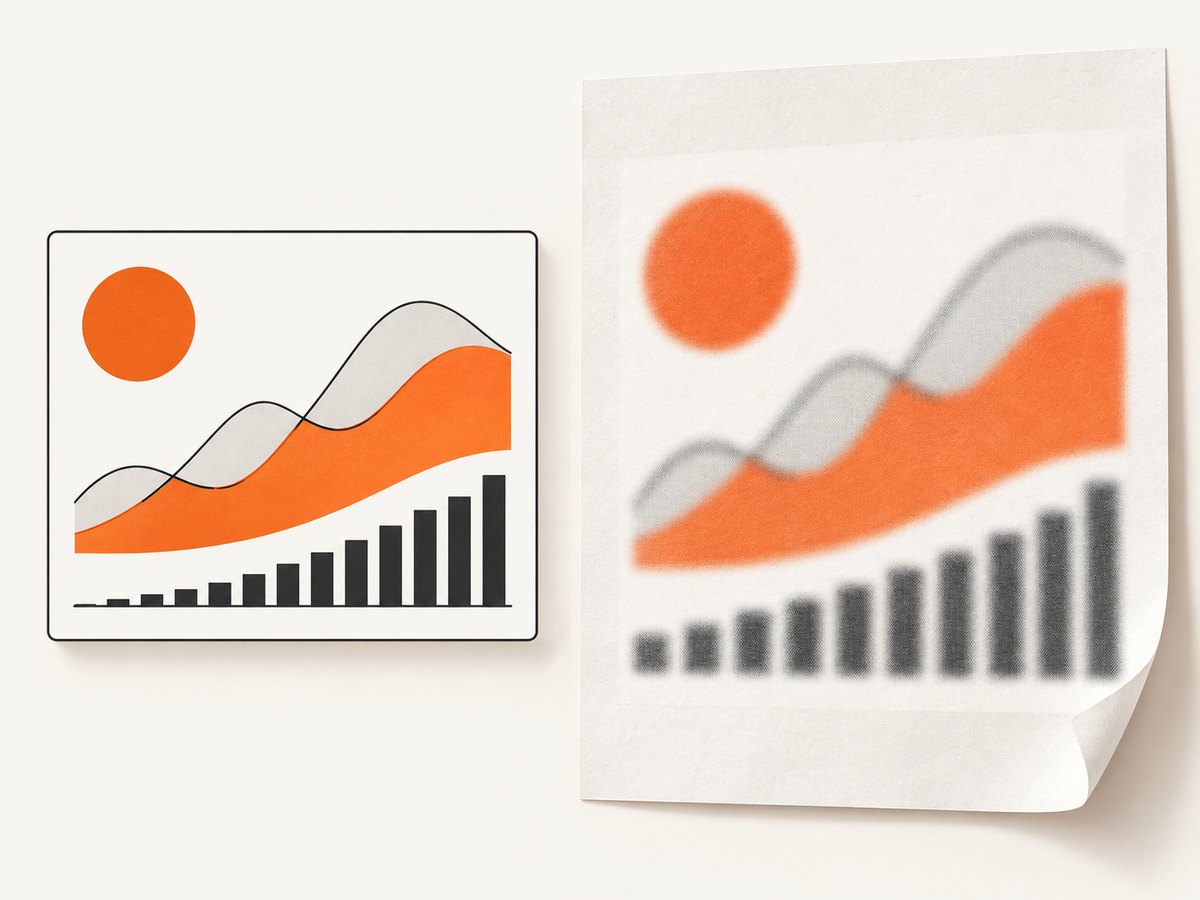
A canvas has an intrinsic bitmap coordinate space defined by its width and height attributes. CSS changes its displayed size but does not add pixels, so a small backing bitmap stretched across a page looks soft. CSS resizing can also distort the aspect ratio. MDN documents the canvas drawing model, dimensions and accessibility limitations in its canvas element reference.
function sizeCanvasForOutput(canvas, cssWidth, cssHeight) {
  const deviceScale = window.devicePixelRatio || 1;
  canvas.width = Math.round(cssWidth * deviceScale);
  canvas.height = Math.round(cssHeight * deviceScale);
  canvas.style.width = `${cssWidth}px`;
  canvas.style.height = `${cssHeight}px`;

  const context = canvas.getContext('2d');
  context.setTransform(deviceScale, 0, 0, deviceScale, 0, 0);
}

sizeCanvasForOutput(document.querySelector('#sales-chart'), 800, 450);
Choose the backing resolution for the intended printed dimensions. A browser screenshot is not a substitute for opening the generated PDF at its target paper size. If a chart must remain readable when printed, consider rendering at a larger backing resolution and keeping the display dimensions stable.
5. Synchronization strategies and their limits
Navigation and network idle
waitUntil: 'networkidle2' helps wait for page loading to settle, but it does not know whether your application has processed data or drawn a canvas. A cached response, a long-lived connection or a delayed worker can make network activity a poor rendering signal.
Fonts
Puppeteer waits for fonts through its documented PDF flow, and waitForFonts can be enabled in PDF options. Font readiness still says nothing about chart data, image decoding or canvas drawing.
Selectors and explicit delays
page.waitForSelector() is useful when your app inserts a “ready” marker. A fixed timeout can be a diagnostic tool, but it is a weak primary synchronization method because render time varies across machines and pages.
await page.waitForSelector('[data-canvas-ready="true"]', {
  visible: true,
  timeout: 30000
});
Prefer a promise or flag controlled by the application. For an app that cannot be changed, combine a specific selector with a bounded delay and inspect the result rather than assuming the delay guarantees a final frame.
6. Common failures and fixes
| Symptom | Likely cause | Fix |
|---|---|---|
| Blank canvas | PDF started before data or drawing completed | Wait for an application-owned flag set after the final draw; verify the canvas in page.screenshot() during debugging. |
| Old frame | Animation or worker had not delivered the requested frame | Pause or coordinate animation and signal readiness only after the visible frame is painted. |
| Different colors | Print media rules or print color adjustment | Use screen media for screen fidelity, inspect @media print, set printBackground: true and apply print color adjustment. |
| Chart clipped | Paper size, margins, scale or CSS page breaks conflict | Set one sizing authority, use preferCSSPageSize deliberately, and inspect landscape orientation and margins. |
| Blurry or stretched chart | Backing bitmap is smaller than its printed size or CSS changed its aspect ratio | Set explicit intrinsic dimensions, render at sufficient resolution and keep width-to-height ratios consistent. |
| PDF hangs | Readiness flag never becomes true | Set an error flag, use a finite waitForFunction timeout and log failed data requests or drawing exceptions. |
| Text cannot be selected | Canvas pixels are not semantic text | Add an HTML summary, labels or a data table alongside the canvas. |
7. Accessibility and searchable output
Canvas exposes a bitmap, not individual chart marks or labels, to accessibility tools. If the PDF must be searchable, selectable or understandable without sight, include an equivalent textual summary and structured data. A useful pattern is a heading, a short description of the trend, and an HTML table containing the values represented by the chart. Keep the canvas as the visual presentation, but do not make it the only representation.
8. Testing and operational checks
- Open the page in the same Chromium version used by the job and confirm the canvas is populated.
- Capture a temporary browser screenshot before
page.pdf()to distinguish drawing failures from PDF option failures. - Generate PDFs for both a typical dataset and an empty, slow or unusually large dataset.
- Check one portrait and one landscape layout if both are supported.
- Open the PDF at 100% and at its intended print size; inspect labels, edges, colors and page breaks.
- Record the Chromium and Puppeteer versions with the generated artifact so rendering changes are traceable.
Do not claim identical output across all Puppeteer or Chromium versions without checking the version you deploy. Canvas completion is application-specific, and no universal Puppeteer detector can infer that a particular chart library has finished its final draw.
9. Performance, reliability and cost considerations
Rendering a high-resolution canvas consumes browser memory and CPU. Reuse a browser process when your worker model permits it, but isolate pages and close them after each job. Bound navigation and readiness waits so a broken page cannot occupy a worker indefinitely. Avoid unnecessary animations, third-party requests and oversized backing bitmaps. If the chart data is deterministic, render one stable frame instead of waiting through an animation.
Choose paper size and scale before increasing bitmap resolution. A huge canvas can increase PDF size without improving the result at the final printed dimensions. If you need selectable values, adding semantic HTML can be smaller and more useful than increasing canvas pixels.
10. Or skip the browser setup
ScreenshotNeo provides a hosted screenshot API and MCP server. It can capture a page as PNG, JPEG, WebP or PDF, with options for full-page capture, CSS element capture, custom JavaScript and CSS, waits, device presets, PDF paper settings, headers, cookies and more. Before capture it accepts cookie or consent banners and removes more than 60 known consent platforms, newsletter popups and chat widgets; each step can be disabled.
Only clean shots are billed. Bot checks or CAPTCHAs, blank pages, timeouts, failed loads and cache hits cost nothing, and the response identifies the result with X-Page-Verdict and X-Billed headers. Its MCP server exposes take_screenshot, get_page_info and capture_pdf for Claude, Cursor and other MCP clients.
See the ScreenshotNeo API documentation for the complete option list. A direct request looks like this:
curl -G "https://api.screenshotneo.com/v1/shot" -d access_key=YOUR_API_KEY --data-urlencode url=https://stripe.com -o shot.webpimport requests
r = requests.get("https://api.screenshotneo.com/v1/shot", params={"access_key": "YOUR_API_KEY", "url": "https://stripe.com"}, timeout=90)
open("shot.webp", "wb").write(r.content)const q = new URLSearchParams({ access_key: 'YOUR_API_KEY', url: 'https://stripe.com' });
const res = await fetch(`https://api.screenshotneo.com/v1/shot?${q}`);There is a free plan with 1,000 screenshots per month and no card. Paid plans start at $5 for 3,000 shots, and every feature is available on every plan. Create a free ScreenshotNeo account.
FAQ
Does networkidle2 guarantee that a canvas is rendered?
No. It describes network activity. Use an application-owned signal after the final draw.
Should I use screen or print media?
Use screen media when matching the browser view. Keep print media when your stylesheet is designed for paper.
Why is my canvas blurry in the PDF?
The intrinsic bitmap is probably too small for its printed dimensions, or CSS is stretching it. Increase backing resolution and preserve the aspect ratio.
Can a canvas chart be accessible by itself?
No. Add equivalent text, labels and structured data for accessibility and search.
Can I capture a PDF without maintaining Puppeteer infrastructure?
Yes. ScreenshotNeo accepts one request for a hosted capture and can remove consent banners, popups and chat widgets before the shot.


