How to Render Checkboxes in iText XML Worker HTML-to-PDF
Learn why XML Worker drops HTML checkboxes and how to create static marks, interactive AcroForms, or migrate to pdfHTML.
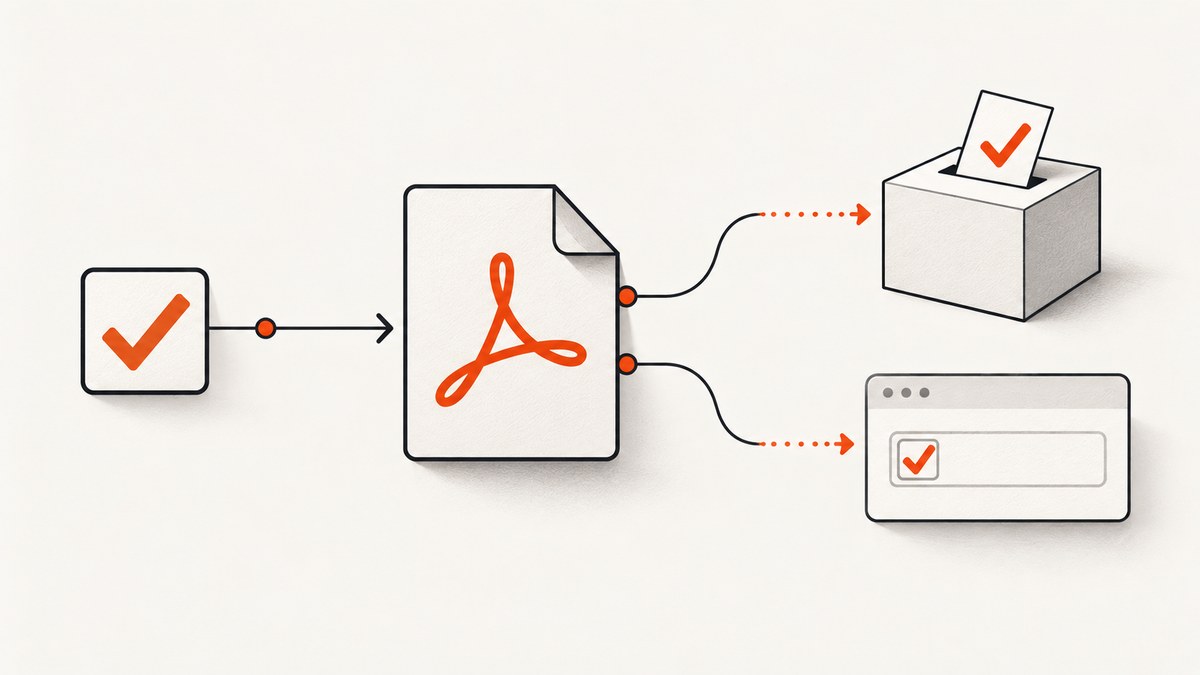
Short answer: iText 5 XML Worker commonly omits <input type='checkbox'> elements when converting XHTML to PDF. Treat the two desired outputs differently: use a Unicode ballot-box character such as ☐ for a static printed mark, or create an AcroForm checkbox explicitly with iText’s form APIs for an interactive field. Styling the HTML input with CSS does not reliably make XML Worker paint it or create a widget.
XML Worker is a legacy XHTML/CSS conversion add-on. It parses finished, well-formed XHTML and does not execute JavaScript. The omission has been reported with XML Worker 5.4.1/5.4.2 and 5.5.5, but those reports are practical observations rather than an official support matrix for every custom tag processor or release. See iText’s XML and XHTML parsing guidance and its legacy iText 5 product information.
Choose the PDF behavior first
| Requirement | Implementation | Result |
|---|---|---|
| View or print a fixed mark | Put ☐, ☑, or another supported glyph in the XHTML |
Static page content; it cannot be toggled |
| Let a reader click the box | Create an AcroForm checkbox with a field name, rectangle, appearance and state | Interactive PDF form field |
| New project or migration is possible | Evaluate current iText Core with pdfHTML and its documented form options | Modern conversion path; verify version, layout and licensing |
Option 1: render a static checkbox glyph
Use a character in the source XHTML instead of an HTML form control:
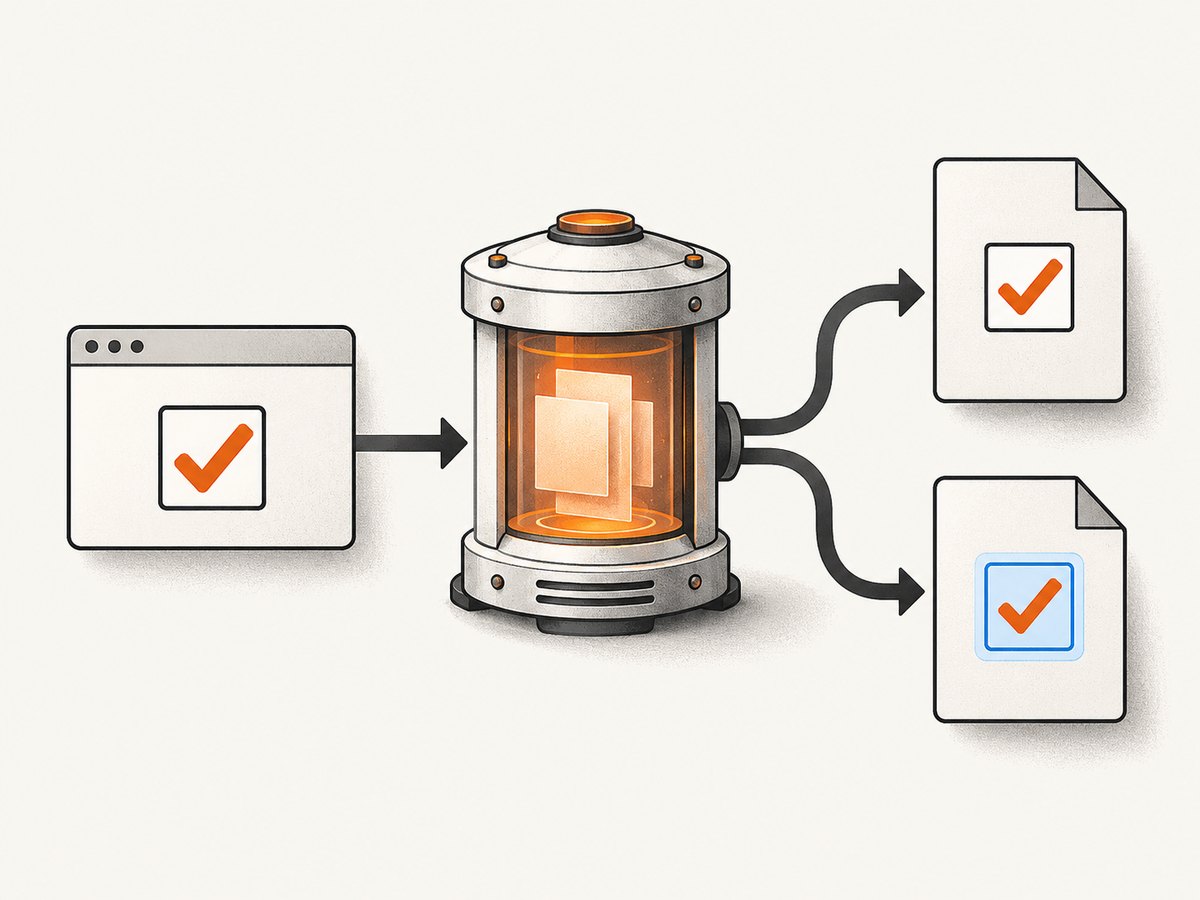
<p>☐ Accept the terms</p>
<p>☑ Send me updates</p>
This is the simplest solution when the PDF is a report, checklist or printout. It is not an accessible interactive field and it does not preserve an HTML checkbox’s checked value as form data.
Complete Java example with XML Worker
The following example creates a PDF from XHTML containing ballot-box characters. It uses XML Worker 5.x APIs and embeds a TrueType font so the glyph can be displayed when the chosen font contains it.
import com.itextpdf.text.Document;
import com.itextpdf.text.FontFactory;
import com.itextpdf.text.pdf.PdfWriter;
import com.itextpdf.tool.xml.XMLWorkerHelper;

import java.io.ByteArrayInputStream;
import java.io.FileOutputStream;
import java.nio.charset.StandardCharsets;

public class StaticCheckboxPdf {
    public static void main(String[] args) throws Exception {
        String xhtml = """
            <html>
              <head>
                <style>
                  body { font-family: NotoSans; font-size: 12pt; }
                  .box { font-size: 14pt; }
                </style>
              </head>
              <body>
                <p class='box'>☐ Accept the terms</p>
                <p class='box'>☑ Send me updates</p>
              </body>
            </html>""";

        Document document = new Document();
        PdfWriter.getInstance(document, new FileOutputStream("checkboxes.pdf"));
        document.open();

        String fontPath = "/path/to/NotoSans-Regular.ttf";
        FontFactory.register(fontPath, "NotoSans");
        XMLWorkerHelper.getInstance().parseXHtml(
            PdfWriter.getInstance(document, new FileOutputStream("unused.pdf")),
            document,
            new ByteArrayInputStream(xhtml.getBytes(StandardCharsets.UTF_8)),
            StandardCharsets.UTF_8,
            FontFactory.getFontImp()
        );
        document.close();
    }
}
In production, create the PdfWriter once and pass that same writer to XML Worker. A cleaner version is:
Document document = new Document();
PdfWriter writer = PdfWriter.getInstance(document, new FileOutputStream("checkboxes.pdf"));
document.open();
XMLWorkerHelper.getInstance().parseXHtml(
    writer,
    document,
    new ByteArrayInputStream(xhtml.getBytes(StandardCharsets.UTF_8)),
    StandardCharsets.UTF_8,
    FontFactory.getFontImp()
);
document.close();
Register a font that actually contains the selected glyph. If the PDF shows an empty square or a missing-character box, inspect the font before changing CSS. You can also use a small drawn square or an image when font support is unavailable, but that remains static content.
Checked state and data binding
Generate the character from your application data:
String mark = accepted ? "☑" : "☐";
String xhtml = "<p>" + mark + " Accept the terms</p>";
Escape user-controlled label text before inserting it into XHTML. Do not place arbitrary user input directly into the markup.
Option 2: create an interactive AcroForm checkbox
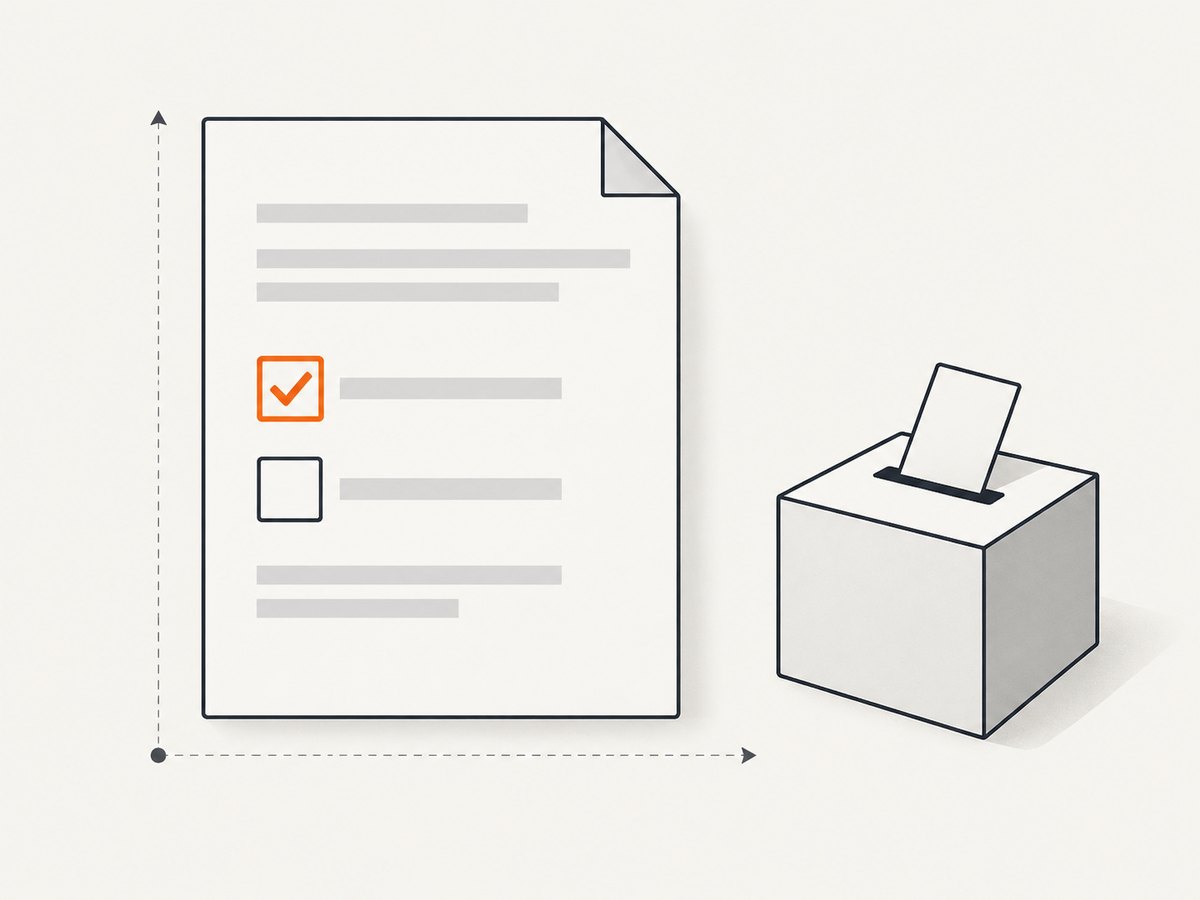
An interactive checkbox is a PDF form field, not a styled HTML element. Create it explicitly after you know the page and coordinates. The iText form tutorial demonstrates this approach with RadioCheckField; the field has a name, a rectangle, an off state and an appearance.
iText 5 Java example
import com.itextpdf.text.Rectangle;
import com.itextpdf.text.pdf.AcroFields;
import com.itextpdf.text.pdf.PdfAnnotation;
import com.itextpdf.text.pdf.PdfReader;
import com.itextpdf.text.pdf.PdfStamper;
import com.itextpdf.text.pdf.RadioCheckField;

public class AddCheckboxField {
    public static void main(String[] args) throws Exception {
        PdfReader reader = new PdfReader("base.pdf");
        PdfStamper stamper = new PdfStamper(reader, new FileOutputStream("interactive.pdf"));

        RadioCheckField checkbox = new RadioCheckField(
            stamper.getWriter(),
            new Rectangle(72, 700, 88, 716),
            "acceptTerms"
        );
        checkbox.setCheckType(RadioCheckField.TYPE_CHECK);
        checkbox.setChecked(false);
        checkbox.setBorderWidth(1);
        checkbox.setBorderColor(BaseColor.BLACK);
        checkbox.setBackgroundColor(BaseColor.WHITE);

        PdfFormField field = checkbox.getCheckField();
        stamper.addAnnotation(field, 1);
        stamper.close();
        reader.close();
    }
}
Add the field after XML Worker has produced the page, or calculate the rectangle while laying out the document. Coordinates are PDF points measured from the lower-left corner. If the label moves between pages, hard-coded coordinates will become incorrect; use a known template, page events, or a layout strategy that records the rendered position.
Set or read the value
Use the field name when filling or reading the form:
PdfReader reader = new PdfReader("interactive.pdf");
PdfStamper stamper = new PdfStamper(reader, new FileOutputStream("filled.pdf"));
AcroFields fields = stamper.getAcroFields();
fields.setField("acceptTerms", "Yes");
stamper.setFormFlattening(false);
stamper.close();
reader.close();
Keep the field name unique within the document. If you flatten the form, the mark becomes page content and can no longer be toggled.
Mapping HTML form data to AcroForm fields
XML Worker does not automatically turn an HTML checkbox into an AcroForm widget in the reviewed reports. Application code must map each input to a field.
- Parse the form data and determine whether each checkbox is checked.
- Render the label and surrounding layout with XML Worker.
- Determine the page and rectangle for each checkbox.
- Create an AcroForm field with a stable name.
- Set its value to the checked or off state.
- Optionally flatten only after all form interaction is complete.
If exact alignment matters, reserve a fixed-width box in the XHTML and use a template coordinate, or generate both label and field from the same layout model. CSS positioning alone does not give XML Worker an AcroForm coordinate.
Migration to pdfHTML
For new work, evaluate iText Core with pdfHTML. iText describes XML Worker as legacy and directs current HTML-to-PDF work toward pdfHTML. Its HTML-form guidance documents form conversion options such as setCreateAcroForm(true) for pdfHTML; that setting is not an XML Worker API and does not prove that XML Worker will map an HTML checkbox automatically. Check the exact iText generation, supported HTML/CSS, form behavior and licensing before migrating.
A migration checklist:
- Record whether every checkbox must be static or interactive.
- Inventory CSS, fonts, images, page breaks and JavaScript dependencies.
- Replace browser-only behavior: XML Worker and HTML-to-PDF converters do not execute page JavaScript as a browser does.
- Verify checked, unchecked, disabled and repeated-field cases in the target PDF viewer.
- Confirm font embedding and licensing for every deployed font.
- Compare output on the exact iText version you will ship.
Common errors and fixes
| Symptom | Likely cause | Fix |
|---|---|---|
| Checkbox is completely absent | XML Worker skipped input because it has no built-in widget mapping |
Use a Unicode glyph for static output or add an AcroForm field explicitly. |
| CSS border around the input does nothing | CSS changes styling only; they do not create a PDF annotation | Draw a static box or create a form field. |
| ☐ becomes a square or question mark | Selected font lacks the glyph or was not embedded | Use a font with U+2610/U+2611, register it, embed it, and verify the generated PDF. |
| PDF has text but no clickable field | The output contains a glyph, or the AcroForm field was never added as an annotation | Inspect the PDF’s AcroForm fields and call stamper.addAnnotation for each field. |
| Field appears on the wrong page | Rectangle was added with the wrong page number or coordinate system | Remember that coordinates start at the lower-left; pass the intended page to addAnnotation. |
| Checked value cannot be set | The export value is not the value expected by the field | Inspect available values with fields.getFieldItem(name) and use the field’s checked export value. |
| Layout changes move fields away from labels | Hard-coded rectangles do not follow flowing XHTML | Reserve layout space, use a template, or record positions during rendering. |
| Malformed XHTML causes missing content | XML Worker expects well-formed XHTML | Close every element, quote attributes, encode ampersands and validate the input before conversion. |
| Images or fonts disappear | Relative paths cannot be resolved from the conversion process | Provide an image or font provider with an explicit base directory and use accessible resources. |
| Browser behavior is missing | XML Worker does not execute JavaScript | Precompute values server-side or use a browser-based capture/conversion workflow. |
Performance, reliability and cost considerations
XML Worker and AcroForm generation
- Reuse registered font and image providers rather than rebuilding them for every document.
- Keep XHTML small and resolve local assets deterministically.
- Generate fields in one pass where possible; repeated reader/stamper cycles add I/O.
- Use stable field names and avoid flattening until the final delivery step.
- Test with the PDF viewers your users actually use; form appearance behavior can differ.
Static versus interactive output
Static glyphs are simpler, smaller and easier to print. AcroForms require coordinate management, field naming and viewer validation, but they preserve user interaction and machine-readable values. Decide this before designing the HTML so you do not build a CSS solution that cannot become a form field later.
Or skip the browser setup
If your real goal is to capture a webpage or PDF-ready page image rather than build an iText form, ScreenshotNeo provides a single screenshot API request. Before capture it accepts cookie or consent banners and removes more than 60 known consent platforms, newsletter popups and chat widgets. Bot checks, blank pages, failed loads, timeouts and cache hits are not billed, and the response identifies the result with X-Page-Verdict and X-Billed headers. It also provides an MCP server for AI agents through take_screenshot, get_page_info and capture_pdf.
See the ScreenshotNeo API documentation for all options. This is a screenshot/PDF capture service, so it does not create an editable AcroForm checkbox inside an iText-generated PDF.
cURL
curl -G "https://api.screenshotneo.com/v1/shot" -d access_key=YOUR_API_KEY --data-urlencode url=https://stripe.com -o shot.webpPython
import requests
r = requests.get("https://api.screenshotneo.com/v1/shot", params={"access_key": "YOUR_API_KEY", "url": "https://stripe.com"}, timeout=90)
open("shot.webp", "wb").write(r.content)
Node.js
const q = new URLSearchParams({ access_key: 'YOUR_API_KEY', url: 'https://stripe.com' });
const res = await fetch(`https://api.screenshotneo.com/v1/shot?${q}`);
ScreenshotNeo includes full-page capture, element selection, custom CSS and JavaScript, waits, resource blocking, headers and cookies, PDF settings, caching, signed links, asynchronous jobs and bulk capture. The Free plan includes 1,000 screenshots per month with no card; paid plans start at $5 for 3,000. Create a free ScreenshotNeo account.
FAQ
Can CSS make XML Worker render an HTML checkbox?
No reliable mapping is shown by the reviewed evidence. CSS can style content XML Worker already supports, but it does not create an AcroForm annotation.
Is the ballot-box character accessible?
It is ordinary text content. Its accessibility depends on the surrounding document structure and font; it is not an interactive form control.
Can XML Worker execute JavaScript that checks the box?
No. Compute the state before conversion or use a browser-based workflow.
Should every project migrate immediately?
No. Migration depends on compatibility, form requirements, layout, iText generation and licensing. For maintained new work, evaluate pdfHTML instead of expanding a legacy XML Worker pipeline.
Why does a checkbox work in a browser but disappear in the PDF?
A browser renders HTML controls as interactive UI widgets. XML Worker converts supported XHTML and CSS into PDF content and does not automatically reproduce browser widgets as form fields.


