How to Render Dynamic Templates With wkhtmltopdf
Render data-driven HTML with wkhtmltopdf, wait for JavaScript correctly, fix missing assets, secure untrusted input, and know when to use a browser renderer.

Direct answer: render your application template into complete HTML first, then pass that HTML file or URL to wkhtmltopdf. For dynamic content, choose a readiness strategy: a fixed --javascript-delay, a deliberate window.status marker, or a controlled --run-script. Verify that stylesheets, images, and fonts are reachable by the renderer, then set paper, margins, orientation, viewport, and print-media options deliberately.
wkhtmltopdf can produce useful PDFs from data-driven templates, but its rendering engine is old. The 0.12.6 documentation enables JavaScript by default and documents the timing and layout controls described below. The project status page recommends Puppeteer or a wrapper for sites that depend heavily on modern JavaScript. Read the project overview, the 0.12.6 usage manual, and the project’s status and recommendations before standardizing a production build.
1. Build complete HTML before invoking wkhtmltopdf
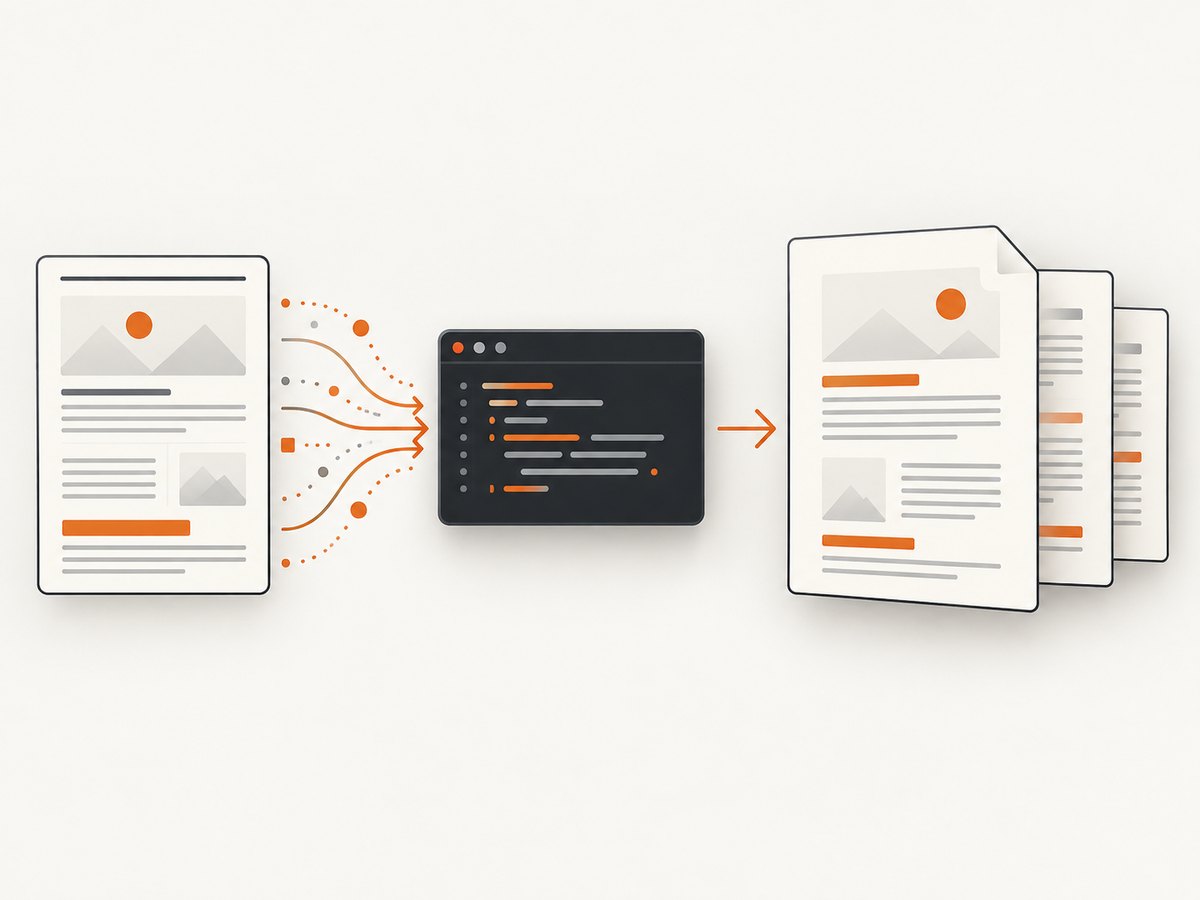
A template file containing placeholders is not enough. Your application must substitute the document data before the renderer starts. The resulting HTML should contain the final text, table rows, image URLs, CSS links, and any scripts needed to finish the page. The basic workflow described by the project is to create an HTML document and run it through the command-line tool.
- Load and validate the input data.
- Render the template in your application.
- Save the rendered HTML for inspection.
- Open that HTML in a normal browser and check assets and layout.
- Pass the file or URL to
wkhtmltopdf.
Keeping the intermediate HTML makes failures easier to classify. If the saved file is already wrong, fix template rendering. If it is correct in a browser but wrong in the PDF, investigate readiness, asset access, CSS support, or pagination.
Example: a rendered invoice template
<!doctype html>
<html>
<head>
  <meta charset='utf-8'>
  <link rel='stylesheet' href='file:///srv/invoices/print.css'>
</head>
<body>
  <h1>Invoice {{ invoice.number }}</h1>
  <p>Customer: {{ invoice.customer_name }}</p>
  <table>
    {% for item in invoice.items %}
    <tr><td>{{ item.description }}</td><td>{{ item.total }}</td></tr>
    {% endfor %}
  </table>
</body>
</html>
The braces above are application-template syntax. They must be replaced before wkhtmltopdf receives the file. Escape user-controlled text for HTML and validate URLs before inserting them.
2. Wait for dynamic JavaScript deliberately
The 0.12.6 manual documents three useful controls. JavaScript is enabled by default, but page load does not necessarily mean your application has finished rendering.
| Strategy | Option | Use when | Trade-off |
|---|---|---|---|
| Fixed delay | --javascript-delay milliseconds |
Work completes in a predictable time | Too short captures incomplete content; too long slows every job |
| Readiness marker | --window-status ready |
You control the page and can signal completion | Requires reliable page code and a matching value |
| Injected script | --run-script '...' |
You need a small controlled action after load | Does not prove a modern SPA is fully rendered |
Fixed delay
wkhtmltopdf --javascript-delay 800 rendered.html invoice.pdfThe manual documents a 200 ms default. Choose a value from observed application behavior, not from guesswork. A delay is appropriate for a short, deterministic animation or data fetch, but it cannot react to variable network time.
Window status as an explicit ready signal
Set the status only after required content is present:
<script>
  renderInvoice().then(function () {
    window.status = 'ready';
  });
</script>
wkhtmltopdf --window-status ready rendered.html invoice.pdfThis lets the page decide when it is ready instead of making the command guess. Make sure every success path sets the value and every failure path produces a useful log or exits according to your job system’s policy.
Run a controlled script
wkhtmltopdf --run-script "document.body.classList.add('print-ready')" rendered.html invoice.pdfUse this for deterministic DOM changes. It is not a compatibility layer for frameworks or APIs that the old WebKit engine cannot execute.
The manual also documents stopping slow scripts by default and an option to disable that behavior. Disabling the stop can make a render hang indefinitely, so use it only with a bounded job timeout and a script you control.
3. A complete command with print settings
wkhtmltopdf \
  --window-status ready \
  --page-size A4 \
  --orientation Portrait \
  --margin-top 16mm \
  --margin-right 14mm \
  --margin-bottom 16mm \
  --margin-left 14mm \
  --print-media-type \
  --viewport-size 1280x900 \
  rendered.html invoice.pdf
Use --page-width and --page-height for custom dimensions. Select landscape for wide tables. The viewport controls responsive breakpoints; it does not change the physical paper size. --print-media-type asks CSS to use print rules where supported. Review page breaks with the exact binary used in deployment because patched-Qt and distribution builds can differ.
CSS for predictable pagination
@media print {
  .page-break { page-break-before: always; }
  thead { display: table-header-group; }
  tr, img { page-break-inside: avoid; }
}
@page { size: A4; margin: 16mm 14mm; }
Large unbreakable elements can still overflow. Split long tables into logical sections, constrain image dimensions, and test fonts and line wrapping with production data.
4. Make local CSS, images, and fonts reachable
Missing assets are often a filesystem policy problem rather than a CSS problem. The manual documents --disable-local-file-access, --allow for explicit paths, and --enable-local-file-access. Prefer the narrowest allow-list:
wkhtmltopdf \
  --allow /srv/invoices/assets \
  rendered.html invoice.pdf
Use absolute file:/// URLs or paths that resolve from the renderer’s process environment. A web URL must be reachable from the machine running wkhtmltopdf, including DNS, TLS, authentication, and firewall rules. Embed small critical assets as data URLs when that simplifies deployment, but avoid turning very large documents into enormous HTML strings.
5. Debug incomplete or incorrect PDFs
Turn on JavaScript debugging and inspect load errors when diagnosing a failure. Separate the problem into readiness, resources, JavaScript compatibility, and layout.
| Symptom | Likely cause | Fix |
|---|---|---|
| Blank data area | Template data was never inserted | Save and inspect the rendered HTML before conversion |
| Loading spinner in PDF | Capture occurred before async work finished | Use --window-status or increase a measured delay |
| CSS missing | Relative URL or blocked local file | Use an absolute URL and an explicit --allow directory |
| Images absent | Network failure, unsupported format, or lazy loading | Check renderer logs, use reachable URLs, and trigger loading before the ready signal |
| Modern component absent | Old WebKit cannot execute required JavaScript or CSS | Simplify the template or move to a maintained browser renderer |
| Job never finishes | Endless script, blocked request, or disabled script timeout | Keep script stopping enabled, enforce a process timeout, and inspect requests |
| Unexpected page breaks | Paper, margins, viewport, and CSS disagree | Set them intentionally and test with representative content |
Do not fix every symptom by adding a longer delay. A longer wait cannot repair an inaccessible stylesheet or unsupported API. Capture command output and exit status, retain the input HTML for failed jobs, and compare a successful and failed document.
6. Security, isolation, and maintenance
Treat arbitrary HTML and JavaScript as hostile input. The project’s download page warns: “Do not use wkhtmltopdf with any untrusted HTML – be sure to sanitize any user-supplied HTML/JS, otherwise it can lead to complete takeover of the server it is running on!” Sanitize data, restrict network and filesystem access, run the process as a low-privilege user, and isolate it with a container or a mandatory access-control policy such as AppArmor or SELinux.
The status page states that Qt 4 has been unsupported since 2015 and its WebKit had not been updated since 2012. The downloads page lists 0.12.6 as the stable series and dates that release to June 11, 2020. Verify the binary, package source, patches, and operating-system behavior before deployment; downstream builds can differ.
7. Performance, reliability, and cost decisions
- Reduce work per page: precompute totals, remove unused JavaScript, resize images, and avoid loading third-party widgets.
- Bound every job: set an application timeout longer than the expected render time, then terminate the child process and clean temporary files.
- Control concurrency: use a worker pool sized for available CPU and memory; many simultaneous WebKit processes can exhaust both.
- Cache deterministic inputs: hash the template version and normalized data, then reuse the PDF when business rules allow it.
- Observe failures: record command version, options, input identifier, duration, exit code, stderr, and output size without logging secrets.
- Plan for fonts: install and pin the fonts used by the template so line wrapping does not change between hosts.
There is no universal render-time or cost benchmark in the reviewed sources. Measure your own templates with production-sized data and the exact deployment binary. Include CPU, memory, storage, queue time, retries, and the operational cost of patching an old renderer.
8. When Puppeteer or another renderer is a better fit
The wkhtmltopdf maintainer advises: “If you’re using it to convert a site which uses dynamic JS, consider using puppeteer or one of the many wrappers it has.” For reports from HTML you control, the status page also names WeasyPrint and commercial Prince as alternatives. Compare actual options on JavaScript execution, print-CSS fidelity, security updates, isolation, runtime dependencies, licensing, and support. Do not assume feature parity from a product name; render your hardest template in each candidate.

Or skip the browser setup
ScreenshotNeo provides a website screenshot API and MCP server. It can return PNG, JPEG, WebP, or PDF from one GET request. Cookie and consent banners are accepted and 60+ known consent platforms, newsletter popups, and chat widgets are removed before capture; each step can be turned off. Bot checks, blank pages, timeouts, failed loads, and cache hits cost nothing, and response headers identify the page verdict and whether it was billed.
See the ScreenshotNeo API documentation for all options. A minimal PDF-capable request is:
curl -G "https://api.screenshotneo.com/v1/shot" -d access_key=YOUR_API_KEY --data-urlencode url=https://stripe.com -o shot.webpimport requests
r = requests.get("https://api.screenshotneo.com/v1/shot", params={"access_key": "YOUR_API_KEY", "url": "https://stripe.com"}, timeout=90)
open("shot.webp", "wb").write(r.content)const q = new URLSearchParams({ access_key: 'YOUR_API_KEY', url: 'https://stripe.com' }); const res = await fetch(`https://api.screenshotneo.com/v1/shot?${q}`);For dynamic pages, ScreenshotNeo supports full-page capture with lazy images loaded, selector capture, custom CSS and JavaScript, click actions, waits for selectors, delays or network idle, request blocking, headers, cookies, user agents, authorization, timezone and geolocation, PDF paper and margin settings, caching, signed links, async jobs, webhooks, bulk capture, usage data, and an OpenAPI specification. Its MCP server exposes take_screenshot, get_page_info, and capture_pdf to Claude, Cursor, and other MCP clients. There are 1,000 free shots each month with no card; paid plans start at $5 for 3,000.
Create a free ScreenshotNeo account to get 1,000 screenshots a month with no card.
9. FAQ
Does wkhtmltopdf wait for JavaScript automatically?
JavaScript is enabled by default in the 0.12.6 manual, but completion is not the same as page load. Use a delay or, preferably for pages you control, a deliberate window-status signal.
Can I pass a template file directly?
Only if it is already complete HTML. Render application data first; wkhtmltopdf is not your template engine.
Why does it work in Chrome but not in the PDF?
The engines differ. Check unsupported JavaScript or CSS, asset permissions, viewport behavior, and readiness timing. The project documents an old Qt/WebKit base.
Is it safe to convert user-submitted HTML?
Not without sanitization and isolation. The project explicitly warns that untrusted HTML and JavaScript can compromise the server.
Should I increase the delay until the output looks right?
Use a measured delay only for predictable work. A readiness marker is more reliable when the page can signal that required content is present.


