How to Render Emoji in HtmlRenderer.PdfSharp When Converting HTML to PDF in C#
Emoji in an HtmlRenderer.PdfSharp PDF require a font with the right glyphs. Learn how to bundle and register fonts, troubleshoot missing or monochrome emoji, and check color support.
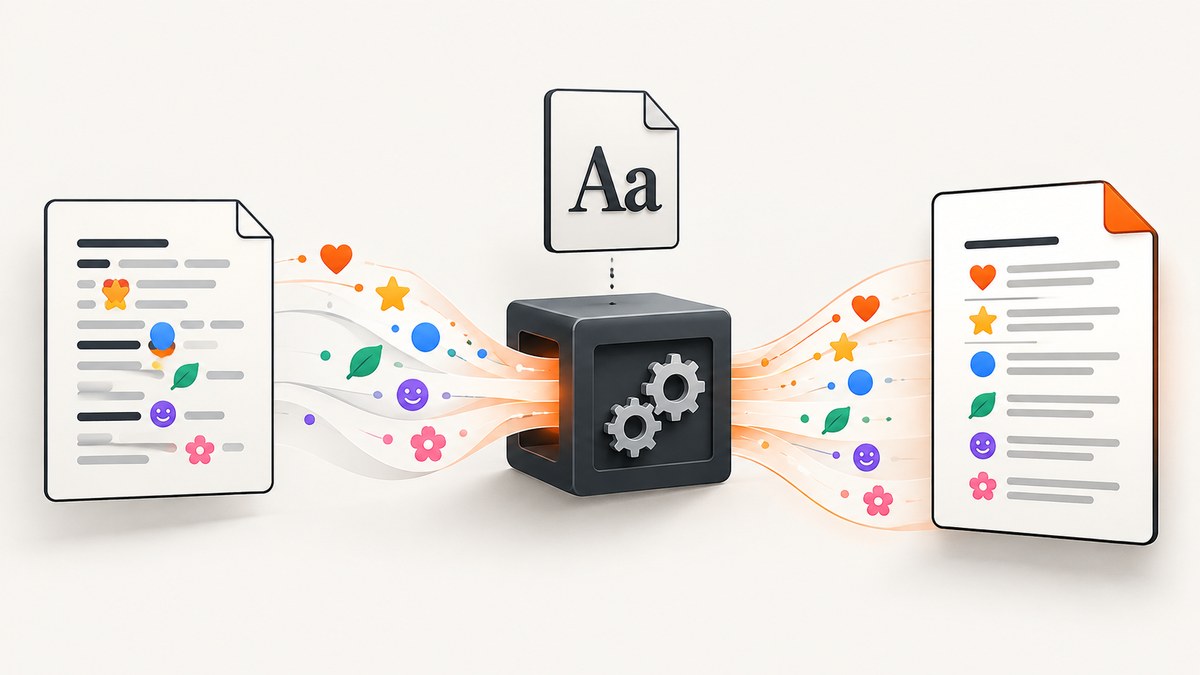
To render emoji with HtmlRenderer.PdfSharp, make sure the font resolved for the emoji text actually contains those emoji glyphs. Unicode encoding preserves the characters; it does not add missing glyphs to a font. Bundle a suitable font, register it before generating the PDF, and reference its family in your HTML or map a requested family to the installed family.
This guide covers the font setup, runnable C# examples, deployment, color limitations, and common failures. If your task is to create a PDF from a web page rather than render your own HTML, see the ScreenshotNeo website screenshot and PDF API near the end.
1. Why emoji disappear or become boxes
HtmlRenderer.PdfSharp delegates text creation to PDFsharp. Its adapter creates an XFont with PdfFontEncoding.Unicode, and PdfGenerator.GeneratePdf turns the HTML into a PdfDocument. Unicode mode preserves code points, but PDFsharp still needs a font that has a glyph for each character.
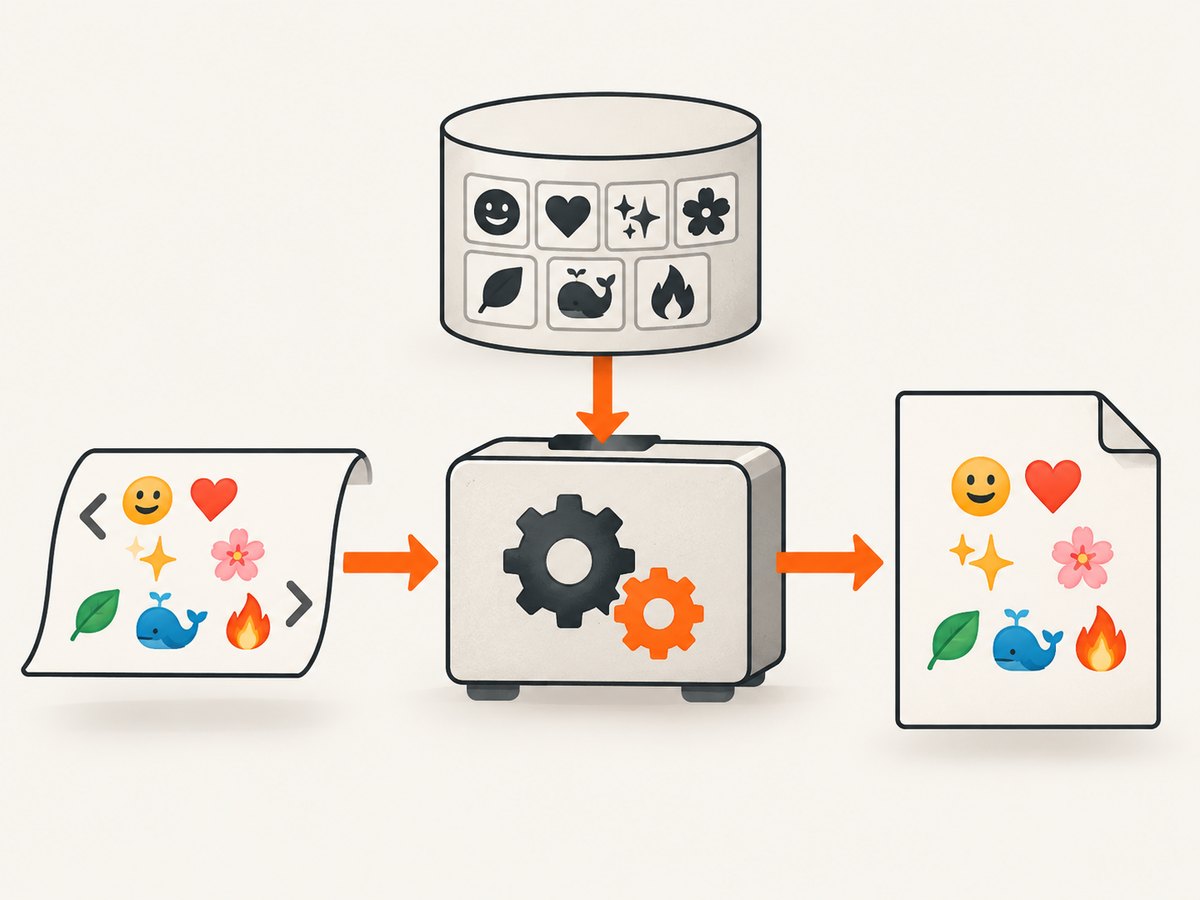
If the selected font lacks an emoji glyph, a renderer cannot draw it. Depending on font fallback and the PDF viewer, the result may be a blank, a square “tofu” box, or a replacement character. Changing encoding alone cannot fix missing font coverage. The font must also support the particular emoji sequence: a basic emoji, a variation selector, and a joined sequence such as a family emoji can have different coverage requirements.
2. Supply an emoji-capable font
Choose an emoji font that covers the characters your documents use, and make it available in the process that generates PDFs. PDFsharp documentation uses Segoe UI Emoji in examples. That does not mean it is present on every operating system: ship the font with your application or install it in a controlled runtime image, and check its license for your distribution model.
Option A: Register a font directory
Put the font file in a directory such as ./fonts and register that directory before the first PDF is generated:
using HtmlRenderer.PdfSharp;
using PdfSharp.PageSize;

PdfGenerator.RegisterCustomFontDirectory("./fonts");

var html = "<p style=\"font-family: EmojiFont\">Hello 🌹 😍</p>";
var document = await PdfGenerator.GeneratePdf(html, PageSize.A4);
document.Save("emoji.pdf");
Replace EmojiFont with the family name PDFsharp recognizes from the font you supplied. Registering the directory tells the renderer where font files live; it does not guarantee every file or glyph will be suitable. Confirm family recognition and coverage in the deployed environment.
Option B: Map a requested family
If your HTML already requests a stable family name, map that name to the family you have available:
PdfGenerator.RegisterCustomFontDirectory("./fonts");
PdfGenerator.AddFontFamilyMapping("EmojiFont", "Segoe UI Emoji");

var html = "<p style=\"font-family: EmojiFont\">Hello 🌹 😍</p>";
var document = await PdfGenerator.GeneratePdf(html, PageSize.A4);
document.Save("emoji.pdf");
AddFontFamilyMapping is a substitution used when the requested family is not found. The mapped target still needs to be installed or supplied and contain the needed glyphs. Keep the requested name consistent in your HTML and mapping.
Option C: Use CSS @font-face
If the HTML includes a local or remote CSS @font-face rule, HtmlRenderer.PdfSharp routes the font resource through PDFsharp’s resolver so that the family can be recognized for layout. This can fit documents that already manage typography through CSS. In production, ensure the resource can actually be read in the renderer’s runtime and that the resolver and font assets are configured as needed; a browser’s ability to load a stylesheet does not prove a headless PDF process can access the same path.
3. Complete C# example with a UTF-16 emoji
Emoji outside the Basic Multilingual Plane are represented in .NET strings as UTF-16 surrogate pairs. For example, U+1F339 (🌹) is "\ud83c\udf39". Modern C# source can contain the literal character, but the escaped form helps when source encoding or generated strings are involved. This example registers a bundled directory, maps the HTML family, generates an A4 document, and saves it:
using HtmlRenderer.PdfSharp;
using PdfSharp.PageSize;

// Ensure ./fonts exists and includes an emoji-capable font available to PDFsharp.
PdfGenerator.RegisterCustomFontDirectory("./fonts");
PdfGenerator.AddFontFamilyMapping("EmojiFont", "Segoe UI Emoji");

string rose = "\ud83c\udf39"; // U+1F339, represented by a surrogate pair in UTF-16
string html = $"<html><body>" +
              $"<p style=\"font-family: EmojiFont; font-size: 18pt\">Hello {rose} 😍</p>" +
              $"</body></html>";

var pdf = await PdfGenerator.GeneratePdf(html, PageSize.A4);
pdf.Save("emoji.pdf");
Use the package namespaces and overloads that match the HtmlRenderer.PdfSharp and PDFsharp versions in your project. Keep registration at application startup, before any generation, rather than relying on a developer workstation’s font list. The exact family string and font file are deployment-specific.
4. Unicode, CSS, and sequence details
- Preserve input encoding. Decode HTML as UTF-8 correctly before passing the string to the renderer. Avoid lossy conversions that turn emoji into
?, and do not construct malformed surrogate sequences. - Set the family on the relevant text. Apply
font-familyto the paragraph or a containing element. If the emoji is in a child element with another family, it may resolve differently. - Check the whole sequence. Some displayed emoji consist of multiple code points, including variation selectors, skin-tone modifiers, regional indicators, or zero-width joiners. Confirm the chosen font supports the exact sequence, not just one component.
- Use a plain glyph test first. Generate a tiny PDF with a basic emoji such as 🌹 before debugging complex joined emoji. This isolates font discovery and encoding from sequence coverage.
5. Color emoji: what PDF output can show
Unicode support and color support are separate questions. PDFsharp documentation explains that ordinary output may show emoji as monochrome glyphs, rather than matching the colors seen in a browser. The docs describe this as a limitation related to the lack of a standard PDF colored-character specification.
PDFsharp 6.2.0 Preview 1 documents a PdfFontColoredGlyphs.Version0 option for enabling colored glyph output with supported fonts. Treat this as version-sensitive preview behavior: verify your exact PDFsharp package, font format, and target PDF viewers before depending on color. A document that renders in one viewer may not look identical in another. If color is a requirement, include a visual check of the actual generated PDF and its intended viewing or printing environment in your release process.
6. Deploying across Windows, Linux, and containers
A font installed on a developer’s desktop is not a portable dependency. For Linux, containers, and other non-Windows targets, include the font file in the deployment artifact and configure a font resolver or registered directory. PDFsharp’s resolver documentation describes sample and unit-test resolvers and notes that extracted samples require the application to provide the resolver and font assets.
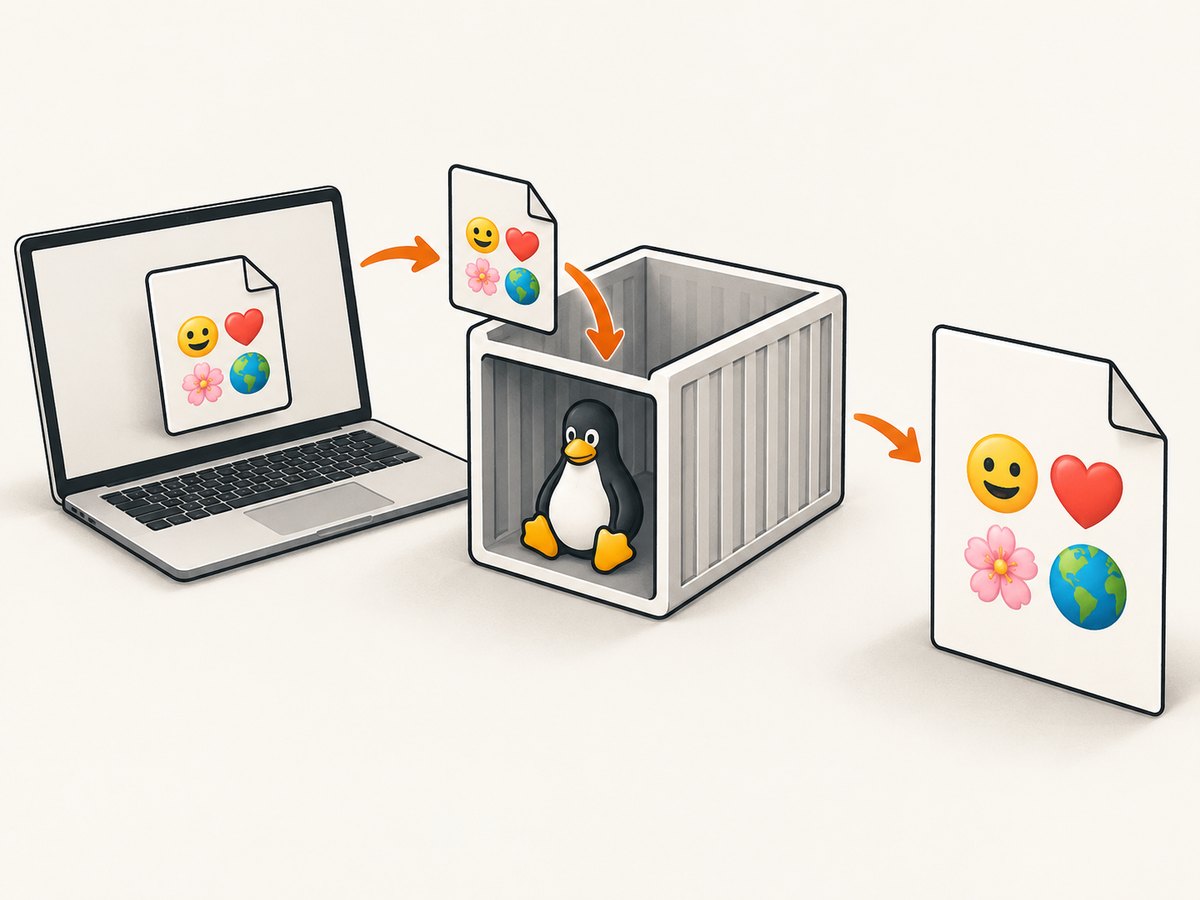
- Add the font asset to the application. Store it in a known path and include it in the publish or container image.
- Register before generating. Set up
RegisterCustomFontDirectoryor the appropriate resolver during startup. - Use the same family in HTML. Match CSS and any family mapping to the name the runtime resolves.
- Check licensing. Confirm the font license permits bundling and the use you plan.
- Inspect a generated PDF in the target environment. Verify both glyph presence and color behavior if relevant.
PDF generation cost and latency depend on your application, document, fonts, and runtime. The dossier provides no numeric performance measurements for emoji rendering. As a practical reliability measure, keep the font assets versioned with the application and test after changing either the renderer package or fonts. Avoid fetching a font from an uncontrolled network dependency during each document generation.
7. Troubleshooting checklist
| Symptom | Likely cause | Fix |
|---|---|---|
Emoji becomes ? before rendering |
Input was decoded or converted with a non-Unicode or lossy encoding. | Preserve UTF-8 while loading HTML and inspect the string before calling GeneratePdf. |
| Emoji is a square or missing | The resolved font lacks the glyph, or the font was not found. | Bundle an emoji-capable font, register its directory or resolver, and confirm the mapped family resolves. |
| Basic emoji works, joined emoji does not | The font lacks one code point or does not support the full sequence. | Check every code point, including variation selectors and joiners; choose a font with broader coverage or use a simpler supported glyph. |
| Works on Windows, fails in a Linux container | The host has a font that is absent from the container. | Ship the font and configure PDFsharp’s resolver or custom font directory inside the container. |
| Emoji appears but is monochrome | Standard PDF output is monochrome for emoji, or the chosen version/font/viewer does not support color glyphs. | Check the PDFsharp version. The documented colored-glyph option is for 6.2.0 Preview 1; validate the exact runtime and viewer. |
| Mapping appears to have no effect | The requested CSS family may be present, may be misspelled, or the mapping target is unavailable. | Use the mapped family name consistently, confirm the target font exists, and register assets before the first PDF generation. |
Local @font-face is ignored |
The PDF process cannot access the referenced resource or has no suitable resolver setup. | Ensure the file is included and accessible in the deployed runtime, then configure the resolver path used by the PDF renderer. |
8. Approaches compared
| Approach | Best fit | Trade-off to check |
|---|---|---|
| Register a custom font directory | Applications that bundle one or more TTF/OTF assets. | Runtime path and font family recognition must be correct. |
| Map a CSS family | Existing HTML uses a logical font name that should resolve to a supplied family. | It substitutes the family; it cannot create missing glyphs or install a font. |
CSS @font-face |
Documents already define typography using CSS resources. | The renderer’s resource access and PDFsharp resolver need to work in deployment. |
| Use platform-installed fonts | Controlled environments where the image or host explicitly installs and pins the font. | Not portable when moving between machines or container images. |
Choose based on glyph coverage, deployment portability, licensing, required color output, and whether the PDFsharp version supports the color option you need.
9. Or skip the browser setup
If the goal is a PDF of a rendered web page, ScreenshotNeo takes a URL and returns a PDF in one API request. It is separate from HtmlRenderer.PdfSharp: use the local font setup above when generating a PDF from your own HTML in C#. Use ScreenshotNeo when the source is a web page you can request by URL. See the ScreenshotNeo API docs.
curl -G "https://api.screenshotneo.com/v1/shot" -d access_key=YOUR_API_KEY --data-urlencode url=https://stripe.com -o page.pdfFor Python:
import requests

r = requests.get(
    "https://api.screenshotneo.com/v1/shot",
    params={"access_key": "YOUR_API_KEY", "url": "https://stripe.com", "format": "pdf"},
    timeout=90,
)
r.raise_for_status()
open("page.pdf", "wb").write(r.content)
For Node.js:
const q = new URLSearchParams({
  access_key: 'YOUR_API_KEY',
  url: 'https://stripe.com',
  format: 'pdf'
});
const res = await fetch(`https://api.screenshotneo.com/v1/shot?${q}`);
if (!res.ok) throw new Error(`ScreenshotNeo returned ${res.status}`);
await Bun.write('page.pdf', new Uint8Array(await res.arrayBuffer()));
ScreenshotNeo removes cookie and consent banners, newsletter popups, and chat widgets before capture, with each step configurable. Bot checks and CAPTCHAs, blank pages, timeouts, failed loads, and cache hits are not billed; response headers report the page verdict and billing status. Its MCP server lets AI agents use take_screenshot, get_page_info, and capture_pdf. The free plan includes 1,000 screenshots a month with no card; paid plans start at $5 for 3,000. All features are on every plan.
Get 1,000 free ScreenshotNeo screenshots a month with no card.
10. FAQ
Does PdfFontEncoding.Unicode guarantee emoji will render?
No. It preserves Unicode characters, but the resolved font still needs the glyphs.
Can I just use Segoe UI Emoji?
PDFsharp documentation uses it in examples. Make sure it is available in your runtime; bundle or install it where the PDF is generated and check its license.
Why does the same PDF look different between viewers?
Font and colored-glyph support can differ by renderer and viewer. Check the generated file in the actual viewers and versions that matter to your application.
Will this make browser HTML and PDF emoji identical?
No. Layout, font availability, glyph coverage, and PDF color support can differ. Use an emoji-capable font and verify the output PDF against your requirements.


