How to Render a Full-Screen Page in jsPDF on Smaller Screens
Make a jsPDF document fit smaller screens by separating page size, HTML render scale, and the PDF viewer’s initial zoom setting.
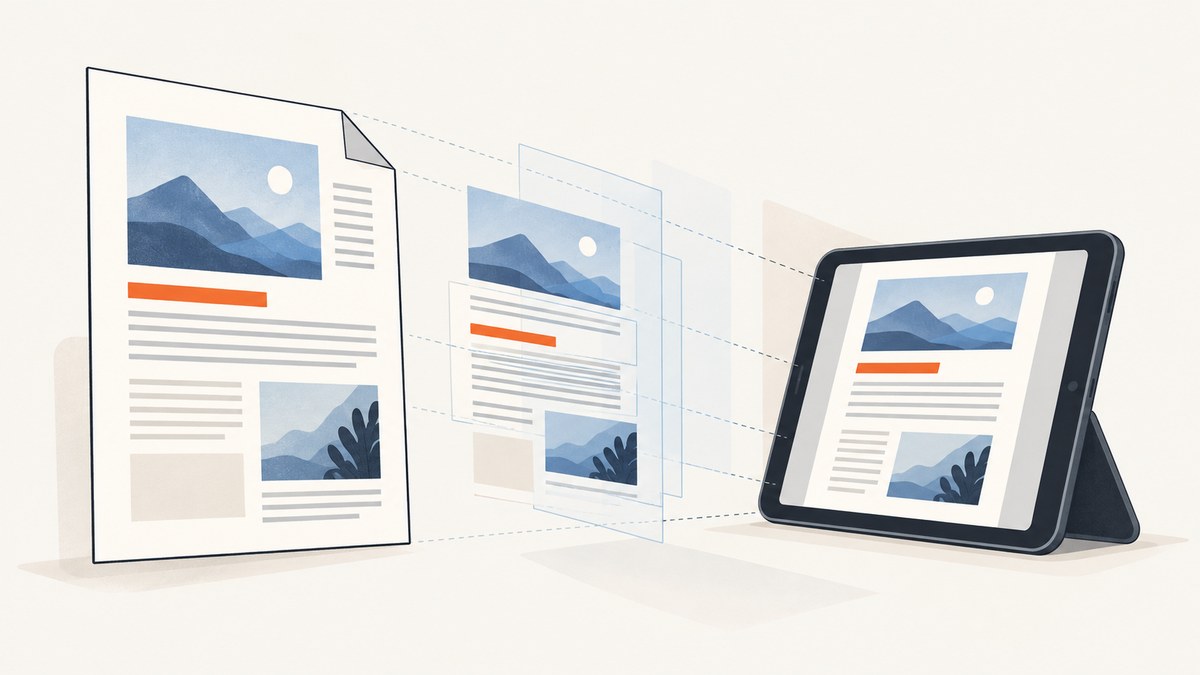
To make a jsPDF file open fitted to the available viewer area, set its initial display preference with doc.setDisplayMode('fullpage'). That setting is only a viewing hint; it does not change the PDF page dimensions or fix HTML content that was rendered at the wrong size. Choose the page geometry, HTML rendering dimensions, and viewer preference separately, then inspect the file in the PDF readers and screen sizes that matter to your users.
jsPDF documents display modes including fullpage, fullwidth, fullheight, original, percentage strings, and numeric scales. Its documentation also warns that only certain PDF readers support display settings, with Adobe Acrobat as an example. [jsPDF setDisplayMode API]
1. Decide what “full screen” means
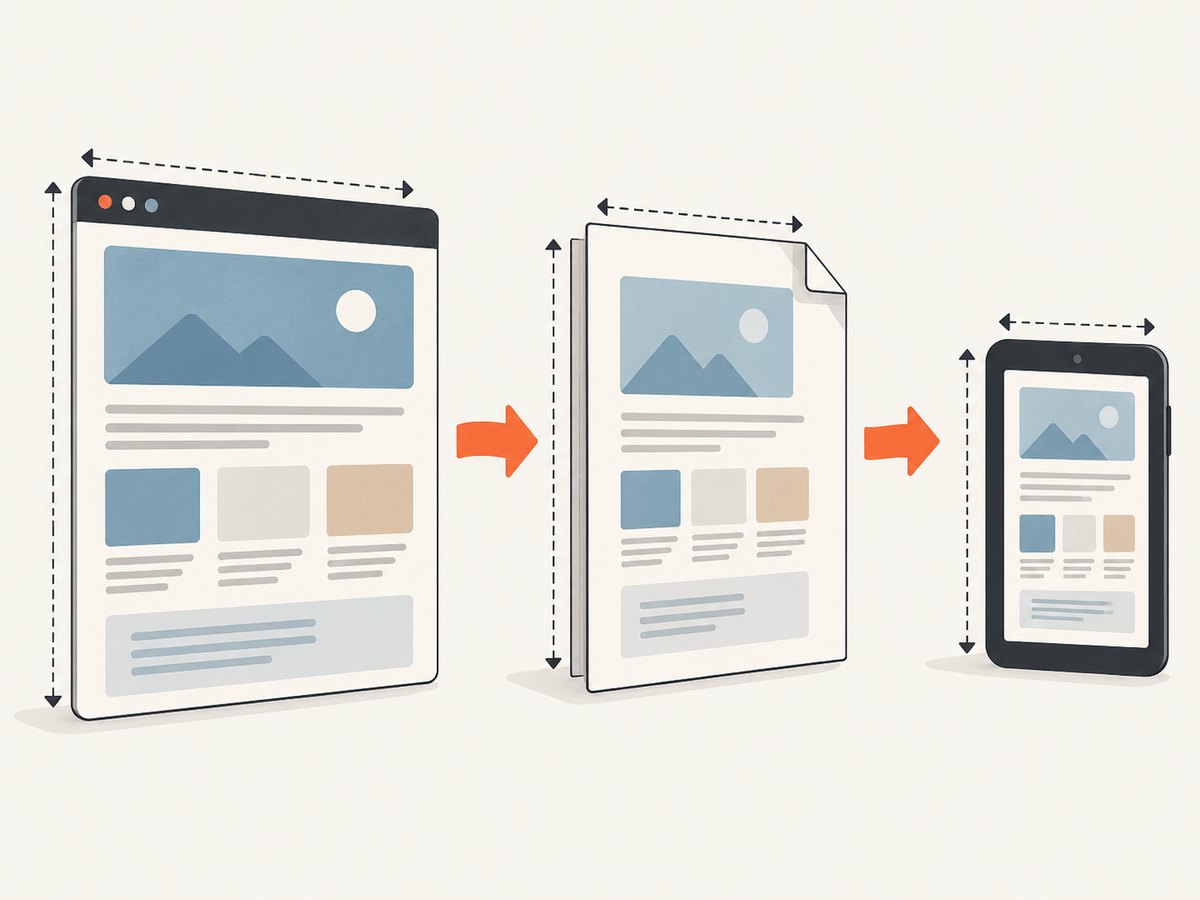
There are three different things a developer might mean by “full screen” in a PDF workflow. Identify the one causing the problem before changing options:
| What you want | Control to use | What it changes |
|---|---|---|
| Open the PDF fitted to the viewer’s available page area | setDisplayMode('fullpage') |
An initial viewing preference, when the reader honors it |
| Make the document’s page wider, taller, or landscape | jsPDF constructor options: format, orientation, and unit |
The PDF page geometry |
| Make captured HTML fit the page at a readable size | HTML render width, windowWidth, canvas dimensions, scale, and layout |
How source content is rendered and placed into the PDF |
A viewer zoom preference cannot resize a page or repair content already rendered too wide. Likewise, changing A4 to landscape does not force a mobile PDF reader to open at a particular zoom.
2. Set the page and initial display preference
For a PDF you build directly with jsPDF, choose page geometry for the document’s purpose, add content, and set the opening display preference. The following is a runnable browser example when jsPDF is loaded on the page:
<!doctype html>
<html>
<head>
  <meta charset="utf-8">
  <script src="https://cdnjs.cloudflare.com/ajax/libs/jspdf/2.5.1/jspdf.umd.min.js"></script>
</head>
<body>
  <button id="download">Download PDF</button>
  <script>
    document.getElementById('download').addEventListener('click', () => {
      const { jsPDF } = window.jspdf;
      const doc = new jsPDF({
        orientation: 'portrait',
        unit: 'mm',
        format: 'a4'
      });

      doc.setFontSize(18);
      doc.text('A page fitted by the PDF reader', 15, 20);
      doc.setFontSize(11);
      doc.text('The opening zoom is a reader preference.', 15, 30);

      doc.setDisplayMode('fullpage');
      doc.save('document.pdf');
    });
  </script>
</body>
</html>
The CDN URL pins this example to jsPDF 2.5.1; use the version already installed in your project if you manage the dependency another way. The constructor’s format and orientation determine the page’s shape. The unit determines the units used by drawing calls. Pick a standard format such as a4 or letter, or provide custom dimensions supported by your installed jsPDF version when you need a nonstandard page.
setDisplayMode('fullpage') asks a compatible reader to fit the whole page. Other documented zoom values include 'fullwidth', 'fullheight', 'original', strings such as '100%', and a numeric scale. The API also accepts page layout and page mode preferences. Consult the API reference for accepted arguments and check against your installed release. A reader can ignore these preferences.
3. Render HTML with deliberate dimensions
When using doc.html(), there are more dimensions in play: the source element’s CSS layout, the render width, the virtual browser window width, the canvas pixel dimensions, and the physical PDF page. Do not treat them as interchangeable.
The jsPDF HTML module implementation calculates its scale as width / windowWidth when both values are numeric, and uses 1 otherwise. In the TypeScript definitions, canvas width and height are pixel dimensions; when omitted or null, the canvas uses the window dimension. The documented html2canvas scale default is the browser’s device pixel ratio. [HTML module source] [TypeScript definitions]
Here is a browser example that renders a fixed-width report element and downloads a PDF. Set both width and windowWidth intentionally so the HTML layout and render scaling agree. Adjust the values for your document and installed version.
<!doctype html>
<html>
<head>
  <meta charset="utf-8">
  <script src="https://cdnjs.cloudflare.com/ajax/libs/jspdf/2.5.1/jspdf.umd.min.js"></script>
  <style>
    #report { width: 800px; padding: 24px; font: 16px/1.5 sans-serif; }
    #report h1 { font-size: 26px; }
  </style>
</head>
<body>
  <main id="report">
    <h1>Quarterly report</h1>
    <p>This content is laid out at an intentional source width.</p>
  </main>
  <button id="download">Save report PDF</button>
  <script>
    document.getElementById('download').addEventListener('click', async () => {
      const { jsPDF } = window.jspdf;
      const doc = new jsPDF({ orientation: 'portrait', unit: 'mm', format: 'a4' });
      await doc.html(document.getElementById('report'), {
        x: 10,
        y: 10,
        width: 190,
        windowWidth: 848,
        autoPaging: 'text',
        html2canvas: { scale: 1 }
      });
      doc.setDisplayMode('fullpage');
      doc.save('report.pdf');
    });
  </script>
</body>
</html>
This example chooses an 800 CSS pixel content box plus 48 pixels of padding, hence a virtual width of 848 pixels, and places the render in a 190 mm region on an A4 portrait page. Those are example dimensions, not universal values. If the source uses responsive breakpoints, set windowWidth to the layout width you want captured; a narrow mobile width can cause columns to stack, while a wide value can preserve a desktop layout that later shrinks on the PDF page.
Explicit html2canvas.scale controls raster resolution and memory use. Its documented default is device pixel ratio, so setting it to 1 can reduce canvas size on a high-density display, but may make fine details less crisp. A higher scale can improve raster sharpness while increasing memory use and file size. It does not change the CSS layout width or the PDF reader’s zoom.
4. Choose one page or let long content paginate
A long webpage or report may need multiple PDF pages. The HTML module’s windowHeight defaults from the element’s client, scroll, or offset height, and automatic paging is enabled by default in the implementation. [HTML module source]
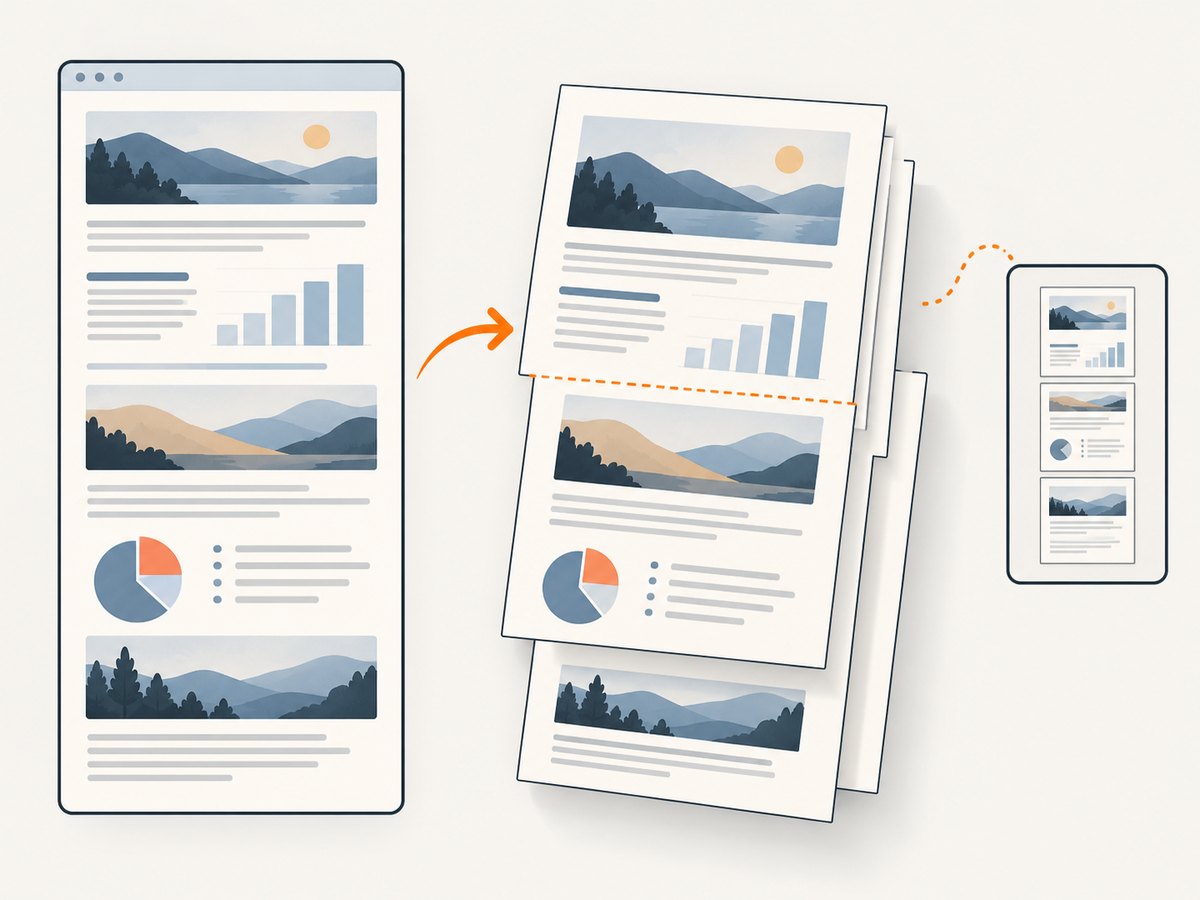
For reports, automatic paging is usually a better starting point than forcing a very tall single page. Inspect page breaks around tables, images, headings, and content that cannot split cleanly. If your installed version supports the documented autoPaging modes, choose the mode that best matches your content and verify its behavior against that version’s API.
If the intended output truly is one tall page, define an appropriate custom page size and ensure the content dimensions fit it. Remember that a tall custom page may open at a very small zoom on a phone when the reader fits the whole page. A fullwidth preference may be more usable for that specific document shape, though support varies.
5. Troubleshooting
| Symptom | Likely cause | Fix |
|---|---|---|
| PDF still opens zoomed in or out on a phone | The reader ignores the display preference or applies its own setting | Try fullpage or another documented mode, then confirm in the target reader. Explain how the user can use the reader’s fit-page control. |
| Content is clipped at the right edge | Source width, render width, and windowWidth do not agree; content exceeds the PDF placement area |
Inspect the source’s computed width, align the render options, reduce the content width, or select a wider/landscape page. |
| Text is tiny although the page fits | A wide desktop layout was scaled down to fit a narrow physical page | Render at a narrower layout width, simplify columns, or use landscape/custom geometry. Page-fit zoom cannot make dense content readable while showing the whole page. |
| Text or images look blurry | Rasterized HTML uses too few canvas pixels for the display size | Increase html2canvas scale or render dimensions carefully, and check memory limits. Text drawn directly with jsPDF remains vector text. |
| Only part of a long section appears | Container height, overflow clipping, delayed content, or paging behavior is wrong | Wait for images and fonts, inspect scroll height and overflow styles, and review windowHeight and auto-paging for the installed version. |
| Layout differs between desktop and phone | Responsive CSS is evaluated at different viewport widths | Set windowWidth to the intended layout viewport and avoid relying on the device’s current screen width accidentally. |
doc.html is undefined or errors immediately |
The HTML module is not included in the loaded build, or package/import usage differs by version | Use a jsPDF build with the HTML module and follow the import instructions for the exact installed version. |
| Images are missing or cross-origin errors appear | Browser canvas security prevents drawing inaccessible cross-origin images | Serve images with appropriate CORS permission or make them same-origin before capture; verify image loading before rendering. |
6. Performance, reliability, and cost
HTML-to-PDF work can consume substantial browser memory because content is laid out, rendered to a canvas, and then represented in the PDF. Very long pages and high pixel scales increase the canvas dimensions; large images add further memory and file size. Prefer page-by-page content, appropriately sized images, and the lowest scale that preserves the needed legibility.
Wait for asynchronous content before calling the render: fonts, images, and application data can otherwise produce incomplete output. For browser rendering, cross-origin images need to satisfy canvas security requirements. Rendering may vary with browser environment, installed fonts, CSS features, and jsPDF version. The project references used here are on the moving master branch and do not establish identical behavior for every release, so consult your installed version’s API and validate generated files in target readers.
jsPDF is a JavaScript library rather than a hosted screenshot or PDF service, so there is no per-capture ScreenshotNeo charge for using this workflow. Your costs depend on the browser or server resources you operate and maintain, and on the engineering time required to handle rendering differences and failures. No performance benchmark or cross-device compatibility test is established by the research for this article.
7. Or skip the browser setup
If your source is a live webpage and you want a screenshot or PDF without setting up browser rendering, ScreenshotNeo provides a website screenshot API and MCP server. Its API can return PNG, JPEG, WebP, or PDF. See the ScreenshotNeo API documentation for options and request details.
curl -G "https://api.screenshotneo.com/v1/shot" -d access_key=YOUR_API_KEY --data-urlencode url=https://stripe.com -o shot.webpimport requests
r = requests.get(
"https://api.screenshotneo.com/v1/shot",
params={"access_key": "YOUR_API_KEY", "url": "https://stripe.com"},
timeout=90,
)
open("shot.webp", "wb").write(r.content)const q = new URLSearchParams({ access_key: 'YOUR_API_KEY', url: 'https://stripe.com' });
const res = await fetch(`https://api.screenshotneo.com/v1/shot?${q}`);
if (!res.ok) throw new Error(`Screenshot request failed: ${res.status}`);
await Bun.write('shot.webp', res);For a PDF response, request the PDF output and configure its page options using the parameter names in the API documentation. ScreenshotNeo accepts common screenshot API parameter names to make switching easier. It can also capture a full page with lazy images loaded, a selected CSS element, or HTML/CSS supplied for rendering, and supports custom CSS and JavaScript, wait conditions, device presets, viewport dimensions, and PDF paper size and margins.
Cookie banners, newsletter popups, and chat widgets are removed before the shot, and each removal step can be turned off. Bot checks, blank pages, timeouts, failed loads, and cache hits are not billed; response headers say which outcome occurred. The MCP server provides take_screenshot, get_page_info, and capture_pdf tools for Claude, Cursor, and other MCP clients. The free plan includes 1,000 screenshots a month with no card; paid plans start at $5 for 3,000 shots. Sign up for 1,000 free screenshots a month, no card required.
8. FAQ
Does “fullpage” create a full-screen or full-page PDF?
No. It sets an initial viewer zoom preference. The PDF page size comes from the document geometry, and HTML content size comes from the rendering options.
Can I force every phone’s PDF viewer to honor the zoom setting?
No. jsPDF documents this as a preference supported by only certain readers. Confirm behavior in the readers your users rely on.
Should I use fullpage or fullwidth for a tall document?
Use the viewing behavior that best fits how readers consume the document. Fullpage shows the whole page when supported; fullwidth can make a tall page easier to read vertically. Neither changes the page itself.
Will increasing scale make the layout fit?
No. Scale affects render resolution. Use source and window widths to control layout and placement width to control how it fits the physical page.
Why does the same PDF look different in two readers?
Readers can differ in how they honor display preferences and render PDF content. The available research does not establish uniform support across readers, so validate the actual file in your target applications.


