How to Render Hebrew Fonts in PhantomJS Screenshots
Fix Hebrew in PhantomJS screenshots by checking font coverage, right-to-left direction, mixed-script text, and vowel-mark positioning in the actual runtime.
To render Hebrew correctly in a PhantomJS screenshot, make sure the PhantomJS runtime can access a font that contains every Hebrew character you use, set the text direction and language appropriately, and verify the result in the actual runtime. These are separate issues: installing a font does not fix bidirectional text, and setting right-to-left direction does not add missing glyphs. Hebrew vowel points and cantillation marks also need correct positioning.
This guide gives you a repeatable way to diagnose each layer, install fonts cautiously on Linux, test mixed Hebrew and Latin text, and decide whether PhantomJS is still suitable for your project.
1. Check whether PhantomJS can access a suitable Hebrew font
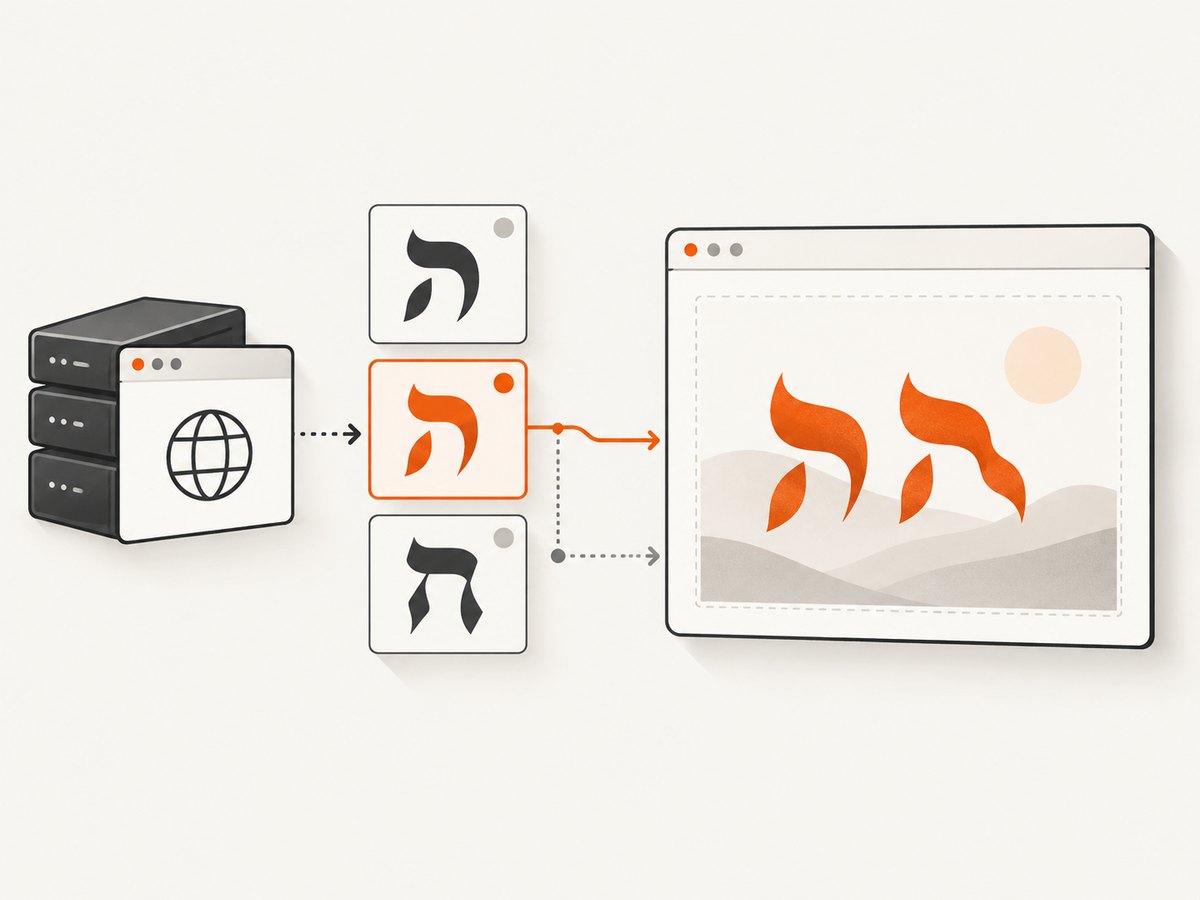
Start with the environment that launches PhantomJS. A font installed on your laptop may be absent from a CI runner, Docker image, or production host. The CSS family name alone does not install or provide the font.
- Identify the requested family. Inspect the page’s CSS, including inherited styles and any
@font-facerules. Record the actual family used for the Hebrew element. - Confirm the font is available in the runtime. Check the operating system’s font configuration and the font files included in the image. On Linux, Fontconfig provides system-wide font configuration and font matching. Its selection is the closest available match; a successful match does not prove that the chosen font looks appropriate or contains the needed characters. Fontconfig user documentation.
- Check glyph coverage. The font needs the Hebrew letters and punctuation in the page, and, if the text is vocalized, the relevant niqqud or cantillation marks too.
- Use a clear CSS fallback list. Include the preferred family and sensible generic fallback. Then inspect the rendered pixels: the browser may fall back for characters that the requested font lacks.
/* Use the font family actually installed or loaded in your runtime. */
.hebrew {
  font-family: "Your Hebrew Font", sans-serif;
}
Font fallback can happen character by character. A line may therefore contain glyphs from more than one font. If the letters appear but the punctuation or marks look different, inspect coverage and fallback rather than assuming the whole element uses one face.
2. Set Hebrew language and right-to-left direction
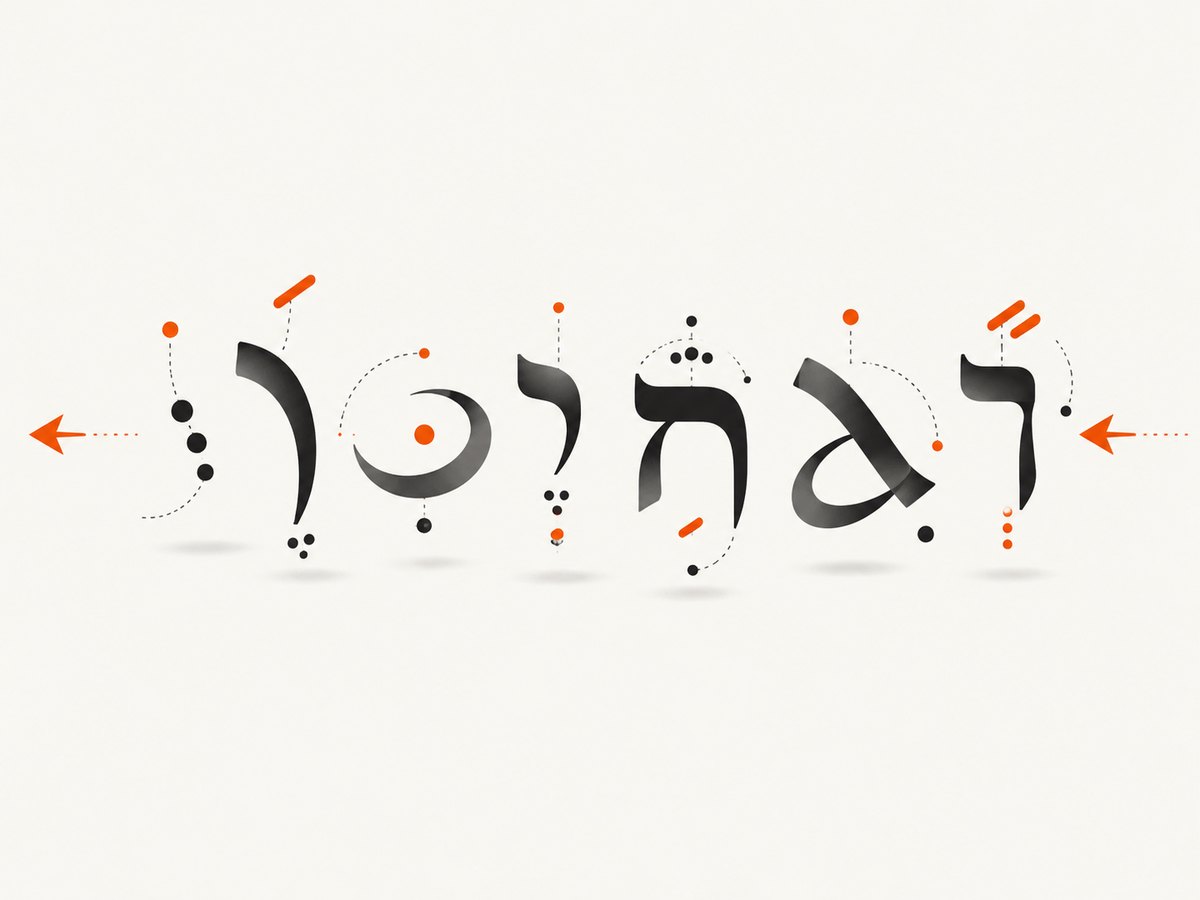
Hebrew is written right to left. Mark the language and direction in the document, or on the smallest component that contains the Hebrew. For a Hebrew-first document:
<!doctype html>
<html lang="he" dir="rtl">
<head>
  <meta charset="utf-8">
  <style>
    body { font-family: "Your Hebrew Font", sans-serif; }
  </style>
</head>
<body>
  <p>שלום עולם</p>
</body>
</html>
For a mostly Latin page with a Hebrew fragment, apply direction locally:
<p>Account name: <span lang="he" dir="rtl">שלום</span></p>Direction matters especially when a line mixes Hebrew with Latin words, numbers, URLs, or punctuation. The browser’s bidirectional algorithm lays out runs of text; the direction of the surrounding context affects how those runs and punctuation are ordered. Hebrew shaping also depends on tracking the direction of mixed-script runs. See the W3C guide to inline bidi markup and the W3C Arabic and Hebrew Layout Requirements.
Test the exact kind of content that fails. A simple Hebrew greeting may render while an account label containing Hebrew, a Latin identifier, and parentheses still places punctuation unexpectedly. Prefer semantic dir markup and isolate direction-sensitive fragments. Avoid inserting Unicode direction-control characters as a first fix: they can conceal the real markup issue and make copied text confusing.
3. Test niqqud and cantillation marks separately
Unvocalized Hebrew and Hebrew with marks are different font tests. Niqqud, pronunciation marks, and cantillation marks need glyph coverage and correct placement relative to base letters. The OpenType Hebrew model includes mark reordering and mark-to-base positioning. A font can show the base letters while marks are absent, misplaced, or colliding.
Include representative vocalized text in your test page if your real content uses it. Inspect at the screenshot’s final display size, as well as at a larger zoom. Look for missing marks, marks attached to the wrong letter, overlap, clipping, and line-height that cuts off marks above or below the letters. Do not infer correct mark rendering from a test string that contains only unmarked Hebrew.
4. Install a font in a Linux runtime
There is no one universal installation command for all PhantomJS environments. Linux distributions use different packages, font directories, and container bases, and the right choice depends on the font license and required coverage. Install the font in the same image or host where PhantomJS runs, then refresh and check the font cache using that distribution’s tools.
A historical PhantomJS issue comment describes one Linux case where TTF files were placed under /usr/share/fonts/truetype and fc-cache -fv was run to make them available. Treat this as an environment-specific report to test, not a guaranteed PhantomJS procedure. The report does not establish that this directory or command applies to every distribution, container, or font. See the PhantomJS issue discussion.
- Add the font files or distribution package to the runtime image using the package manager and paths appropriate to that image.
- Refresh the font cache if the distribution requires it.
- Check that the system font matcher can find the intended family and that the font includes the necessary characters.
- Run the PhantomJS capture from that same image, not from a different workstation.
- Keep a small known-good Hebrew test page and screenshot it after image changes.
If you use a web-delivered font, confirm that the page can fetch it from the capture environment and allow enough time for it to load before capturing. System-installed and web-delivered fonts are deployment choices, not guaranteed fixes. Compare reproducibility, availability in the runtime, glyph coverage, mark behavior, and whether the output matches the target platform.
5. Capture a reproducible PhantomJS test
Keep the first diagnostic page small: one unmarked Hebrew line, one line mixing Hebrew and Latin text, and one vocalized line if your application needs marks. Remove unrelated layout and network dependencies until the text is correct. The following minimal PhantomJS script opens a local HTML file and writes a PNG; save it as capture.js and run it with your installed PhantomJS executable.
var page = require('webpage').create();
page.viewportSize = { width: 900, height: 500 };
page.open('file:///absolute/path/to/hebrew-test.html', function (status) {
  if (status !== 'success') {
    console.error('Could not load the test page');
    phantom.exit(1);
    return;
  }
  window.setTimeout(function () {
    page.render('/absolute/path/to/hebrew-test.png');
    phantom.exit(0);
  }, 500);
});
Replace both absolute paths with paths valid inside the environment running PhantomJS. The delay is only a simple example for a local static page; if the page loads a remote web font or other asynchronous resources, wait for the relevant resource or page condition instead of assuming 500 milliseconds is sufficient. Compare the screenshot with the browser rendering you intend to reproduce.
6. Troubleshooting common Hebrew screenshot failures
| Symptom | Likely cause | What to check or change |
|---|---|---|
| Hebrew appears as squares or blank glyphs | The runtime lacks a font with those glyphs, or the intended font did not load. | Check font availability and character coverage inside the runtime. Verify font loading and fallback; test with a known Hebrew-capable font. |
| Hebrew letters are present but the line reads in the wrong order | Direction metadata is missing or applied at the wrong level. | Set lang="he" dir="rtl" on the document or Hebrew element. Check the surrounding direction and mixed runs. |
| Numbers or punctuation move unexpectedly in mixed text | Bidirectional runs are interacting with their context. | Make the direction of the Hebrew fragment explicit, isolate embedded Latin identifiers where appropriate, and test the exact punctuation and number patterns used by the page. |
| Letters render but vowel points are absent | The selected font may not contain the marks, or a fallback font is being used. | Check mark coverage in the actual font and inspect which fallback handles the characters. |
| Vowel points overlap, attach incorrectly, or clip | Mark positioning, line height, or container clipping is unsuitable. | Test another suitable font, inspect the full line box, adjust line height and overflow only after confirming the font’s mark positioning. |
| It works locally but fails in CI or a container | The runtime images have different fonts, caches, or network access. | Install or load the same font in the capture image, refresh its cache as required, and validate with a screenshot generated there. |
| A web font appears only sometimes | The capture begins before the font request completes, or the runtime cannot fetch it. | Check network access and font loading behavior; wait for the page’s font/resource condition before rendering. |
| Changing PDF paper size does not fix Hebrew | Paper size controls document dimensions and layout, not glyph coverage or bidi shaping. | Fix font availability, direction, and mark rendering independently. PhantomJS’s paperSize settings concern output dimensions, margins, orientation, and related PDF layout options. |
7. Plan for PhantomJS’s maintenance status
PhantomJS is a legacy choice for new screenshot systems. Its GitHub repository is archived and read-only; GitHub records the archive date as May 30, 2023. That does not mean an existing installation instantly stops working, but it does mean you should account for maintenance and compatibility risk when choosing it for a new service. Check the archived PhantomJS repository.
If you must keep PhantomJS, pin the runtime image and its fonts, preserve a Hebrew regression page, and review the screenshot when changing the OS image or font packages. If you can choose a different renderer, make that decision based on your required browser behavior and deployment constraints. The Hebrew diagnosis remains the same: validate font access, direction, mixed scripts, and marks in the renderer you actually deploy.
8. Performance, reliability, and cost considerations
Font troubleshooting adds work mostly through environment setup and repeat validation. A system-installed font can make captures independent of an external font download, while a web font keeps typography with the page but depends on successful fetching and loading. Neither route is inherently more reliable in every deployment. For repeatable output, control the runtime, font files, network conditions, viewport, and capture timing.
Keep diagnostic captures narrow and deterministic: use a small page, fixed viewport, and only the fonts needed to reproduce the issue. Once correct, test the real page, because its network requests, CSS, mixed-script content, and layout can expose failures the fixture misses. On a screenshot service, cost rules vary by provider; check whether failed loads, bot checks, cache hits, or blank pages are billed before designing retries. Avoid rapid retries for the same unresolved font or direction problem: first identify whether the response is a rendering issue or a failed page load.
Or skip the browser setup
If you want a screenshot without maintaining a PhantomJS runtime and font installation, ScreenshotNeo is a website screenshot API and MCP server. It accepts a URL in one GET request and returns a PNG, JPEG, WebP, or PDF. See the ScreenshotNeo API documentation for request options.
curl -G "https://api.screenshotneo.com/v1/shot" \
  -d access_key=YOUR_API_KEY \
  --data-urlencode url=https://stripe.com \
  -o shot.webp
import requests
r = requests.get(
"https://api.screenshotneo.com/v1/shot",
params={"access_key": "YOUR_API_KEY", "url": "https://stripe.com"},
timeout=90,
)
open("shot.webp", "wb").write(r.content)const q = new URLSearchParams({
access_key: 'YOUR_API_KEY',
url: 'https://stripe.com'
});
const res = await fetch(`https://api.screenshotneo.com/v1/shot?${q}`);
if (!res.ok) throw new Error(`Screenshot request failed: ${res.status}`);
await Bun.write('shot.webp', res);Replace the example URL with the page you need. The same font and direction rules still apply to the page itself; an API does not turn missing glyphs or incorrect markup into correct typography. ScreenshotNeo removes cookie banners, newsletter popups, and chat widgets before capture, and failed loads, blank pages, bot checks, and cache hits are not billed. Its response includes page-verdict and billing headers. An MCP server offers take_screenshot, get_page_info, and capture_pdf tools for AI agents. The free plan includes 1,000 screenshots a month with no card; paid plans start at $5 for 3,000.
Create a free ScreenshotNeo account to get 1,000 screenshots a month with no card.
FAQ
How do I make PhantomJS find and use a Hebrew font?
Make the font available in the exact runtime that launches PhantomJS, confirm the system font matcher can select it, and verify the font covers the characters and marks in your page. Then inspect the screenshot; a successful family match alone does not guarantee suitable glyphs.
Why is Hebrew text backwards in my PhantomJS screenshot?
Check the document or element’s direction metadata and the context around mixed Hebrew and Latin runs. Set Hebrew content to right-to-left and test punctuation, numbers, and embedded Latin text in the same patterns as your real page.
Why are Hebrew vowel points missing or misplaced?
The font may lack the marks, or its mark positioning may not produce the result you need. Test vocalized text specifically and inspect it at the final screenshot size.
How do I install Hebrew fonts on Ubuntu for PhantomJS?
Use the package or font-installation approach appropriate to the Ubuntu release and runtime image, then refresh and inspect the font cache there. The reported /usr/share/fonts/truetype and fc-cache -fv procedure is one historical Linux report, not universal Ubuntu-specific guidance.
Is PhantomJS still maintained?
No: its GitHub repository is archived and read-only, with an archive date of May 30, 2023. Consider that status when planning a new renderer or maintaining an existing deployment.


