How to Render HTML Content on A4 PDF Pages
Convert HTML to correctly sized A4 PDFs with print CSS, reliable page breaks, fonts, images, headers, footers, and production-ready Puppeteer or Playwright code.

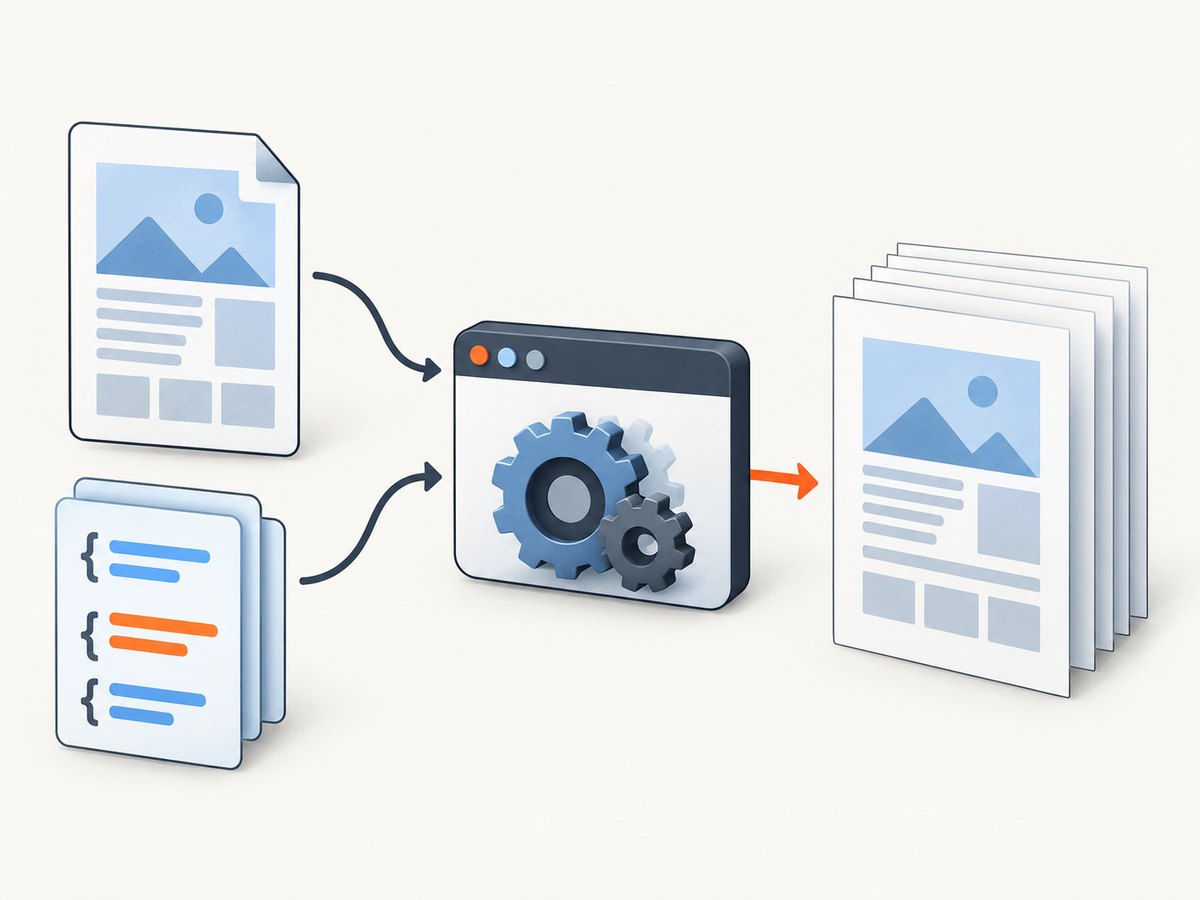
Use a headless browser with print CSS to render HTML on A4 pages. Define the physical page with @page { size: A4; }, set explicit margins, wait for fonts, images, and application data, then call the browser’s PDF method with format: 'A4', preferCSSPageSize: true, and printBackground: true.
A4 is 210mm × 297mm (8.27in × 11.7in). Puppeteer records the equivalent as 8.2677in × 11.6929in (21cm × 29.7cm). Puppeteer and Playwright generate PDFs using the print CSS media type by default.
1. Prepare HTML and print CSS
Keep page geometry in physical units and let normal document flow determine where content falls. Do not set every section to exactly 297mm; changing text, fonts, or data will then create clipping and large gaps.
<!doctype html>
<html lang="en">
<head>
  <meta charset="utf-8">
  <meta name="viewport" content="width=device-width, initial-scale=1">
  <link rel="stylesheet" href="/styles.css">
</head>
<body>
  <nav class="no-print">Web navigation</nav>
  <main>
    <h1>Quarterly report</h1>
    <p>Content rendered into an A4 PDF.</p>
    <figure>
      <img src="/chart.png" alt="Quarterly results chart">
      <figcaption>Results by quarter</figcaption>
    </figure>
    <section class="page-break">
      <h2>Appendix</h2>
      <pre><code>Example code listing</code></pre>
    </section>
  </main>
</body>
</html>
@page {
size: A4;
margin: 15mm;
}
@media print {
html, body {
margin: 0;
}
nav, .no-print, button {
display: none !important;
}
h1, h2, h3 {
break-after: avoid;
}
figure, table, .card, pre {
break-inside: avoid;
page-break-inside: avoid;
}
.page-break {
break-before: page;
}
img {
max-width: 100%;
height: auto;
}
}break-inside: avoid keeps logical blocks together. Keep page-break-inside: avoid as a compatibility fallback for older converters such as wkhtmltopdf. A block taller than the printable area cannot remain intact; split oversized tables, figures, and code listings deliberately.
2. Render an A4 PDF with Puppeteer
Puppeteer uses print media automatically. Use page.emulateMediaType('screen') only when the screen stylesheet is intentionally the source for the PDF.
import puppeteer from 'puppeteer';

const browser = await puppeteer.launch({
  headless: true
});

try {
  const page = await browser.newPage();
  await page.goto('http://localhost:3000/report', {
    waitUntil: 'networkidle0'
  });

  await page.evaluate(async () => {
    await document.fonts.ready;
    await Promise.all([...document.images].map((img) => {
      if (img.complete) return Promise.resolve();
      return new Promise((resolve) => {
        img.addEventListener('load', resolve, { once: true });
        img.addEventListener('error', resolve, { once: true });
      });
    }));
  });

  await page.pdf({
    path: 'output.pdf',
    format: 'A4',
    preferCSSPageSize: true,
    printBackground: true,
    waitForFonts: true,
    margin: {
      top: '15mm',
      right: '15mm',
      bottom: '15mm',
      left: '15mm'
    }
  });
} finally {
  await browser.close();
}
Puppeteer PDF options also include width, height, scale, page ranges, headers and footers, and output paths. The preferCSSPageSize option gives a CSS @page size priority over the API’s width, height, or format option.
3. Render an A4 PDF with Playwright
import { chromium } from 'playwright';

const browser = await chromium.launch();
try {
  const page = await browser.newPage();
  await page.goto('http://localhost:3000/report', {
    waitUntil: 'networkidle'
  });
  await page.emulateMedia({ media: 'print' });

  await page.evaluate(async () => {
    await document.fonts.ready;
    await Promise.all([...document.images].map((img) =>
      img.complete
        ? Promise.resolve()
        : new Promise((resolve) => {
            img.addEventListener('load', resolve, { once: true });
            img.addEventListener('error', resolve, { once: true });
          })
    ));
  });

  await page.pdf({
    path: 'output.pdf',
    format: 'A4',
    preferCSSPageSize: true,
    printBackground: true,
    margin: {
      top: '15mm',
      right: '15mm',
      bottom: '15mm',
      left: '15mm'
    }
  });
} finally {
  await browser.close();
}
Playwright documents A4, margins, scale, page ranges, print backgrounds, header/footer templates, and CSS page-size precedence in its page.pdf reference.
4. Control pagination
Keep headings with their content
h1, h2, h3 {
  break-after: avoid;
}
Keep components together
.invoice-card,
figure,
pre,
table {
  break-inside: avoid;
  page-break-inside: avoid;
}
Force a new page
.chapter-start {
  break-before: page;
}
Use forced breaks for chapters or appendices, not for every section. Tables that exceed one printable page must be allowed to split or rendered as smaller tables. If a row must stay intact, apply break-inside: avoid to the row or its wrapper, while accepting that very tall rows still have to split.
5. Headers, footers, and page numbers
Use the engine’s header and footer templates for page numbers and document metadata. Reserve matching top and bottom margin space so the template cannot overlap content. Keep templates small and self-contained; external assets and complex layout can fail in print contexts.
For long documents, include the title, date, and page number in the footer template supported by your chosen engine. Verify that the first page does not accidentally receive a header intended only for subsequent pages.
6. Assets, fonts, and application data
- Wait for
document.fonts.readyso fallback fonts do not change line wrapping after capture. - Await image load events, including images inserted by JavaScript.
- Load the data used by charts, tables, and client-rendered components before calling
page.pdf(). - Use absolute or otherwise reachable asset URLs in the capture environment.
- Set a deliberate timeout and fail the job when required assets never arrive.
Puppeteer exposes waitForFonts; production code should still wait for images and application data explicitly.
7. Paper size, margins, orientation, and ranges
| Requirement | Implementation |
|---|---|
| A4 portrait | format: 'A4' and @page { size: A4; } |
| Custom physical size | Use @page with mm, cm, or in and enable preferCSSPageSize |
| Landscape | Use the engine’s landscape option or @page { size: A4 landscape; } |
| Margins | Set all four margins explicitly; 15mm is a practical baseline |
| Selected pages | Use the engine’s page-range option |
| Colored backgrounds | Set printBackground: true |
8. Choosing a rendering engine
Compare print-media fidelity, CSS support, JavaScript execution, font and asset controls, header/footer support, repeatability, startup cost, and maintenance status. Puppeteer and Playwright are strong choices when the source depends on modern browser JavaScript. wkhtmltopdf remains a possible legacy CLI path, but evaluate its CSS behavior against your current layout requirements. Its manual documents support for page-break-inside.
9. Quality-assurance checklist
- Render a fixture containing a long heading, a table crossing a page boundary, an image, a code block, and a forced break.
- Inspect the first, middle, and final pages.
- Check clipping, blank pages, missing fonts, unexpected horizontal overflow, and overlapping headers or footers.
- Repeat after browser upgrades because rendering defaults and behavior are version-sensitive.
- Compare output generated in the same OS, browser version, fonts, and locale as production.
10. Troubleshooting
| Symptom | Likely cause | Fix |
|---|---|---|
| PDF uses screen layout | Screen media was selected or print CSS is missing | Remove emulateMediaType('screen') or add a complete @media print stylesheet |
| Wrong page dimensions | CSS page size and API size conflict | Use A4 consistently and set preferCSSPageSize: true |
| Colors or background images disappear | Background printing is disabled | Set printBackground: true |
| Heading is stranded at the page bottom | No break rule after the heading | Apply break-after: avoid |
| Cards or code blocks split | Block has no avoidance rule or is taller than a page | Use break-inside: avoid; split oversized content |
| Images are blank | PDF started before image requests completed | Wait for image load events and check asset URLs |
| Text wraps differently between runs | Fonts were not ready or differ between environments | Await document.fonts.ready and install or bundle the same fonts |
| Charts or tables are empty | Client data had not loaded | Wait for a specific application selector or data-ready signal before PDF generation |
| Footer overlaps content | Margins are smaller than the footer template | Increase the bottom margin and simplify the template |
| Blank trailing page | Forced break, oversized element, or print-only height rule | Inspect break classes and remove fixed heights from print styles |
11. Performance, reliability, and cost
Launching a browser for every request adds startup latency. Reuse a browser process where your isolation model permits it, create a fresh page per job, and close pages in a finally block. Limit concurrent PDFs to the memory your workload can support. Waiting for networkidle can be slow on pages with analytics or long polling; a specific application-ready selector is often more reliable.
Cache stable assets, keep print CSS small, and avoid loading resources that are hidden in print. Set upper bounds for navigation, asset waiting, and total job duration. Record the browser version, URL, options, and failure reason so a PDF can be reproduced.
12. Or skip the browser setup
ScreenshotNeo provides a website screenshot API that can return PNG, JPEG, WebP, or PDF output. It handles the browser capture step and supports A4-related PDF controls including paper size, margins, landscape mode, and page ranges. Before capture it accepts cookie or consent banners and removes more than 60 known consent platforms, newsletter popups, and chat widgets; each step can be turned off.
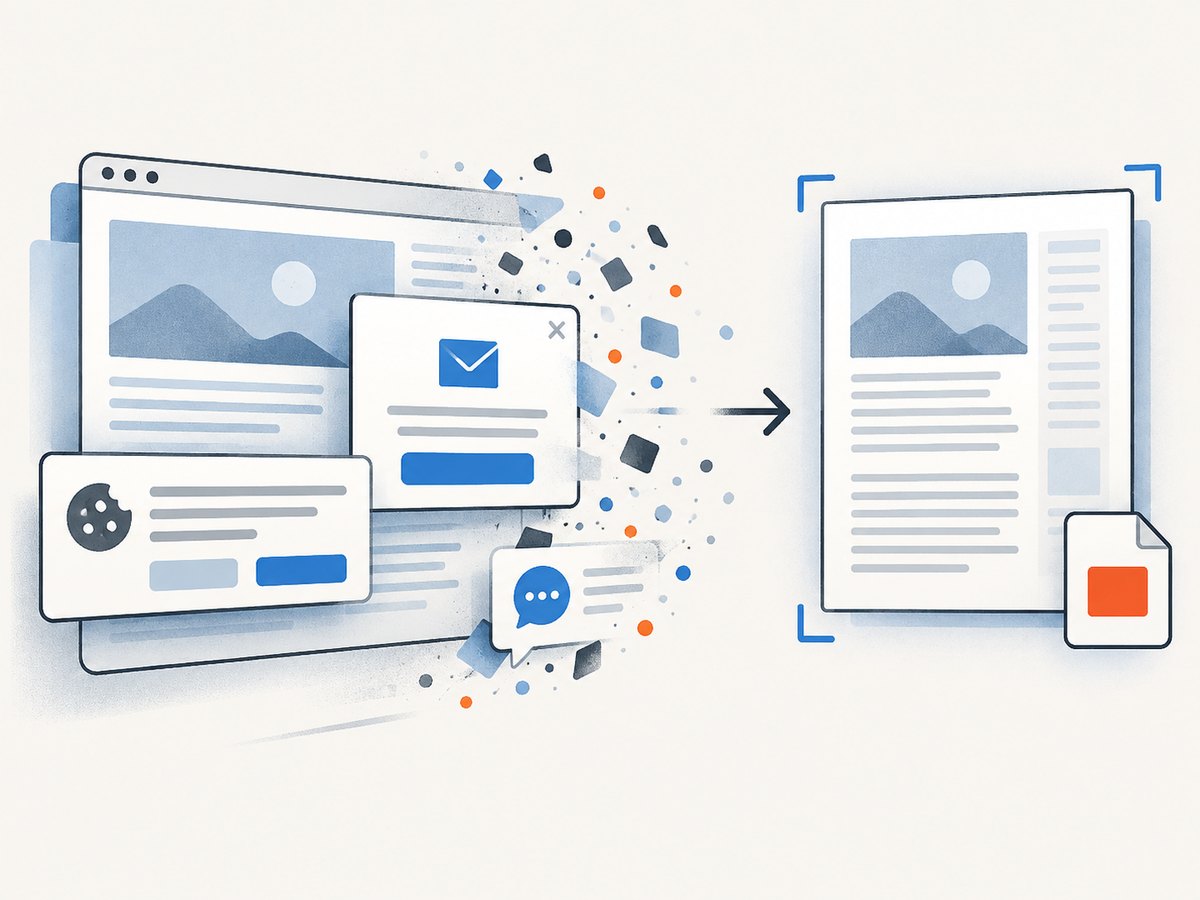
Only clean shots are billed. Bot checks or CAPTCHAs, blank pages, timeouts, failed loads, and cache hits cost nothing, and the response identifies the result with X-Page-Verdict and X-Billed headers. An MCP server provides take_screenshot, get_page_info, and capture_pdf tools for Claude, Cursor, and other MCP clients.
See the ScreenshotNeo documentation for the complete option list and PDF parameters.
curl -G "https://api.screenshotneo.com/v1/shot" -d access_key=YOUR_API_KEY --data-urlencode url=https://stripe.com -o shot.webpimport requests
r = requests.get("https://api.screenshotneo.com/v1/shot", params={"access_key": "YOUR_API_KEY", "url": "https://stripe.com"}, timeout=90)
open("shot.webp", "wb").write(r.content)const q = new URLSearchParams({ access_key: 'YOUR_API_KEY', url: 'https://stripe.com' });
const res = await fetch(`https://api.screenshotneo.com/v1/shot?${q}`);ScreenshotNeo includes every feature on every plan. The Free plan includes 1,000 shots per month with no card; paid plans start at $5 for 3,000 shots. Create a free ScreenshotNeo account.
FAQ
Should I use millimeters or inches?
Use millimeters for A4 margins and layout because the paper specification is metric. Inches are also valid when required by an API.
Does page.pdf() use screen CSS?
No. Puppeteer and Playwright use print CSS by default. Select screen media only when that is deliberate.
Can every element be kept on one page?
No. An element taller than the printable area must split. Design oversized tables, code blocks, and images to paginate.
Why does the same HTML produce different PDFs?
Browser versions, installed fonts, operating systems, locale, network timing, and JavaScript readiness can all change layout. Pin the rendering environment and wait for assets.
When should I choose an API instead of running Chromium?
Use an API when you want a managed capture path, consent and popup cleanup, usage billing, or MCP tools for AI agents without maintaining browser infrastructure.


