Render HTML to Image in C#/.NET Without WebBrowser
Render modern HTML as an image in C# without the legacy WebBrowser control. Use Playwright, PuppeteerSharp, or WebView2 based on where your app runs.
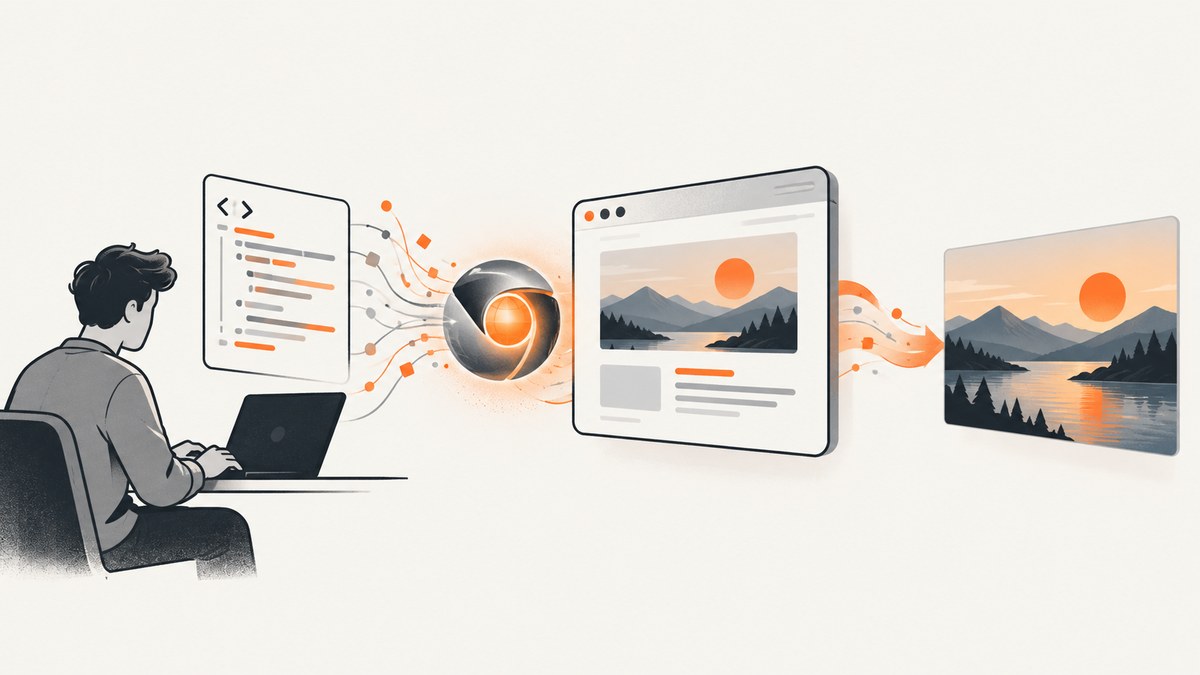
To render HTML to an image in C# without the legacy WebBrowser control, automate a modern browser engine. For headless services, CI, and command-line jobs, start with Playwright for .NET: load a URL or HTML string, set the viewport, wait for the content you need, then save a screenshot. PuppeteerSharp is another Chrome/Chromium automation option. For a Windows desktop app that already embeds web content, use WebView2, which renders with Edge Chromium.
The important distinction is where rendering happens. Playwright and PuppeteerSharp launch or connect to a browser for automation; WebView2 is a UI control hosted inside a Windows application. Browser installation, readiness, and capture dimensions are part of the implementation whichever route you choose.
1. Choose the rendering route
| Approach | Best fit | What to account for |
|---|---|---|
| Playwright .NET | Headless rendering, CI, services, screenshots as files or bytes, full-page or element capture. | Install matching browser binaries and OS dependencies for deployment. Branded Chrome or Edge can be used when installed, but Playwright does not install them by default. |
| PuppeteerSharp | .NET codebases using a Puppeteer-style API to drive Chrome or Chromium. | Provision a browser and its runtime environment. Check the package documentation for the target .NET version and platform, especially Linux deployments. |
| WebView2 | Windows desktop applications that already display or edit web content. | Distribute or rely on the WebView2 Runtime, and interact with the control on its UI thread under an STA model. It is not a generic headless renderer. |
For most server-side HTML-to-image jobs, begin with Playwright. It has documented screenshot output to a path or byte array, full-page capture, and locator screenshots. Choose WebView2 when the screenshot should come from an existing desktop view. The available sources do not establish a performance winner, so choose by deployment and integration needs, then measure your own workload.
2. Render HTML with Playwright for .NET
Install the Playwright .NET package in your project, then install its matching browser. The browser binaries are separate deployment assets: include the browser installation step in your development and CI setup, and verify that the target operating system has the required dependencies. Consult the official Playwright for .NET installation guide and browser documentation for the commands and platform details that match your package version.
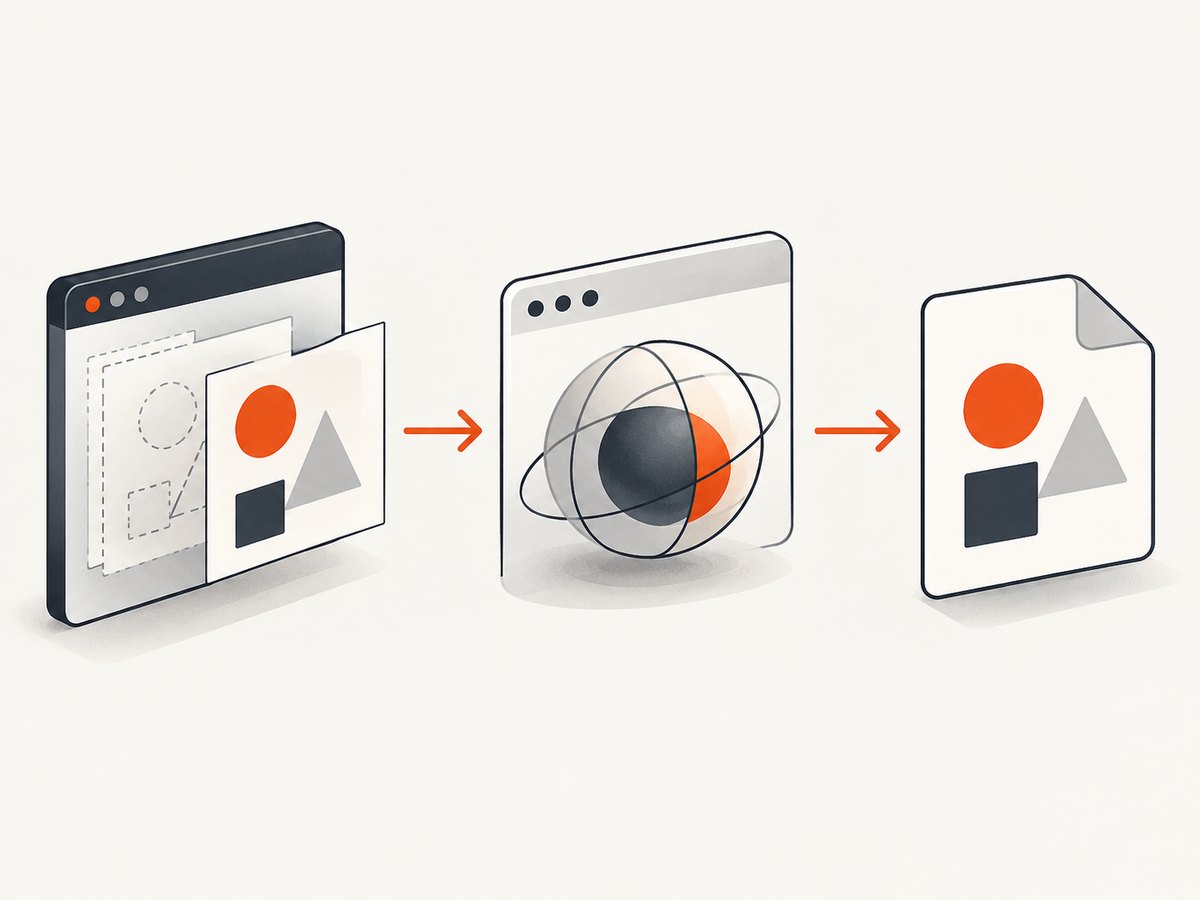
The following console program renders a self-contained HTML string to a PNG file. It sets a fixed viewport so the output dimensions are predictable, waits for fonts, and disposes the browser. The API calls follow the Playwright .NET screenshot and browser lifecycle model; verify package-version-specific signatures when upgrading.
using Microsoft.Playwright;

const int width = 1200;
const int height = 800;

using var playwright = await Playwright.CreateAsync();
await using var browser = await playwright.Chromium.LaunchAsync(
    new BrowserTypeLaunchOptions { Headless = true });

var page = await browser.NewPageAsync(new BrowserNewPageOptions
{
    ViewportSize = new ViewportSize { Width = width, Height = height },
    DeviceScaleFactor = 1
});

var html = """
<!doctype html>
<html>
<head>
  <meta charset="utf-8">
  <style>
    body { font: 24px sans-serif; margin: 40px; color: #18202b; }
    .card { padding: 32px; border: 1px solid #ccd3dc; border-radius: 16px; }
  </style>
</head>
<body>
  <section class="card"><h1>Rendered from .NET</h1>
  <p>A browser engine turns this HTML into pixels.</p></section>
</body>
</html>
""";

await page.SetContentAsync(html, new PageSetContentOptions
{
    WaitUntil = WaitUntilState.Load
});
await page.EvaluateAsync("() => document.fonts.ready");

await page.ScreenshotAsync(new PageScreenshotOptions
{
    Path = "rendered.png",
    Type = ScreenshotType.Png
});

await browser.CloseAsync();
The example uses inline CSS, so it does not depend on external files or a network request. To render a remote page instead, replace SetContentAsync with GotoAsync(url) and choose an explicit navigation wait state. For an HTML string that references local assets, ensure the browser can access those files; for production, prefer controlled asset URLs or a local server with an intentional origin and access policy.
Return bytes instead of writing a file
When the next step uploads an image, stores it in object storage, or returns it from an API, keep the screenshot in memory. Playwright returns image bytes when no path is specified:
byte[] png = await page.ScreenshotAsync(new PageScreenshotOptions
{
    Type = ScreenshotType.Png
});

// Example: pass png to your storage or HTTP response code.
Keep an eye on image size when capturing large pages at high scale. A byte array is convenient, but it occupies process memory until released; stream or persist results promptly in a high-throughput service.
3. Capture a URL, a whole page, or one element
A URL screenshot uses the same browser setup. Navigate first, wait for the state your page requires, and then capture. Load waits for the load event; modern pages may continue fetching or rendering afterward, so it does not guarantee that a particular widget, chart, or client-side application is ready. Wait for a meaningful selector or application-specific signal when correctness matters.
await page.GotoAsync("https://example.com", new PageGotoOptions
{
    WaitUntil = WaitUntilState.Load,
    Timeout = 30_000
});
await page.Locator("main").WaitForAsync();
await page.ScreenshotAsync(new PageScreenshotOptions { Path = "page.png" });
To capture the entire scrollable document, use FullPage. To capture a component, use a locator screenshot so unrelated page content is excluded:
await page.ScreenshotAsync(new PageScreenshotOptions
{
    Path = "whole-page.png",
    FullPage = true
});

await page.Locator(".invoice").ScreenshotAsync(new LocatorScreenshotOptions
{
    Path = "invoice.png"
});
Full-page screenshots can be much taller than the viewport and use more memory. Lazy-loaded images may not appear until scrolled into view; if they matter, scroll through the page or trigger the site’s loading behavior before capturing, then wait for the image elements you need. Element captures can fail when a locator matches nothing, is hidden, or is covered by an overlay. Wait for the target and handle the page’s consent or modal state deliberately.
Control layout and visual output
Use a fixed viewport for stable layout. Playwright’s device scale factor controls the pixel density relative to CSS pixels: a higher value produces more output pixels and larger files. Set a dark color scheme when the page should render in dark mode. You can also emulate a device profile when mobile layout is required; device presets bundle viewport and related emulation properties. Keep these choices explicit so output does not vary with the machine running the code.
var page = await browser.NewPageAsync(new BrowserNewPageOptions
{
    ViewportSize = new ViewportSize { Width = 390, Height = 844 },
    DeviceScaleFactor = 2,
    IsMobile = true,
    HasTouch = true,
    ColorScheme = ColorScheme.Dark
});
Other useful screenshot controls include image type (PNG, JPEG, or supported formats in the installed version), JPEG quality, a page background override, and clipping to a rectangle. Check the Playwright screenshot guide for the exact options available in your version. Transparent output requires a transparent page background and a format that preserves alpha, such as PNG. JPEG has no transparency and is often smaller for photographic content at an acceptable quality setting.
4. Use PuppeteerSharp as an alternative
PuppeteerSharp controls Chrome or Chromium over the DevTools Protocol. Install the NuGet package, fetch or provision a compatible browser as described by the package documentation, then launch it, set a viewport, load HTML, and take a screenshot. A typical flow looks like this:
using PuppeteerSharp;

var fetcher = new BrowserFetcher();
await fetcher.DownloadAsync();

await using var browser = await Puppeteer.LaunchAsync(new LaunchOptions
{
    Headless = true
});
await using var page = await browser.NewPageAsync();
await page.SetViewportAsync(new ViewPortOptions
{
    Width = 1200,
    Height = 800,
    DeviceScaleFactor = 1
});

await page.SetContentAsync("<html><body><h1>Hello from PuppeteerSharp</h1></body></html>");
await page.WaitForSelectorAsync("h1");
await page.ScreenshotAsync("rendered.png");
Package and browser-fetcher APIs evolve. Consult the current PuppeteerSharp examples and NuGet package page for the installed release’s exact API and supported platforms. The browser still needs to exist in the deployment environment; fetching it at every application start adds network dependence and startup work, so provision it during image or machine setup where practical.
5. When WebView2 is the right choice
Microsoft describes WebView2 as embedding web content with the Microsoft Edge Chromium rendering engine. It is a modern option for Windows desktop applications that need to display web content alongside native UI. The legacy WebBrowser control uses Internet Explorer technology and is not suitable for many modern sites; see Microsoft’s WebView2 background.
WebView2 is useful when the user is already looking at the rendered content and a screenshot should reflect that same view. Its runtime must be available, and control interaction belongs on the UI thread in an STA application model. That threading and lifecycle make it a different fit from a background rendering worker. Start with Microsoft’s WebView2 in WinUI 3 guidance for runtime distribution and control setup.
If a WebView2 instance is already running and you need automation, Playwright documents attaching over the Chrome DevTools Protocol (CDP): enable a remote debugging port for that instance, then connect with Chromium.ConnectOverCDPAsync. Treat this as a specialized integration path; ordinary Playwright screenshots do not require WebView2. See the Playwright WebView2 guide.
6. Readiness, reliability, and deployment
A screenshot is only as correct as the page state at capture time. Pick a readiness condition based on the page, not a universal delay:
- For static local HTML: set content, wait for document load, then wait for fonts if typography matters.
- For a server-rendered URL: wait for the navigation event and a key element.
- For a client-rendered app: wait for an app-specific ready selector or state. Network idle can be misleading on pages with analytics, polling, or long-lived connections.
- For images and charts: check that required resources have loaded and that the component has finished layout before capture.
Use explicit timeouts and log the URL, browser version, viewport, and failed readiness condition when a job fails. Close pages and browsers deterministically, and reuse a browser process for multiple jobs when your architecture allows it; create isolated contexts or pages where requests need separate cookies or storage. Do not share mutable page state between concurrent jobs. Bound concurrency to available CPU and memory, since each page performs real browser rendering.
In CI or containers, install the browser for the same OS image that runs the application, verify required system libraries, and test a real capture on that target. Browser auto-updates can change rendering, so pin package/browser versions when reproducible output matters. External pages can change, block automation, require authentication, or load third-party resources slowly; for predictable output, render controlled HTML and assets. The research sources provide no benchmark that supports a general speed comparison among these approaches.
7. Troubleshooting common failures
| Symptom | Likely cause | Fix |
|---|---|---|
| Browser executable not found | Playwright’s browser install step was skipped, or the runtime path differs in deployment. | Run the documented install step for the package version and target OS; include browser assets in the deployment setup. |
| Launch fails in Linux/container | Missing system dependencies, sandbox constraints, or incorrect browser provisioning. | Use the Playwright browser installation guidance for the OS image; inspect launch logs and verify the container has required libraries and permissions. |
| Blank or incomplete screenshot | Capture happened before client rendering, fonts, images, or a target selector was ready. | Wait for a meaningful selector or app-ready condition; await fonts and required images; avoid treating a fixed sleep as proof of readiness. |
| Navigation timeout | Slow site, blocked request, never-ending network activity, or an unsuitable wait state. | Set a realistic timeout, use a suitable navigation event, then wait for the specific content needed. Check reachability and authentication from the deployment host. |
| Screenshot dimensions differ | Viewport, device scale factor, responsive breakpoint, or full-page setting differs. | Set viewport and scale explicitly; record them with the output. Remember CSS pixel dimensions and raster pixel dimensions differ when scale is above one. |
| Element screenshot fails | Selector matches zero elements, element is not visible, or an overlay intercepts/obscures it. | Wait for the locator, verify it is visible, and handle overlays before screenshotting. |
| WebView2 access/thread exception | Control called off its UI thread or application thread model is wrong. | Marshal calls to the UI thread and follow the host framework’s STA and WebView2 lifecycle requirements. |
8. Cost and performance considerations
Self-hosted browser automation has no per-screenshot API charge in the code shown, but it is not cost-free to operate: budget for CPU and memory, browser storage and installation, deployment maintenance, and engineering time for readiness and failures. Larger viewports, high device scale, and full-page captures increase output pixels and can increase memory and file size. Reusing a browser can avoid repeated startup work, while isolated contexts help prevent state leakage; profile this with your own pages and concurrency.
For a managed API, ScreenshotNeo is a website screenshot API and MCP server from Yorker Media. It accepts a URL in one GET request and returns PNG, JPEG, WebP, or PDF. Its clean-shot flow accepts consent banners like a visitor and removes more than 60 known consent platforms, newsletter popups, and chat widgets; those steps can be turned off. Only clean shots are billed: bot checks, CAPTCHAs, blank pages, timeouts, failed loads, and cache hits cost nothing, with verdict and billing information in response headers. Features are available on every plan. Current listed pricing is free for 1,000 shots per month with no card, then $5 for 3,000, $15 for 15,000, $39 for 60,000, $99 for 250,000, or $249 for 1,000,000; yearly billing gives two months free. Use the product’s site for the current details: ScreenshotNeo.
Or skip the browser setup
For a URL capture, call the ScreenshotNeo API directly. See the API documentation for parameters and response details.
curl -G "https://api.screenshotneo.com/v1/shot" \
  -d access_key=YOUR_API_KEY \
  --data-urlencode url=https://stripe.com \
  -o shot.webp
import requests
r = requests.get(
"https://api.screenshotneo.com/v1/shot",
params={"access_key": "YOUR_API_KEY", "url": "https://stripe.com"},
timeout=90,
)
open("shot.webp", "wb").write(r.content)const q = new URLSearchParams({
access_key: 'YOUR_API_KEY',
url: 'https://stripe.com'
});
const res = await fetch(`https://api.screenshotneo.com/v1/shot?${q}`);
if (!res.ok) throw new Error(`Screenshot request failed: ${res.status}`);
await Bun.write('shot.webp', new Uint8Array(await res.arrayBuffer()));Cookie banners, popups, and chat widgets are removed before the shot. Bot checks, blank pages, and failed loads are never billed. An MCP server lets AI agents use take_screenshot, get_page_info, and capture_pdf. The free plan includes 1,000 screenshots a month with no card; paid plans start at $5 for 3,000. Create a free ScreenshotNeo account to get started.
FAQ
Can I render HTML that is not hosted at a URL?
Yes. Set the page’s HTML content directly, as in the Playwright and PuppeteerSharp examples. Make sure linked stylesheets, fonts, and images are reachable by the browser.
Should I use a server-side browser or WebView2?
Use Playwright or PuppeteerSharp for headless jobs and automation. Use WebView2 when a Windows desktop application needs an embedded Edge-based view or a capture of its existing UI.
Will a screenshot always look identical across machines?
Not automatically. Browser version, operating system fonts, device scale, page state, and external resources can affect pixels. Pin the browser environment and control assets when repeatability matters.
Can I use this for PDFs too?
Browser automation can produce PDFs as a separate output workflow, but this article focuses on raster images. ScreenshotNeo’s API also returns PDF, with its PDF options documented on the product site.


