How to Render HTML to PNG Images
Learn how to render HTML in a real browser and save crisp PNG screenshots with Playwright, Puppeteer, or ScreenshotNeo.
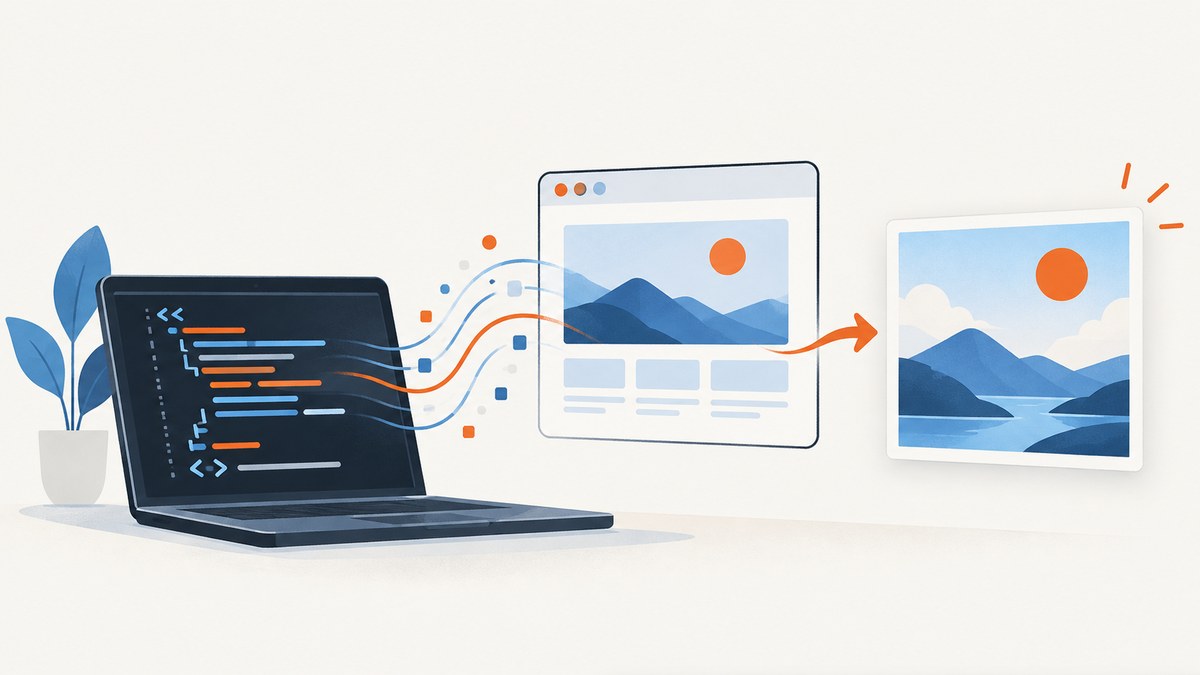
To render HTML to a PNG, load the HTML in a browser context and call the browser’s screenshot API. The browser evaluates CSS, JavaScript, fonts, images and layout before encoding the rendered pixels as PNG. For a local or server-side workflow, Playwright and Puppeteer are the two practical JavaScript choices. For a hosted endpoint, ScreenshotNeo can perform the browser capture from one HTTP request.
This guide covers viewport, full-page and element captures; transparent backgrounds; files versus in-memory bytes; timing and lazy content; authentication; reliability; troubleshooting; and production cost decisions.
1. What “render HTML to PNG” means
HTML itself is markup, not an image format. A browser turns that markup into a document tree, applies CSS, runs scripts, downloads assets and paints the result. Rendering to PNG means asking that browser to capture the painted result and encode it as a PNG file.
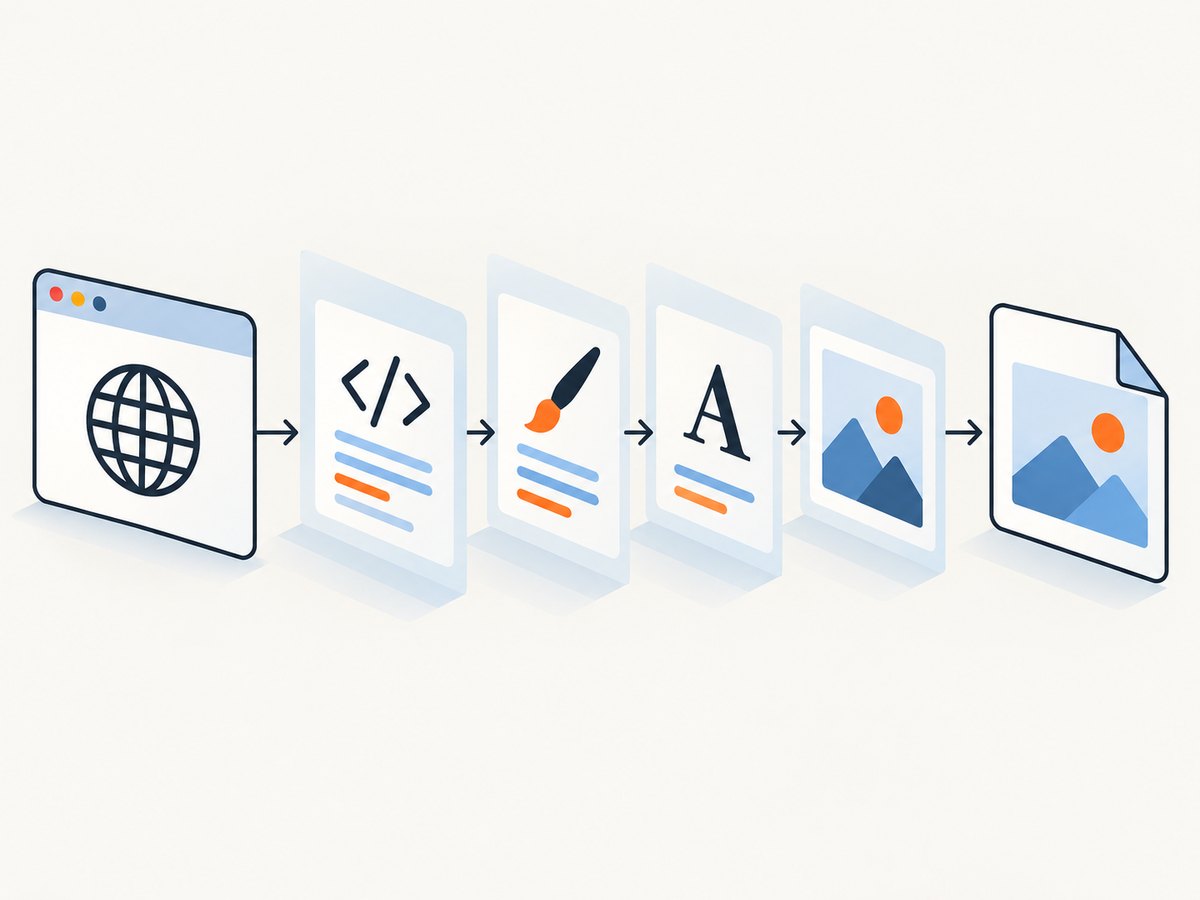
A browser screenshot is therefore different from converting tags with a string parser. It can include responsive layout, web fonts, SVG, canvas, animations at their current frame and content created by JavaScript. It can also capture failures: a blocked resource, an unhandled exception or a page that has not finished loading.
2. Choose the capture scope and output
| Goal | Typical setting | Notes |
|---|---|---|
| Visible viewport | Default screenshot | Captures the portion currently visible in the page. |
| Entire scrollable page | fullPage: true |
Includes content below the fold; very tall pages can produce large files. |
| One component | Screenshot a locator or element | Useful for cards, charts, invoices and product previews. |
| Transparent PNG | omitBackground: true |
Use PNG; transparency does not apply to JPEG. |
| Further processing | Return bytes/buffer | Send to object storage, resize it or attach it to another response without a temporary file. |
Playwright documents page navigation, screenshot configuration and full-page capture in its Page API and screenshots guide. Puppeteer documents the comparable Page.screenshot method.
3. Render a URL with Playwright
Install Playwright and its browser binaries:
npm install playwright
npx playwright install chromium
Create render.js:
const { chromium } = require('playwright');

(async () => {
  const browser = await chromium.launch();
  const page = await browser.newPage({
    viewport: { width: 1440, height: 900 },
    deviceScaleFactor: 1
  });

  await page.goto('https://example.com', { waitUntil: 'networkidle' });
  await page.screenshot({ path: 'screenshot.png', type: 'png' });
  await browser.close();
})();
Run it with node render.js. The documented basic pattern is launch a browser, create a page, navigate, save a screenshot and close the browser.
Full page, transparent background and bytes
const { chromium } = require('playwright');
const fs = require('node:fs/promises');

(async () => {
  const browser = await chromium.launch();
  const page = await browser.newPage({ viewport: { width: 1280, height: 800 } });
  await page.goto('https://example.com', { waitUntil: 'domcontentloaded' });

  const png = await page.screenshot({
    type: 'png',
    fullPage: true,
    omitBackground: true
  });
  await fs.writeFile('full-page.png', png);
  await browser.close();
})();
When returning bytes, keep the buffer in memory only as long as needed. For very tall documents, stream or store the result rather than retaining many captures in one process.
Capture one element
const card = page.locator('[data-testid="invoice-card"]');
await card.waitFor();
await card.screenshot({ path: 'invoice-card.png', type: 'png' });
Element screenshots are useful when surrounding navigation, ads or page chrome should not appear. Use a stable selector owned by your application, and wait for the element to be visible and populated.
4. Render HTML with Puppeteer
Install Puppeteer:
npm install puppeteerconst puppeteer = require('puppeteer');
(async () => {
const browser = await puppeteer.launch();
const page = await browser.newPage();
await page.setViewport({ width: 1440, height: 900, deviceScaleFactor: 1 });
await page.goto('https://example.com', { waitUntil: 'networkidle0' });
await page.screenshot({ path: 'screenshot.png', type: 'png' });
await browser.close();
})();Puppeteer returns a Uint8Array by default when no path is supplied, or a base64 string when requested. A full-page transparent capture looks like this:
await page.screenshot({
  path: 'page.png',
  fullPage: true,
  omitBackground: true,
  type: 'png'
});
5. Make the capture deterministic
- Set the viewport. A fixed width and height prevents a developer laptop, CI runner and production worker from producing different responsive layouts.
- Choose a readiness condition.
domcontentloadedis quick but may precede images and fonts.networkidlecan be appropriate for static pages, but applications with polling may never become idle. In those cases, wait for a specific selector or application signal. - Wait for the content you need. Use
await page.locator('#report').waitFor(), a short deliberate delay for a known animation, or an application-specific “ready” marker. - Freeze motion when pixels must match. Inject CSS that disables transitions and animations, or capture after the animation reaches a known state.
- Load lazy content intentionally. Full-page capture may reveal content that is lazy-loaded only after scrolling. Scroll in controlled steps or use a page implementation that loads all assets when a capture mode is enabled.
- Control fonts and assets. Wait for
document.fonts.readywhen font layout matters. Confirm that the runner can reach every image, stylesheet and font host.
await page.goto(url, { waitUntil: 'domcontentloaded' });
await page.evaluate(() => document.fonts.ready);
await page.locator('[data-render-ready="true"]').waitFor();
await page.addStyleTag({ content: `*, *::before, *::after {
  animation: none !important;
  transition: none !important;
}` });
await page.screenshot({ path: 'stable.png', fullPage: true });
6. HTML strings, local files and authenticated pages
For an HTML string, use a data URL or set page content. Escaping and resource resolution matter: relative image and stylesheet paths need a base URL.
await page.setContent(`<!doctype html>
<html><body><h1>Invoice</h1></body></html>`, {
  waitUntil: 'networkidle'
});
await page.screenshot({ path: 'html-string.png', type: 'png' });
For a local file, navigate to a file:// URL only when your browser security policy permits it. A small local HTTP server is usually easier when the page uses modules, fonts or relative assets.
For protected pages, establish authentication before capture. Playwright can add cookies, HTTP headers or an authorization state; Puppeteer provides equivalent cookie and extra-header APIs. Keep credentials outside source control, and clear the browser context after each job.
7. Image format and quality decisions
PNG is lossless and preserves sharp text, flat colors and transparency. It can be larger than JPEG for photographic pages. A retina capture uses a higher device scale factor and creates more pixels; resize afterward if a fixed output dimension is required. If the source contains a transparent background, use PNG with omitBackground. JPEG cannot preserve that transparency.
Do not infer a universal performance winner between Playwright and Puppeteer. Pick the library that fits your existing language, deployment image and required capture scope, then measure your own pages.
8. Reliability, performance and cost
- Reuse browsers carefully. Launching Chromium for every request adds startup time. A worker can reuse a browser while creating an isolated context per job. Restart workers periodically to limit leaks from problematic pages.
- Bound every operation. Set navigation and overall job timeouts. Abort or retry transient network failures, but avoid retrying deterministic 404s or application errors indefinitely.
- Limit concurrency. Each browser page consumes CPU and memory. A queue with a measured concurrency limit is safer than spawning unbounded pages.
- Cache when content permits. If the same URL and rendering options are requested repeatedly, cache the resulting bytes with a clear expiration policy.
- Record diagnostics. Store URL, viewport, options, duration, response status and failure reason. A failed capture should be observable without storing sensitive page content.
- Estimate storage and transfer. Full-page and retina PNGs can be large. Compress or resize only after confirming that the output still meets visual requirements.
Self-hosting costs include compute, browser binaries, maintenance and queue capacity. A hosted screenshot API converts that setup into request pricing, which can be preferable when capture volume is variable or browser operations are not part of your product.
9. Or skip the browser setup
ScreenshotNeo provides a hosted browser screenshot API. One GET request returns PNG, JPEG, WebP or PDF. See the ScreenshotNeo API documentation for the complete option list.
curl -G "https://api.screenshotneo.com/v1/shot" -d access_key=YOUR_API_KEY --data-urlencode url=https://stripe.com -o shot.webpimport requests
r = requests.get("https://api.screenshotneo.com/v1/shot", params={"access_key": "YOUR_API_KEY", "url": "https://stripe.com"}, timeout=90)
r.raise_for_status()
open("shot.webp", "wb").write(r.content)const q = new URLSearchParams({ access_key: 'YOUR_API_KEY', url: 'https://stripe.com' });
const res = await fetch(`https://api.screenshotneo.com/v1/shot?${q}`);
if (!res.ok) throw new Error(`Screenshot failed: ${res.status}`);
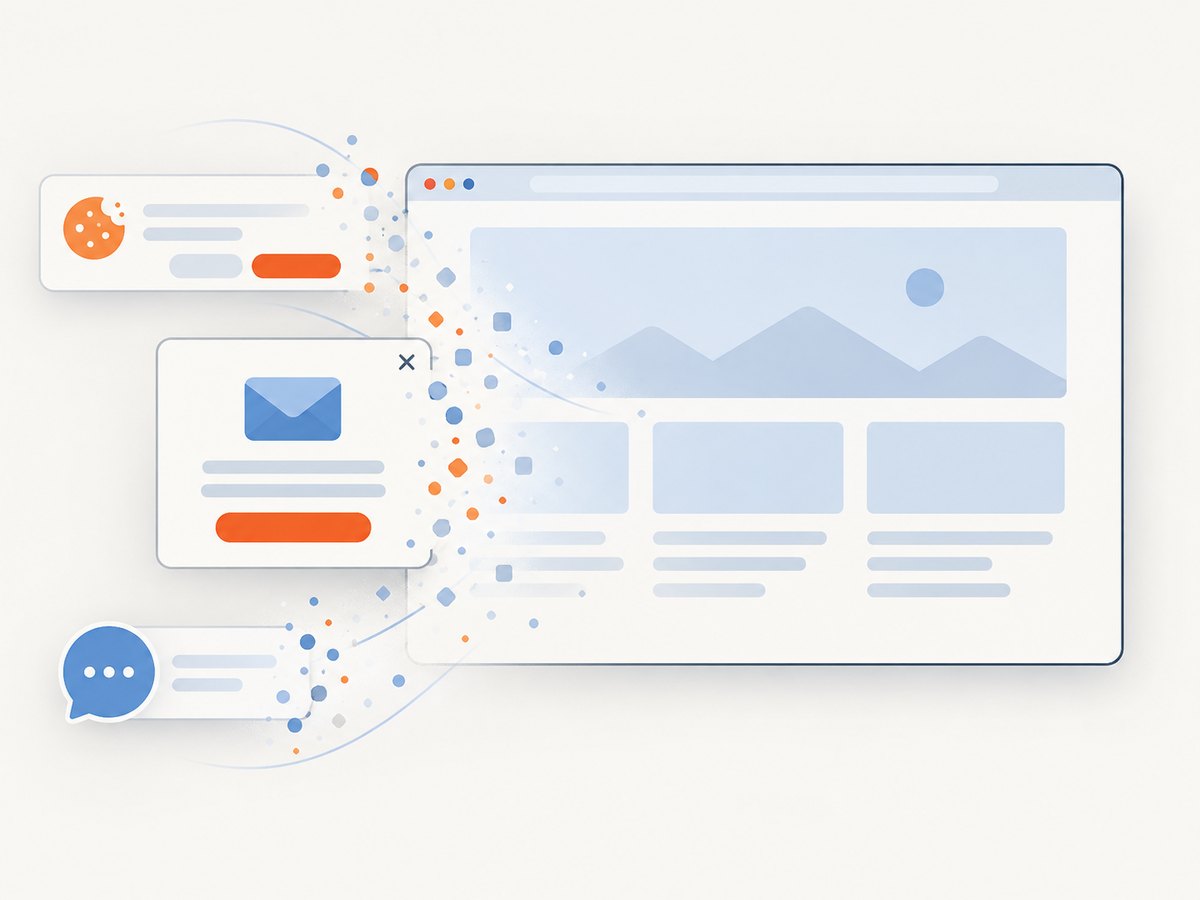
require('node:fs').writeFileSync('shot.webp', Buffer.from(await res.arrayBuffer()));ScreenshotNeo removes cookie and consent banners, newsletter popups and chat widgets before the shot. Bot checks, blank pages, failed loads and cache hits are not billed, and the response identifies the result with X-Page-Verdict and X-Billed headers. It supports full-page and element capture, dark mode, device presets, arbitrary viewports, retina scale, custom CSS and JavaScript, clicks, selector or delay waits, network-idle waits, resource blocking, headers, cookies, user agents, authorization, timezone, geolocation, transparency, resizing, TTL caching, signed image links, asynchronous jobs, signed webhooks, bulk capture for up to 100 URLs per call, usage information and an OpenAPI specification. An MCP server exposes take_screenshot, get_page_info and capture_pdf to Claude, Cursor and other MCP clients.
There is a free plan with 1,000 screenshots per month and no card. Paid plans start at $5 for 3,000 shots; every feature is available on every plan. Create a free ScreenshotNeo account.
10. Troubleshooting common failures
| Symptom | Likely cause | Fix |
|---|---|---|
| Blank or partly blank PNG | Capture ran before content or fonts loaded. | Wait for a ready selector, fonts and required images; inspect console errors. |
| Images missing | Blocked requests, lazy loading or incorrect relative URLs. | Check network access, use an HTTP base URL and scroll or trigger lazy content. |
| Wrong mobile/desktop layout | Viewport or device scale was not specified. | Set width, height and device scale factor explicitly. |
| Full-page output stops early | Content is virtualized or loaded only on scroll. | Use a capture mode that renders all rows, or scroll before taking the screenshot. |
| Timeout on navigation | Long polling, third-party scripts or an unreachable host. | Use a bounded timeout, wait for a specific selector and block nonessential resources. |
| Text wraps differently in CI | Different fonts, browser version or scale factor. | Install or bundle fonts, pin the browser image and fix the viewport. |
| Transparent output is white | Background omission was not enabled, or the page paints a white element. | Use PNG with omitBackground: true and remove the element’s own background. |
| Authentication disappears | Cookies or headers were applied to another context. | Set credentials in the same context and verify them before navigation. |
11. Production checklist
- Pin browser and library versions in deployment.
- Set viewport, scale, color scheme and timezone deliberately.
- Use a readiness selector for dynamic pages.
- Disable animations when pixel consistency matters.
- Set navigation and job timeouts.
- Use isolated contexts for users and credentials.
- Limit concurrent pages and clean up on every exit path.
- Capture diagnostics for failures.
- Validate dimensions, transparency and file size before publishing.
- Keep API keys and cookies in secret storage.
12. FAQ
Can I render HTML without a browser?
You can convert simple, static markup with specialized renderers, but browser screenshots are the dependable choice when CSS layout, JavaScript, fonts or responsive behavior affect the result.
Should I use a screenshot or PDF for an invoice?
Use PNG when you need pixels for a preview or image attachment. Use PDF when selectable text, pagination and printing are requirements.
Why is my PNG larger than expected?
Full-page dimensions, retina scale, photographic images and large transparent areas all increase lossless PNG size. Resize after capture or choose a format suited to the content.
How do I compare two renders?
Fix the browser version, viewport, fonts, timezone and data. Capture both pages with the same readiness condition, then compare pixels or a perceptual image metric.


